> ## Documentation Index
> Fetch the complete documentation index at: https://docs.lynxssp.com/llms.txt
> Use this file to discover all available pages before exploring further.
# Add Creative to Inventory
In a campaign, there will be several ad contents that will be played or placed in one of your inventories. Creative content refers to the ad contents from your clients.
After selecting the inventory for the media plan ([See Select Inventory to Media Plan ↗](/documentation/campaign-management/create/media-plan/inventories/select)), the next step is to enter your client's creative content so that the campaign can be displayed on the inventory. This page helps you understand the creatives tab and enter creative content on the inventory that has been selected in the campaign media plan.
## Accessing Creatives
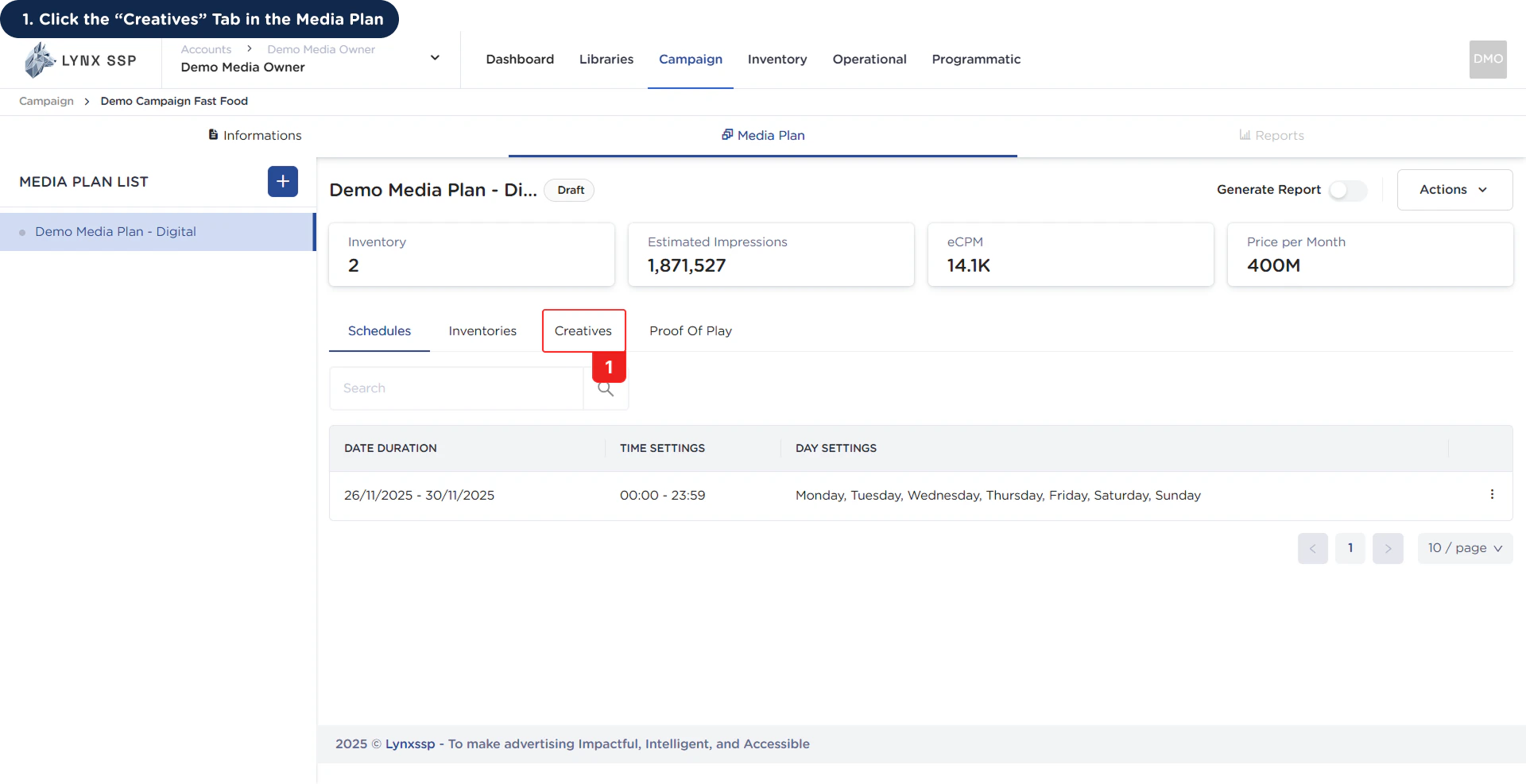 This will display the **Creatives Tab.**
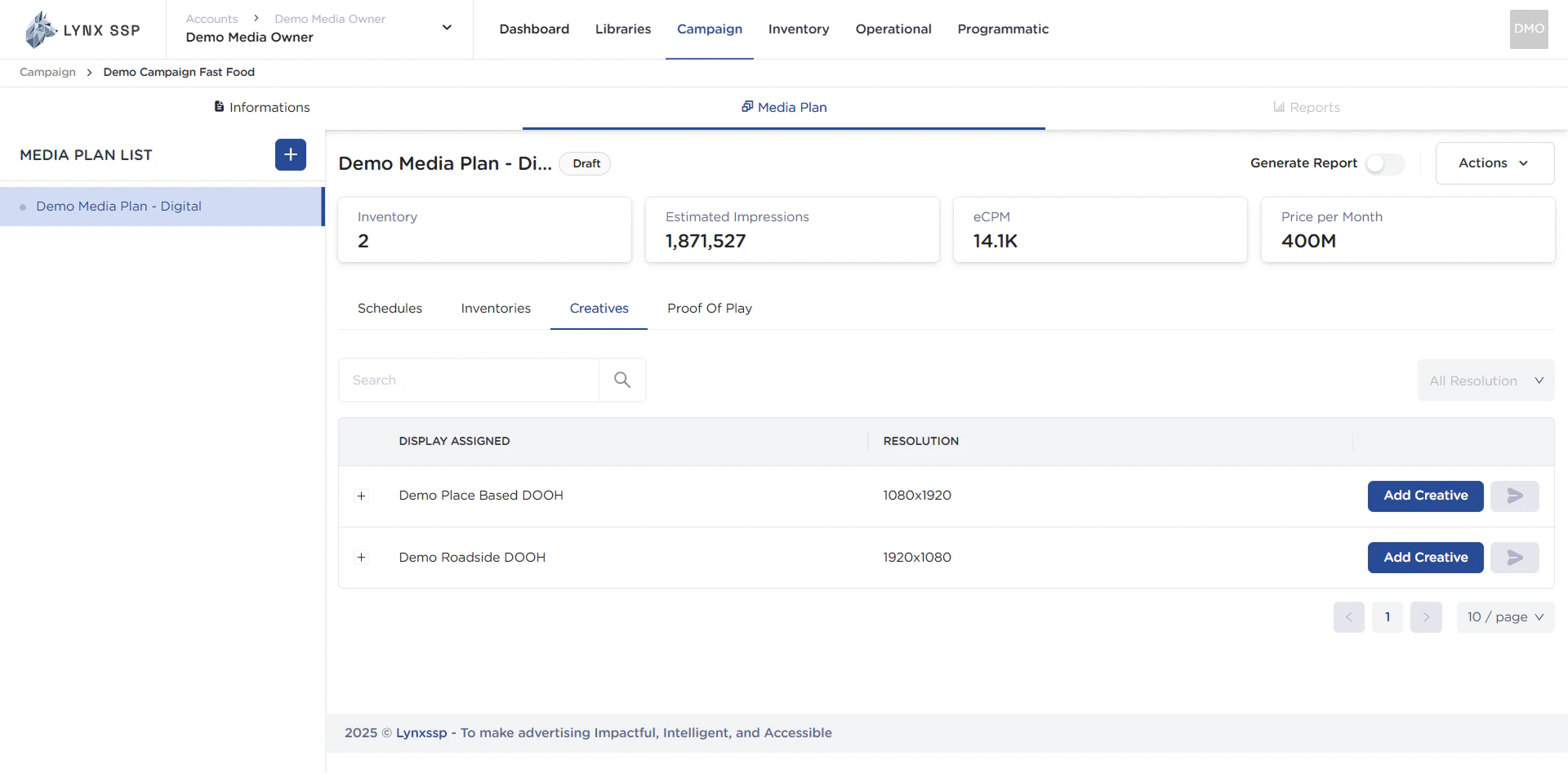 ## Creatives Overview
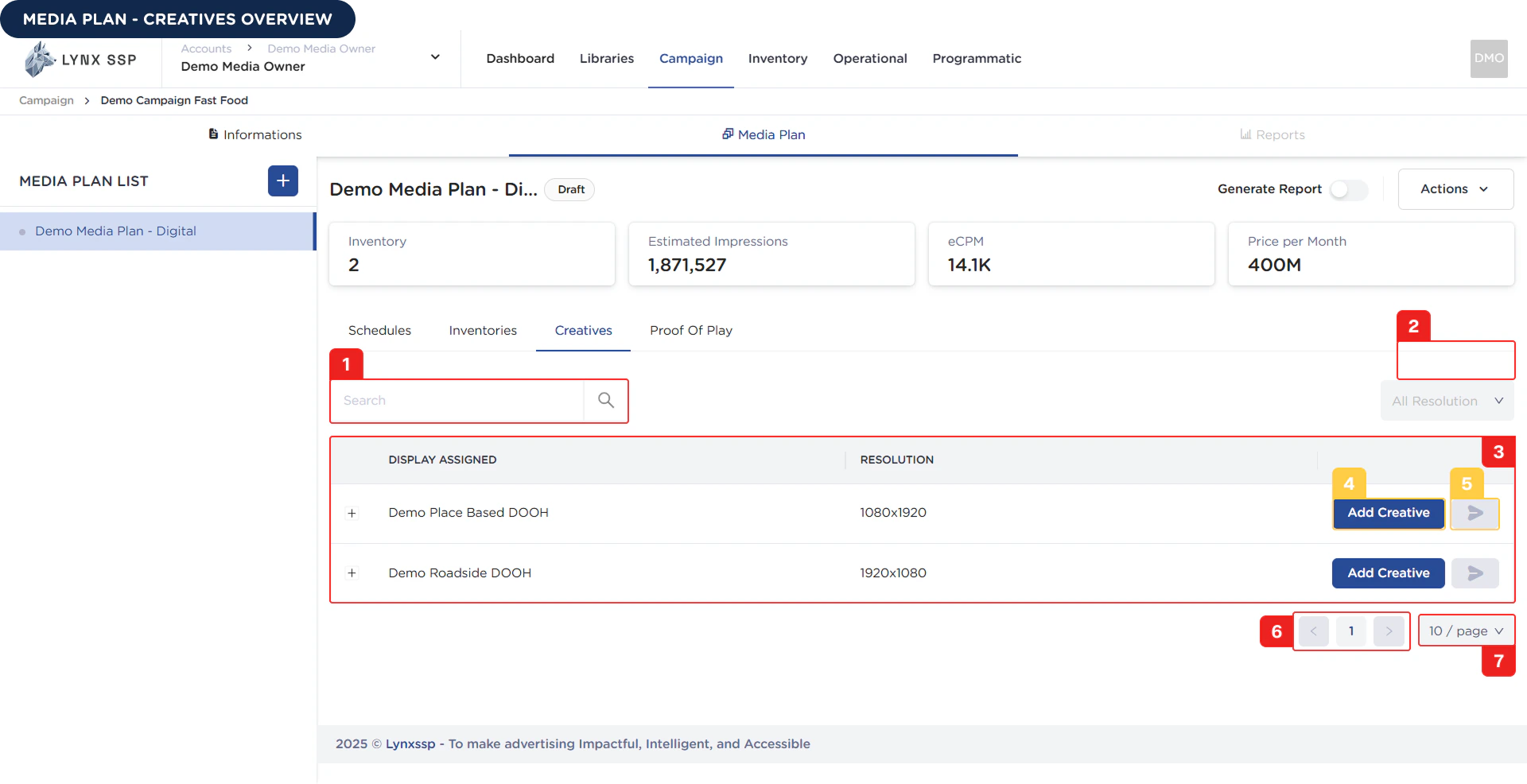 Based on the **Creatives Overview** above, here is an explanation of each section:
### Inventory Search
In this section, you can search for inventory names that have been selected or added to previous media plans..
***
### Filter Inventory by Resolution
You can filter inventory based on its resolution.
***
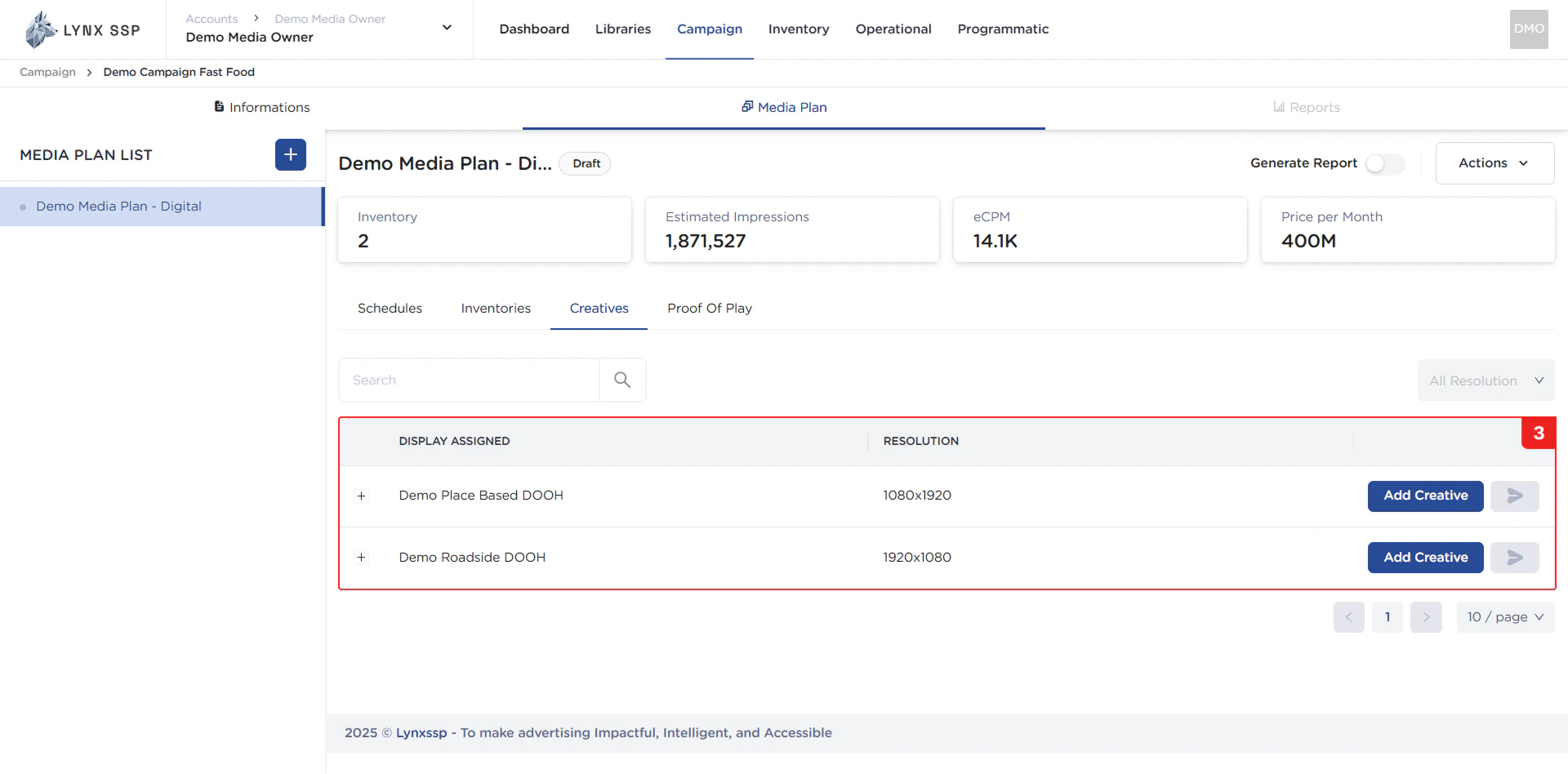
### List of Creative Content for each Inventory
The inventory that appears in this table list corresponds to the inventory you have previously selected ([See Select Inventory to Media Plan ↗](/documentation/campaign-management/create/media-plan/inventories/select)).
Based on the **Creatives Overview** above, here is an explanation of each section:
### Inventory Search
In this section, you can search for inventory names that have been selected or added to previous media plans..
***
### Filter Inventory by Resolution
You can filter inventory based on its resolution.
***
### List of Creative Content for each Inventory
The inventory that appears in this table list corresponds to the inventory you have previously selected ([See Select Inventory to Media Plan ↗](/documentation/campaign-management/create/media-plan/inventories/select)).
 ***
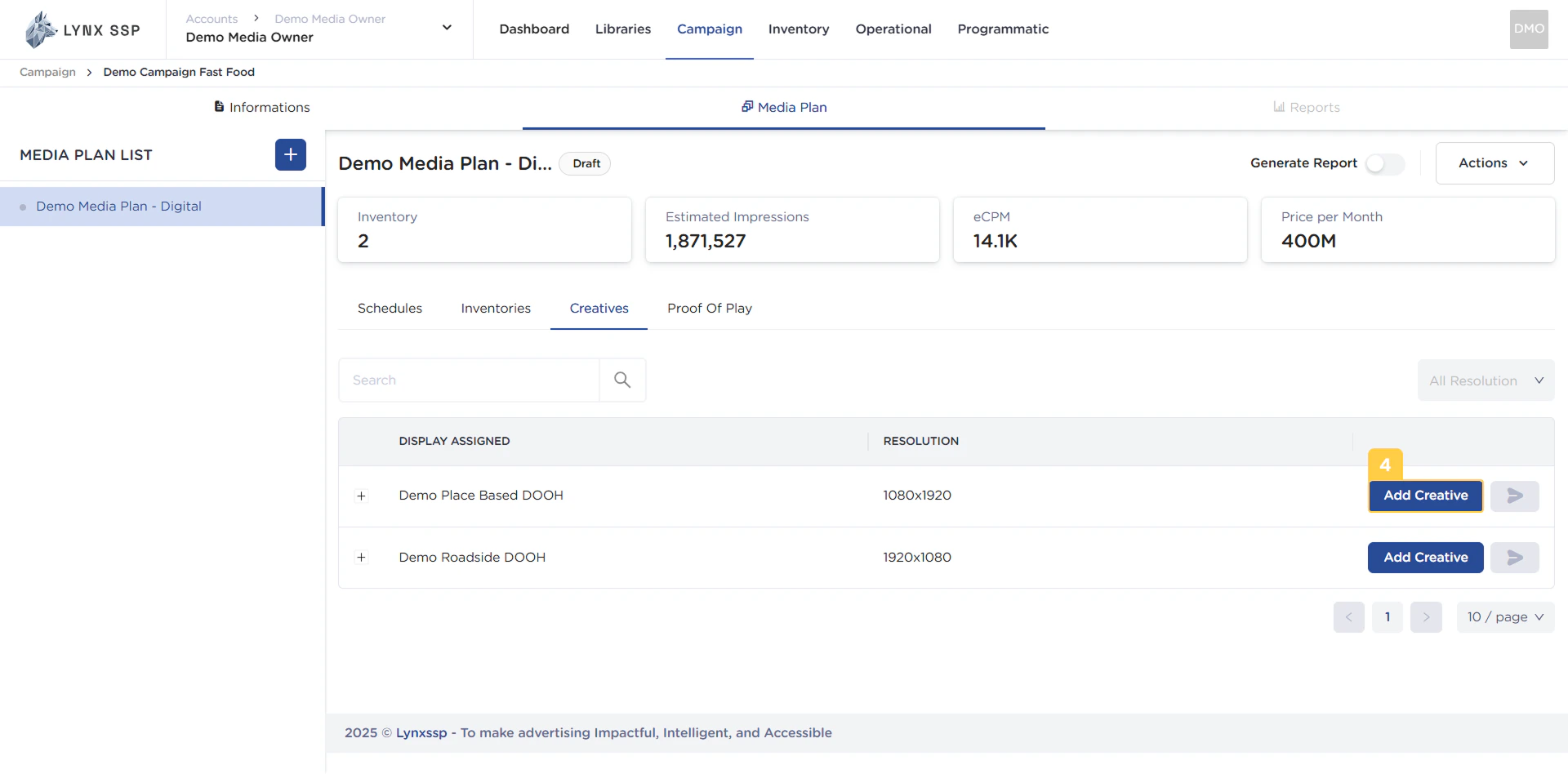
### Add Creative Content Button for each Inventory
To add creative content to a media plan inventory, you can click the **“Add Creative”** button in the inventory table row ([See How to Add Creative to Inventory ↗](/documentation/campaign-management/create/media-plan/creatives/add-to-inventory#how-to-add-creative-to-inventory)).
***
### Add Creative Content Button for each Inventory
To add creative content to a media plan inventory, you can click the **“Add Creative”** button in the inventory table row ([See How to Add Creative to Inventory ↗](/documentation/campaign-management/create/media-plan/creatives/add-to-inventory#how-to-add-creative-to-inventory)).
 ***
### Button to Sent Creative Content to Playlist for each Inventory
This button is used when you want to sent creative content to a media player playlist ([See Sent Creative to Playlist ↗](/documentation/campaign-management/create/media-plan/creatives/sent-to-playlist)).
***
### Button to Sent Creative Content to Playlist for each Inventory
This button is used when you want to sent creative content to a media player playlist ([See Sent Creative to Playlist ↗](/documentation/campaign-management/create/media-plan/creatives/sent-to-playlist)).
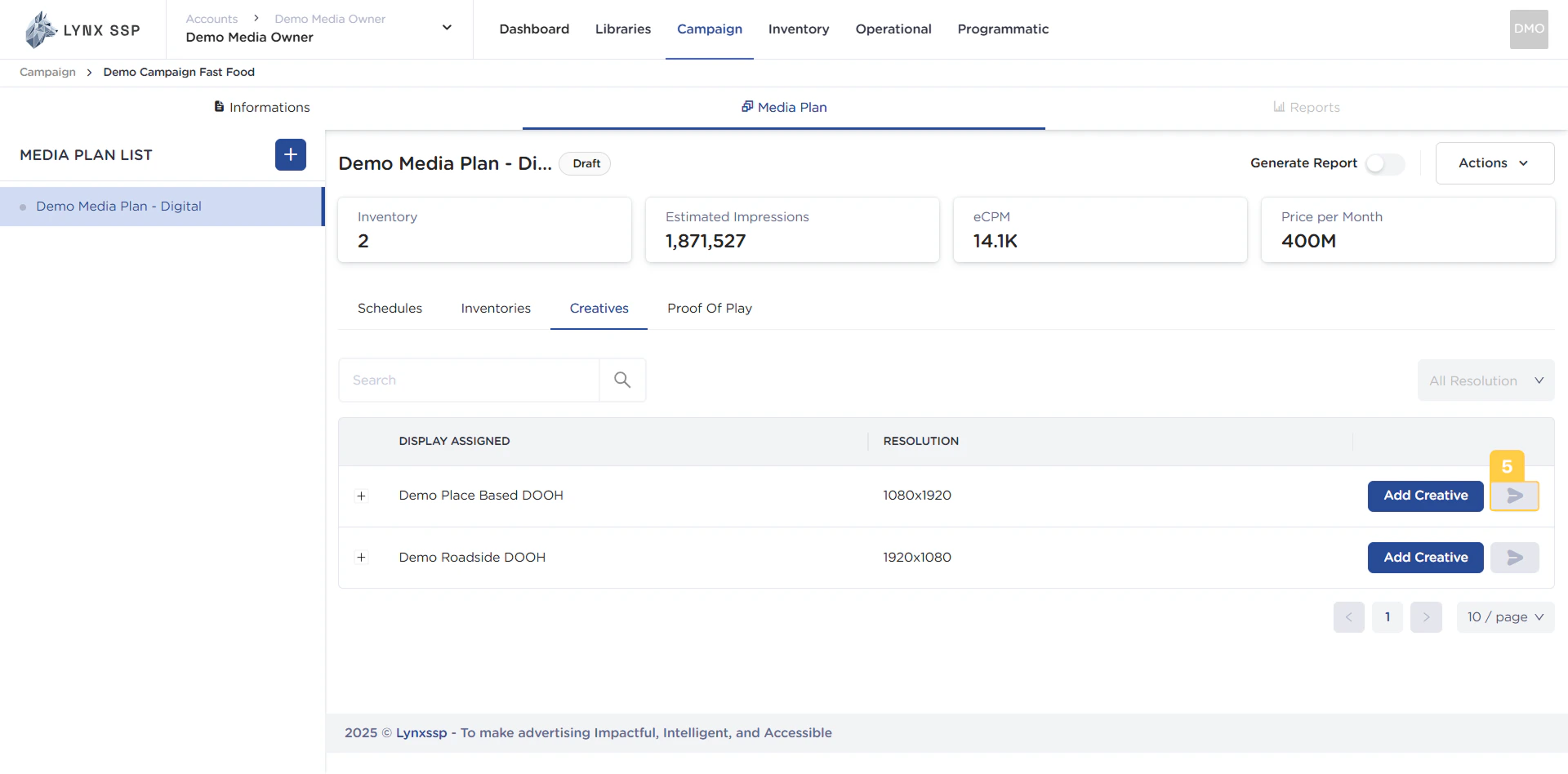 However, if the media plan status is still **“Draft”**, you cannot activate the button. Therefore, you must change the media plan status to **“Launched”** or run the media plan first ([See Launch Media Plan ↗](/documentation/campaign-management/create/media-plan/launch))
***
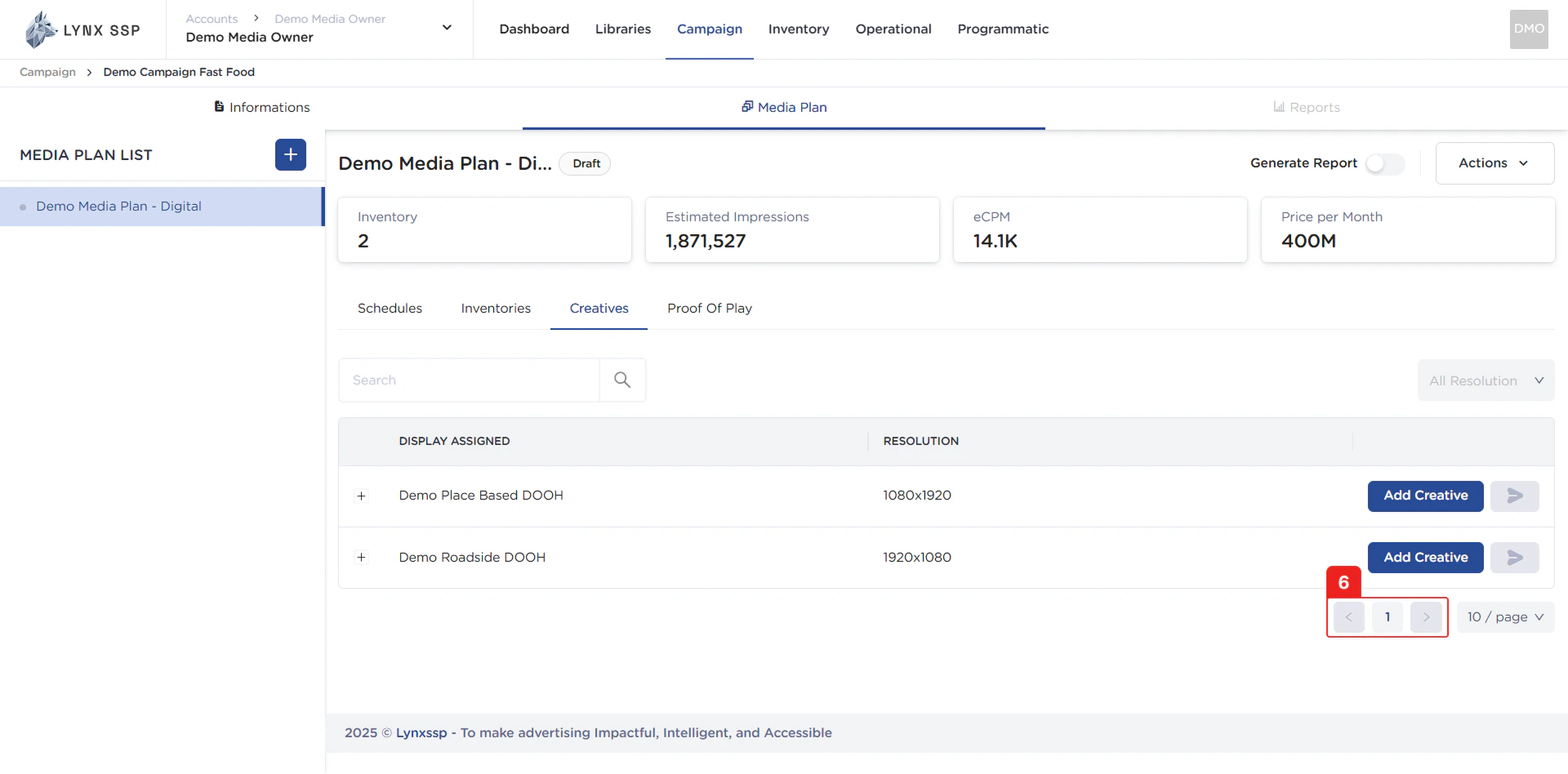
### Pagination
The sequential numbers in the image below are navigation points you can use to go to the next page of the list of creatives.
However, if the media plan status is still **“Draft”**, you cannot activate the button. Therefore, you must change the media plan status to **“Launched”** or run the media plan first ([See Launch Media Plan ↗](/documentation/campaign-management/create/media-plan/launch))
***
### Pagination
The sequential numbers in the image below are navigation points you can use to go to the next page of the list of creatives.
 ***
### Page List
You can change the list of creatives displayed. By default, there are 10 items, and you can change this to 50 or 100.
***
## How to Add Creative to Inventory
When you are choosing creative content for a billboard media plan, there are several types of formats that can be used, some of which are MP4 Video, HTML5 Video, or Vast Tag.
The library is a place where images or videos that you have previously uploaded will appear in this section ([See Media Library ↗](/documentation/creative-management/media-library/overview)).
If the creative content you want is not yet in the list of media in the Media Library, you can upload image or video media in this section.
All images or videos that you upload via this page will automatically be added to the media library list.
If you have creative content in HTML5 format, you can upload the media via this URL Link tab.
All images or videos that you upload via HTML5 will automatically be added to the media library list.
If you are going to use creative content with Vast Tag, you can upload the media through this Vast Tag tab.
If you choose Vast Tag media as creative content for an inventory, that inventory can only have 1 creative content. Vast Tag cannot be mixed with other media formats in 1 inventory.
After adding or entering creative content to each DOOH (Digital-Out-of-Home) inventory in the media plan, by default each creative content has a **“Draft”** status ([See Creative Status ↗](/documentation/campaign-management/create/media-plan/creatives/status)). You can continue by entering the media plan launch ([See Launch Media Plan ↗](/documentation/campaign-management/create/media-plan/launch)) or you can customize the schedule for when the creative content you have added will be displayed ([See Custom Creative Schedule ↗](/documentation/campaign-management/create/media-plan/creatives/custom-schedule)).
***
### Page List
You can change the list of creatives displayed. By default, there are 10 items, and you can change this to 50 or 100.
***
## How to Add Creative to Inventory
When you are choosing creative content for a billboard media plan, there are several types of formats that can be used, some of which are MP4 Video, HTML5 Video, or Vast Tag.
The library is a place where images or videos that you have previously uploaded will appear in this section ([See Media Library ↗](/documentation/creative-management/media-library/overview)).
If the creative content you want is not yet in the list of media in the Media Library, you can upload image or video media in this section.
All images or videos that you upload via this page will automatically be added to the media library list.
If you have creative content in HTML5 format, you can upload the media via this URL Link tab.
All images or videos that you upload via HTML5 will automatically be added to the media library list.
If you are going to use creative content with Vast Tag, you can upload the media through this Vast Tag tab.
If you choose Vast Tag media as creative content for an inventory, that inventory can only have 1 creative content. Vast Tag cannot be mixed with other media formats in 1 inventory.
After adding or entering creative content to each DOOH (Digital-Out-of-Home) inventory in the media plan, by default each creative content has a **“Draft”** status ([See Creative Status ↗](/documentation/campaign-management/create/media-plan/creatives/status)). You can continue by entering the media plan launch ([See Launch Media Plan ↗](/documentation/campaign-management/create/media-plan/launch)) or you can customize the schedule for when the creative content you have added will be displayed ([See Custom Creative Schedule ↗](/documentation/campaign-management/create/media-plan/creatives/custom-schedule)).