> ## Documentation Index
> Fetch the complete documentation index at: https://docs.lynxssp.com/llms.txt
> Use this file to discover all available pages before exploring further.
# Select Inventory
To run a campaign, you will, of course, have several **inventories** or **billboards** that will be used as the media to display or run the advertisements for that campaign. To select or add this inventory, you can do so in the **Inventories** menu.
This page will help you understand the **Inventories Tab** and how to add or select the inventory that a campaign's media plan will use to run the creative advertisements.
## Accessing Inventories
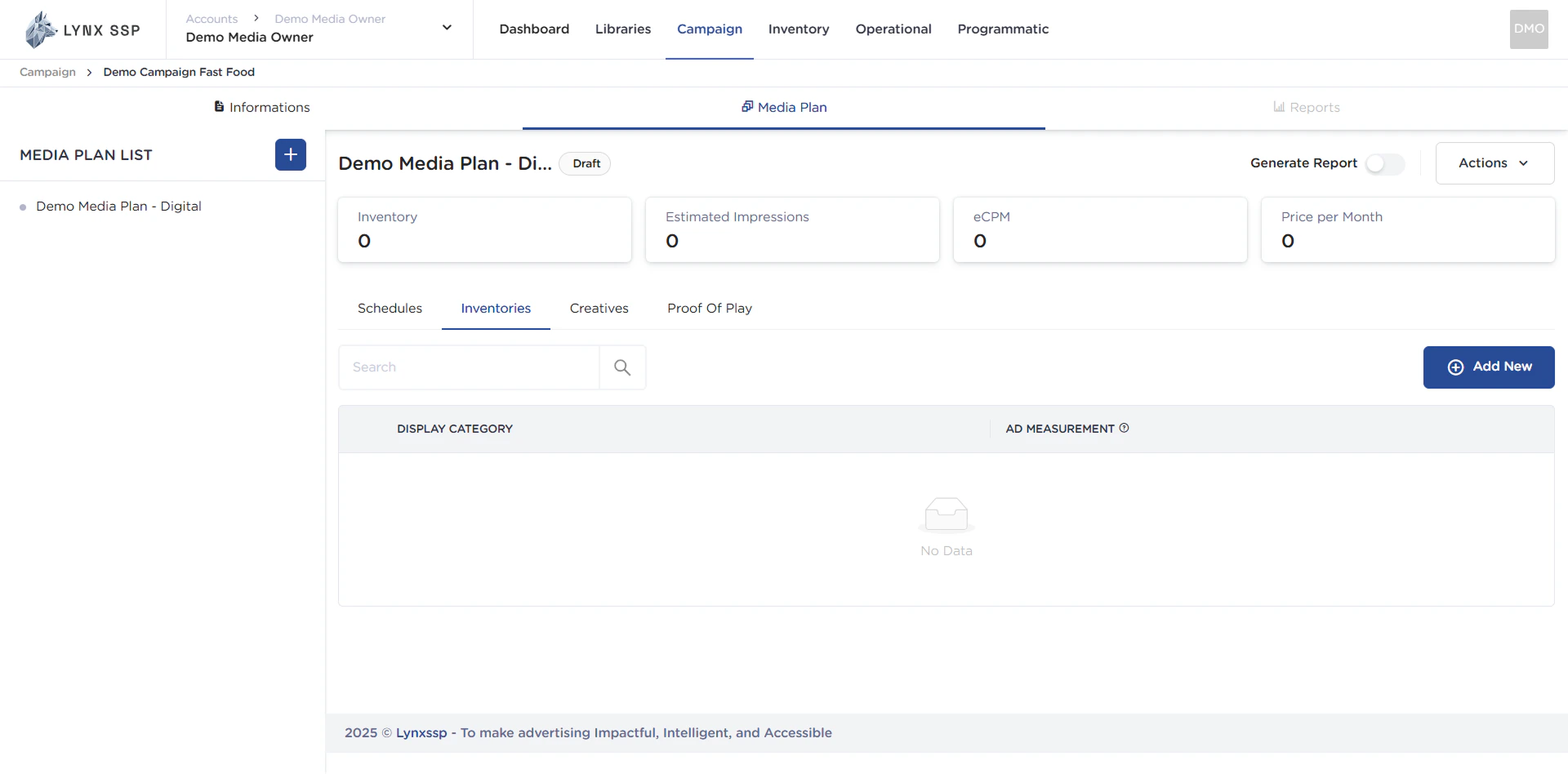
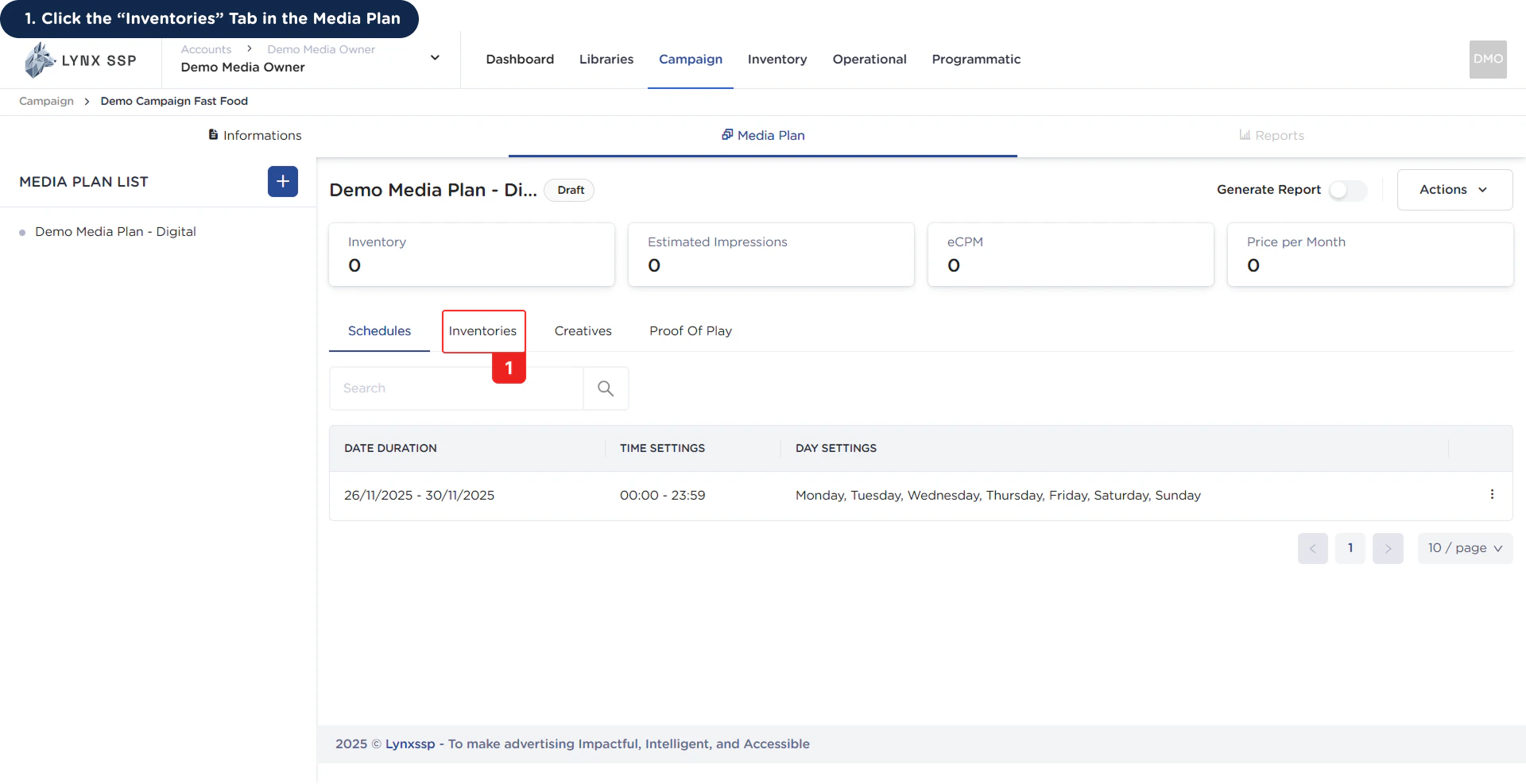 This will display the **Inventories Tab.**
 ***
## Inventories Overview
***
## Inventories Overview
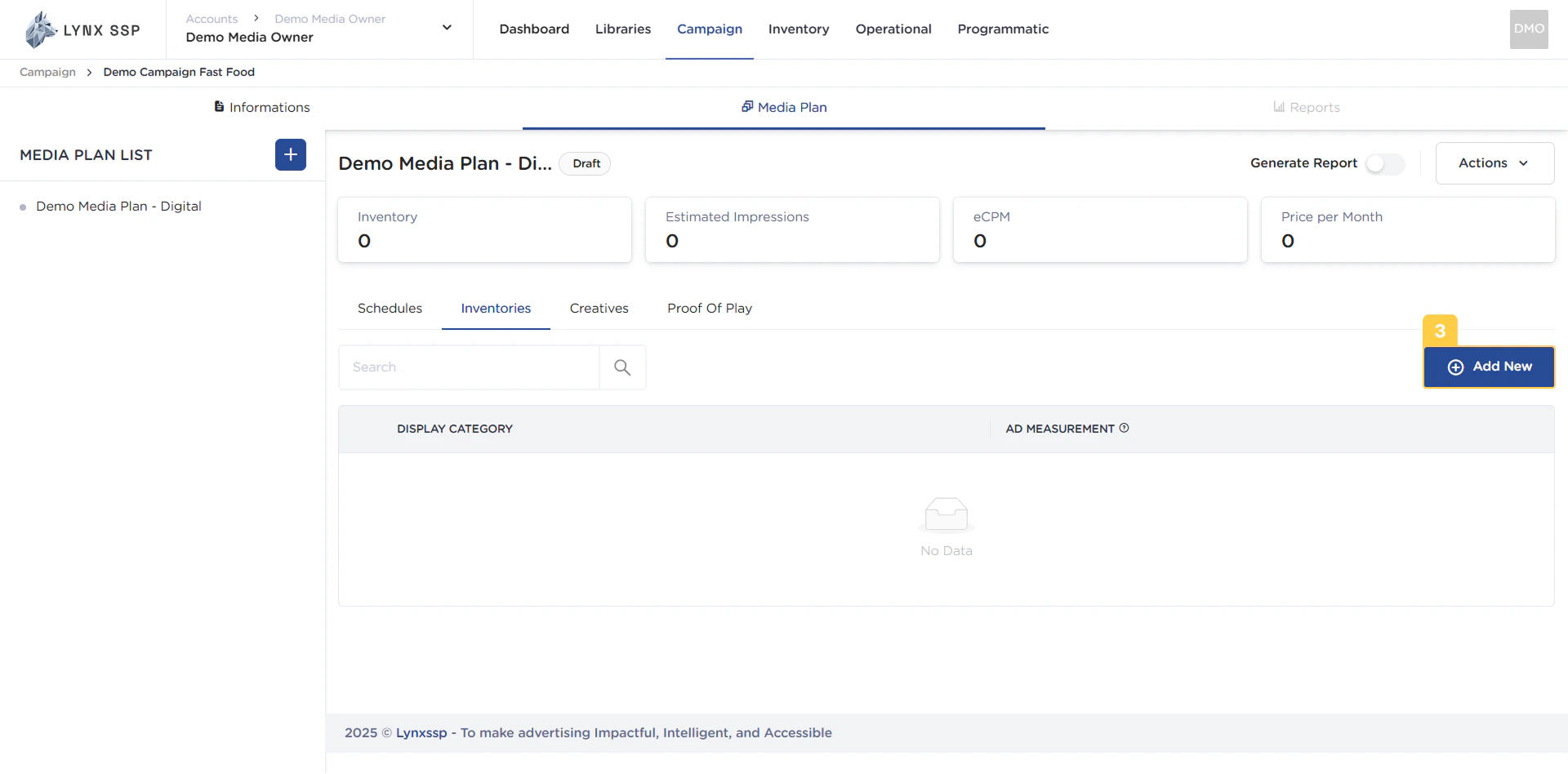
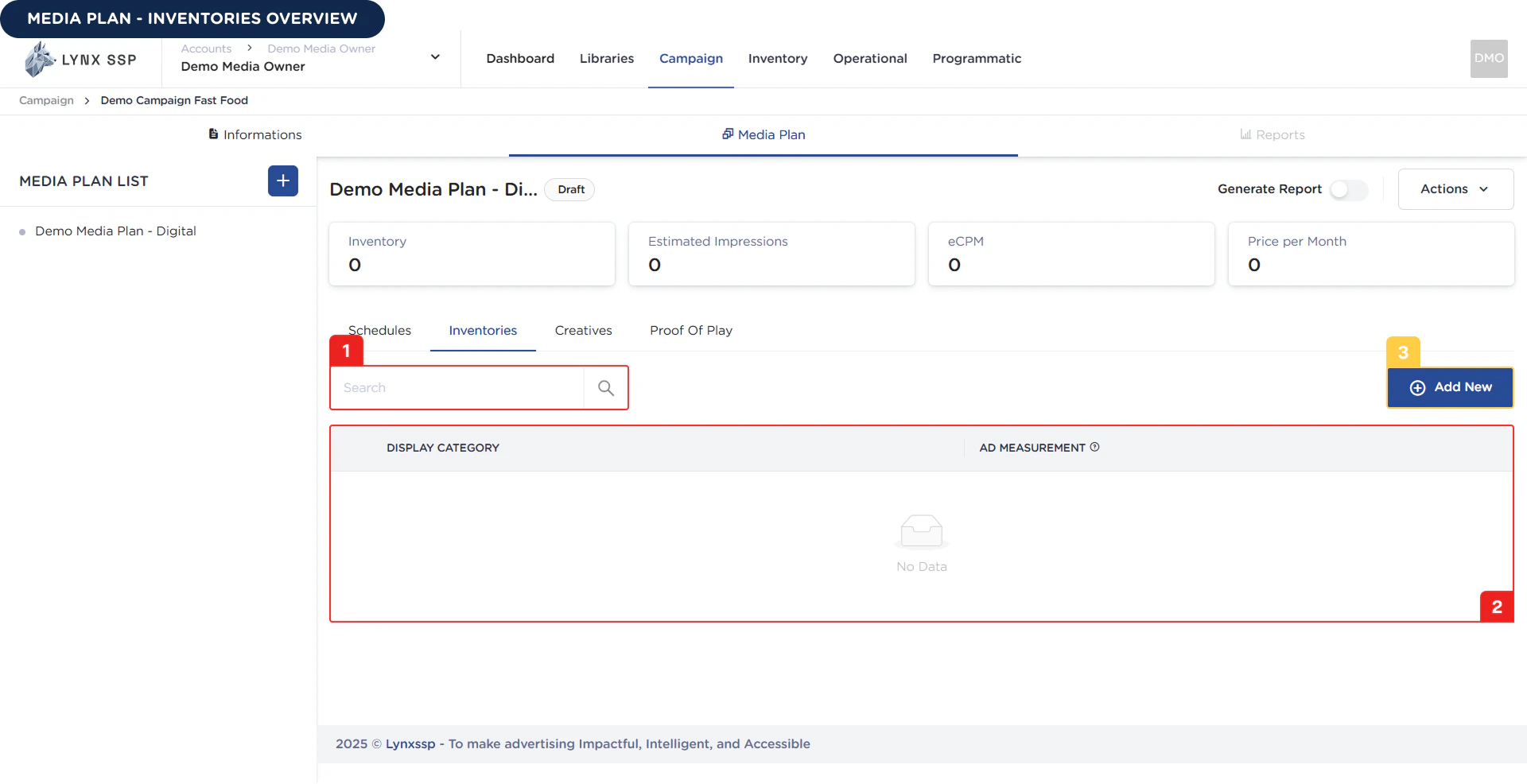 Based on the **Inventories Overview** above, here is an explanation of each section:
### Search Inventory
In this section, you can search for inventory names that have been selected or added to the media plan.
***
### List Inventory
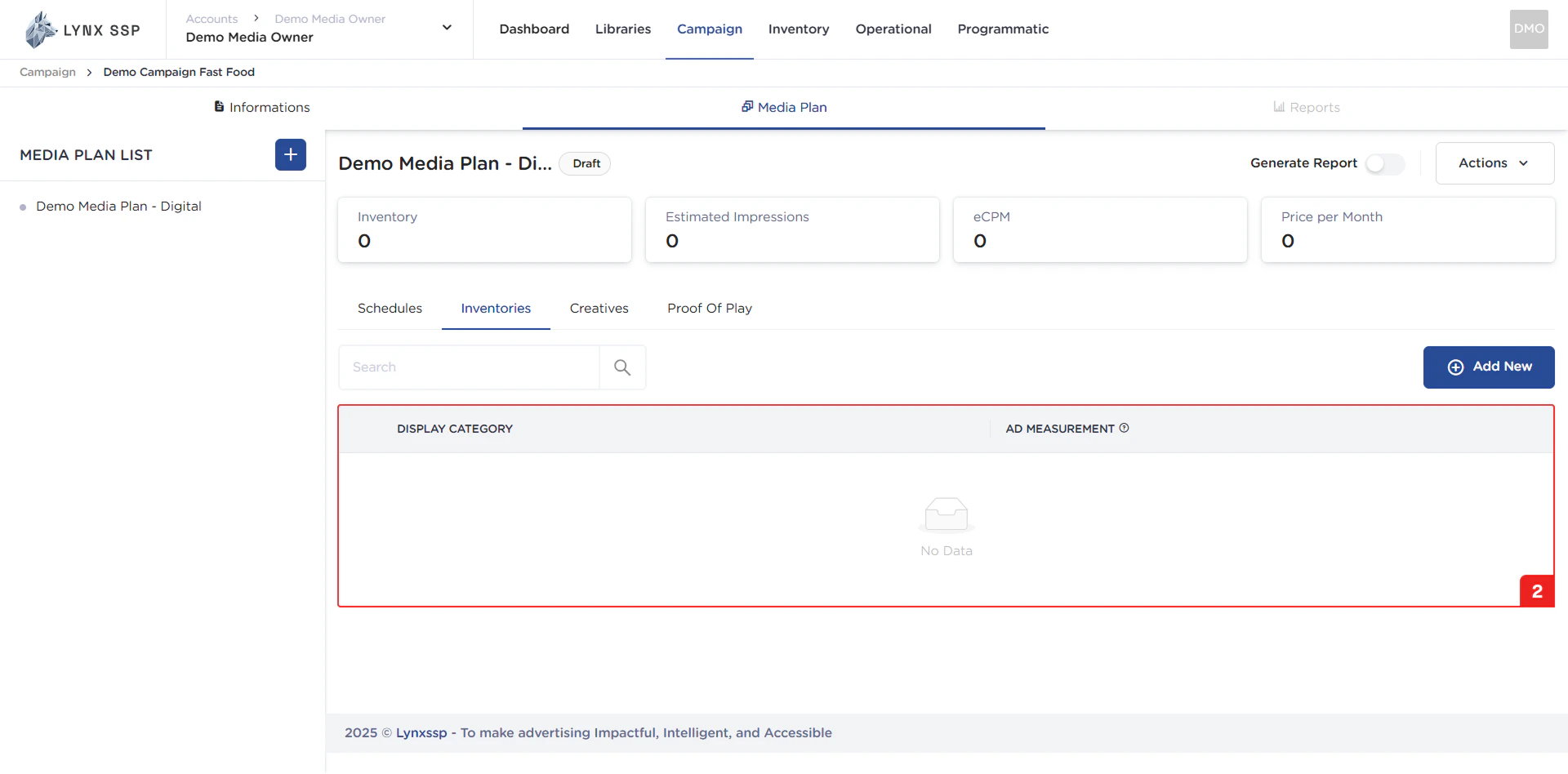
All inventory that you have selected to include in a media plan will appear in this table. The inventory properties that can be viewed in this table are as follows:
* Display Category ([See Specification, Type & Category ↗](/documentation/inventory/specification-type-and-category))
* Ad Measurement ([Ad Measurement ↗](/documentation/campaign-management/create/media-plan/ad-measurement/select))
Based on the **Inventories Overview** above, here is an explanation of each section:
### Search Inventory
In this section, you can search for inventory names that have been selected or added to the media plan.
***
### List Inventory
All inventory that you have selected to include in a media plan will appear in this table. The inventory properties that can be viewed in this table are as follows:
* Display Category ([See Specification, Type & Category ↗](/documentation/inventory/specification-type-and-category))
* Ad Measurement ([Ad Measurement ↗](/documentation/campaign-management/create/media-plan/ad-measurement/select))
 ***
### Add New Inventory to Media Plan Button
To add inventory or billboards to a media plan, you can press the **“Add New”** button on the Media Plan Inventory page.
***
### Add New Inventory to Media Plan Button
To add inventory or billboards to a media plan, you can press the **“Add New”** button on the Media Plan Inventory page.
 Then the system will display a pop-up where you can search and select the inventory you want to use in your media plan ([See How to Select Inventories to Media Plan ↗](/documentation/campaign-management/create/media-plan/inventories/select#how-to-select-inventories-to-media-plan))
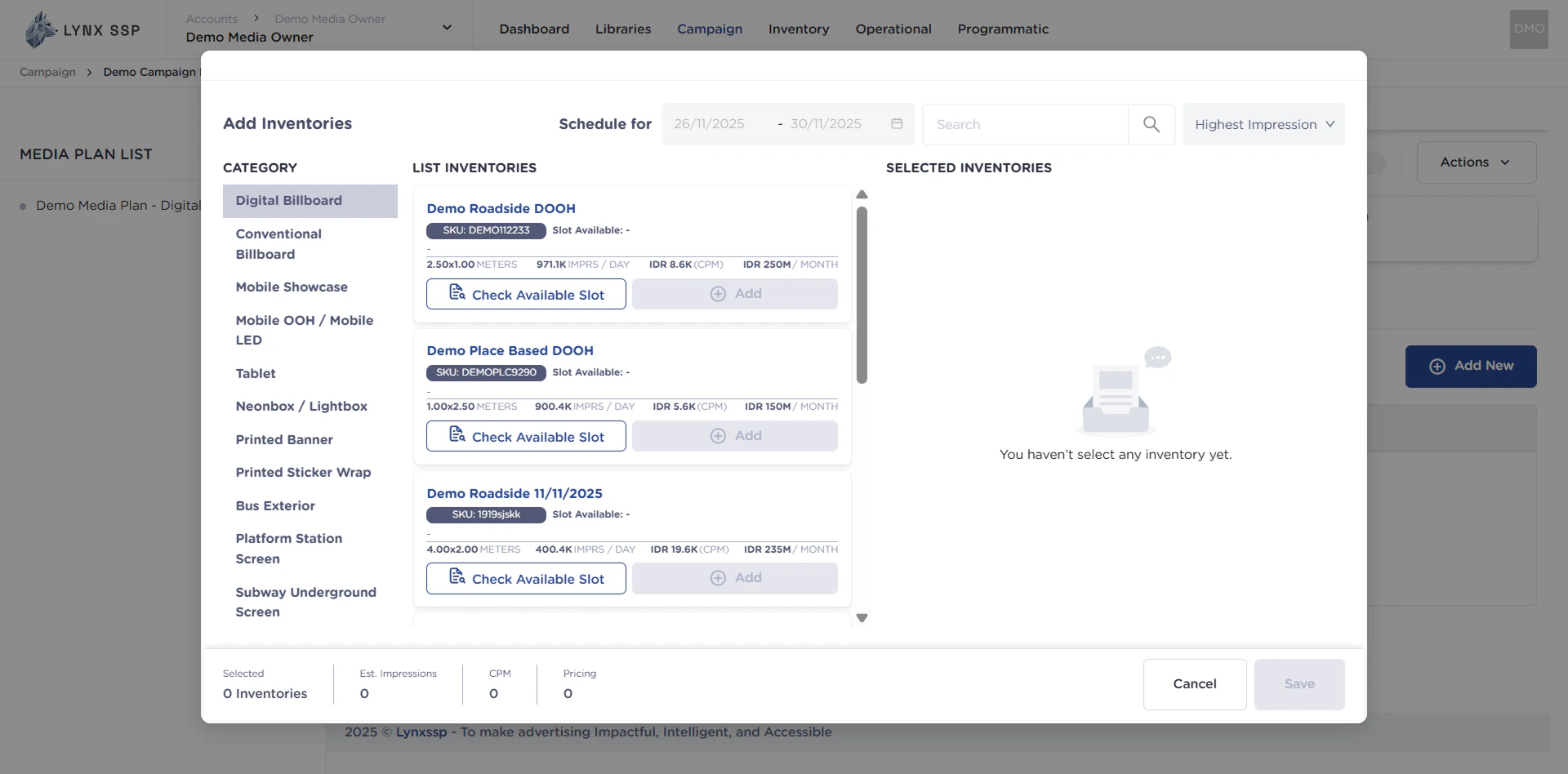 Based on the image above, here is an explanation of each section for selecting inventory to be added to the media plan:
### Inventory Category
This section functions as a filter to sort inventory by category and display it in the Inventory List section (Point No. 5).
***
### Media Plan Schedule
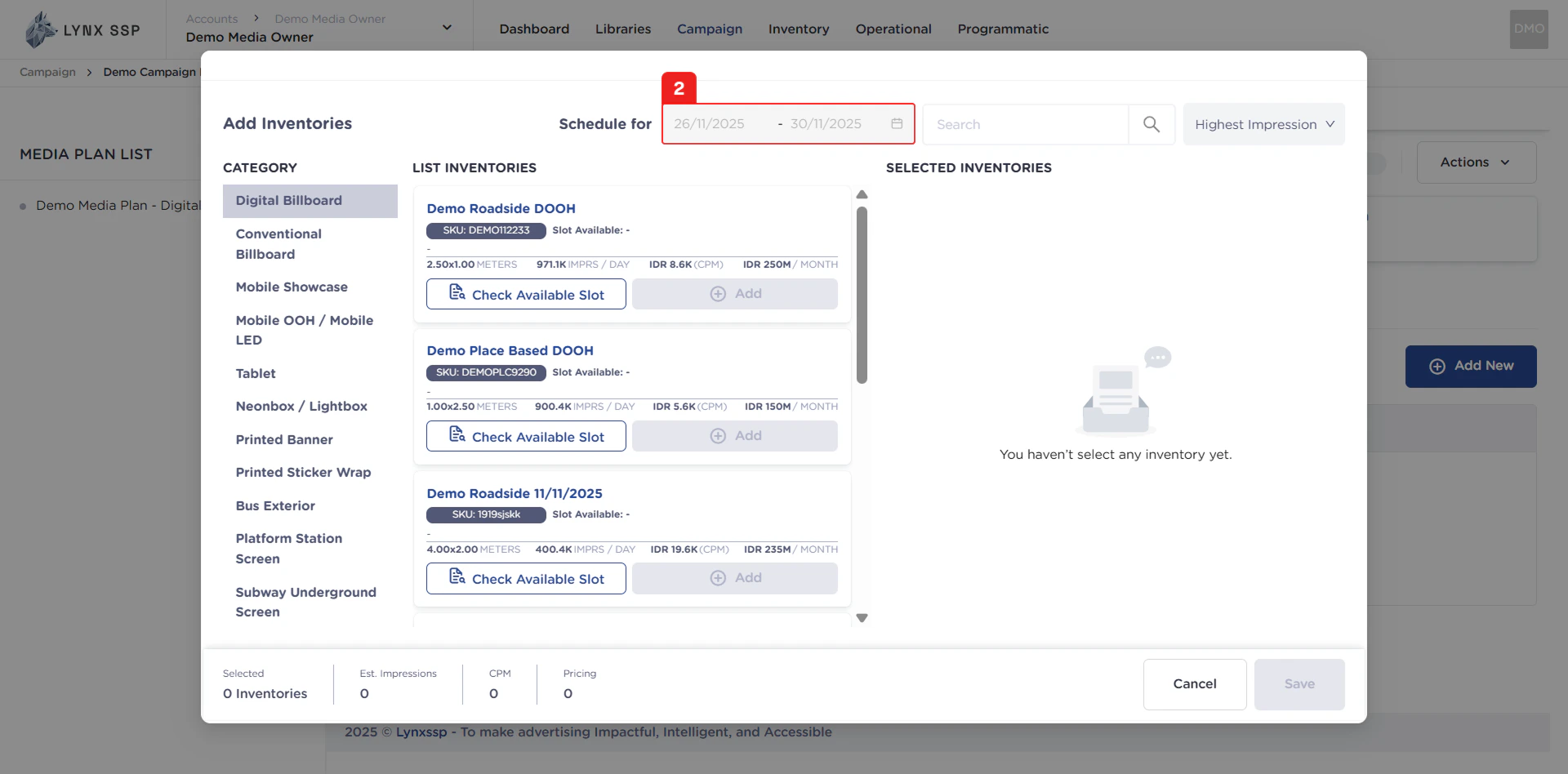
This information indicates the schedule period that will be used as a reference to check whether billboard slots are available during that time frame.
Based on the image above, here is an explanation of each section for selecting inventory to be added to the media plan:
### Inventory Category
This section functions as a filter to sort inventory by category and display it in the Inventory List section (Point No. 5).
***
### Media Plan Schedule
This information indicates the schedule period that will be used as a reference to check whether billboard slots are available during that time frame.
 ***
### Search Inventory
When you have a lot of inventory or billboards, you can use this search feature to find the inventory you want. You can search for inventory based on the Inventory Name that you have specified.
***
### Sort Inventory
You can also sort all of your inventory. The sorting parameters you can use include:
* Highest Price
* Lowest Price
* Highest CPM
* Lowest CPM
* Highest Impression
* Highest Impression
***
### List Inventory
This section contains a list of inventory that you have and can choose to use in your media plan.
***
### Search Inventory
When you have a lot of inventory or billboards, you can use this search feature to find the inventory you want. You can search for inventory based on the Inventory Name that you have specified.
***
### Sort Inventory
You can also sort all of your inventory. The sorting parameters you can use include:
* Highest Price
* Lowest Price
* Highest CPM
* Lowest CPM
* Highest Impression
* Highest Impression
***
### List Inventory
This section contains a list of inventory that you have and can choose to use in your media plan.
 ***
### Check Available Slot Button
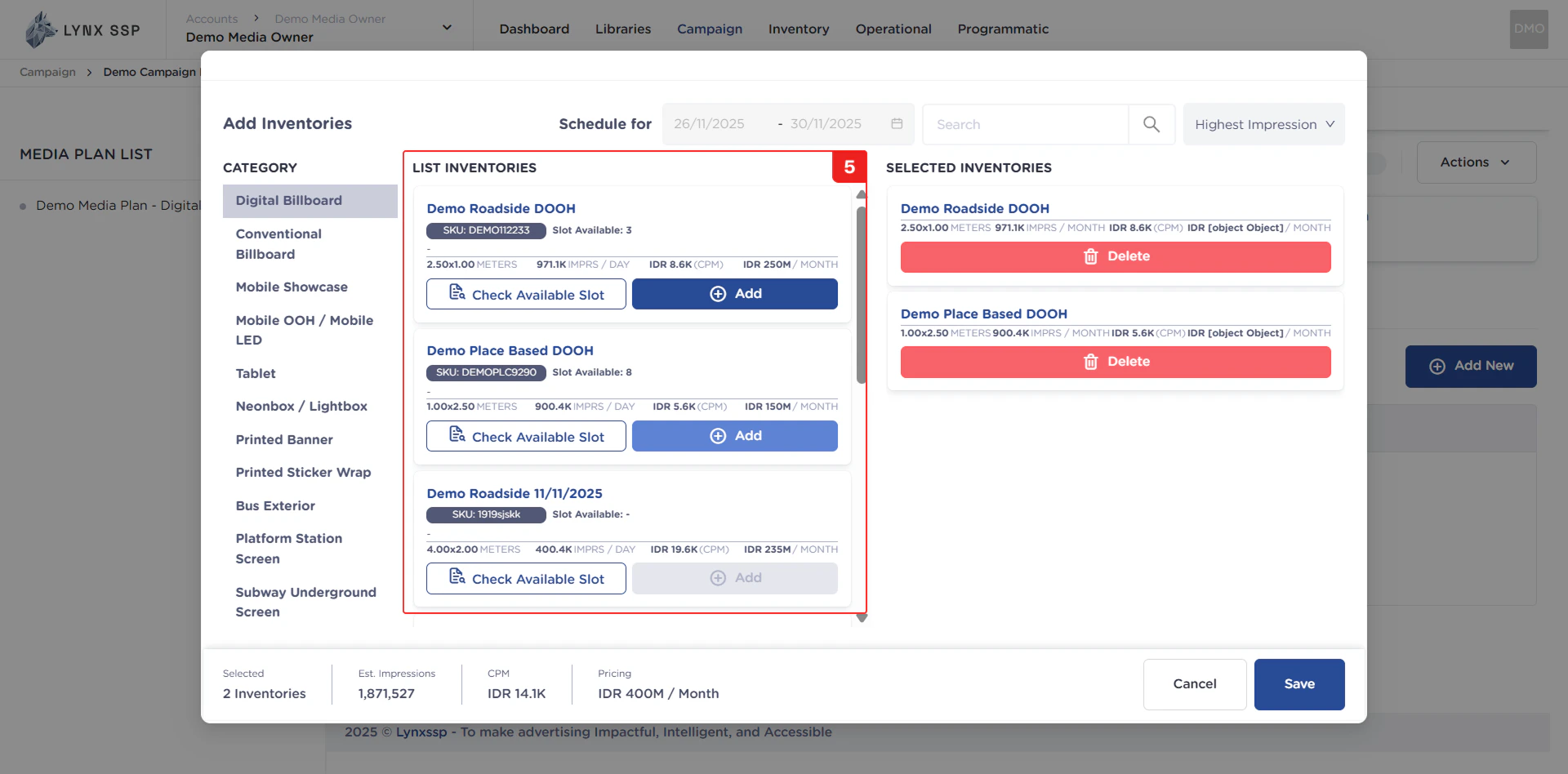
Before you can select inventory, you must first check the availability of slots. This is necessary to activate the Add Inventory button. When an inventory has available slots, the Add Inventory button will become active and you can use it to add inventory to the **“Selected Inventory”** section.
***
### Select Inventory Button
To select an inventory, you can do so by clicking the Add button. After that, an inventory card will appear in the Selected Inventory section.
***
### List of Selected Inventory
This section contains a list of billboards that you have selected and can choose to use in your media plan.
***
### Check Available Slot Button
Before you can select inventory, you must first check the availability of slots. This is necessary to activate the Add Inventory button. When an inventory has available slots, the Add Inventory button will become active and you can use it to add inventory to the **“Selected Inventory”** section.
***
### Select Inventory Button
To select an inventory, you can do so by clicking the Add button. After that, an inventory card will appear in the Selected Inventory section.
***
### List of Selected Inventory
This section contains a list of billboards that you have selected and can choose to use in your media plan.
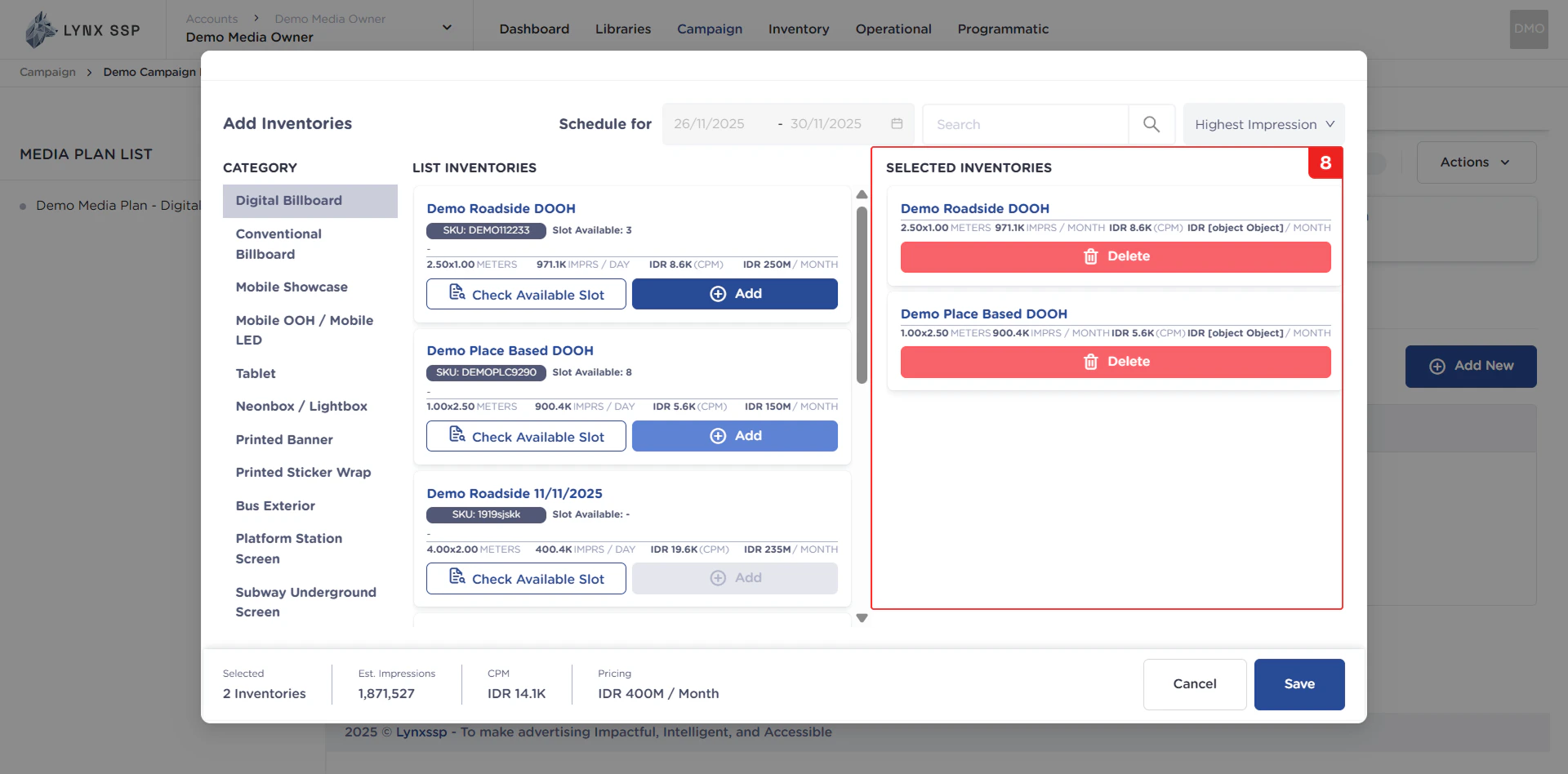 An inventory card in the Selected Inventory section indicates that you are taking 1 slot from an inventory. When there are 2 cards with the same inventory name, it indicates that you are taking 2 slots from that inventory.
***
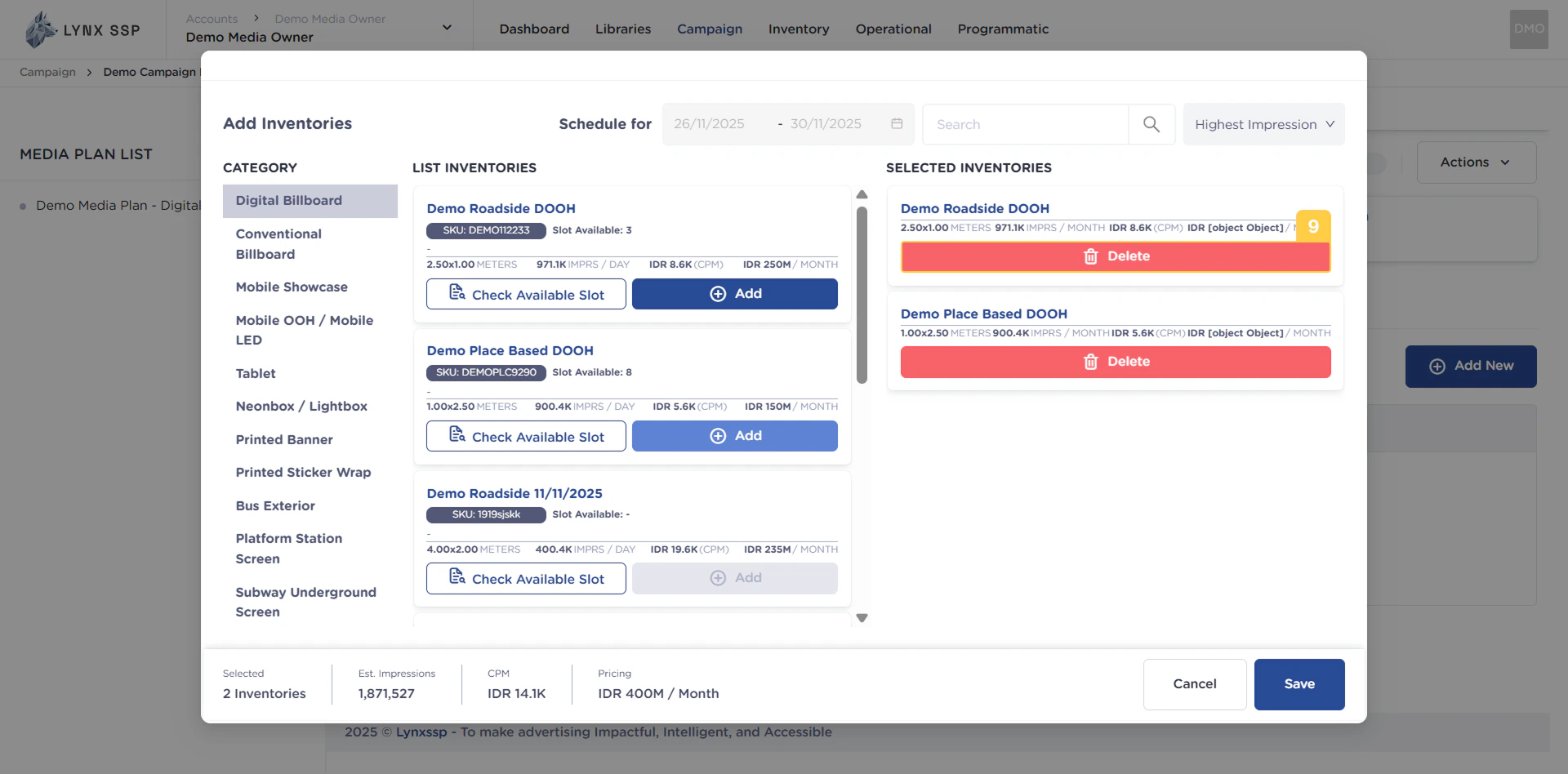
### Delete Selected Inventory Button
To delete the inventory you have selected, you can click the Delete button on the inventory card.
An inventory card in the Selected Inventory section indicates that you are taking 1 slot from an inventory. When there are 2 cards with the same inventory name, it indicates that you are taking 2 slots from that inventory.
***
### Delete Selected Inventory Button
To delete the inventory you have selected, you can click the Delete button on the inventory card.
 ***
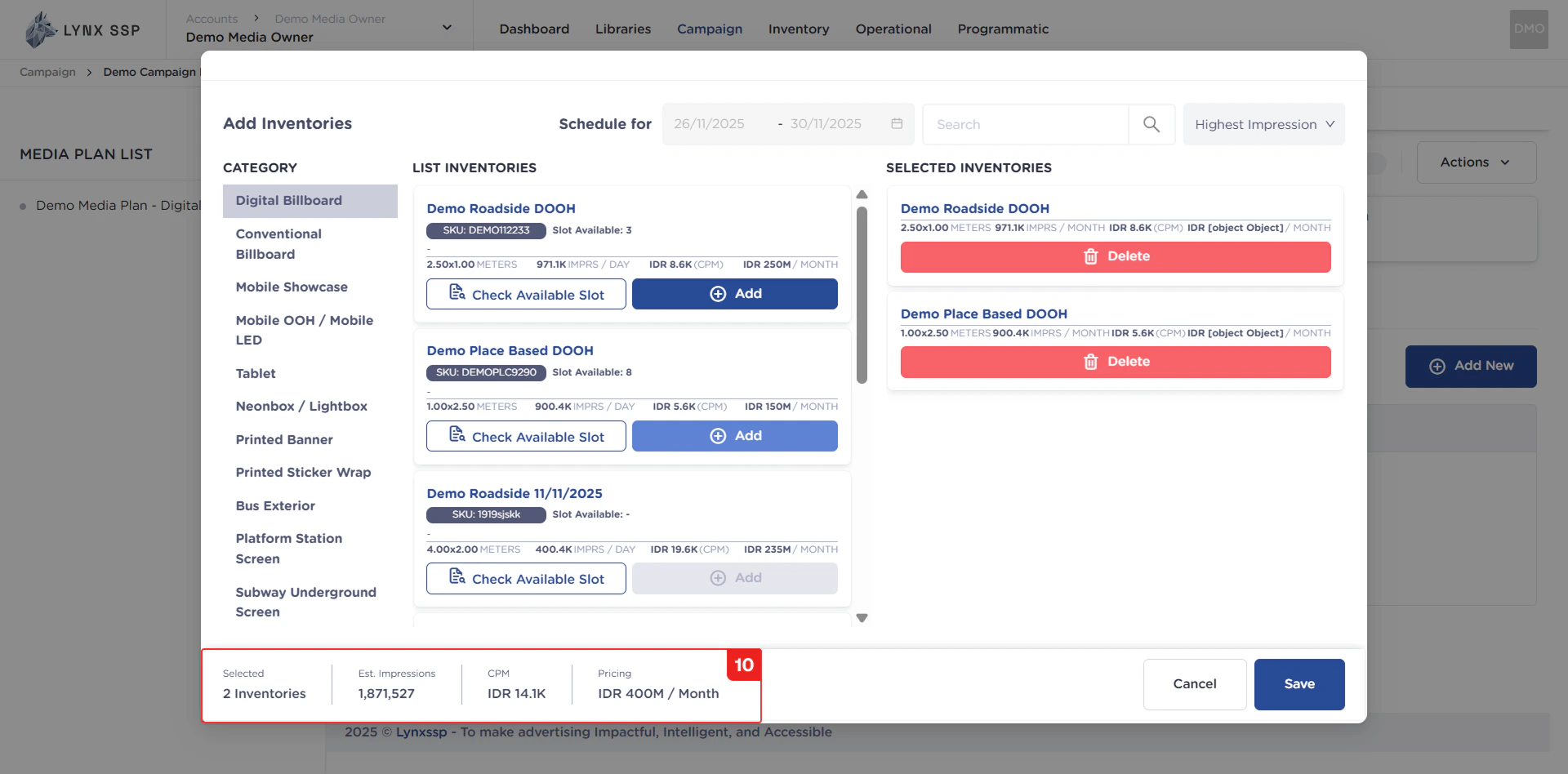
### Summary Information from Selected Inventory
This section contains a summary of information about the inventory you have selected for a media plan. This information includes, among other things:
* Total Number of Selected Billboards
* Total Estimated Impressions Generated from All Selected Billboards
* Total CPM from All Selected Billboards
* Total Monthly Price from All Selected Billboards
***
### Summary Information from Selected Inventory
This section contains a summary of information about the inventory you have selected for a media plan. This information includes, among other things:
* Total Number of Selected Billboards
* Total Estimated Impressions Generated from All Selected Billboards
* Total CPM from All Selected Billboards
* Total Monthly Price from All Selected Billboards
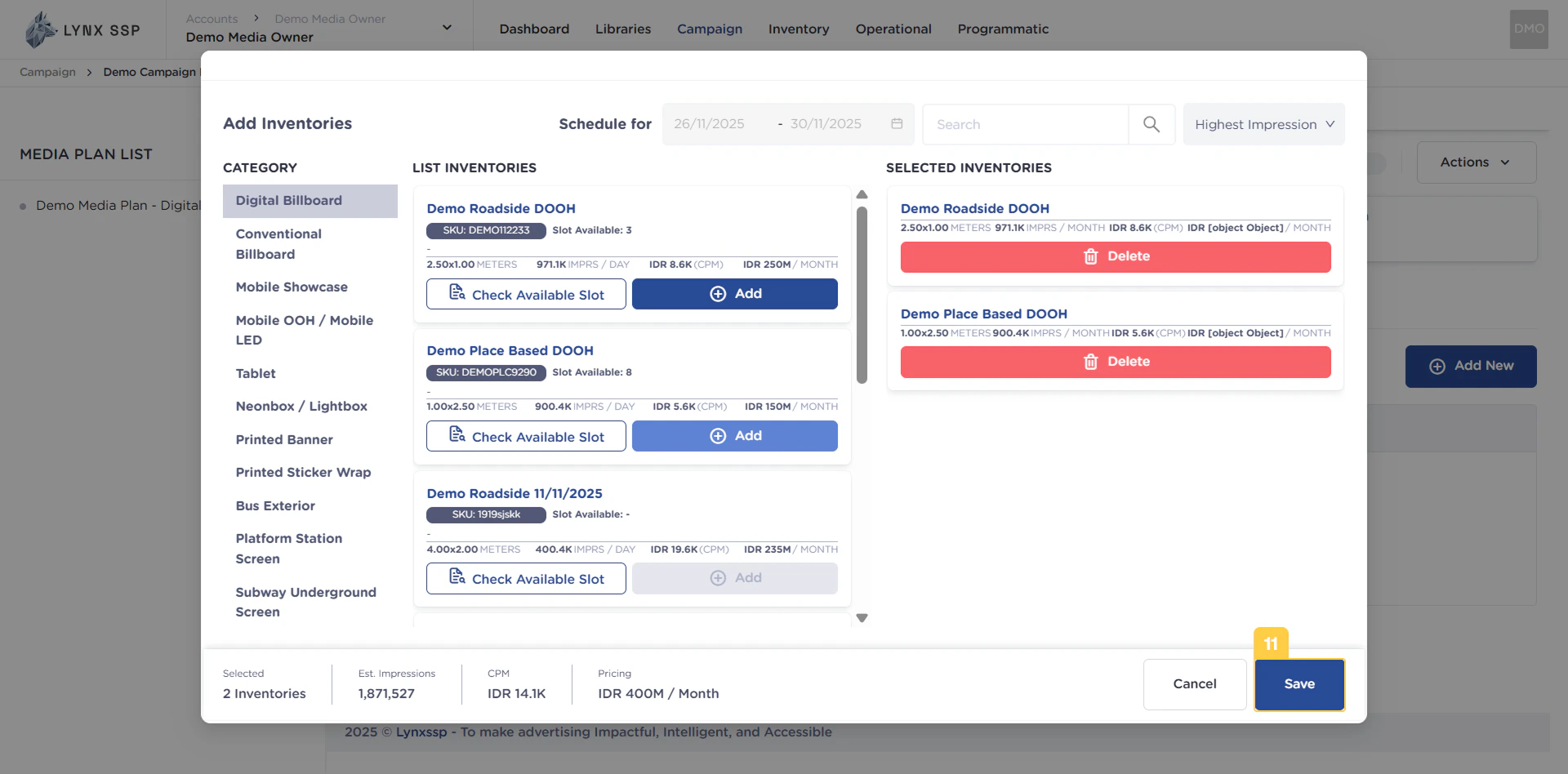
 ### Save Button
Once you are satisfied with the billboards you have selected, you can click the **“Save”** button to continue.
### Save Button
Once you are satisfied with the billboards you have selected, you can click the **“Save”** button to continue.
 ***
## How to Select Inventories to Media Plan
After adding inventory, you can continue by entering creative content from the campaign into each inventory in the media plan ([See Add Creative to Inventory ↗](/documentation/campaign-management/create/media-plan/creatives/add-to-inventory)).
***
## How to Select Inventories to Media Plan
After adding inventory, you can continue by entering creative content from the campaign into each inventory in the media plan ([See Add Creative to Inventory ↗](/documentation/campaign-management/create/media-plan/creatives/add-to-inventory)).