> ## Documentation Index
> Fetch the complete documentation index at: https://docs.lynxssp.com/llms.txt
> Use this file to discover all available pages before exploring further.
# Add Proof of Play
**Proof of Play (PoP)** is concrete evidence in the form of photos or videos that directly show that a client's creative content or campaign has been successfully displayed on an inventory. This evidence plays a very important role because it bridges the trust between Media Owners and clients. As a Media Owner, you are responsible for documenting each of these displays.
You are not only documenting the displays, but also creating transparency. Clients can see that their ads are actually appearing in the agreed-upon locations. This documentation is then uploaded and becomes an integral part of the campaign report, complementing other data metrics such as impressions. Thus, Proof of Play ensures that clients get a comprehensive and honest picture of how their campaigns are being run.
This page will help you understand Proof of Play (PoP) and add it to your media plan.
## Accessing Proof of Play
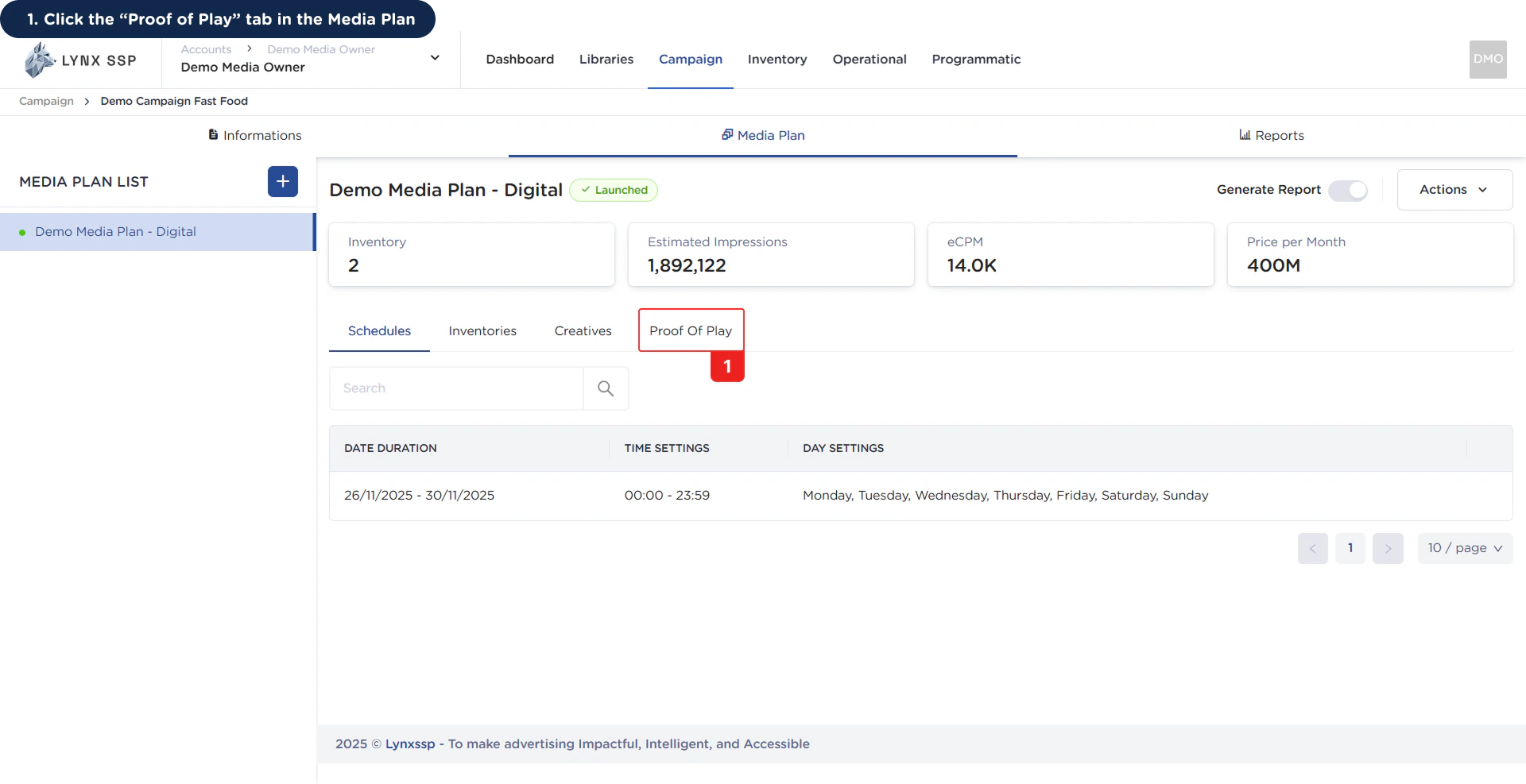 Then it will display the Proof of Play (PoP) tab.
 ## Proof of Play Overview
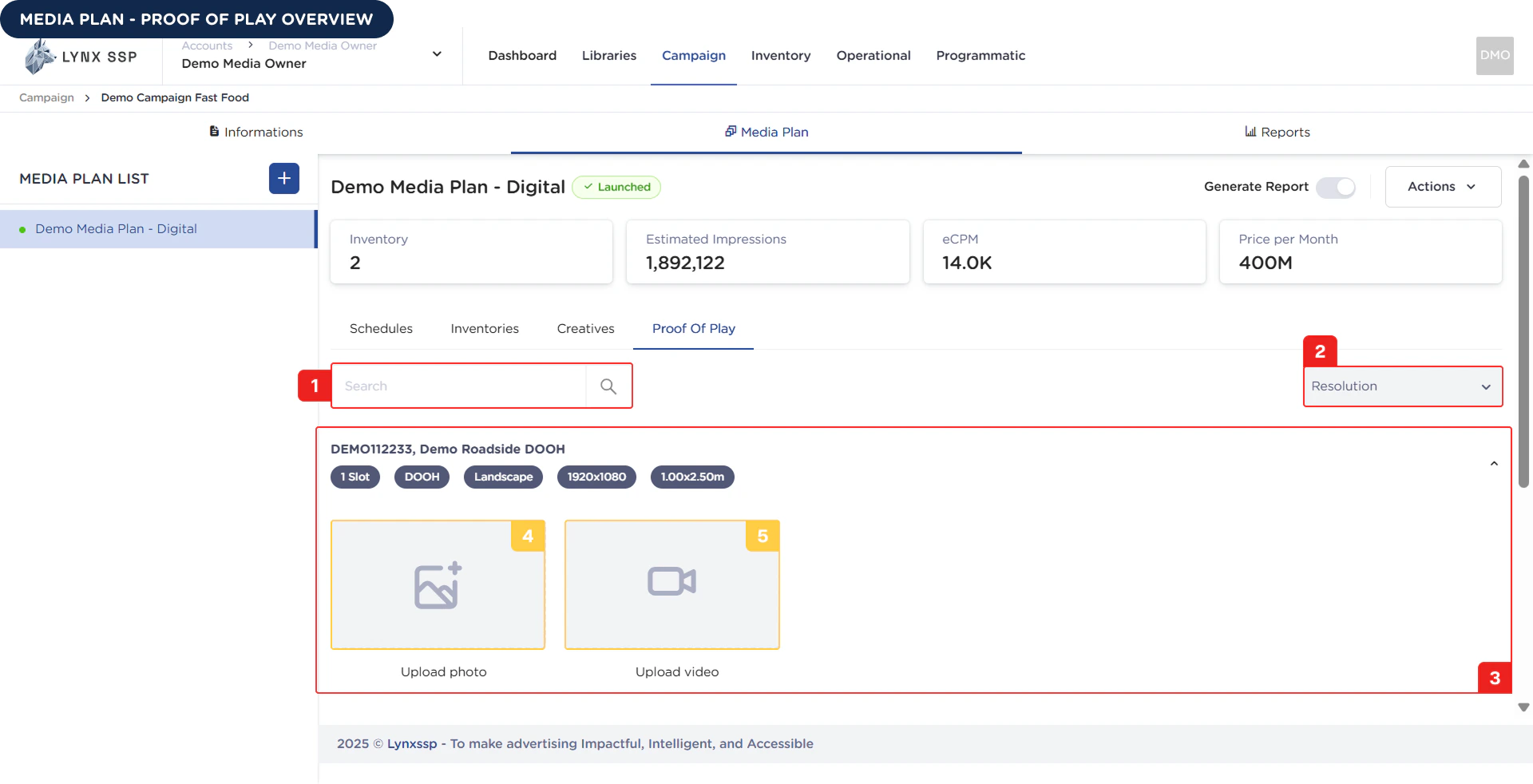 Based on the **Proof of Play Overview** above, here is an explanation of each section:
### Inventory Search
In this section, you can search for inventory names that have been selected or added to previous media plans.
***
### Filter Inventory by Resolution
You can filter inventory based on its resolution.
***
### List Proof of Play
All inventory that you have selected to be included in a media plan will appear in this section for uploading proof of play.
Based on the **Proof of Play Overview** above, here is an explanation of each section:
### Inventory Search
In this section, you can search for inventory names that have been selected or added to previous media plans.
***
### Filter Inventory by Resolution
You can filter inventory based on its resolution.
***
### List Proof of Play
All inventory that you have selected to be included in a media plan will appear in this section for uploading proof of play.
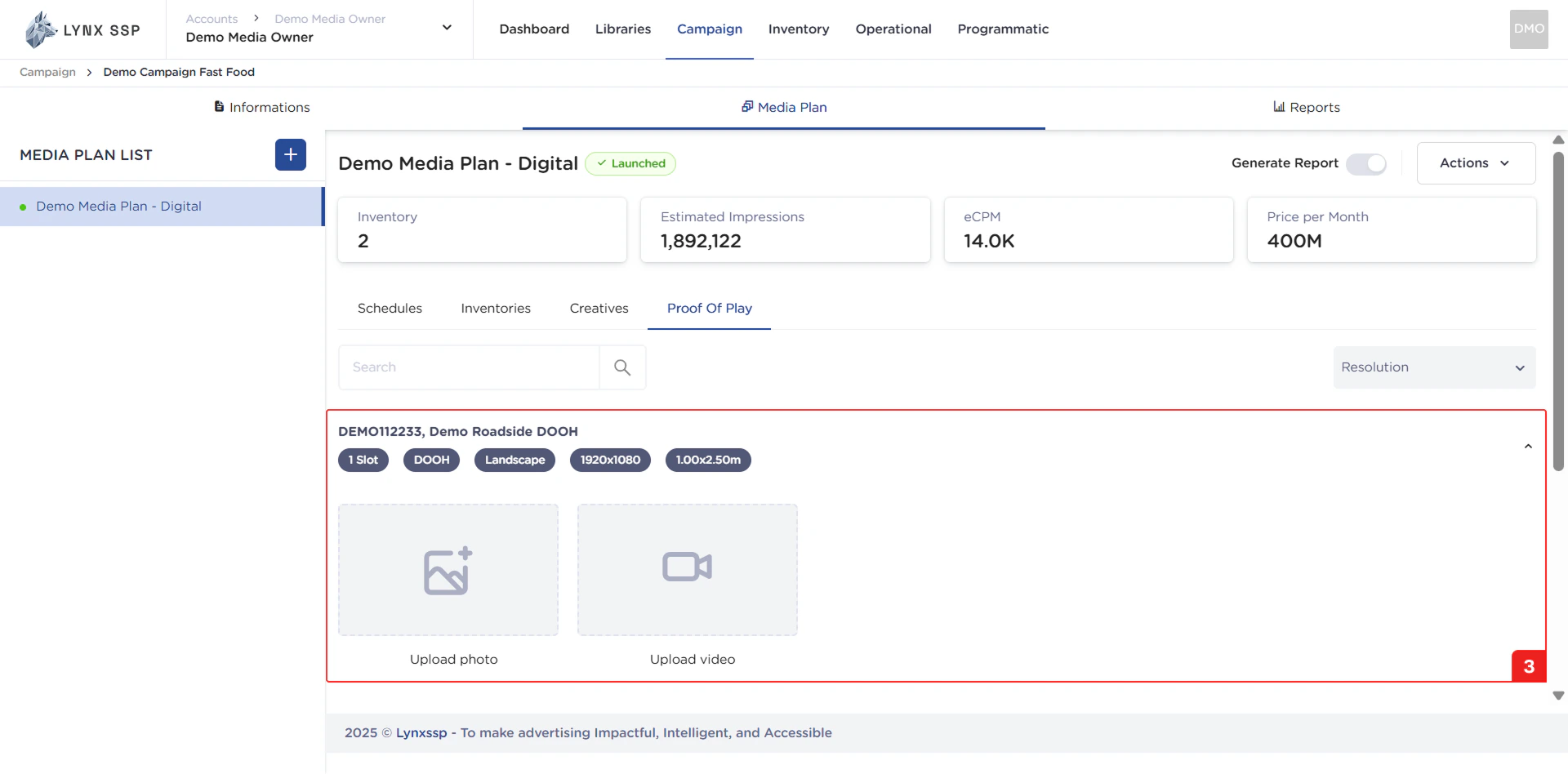 ***
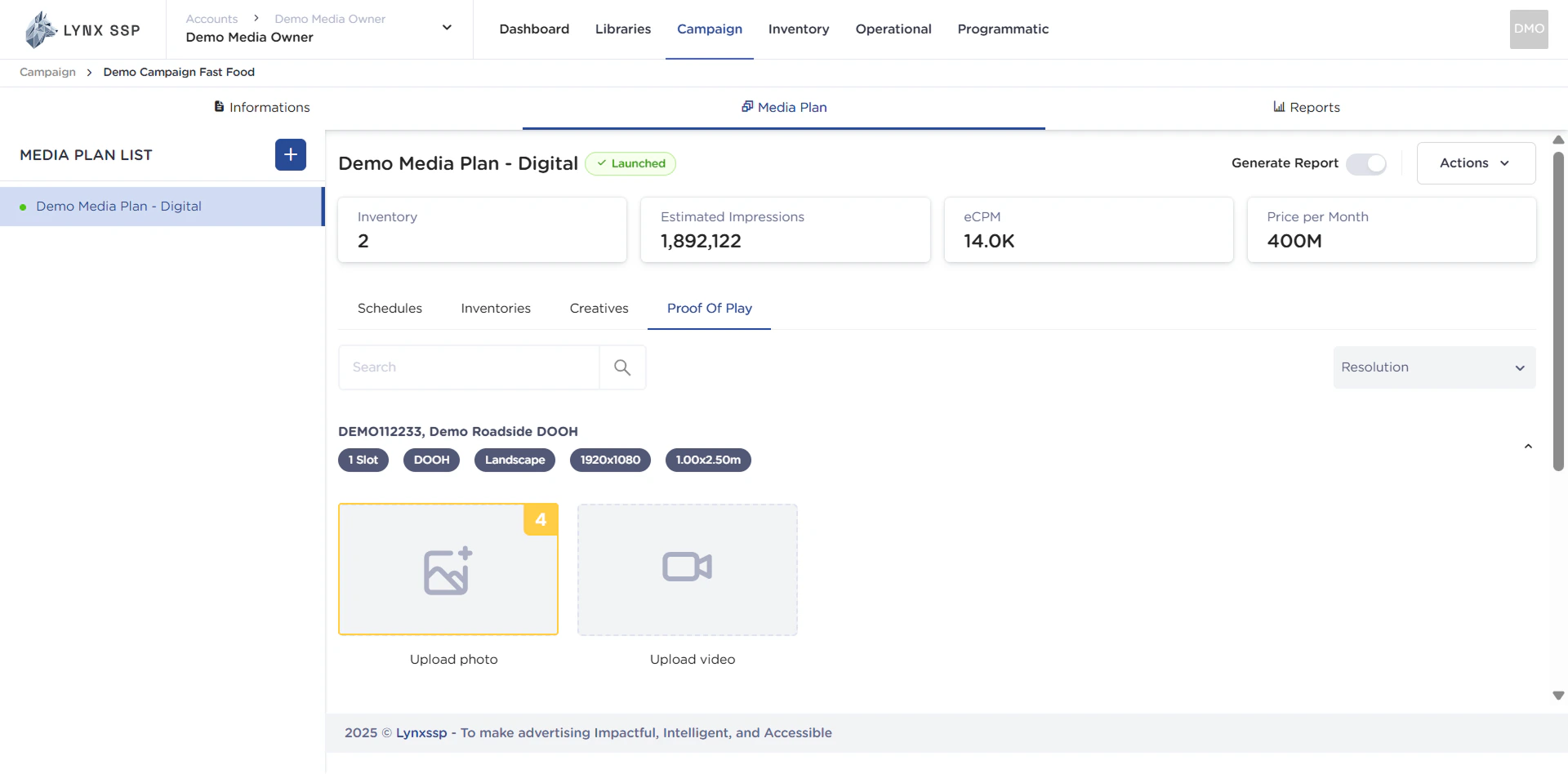
### Upload Photo Section
You can upload proof of play in photo format in this section.
***
### Upload Photo Section
You can upload proof of play in photo format in this section.
 ***
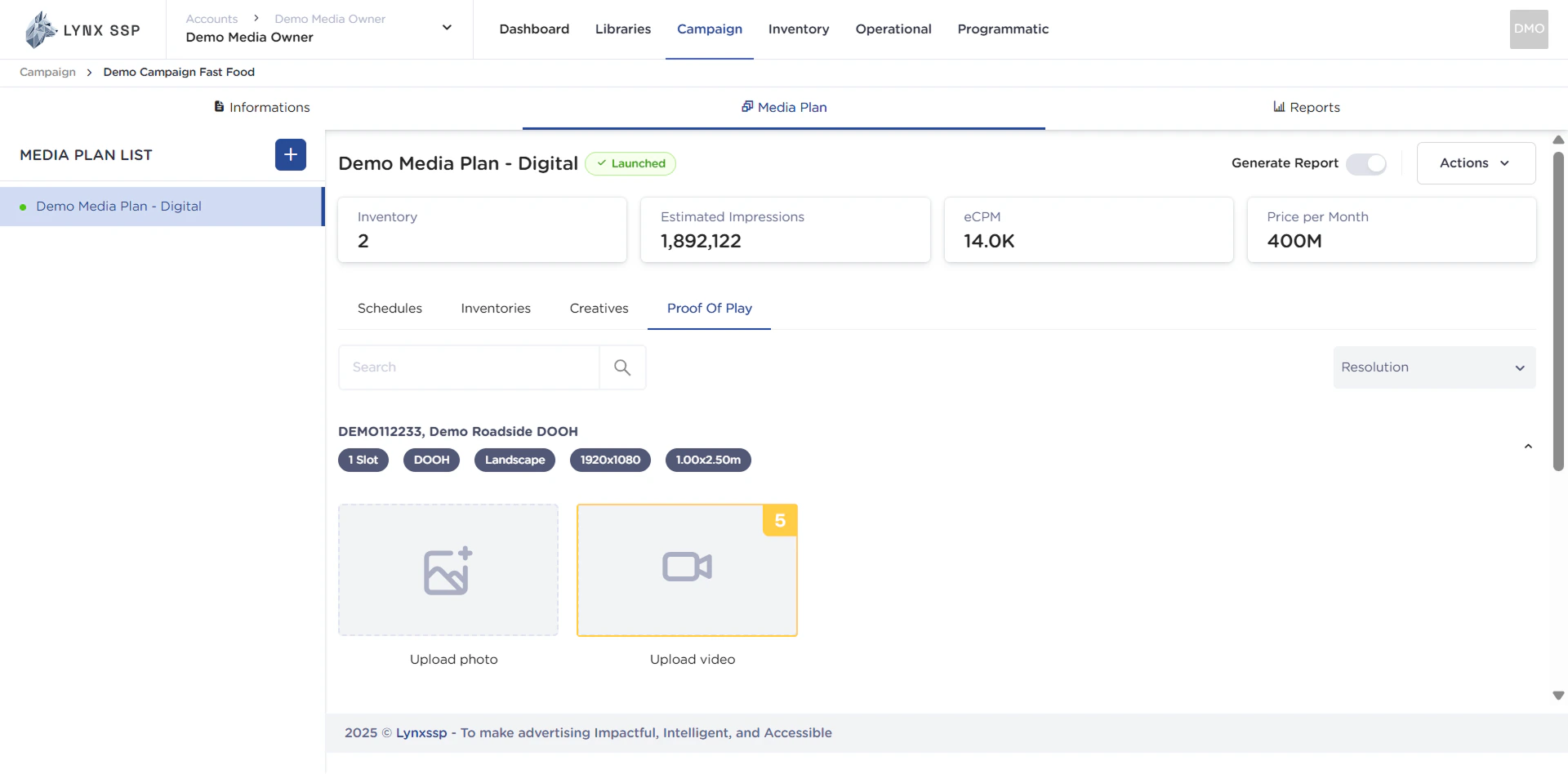
### Upload Video Section
You can upload proof of play in video format in this section.
***
### Upload Video Section
You can upload proof of play in video format in this section.
 ***
## How to Upload Proof of Play
Here are the steps to add proof of play (PoP) to each inventory you have included in your media plan:
***
## How to Upload Proof of Play
Here are the steps to add proof of play (PoP) to each inventory you have included in your media plan:
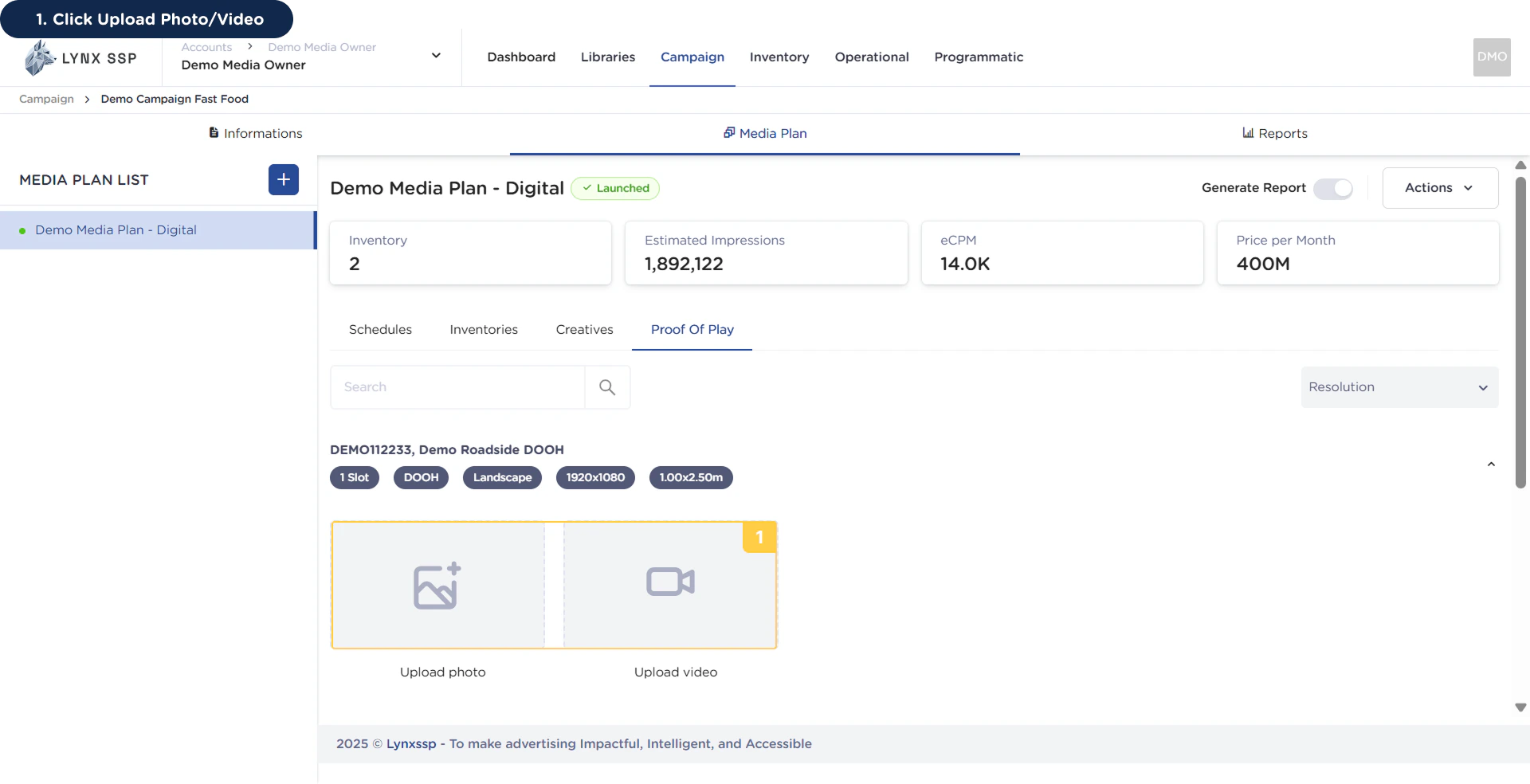 Select a photo/video from your computer directory and it will successfully upload as proof of play.