> ## Documentation Index
> Fetch the complete documentation index at: https://docs.lynxssp.com/llms.txt
> Use this file to discover all available pages before exploring further.

# Download Campaign Report

When your client requests a performance report for a campaign that has been run, you can provide a **PDF document** that you can download at any time. You can download the Campaign Report to give to the clients who ran campaigns with you. The current supported download format for the report document is the **PDF document** format.

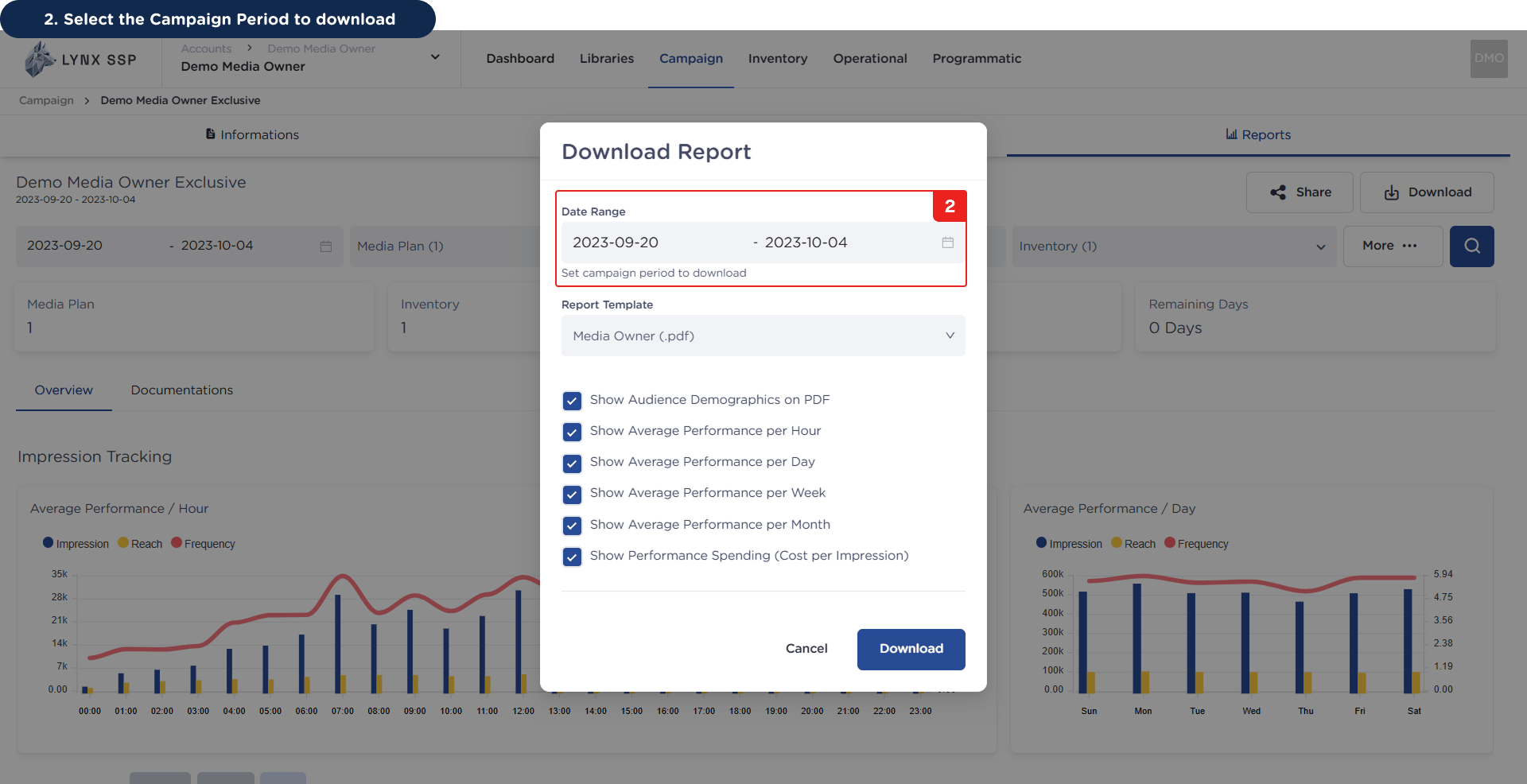
You can organize the data displayed in the report based on the desired **date range**. For example, if a campaign runs for one month, but the client suddenly wants to know the progress of their campaign during the first week after it started, you can apply that filter to the Campaign Report and only display the data for that one week (out of the entire total period).

## Download Campaign Report
<Steps>
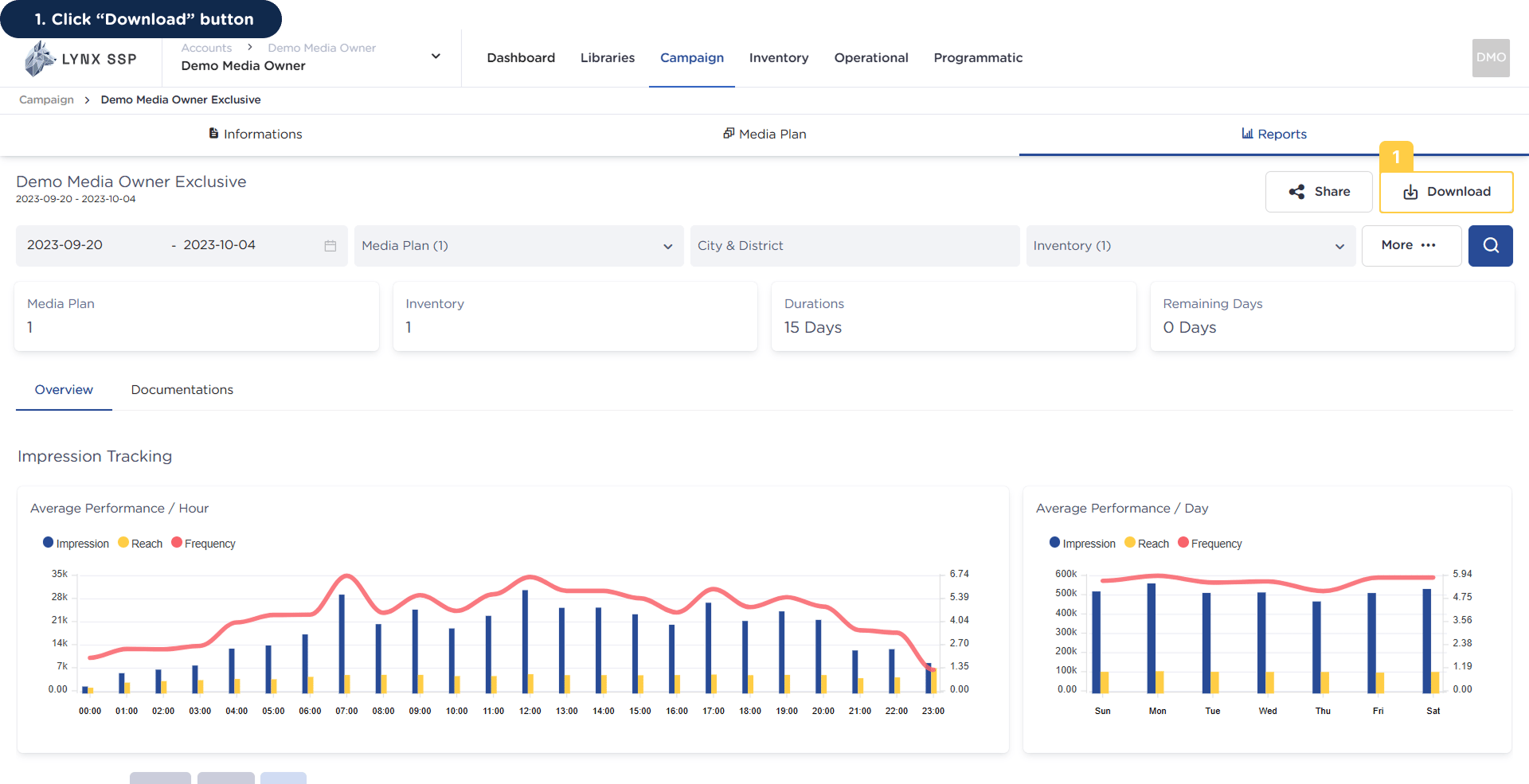
  <Step title="Click “Download” button">
    <img src="https://mintcdn.com/lynxssp-91a2d3cb/SzGURL6ji_4ljAkk/images/reports/download/DownloadCampaignReport-1.png?fit=max&auto=format&n=SzGURL6ji_4ljAkk&q=85&s=31327ef9e715898f23ce35ffb1052806" alt="Download Campaign Report 1 Pn" width="1920" height="985" data-path="images/reports/download/DownloadCampaignReport-1.png" />

    This will display the following pop-up.
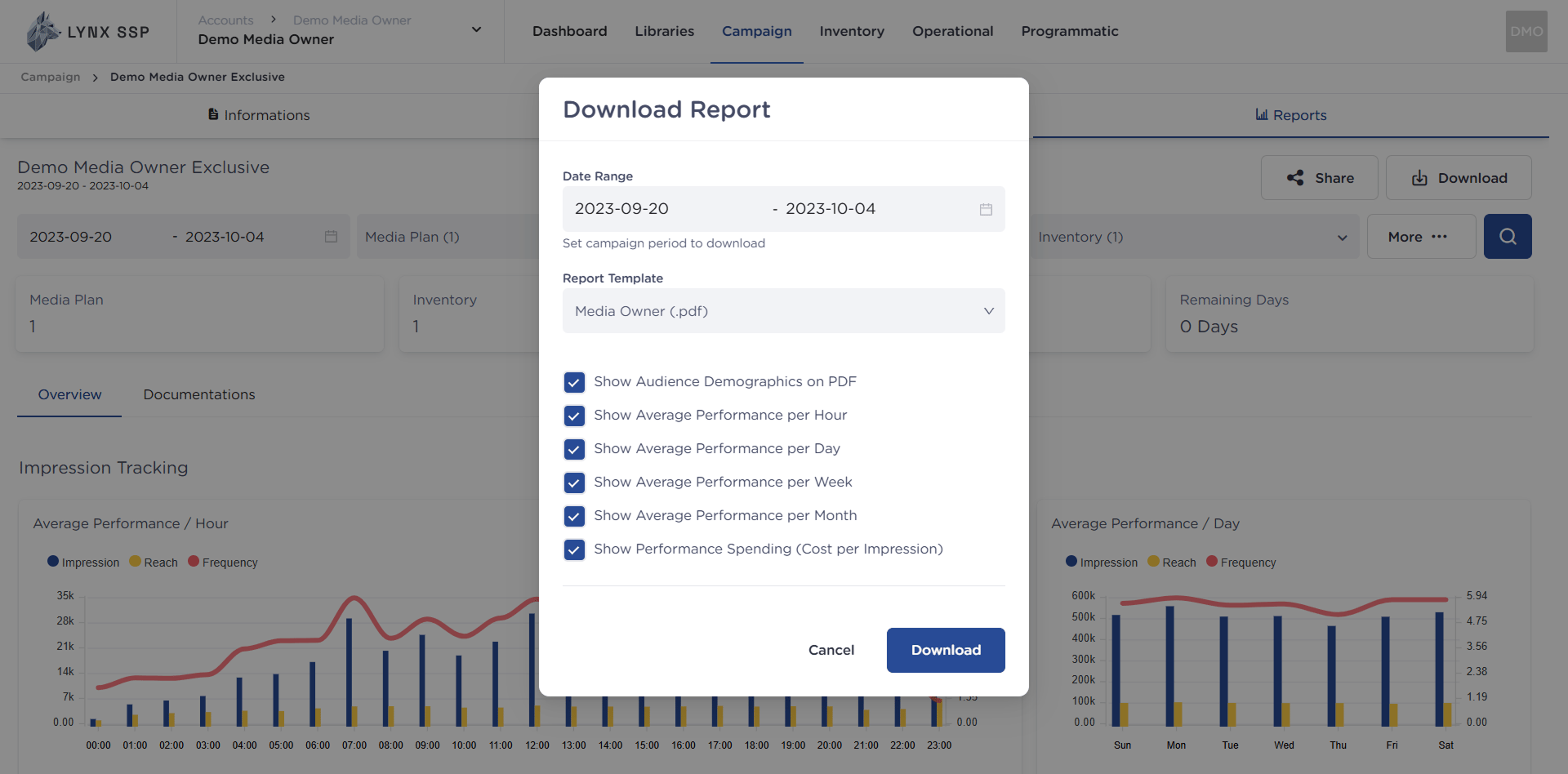
    <img src="https://mintcdn.com/lynxssp-91a2d3cb/SzGURL6ji_4ljAkk/images/reports/download/DownloadCampaignReport-1.2.png?fit=max&auto=format&n=SzGURL6ji_4ljAkk&q=85&s=9a9c80e4b75770ee46cabe07fdc19059" alt="Download Campaign Report 1 2 Pn" width="1920" height="948" data-path="images/reports/download/DownloadCampaignReport-1.2.png" />
  </Step>

  <Step title="Select the Campaign Period to download">
    <img src="https://mintcdn.com/lynxssp-91a2d3cb/SzGURL6ji_4ljAkk/images/reports/download/DownloadCampaignReport-2.png?fit=max&auto=format&n=SzGURL6ji_4ljAkk&q=85&s=5f4a41e9dce323fd565f87ffb20e3729" alt="Download Campaign Report 2 Pn" width="1920" height="986" data-path="images/reports/download/DownloadCampaignReport-2.png" />
  </Step>

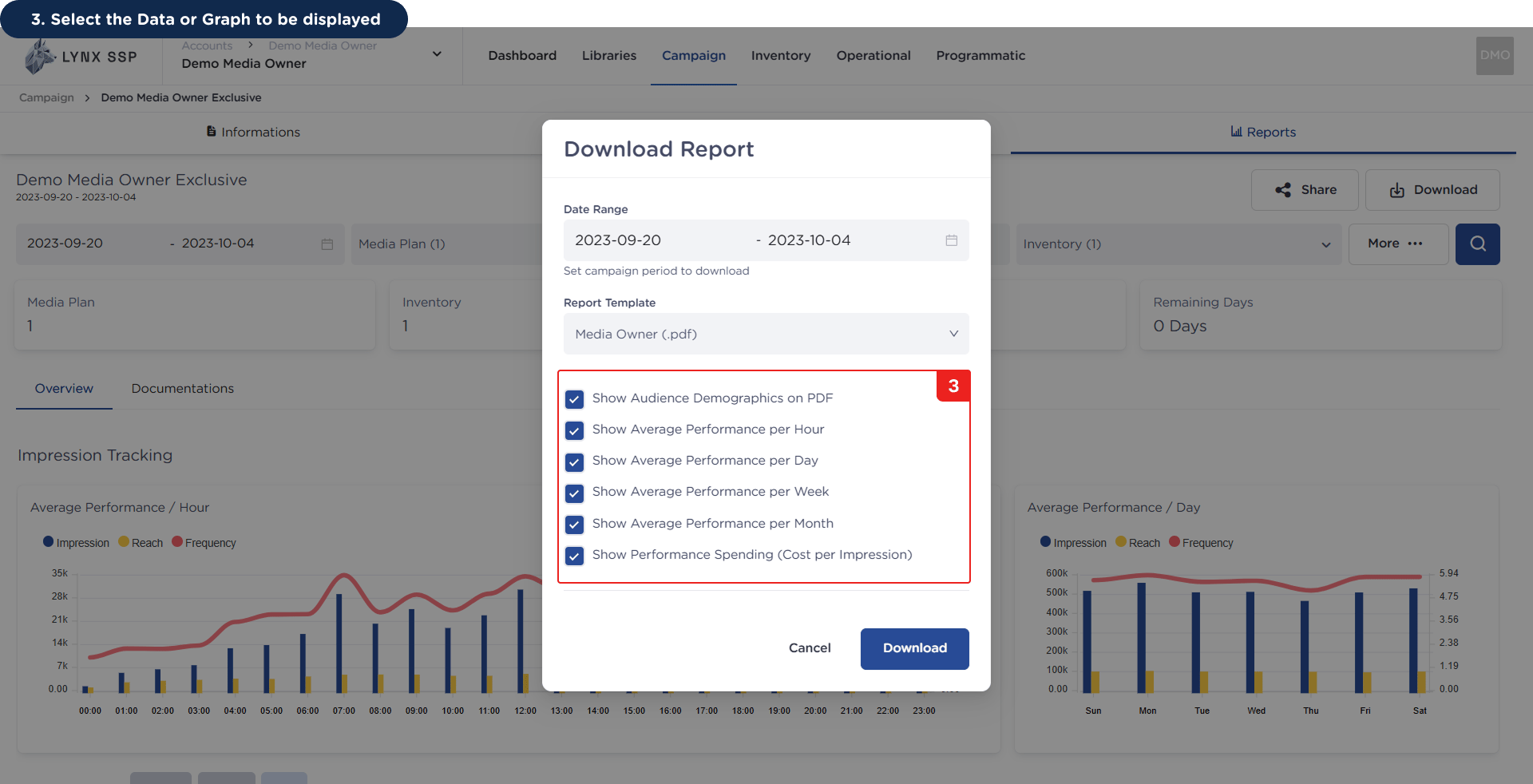
  <Step title="Select the Data or Graph to be displayed">
    <img src="https://mintcdn.com/lynxssp-91a2d3cb/SzGURL6ji_4ljAkk/images/reports/download/DownloadCampaignReport-3.png?fit=max&auto=format&n=SzGURL6ji_4ljAkk&q=85&s=5765b89c8f5c1eed9c31b6df60b3f01b" alt="Download Campaign Report 3 Pn" width="1920" height="982" data-path="images/reports/download/DownloadCampaignReport-3.png" />
  </Step>

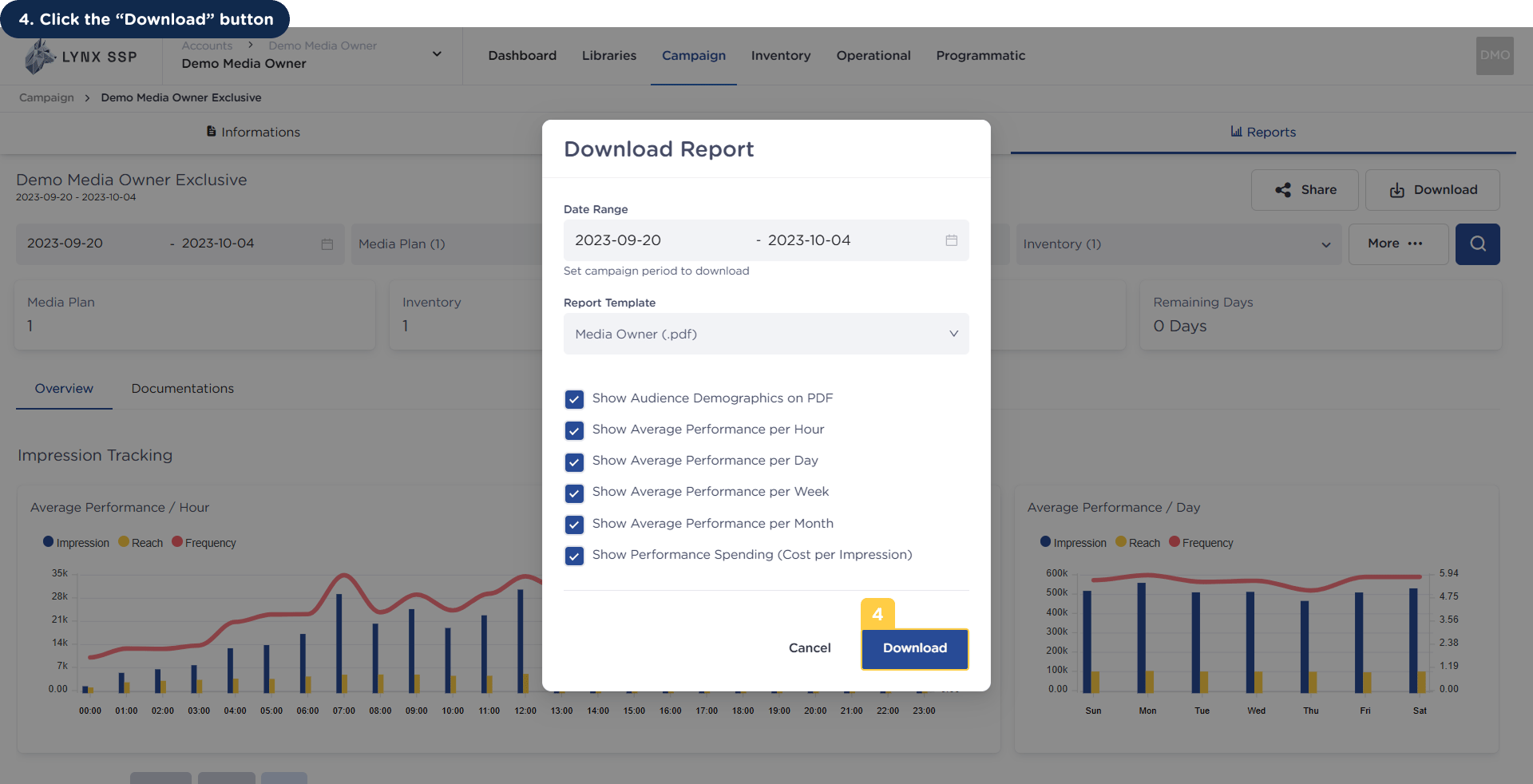
  <Step title="Click the “Download” button">
    <img src="https://mintcdn.com/lynxssp-91a2d3cb/SzGURL6ji_4ljAkk/images/reports/download/DownloadCampaignReport-4.png?fit=max&auto=format&n=SzGURL6ji_4ljAkk&q=85&s=504d798c5ac6e9d1ba96cc03b632d859" alt="Download Campaign Report 4 Pn" width="1920" height="982" data-path="images/reports/download/DownloadCampaignReport-4.png" />

    The campaign report has been successfully downloaded.
  </Step>
</Steps>

An example of the campaign report in PDF format can be downloaded via the following link:

<Card title="End of Campaign Report " icon="file-chart-column" horizontal href="https://drive.google.com/file/d/1MpF3LUavO8z1D308HH8BaVvxg1zsdL5N/view?usp=sharing" />