> ## Documentation Index
> Fetch the complete documentation index at: https://docs.lynxssp.com/llms.txt
> Use this file to discover all available pages before exploring further.

# Create a Filler Content 

This page helps you create new filler content on the Lynx SSP Platform

There are several steps involved in creating filler content, including:

## Accessing the Create New Filler Page

<Steps>
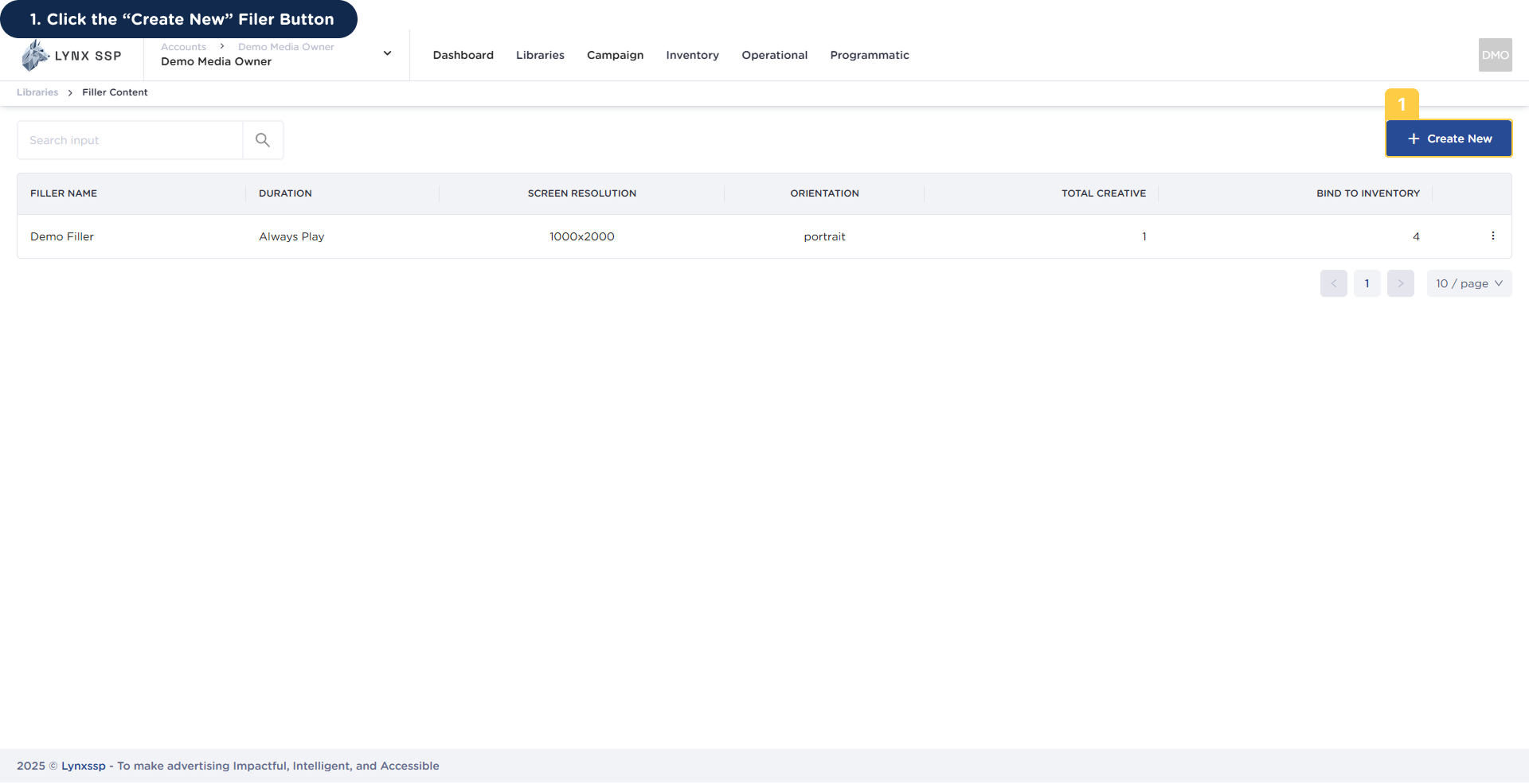
  <Step title="Click the “Create New” Filer Button">
    <img src="https://mintlify.s3.us-west-1.amazonaws.com/lynxssp-91a2d3cb/images/documentation/creative-management/filler-content/create/Accessing%20the%20Create%20New%20Filler%20Page%20-%201.png" alt="Accessing the Create New Filler Page 1" />

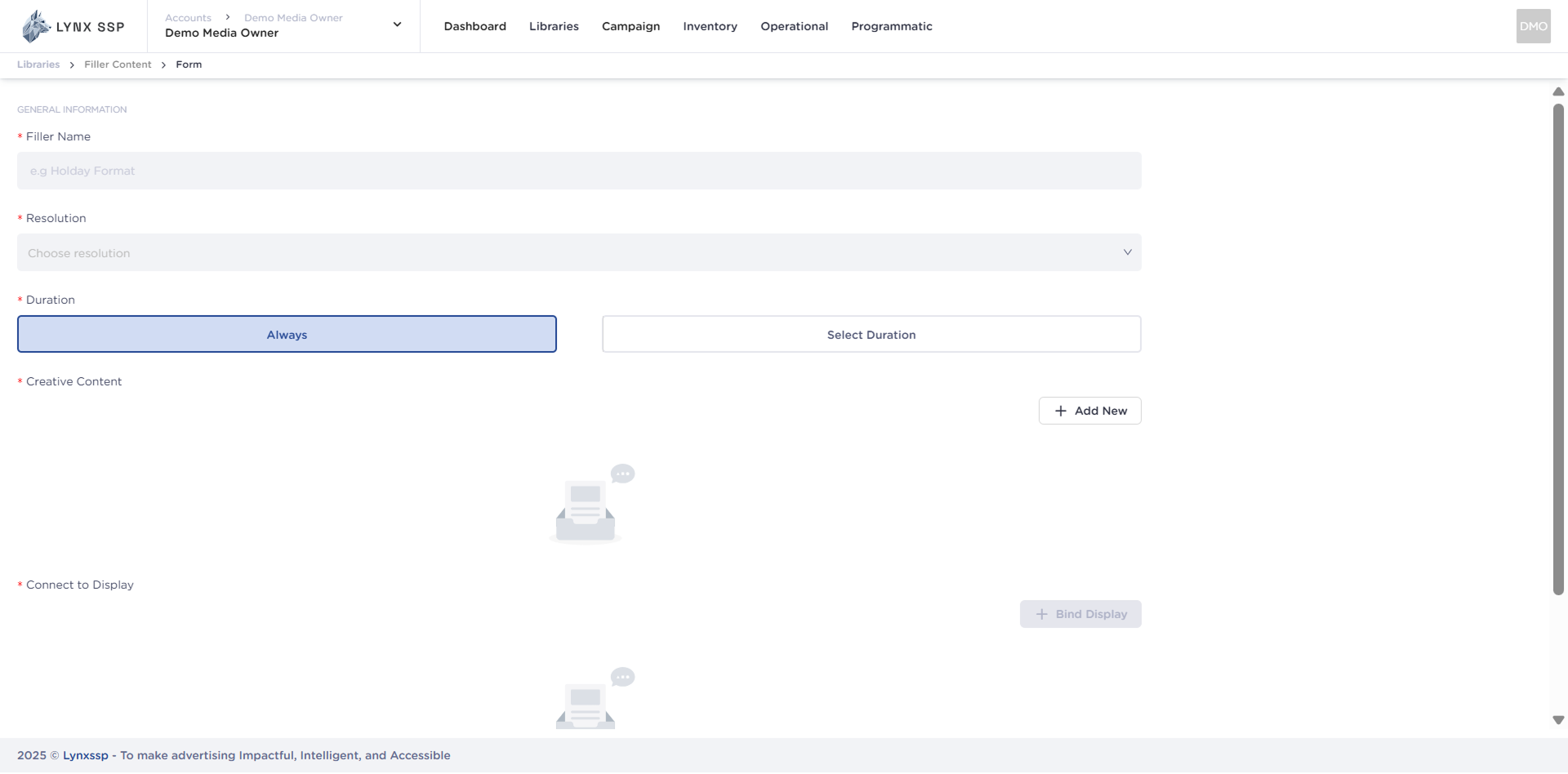
    This will display the page and form to create new filler content.
    <img src="https://mintlify.s3.us-west-1.amazonaws.com/lynxssp-91a2d3cb/images/documentation/creative-management/filler-content/create/Accessing%20the%20Create%20New%20Filler%20Page%20-%201.2.png" alt="Accessing the Create New Filler Page 1.2" />
  </Step>
</Steps>

## How to Create New Filler Content

<iframe frameborder="0" className="w-full aspect-video rounded-xl" allowfullscreen src="https://www.awesomescreenshot.com/embed?id=46724082&shareKey=f497ec4c1d66415132249823616553d0" />

***

## Create New Filler Content Form

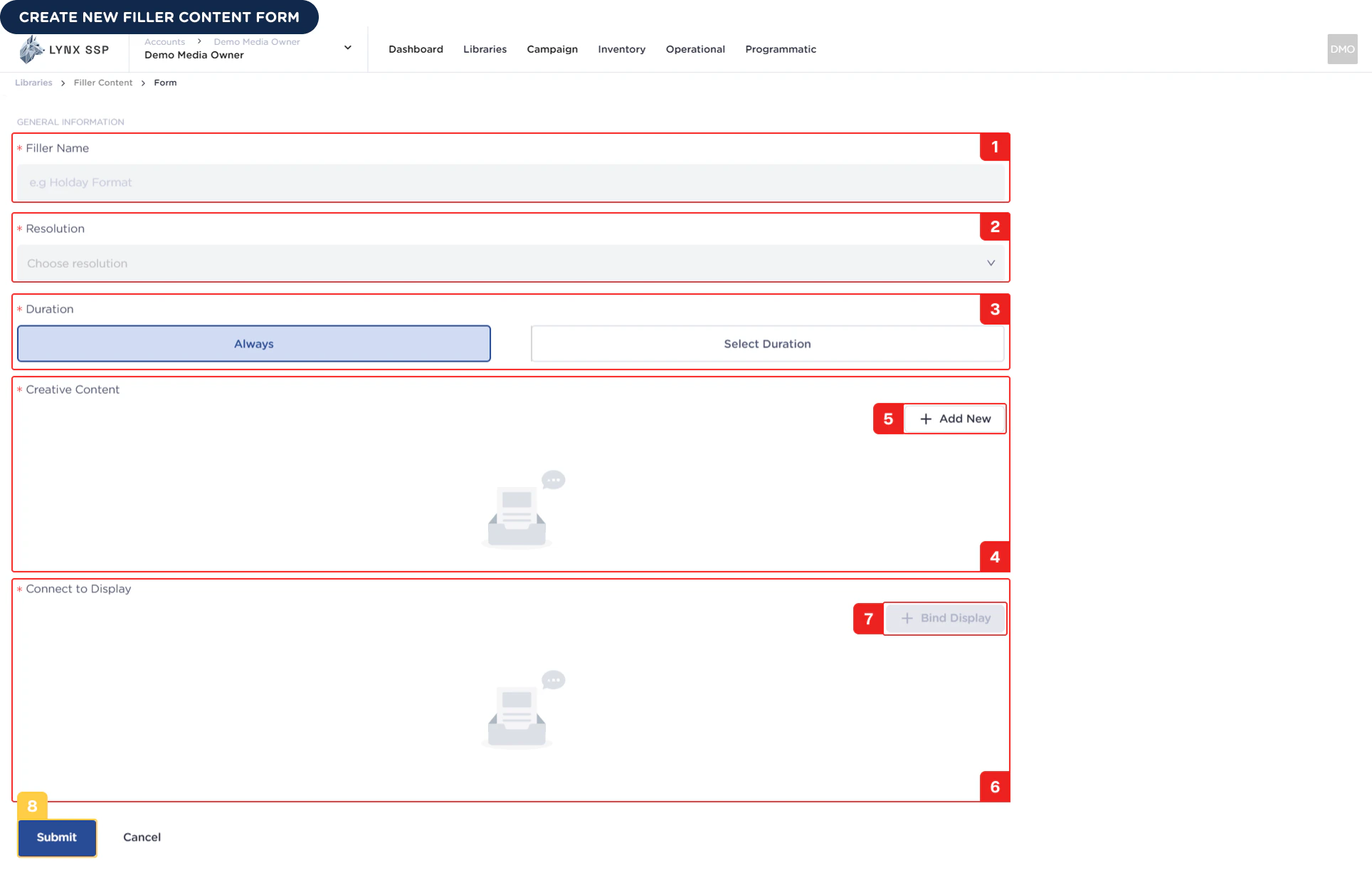
When creating new filler content for the Lynx SSP Platform, you will need to prepare and enter some information or data in the following form:

<img src="https://mintcdn.com/lynxssp-91a2d3cb/IofkkkDxp8kkHCcX/images/documentation/creative-management/filler-content/create/create-new-filler-content-form.png?fit=max&auto=format&n=IofkkkDxp8kkHCcX&q=85&s=d9c965f0c5bba569534d4f4015a68fc7" alt="Create New Filler Content Form Pn" width="1928" height="1229" data-path="images/documentation/creative-management/filler-content/create/create-new-filler-content-form.png" />

Based on the form above, the information or data required to create new filler content is as follows:


<Steps>
  <Step title="Filler Name (Required)">
    You must enter the Name filler or unique name of the filler content you created.
  </Step>

  <Step title="Resolution (Required)">
    You must enter the resolution of the filler content you have created and ensure that the resolution matches the resolution of the DOOH (Digital-Out-of-Home) Inventory to be inserted.
  </Step>

  <Step title="Duration (Required)">
    You must select the duration of the filler content created. The duration can be Always or Select Duration.

    <Accordion title="Always">
      **Always** states that the filler content created has no expiration date eventually, the filler content will continue to fill the empty slots of DOOH (Digital-Out-of-Home) Inventory indefinitely. By default, it will always be displayed.

      <img src="https://mintcdn.com/lynxssp-91a2d3cb/IofkkkDxp8kkHCcX/images/documentation/creative-management/filler-content/create/create-new-filler-content-duration-always.png?fit=max&auto=format&n=IofkkkDxp8kkHCcX&q=85&s=c4f670da935358a9b4142add55592ac4" alt="Create New Filler Content Always" width="1409" height="140" data-path="images/documentation/creative-management/filler-content/create/create-new-filler-content-duration-always.png" />
    </Accordion>

    <Accordion title="Select Duration">
      If you choose to use duration, filler content will only be displayed to fill empty slots in the DOOH (Digital-Out-of-Home) Inventory according to the specified duration.

      <img src="https://mintcdn.com/lynxssp-91a2d3cb/IofkkkDxp8kkHCcX/images/documentation/creative-management/filler-content/create/select-duration.png?fit=max&auto=format&n=IofkkkDxp8kkHCcX&q=85&s=cbd92ccb2ba17bf3ca17d6e581a86ce3" alt="Create New Filler Content Always" width="1425" height="276" data-path="images/documentation/creative-management/filler-content/create/select-duration.png" />
    </Accordion>
  </Step>

  <Step title="List Creative Content (Required)">
    Display a list of creative content to be added.
  </Step>

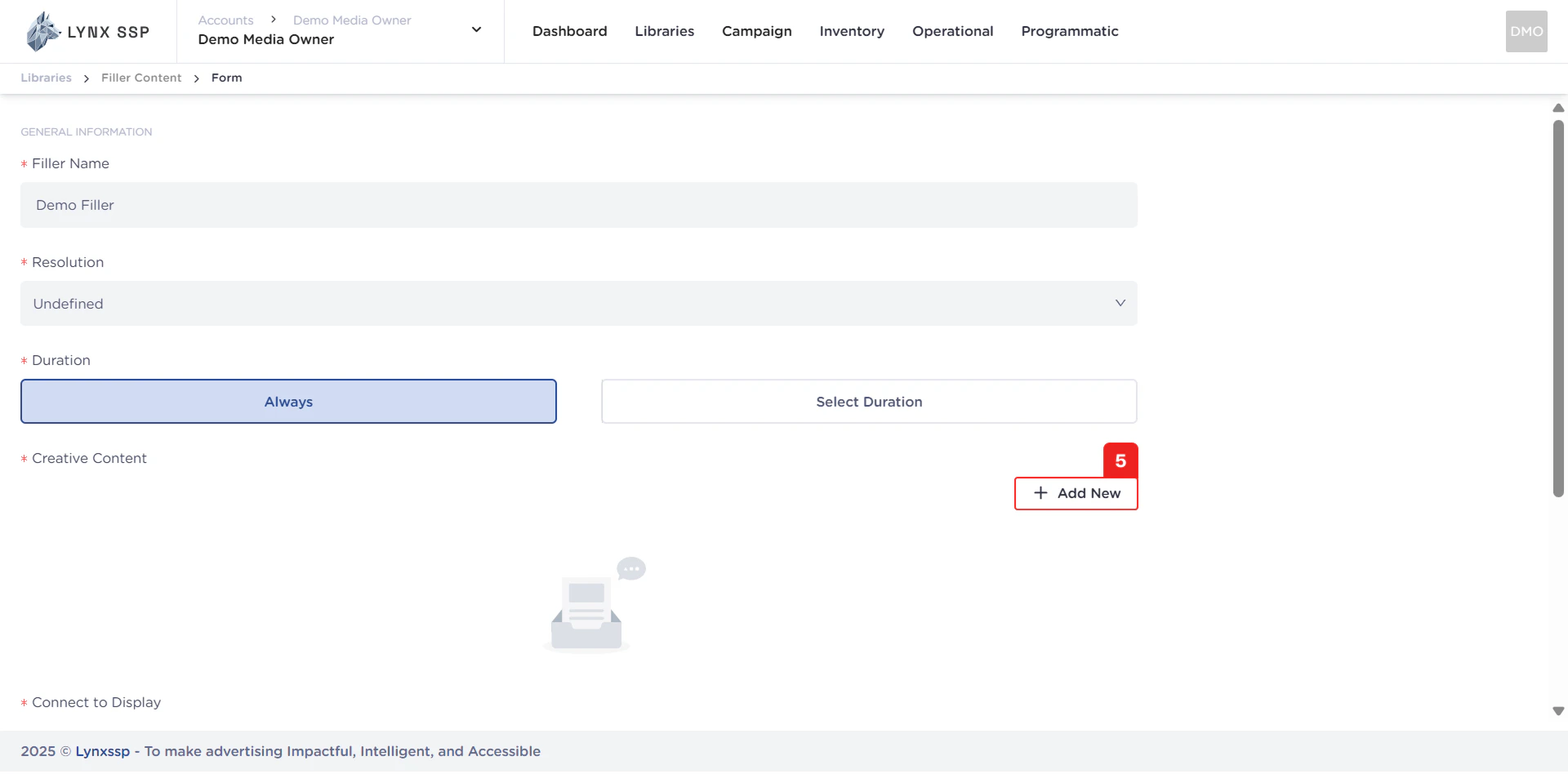
  <Step title="Add Creative Content Button (Required)">
    You can add creative elements to your filler content.

    <img src="https://mintcdn.com/lynxssp-91a2d3cb/IofkkkDxp8kkHCcX/images/documentation/creative-management/filler-content/create/create-new-filler-content-add-new-creative-button.png?fit=max&auto=format&n=IofkkkDxp8kkHCcX&q=85&s=e194ca22ff0087c540b78c749a9dffb8" alt="Create New Filler Content Always" width="1920" height="948" data-path="images/documentation/creative-management/filler-content/create/create-new-filler-content-add-new-creative-button.png" />

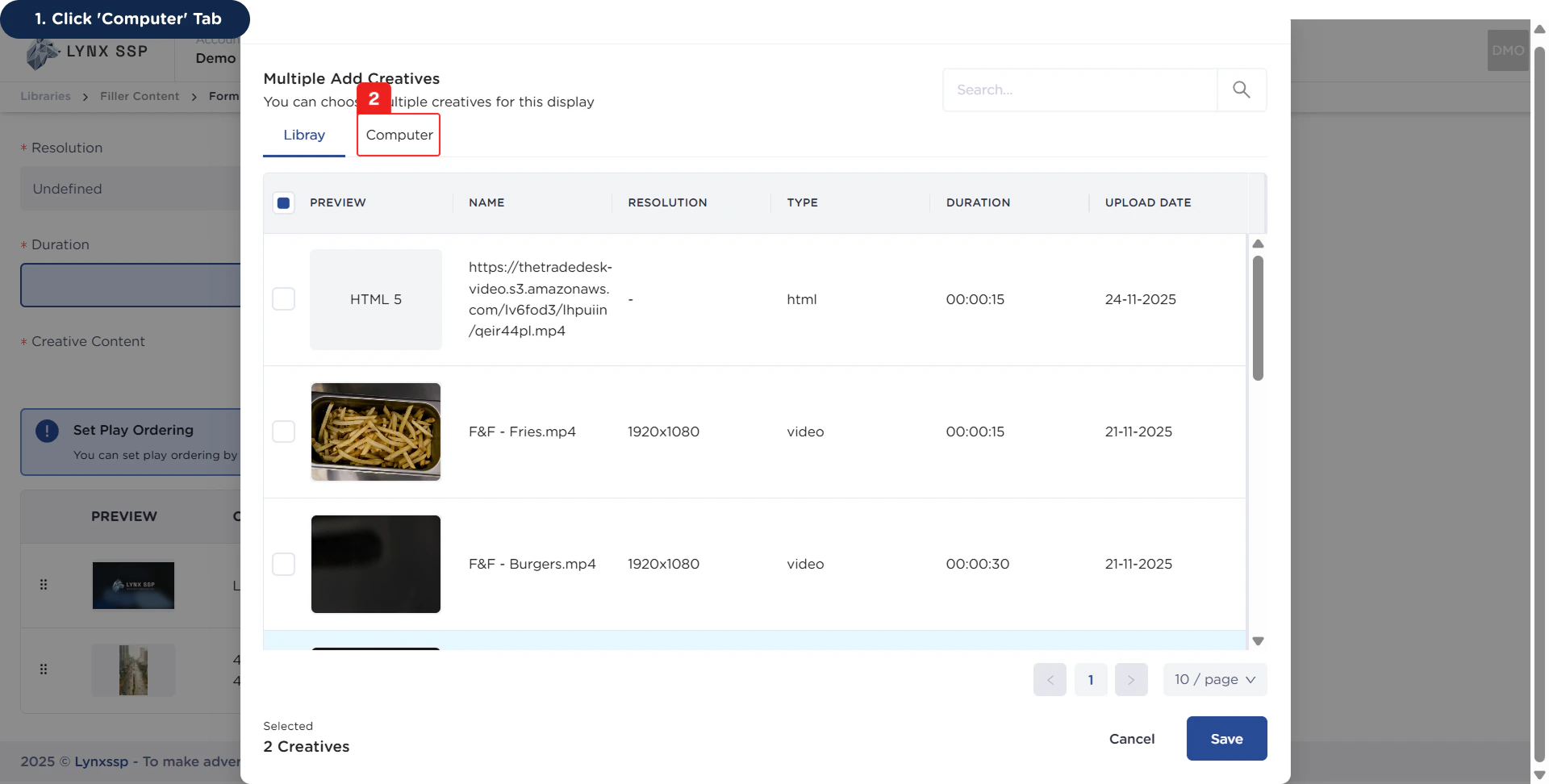
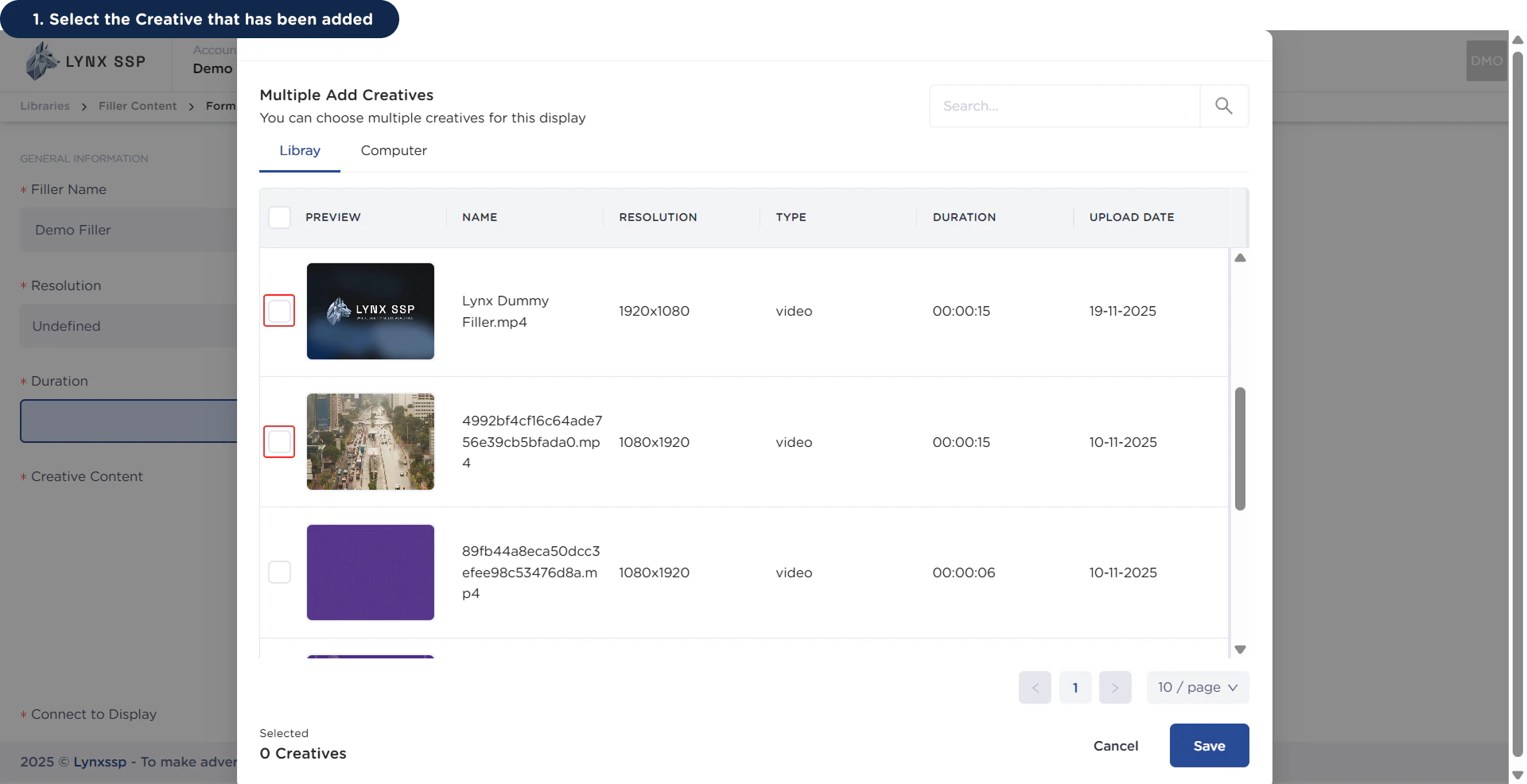
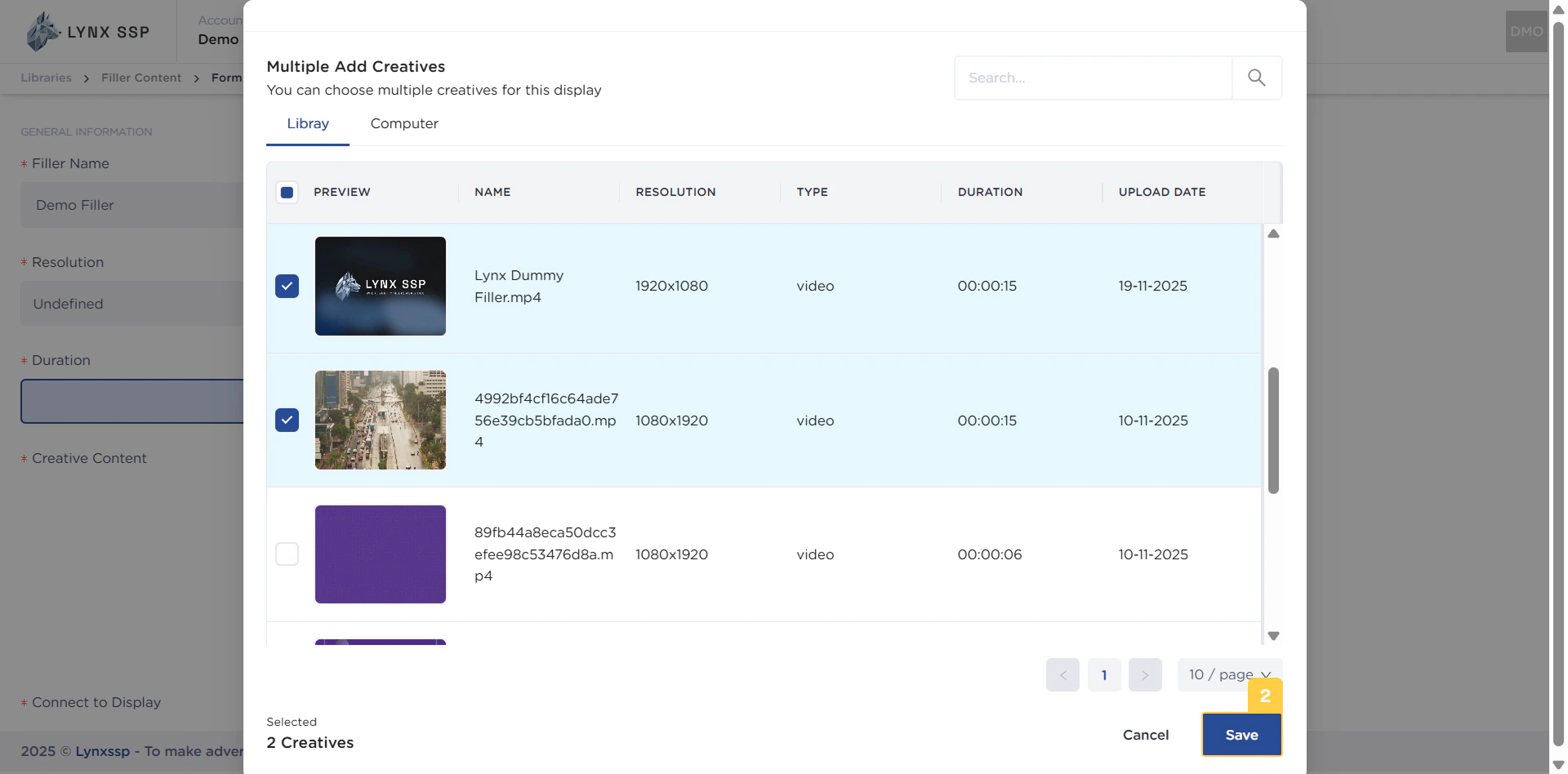
    You can choose from the library or list of creative media that has been added or uploaded via computer.
    <Accordion title="via Library">
      <Steps>
        <Step title="Select the Creative that has been added">
          <img src="https://mintcdn.com/lynxssp-91a2d3cb/IofkkkDxp8kkHCcX/images/documentation/creative-management/filler-content/create/create-new-filler-content-add-creative-from-library-1.png?fit=max&auto=format&n=IofkkkDxp8kkHCcX&q=85&s=c797e5c9492676637247b6581a917c27" alt="Create New Filler Content Add Creative via Library 1" width="1920" height="986" data-path="images/documentation/creative-management/filler-content/create/create-new-filler-content-add-creative-from-library-1.png" />
        </Step>

        <Step title="Click the 'Save' Button">
          <img src="https://mintcdn.com/lynxssp-91a2d3cb/IofkkkDxp8kkHCcX/images/documentation/creative-management/filler-content/create/create-new-filler-content-add-creative-from-library-2.png?fit=max&auto=format&n=IofkkkDxp8kkHCcX&q=85&s=7b4f5c75cb8d14c8afc40e781475f8d1" alt="Create New Filler Content Add Creative via Library 2" width="1920" height="948" data-path="images/documentation/creative-management/filler-content/create/create-new-filler-content-add-creative-from-library-2.png" />
        </Step>
      </Steps>
    </Accordion>

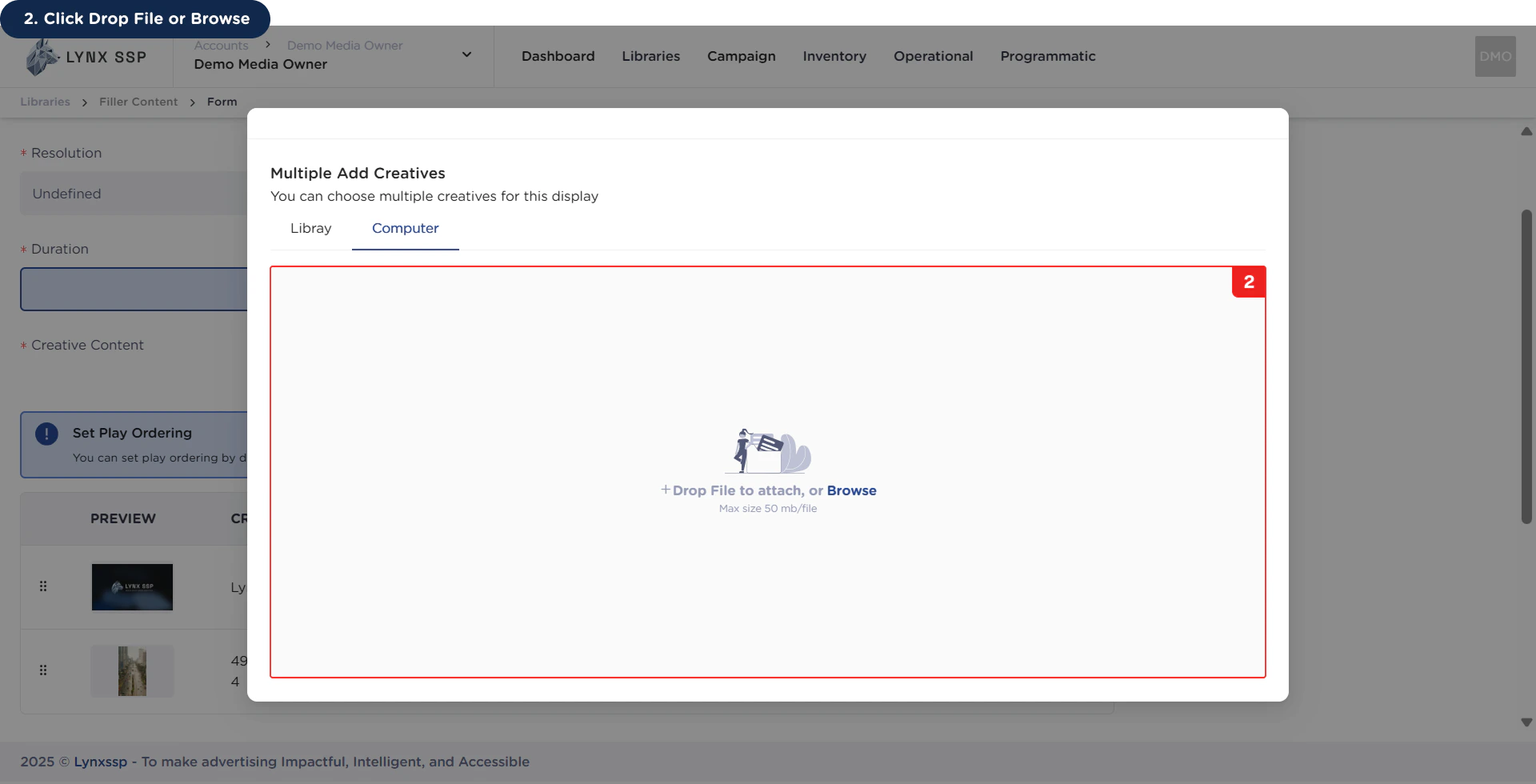
    <Accordion title="via Computer">
      <Steps>
        <Step title="Click 'Computer' Tab">
          <img src="https://mintcdn.com/lynxssp-91a2d3cb/IofkkkDxp8kkHCcX/images/documentation/creative-management/filler-content/create/create-new-filler-content-add-creative-from-computer-1.png?fit=max&auto=format&n=IofkkkDxp8kkHCcX&q=85&s=09c0ff76325a97f382d9eb4360cdfd74" alt="Create New Filler Content Add Creative via Computer 1" width="1920" height="972" data-path="images/documentation/creative-management/filler-content/create/create-new-filler-content-add-creative-from-computer-1.png" />
        </Step>

        <Step title="Click Drop File or Browse">
          <Note>
            Ensure that the file size of the creative content to be uploaded does not exceed **50MB**.
          </Note>

          <img src="https://mintcdn.com/lynxssp-91a2d3cb/IofkkkDxp8kkHCcX/images/documentation/creative-management/filler-content/create/create-new-filler-content-add-creative-from-computer-2.png?fit=max&auto=format&n=IofkkkDxp8kkHCcX&q=85&s=c40a530d24188a059ec4a28e3810e973" alt="Create New Filler Content Add Creative via Computer 2" width="1920" height="980" data-path="images/documentation/creative-management/filler-content/create/create-new-filler-content-add-creative-from-computer-2.png" />
        </Step>
      </Steps>
    </Accordion>

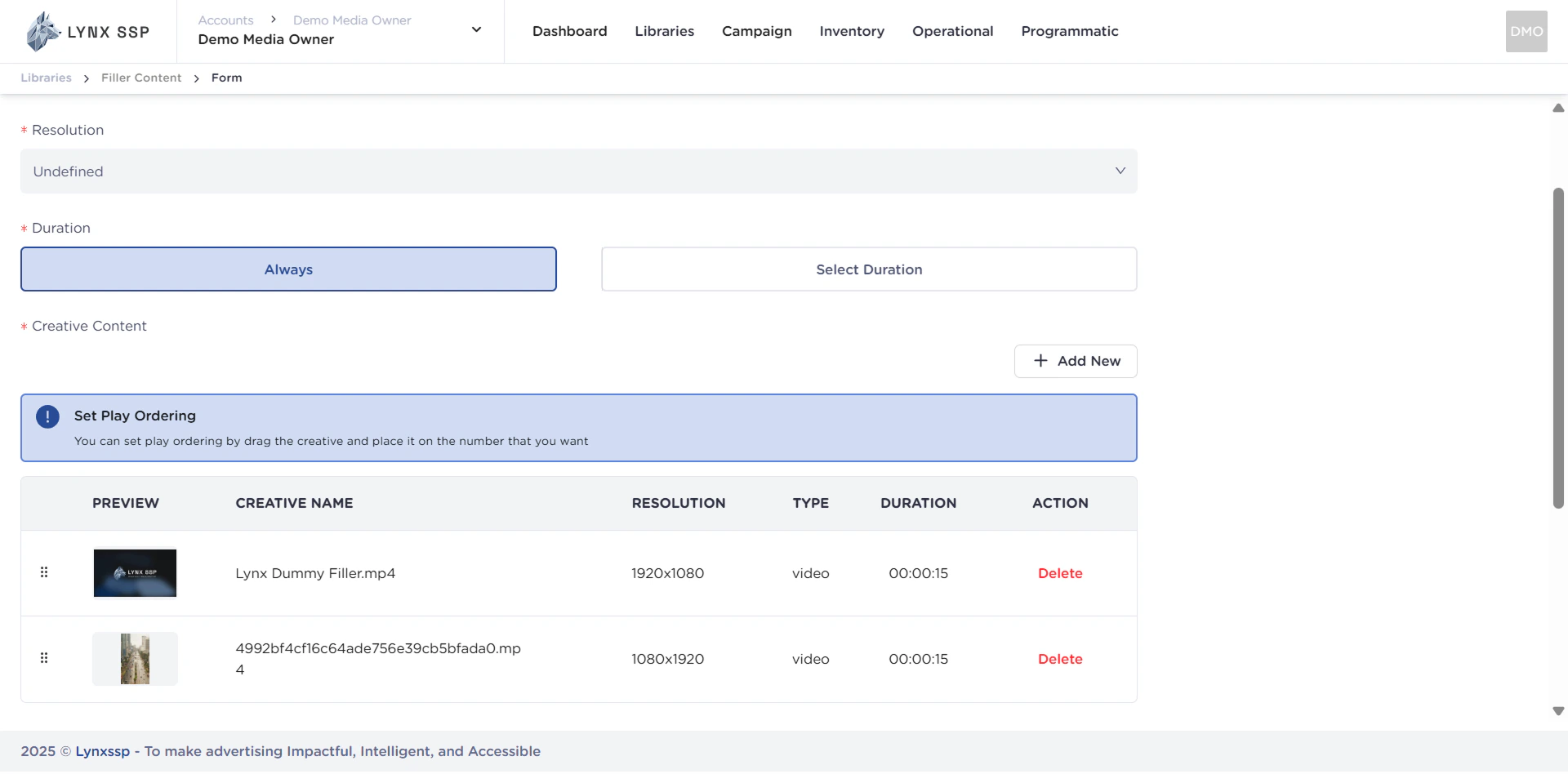
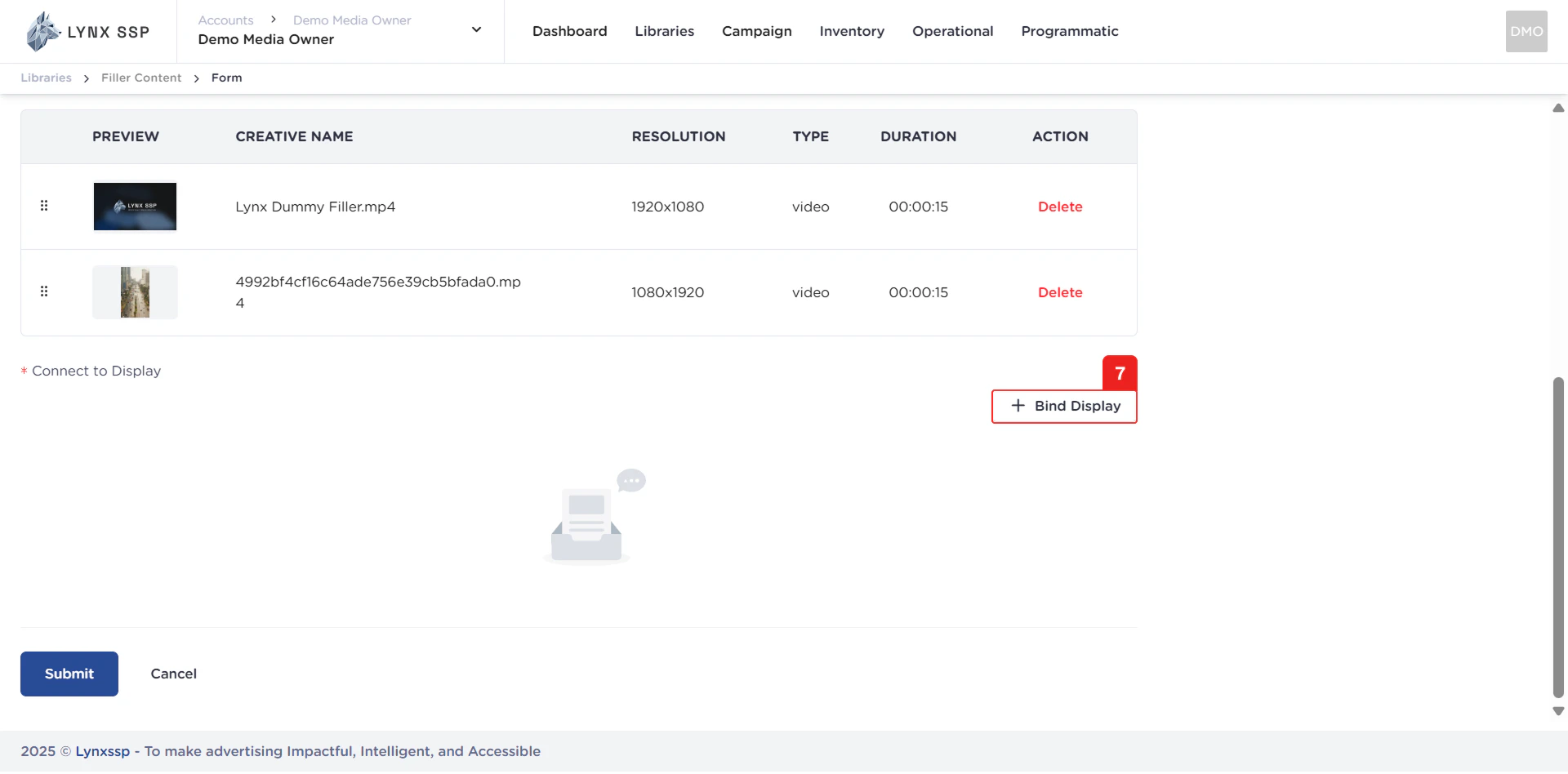
    Then, after adding it, it will display a list of creative media.

    <img src="https://mintcdn.com/lynxssp-91a2d3cb/IofkkkDxp8kkHCcX/images/documentation/creative-management/filler-content/create/create-new-filler-content-add-creative.png?fit=max&auto=format&n=IofkkkDxp8kkHCcX&q=85&s=8ffd7d9d4856130d077f1c805fc3928b" alt="Create New Filler Content Add Creative List" width="1920" height="948" data-path="images/documentation/creative-management/filler-content/create/create-new-filler-content-add-creative.png" />

    You can rearrange the order of creatives and remove them from the list.
  </Step>

  <Step title="List Connect to Display">
    Display a list of (Digital-Out-of-Home) Inventory that will be linked to filler content.
  </Step>

  <Step title="Connect to Display (Required)">
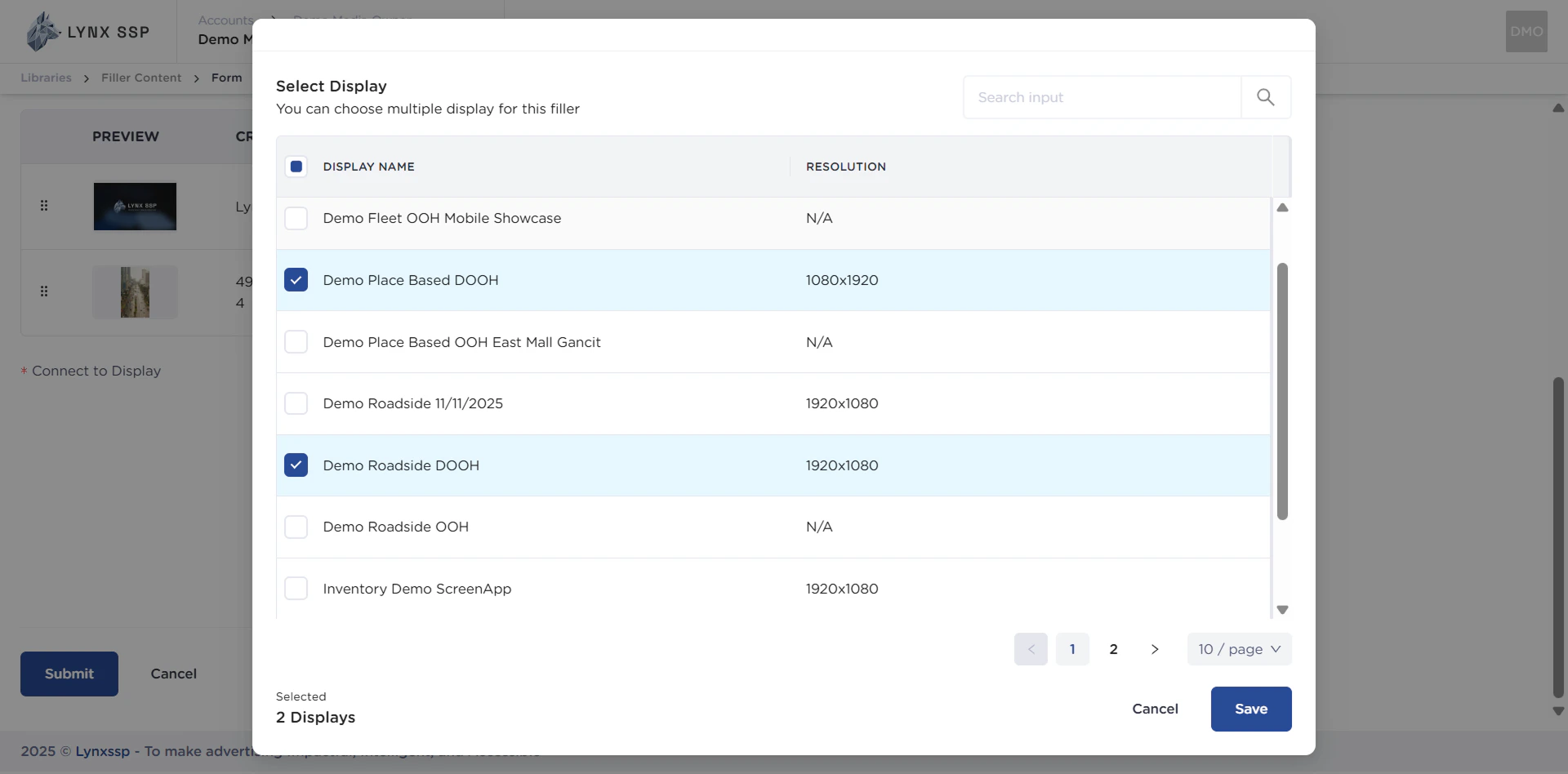
    You can connect the filler content you create to DOOH (Digital-Out-of-Home) Inventory.

    **Example:** You entered the DOOH (Digital-Out-of-Home) Inventory that I added earlier ([See Create a DOOH Inventory ↗](/documentation/inventory/dooh/add/how-to-add)).

    <img src="https://mintcdn.com/lynxssp-91a2d3cb/IofkkkDxp8kkHCcX/images/documentation/creative-management/filler-content/create/create-new-filler-content-bind-display-button.png?fit=max&auto=format&n=IofkkkDxp8kkHCcX&q=85&s=e173508d8e3095e3cc567354fe5d3d1d" alt="Create New Filler Content Add Creative List" width="1920" height="948" data-path="images/documentation/creative-management/filler-content/create/create-new-filler-content-bind-display-button.png" />

    <p> ‎ ‎ ‎ ‎ ‎ ‎ ‎ ‎ ‎ ‎ ‎ ‎ ‎ ‎ ‎ ‎ ‎ ‎ ‎ ‎ ‎ ‎ ‎</p>

    <img src="https://mintcdn.com/lynxssp-91a2d3cb/IofkkkDxp8kkHCcX/images/documentation/creative-management/filler-content/create/create-new-filler-content-connect-display.png?fit=max&auto=format&n=IofkkkDxp8kkHCcX&q=85&s=42efb670647450d9aea72e7ee4789143" alt="Create New Filler Content Add Creative List" width="1920" height="948" data-path="images/documentation/creative-management/filler-content/create/create-new-filler-content-connect-display.png" />

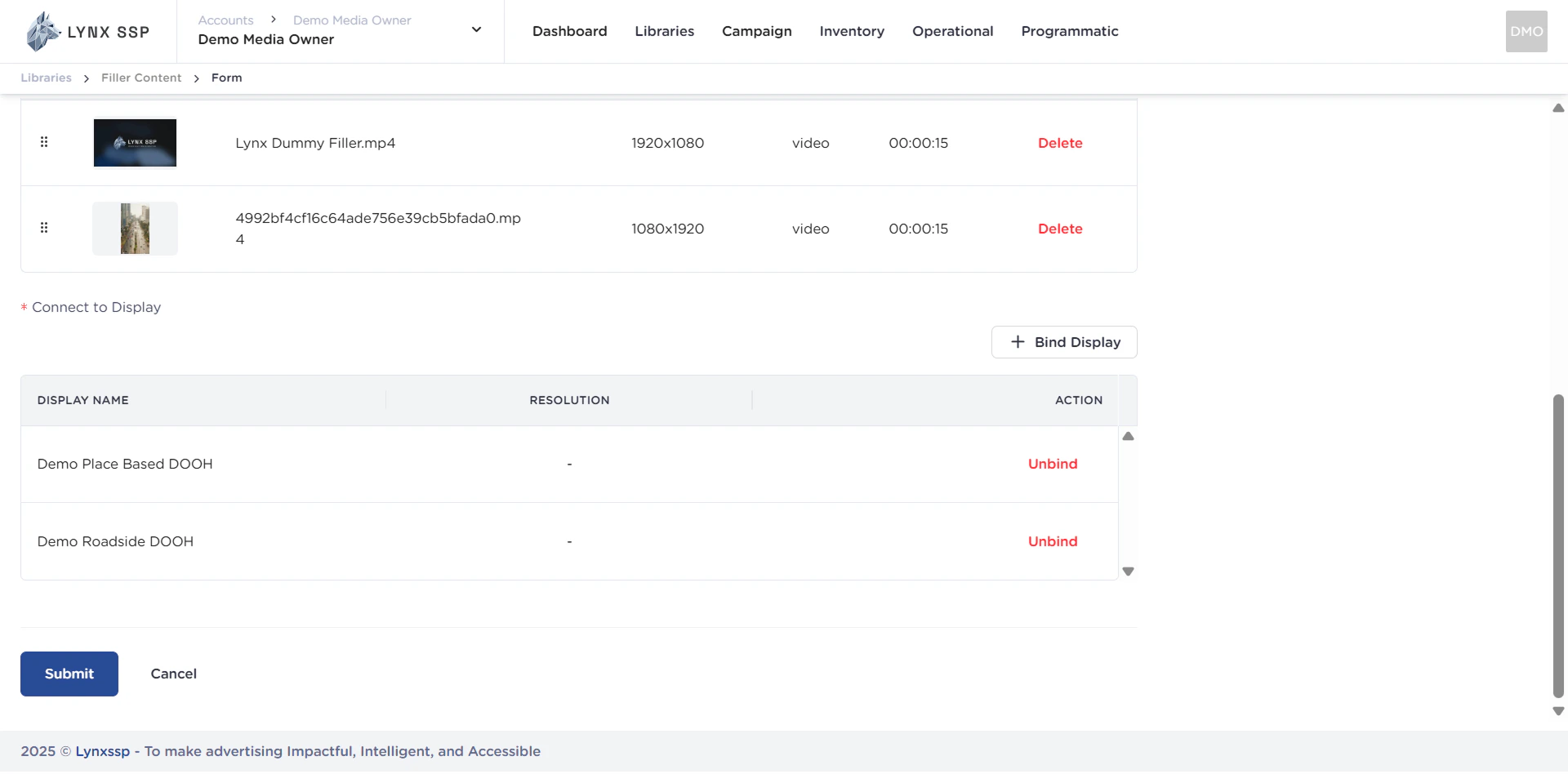
    Then, after adding it, it will display the DOOH (Digital-Out-of-Home) Inventory list.
    <img src="https://mintcdn.com/lynxssp-91a2d3cb/IofkkkDxp8kkHCcX/images/documentation/creative-management/filler-content/create/create-new-filler-content-connect-display-list.png?fit=max&auto=format&n=IofkkkDxp8kkHCcX&q=85&s=a4fbf9cda7dc56e756b87a4d9cd9dce6" alt="Create New Filler Content Add Creative List" width="1920" height="948" data-path="images/documentation/creative-management/filler-content/create/create-new-filler-content-connect-display-list.png" />

    You can unbind the DOOH (Digital-Out-of-Home) Inventory that has been connected.
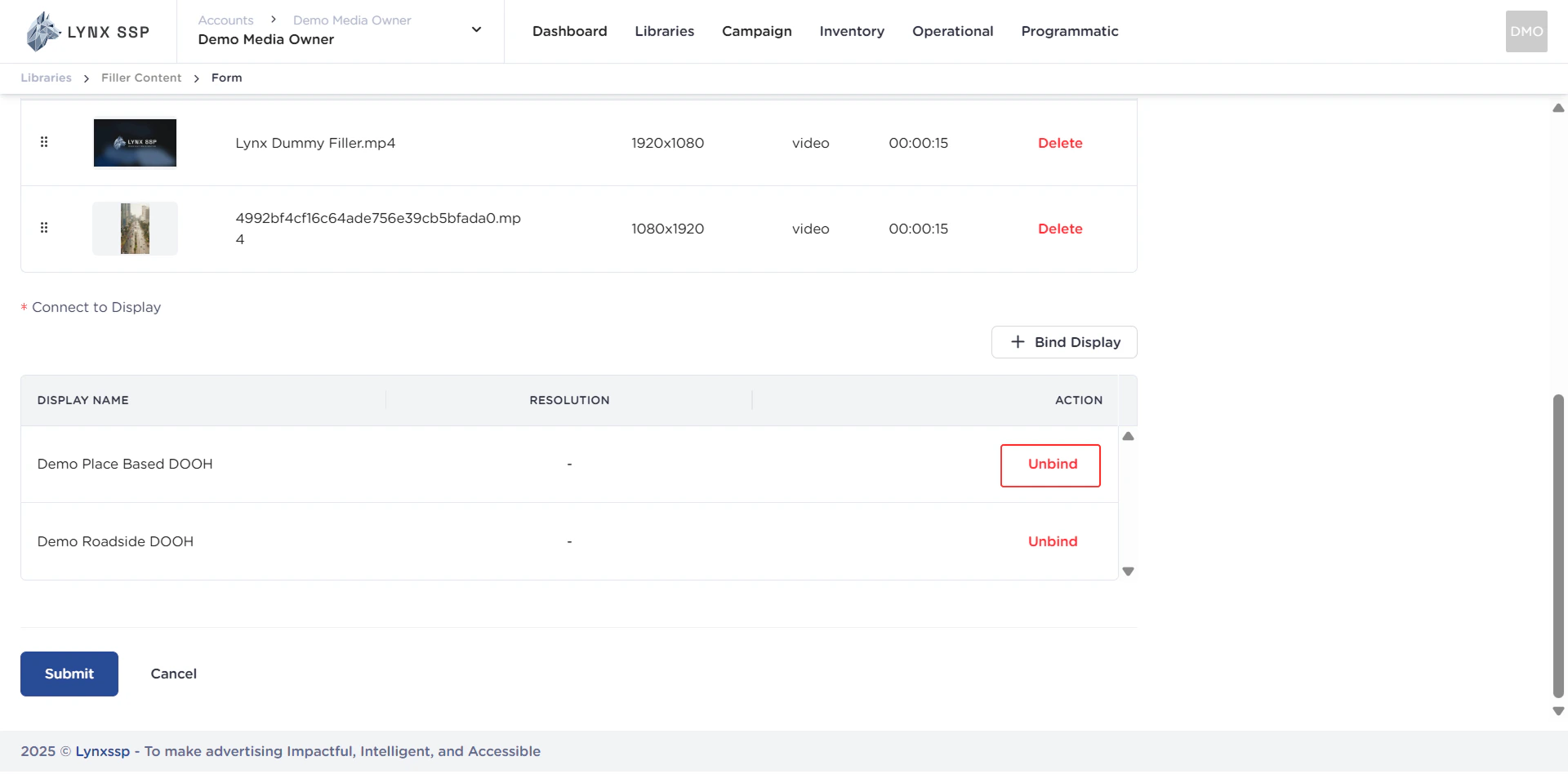
    <Accordion title="Unbind DOOH (Digital-Out-of-Home) Inventory">
      <img src="https://mintcdn.com/lynxssp-91a2d3cb/IofkkkDxp8kkHCcX/images/documentation/creative-management/filler-content/create/create-new-filler-content-connect-display-list-unbind.png?fit=max&auto=format&n=IofkkkDxp8kkHCcX&q=85&s=655401be38fe0f4b6b5b1cb87bf81066" alt="Create New Filler Content Add Creative List" width="1920" height="948" data-path="images/documentation/creative-management/filler-content/create/create-new-filler-content-connect-display-list-unbind.png" />
    </Accordion>
  </Step>

  <Step title=" Click the “Submit” Button">
    After filling in all the information and adding filler content, click the “**Submit**” button.
  </Step>
</Steps>