> ## Documentation Index
> Fetch the complete documentation index at: https://docs.lynxssp.com/llms.txt
> Use this file to discover all available pages before exploring further.

# Upload Creative

This page helps you understand the steps for adding or uploading creative content to the Lynx SSP Platform.

## Creative Format

Here are the creative media formats that you can upload to the Lynx SSP Platform:

<CardGroup cols={2}>
  <Card title="MP4" />

  <Card title="WEBM" />

  <Card title="HTML" />

  <Card title="JPEG" />

  <Card title="JPG" />

  <Card title="GIF" />

  <Card title="PNG" />
</CardGroup>

## How to Upload Creative Content

***

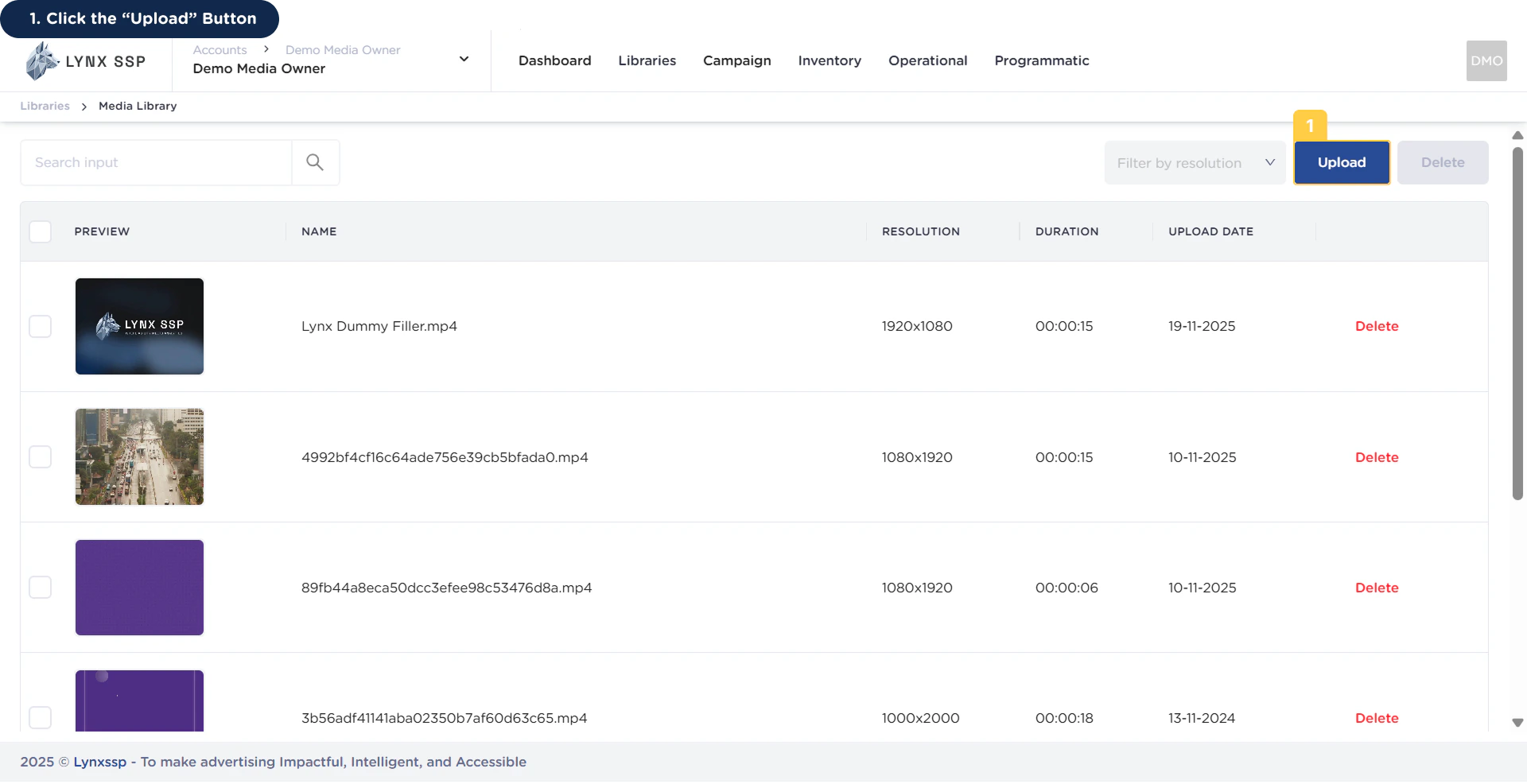
You can upload creative content in two ways, namely via your computer directory and URL link:
<Accordion title="via Computer">
  <Steps>
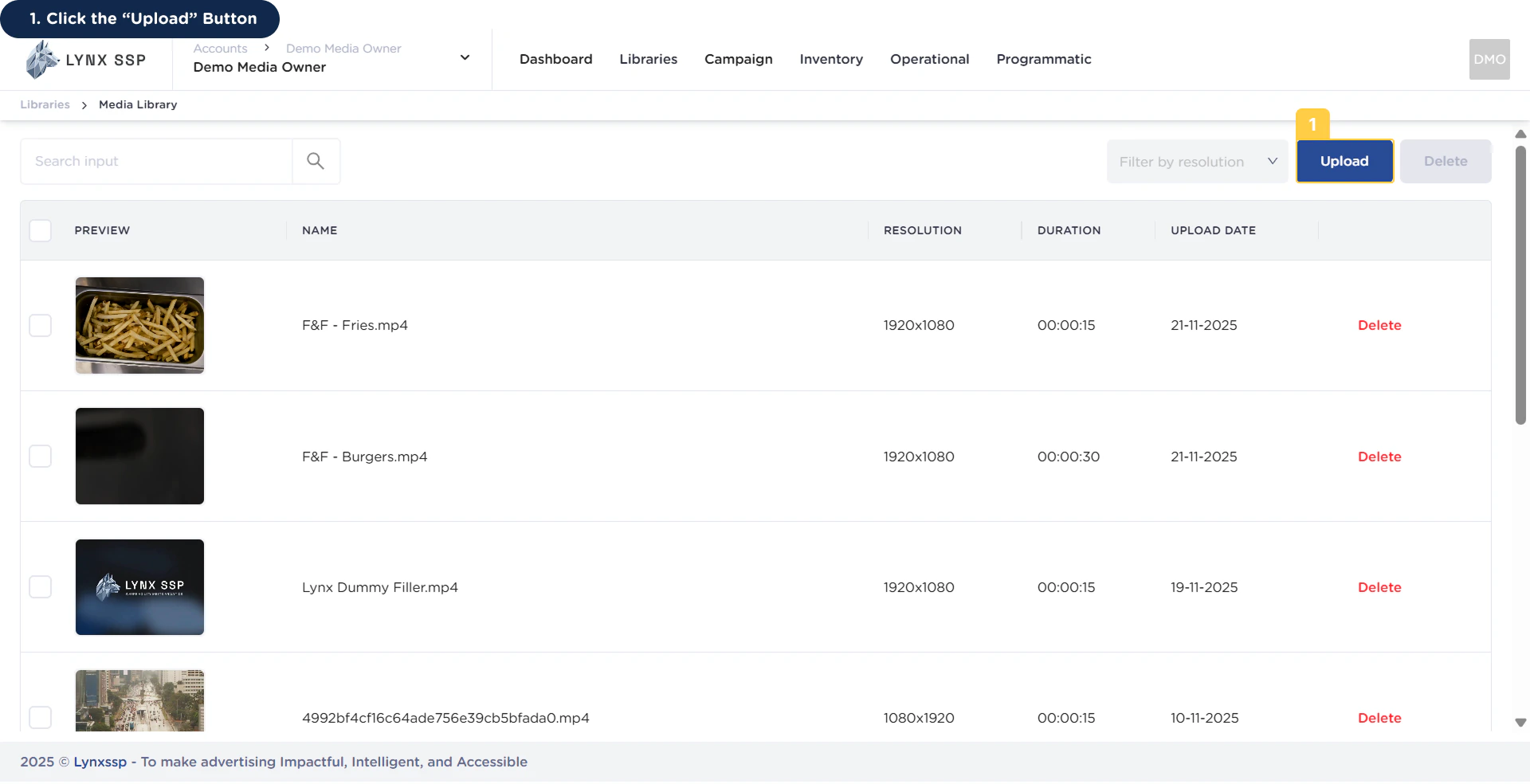
    <Step title="Click the 'Upload' Button">
      <img src="https://mintcdn.com/lynxssp-91a2d3cb/IofkkkDxp8kkHCcX/images/documentation/creative-management/media-library/upload-creative/upload-via-computer-1.png?fit=max&auto=format&n=IofkkkDxp8kkHCcX&q=85&s=8c3b42416be18ac52c56e572e0b0008e" alt="Upload via Computer 1" width="1920" height="986" data-path="images/documentation/creative-management/media-library/upload-creative/upload-via-computer-1.png" />

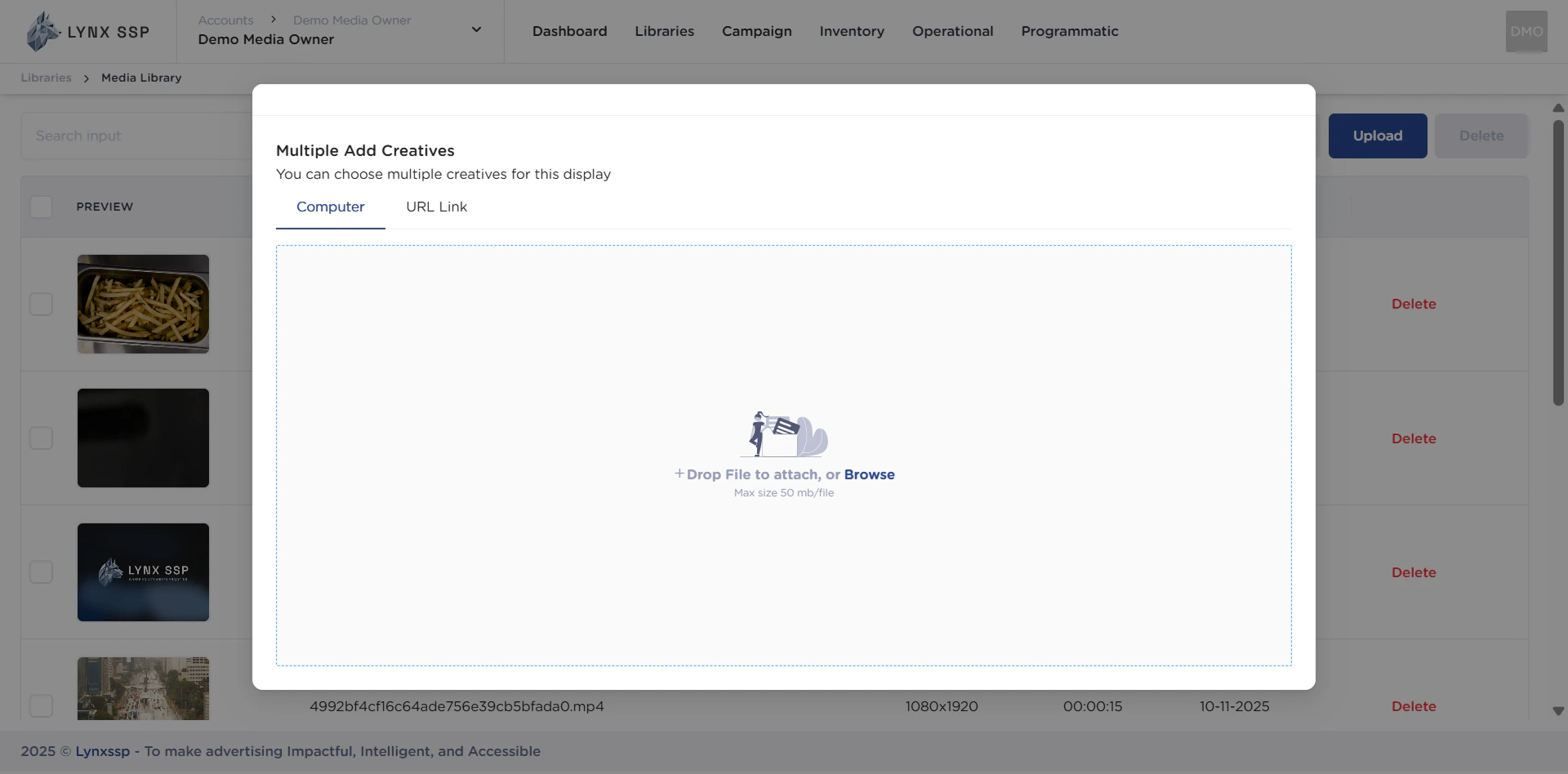
      Then it will display the Creative Content Upload.
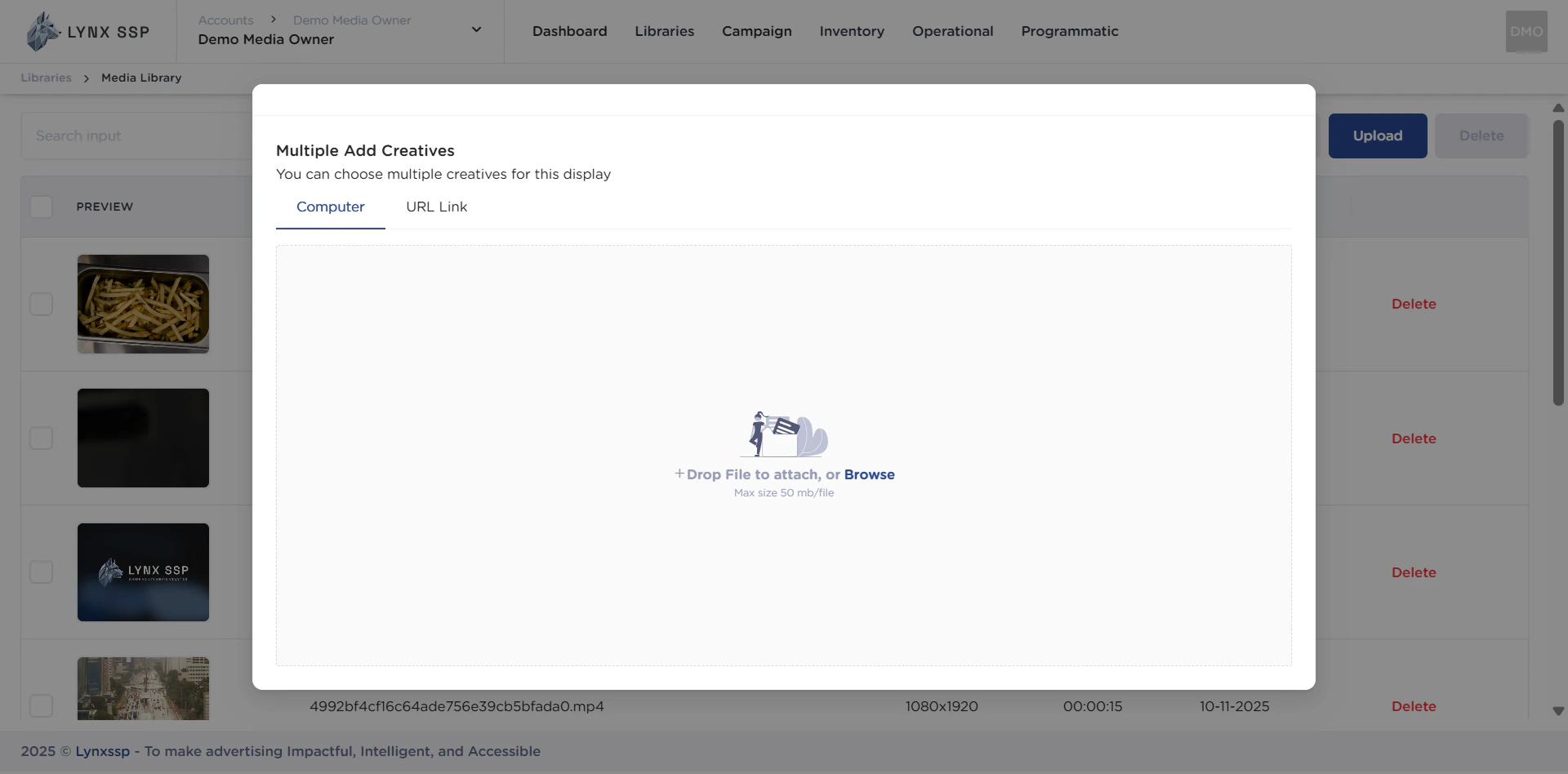
      <img src="https://mintcdn.com/lynxssp-91a2d3cb/IofkkkDxp8kkHCcX/images/documentation/creative-management/media-library/upload-creative/upload-via-computer-1.2.png?fit=max&auto=format&n=IofkkkDxp8kkHCcX&q=85&s=3928c59564897c9e008e9e51a86bff34" alt="Upload via Computer 1.2" width="1920" height="948" data-path="images/documentation/creative-management/media-library/upload-creative/upload-via-computer-1.2.png" />
    </Step>

    <Step title="Click Drop File or Browse">
      <img src="https://mintcdn.com/lynxssp-91a2d3cb/IofkkkDxp8kkHCcX/images/documentation/creative-management/media-library/upload-creative/upload-via-computer-2.png?fit=max&auto=format&n=IofkkkDxp8kkHCcX&q=85&s=790c26fac7db72a39bb9c739bf595a7c" alt="Upload via Computer 2" width="1920" height="983" data-path="images/documentation/creative-management/media-library/upload-creative/upload-via-computer-2.png" />

      <Note>
        Ensure that the file size of the creative content to be uploaded does not exceed **50MB**.
      </Note>

      After selecting the file, it will display that the creative content file has been successfully added or uploaded.

      <img src="https://mintcdn.com/lynxssp-91a2d3cb/IofkkkDxp8kkHCcX/images/documentation/creative-management/media-library/upload-creative/upload-via-computer-2.2.png?fit=max&auto=format&n=IofkkkDxp8kkHCcX&q=85&s=e6bdeded4a58a1839d4e9f509903c65b" alt="Upload via Computer 2.2" width="1920" height="948" data-path="images/documentation/creative-management/media-library/upload-creative/upload-via-computer-2.2.png" />
    </Step>
  </Steps>
</Accordion>

<Accordion title="via URL Link">
  <Steps>
    <Step title="Click the 'Upload' Button">
      <img src="https://mintcdn.com/lynxssp-91a2d3cb/IofkkkDxp8kkHCcX/images/documentation/creative-management/media-library/upload-creative/upload-via-url-link-1.png?fit=max&auto=format&n=IofkkkDxp8kkHCcX&q=85&s=4c4b4c7566254f7108089bbcdf2ab323" alt="Upload via URL Link 1" width="1920" height="984" data-path="images/documentation/creative-management/media-library/upload-creative/upload-via-url-link-1.png" />

      Then it will display the Creative Content Upload.
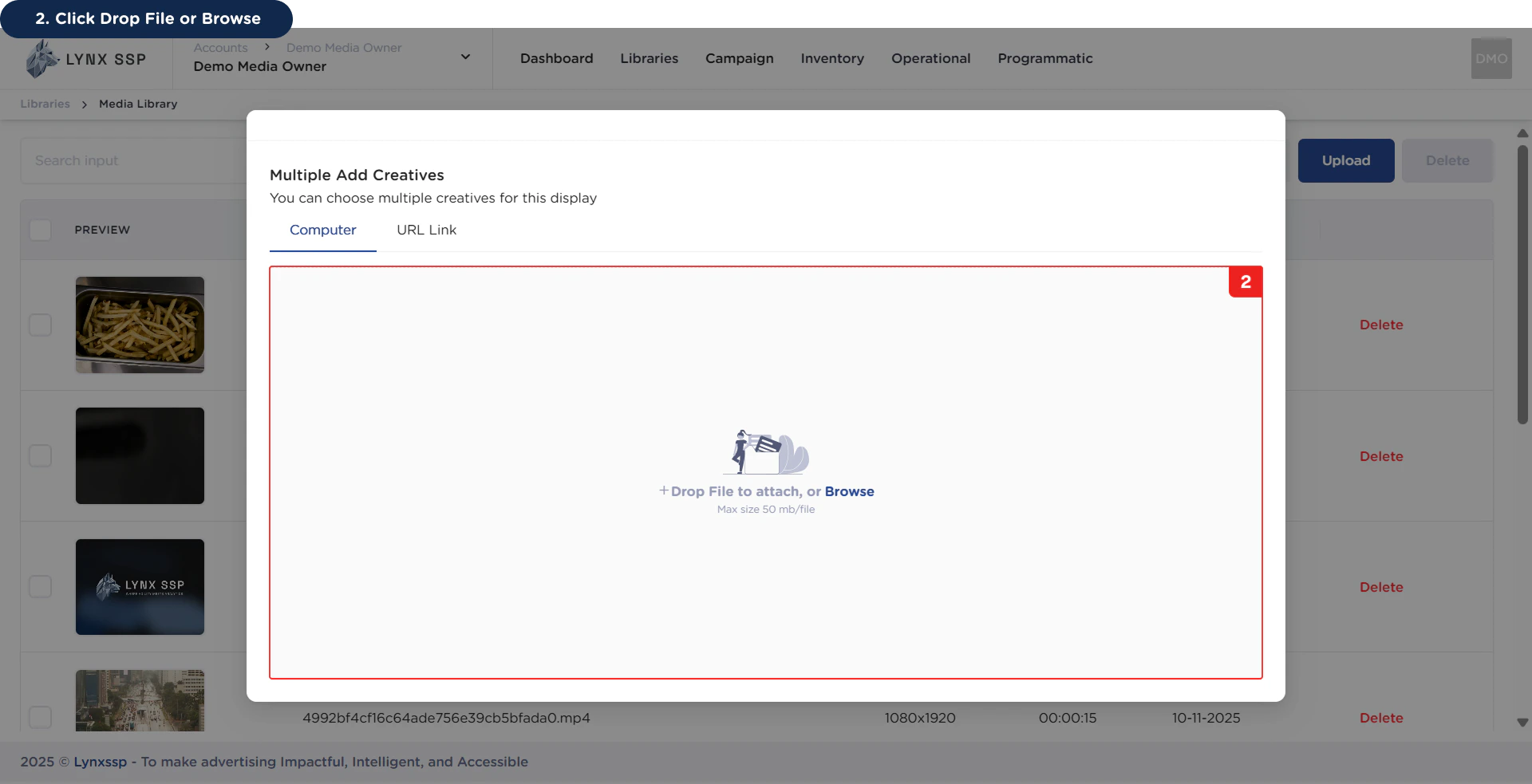
      <img src="https://mintcdn.com/lynxssp-91a2d3cb/IofkkkDxp8kkHCcX/images/documentation/creative-management/media-library/upload-creative/upload-via-url-link-1.2.png?fit=max&auto=format&n=IofkkkDxp8kkHCcX&q=85&s=875cbc782af96f1fb2d83908e989cc0b" alt="Upload via URL Link 1.2" width="1920" height="948" data-path="images/documentation/creative-management/media-library/upload-creative/upload-via-url-link-1.2.png" />
    </Step>

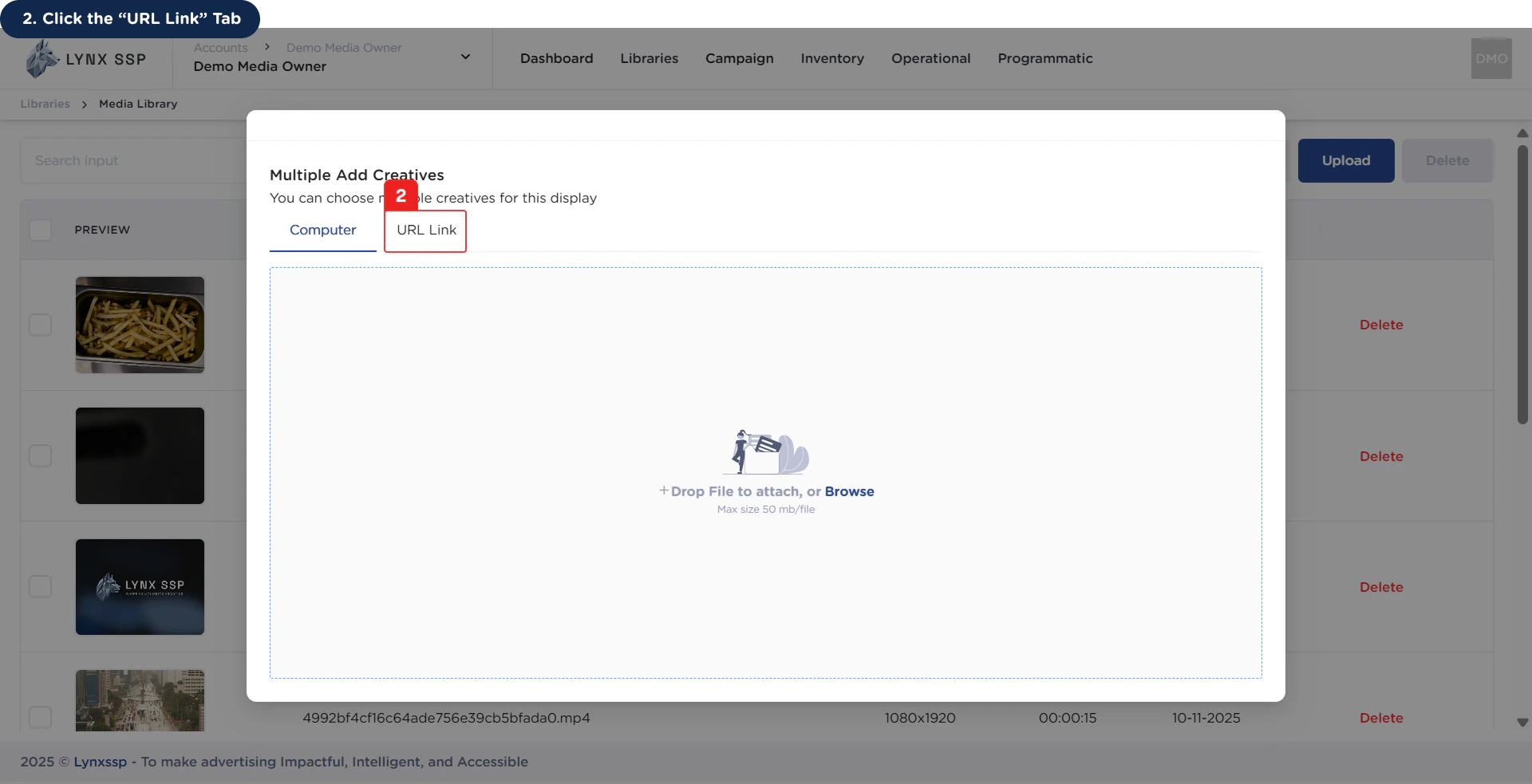
    <Step title="Click 'URL Link' Tab">
      <img src="https://mintcdn.com/lynxssp-91a2d3cb/IofkkkDxp8kkHCcX/images/documentation/creative-management/media-library/upload-creative/upload-via-url-link-2.png?fit=max&auto=format&n=IofkkkDxp8kkHCcX&q=85&s=2c523545a99669e96815334b70a50bbe" alt="Upload via URL Link 2" width="1920" height="983" data-path="images/documentation/creative-management/media-library/upload-creative/upload-via-url-link-2.png" />

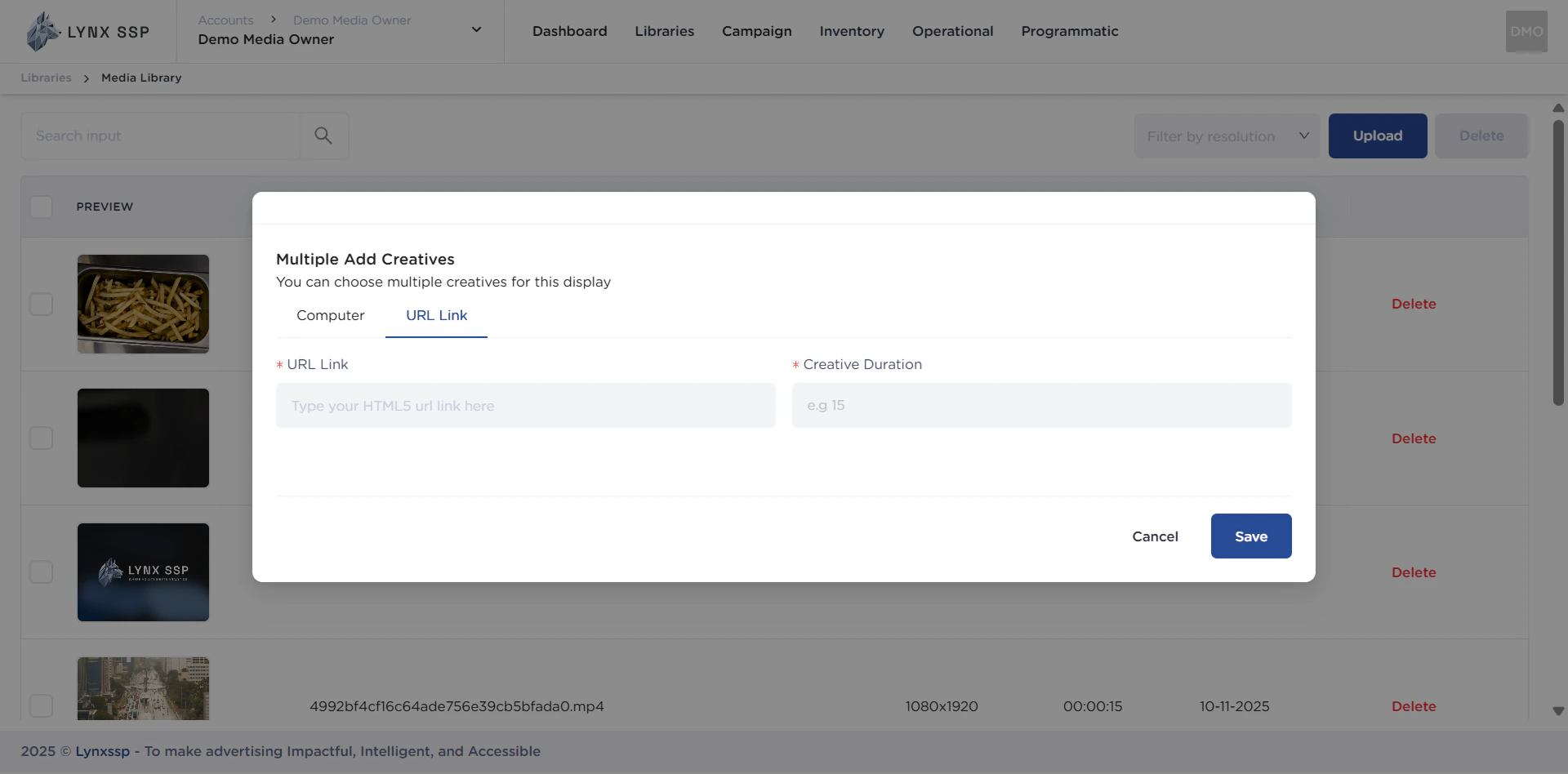
      Then the display will change to the upload tab via URL Link.

      <img src="https://mintcdn.com/lynxssp-91a2d3cb/IofkkkDxp8kkHCcX/images/documentation/creative-management/media-library/upload-creative/upload-via-url-link-2.2.png?fit=max&auto=format&n=IofkkkDxp8kkHCcX&q=85&s=89e04d2547b36f71e9dca576a598cea1" alt="Upload via Computer 2.2" width="1920" height="948" data-path="images/documentation/creative-management/media-library/upload-creative/upload-via-url-link-2.2.png" />
    </Step>

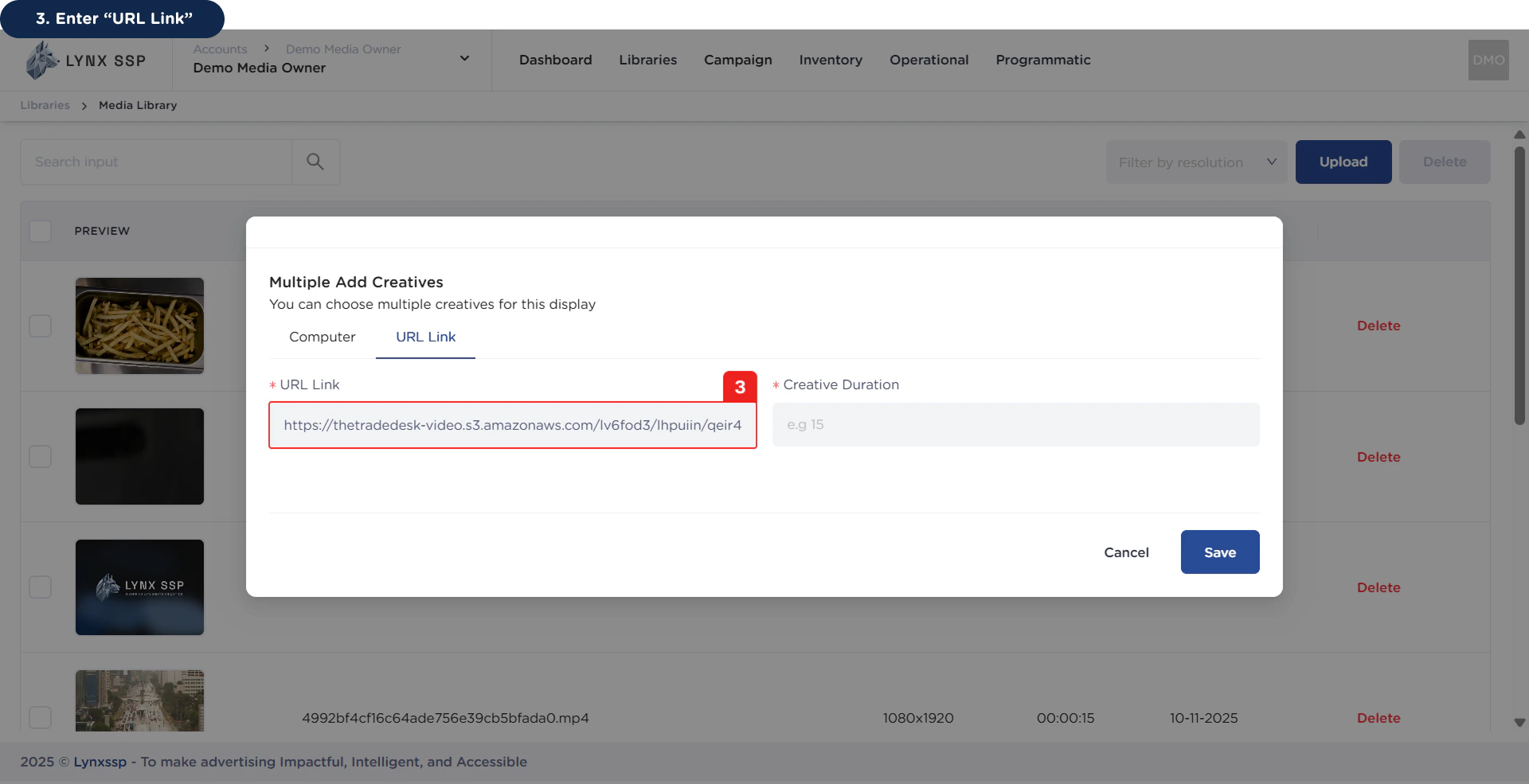
    <Step title="Enter URL Link">
      Ensure that the URL Link entered is valid.

      <img src="https://mintcdn.com/lynxssp-91a2d3cb/IofkkkDxp8kkHCcX/images/documentation/creative-management/media-library/upload-creative/upload-via-url-link-3.png?fit=max&auto=format&n=IofkkkDxp8kkHCcX&q=85&s=e1eda5e47c05e0d3045ac74709c3b28d" alt="Upload via URL Link 3" width="1920" height="985" data-path="images/documentation/creative-management/media-library/upload-creative/upload-via-url-link-3.png" />
    </Step>

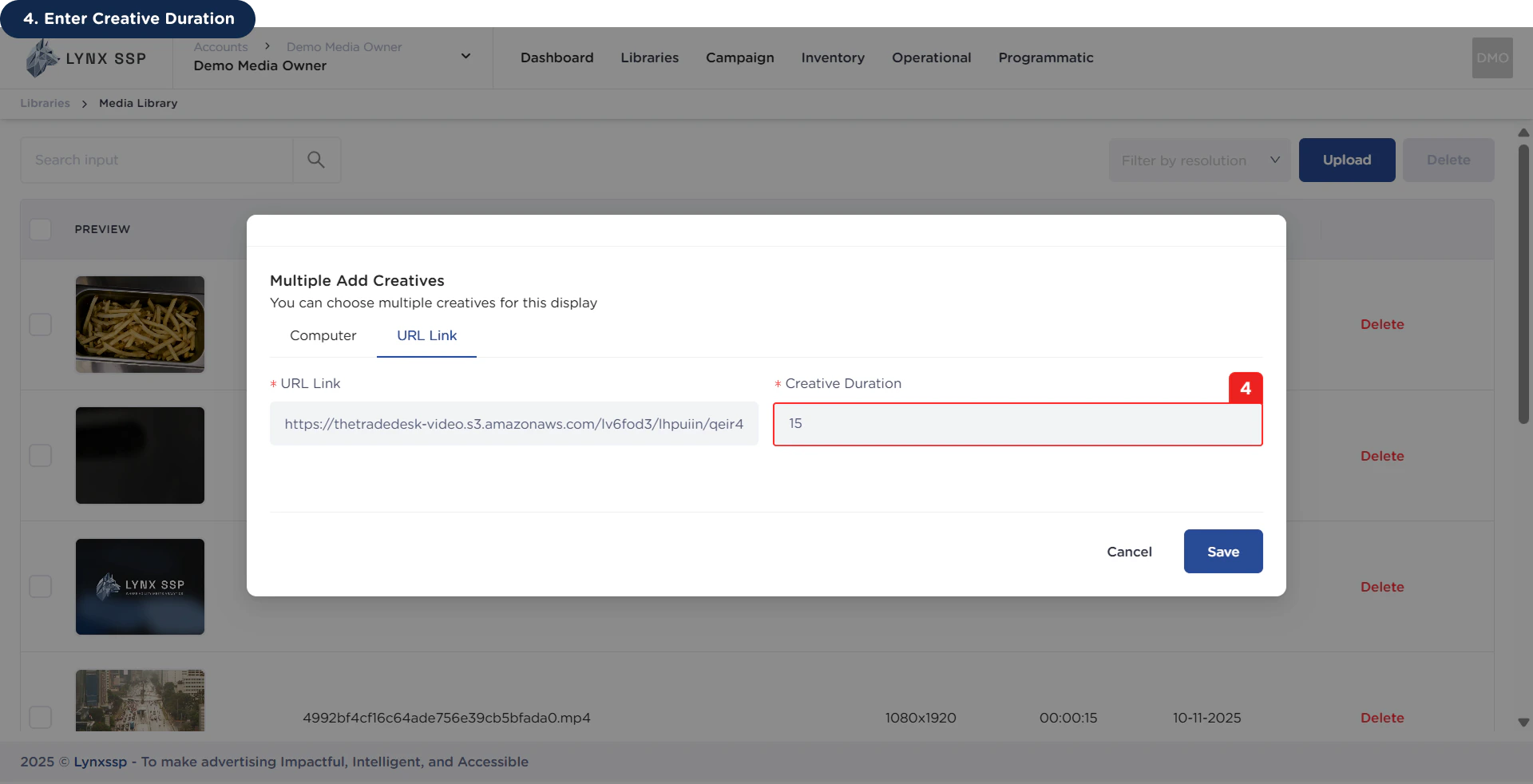
    <Step title="Enter Creative Duration">
      <img src="https://mintcdn.com/lynxssp-91a2d3cb/IofkkkDxp8kkHCcX/images/documentation/creative-management/media-library/upload-creative/upload-via-url-link-4.png?fit=max&auto=format&n=IofkkkDxp8kkHCcX&q=85&s=f6a2c1ac5e17d2c91711149e031090de" alt="Upload via URL Link 4" width="1920" height="982" data-path="images/documentation/creative-management/media-library/upload-creative/upload-via-url-link-4.png" />
    </Step>

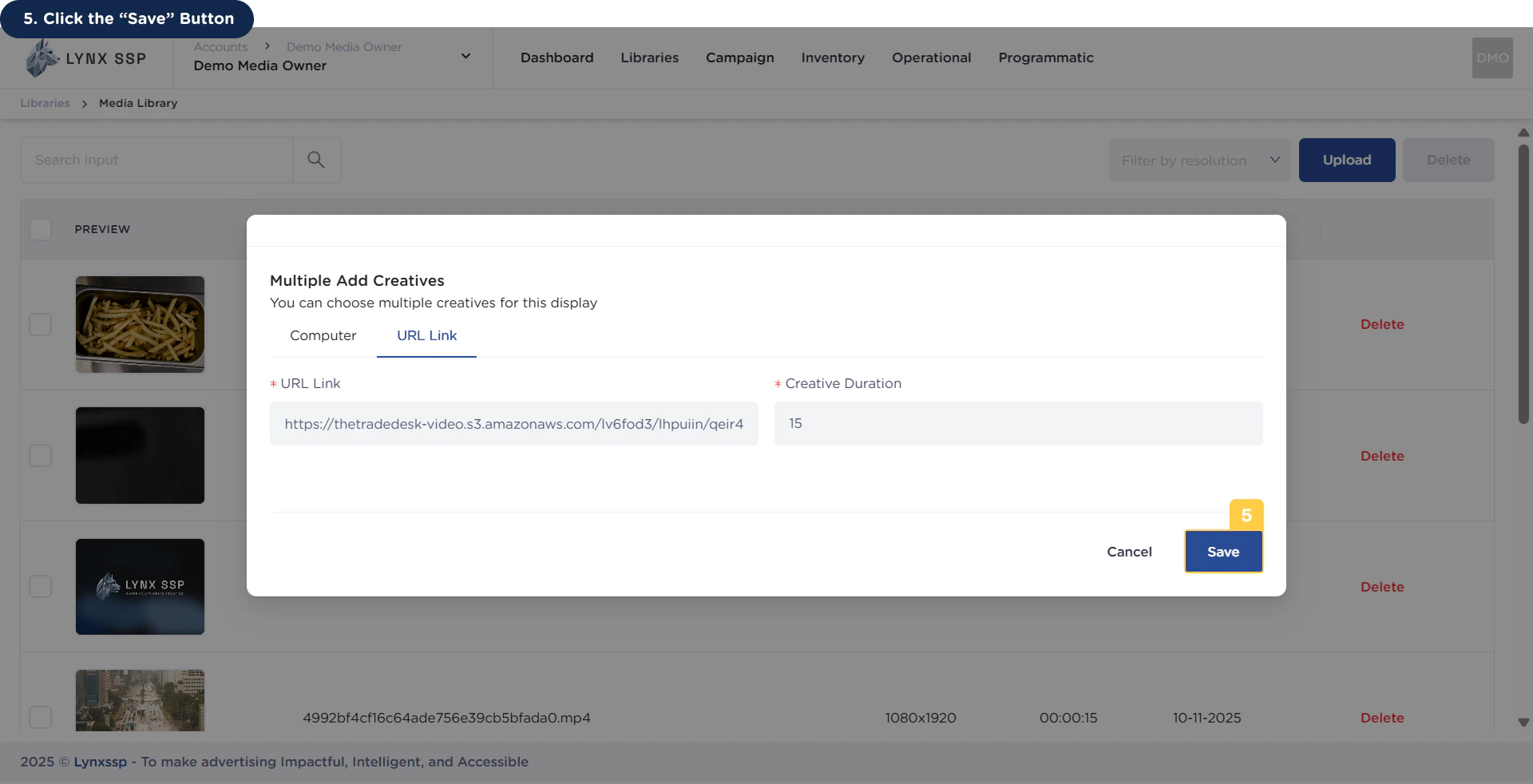
    <Step title="Click the 'Save' Button">
      <img src="https://mintcdn.com/lynxssp-91a2d3cb/XyupbwYkIbgndxRU/images/documentation/creative-management/media-library/upload-creative/upload-via-url-link-5.png?fit=max&auto=format&n=XyupbwYkIbgndxRU&q=85&s=8fefd99db915eb6a064f5f3851f05776" alt="Upload via URL Link 5" width="1920" height="982" data-path="images/documentation/creative-management/media-library/upload-creative/upload-via-url-link-5.png" />

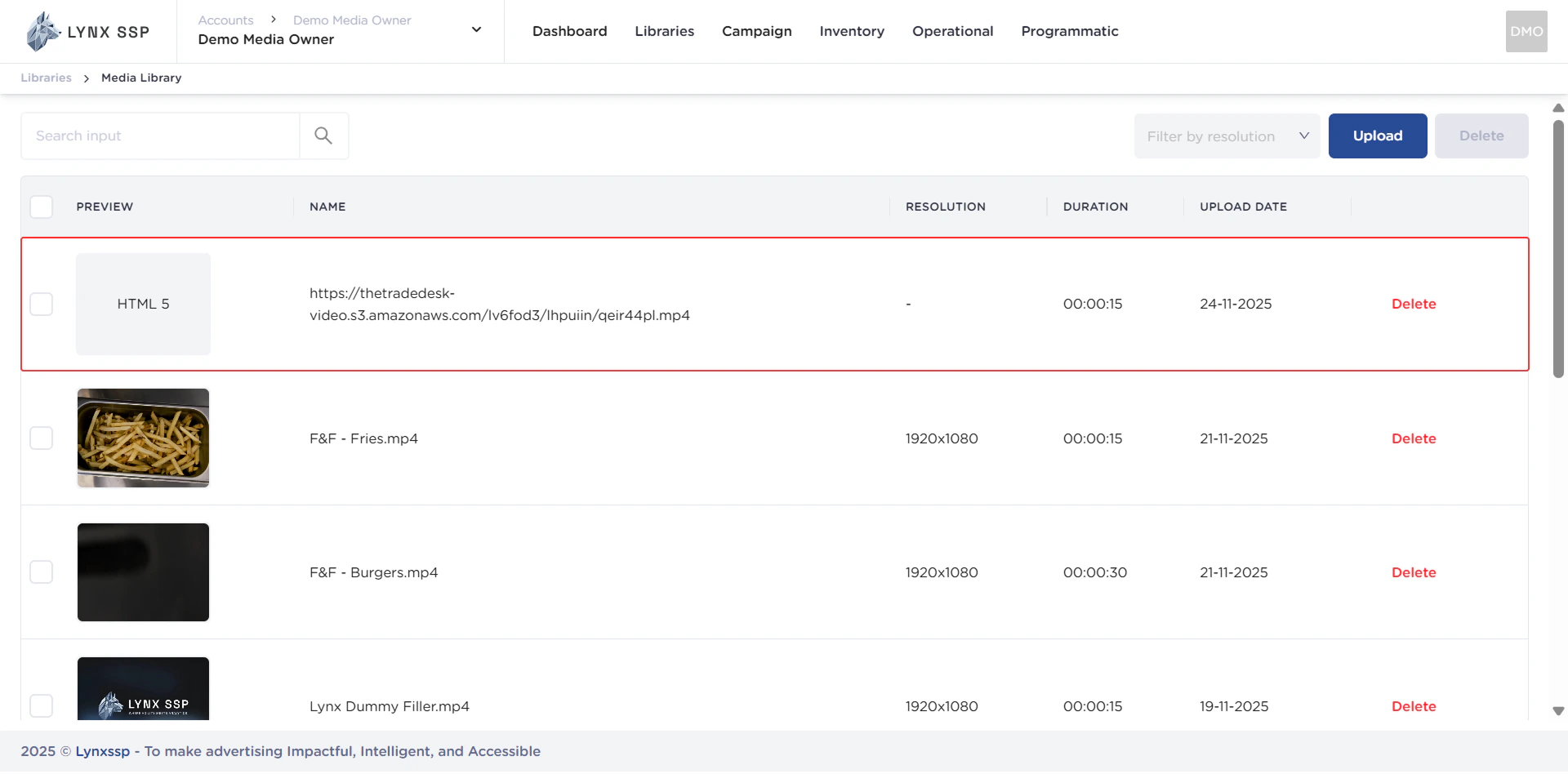
      It will then display the URL of the creative content that has been successfully added or uploaded.
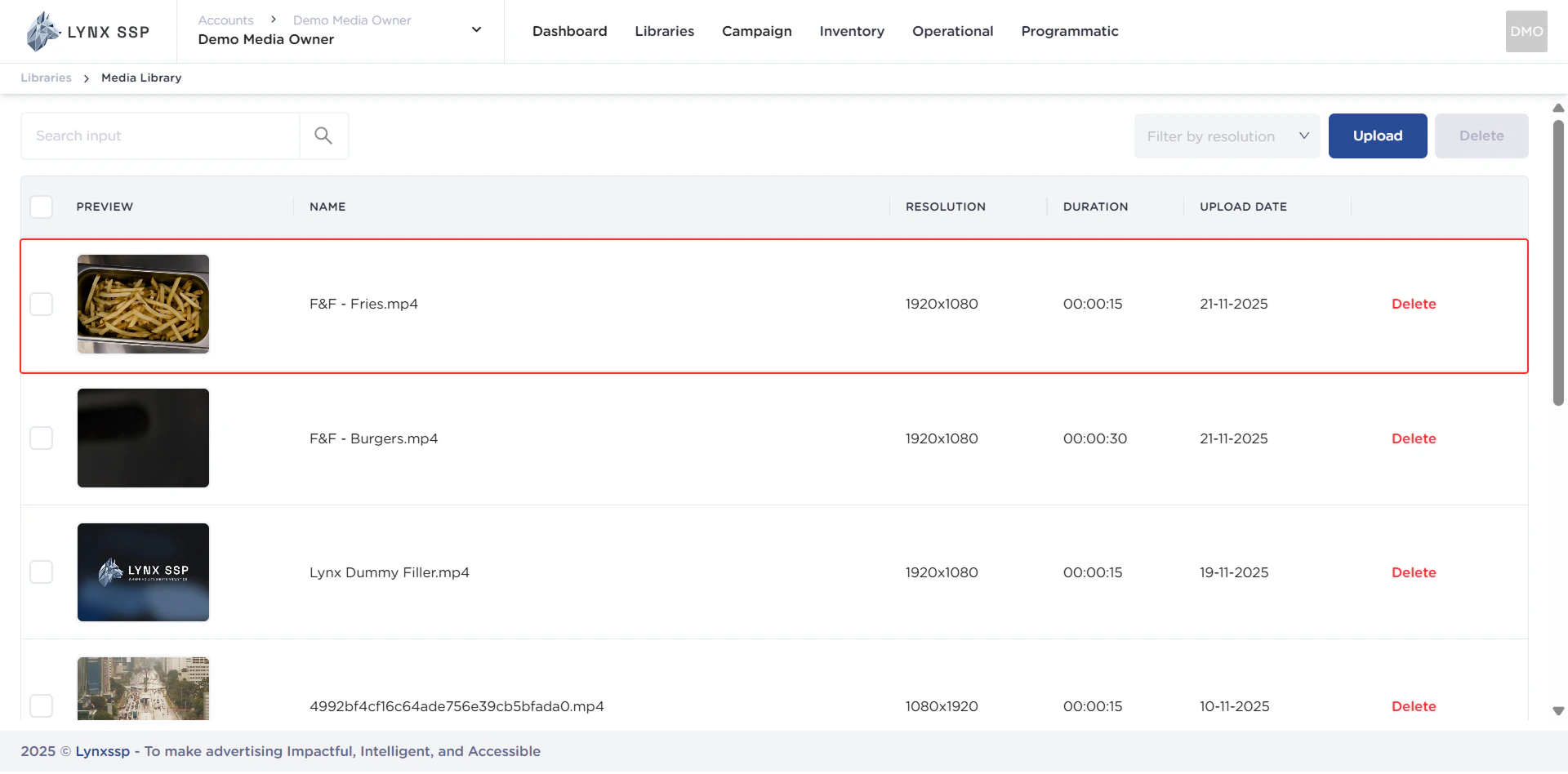
      <img src="https://mintcdn.com/lynxssp-91a2d3cb/IofkkkDxp8kkHCcX/images/documentation/creative-management/media-library/upload-creative/upload-via-url-link-5.2.png?fit=max&auto=format&n=IofkkkDxp8kkHCcX&q=85&s=bbec97b1baaaf6b9078cef5922dbdcf3" alt="Upload via URL Link 5.2" width="1920" height="948" data-path="images/documentation/creative-management/media-library/upload-creative/upload-via-url-link-5.2.png" />
    </Step>
  </Steps>
</Accordion>