> ## Documentation Index
> Fetch the complete documentation index at: https://docs.lynxssp.com/llms.txt
> Use this file to discover all available pages before exploring further.
# Navigation Menu
The **Lynx SSP Dashboard** provides a variety of menus that help you monitor the performance of your campaigns and inventories in real-time through an overview.
## Navigation Bar
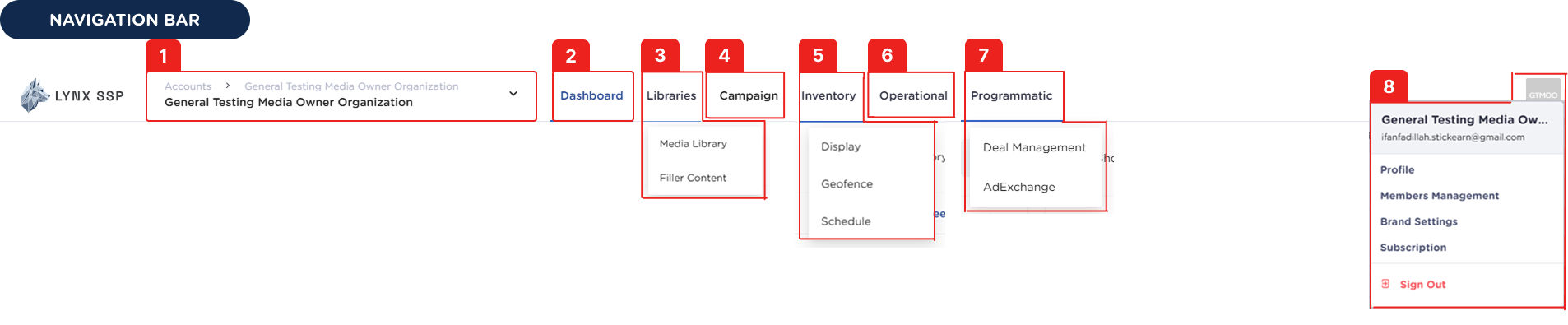 Below is an explanation of each menu available on the **Navigation Bar**:
***
### Organization
Displays information about your current organization account. You can also switch to other organizations that you have access to.
***
### Dashboard
The main page of the Lynx SSP Platform contains an overview of campaign and inventory performance.
***
### Libraries
Contains Media Library and Filler Content.
Upload and manage creatives to be used in campaigns and creative fillers ([See Media Library ↗](/documentation/creative-management/media-library/overview)).
Create and manage filler content consisting of creatives that will be displayed to fill empty inventory slots ([See Filler Content ↗](/documentation/creative-management/filler-content/overview)).
***
### Campaign
Plan, manage, and monitor regular campaigns for your clients ([See Campaign ↗](/documentation/campaign-management/campaign/overview)).
***
### Inventory
Provides access to Display, Geofence, and Schedule for your inventories.
Manage and track your billboard inventory ([See Inventory ↗](/documentation/inventory/display)).
Create geofenced areas for digital mobile LED inventories ([See Geofence ↗](/documentation/inventory/geofence/overview)).
Monitor the slot availability schedule of your digital inventories ([See Schedule ↗](/documentation/inventory/schedule)).
***
### Operational
Manage playlist orders or the sequence of creative content displayed on your digital inventory ([See Playlist Order ↗](/documentation/operational/playlist-order/overview)).
***
### Programmatic
Manage programmatic campaigns, deals, ad exchange and creative approval.
Create Programmatic Guaranteed (PG) & Private Marketplace (PMP) deals for advertisers on the Demand-Side Platform (DSP) ([See Deal Management ↗](/programmatic/deal-management/deal-management)).
Monitor the performance of the programmatic campaign deals running on your digital inventory ([See Ad Exchange ↗](/programmatic/ad-exchange/ad-exchange)).
Review and approve programmatic creatives before they are displayed ([See Creative Approval ↗](/programmatic/creative-approval/creative-approval)).
***
### Settings
Manage your account and organization settings ([See Manage Profile ↗](/documentation/settings/manage-profile)).
Change your account password ([See Change Password ↗](/documentation/settings/change-password)).
View member accounts within the same organization ([See Members Management ↗](/documentation/settings/members-management/overview)).
Create brand data related to campaigns ([See Brand Settings ↗](/documentation/settings/brands-management/overview)).
Log out from the Lynx SSP platform.
Below is an explanation of each menu available on the **Navigation Bar**:
***
### Organization
Displays information about your current organization account. You can also switch to other organizations that you have access to.
***
### Dashboard
The main page of the Lynx SSP Platform contains an overview of campaign and inventory performance.
***
### Libraries
Contains Media Library and Filler Content.
Upload and manage creatives to be used in campaigns and creative fillers ([See Media Library ↗](/documentation/creative-management/media-library/overview)).
Create and manage filler content consisting of creatives that will be displayed to fill empty inventory slots ([See Filler Content ↗](/documentation/creative-management/filler-content/overview)).
***
### Campaign
Plan, manage, and monitor regular campaigns for your clients ([See Campaign ↗](/documentation/campaign-management/campaign/overview)).
***
### Inventory
Provides access to Display, Geofence, and Schedule for your inventories.
Manage and track your billboard inventory ([See Inventory ↗](/documentation/inventory/display)).
Create geofenced areas for digital mobile LED inventories ([See Geofence ↗](/documentation/inventory/geofence/overview)).
Monitor the slot availability schedule of your digital inventories ([See Schedule ↗](/documentation/inventory/schedule)).
***
### Operational
Manage playlist orders or the sequence of creative content displayed on your digital inventory ([See Playlist Order ↗](/documentation/operational/playlist-order/overview)).
***
### Programmatic
Manage programmatic campaigns, deals, ad exchange and creative approval.
Create Programmatic Guaranteed (PG) & Private Marketplace (PMP) deals for advertisers on the Demand-Side Platform (DSP) ([See Deal Management ↗](/programmatic/deal-management/deal-management)).
Monitor the performance of the programmatic campaign deals running on your digital inventory ([See Ad Exchange ↗](/programmatic/ad-exchange/ad-exchange)).
Review and approve programmatic creatives before they are displayed ([See Creative Approval ↗](/programmatic/creative-approval/creative-approval)).
***
### Settings
Manage your account and organization settings ([See Manage Profile ↗](/documentation/settings/manage-profile)).
Change your account password ([See Change Password ↗](/documentation/settings/change-password)).
View member accounts within the same organization ([See Members Management ↗](/documentation/settings/members-management/overview)).
Create brand data related to campaigns ([See Brand Settings ↗](/documentation/settings/brands-management/overview)).
Log out from the Lynx SSP platform.