> ## Documentation Index
> Fetch the complete documentation index at: https://docs.lynxssp.com/llms.txt
> Use this file to discover all available pages before exploring further.
# Overview
Playlists are a monitoring feature of **DOOH (Digital-Out-of-Home) Inventory** on the **Lynx SSP Platform** that contains creative content in the form of videos or images from various media plan campaigns that you have created. Meanwhile, **Playlog** contains more detailed information about the playlist. You can see when a piece of creative content is played, from the hour, minute, and second it starts until it finally moves on to the next piece of creative content.
Additionally, **Playlist & Playlog** data can serve as supplementary information to verify whether the rotation of creative content playback from various media plan campaigns is proceeding as intended.
Both **Playlist & Playlog** data can appear if DOOH (Digital-Out-of-Home) Inventory uses a **ScreenApp connection**. If using an **HTML5 & API Integration connection**, **only Playlog** can be monitored from DOOH (Digital-Out-of-Home) Inventory.
This page helps you understand the Playlist & Playlog features for DOOH (Digital-Out-of-Home) Inventory on the Lynx SSP Platform.
## Accessing the Playlist & Playlog Page
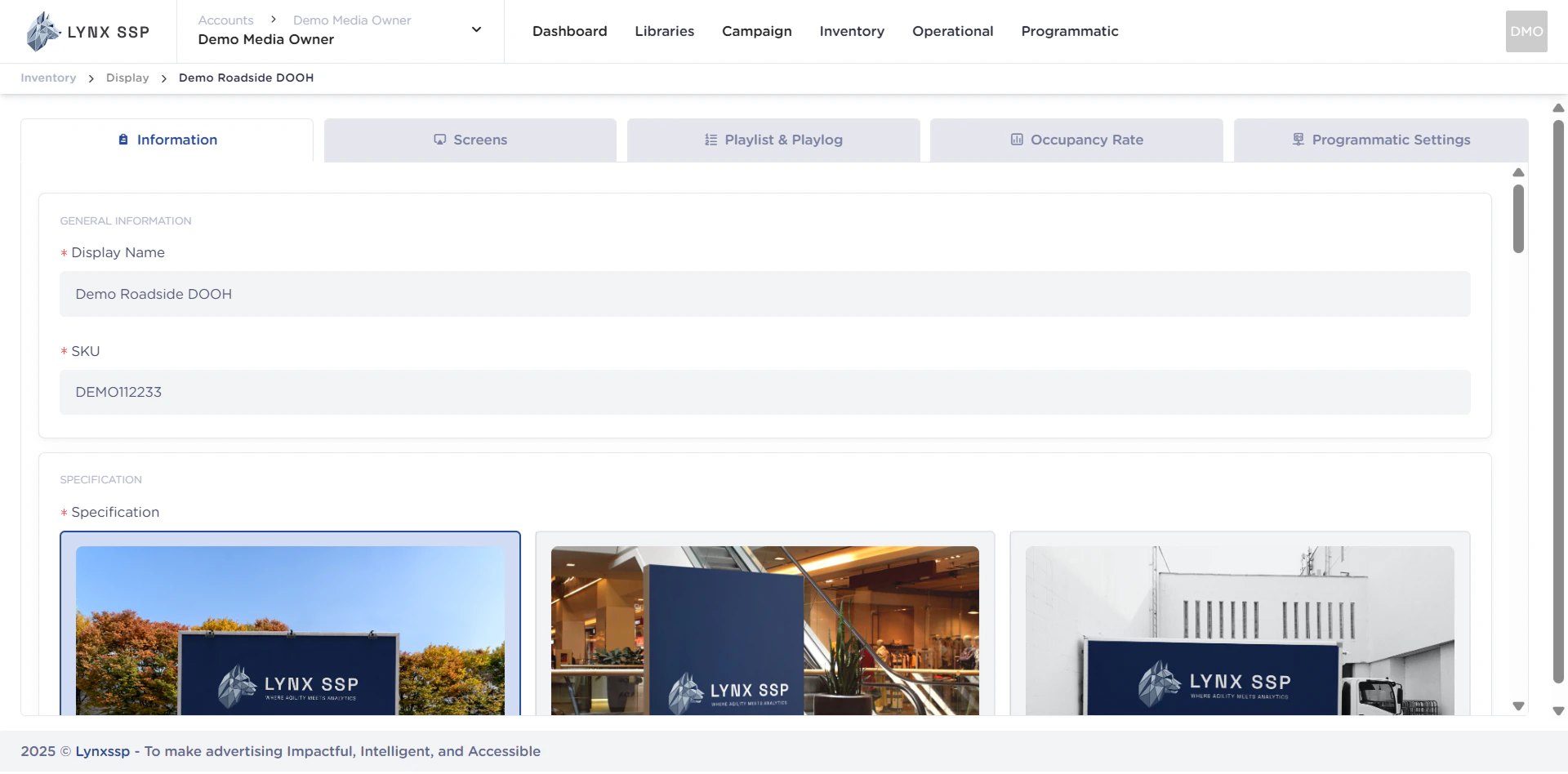
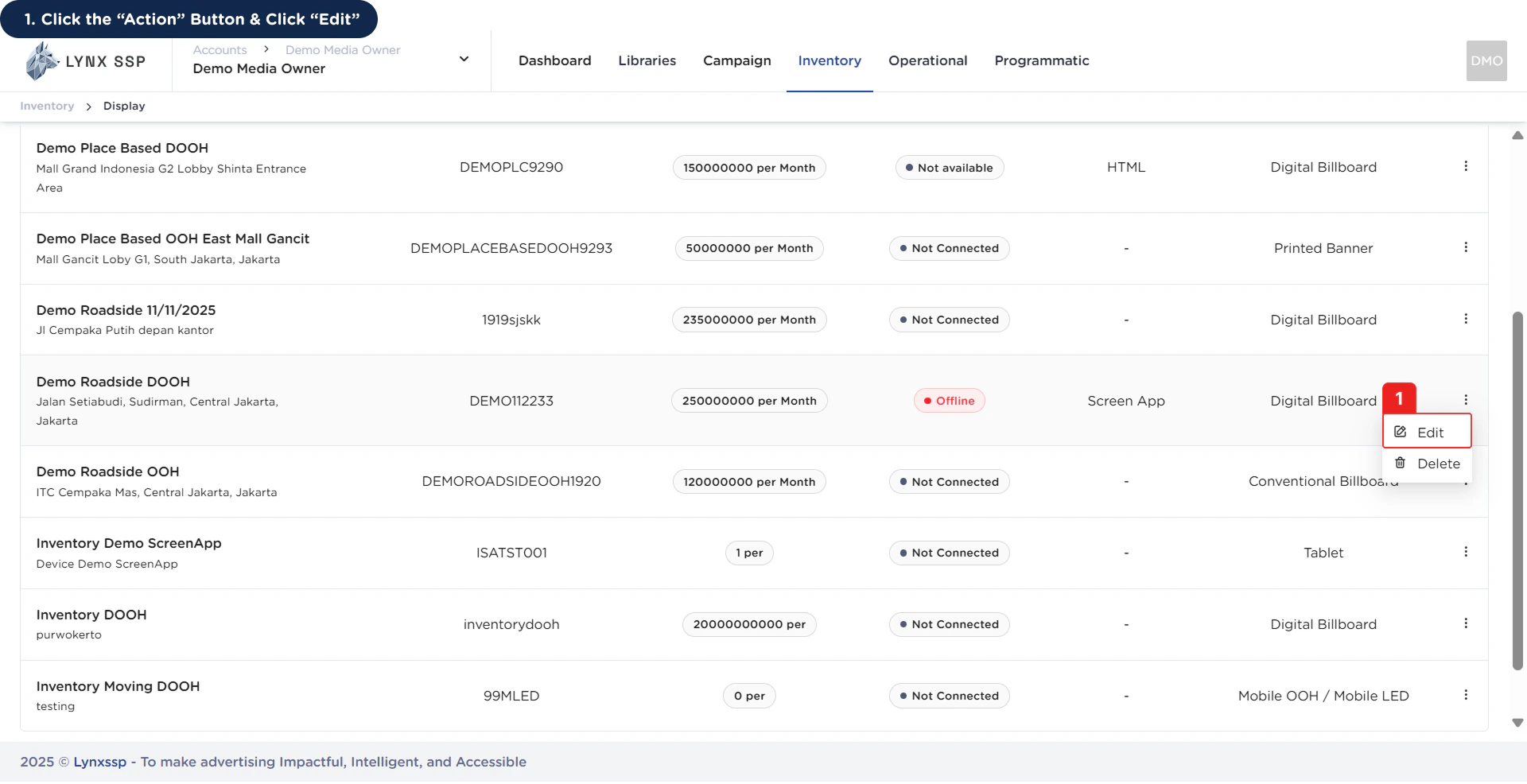 This will display the **Inventory Details Page**.
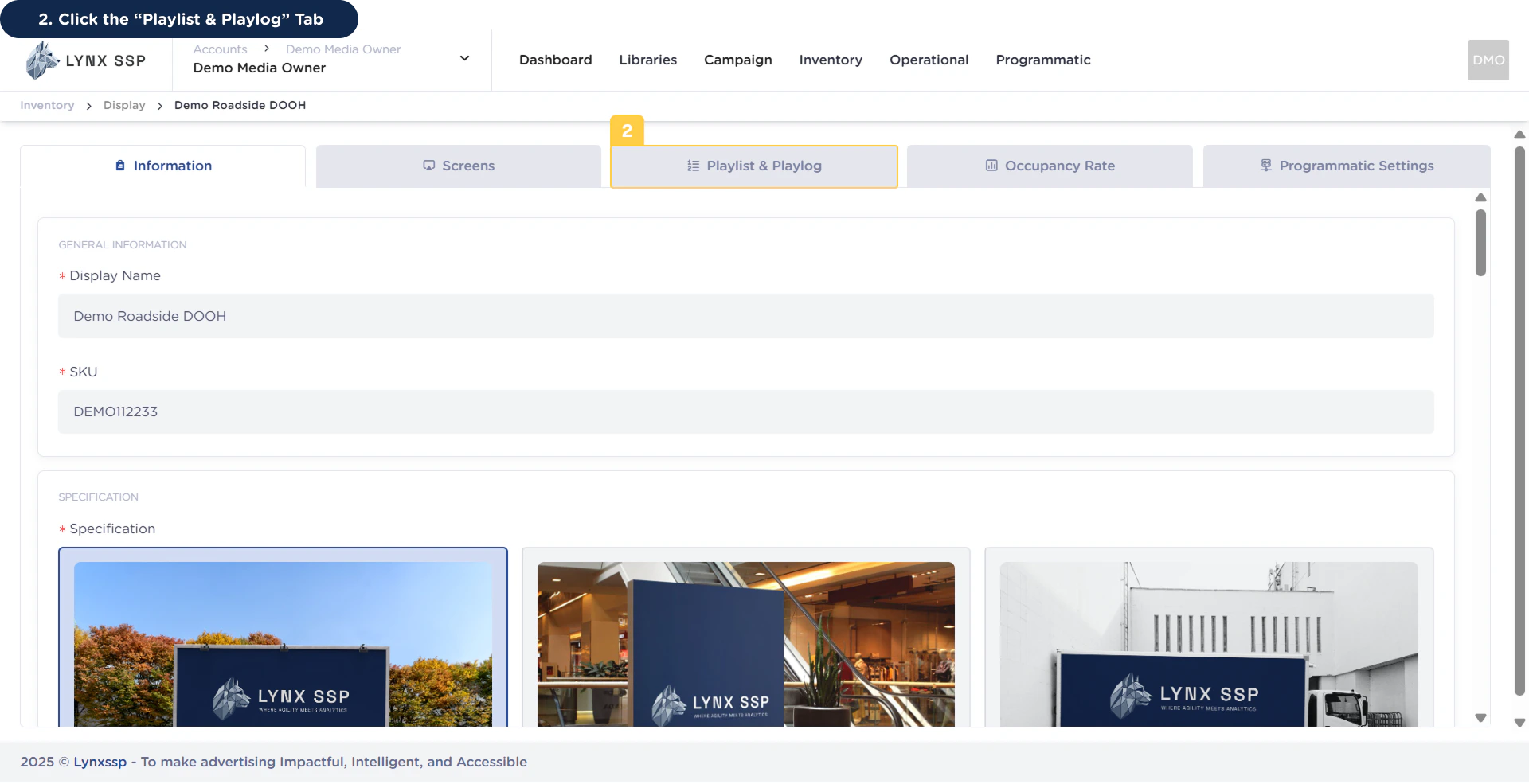 This will display the **Playlist & Playlog page**.
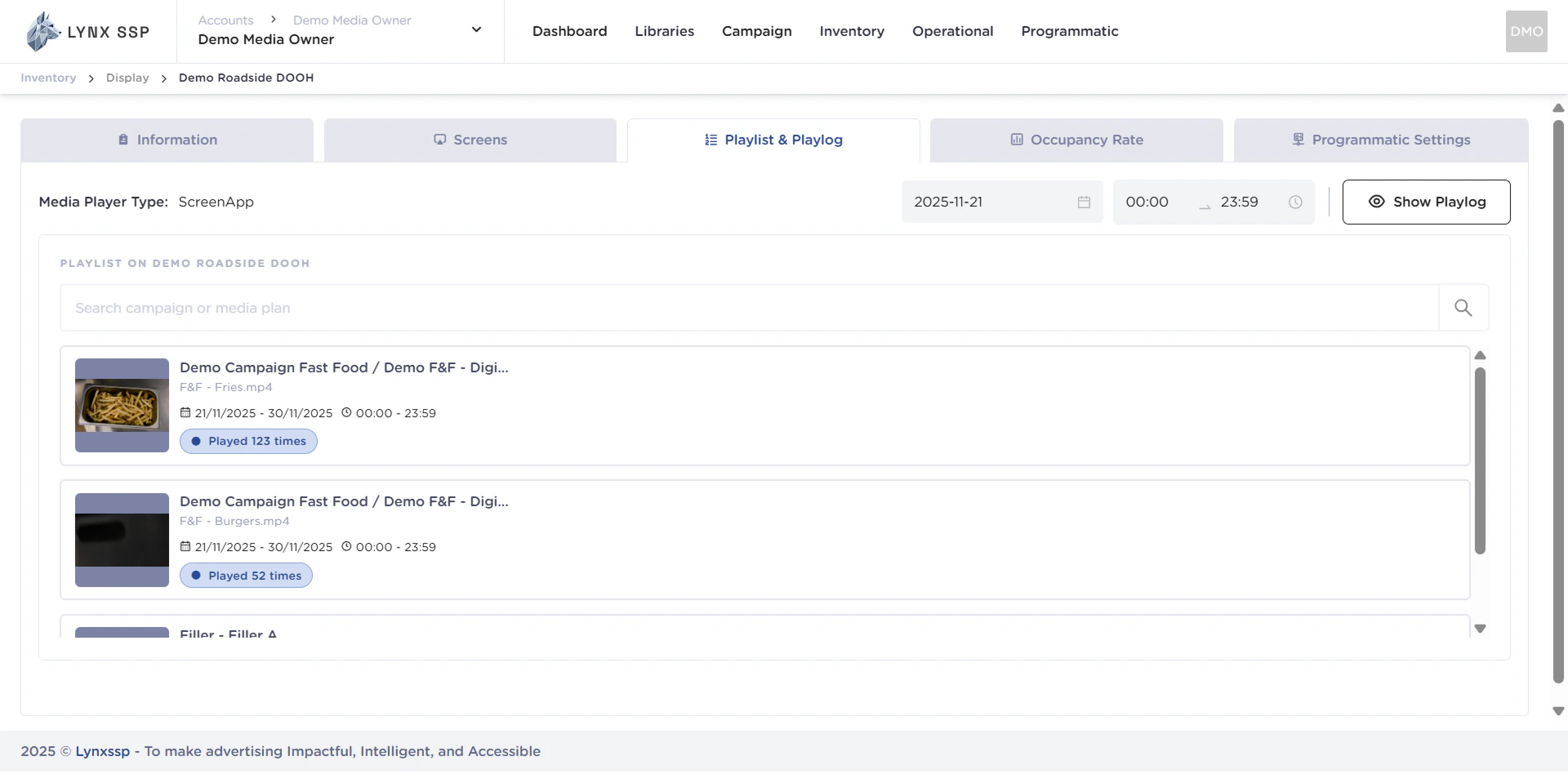 ## Playlist Overview
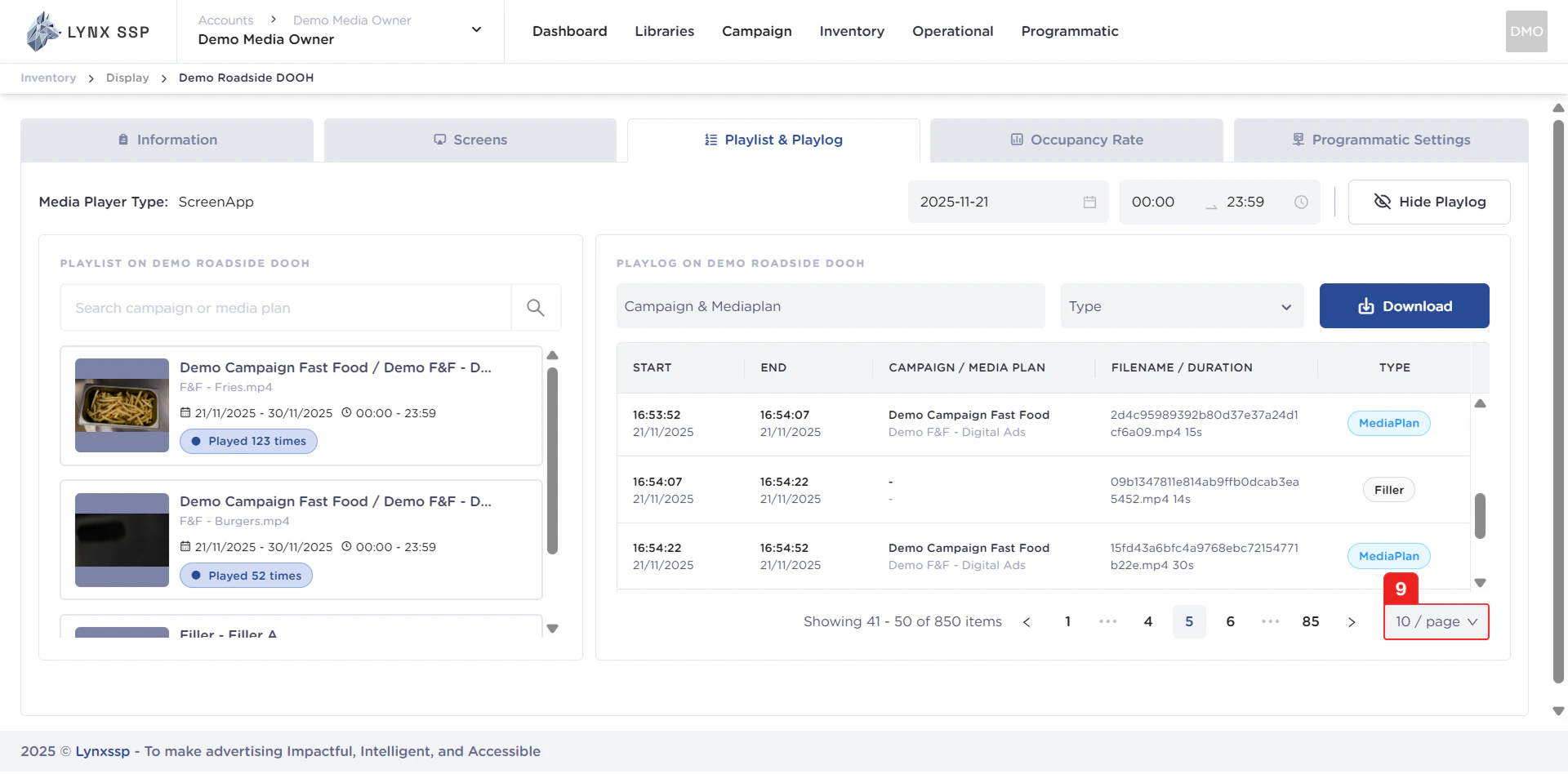
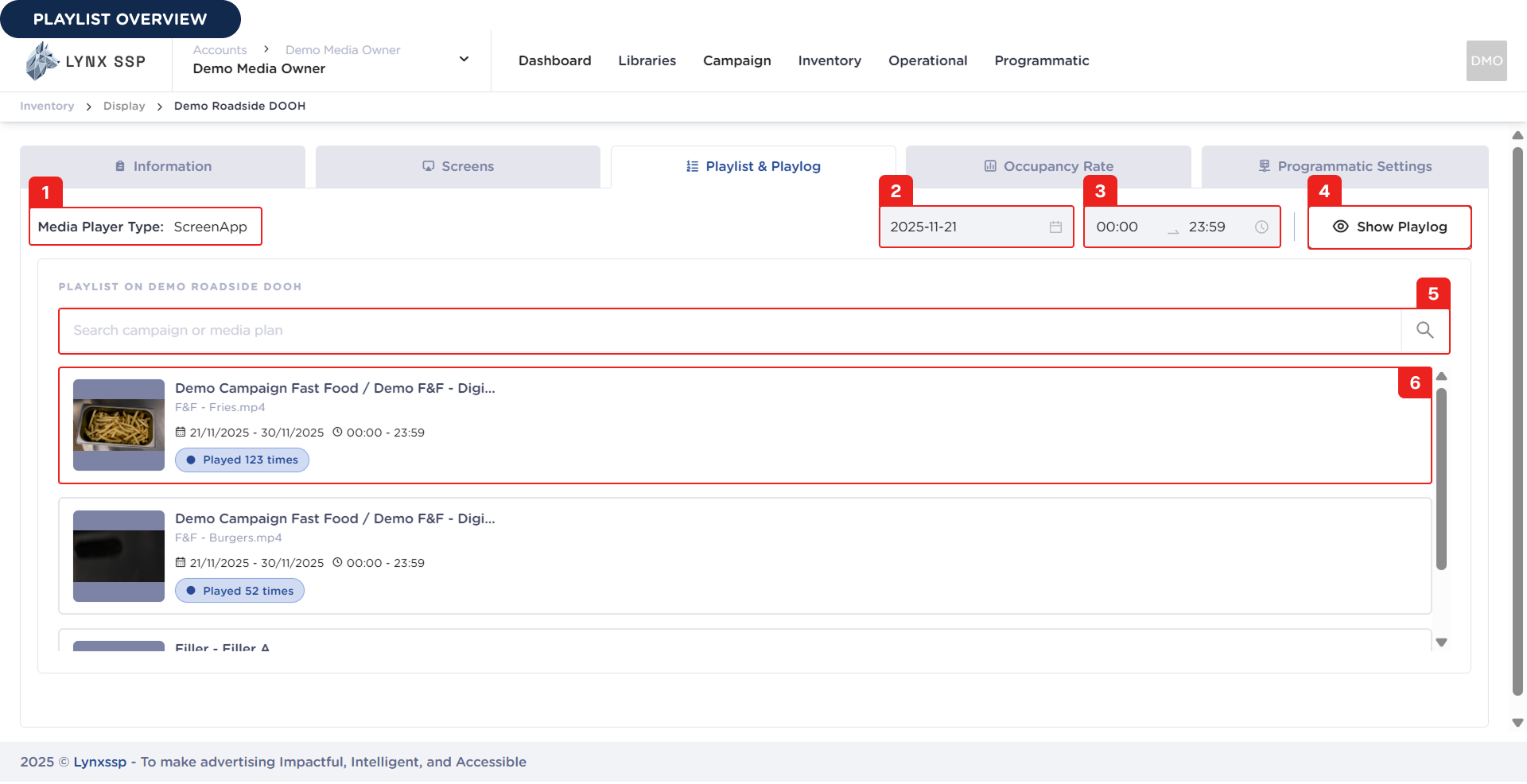 Based on the **Playlist Overview** above, here is an explanation of each section:
### Media Player Connection Type
Displays information about the type of connection your media player uses. Make sure you have completed the connection to the media player ([See Connect to Screen ↗](/documentation/inventory/dooh/screens/connect-to-screen)).
***
### Filter by Date
You can filter playlist data based on date.
***
### Filter by Period
You can filter data in the playlist based on a time range.
***
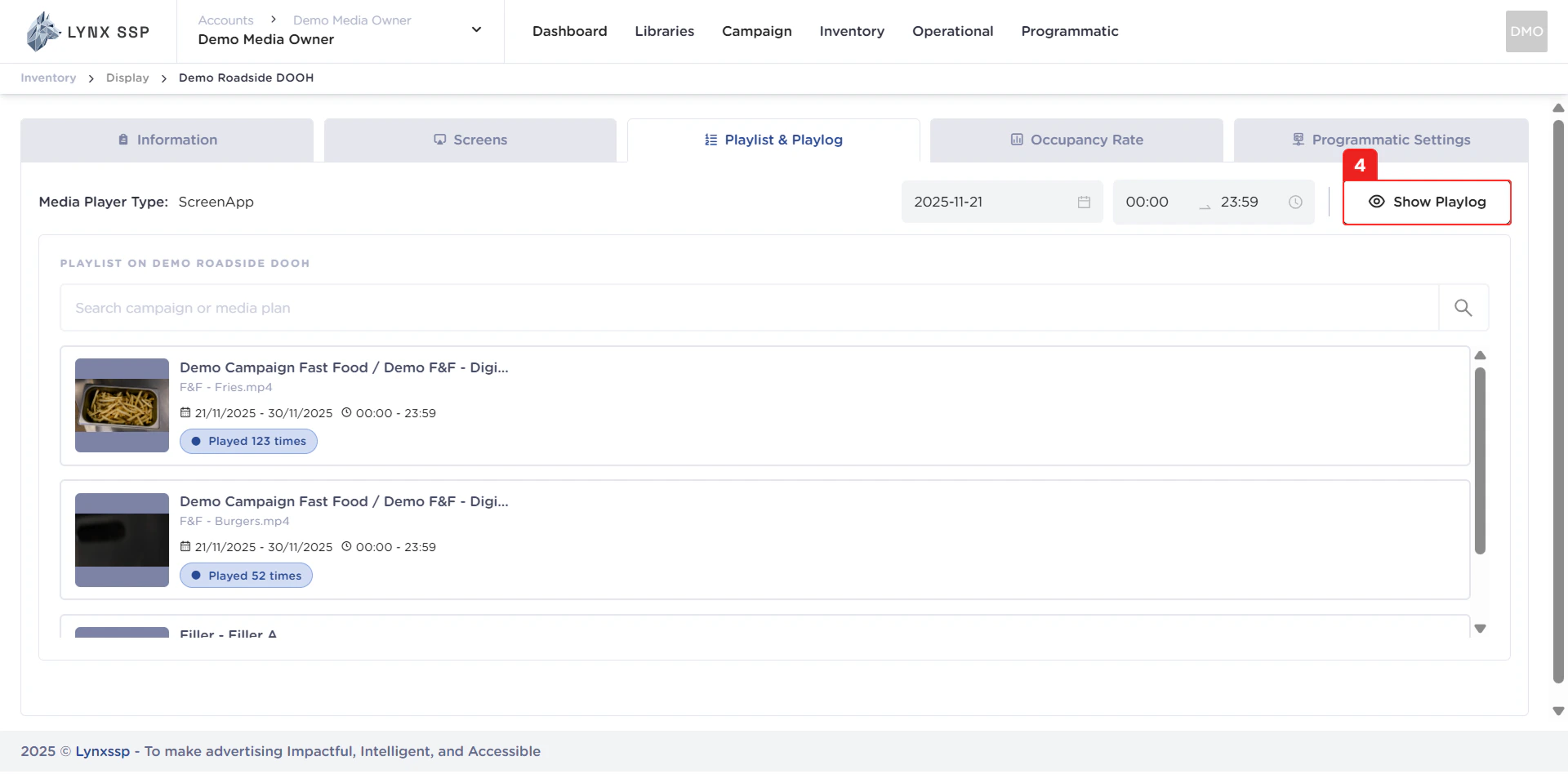
### Show Playlog Button
You can view playlog data by click the **“Show Playlog”** button, and the system will display playlog data from your DOOH (Digital-Out-of-Home) Inventory.
Based on the **Playlist Overview** above, here is an explanation of each section:
### Media Player Connection Type
Displays information about the type of connection your media player uses. Make sure you have completed the connection to the media player ([See Connect to Screen ↗](/documentation/inventory/dooh/screens/connect-to-screen)).
***
### Filter by Date
You can filter playlist data based on date.
***
### Filter by Period
You can filter data in the playlist based on a time range.
***
### Show Playlog Button
You can view playlog data by click the **“Show Playlog”** button, and the system will display playlog data from your DOOH (Digital-Out-of-Home) Inventory.
 ***
### Search Campaign or Media Plan
You can search for playlist data by typing in the keyword name of the campaign or media plan contained in the DOOH (Digital-Out-of-Home) Inventory.
***
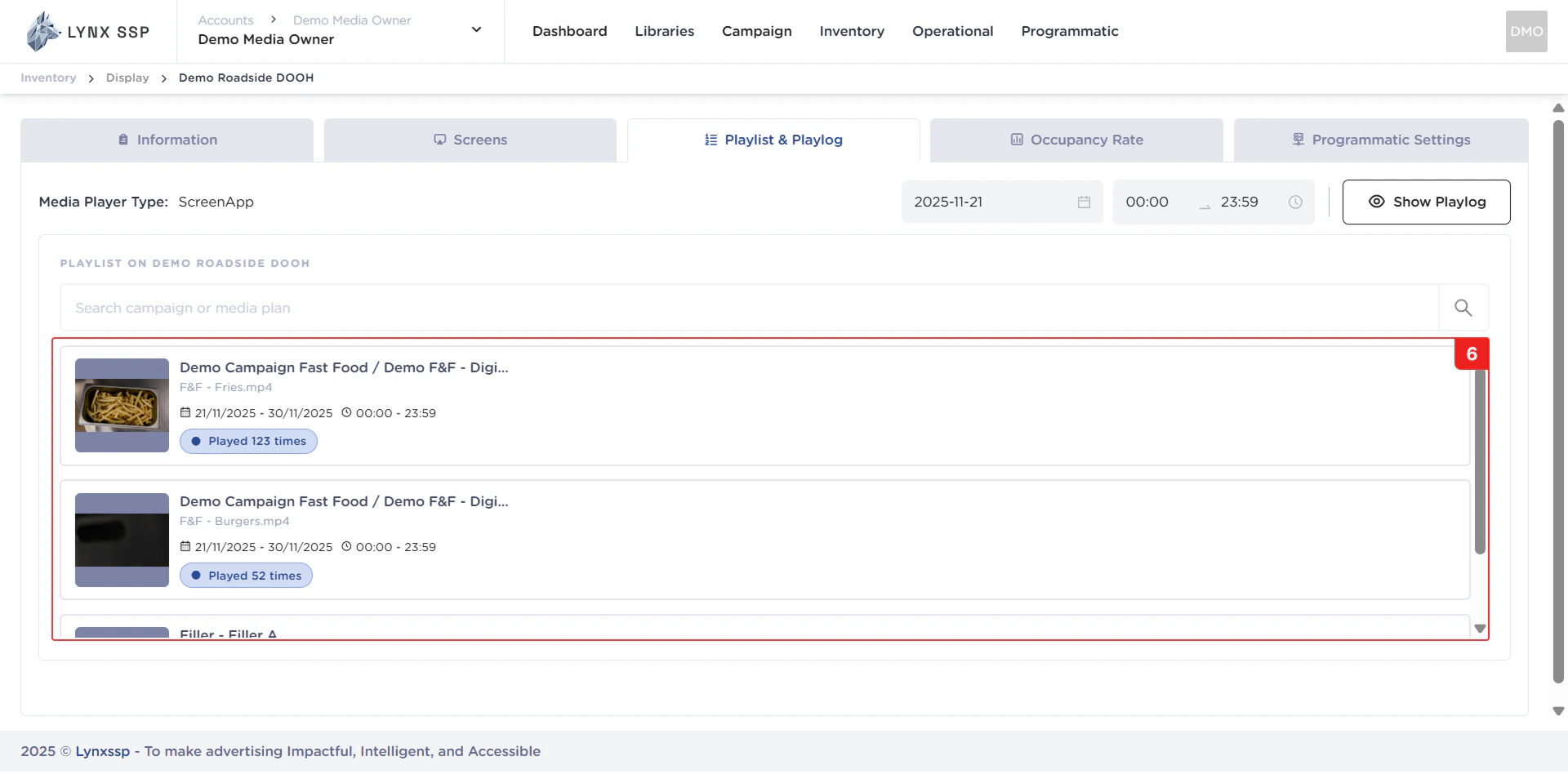
### Playlist
In this section, you can see all the playlists in your DOOH (Digital-Out-of-Home) Inventory. The playlist data is displayed based on date filtering (Point No. 2). The properties that can be seen in this table are as follows:
* Preview Creative
* Campaign Name
* Media Plan Name
* Media Plan & Schedule Period
* Total Play
***
### Search Campaign or Media Plan
You can search for playlist data by typing in the keyword name of the campaign or media plan contained in the DOOH (Digital-Out-of-Home) Inventory.
***
### Playlist
In this section, you can see all the playlists in your DOOH (Digital-Out-of-Home) Inventory. The playlist data is displayed based on date filtering (Point No. 2). The properties that can be seen in this table are as follows:
* Preview Creative
* Campaign Name
* Media Plan Name
* Media Plan & Schedule Period
* Total Play
 ***
## Playlog Overview
***
## Playlog Overview
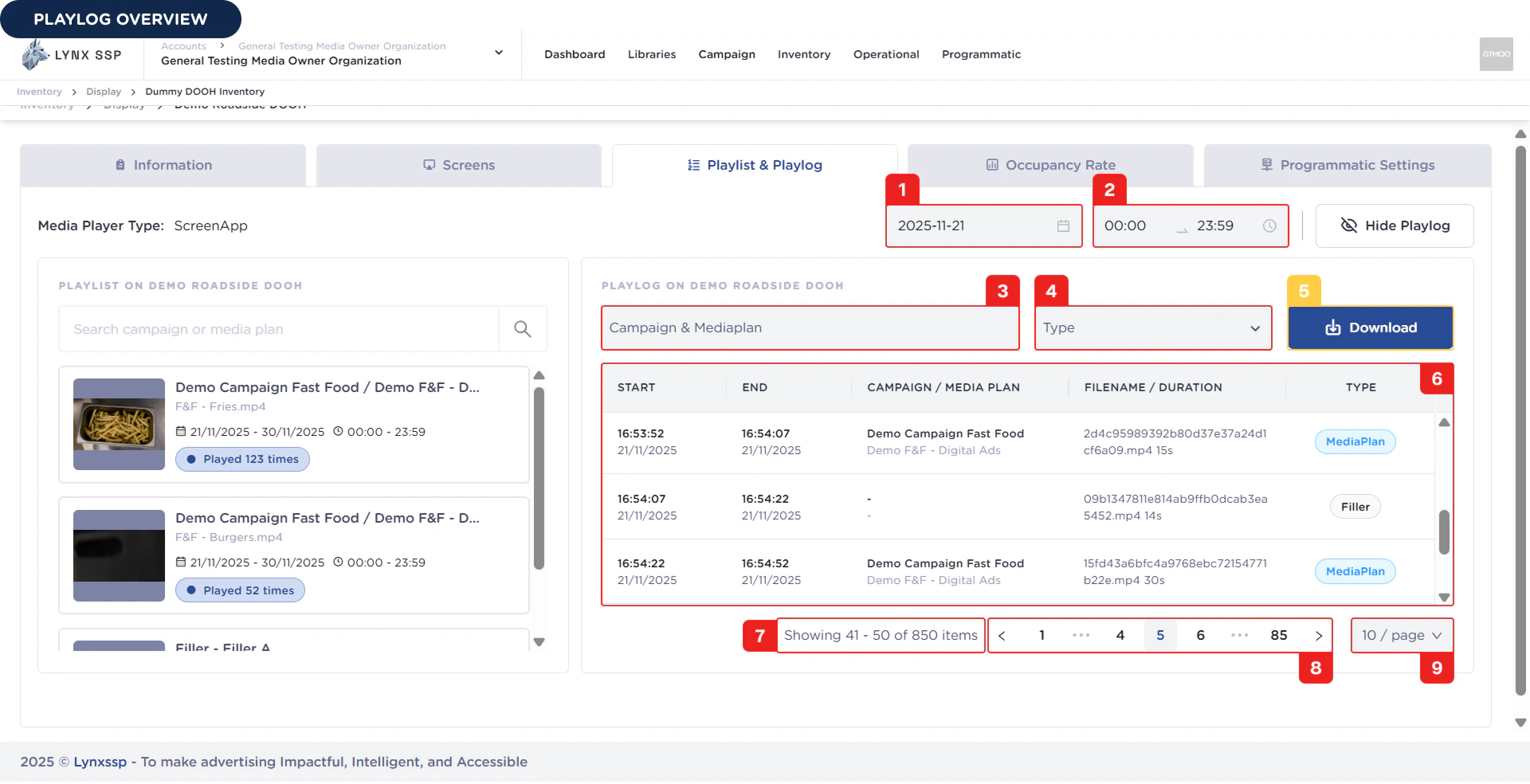 Based on the **Playlog Overview** above, here is an explanation of each section:
### Filter by Date
You can filter playlog data by date.
***
### Filter by Period
You can filter data in the playlist based on a time range.
***
### Filter by Campaign & Media Plan
You can filter playlog data based on campaign and media plan.
***
### Filter Type
You can filter playlog data based on the type of creative content that is displayed.
***
### Button Download Playlog
You can download playlog data via the button “**Download**”.
Based on the **Playlog Overview** above, here is an explanation of each section:
### Filter by Date
You can filter playlog data by date.
***
### Filter by Period
You can filter data in the playlist based on a time range.
***
### Filter by Campaign & Media Plan
You can filter playlog data based on campaign and media plan.
***
### Filter Type
You can filter playlog data based on the type of creative content that is displayed.
***
### Button Download Playlog
You can download playlog data via the button “**Download**”.
 ***
### List Playlog Data
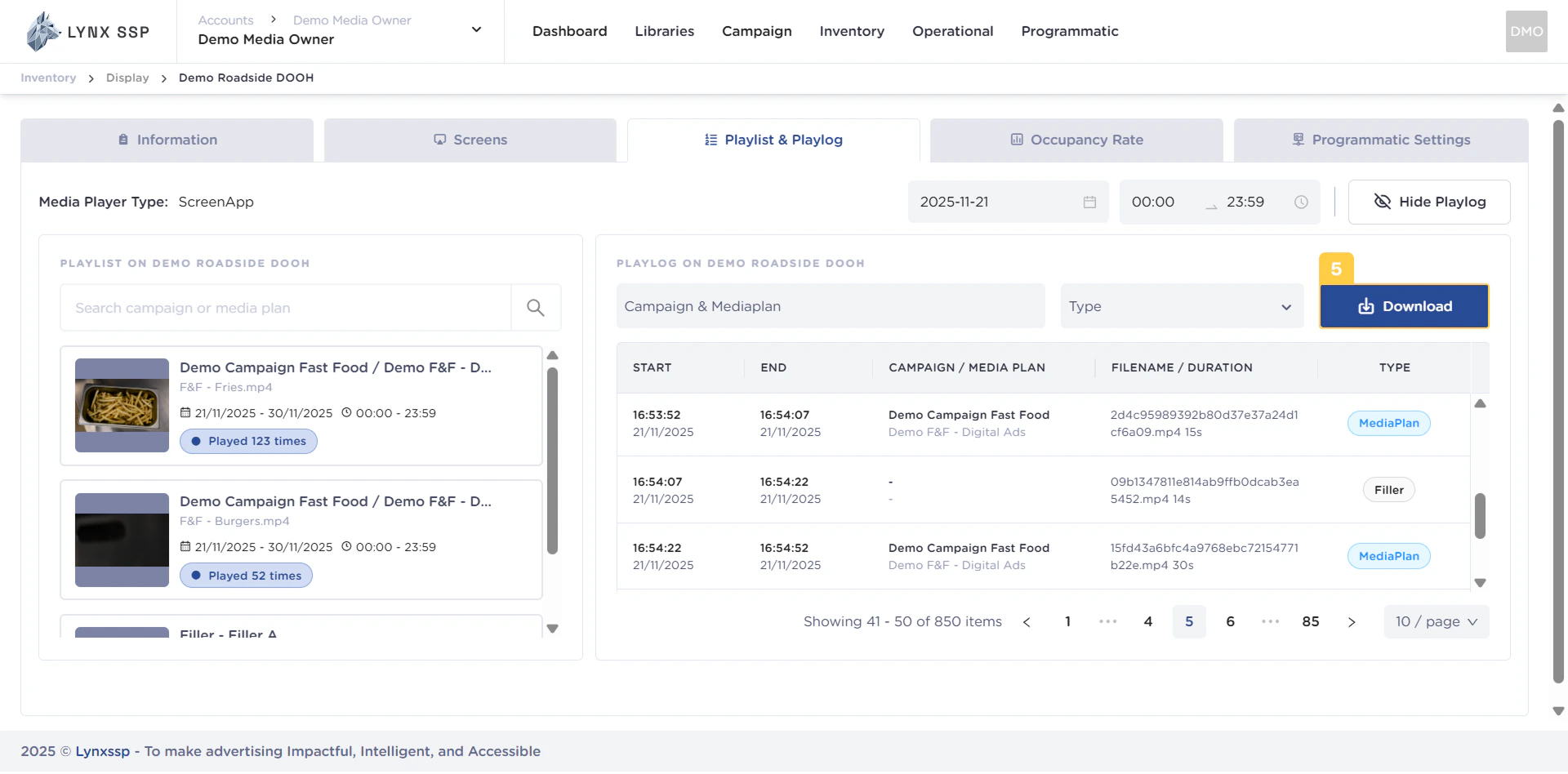
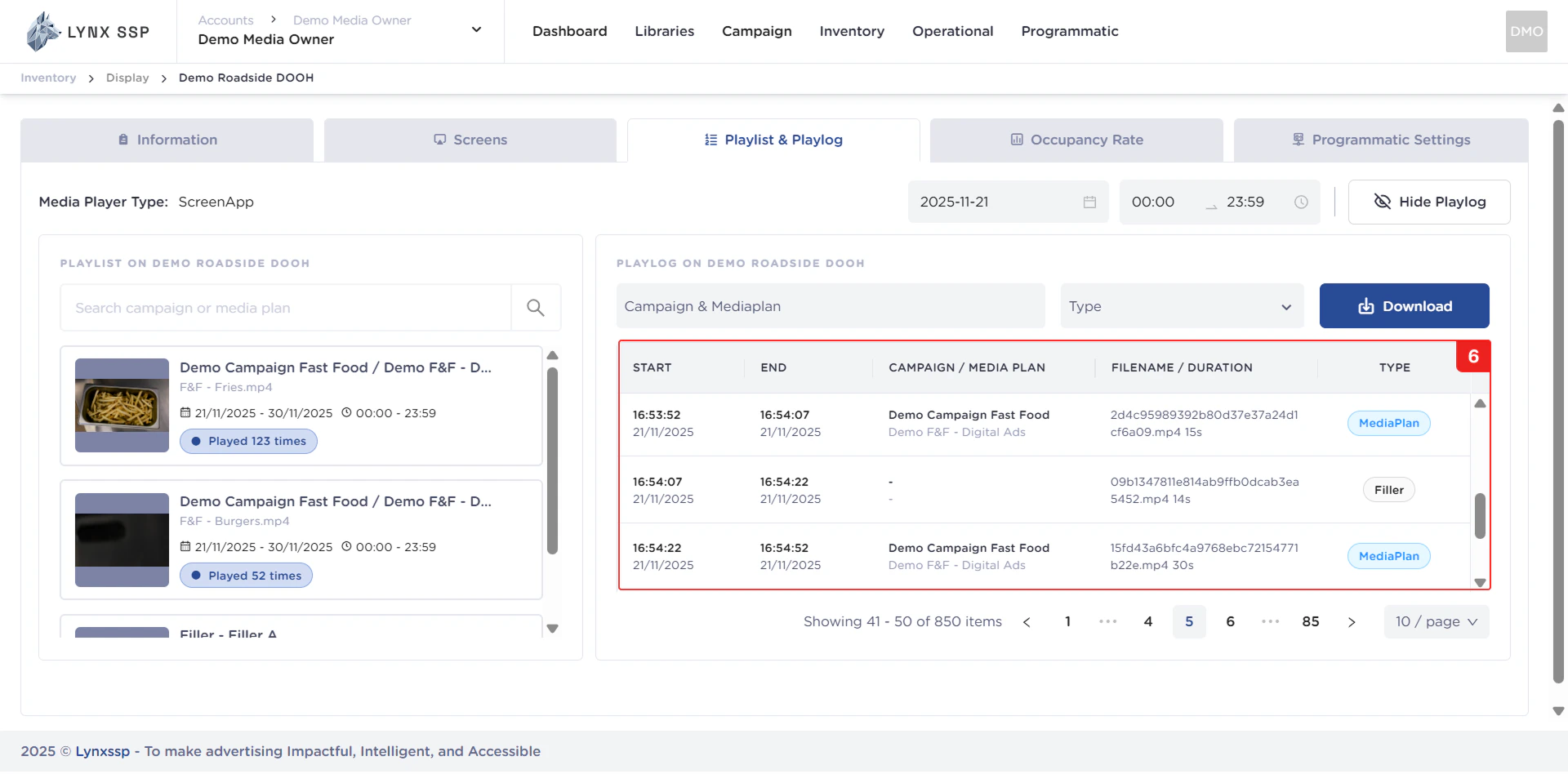
In this section, you can see all the log lists in your DOOH (Digital-Out-of-Home) Inventory. The playlist data is displayed based on date and time range filtering (Points 1 & 2). The properties that can be seen in this table are as follows:
***
### List Playlog Data
In this section, you can see all the log lists in your DOOH (Digital-Out-of-Home) Inventory. The playlist data is displayed based on date and time range filtering (Points 1 & 2). The properties that can be seen in this table are as follows:
 ***
### Log Count Information
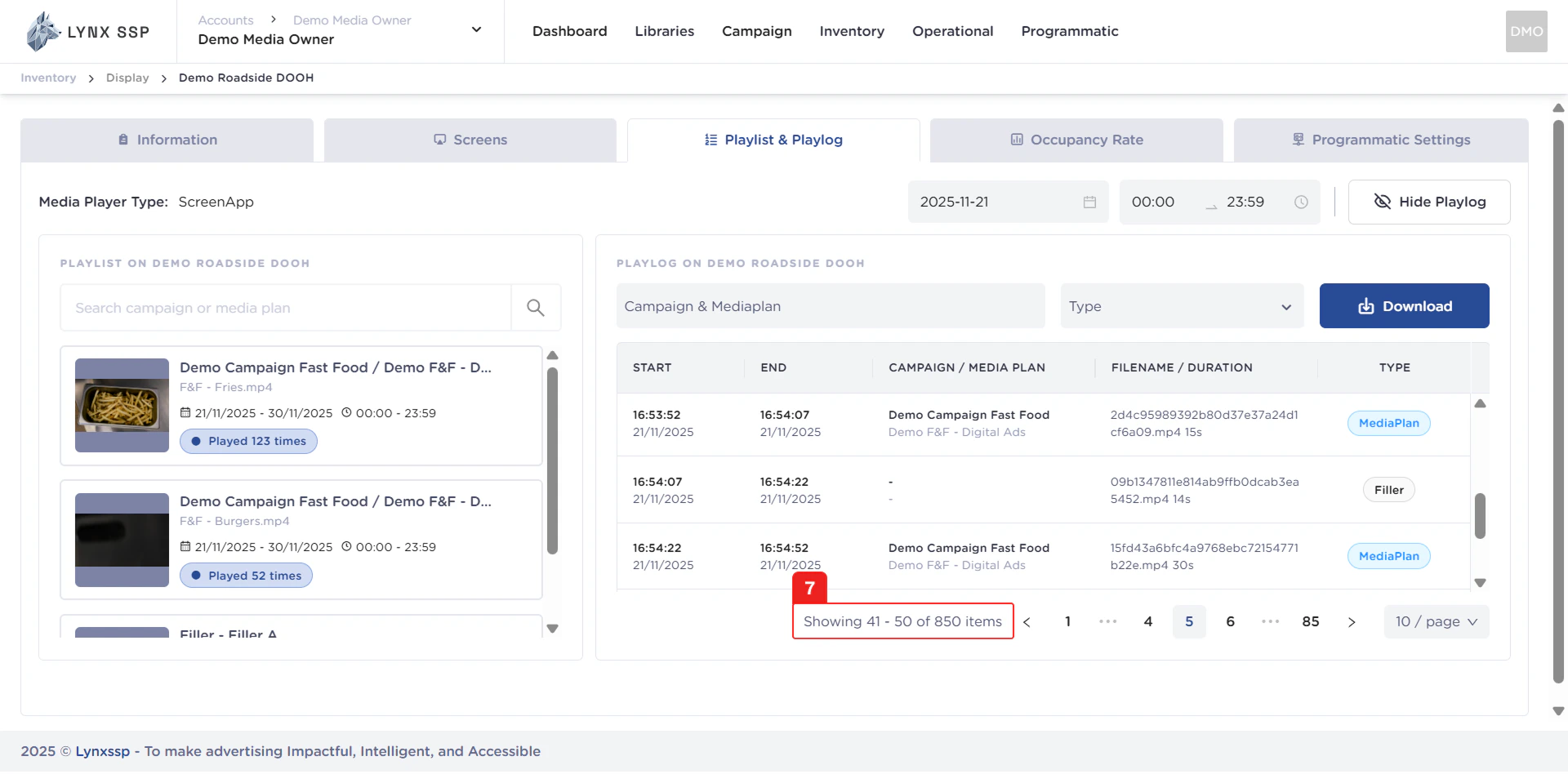
Displaying information on the number of logs in your DOOH (Digital-Out-of-Home) Inventory. The playlist data is displayed based on filtering by date, time range, campaign, and type (Points 1, 2, 3, and 4).
***
### Log Count Information
Displaying information on the number of logs in your DOOH (Digital-Out-of-Home) Inventory. The playlist data is displayed based on filtering by date, time range, campaign, and type (Points 1, 2, 3, and 4).
 ***
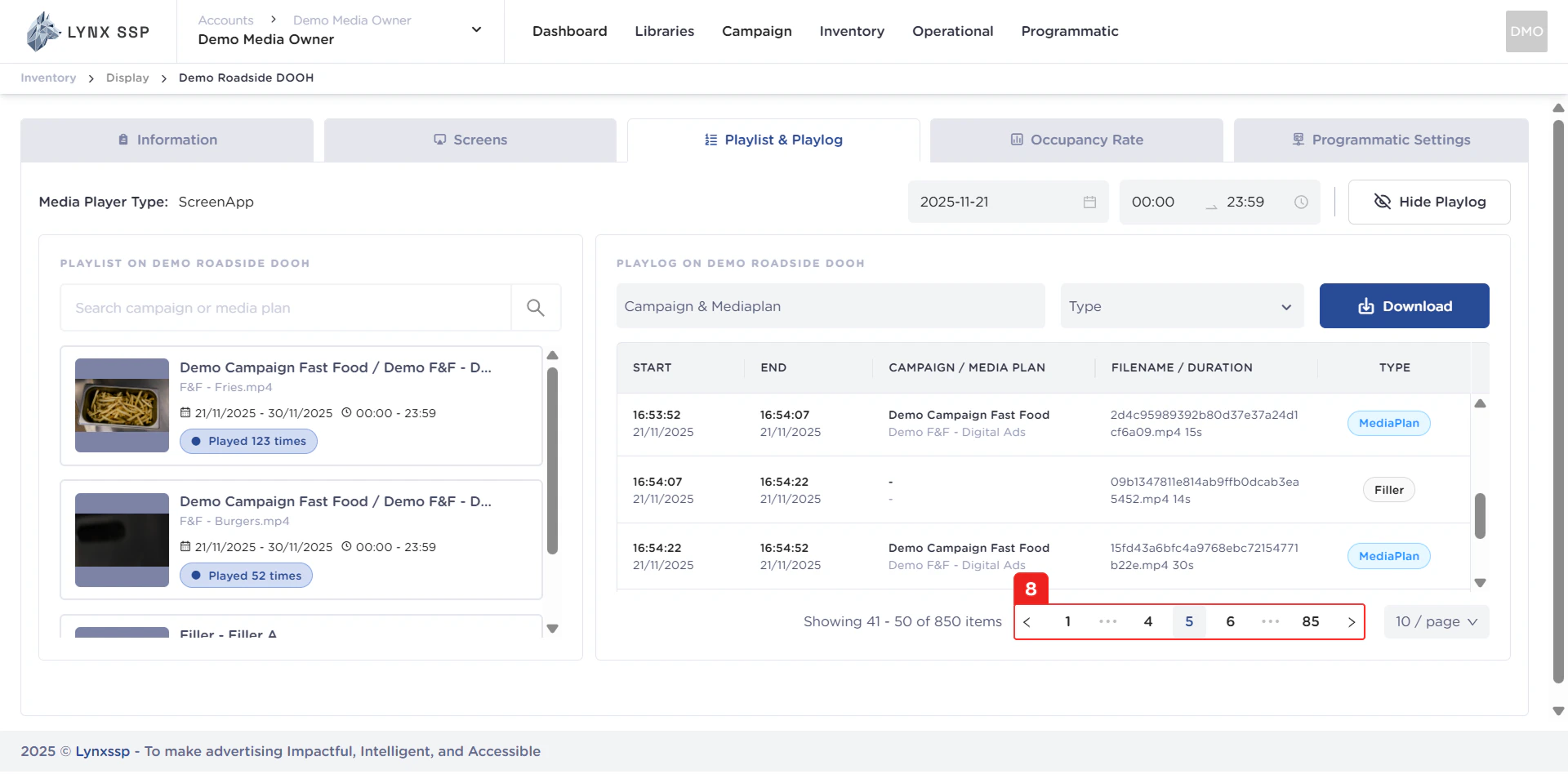
### Pagination
The sequential numbers in the image below are navigation points you can use to go to the next log list page.
***
### Pagination
The sequential numbers in the image below are navigation points you can use to go to the next log list page.
 ***
### Page List
You can change the inventory list displayed. By default, it shows 10 items, but you can change it to 50 or 100.
***
### Page List
You can change the inventory list displayed. By default, it shows 10 items, but you can change it to 50 or 100.