> ## Documentation Index
> Fetch the complete documentation index at: https://docs.lynxssp.com/llms.txt
> Use this file to discover all available pages before exploring further.

# Connection

For more flexibility in integration, Lynx SSP provides API Integration so that DOOH (Digital-Out-of-Home) Inventory can be connected to third-party systems.

This page will help you understand the DOOH (Digital-Out-of-Home) Inventory screen connection via API Integration.

## How to Connect using API Integration

***

<Info>
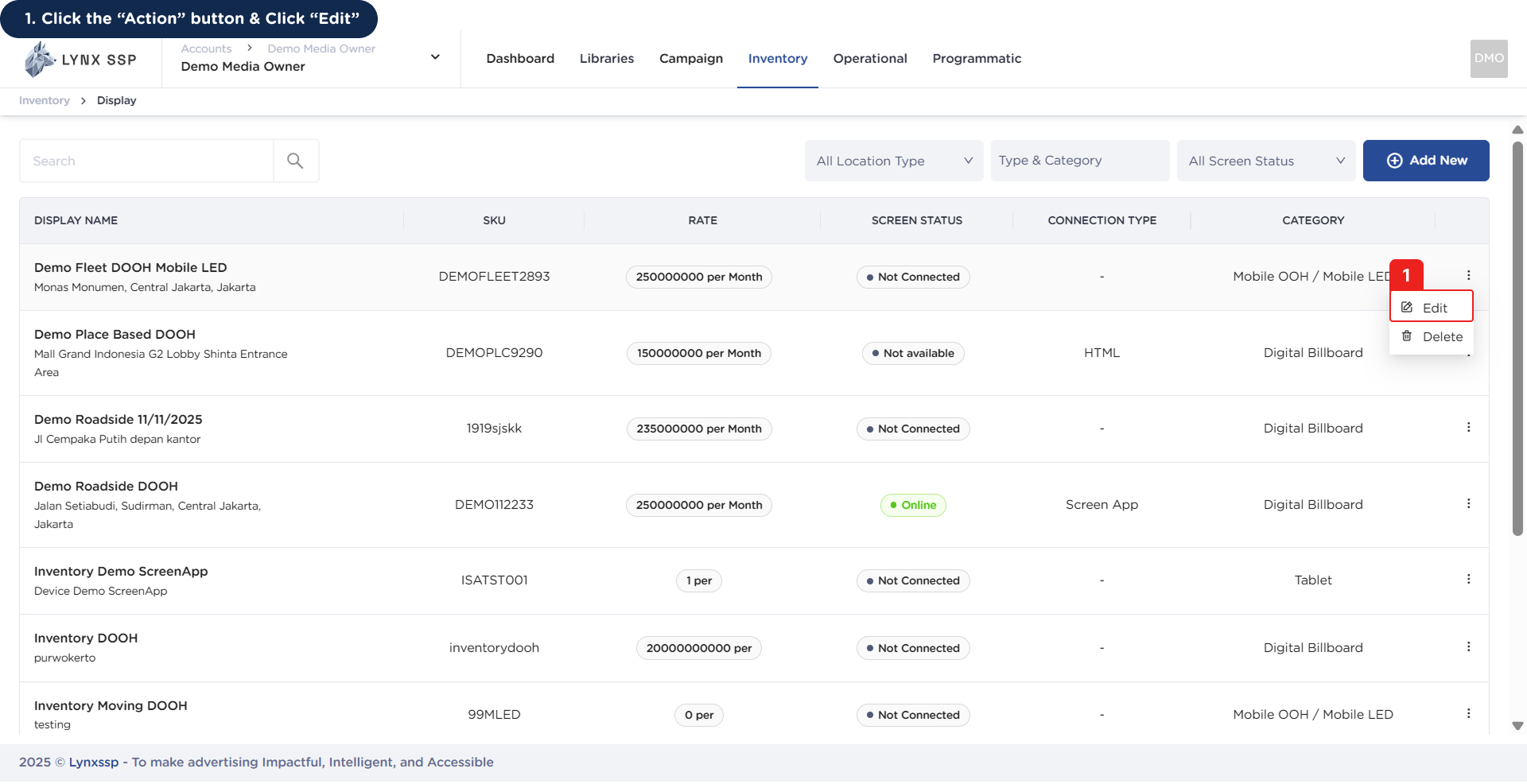
  Ensure you have added DOOH (Digital-Out-of-Home) Inventory on the Lynx SSP Platform ([How to Add New DOOH Inventory ↗](/documentation/inventory/dooh/add/how-to-add))
</Info>

<Steps>
  <Step title="Click the “Action” Button & Click “Edit”">
    <img src="https://mintcdn.com/lynxssp-91a2d3cb/XyupbwYkIbgndxRU/images/documentation/inventory/display/dooh/screens/api-integration/how-to-connect-using-api-1.png?fit=max&auto=format&n=XyupbwYkIbgndxRU&q=85&s=758b01496fff3c30764e165b2b6a11cf" alt="How to Connect using API Integration 1" width="1920" height="986" data-path="images/documentation/inventory/display/dooh/screens/api-integration/how-to-connect-using-api-1.png" />

    This will display the **Inventory Details Page**.
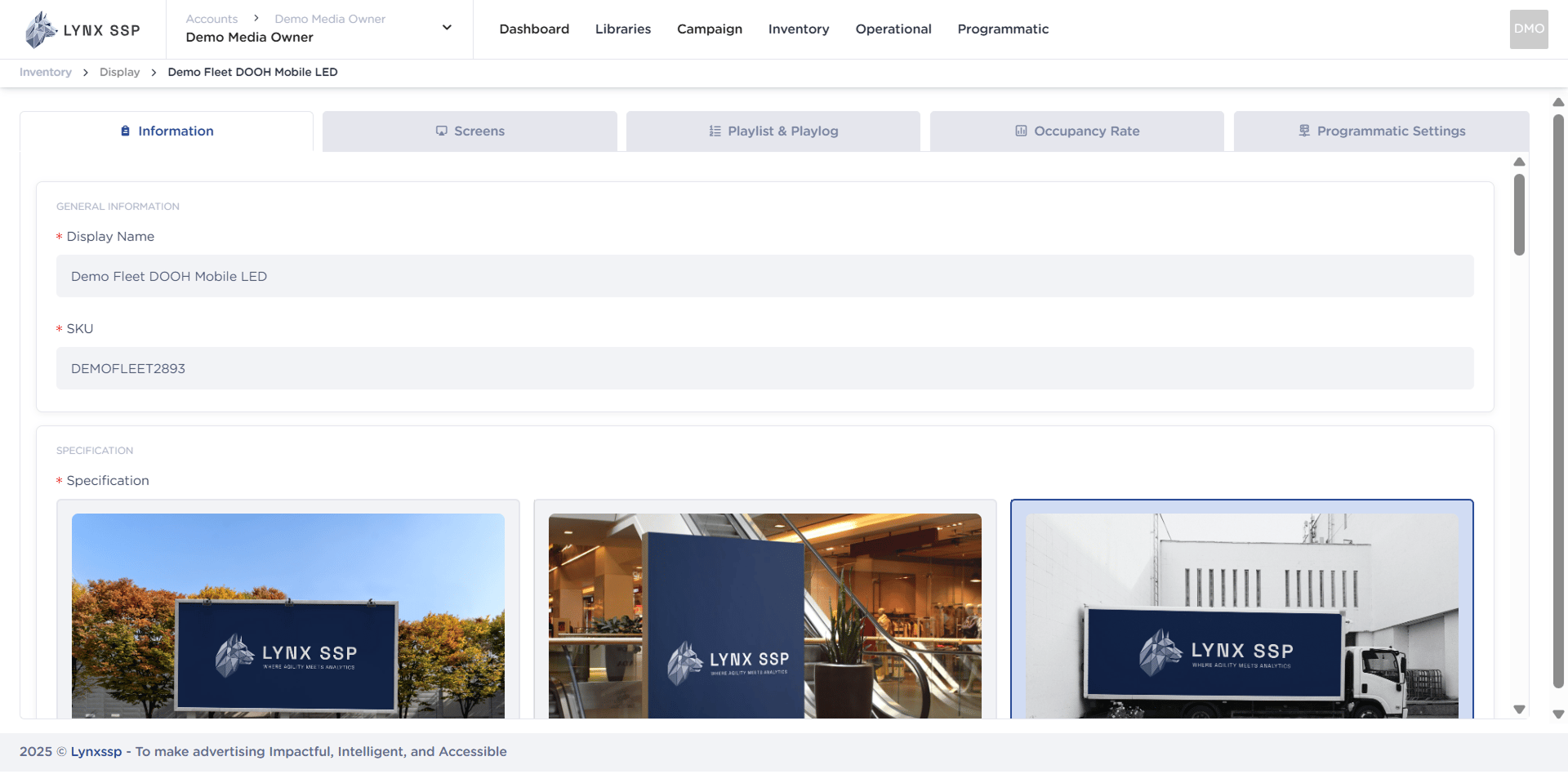
    <img src="https://mintcdn.com/lynxssp-91a2d3cb/XyupbwYkIbgndxRU/images/documentation/inventory/display/dooh/screens/api-integration/how-to-connect-using-api-1.2.png?fit=max&auto=format&n=XyupbwYkIbgndxRU&q=85&s=cd78d85d3277457169a35f10d5379e58" alt="How to Connect using API Integration 1.2" width="1920" height="948" data-path="images/documentation/inventory/display/dooh/screens/api-integration/how-to-connect-using-api-1.2.png" />
  </Step>

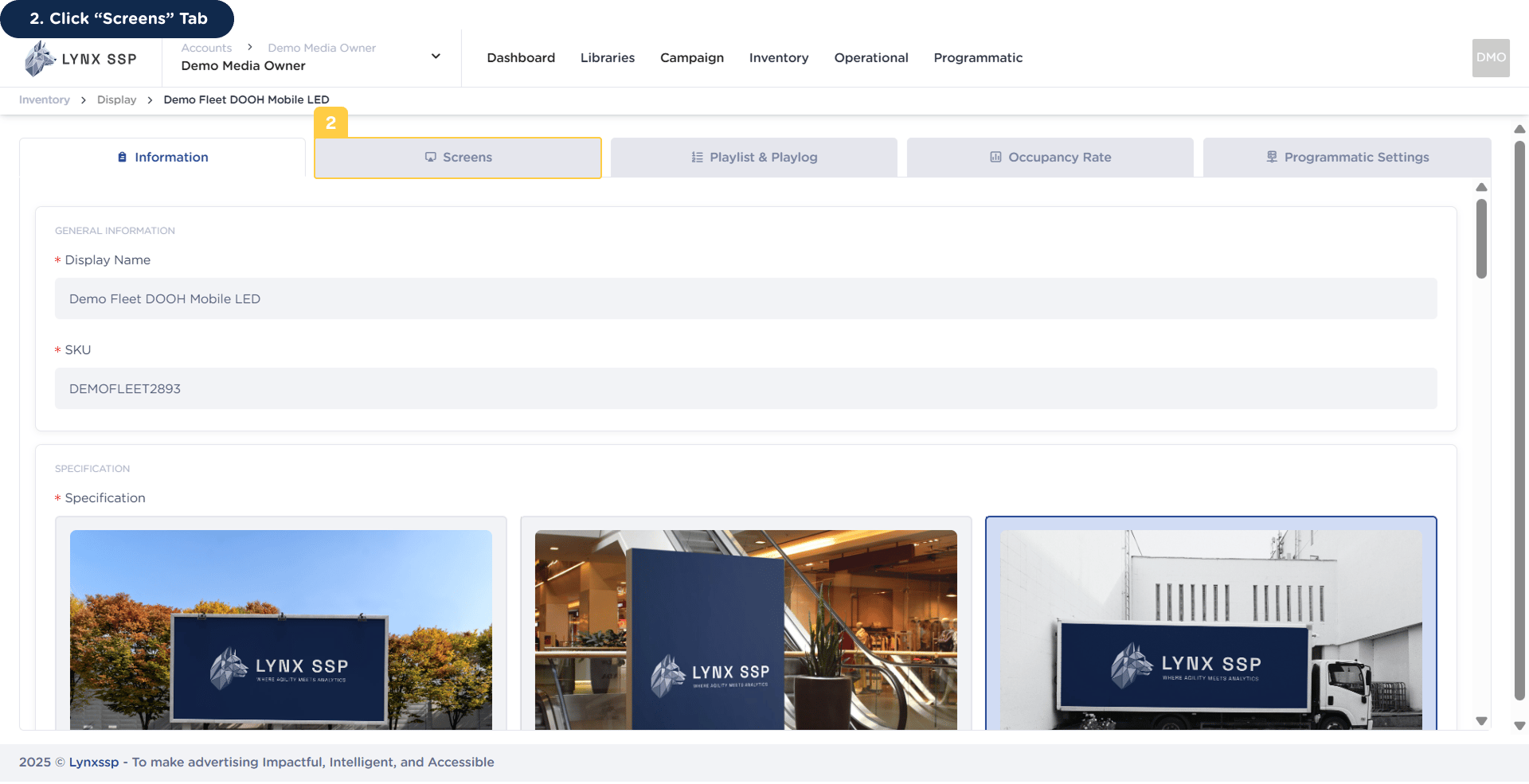
  <Step title="Click “Screens” Tab">
    <img src="https://mintcdn.com/lynxssp-91a2d3cb/XyupbwYkIbgndxRU/images/documentation/inventory/display/dooh/screens/api-integration/how-to-connect-using-api-2.png?fit=max&auto=format&n=XyupbwYkIbgndxRU&q=85&s=2e35b075629e40f29741f069e5c557ed" alt="How to Connect using API Integration 2" width="1920" height="985" data-path="images/documentation/inventory/display/dooh/screens/api-integration/how-to-connect-using-api-2.png" />
  </Step>

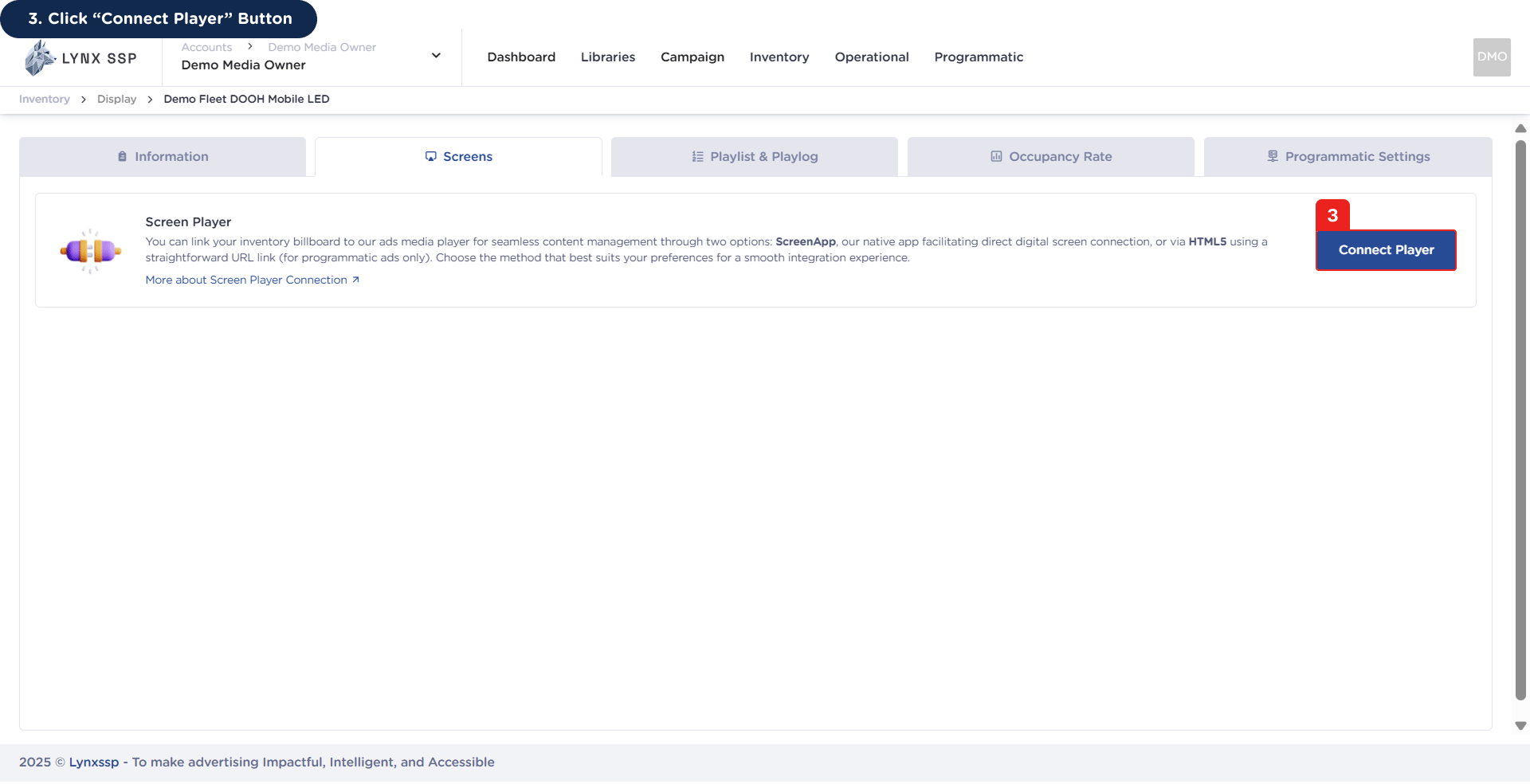
  <Step title="Click “Connect Player” Button">
    <img src="https://mintcdn.com/lynxssp-91a2d3cb/XyupbwYkIbgndxRU/images/documentation/inventory/display/dooh/screens/api-integration/how-to-connect-using-api-3.png?fit=max&auto=format&n=XyupbwYkIbgndxRU&q=85&s=ad836e14dc7df020c3e359f0510de296" alt="How to Connect using API Integration 3" width="1920" height="984" data-path="images/documentation/inventory/display/dooh/screens/api-integration/how-to-connect-using-api-3.png" />

    Then it will display the connect player modal.
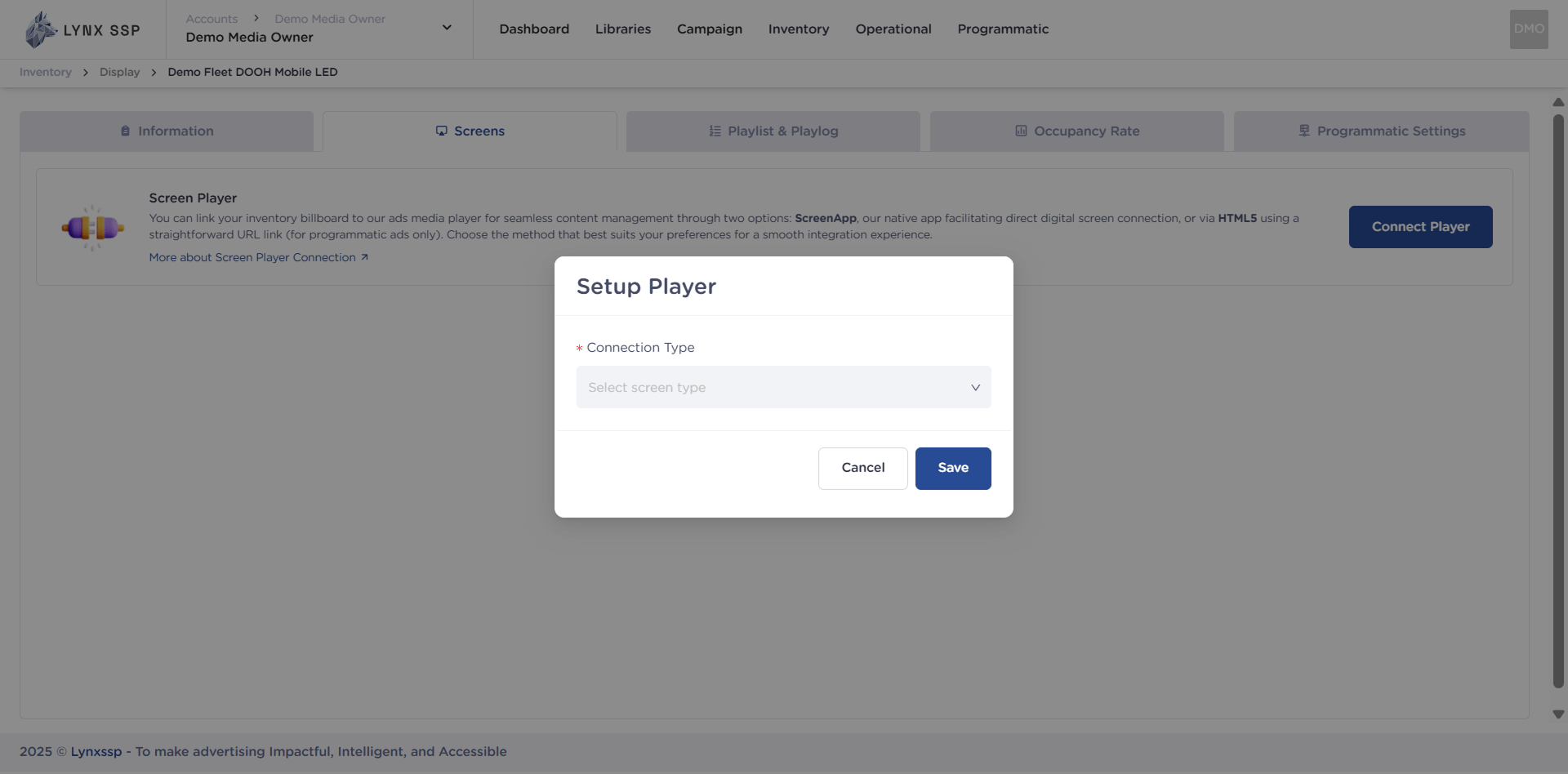
    <img src="https://mintcdn.com/lynxssp-91a2d3cb/XyupbwYkIbgndxRU/images/documentation/inventory/display/dooh/screens/api-integration/how-to-connect-using-api-3.2.png?fit=max&auto=format&n=XyupbwYkIbgndxRU&q=85&s=95cb709234c07167ce7359581378f605" alt="How to Connect using API Integration 3.2" width="1920" height="948" data-path="images/documentation/inventory/display/dooh/screens/api-integration/how-to-connect-using-api-3.2.png" />
  </Step>

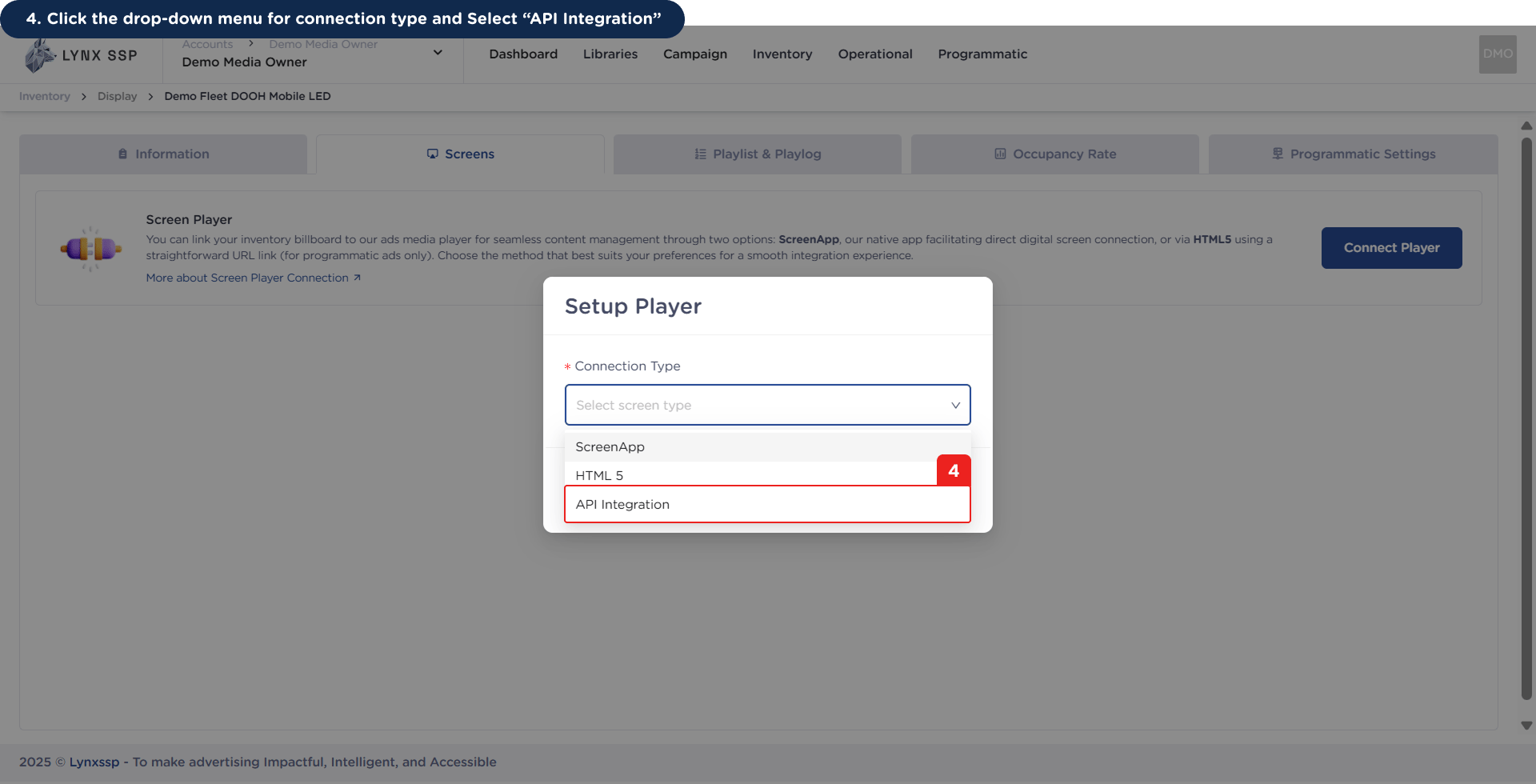
  <Step title=" Click Connection Type drop-down menu and Select “API Integration”">
    <img src="https://mintcdn.com/lynxssp-91a2d3cb/XyupbwYkIbgndxRU/images/documentation/inventory/display/dooh/screens/api-integration/how-to-connect-using-api-4.png?fit=max&auto=format&n=XyupbwYkIbgndxRU&q=85&s=b5a610f8d4dc0dae16aa214649ef6e9e" alt="How to Connect using API Integration 4" width="1920" height="980" data-path="images/documentation/inventory/display/dooh/screens/api-integration/how-to-connect-using-api-4.png" />
  </Step>

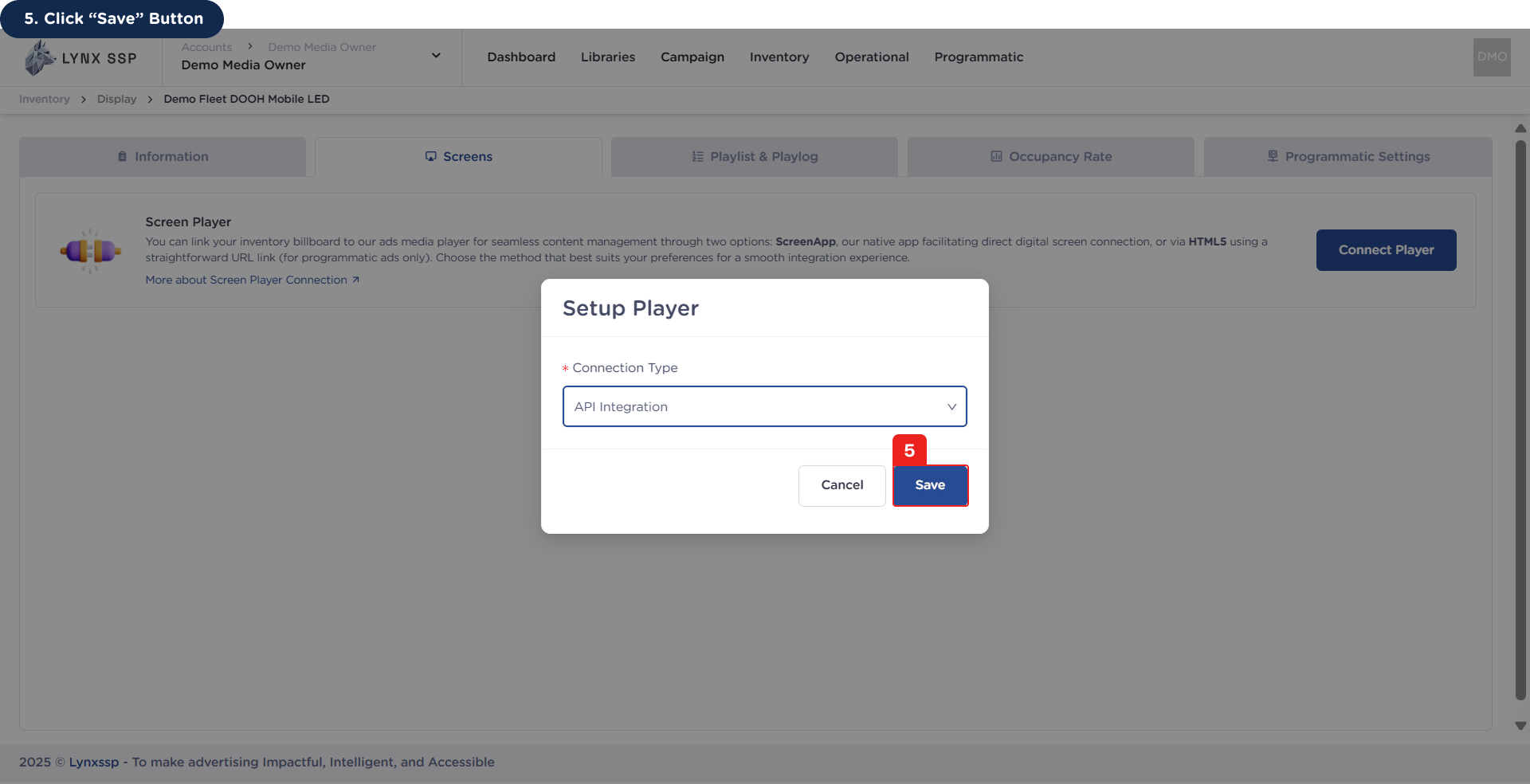
  <Step title="Click “Save” Button">
    <img src="https://mintcdn.com/lynxssp-91a2d3cb/XyupbwYkIbgndxRU/images/documentation/inventory/display/dooh/screens/api-integration/how-to-connect-using-api-5.png?fit=max&auto=format&n=XyupbwYkIbgndxRU&q=85&s=e6eb14a807a4c559ebdd83ba63621712" alt="How to Connect using API Integration 5" width="1920" height="984" data-path="images/documentation/inventory/display/dooh/screens/api-integration/how-to-connect-using-api-5.png" />

    Then API Integration is successfully connected and Copy API Secret Key for your production environment.
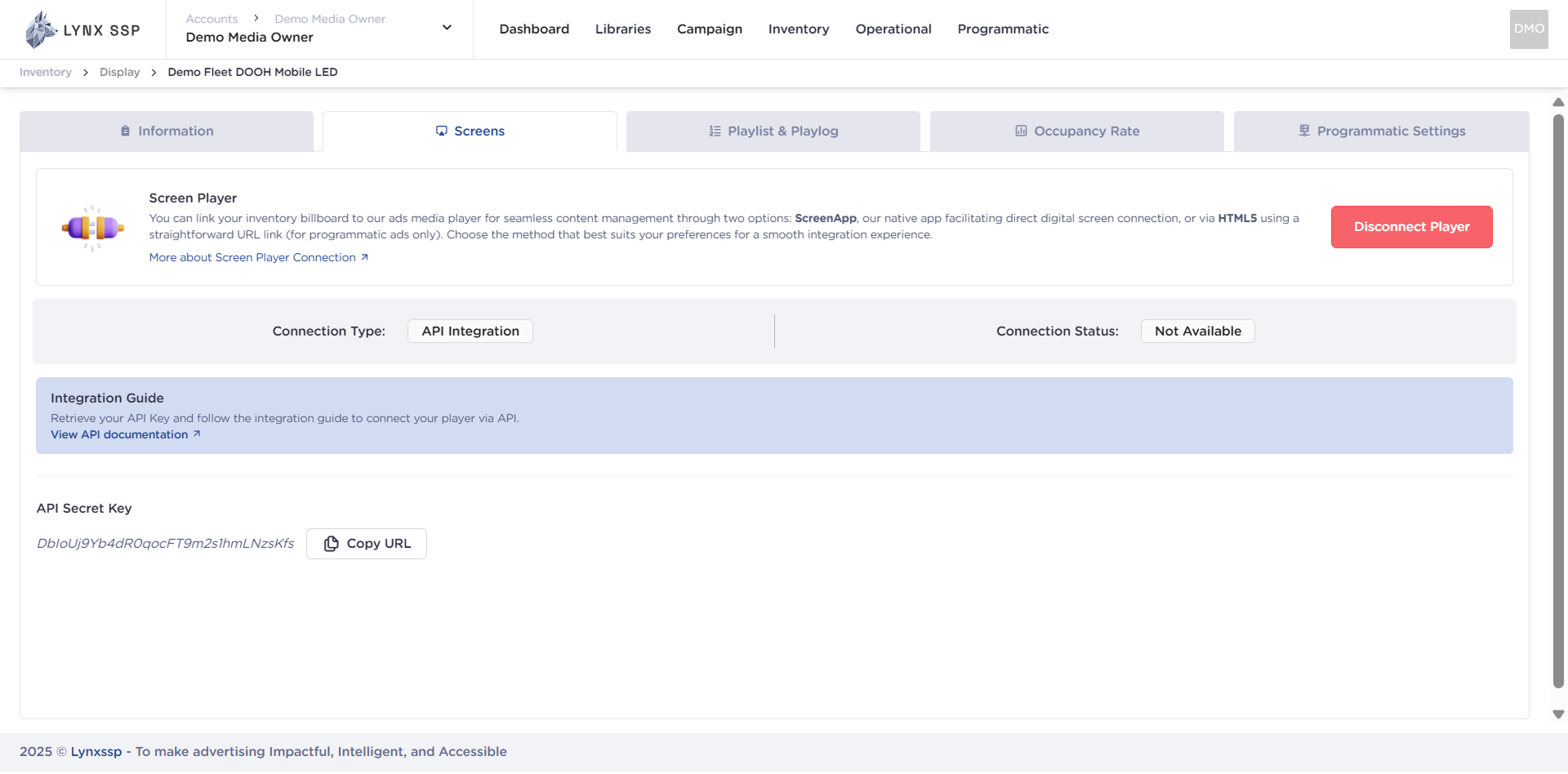
    <img src="https://mintcdn.com/lynxssp-91a2d3cb/XyupbwYkIbgndxRU/images/documentation/inventory/display/dooh/screens/api-integration/how-to-connect-using-api-5.2.png?fit=max&auto=format&n=XyupbwYkIbgndxRU&q=85&s=ac4fec6a2db5c47b26639cab11c00579" alt="How to Connect using API Integration 5.2" width="1920" height="948" data-path="images/documentation/inventory/display/dooh/screens/api-integration/how-to-connect-using-api-5.2.png" />
  </Step>
</Steps>