> ## Documentation Index
> Fetch the complete documentation index at: https://docs.lynxssp.com/llms.txt
> Use this file to discover all available pages before exploring further.
# Connect to Screen
Ensure you have added DOOH (Digital-Out-of-Home) Inventory on the Lynx SSP Platform ([See Add New DOOH Inventory ↗](/documentation/inventory/dooh/add/how-to-add)).
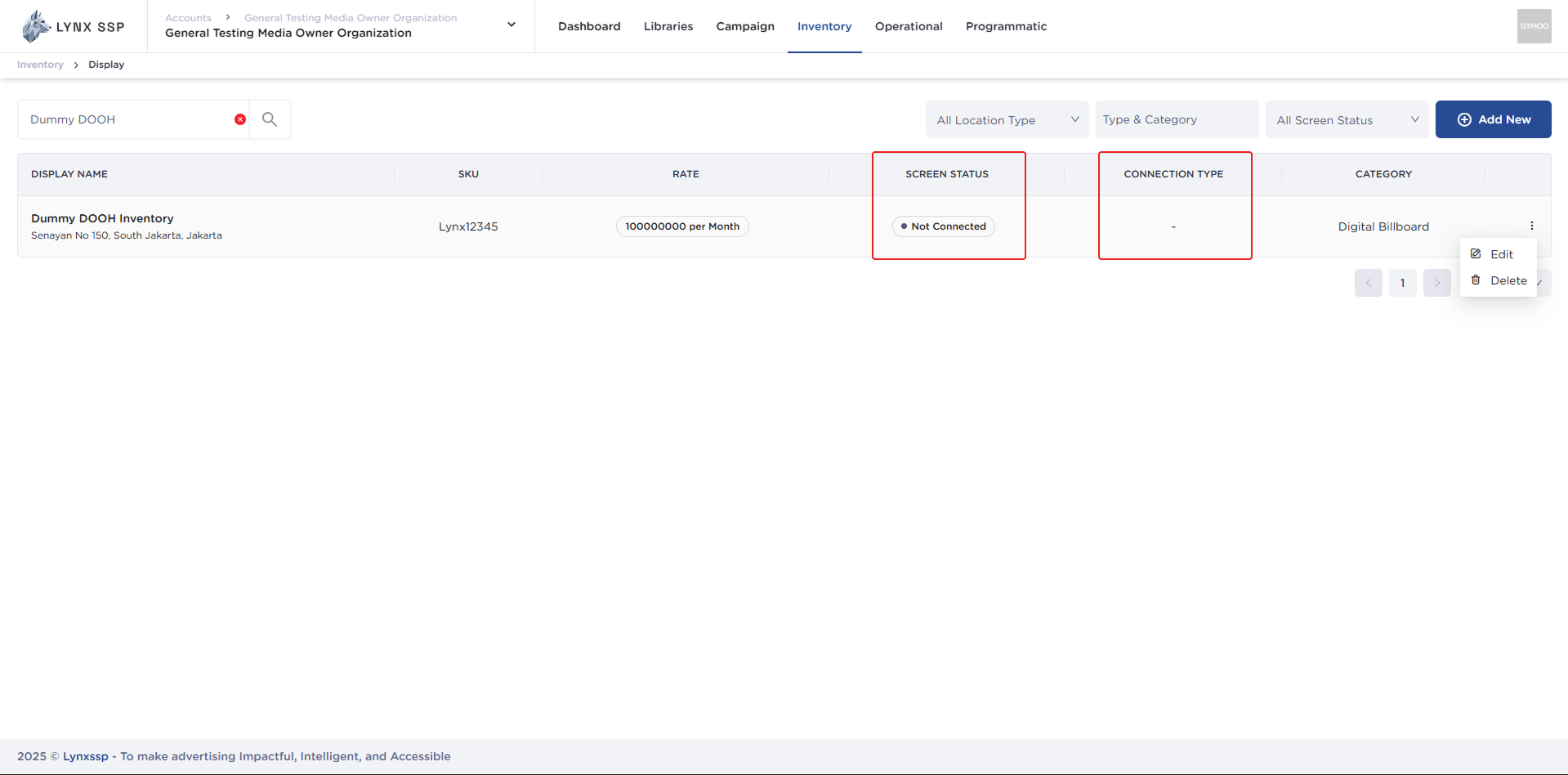
By default, after adding DOOH (Digital-Out-of-Home) Inventory, you can see the Screen Status in the form **"Not Connected"** ([See Screen Status ↗](/documentation/inventory/dooh/screens/status)) and Connection Type **"-"** ([See Connection Type ↗](/documentation/inventory/dooh/screens/connect-to-screen#connection-type)). This indicates that the DOOH (Digital-Out-of-Home) Inventory on the Lynx SSP Platform is not yet connected to the Screen. Therefore, further configuration is required by connecting the DOOH (Digital-Out-of-Home) Inventory that has been added with the Player to display creative content and filler campaigns.
 This page helps you configure or connect your DOOH (Digital-Out-of-Home) Inventory with Player on Lynx SSP Platform.
## Accessing Screen Page
This page helps you configure or connect your DOOH (Digital-Out-of-Home) Inventory with Player on Lynx SSP Platform.
## Accessing Screen Page
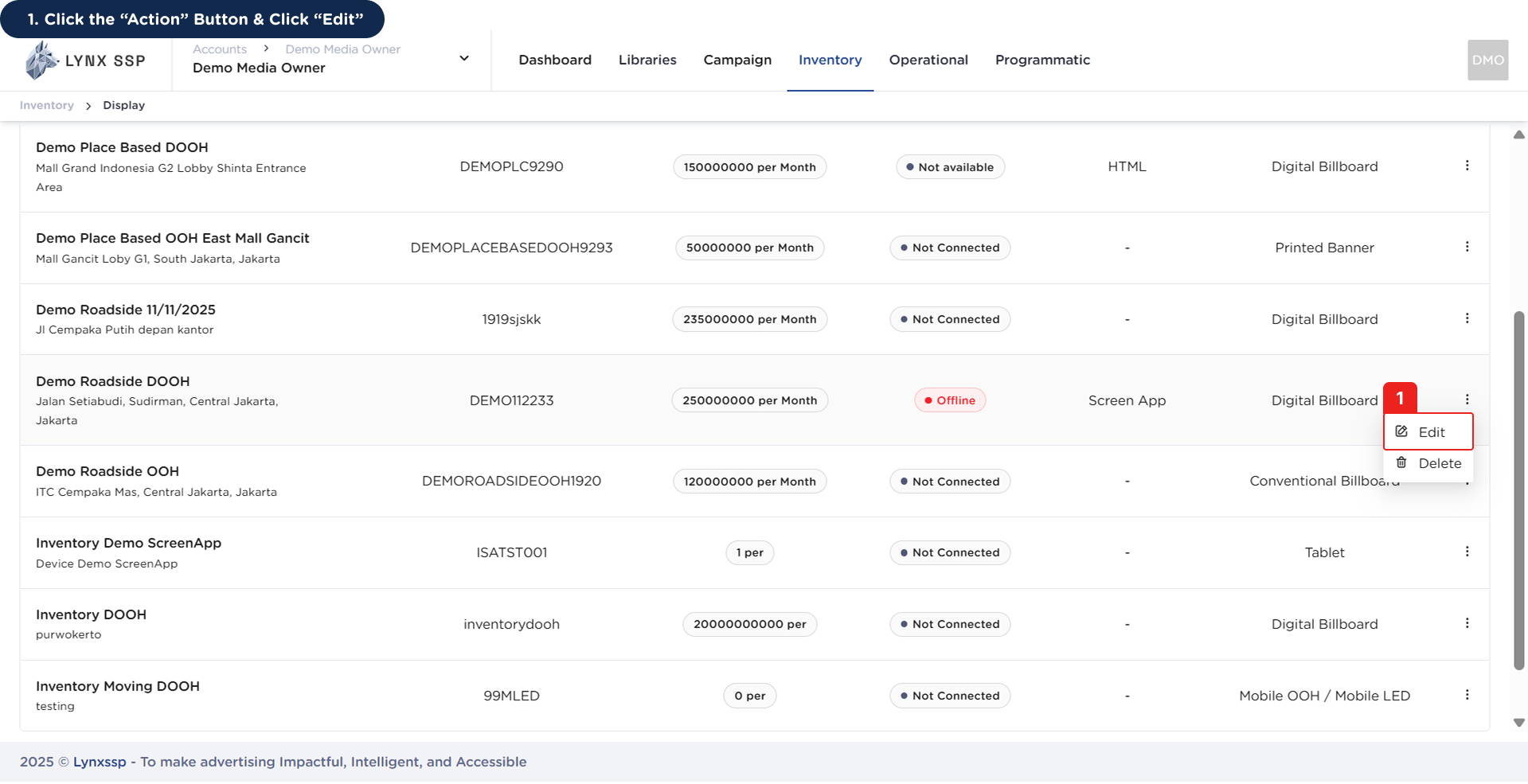 This will display the **Inventory Details Page**.
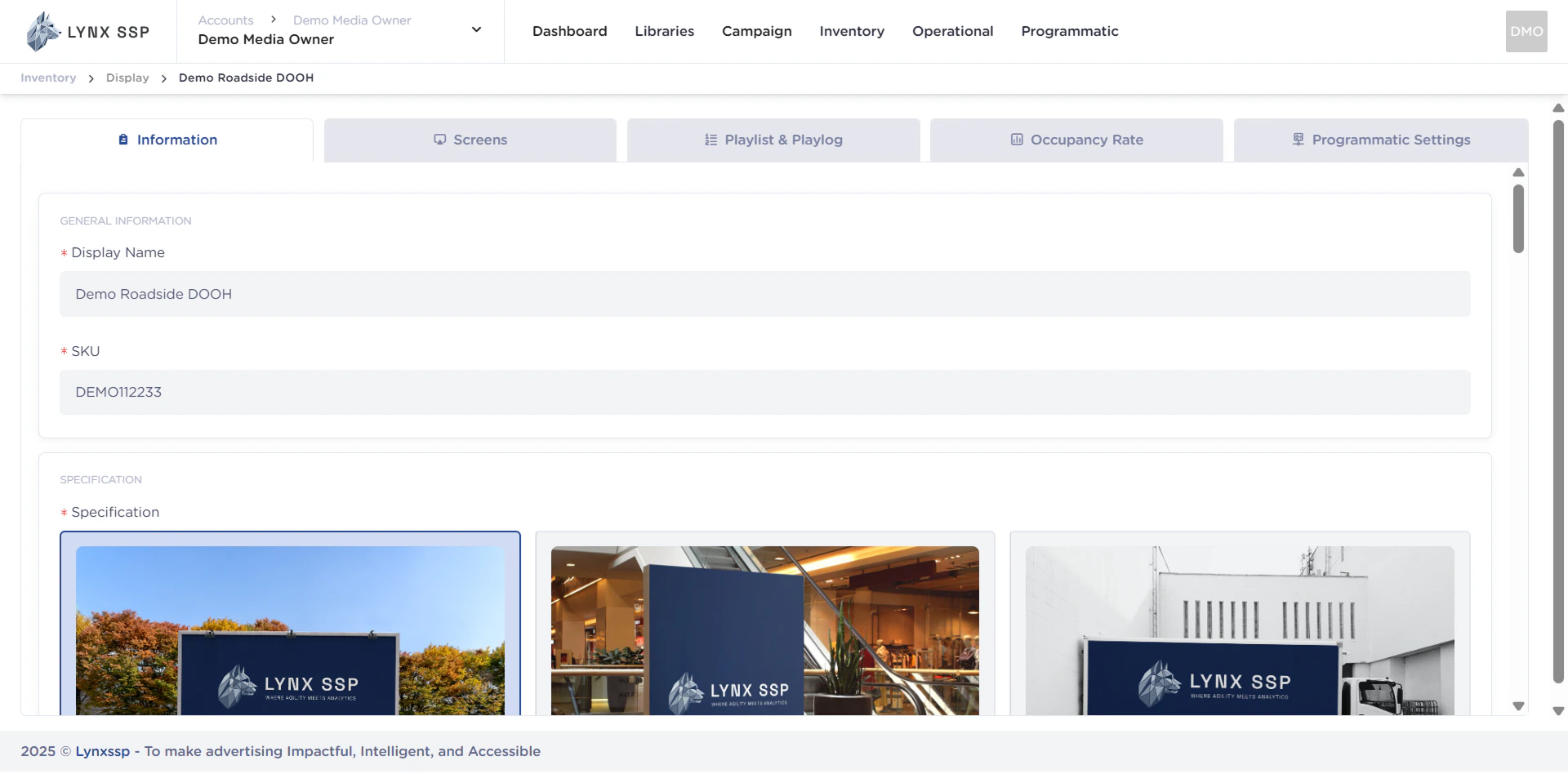
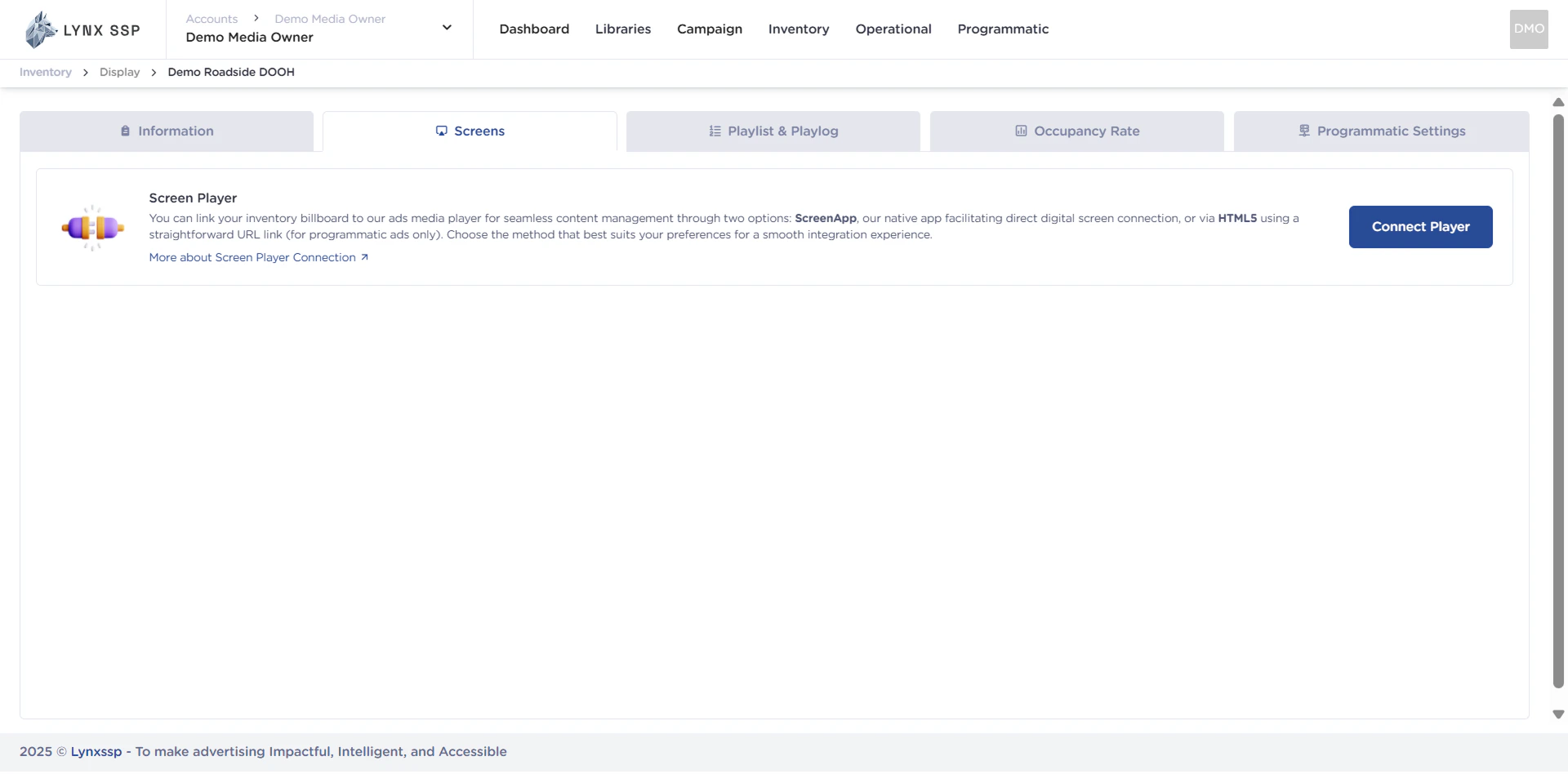
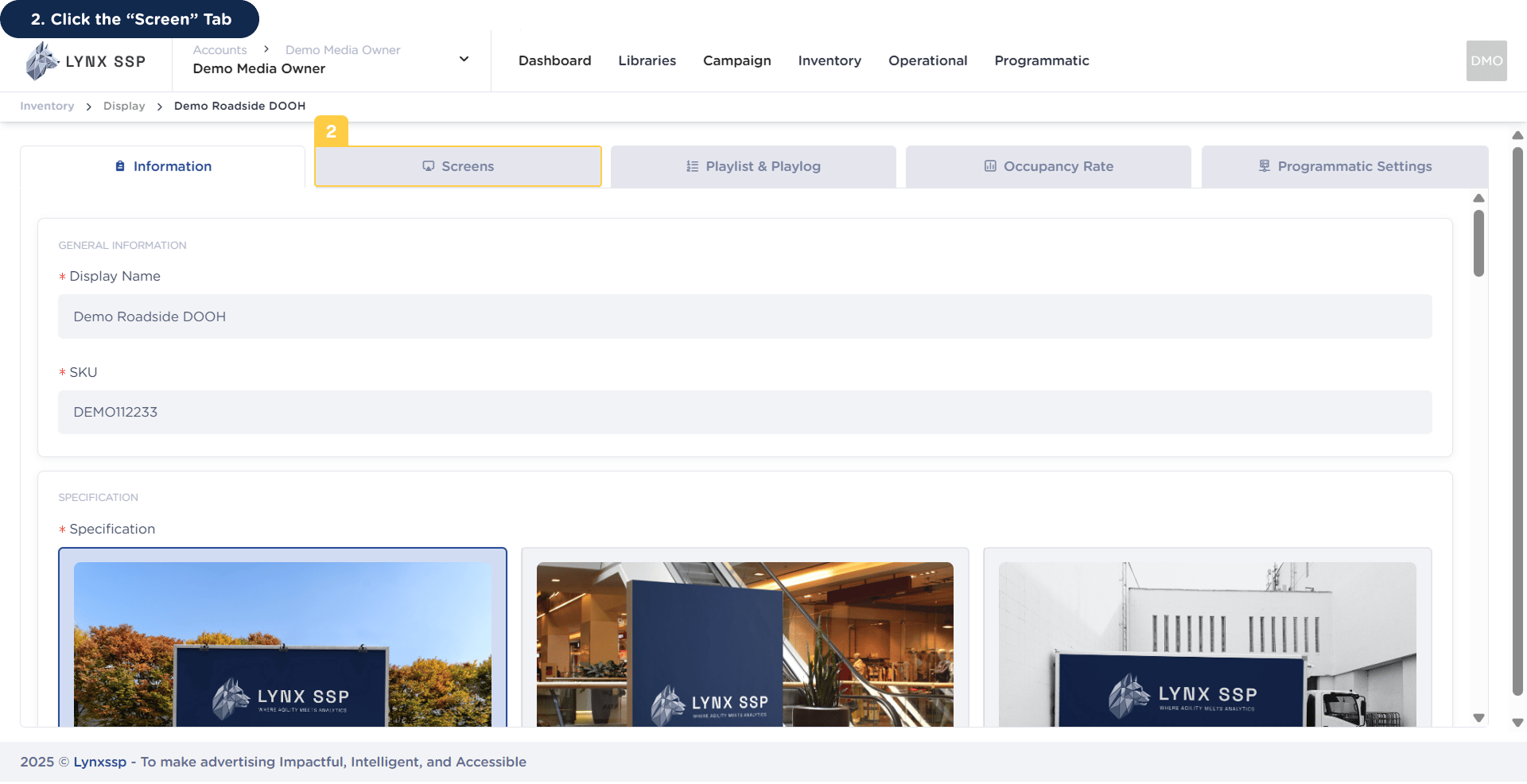 Then it will display the **Screen Page**.
 ***
## Connection Type
Connecting DOOH (Digital-Out-of-Home) Inventory with Screen in Lynx SSP can be done in several ways. You can connect with Screen App, HTML5, or API Integration, depending on your needs.
The following are the steps for connecting DOOH (Digital-Out-of-Home) Inventory with Screen in Lynx SSP according to the connection you will use.
### Lynx CMS (Screen App)
Screen App is the default player owned by Lynx SSP. Through Screen App, you can change the arrangement of creative content, both from campaigns and fillers that will be displayed on your DOOH (Digital-Out-of-Home) Inventory.
***
### HTML5
In addition to using the Screen App, you can also connect DOOH (Digital-Out-of-Home) Inventory with a compatible HTML5 Player. HTML5 Connection simplifies integration for web player-based inventory or digital signage devices that support HTML5.
***
### API Integration
For more flexible integration needs, Lynx SSP provides API Integration so that DOOH Inventory can be connected to third-party systems.
***
## Connection Type
Connecting DOOH (Digital-Out-of-Home) Inventory with Screen in Lynx SSP can be done in several ways. You can connect with Screen App, HTML5, or API Integration, depending on your needs.
The following are the steps for connecting DOOH (Digital-Out-of-Home) Inventory with Screen in Lynx SSP according to the connection you will use.
### Lynx CMS (Screen App)
Screen App is the default player owned by Lynx SSP. Through Screen App, you can change the arrangement of creative content, both from campaigns and fillers that will be displayed on your DOOH (Digital-Out-of-Home) Inventory.
***
### HTML5
In addition to using the Screen App, you can also connect DOOH (Digital-Out-of-Home) Inventory with a compatible HTML5 Player. HTML5 Connection simplifies integration for web player-based inventory or digital signage devices that support HTML5.
***
### API Integration
For more flexible integration needs, Lynx SSP provides API Integration so that DOOH Inventory can be connected to third-party systems.