> ## Documentation Index
> Fetch the complete documentation index at: https://docs.lynxssp.com/llms.txt
> Use this file to discover all available pages before exploring further.
# Connection
When opened for the first time, the Screen App will display the Display ID which is six random characters inside a purple box. The Display ID is used for the binding process in the Lynx SSP Platform.
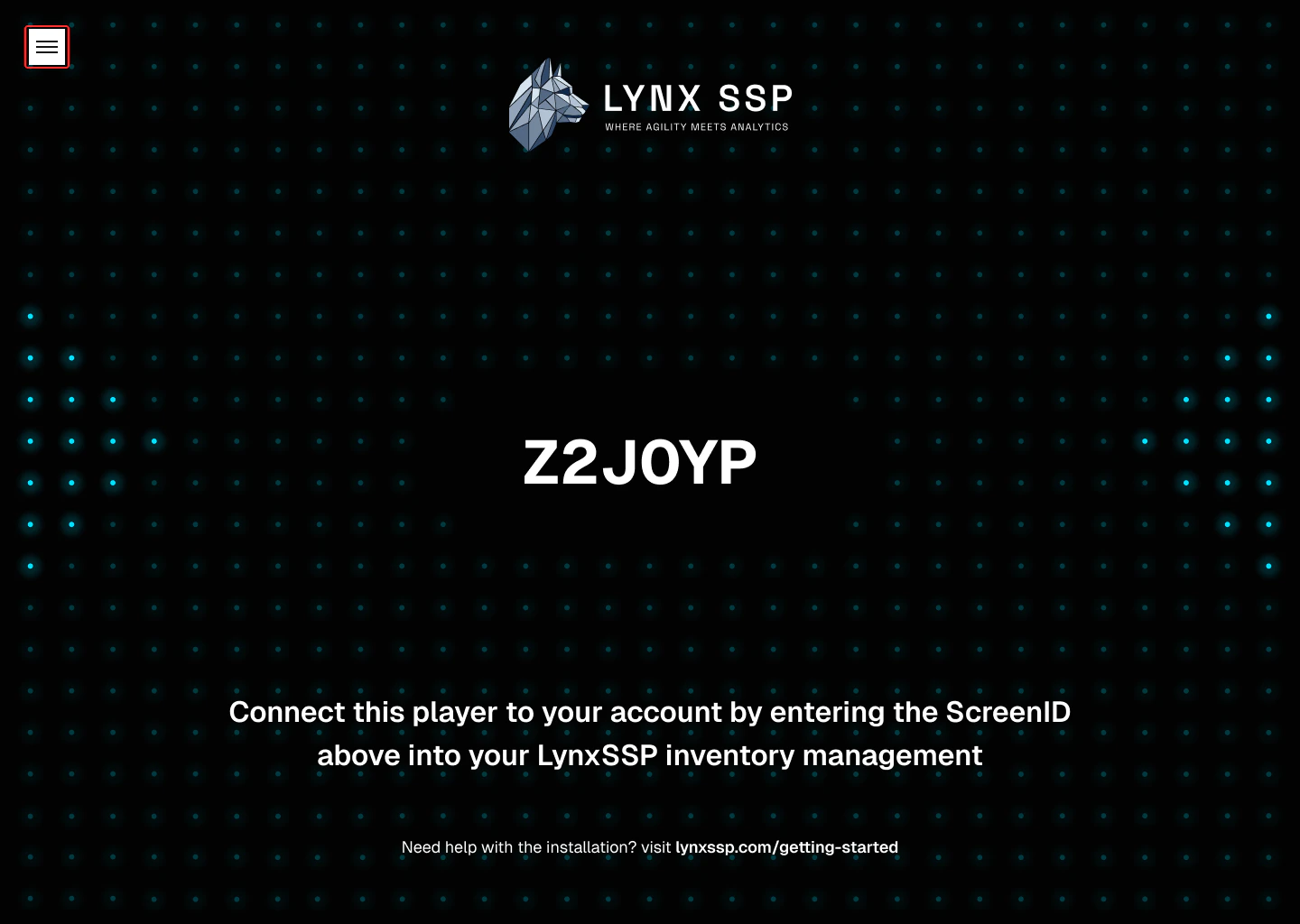
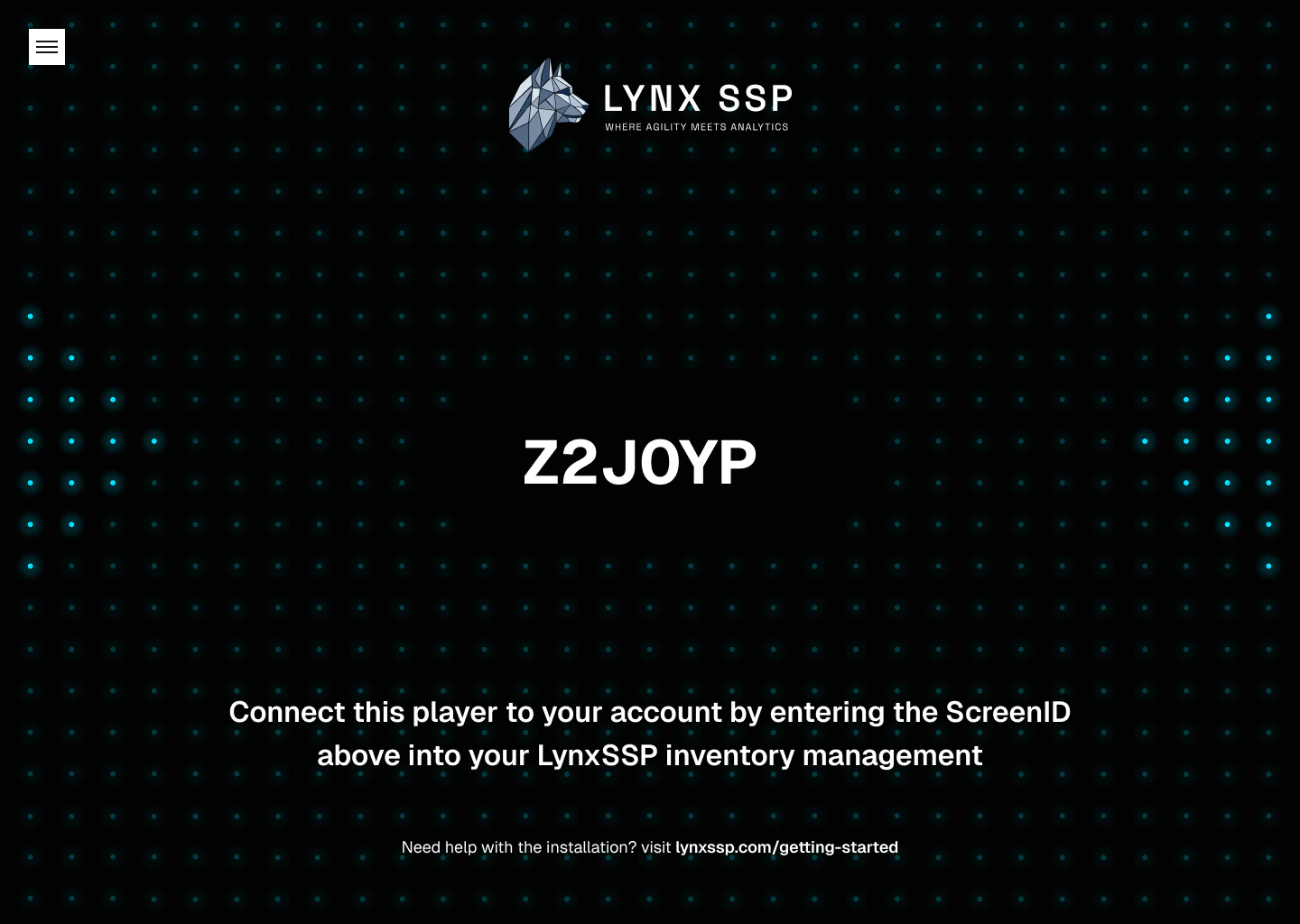 Click on the Gear logo in the top right corner.
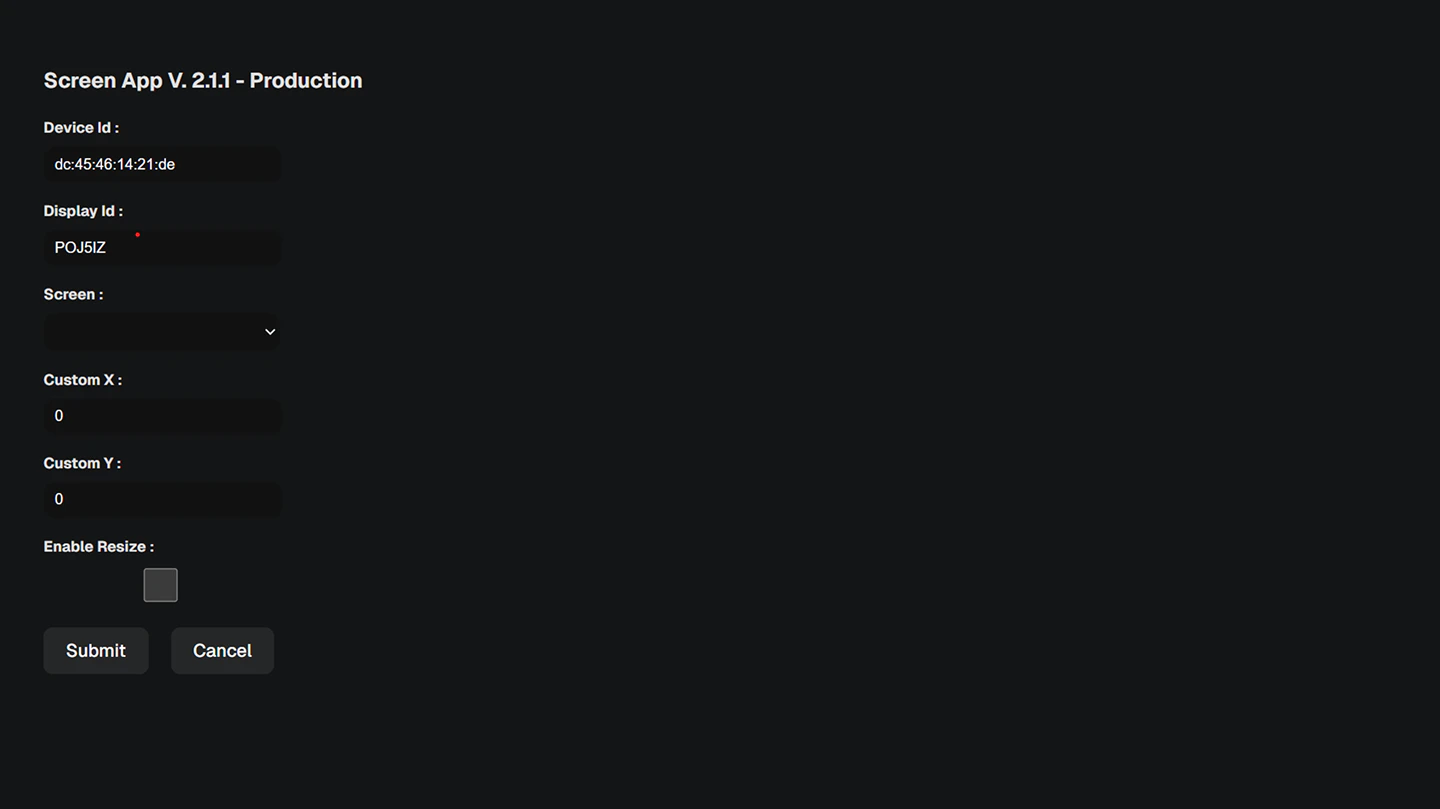
 You will be redirected to the Config UI as shown below.
 ### Overview
1. **Device ID** is a unique string of characters taken from the MAC address of the device.
2. **Display ID** is a unique string of characters like on the main screen which will be used to bind to the inventory of the client portal.
3. Custom height and custom width function to set the height and width of the frame from the player. The numbers listed do not represent sizes in any metric.
4. **Screen** serves to select the screen (one device can run more than one screen).
5. **Custom X and Custom Y** function to set the frame distance from the top left.
6. Enable Resize if enabled, then you can adjust the size of the screen app, if turned off the screenapp size will be fixed and cannot be changed.
7. Submit serves to apply configuration changes.
8. Cancel serves to cancel configuration changes and return to the main Screen App screen.
There are several shortcuts that can be used on the Screen App as shown in the following table:
| **Shortcut** | **Description** |
| :----------- | :------------------------------- |
| **Alt + T** | **Enable/Disable Always on Top** |
| **Esc** | **Close full screen** |
| **F** | **Fullscreen** |
| **Alt + Q** | **Close Apps** |
## Content Format
Screen App supports the image and video formats listed in the following table:
## How to Connect using ScreenApp
Open the Screen App application and a Screen ID will appear that you can use to connect the billboard in Lynx SSP with the Screen App application.
### Overview
1. **Device ID** is a unique string of characters taken from the MAC address of the device.
2. **Display ID** is a unique string of characters like on the main screen which will be used to bind to the inventory of the client portal.
3. Custom height and custom width function to set the height and width of the frame from the player. The numbers listed do not represent sizes in any metric.
4. **Screen** serves to select the screen (one device can run more than one screen).
5. **Custom X and Custom Y** function to set the frame distance from the top left.
6. Enable Resize if enabled, then you can adjust the size of the screen app, if turned off the screenapp size will be fixed and cannot be changed.
7. Submit serves to apply configuration changes.
8. Cancel serves to cancel configuration changes and return to the main Screen App screen.
There are several shortcuts that can be used on the Screen App as shown in the following table:
| **Shortcut** | **Description** |
| :----------- | :------------------------------- |
| **Alt + T** | **Enable/Disable Always on Top** |
| **Esc** | **Close full screen** |
| **F** | **Fullscreen** |
| **Alt + Q** | **Close Apps** |
## Content Format
Screen App supports the image and video formats listed in the following table:
## How to Connect using ScreenApp
Open the Screen App application and a Screen ID will appear that you can use to connect the billboard in Lynx SSP with the Screen App application.
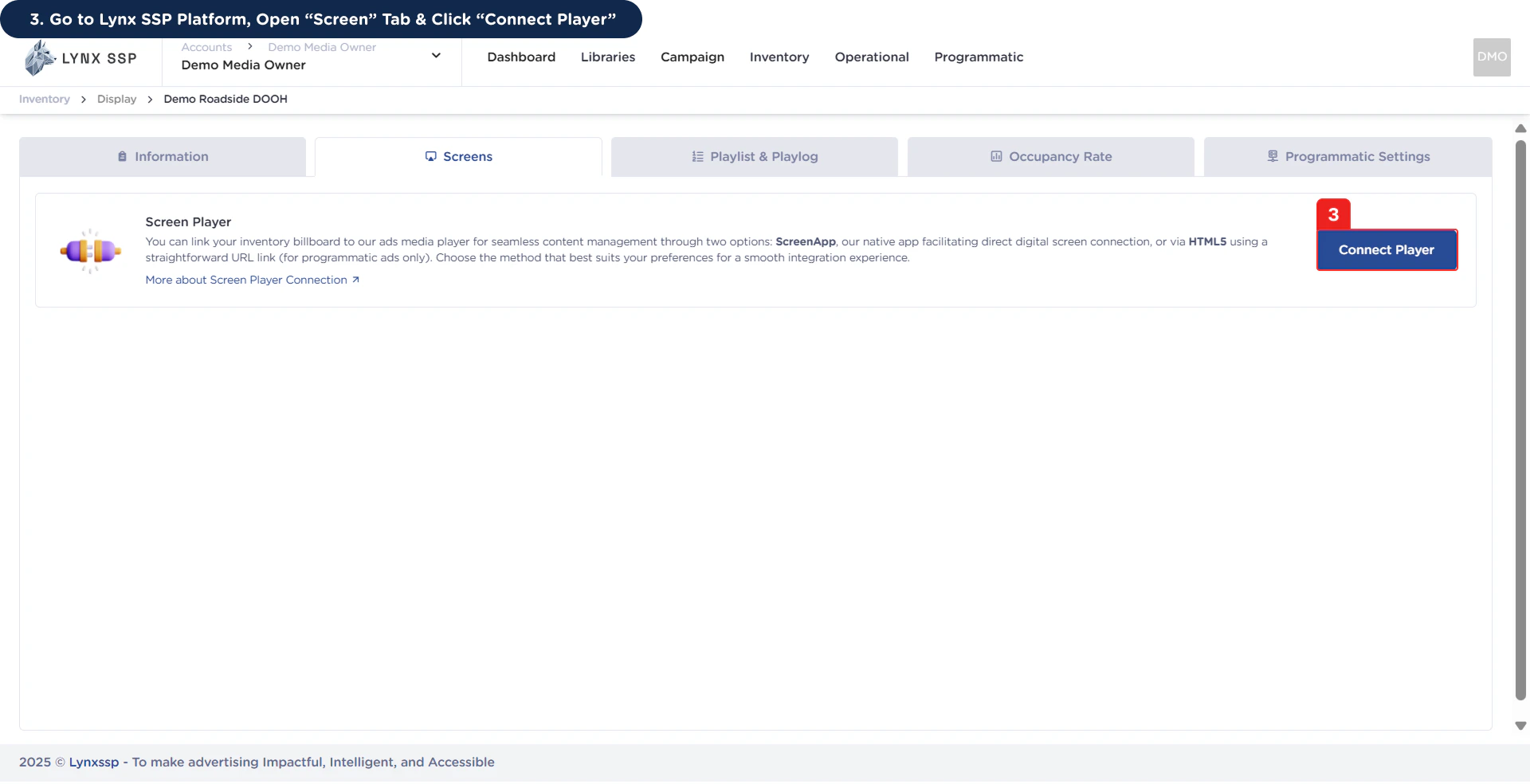 Then it will display the connect player modal.
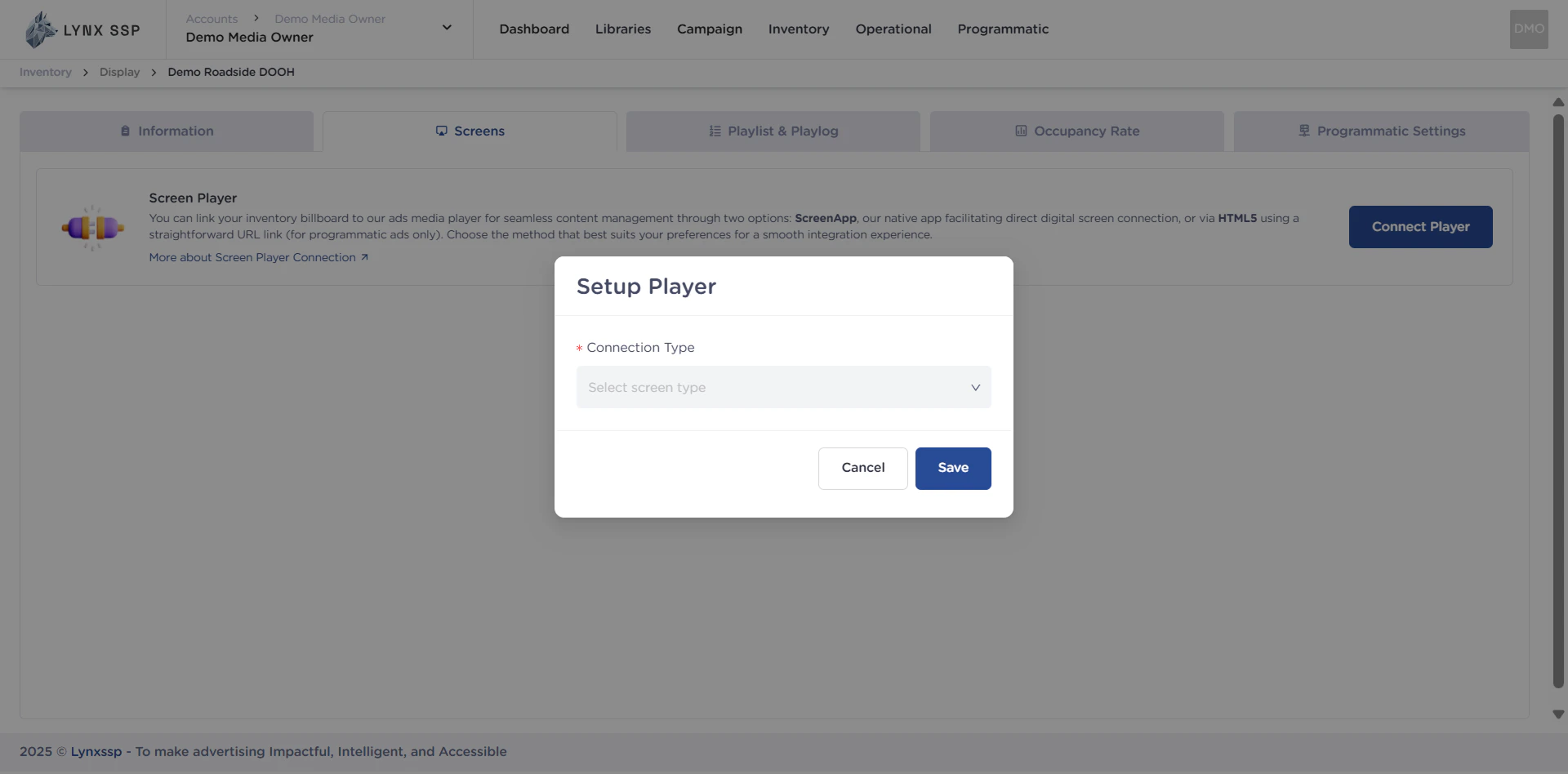
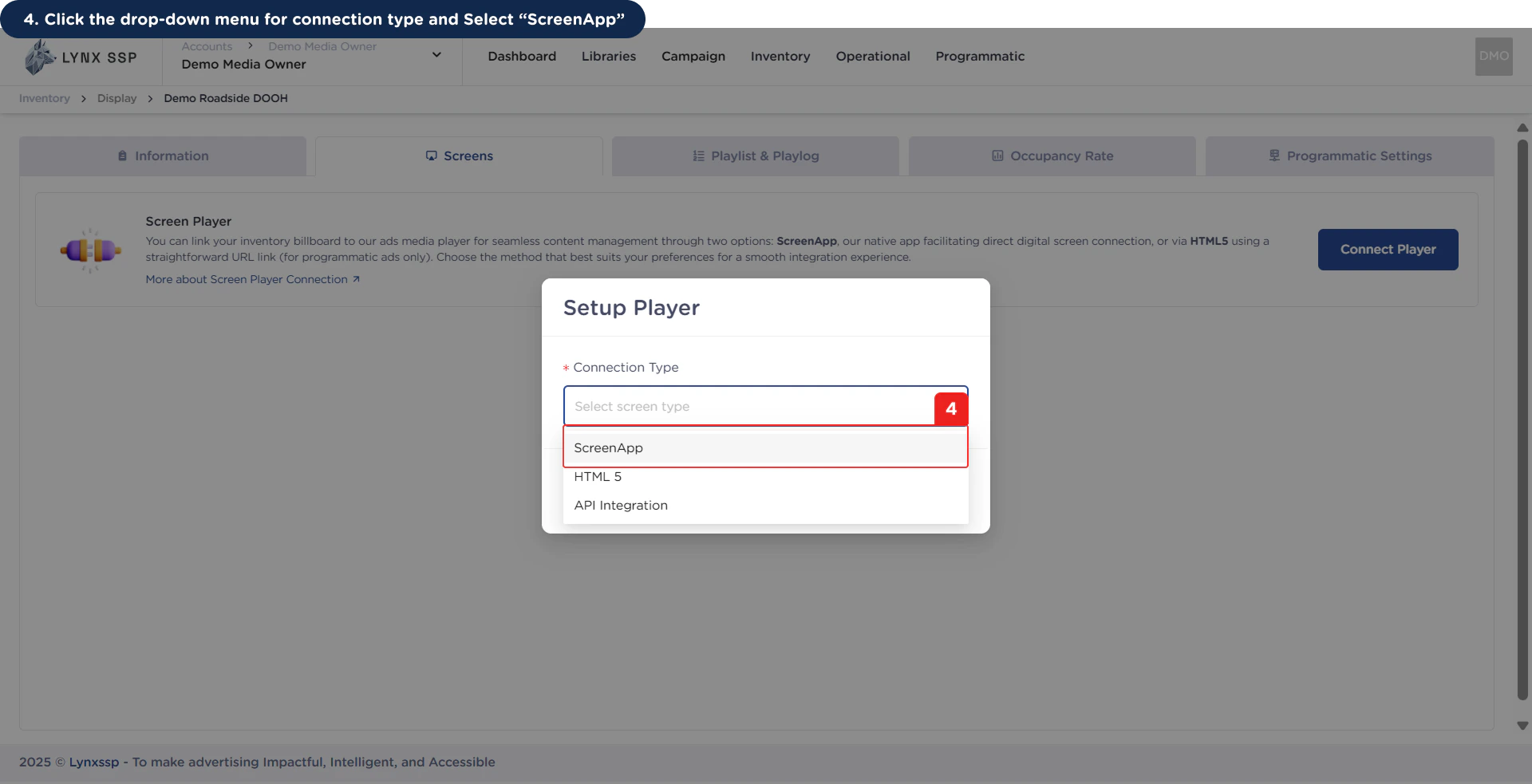
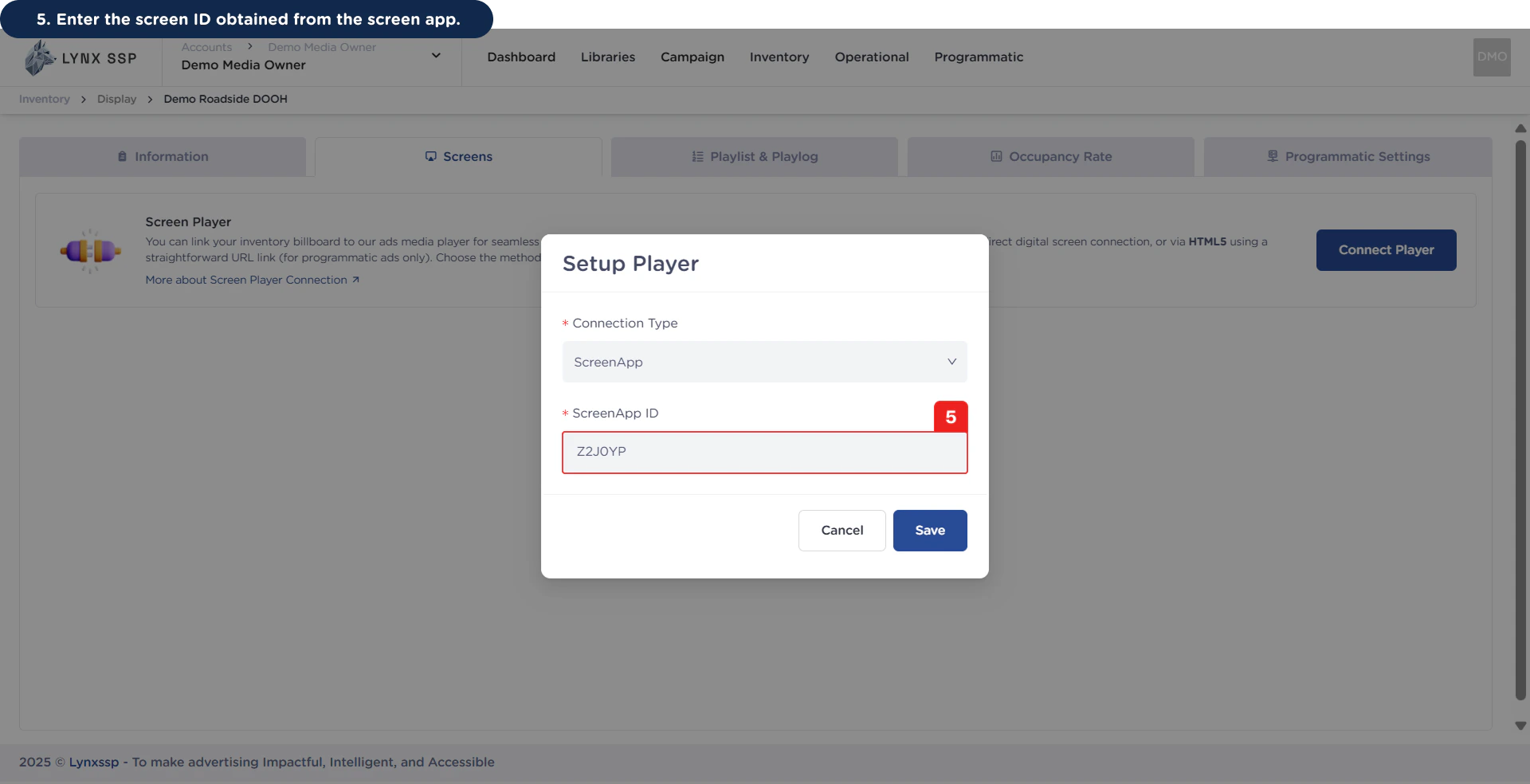
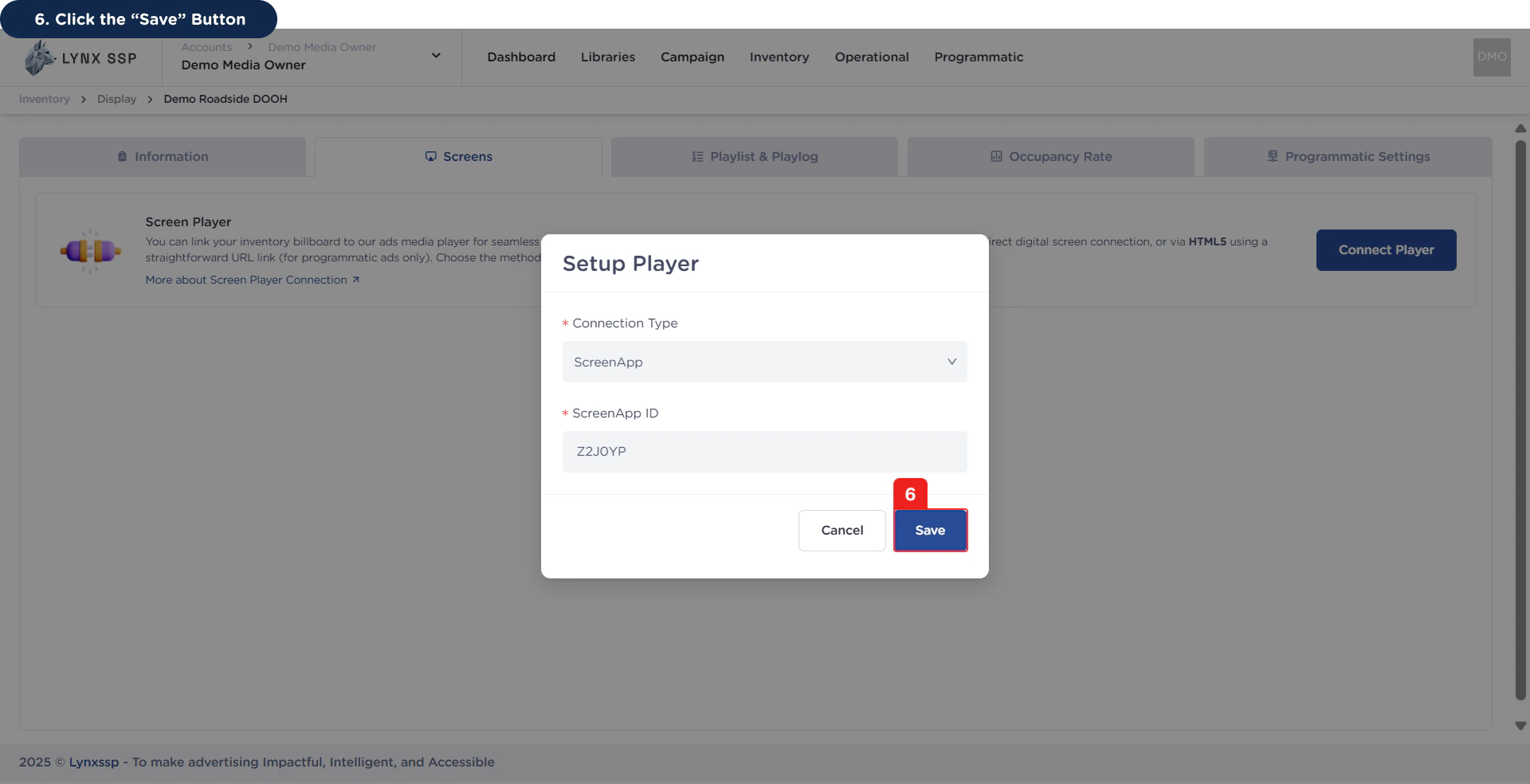 Then Screenapp is successfully connected.
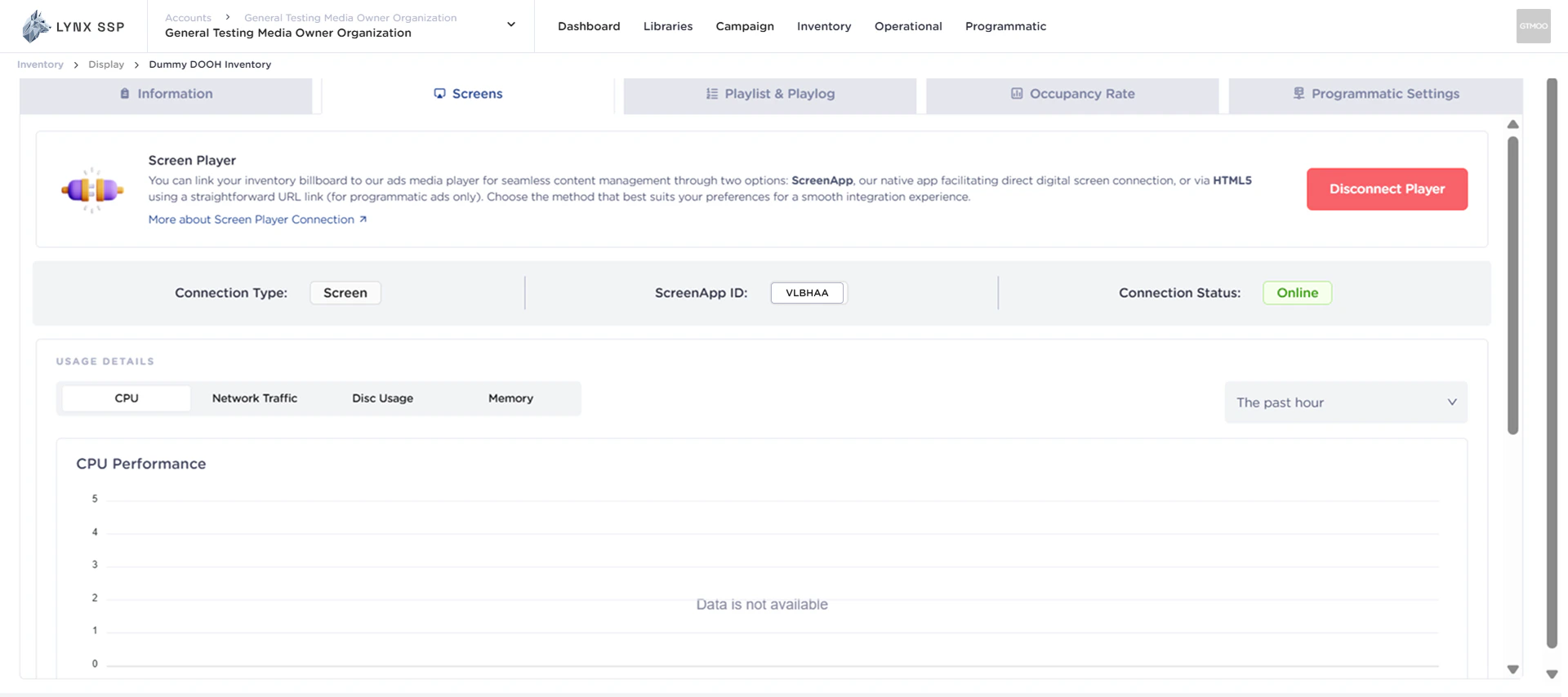 You can perform the **connection check directly at the location of your DOOH (Digital-Out-of-Home) Inventory point**. Ensure that all previous steps have been completed and bind filler content to your DOOH (Digital-Out-of-Home) Inventory ([Create a Filler Content ↗](/documentation/creative-management/filler-content/create)). If you encounter any issues while performing the connection check, you can contact the Lynx Support team.