> ## Documentation Index
> Fetch the complete documentation index at: https://docs.lynxssp.com/llms.txt
> Use this file to discover all available pages before exploring further.

# Create a Geofence

This page helps you create new filler content on the Lynx SSP Platform.

## How to Create a Geofence

For example, you want to create a Mobile LED route that passes through the area around the National Monument.

<iframe frameborder="0" className="w-full aspect-video rounded-xl" allowfullscreen src="https://www.awesomescreenshot.com/embed?id=46458330&shareKey=fee8bd21412b72a8dbfdc3539a90bc0b" />

When creating new geofence on the Lynx SSP Platform, you will need to prepare following:
<Steps>
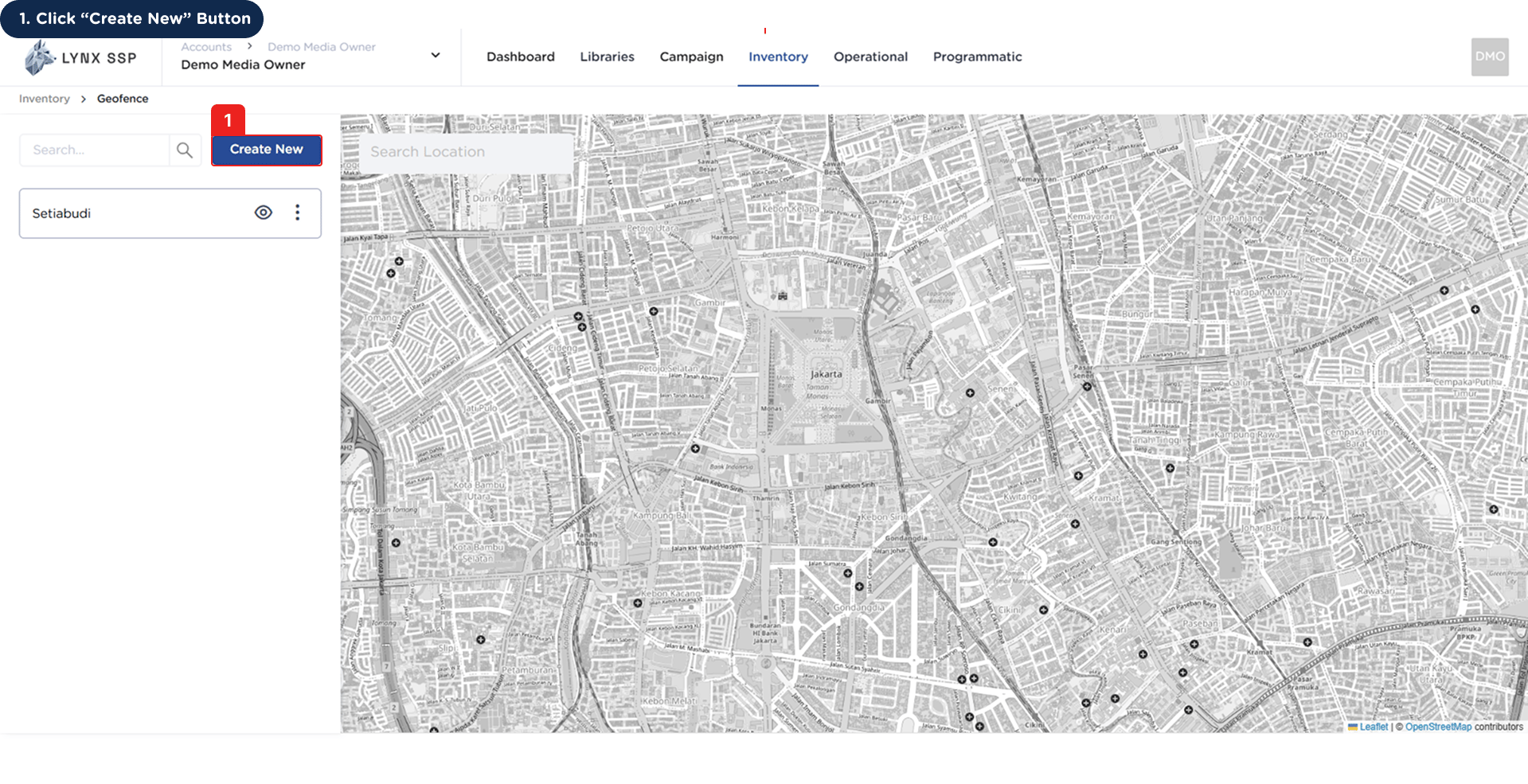
  <Step title="Click “Create New” Button">
    <img src="https://mintcdn.com/lynxssp-91a2d3cb/cAx60U0UwWThQAdR/images/documentation/inventory/geofence/create/how-to-create-geofence-1.png?fit=max&auto=format&n=cAx60U0UwWThQAdR&q=85&s=ea50d197e8741608fe7bfeda0f3df1ec" alt=" How to Create a Geofence 1" width="1919" height="985" data-path="images/documentation/inventory/geofence/create/how-to-create-geofence-1.png" />
  </Step>

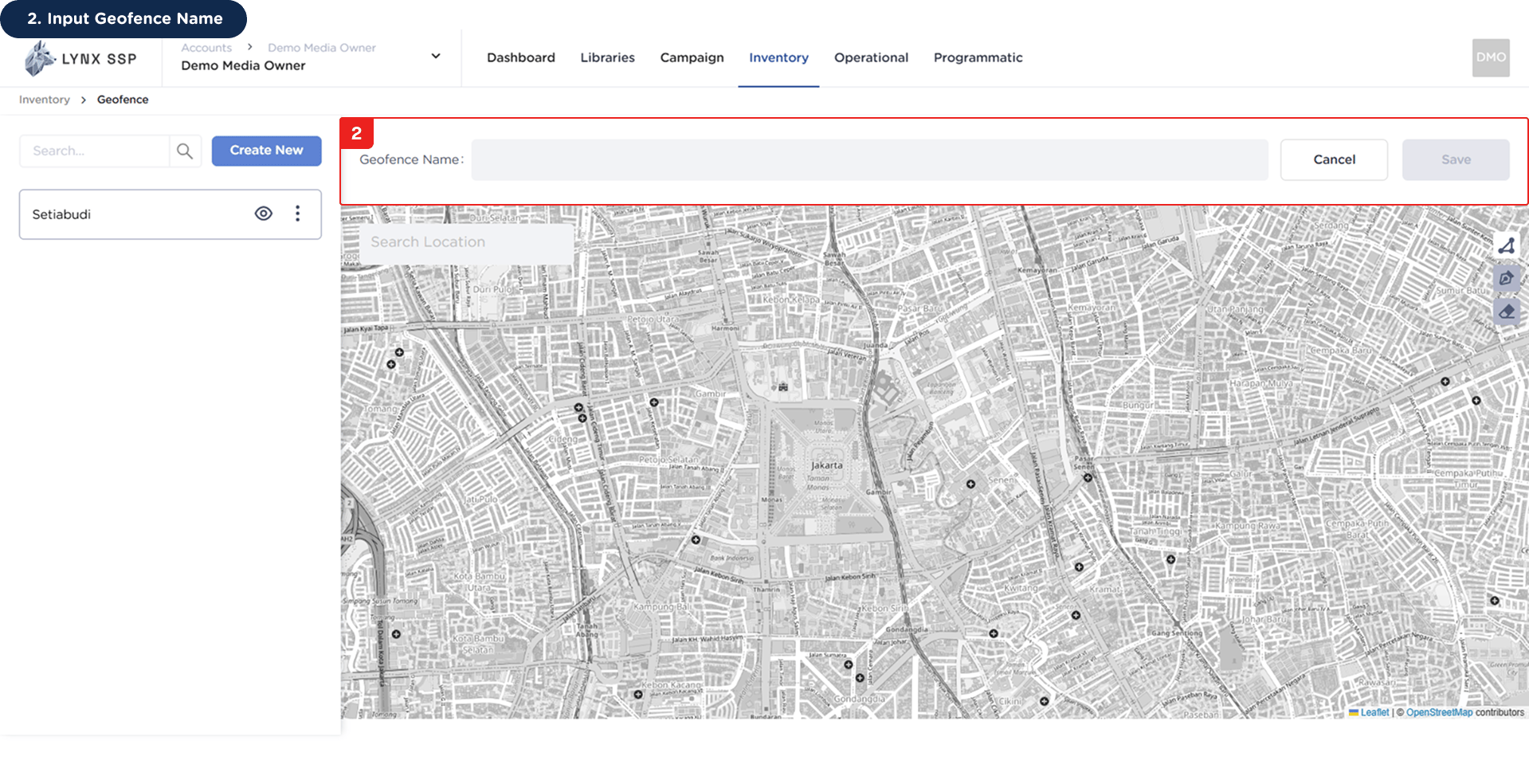
  <Step title="Input Geofence Name">
    <img src="https://mintcdn.com/lynxssp-91a2d3cb/cAx60U0UwWThQAdR/images/documentation/inventory/geofence/create/how-to-create-geofence-2.png?fit=max&auto=format&n=cAx60U0UwWThQAdR&q=85&s=3b414a66e3783c16b0c8fa8099475ce8" alt=" How to Create a Geofence 2" width="1919" height="984" data-path="images/documentation/inventory/geofence/create/how-to-create-geofence-2.png" />
  </Step>

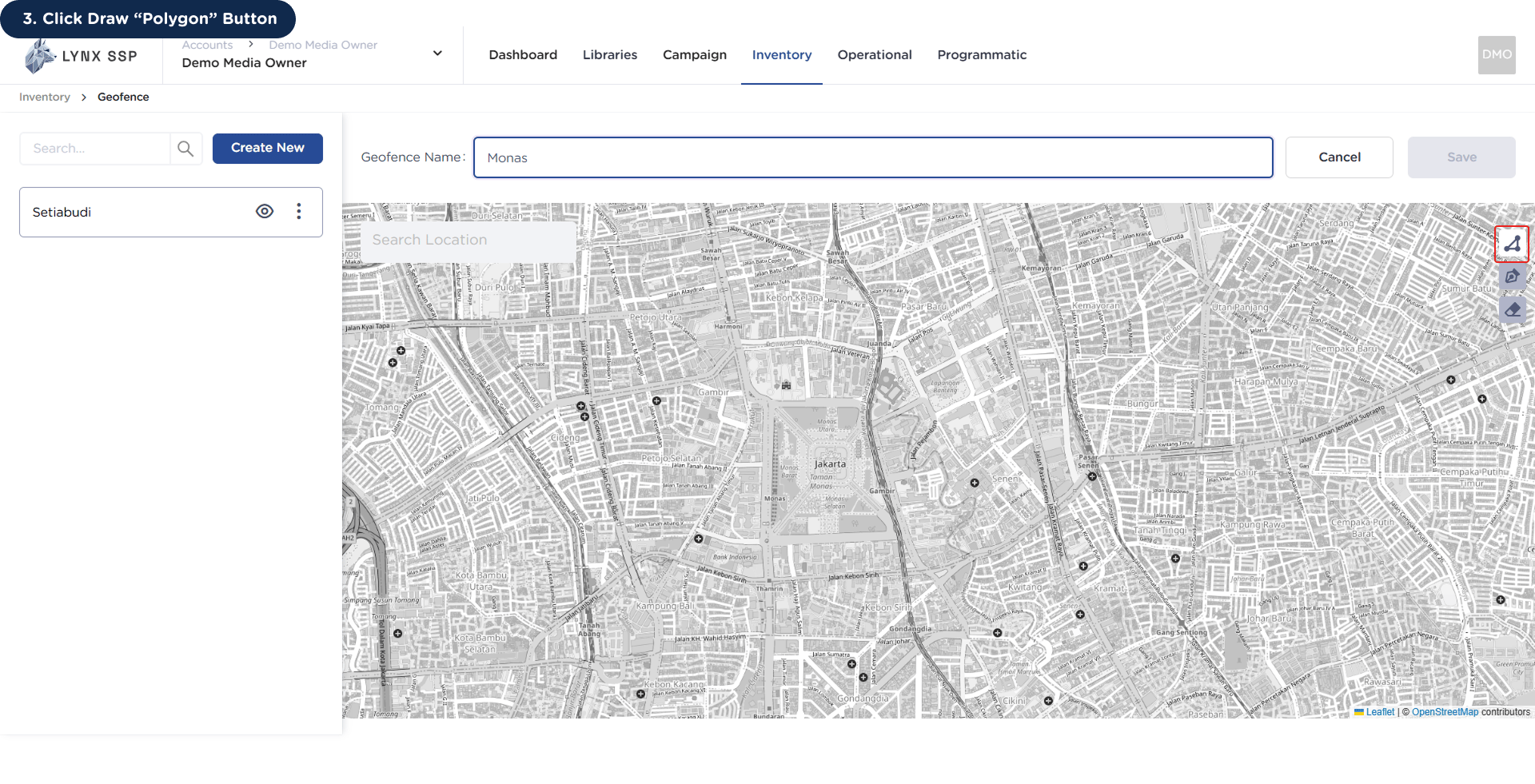
  <Step title="Click Draw “Poligon” Button">
    <img src="https://mintcdn.com/lynxssp-91a2d3cb/cAx60U0UwWThQAdR/images/documentation/inventory/geofence/create/how-to-create-geofence-3.png?fit=max&auto=format&n=cAx60U0UwWThQAdR&q=85&s=a0fa9a817caafac7374a2da450c75719" alt=" How to Create a Geofence 3" width="1920" height="981" data-path="images/documentation/inventory/geofence/create/how-to-create-geofence-3.png" />
  </Step>

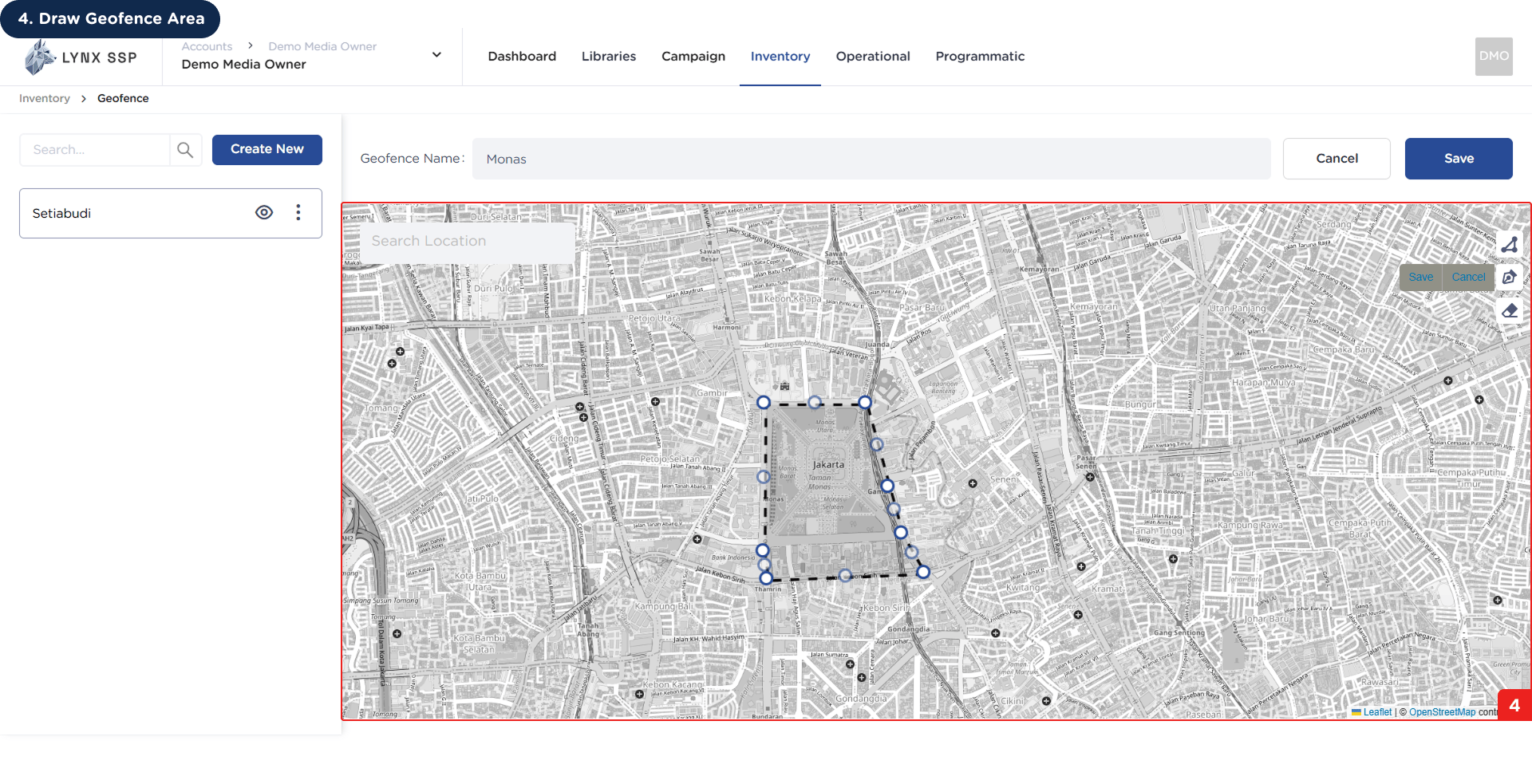
  <Step title="Draw Geofence Area">
    <img src="https://mintcdn.com/lynxssp-91a2d3cb/cAx60U0UwWThQAdR/images/documentation/inventory/geofence/create/how-to-create-geofence-4.png?fit=max&auto=format&n=cAx60U0UwWThQAdR&q=85&s=7e82aea54c50aa2e2a26932c125301b0" alt=" How to Create a Geofence 4" width="1920" height="983" data-path="images/documentation/inventory/geofence/create/how-to-create-geofence-4.png" />
  </Step>

  <Step title="Click “Save” Button">
    After draw geofence area, click the **“Save”** button.
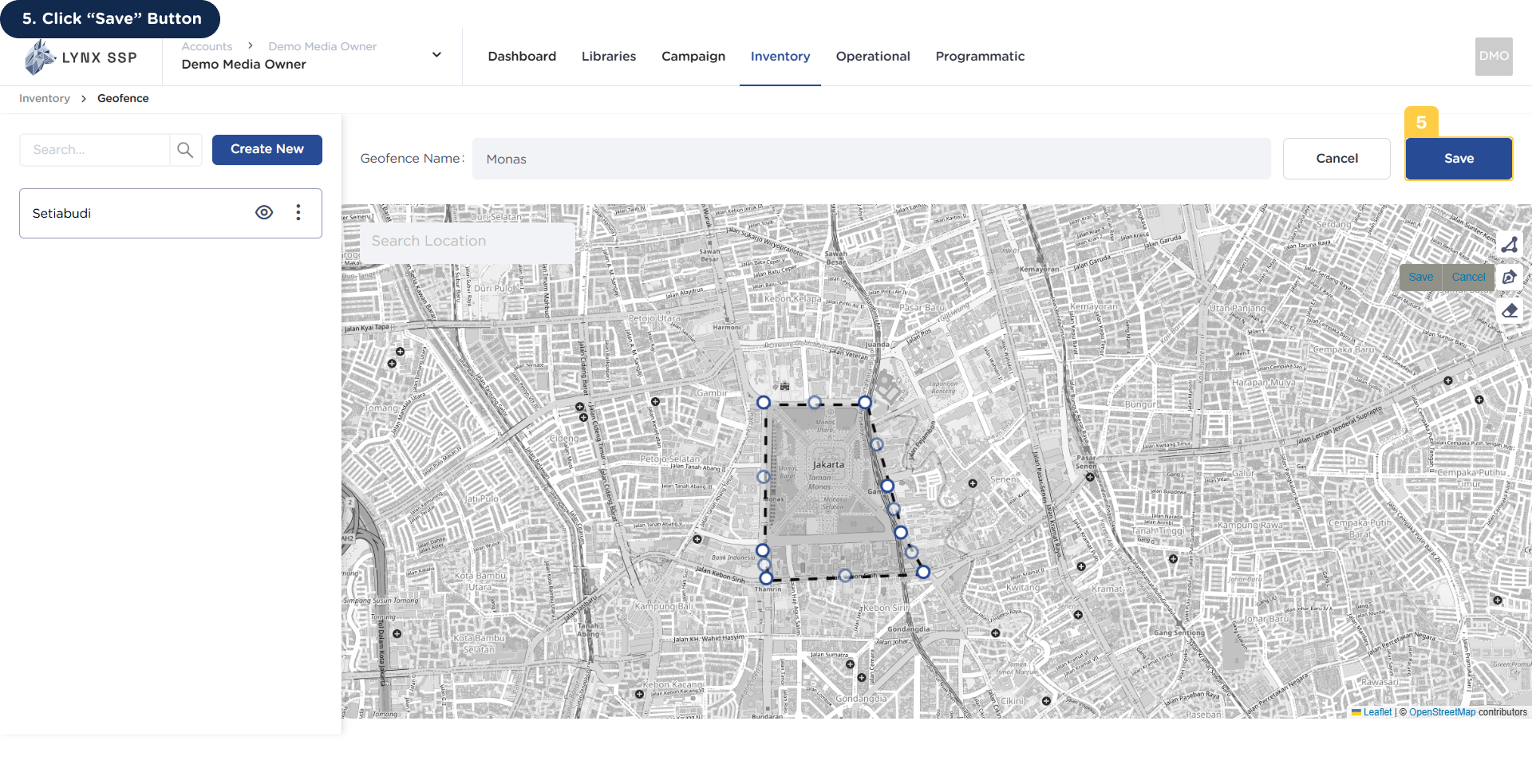
    <img src="https://mintcdn.com/lynxssp-91a2d3cb/cAx60U0UwWThQAdR/images/documentation/inventory/geofence/create/how-to-create-geofence-5.png?fit=max&auto=format&n=cAx60U0UwWThQAdR&q=85&s=24e6eddcf74d4a9c4b1de076864c9f20" alt=" How to Create a Geofence 5" width="1920" height="983" data-path="images/documentation/inventory/geofence/create/how-to-create-geofence-5.png" />
  </Step>
</Steps>