> ## Documentation Index
> Fetch the complete documentation index at: https://docs.lynxssp.com/llms.txt
> Use this file to discover all available pages before exploring further.
# Place Based
This page helps you add new OOH (Out-of-Home) Inventory with Place Based Type on the Lynx SSP Platform.
## How to Add Your Place Based OOH (Out-of-Home) Inventory
***
When adding OOH (Out-of-Home) Inventory to the Lynx SSP Platform, you will need to provide some information or data that you can prepare and enter in the following form:
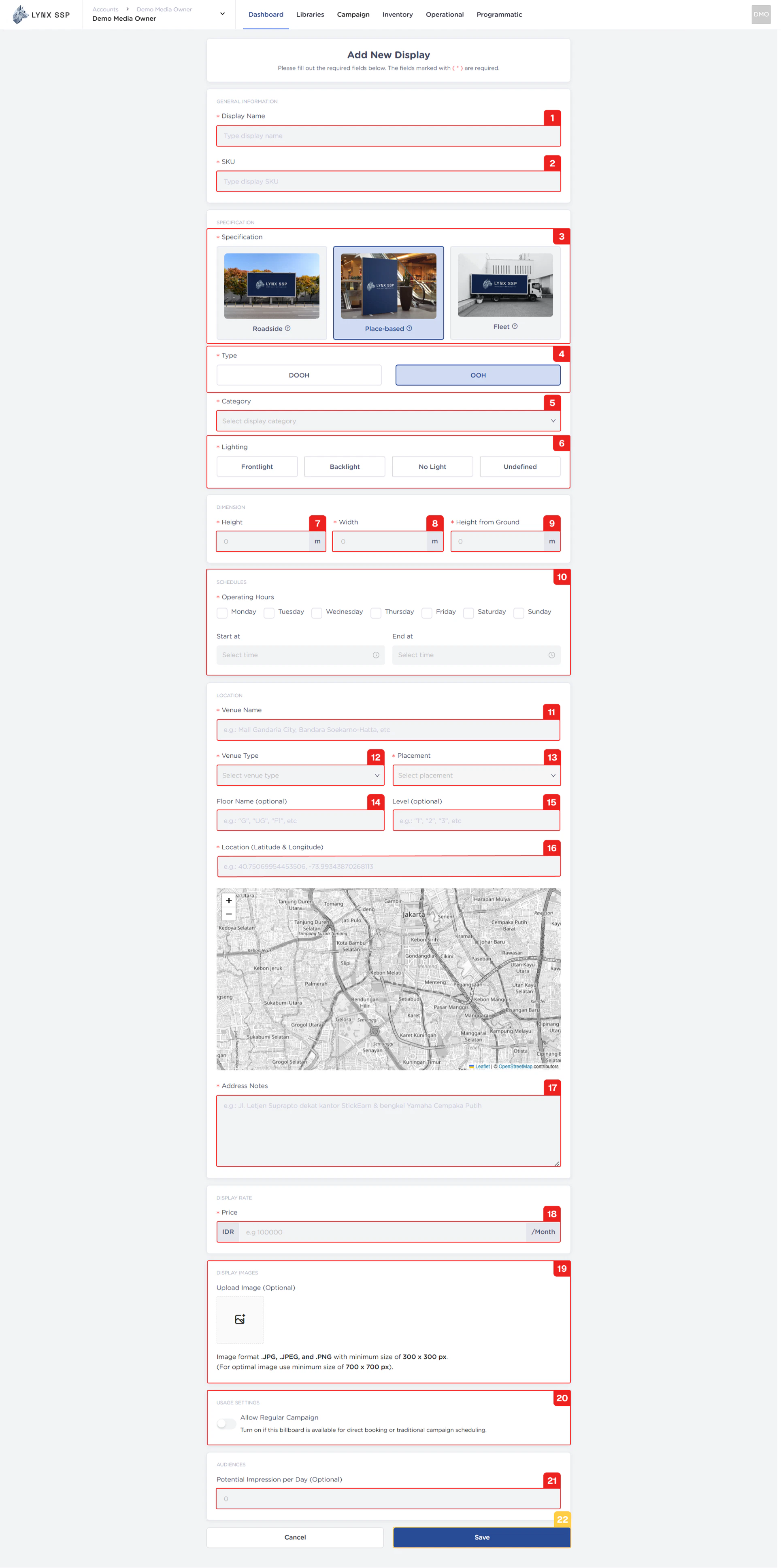 Based on the form above, the information or data required to add new OOH (Out-of-Home) Inventory is as follows:
You can enter the Display Name or unique name of your OOH (Out-of-Home) Inventory.
There are no set rules regarding SKU numbering. It all depends on your policy for determining the format and numbering of SKUs. SKUs can be used as unique parameters for performing specific searches on inventory.
The **Display Name** & **SKU** ou use cannot be duplicated. When you enter a Display Name & SKU that has been used previously and still exists in the system, the system will issue a warning that cannot be used.
You can choose the specifications according to the OOH (Out-of-Home) Inventory specifications that you have, **Place Based** ([See Specification, Type & Category ↗](/documentation/inventory/specification-type-and-category)).
The type you selected is **“OOH”** because it adds OOH (Out-of-Home) Inventory.
You must select the category according to the OOH (Out-of-Home) Inventory that you will add.
When you select Printed Banner (OOH) as the billboard type and category, you must provide information about the type of lighting used on the billboard. The available options include:
The lighting position is in front and directed at the billboard media.
The lighting position is behind and directed at the billboard media.
Billboards do not use lighting at all.
Undefined
You must enter the height of the OOH (Out-of-Home) Inventory that you are adding. The unit of measurement is meters.
**Example:** a Printed Banner with specification **1 m x 2,5 m with a height of 0 m from the bottom**. So entered **2,5 m as the height**.
You must enter the width of the OOH (Out-of-Home) Inventory that you are adding. The unit of measurement is meters.
**Example:** a Printed Banner with specification **1 m x 2,5 m with a height of 0 m from the bottom**. So entered **1 m as the width**.
You must enter the height measurement from the bottom of the OOH (Out-of-Home) Inventory that you are adding. The unit of measurement is meters.
**Example:** a Printed Banner with specification **1 m x 2,5 m with a height of 0 m from the bottom**. So entered **0 m as the height from ground**.
You must select specific operating days & hours from the Place Based OOH (Out-of-Home) Inventory or billboard that you add to Lynx SSP
**Example:** a Printed Banner with **All Operational Days** and operating hours only from **09.00 - 22.00**.
This field specifies the exact name of the venue or place where the display unit (billboard, LED, signage, etc.) is installed.
**Example:** Mall Gandaria City, Soekarno Hatta International Airport Terminal 3, MRT Istora Station.
Defines the category or type of venue in which the display is located.
**Example:** Mall, Airport, Train Station, etc.
Indicates the specific area or placement of the display within the venue type.
Specifies the floor or level name/label within the venue where the display is located.
**Example:** Ground Floor (GF), Level 1, Basement 2 (B2), etc.
Represents the numerical floor level in the building structure.
You must enter the location coordinates in the form of latitude and longitude (Digital-Out-of-Home) where your inventory is located.
You can fill in this note with the complete address of your inventory location.
You must enter the monthly price or rate card of the OOH (Out-of-Home) Inventory or billboard that you add to Lynx SSP.
You can upload photos of OOH (Out-of-Home) Inventory or billboards that you have added to Lynx SSP.
You can specify or activate that your Place Based OOH (Out-of-Home) Inventory is available for Regular campaign types ([See Select Inventory in the Media Plan ↗](/documentation/campaign-management/create/media-plan/inventories/select)).
If you have data on how many potential impressions per day are generated from the inventory, you can fill it in this column. But if not, you can leave it blank.
After filling in all the information and adding OOH (Out-of-Home) Inventory, click the **“Save”** button.
Based on the form above, the information or data required to add new OOH (Out-of-Home) Inventory is as follows:
You can enter the Display Name or unique name of your OOH (Out-of-Home) Inventory.
There are no set rules regarding SKU numbering. It all depends on your policy for determining the format and numbering of SKUs. SKUs can be used as unique parameters for performing specific searches on inventory.
The **Display Name** & **SKU** ou use cannot be duplicated. When you enter a Display Name & SKU that has been used previously and still exists in the system, the system will issue a warning that cannot be used.
You can choose the specifications according to the OOH (Out-of-Home) Inventory specifications that you have, **Place Based** ([See Specification, Type & Category ↗](/documentation/inventory/specification-type-and-category)).
The type you selected is **“OOH”** because it adds OOH (Out-of-Home) Inventory.
You must select the category according to the OOH (Out-of-Home) Inventory that you will add.
When you select Printed Banner (OOH) as the billboard type and category, you must provide information about the type of lighting used on the billboard. The available options include:
The lighting position is in front and directed at the billboard media.
The lighting position is behind and directed at the billboard media.
Billboards do not use lighting at all.
Undefined
You must enter the height of the OOH (Out-of-Home) Inventory that you are adding. The unit of measurement is meters.
**Example:** a Printed Banner with specification **1 m x 2,5 m with a height of 0 m from the bottom**. So entered **2,5 m as the height**.
You must enter the width of the OOH (Out-of-Home) Inventory that you are adding. The unit of measurement is meters.
**Example:** a Printed Banner with specification **1 m x 2,5 m with a height of 0 m from the bottom**. So entered **1 m as the width**.
You must enter the height measurement from the bottom of the OOH (Out-of-Home) Inventory that you are adding. The unit of measurement is meters.
**Example:** a Printed Banner with specification **1 m x 2,5 m with a height of 0 m from the bottom**. So entered **0 m as the height from ground**.
You must select specific operating days & hours from the Place Based OOH (Out-of-Home) Inventory or billboard that you add to Lynx SSP
**Example:** a Printed Banner with **All Operational Days** and operating hours only from **09.00 - 22.00**.
This field specifies the exact name of the venue or place where the display unit (billboard, LED, signage, etc.) is installed.
**Example:** Mall Gandaria City, Soekarno Hatta International Airport Terminal 3, MRT Istora Station.
Defines the category or type of venue in which the display is located.
**Example:** Mall, Airport, Train Station, etc.
Indicates the specific area or placement of the display within the venue type.
Specifies the floor or level name/label within the venue where the display is located.
**Example:** Ground Floor (GF), Level 1, Basement 2 (B2), etc.
Represents the numerical floor level in the building structure.
You must enter the location coordinates in the form of latitude and longitude (Digital-Out-of-Home) where your inventory is located.
You can fill in this note with the complete address of your inventory location.
You must enter the monthly price or rate card of the OOH (Out-of-Home) Inventory or billboard that you add to Lynx SSP.
You can upload photos of OOH (Out-of-Home) Inventory or billboards that you have added to Lynx SSP.
You can specify or activate that your Place Based OOH (Out-of-Home) Inventory is available for Regular campaign types ([See Select Inventory in the Media Plan ↗](/documentation/campaign-management/create/media-plan/inventories/select)).
If you have data on how many potential impressions per day are generated from the inventory, you can fill it in this column. But if not, you can leave it blank.
After filling in all the information and adding OOH (Out-of-Home) Inventory, click the **“Save”** button.