> ## Documentation Index
> Fetch the complete documentation index at: https://docs.lynxssp.com/llms.txt
> Use this file to discover all available pages before exploring further.

# Overview

<Info>
  If the DOOH (Digital-Out-of-Home) Inventory selected in the media plan is **not connected to ScreenApp**, you do not need to continue this process.
</Info>

Playlist order is a feature that displays the order of content that appears in each inventory. You can change the order or sort the content playlist of a campaign or filler content. To do this, you need to make sure beforehand that:

1. Ensure that the media player from your DOOH (Digital-Out-of-Home) Inventory has the ScreenApp application installed on it ([See Screen App Installation ↗](/documentation/inventory/dooh/screens/screen-app/windows-installation)).
2. Ensure that the DOOH (Digital-Out-of-Home) Inventory you will use in a campaign is connected to the Screen App ([See Screen App Connection ↗](/documentation/inventory/dooh/screens/screen-app/connection)).
3. DOOH (Digital-Out-of-Home) Inventory already contains creative content from the media plan campaign that is running or has been sent to the playlist ([See Sent Creative to Playlist ↗](/documentation/campaign-management/create/media-plan/creatives/sent-to-playlist)).

This page helps you organize the order of creative content on the DOOH (Digital-Out-of-Home) Inventory playlist connected to ScreenApp.

## Accessing the Playlist Order

<Steps>
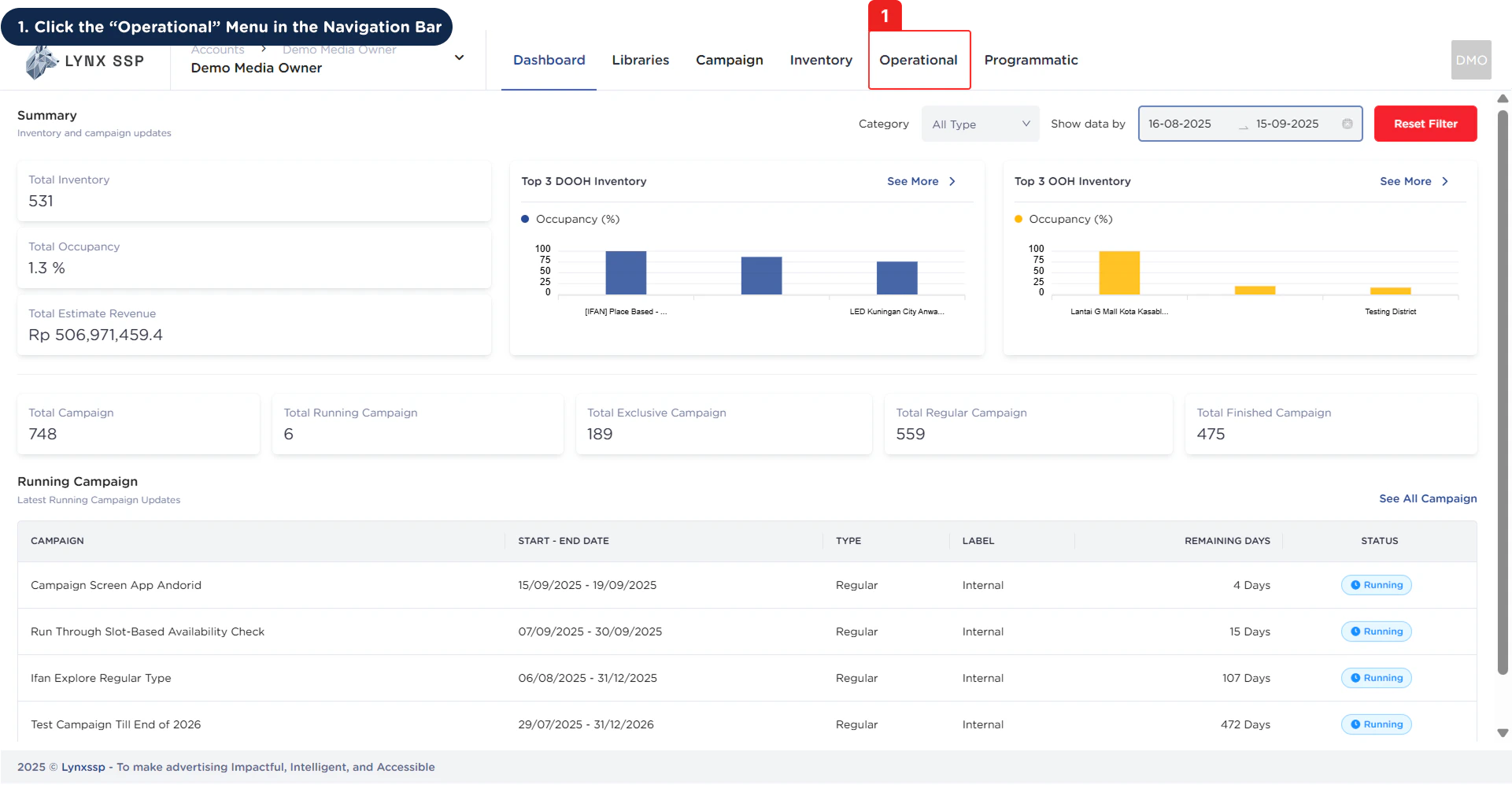
  <Step title="Click the 'Operational' Menu in the Navigation Bar ">
    <img src="https://mintcdn.com/lynxssp-91a2d3cb/cAx60U0UwWThQAdR/images/documentation/operational/playlist-order/overview/accessing-the-playlist-order-1.png?fit=max&auto=format&n=cAx60U0UwWThQAdR&q=85&s=01adab2e95d06eb94b25a838054dfd25" alt="Accessing the Playlist Order 1" width="1921" height="997" data-path="images/documentation/operational/playlist-order/overview/accessing-the-playlist-order-1.png" />
  </Step>

  <Step title="Click the 'Playlist Order' Menu ">
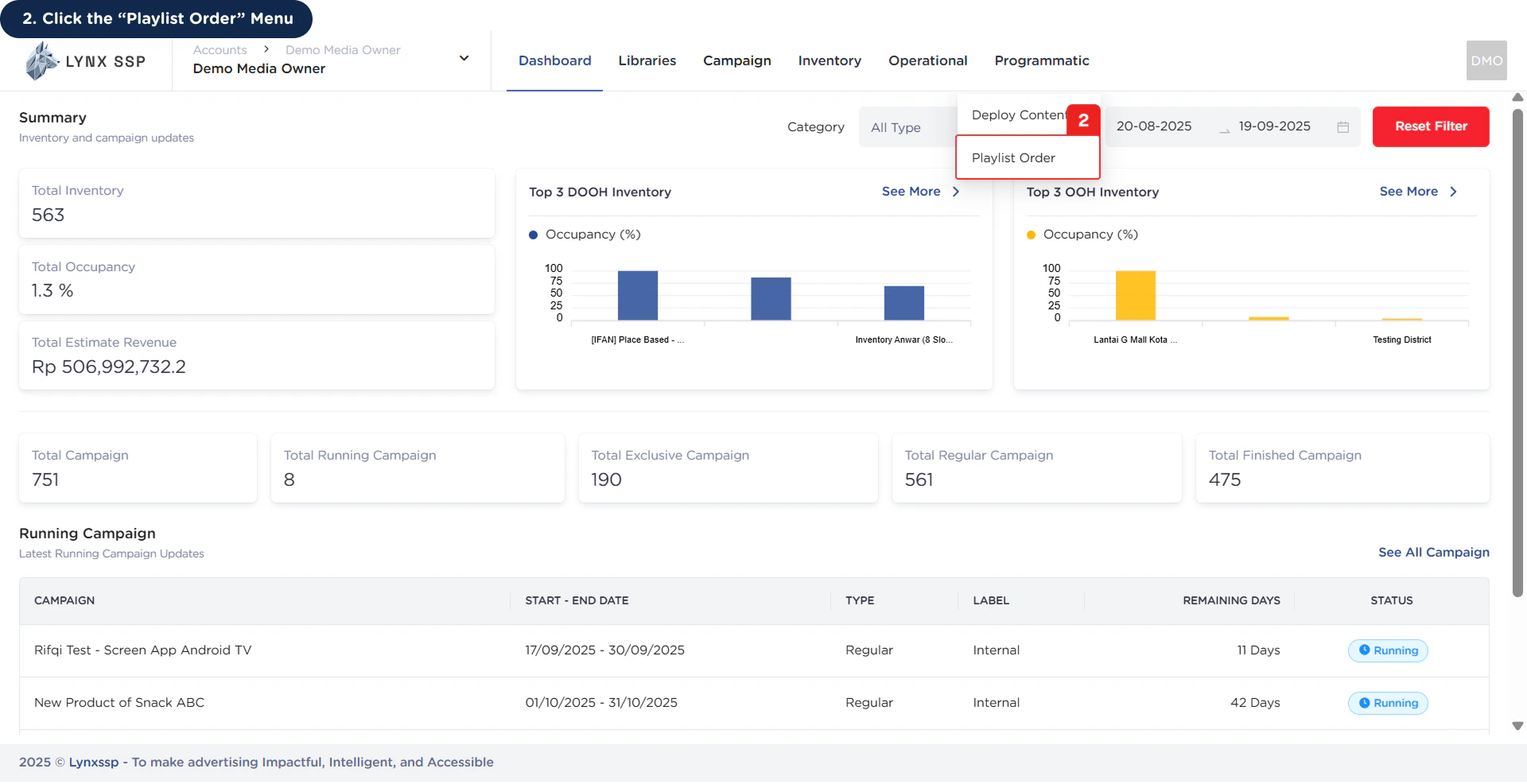
    <img src="https://mintcdn.com/lynxssp-91a2d3cb/cAx60U0UwWThQAdR/images/documentation/operational/playlist-order/overview/accessing-the-playlist-order-2.png?fit=max&auto=format&n=cAx60U0UwWThQAdR&q=85&s=64a0e7aacda45358d073bf27012e6ae7" alt="Accessing the Playlist Order 2" width="1920" height="986" data-path="images/documentation/operational/playlist-order/overview/accessing-the-playlist-order-2.png" />

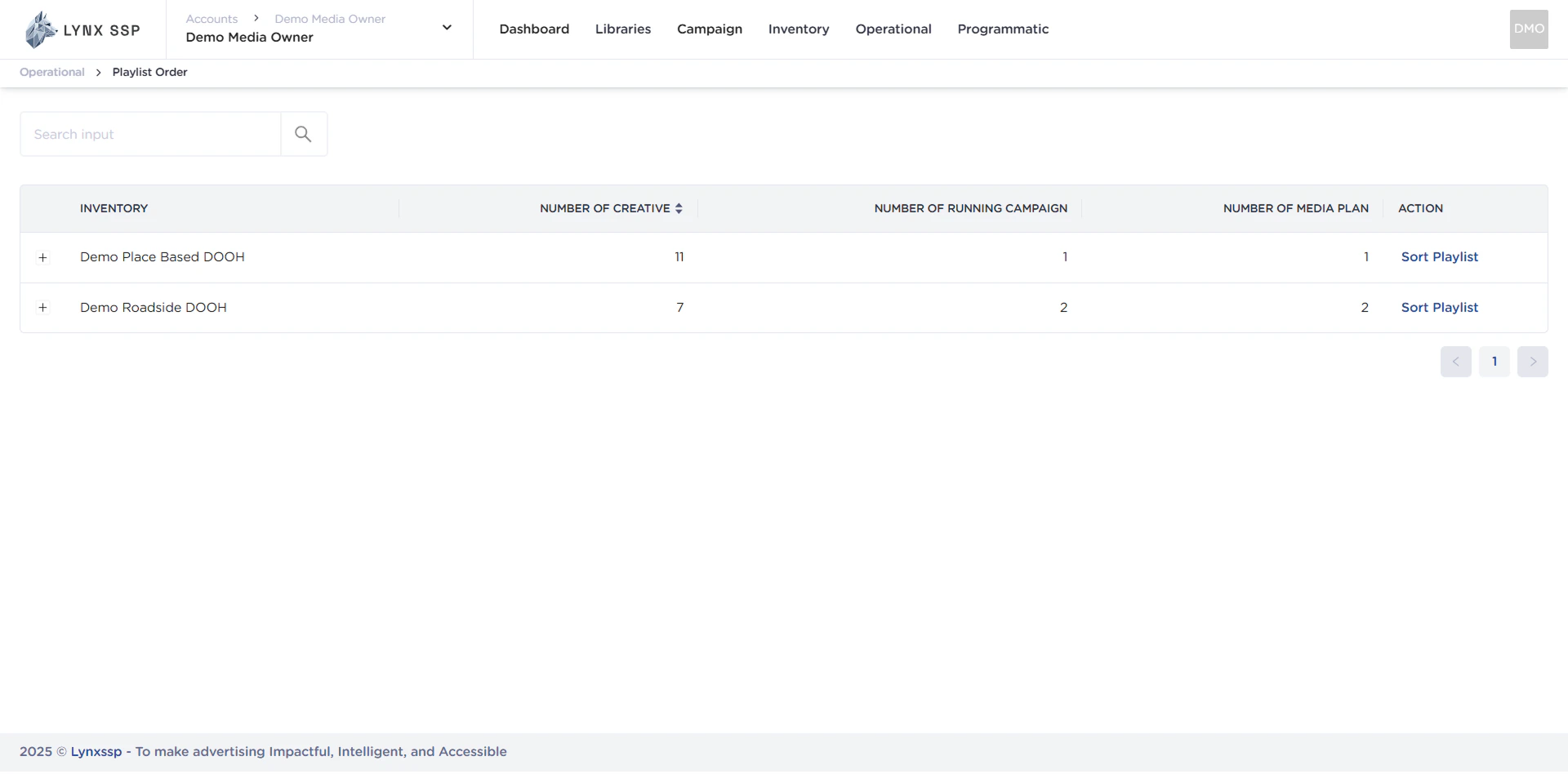
    This will display the **Playlist Order** Page.
    <img src="https://mintcdn.com/lynxssp-91a2d3cb/cAx60U0UwWThQAdR/images/documentation/operational/playlist-order/overview/accessing-the-playlist-order-2.2.png?fit=max&auto=format&n=cAx60U0UwWThQAdR&q=85&s=dc08c1cdc5d34c759a271c4071ea5c0d" alt="Accessing the Playlist Order 2.2" width="1920" height="948" data-path="images/documentation/operational/playlist-order/overview/accessing-the-playlist-order-2.2.png" />
  </Step>
</Steps>

***

## Playlist Order Overview

<img src="https://mintcdn.com/lynxssp-91a2d3cb/cAx60U0UwWThQAdR/images/documentation/operational/playlist-order/overview/playlist-order-overview.png?fit=max&auto=format&n=cAx60U0UwWThQAdR&q=85&s=ed73e8d8330372faef5cbc0c81db2f33" alt="Playlist Order Overview" width="1938" height="1047" data-path="images/documentation/operational/playlist-order/overview/playlist-order-overview.png" />

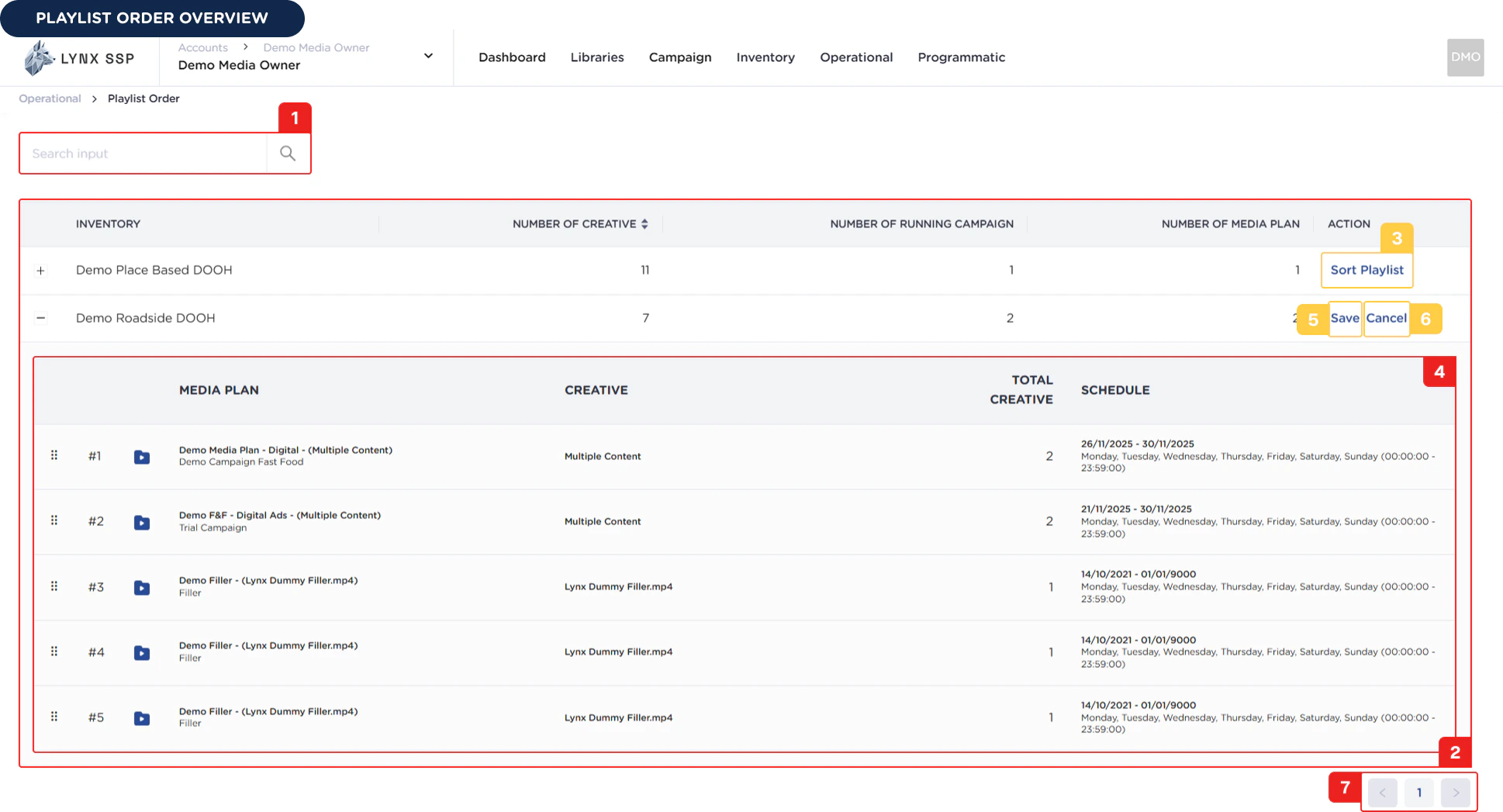
Based on the **Playlist Order Overview** above, here is an explanation of each section:

### Inventory Search

You can search by typing keywords based on the Inventory Name that you specified when creating the inventory.

***

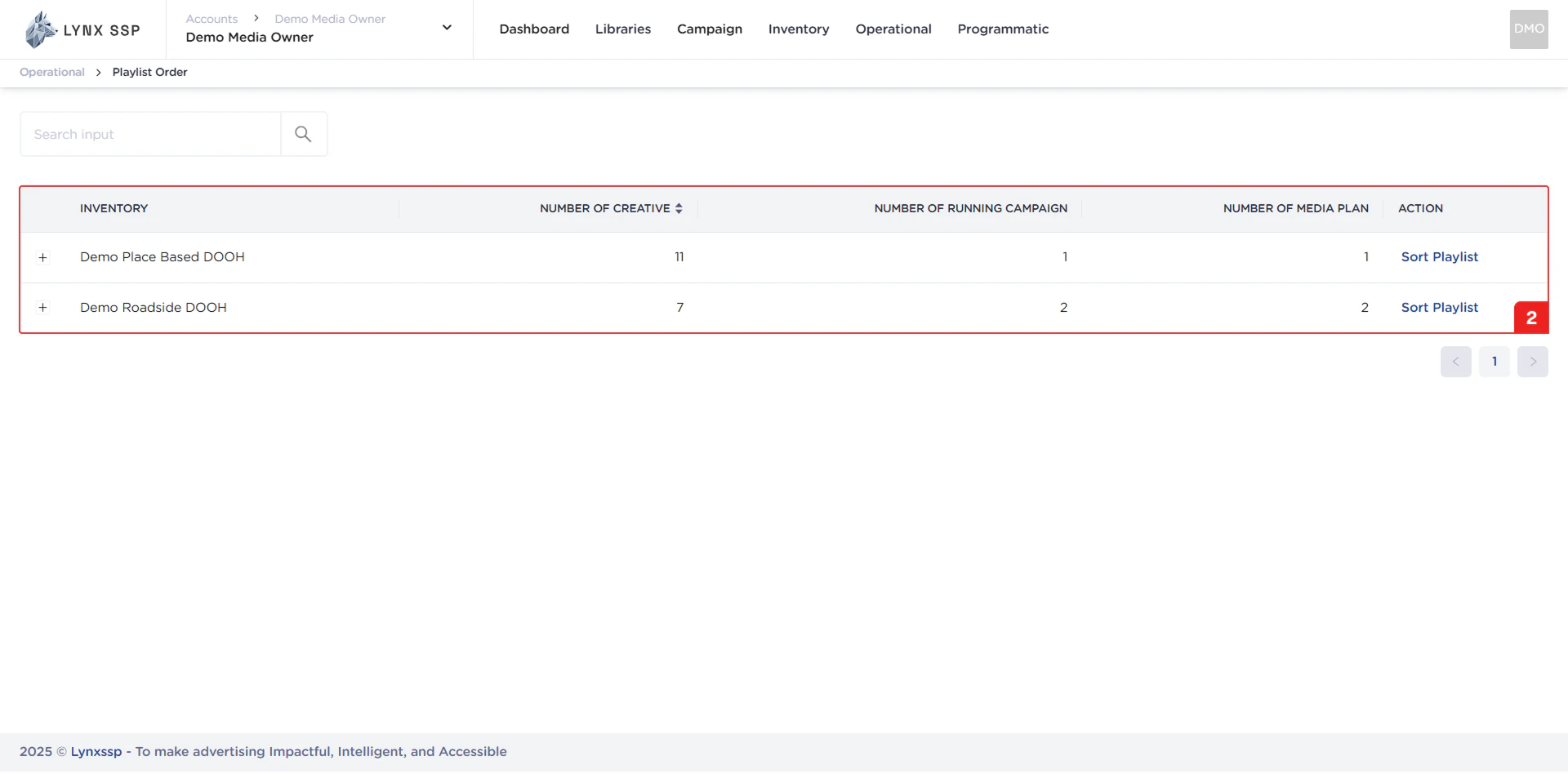
### List Inventory

In this section, you can see all the inventory lists that you have and are already connected to ScreenApp. The properties that can be seen in this table are as follows:

* Inventory Name
* Total Creative Content
* Total Running campaign
* Total Media Plan
<p> ‎ ‎ </p>

<img src="https://mintcdn.com/lynxssp-91a2d3cb/cAx60U0UwWThQAdR/images/documentation/operational/playlist-order/overview/playlist-order-list-inventory.png?fit=max&auto=format&n=cAx60U0UwWThQAdR&q=85&s=c1bcdd9e562ee37b333da3f74f590cae" alt="List Inventory" width="1920" height="948" data-path="images/documentation/operational/playlist-order/overview/playlist-order-list-inventory.png" />

***

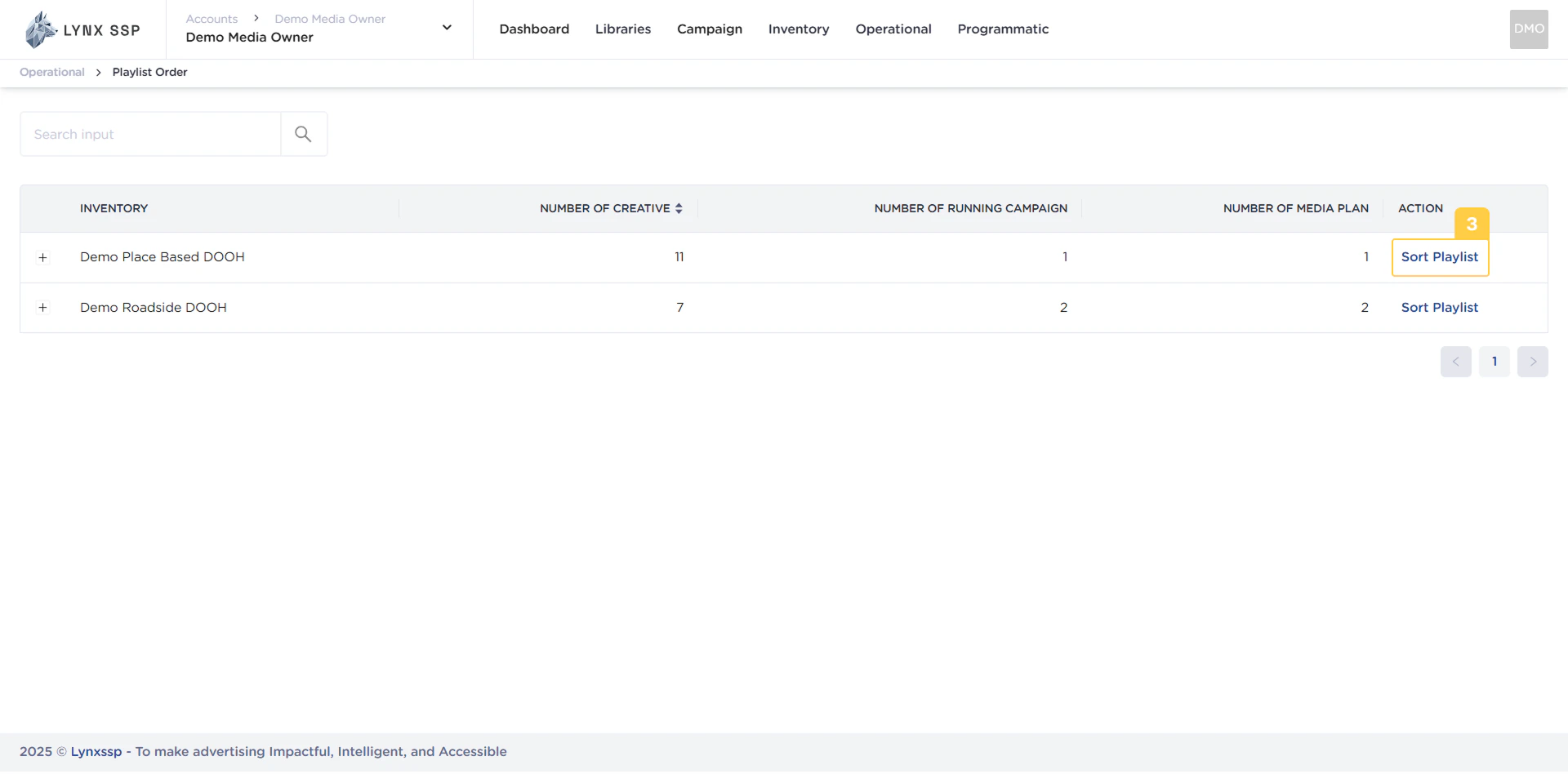
### Sort Playlist Button

You can change the order of the playlist using the sort playlist button ([See Change Playlist Order ↗](/documentation/operational/playlist-order/change))
<img src="https://mintcdn.com/lynxssp-91a2d3cb/cAx60U0UwWThQAdR/images/documentation/operational/playlist-order/overview/playlist-order-sort-button.png?fit=max&auto=format&n=cAx60U0UwWThQAdR&q=85&s=5df84b7a0a2c2f4770eb4b366fee3f97" alt=" Sort Playlist Button" width="1920" height="948" data-path="images/documentation/operational/playlist-order/overview/playlist-order-sort-button.png" />

***

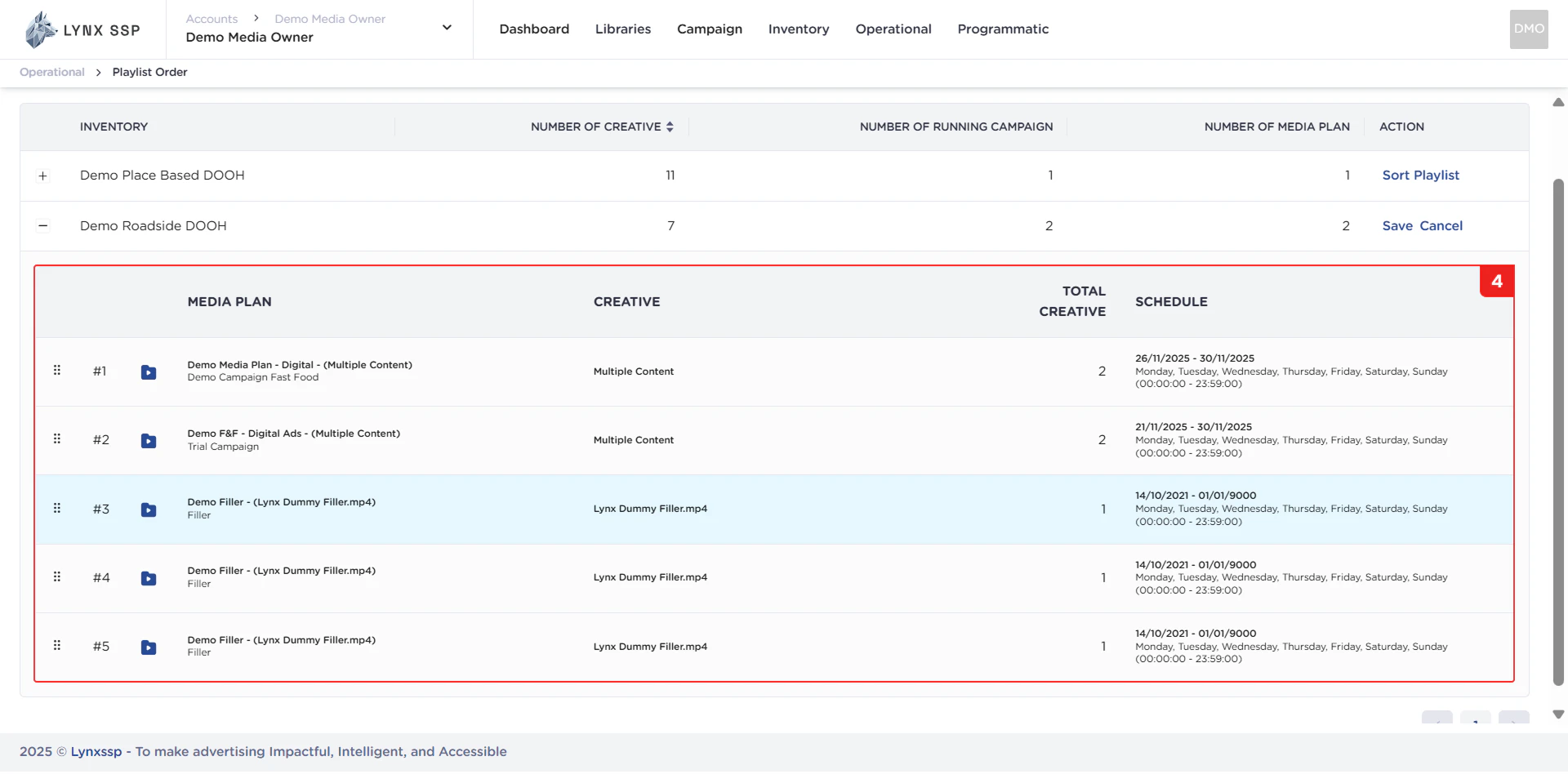
### List Creative Content

In this section, you can see all creative content lists in the Inventory. The properties that can be viewed in this table are as follows:

* Media Plan Name
* Creative Content
* Total Creative
* Schedule
<p> ‎ ‎ </p>

<img src="https://mintcdn.com/lynxssp-91a2d3cb/cAx60U0UwWThQAdR/images/documentation/operational/playlist-order/overview/playlist-order-list-creative-content.png?fit=max&auto=format&n=cAx60U0UwWThQAdR&q=85&s=3b1ea100505a0ba6a58b05a2c80857c8" alt="List Creative Content" width="1920" height="948" data-path="images/documentation/operational/playlist-order/overview/playlist-order-list-creative-content.png" />

***

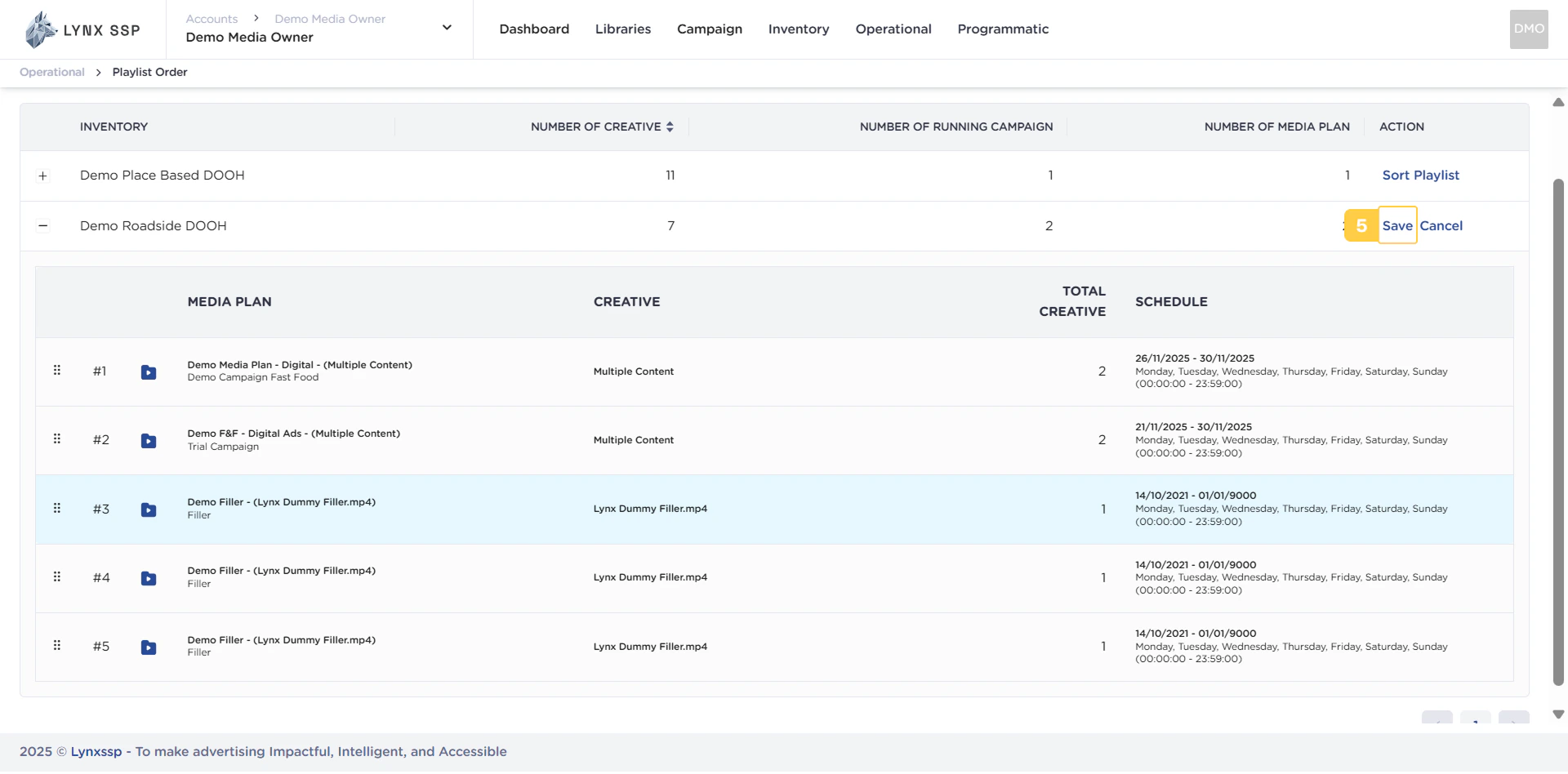
### Save Button

Button to save the changed playlist order.
<img src="https://mintcdn.com/lynxssp-91a2d3cb/cAx60U0UwWThQAdR/images/documentation/operational/playlist-order/overview/playlist-order-save-button.png?fit=max&auto=format&n=cAx60U0UwWThQAdR&q=85&s=a93854e3a068fb43d7e81c174206b451" alt="Save Button" width="1920" height="948" data-path="images/documentation/operational/playlist-order/overview/playlist-order-save-button.png" />

***

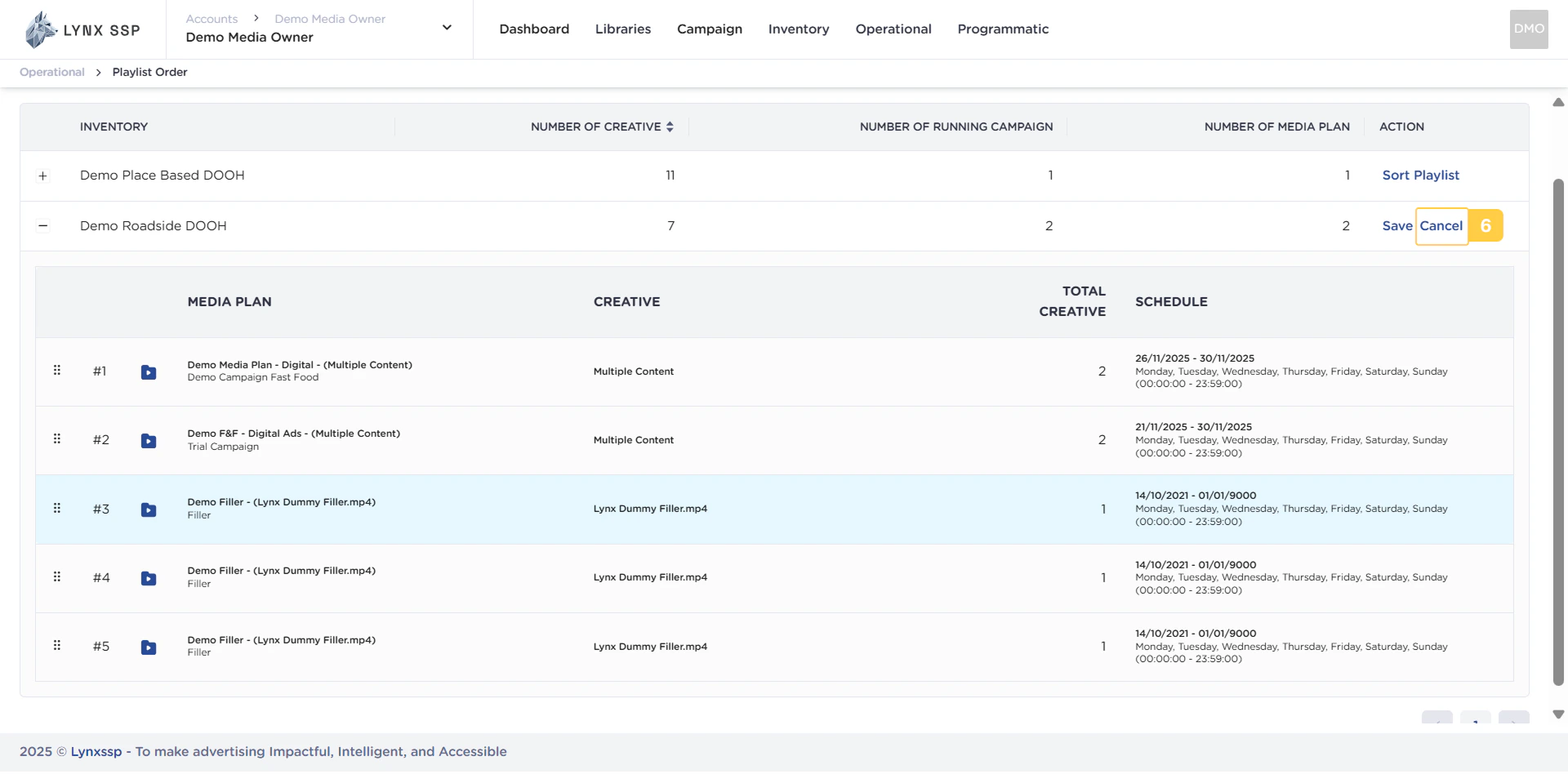
### Cancel Button

Button to cancel the changed playlist order.
<img src="https://mintcdn.com/lynxssp-91a2d3cb/cAx60U0UwWThQAdR/images/documentation/operational/playlist-order/overview/playlist-order-cancel-button.png?fit=max&auto=format&n=cAx60U0UwWThQAdR&q=85&s=96c9fc4e491b7f0285ee9863841e8f56" alt="Cancel Button" width="1920" height="948" data-path="images/documentation/operational/playlist-order/overview/playlist-order-cancel-button.png" />

***

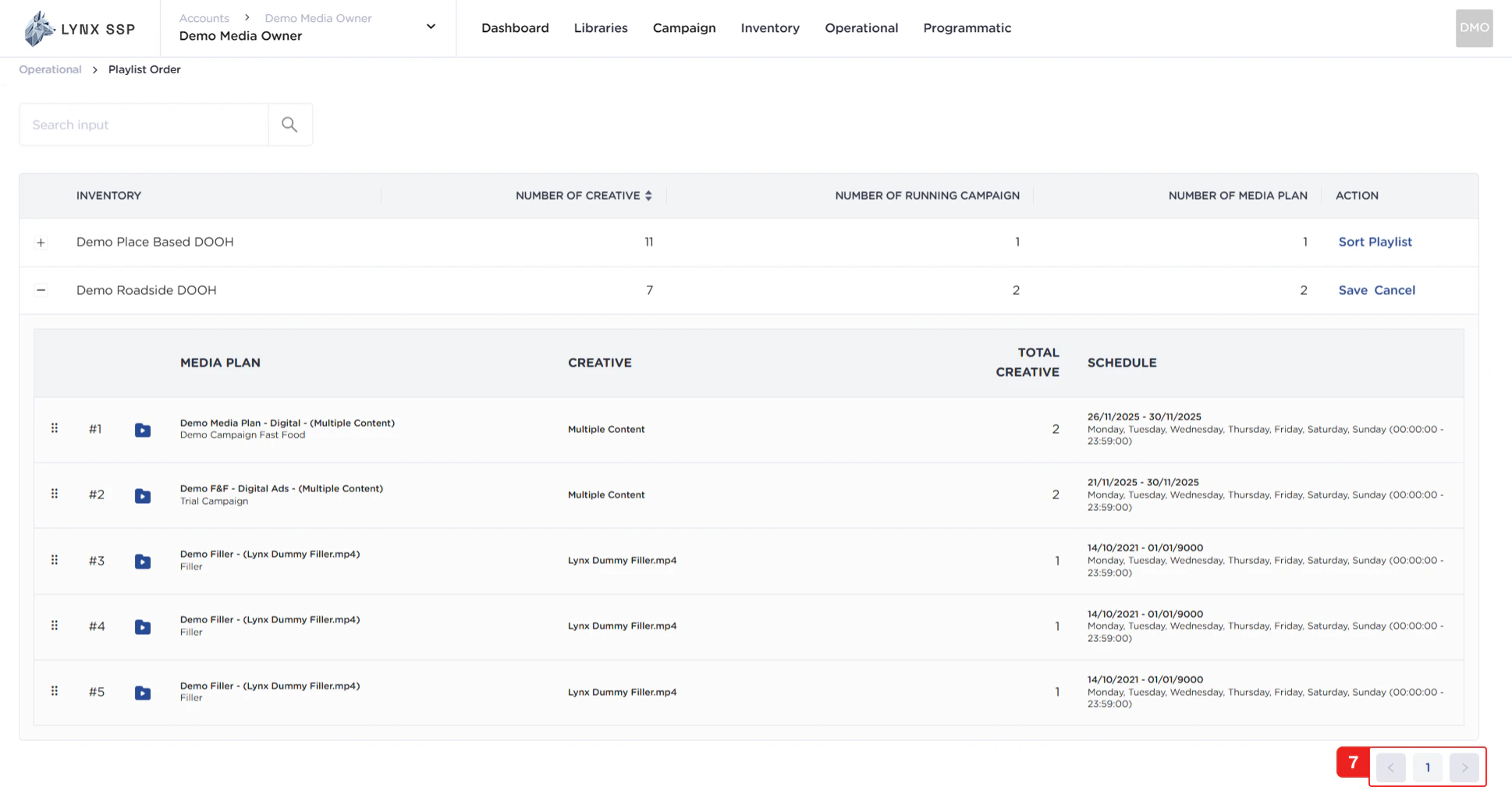
### Pagination

The sequential numbers in the image below are navigation points you can use to go to the inventory list page in the next playlist.
<img src="https://mintcdn.com/lynxssp-91a2d3cb/cAx60U0UwWThQAdR/images/documentation/operational/playlist-order/overview/playlist-order-pagination.png?fit=max&auto=format&n=cAx60U0UwWThQAdR&q=85&s=96f3ebcf8538992d856bca7be3e4ba8b" alt="Pagination" width="1938" height="1009" data-path="images/documentation/operational/playlist-order/overview/playlist-order-pagination.png" />