> ## Documentation Index
> Fetch the complete documentation index at: https://docs.lynxssp.com/llms.txt
> Use this file to discover all available pages before exploring further.
# Getting Started
**Lynx SSP** is a Campaign Management System platform designed to simplify the user's process of managing campaign planning, creation, inventory management, performance monitoring, and the generate and download of campaign reports efficiently.
This page will help you understand the process, from add inventory and create campaigns to generate campaign reports, as follows:
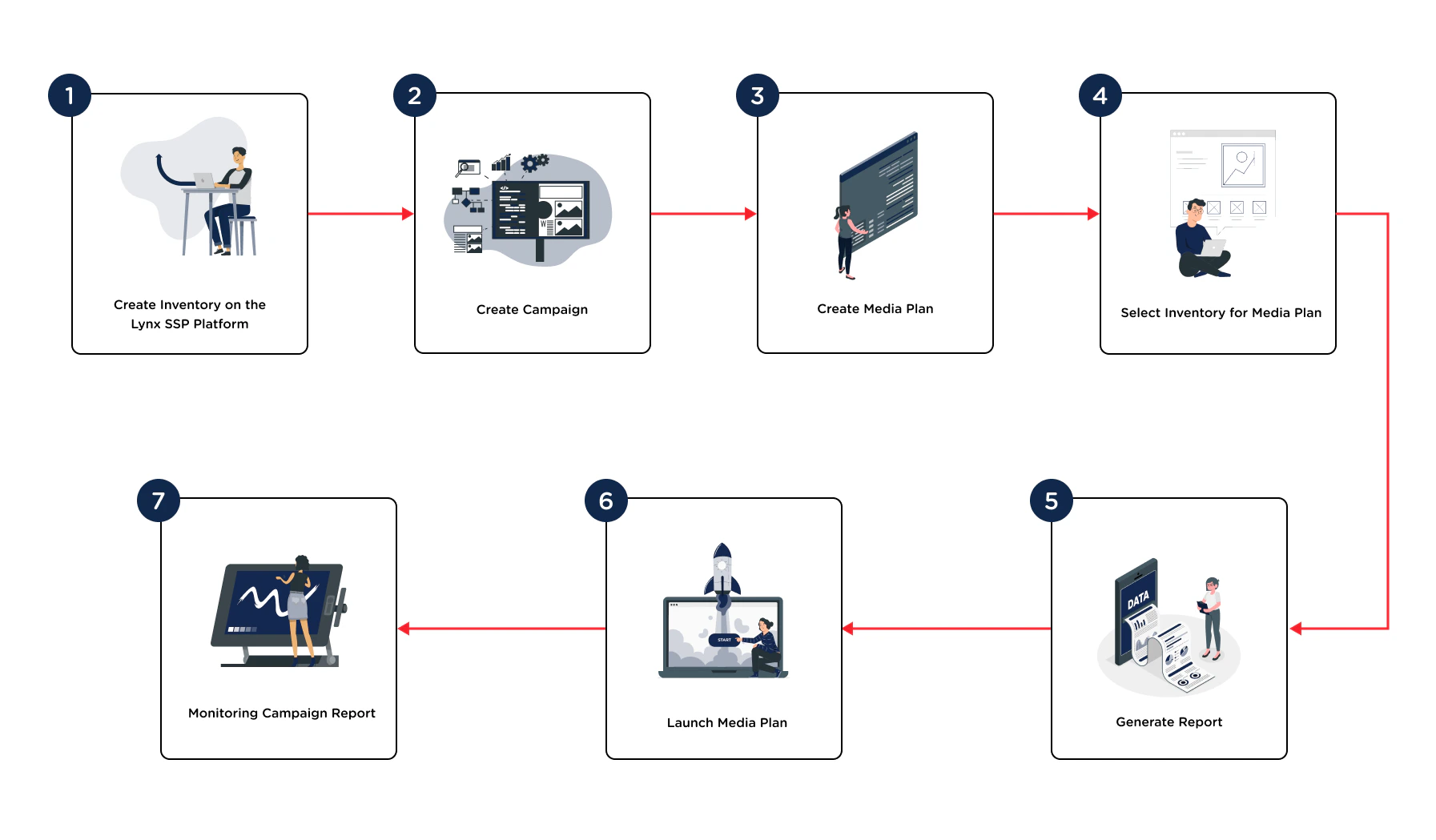 You can register the **Inventory** you own first, whether it is **DOOH (Digital-Out-of-Home) Inventory** or **OOH (Out-of-Home) Inventory**.
You can fill in information regarding the campaign to be run, including the campaign name, type, and duration.
After creating a new campaign, you must create a media plan so that your campaign can run and meet the specifications provided by the client.
You can select inventories to be included in the media plan that will be used to run a campaign you have created.
Activate the 'Generate Report' button if the media plan and campaign you manage require reporting.
After completing the series of steps for creating a media plan, starting from the schedule, selecting inventory, and activating 'generate report', you can launch the media plan to run the campaign.
You can monitor the reporting of the campaign that has been run.
You can register the **Inventory** you own first, whether it is **DOOH (Digital-Out-of-Home) Inventory** or **OOH (Out-of-Home) Inventory**.
You can fill in information regarding the campaign to be run, including the campaign name, type, and duration.
After creating a new campaign, you must create a media plan so that your campaign can run and meet the specifications provided by the client.
You can select inventories to be included in the media plan that will be used to run a campaign you have created.
Activate the 'Generate Report' button if the media plan and campaign you manage require reporting.
After completing the series of steps for creating a media plan, starting from the schedule, selecting inventory, and activating 'generate report', you can launch the media plan to run the campaign.
You can monitor the reporting of the campaign that has been run.