> ## Documentation Index
> Fetch the complete documentation index at: https://docs.lynxssp.com/llms.txt
> Use this file to discover all available pages before exploring further.
# How to Connect
Ensure you have added DOOH (Digital-Out-of-Home) Inventory on the Lynx SSP Platform.
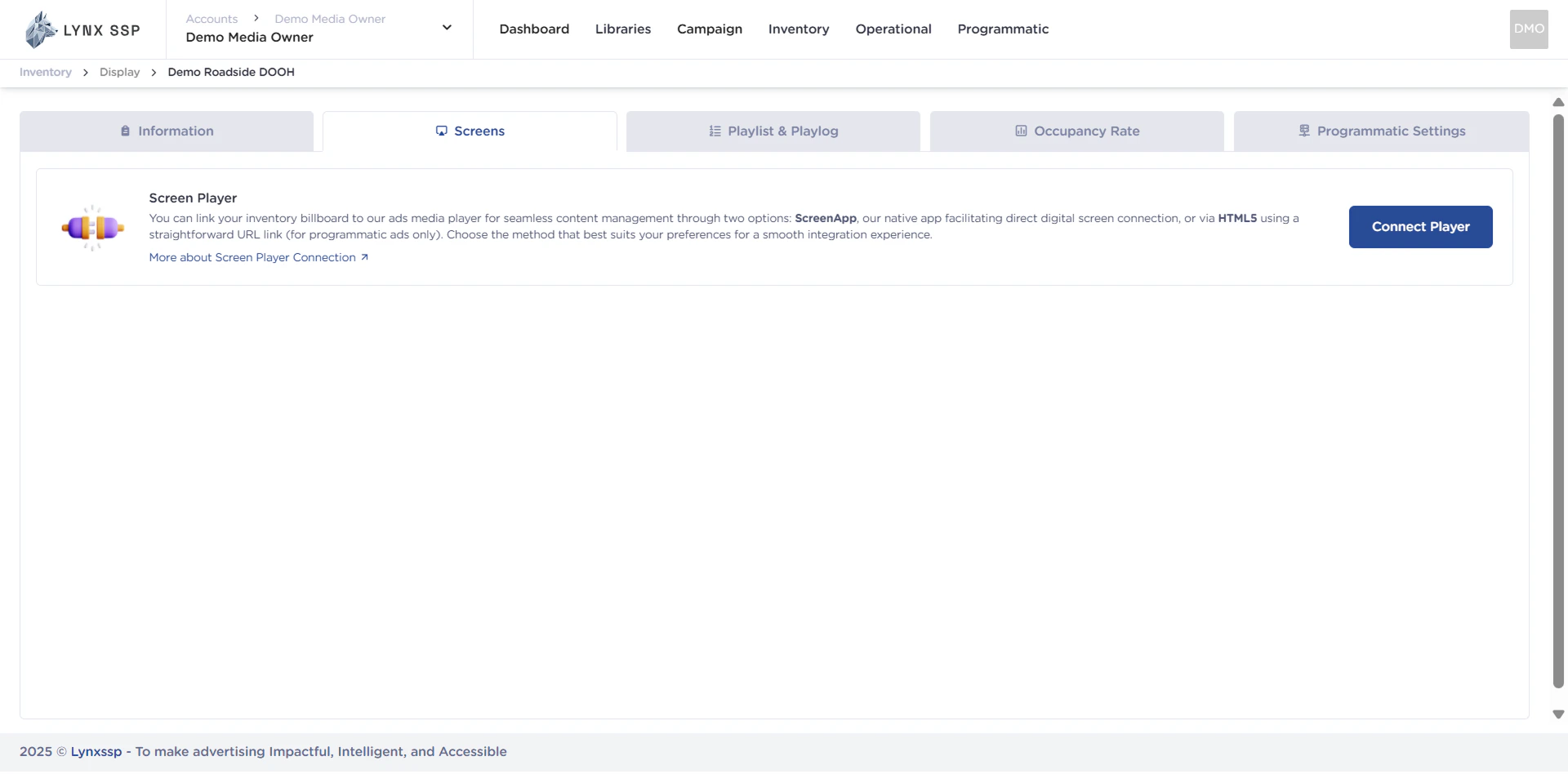
By default, after adding DOOH (Digital-Out-of-Home) Inventory, you can see the Screen Status in the form **"Not Connected"** ([See Screen Status ↗](/documentation/inventory/dooh/screens/status)) and Connection Type **"-"** ([See Connection Type ↗](/documentation/inventory/dooh/screens/connect-to-screen#connection-type)). This indicates that the DOOH (Digital-Out-of-Home) Inventory on the Lynx SSP Platform is not yet connected to the Screen. Therefore, further configuration is required by connecting the DOOH (Digital-Out-of-Home) Inventory that has been added with the Player to display creative content and filler campaigns.
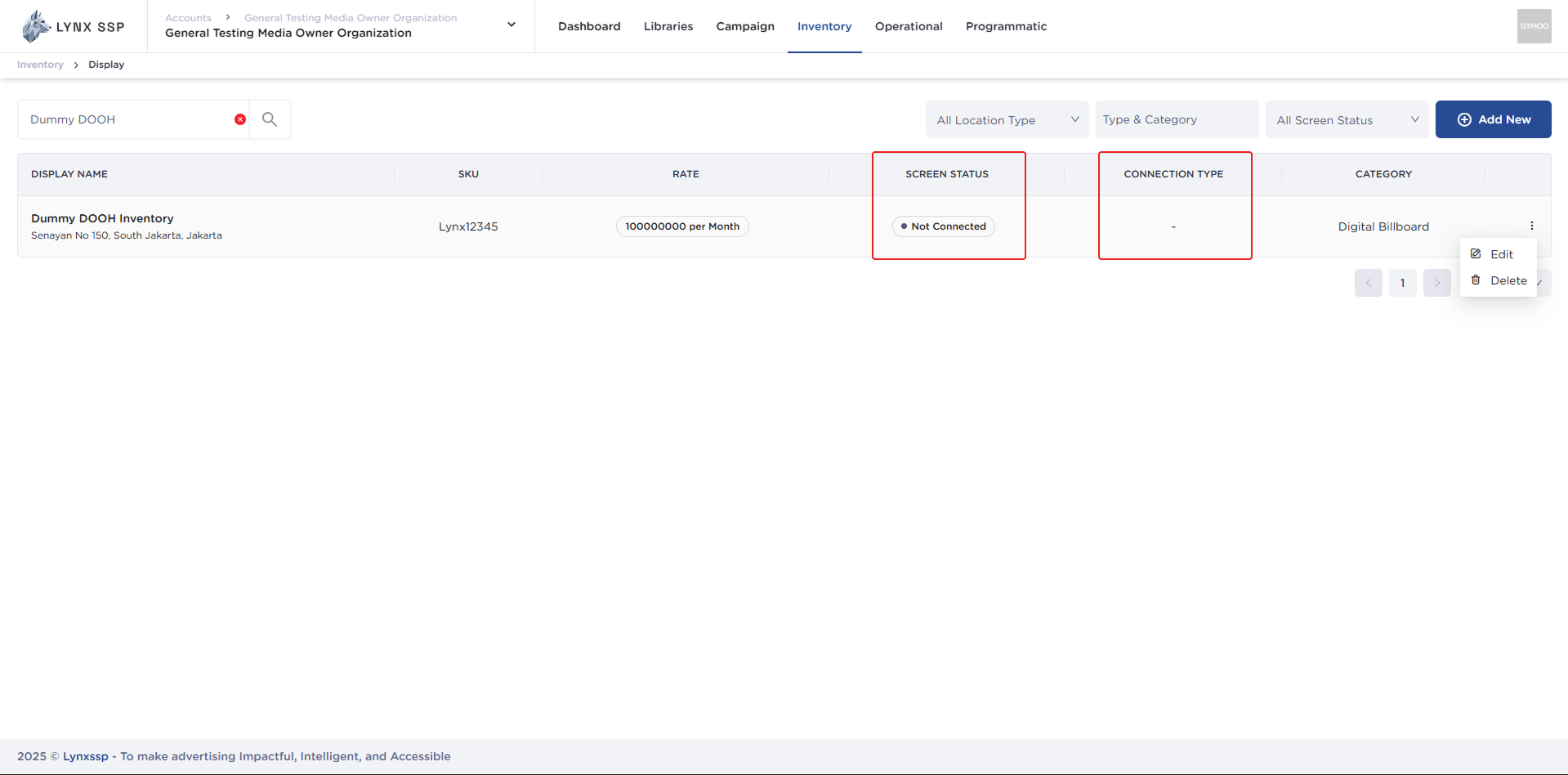 This page helps you configure or connect your DOOH (Digital-Out-of-Home) Inventory with Player on Lynx SSP Platform.
## Accessing the Screen Page
This page helps you configure or connect your DOOH (Digital-Out-of-Home) Inventory with Player on Lynx SSP Platform.
## Accessing the Screen Page
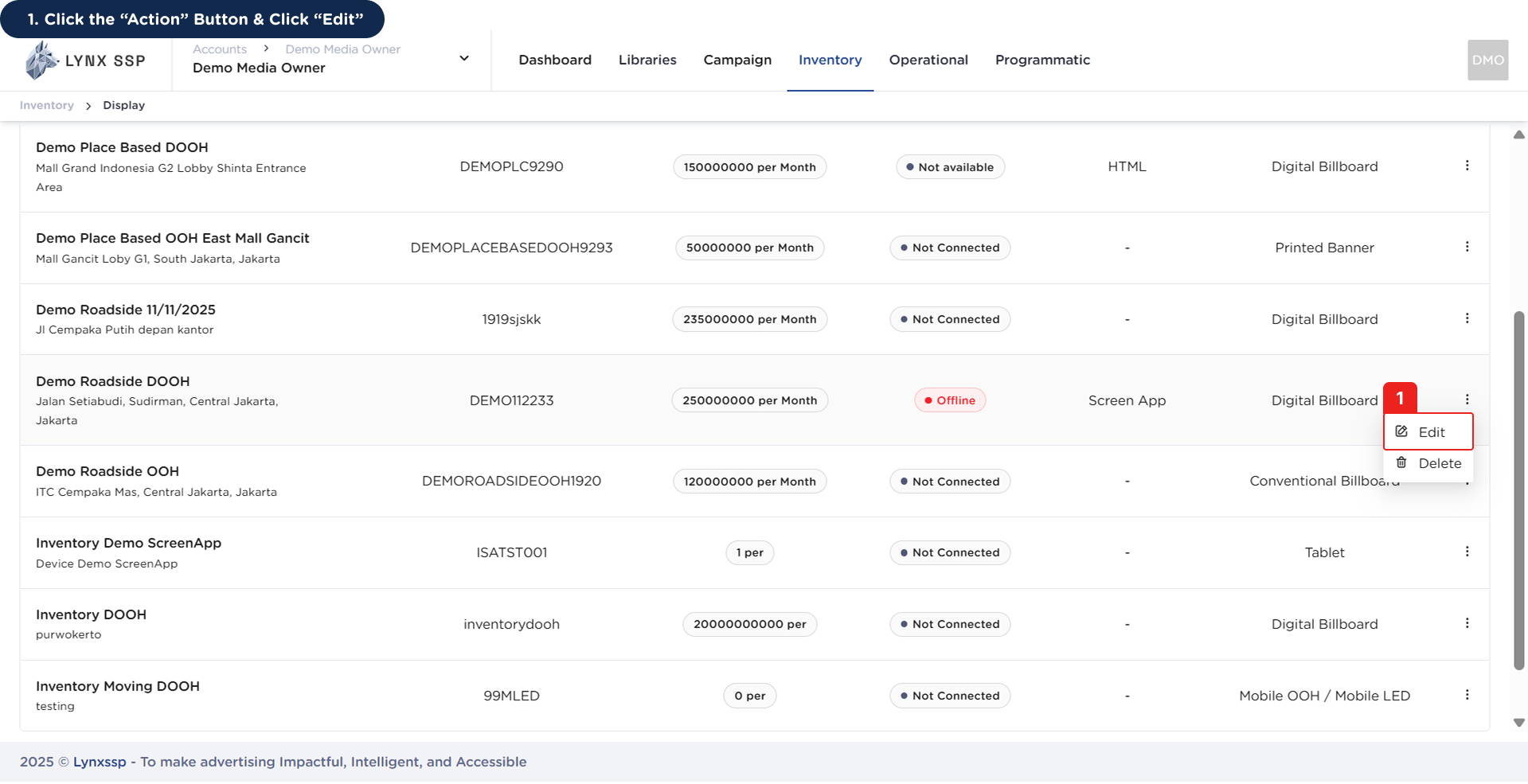 This will display the **Inventory Details Page**.
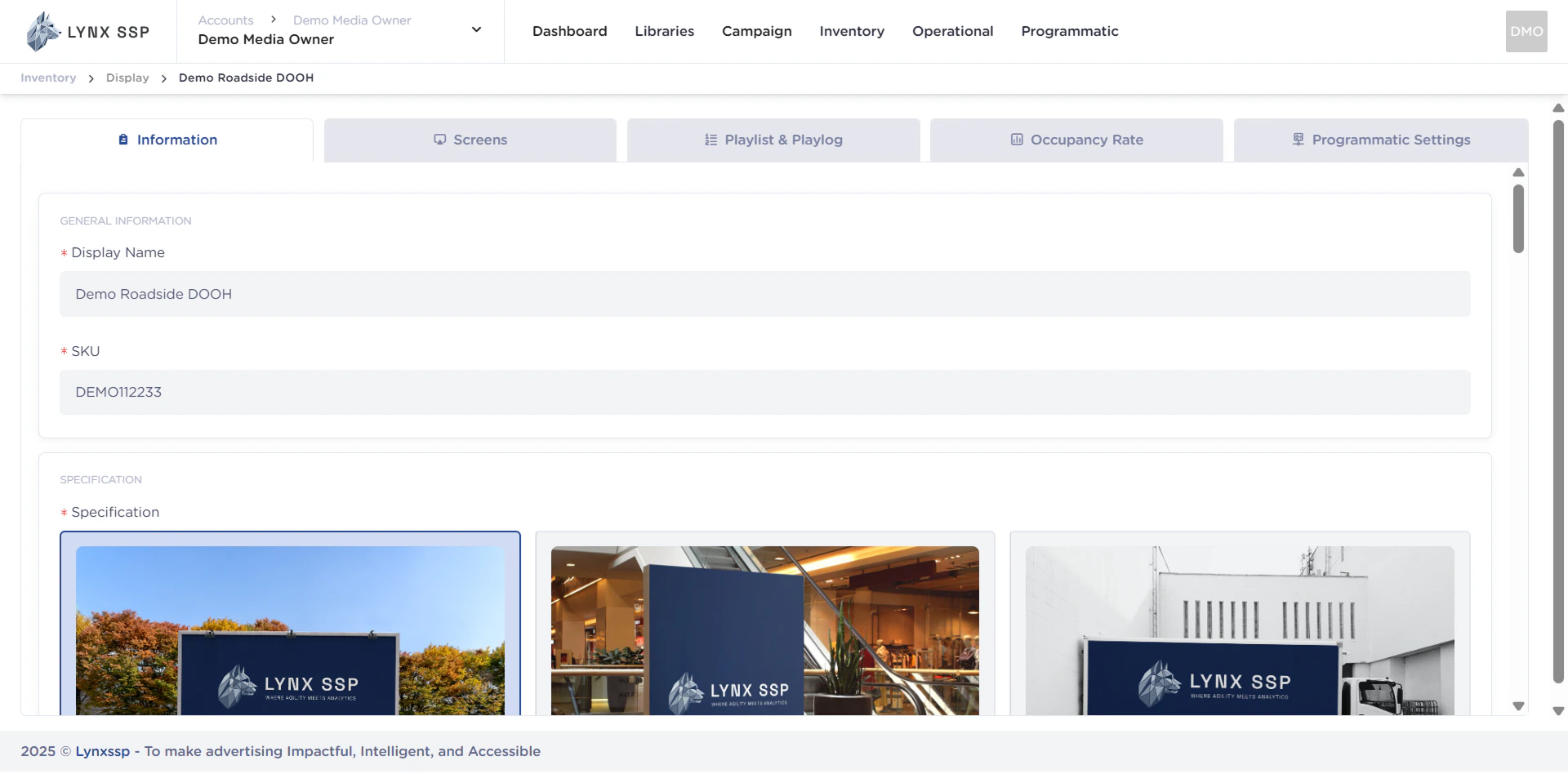
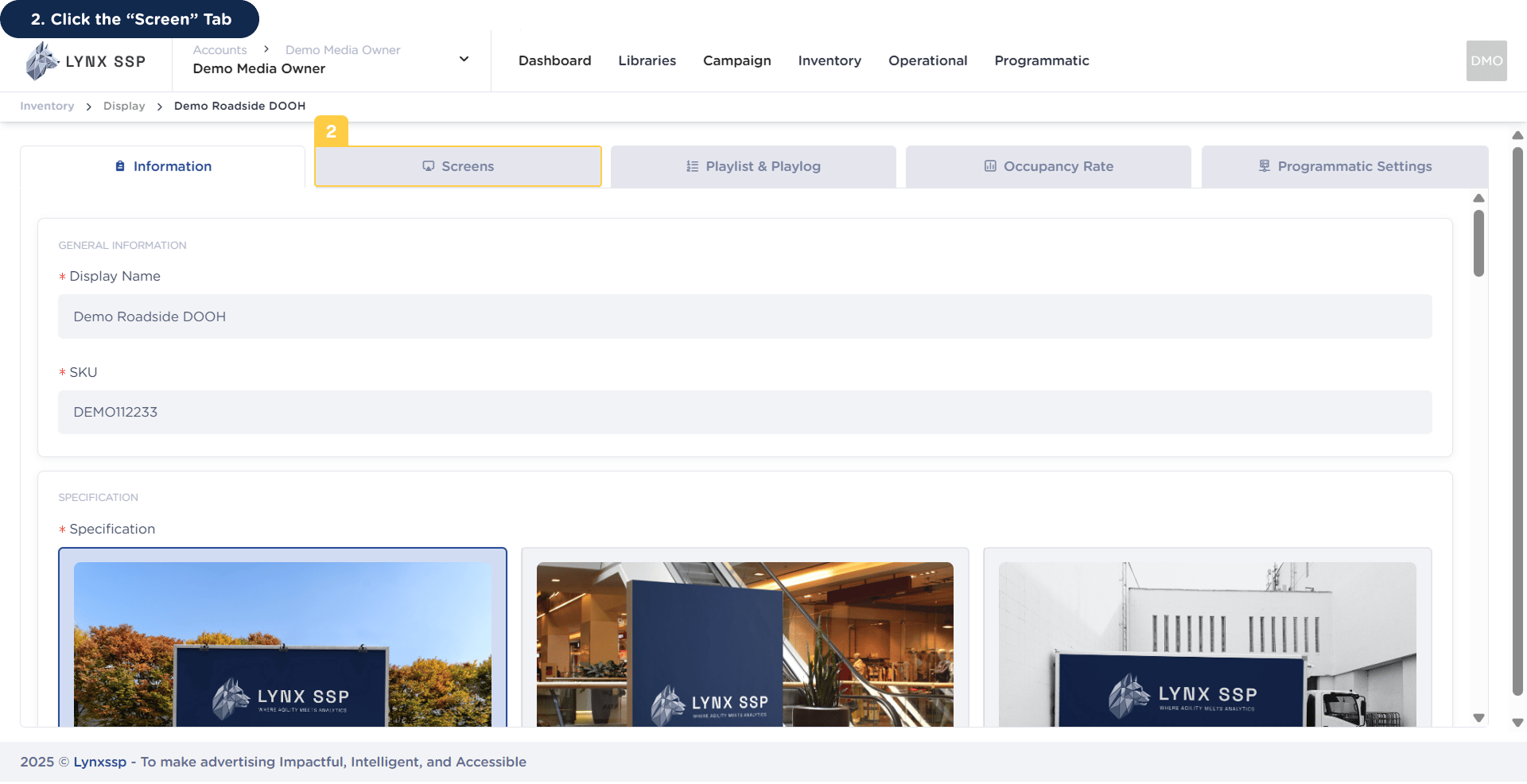 Then it will display the **Screen Page**.
 ## Connect using HTML
In addition to using Screen App, you can also connect your DOOH (Digital-Out-of-Home) Inventory with a compatible HTML5 Player. The HTML5 Connection simplifies integration for inventory based on a web player or digital signage devices that support HTML5.
### Connection
## Connect using HTML
In addition to using Screen App, you can also connect your DOOH (Digital-Out-of-Home) Inventory with a compatible HTML5 Player. The HTML5 Connection simplifies integration for inventory based on a web player or digital signage devices that support HTML5.
### Connection