> ## Documentation Index
> Fetch the complete documentation index at: https://docs.lynxssp.com/llms.txt
> Use this file to discover all available pages before exploring further.

# How to Connect

<Info>
  Ensure you have added DOOH (Digital-Out-of-Home) Inventory on the Lynx SSP Platform ([See Add New DOOH Inventory ↗](/documentation/inventory/dooh/add/how-to-add)).
</Info>

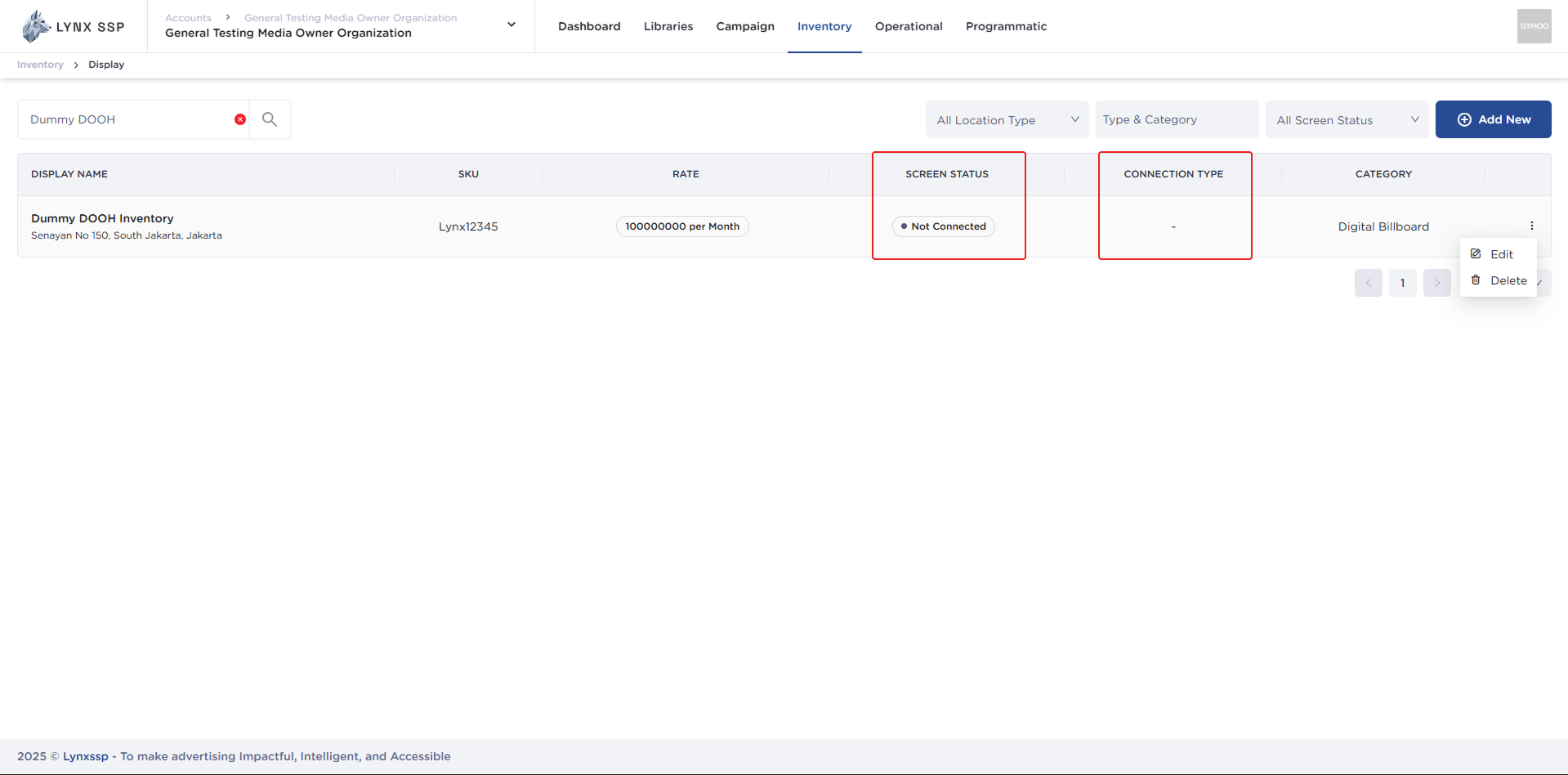
By default, after adding DOOH (Digital-Out-of-Home) Inventory, you can see the Screen Status in the form **"Not Connected"** ([See Screen Status ↗](/documentation/inventory/dooh/screens/status)) and Connection Type **"-"** ([See Connection Type ↗](/documentation/inventory/dooh/screens/connect-to-screen#connection-type)). This indicates that the DOOH (Digital-Out-of-Home) Inventory on the Lynx SSP Platform is not yet connected to the Screen. Therefore, further configuration is required by connecting the DOOH (Digital-Out-of-Home) Inventory that has been added with the Player to display creative content and filler campaigns.
<img src="https://mintcdn.com/lynxssp-91a2d3cb/XyupbwYkIbgndxRU/images/documentation/inventory/display/dooh/screens/connect-to-screen/overview.png?fit=max&auto=format&n=XyupbwYkIbgndxRU&q=85&s=44658f88f36935731d11928292408810" alt=" Connect to Screen " width="1919" height="948" data-path="images/documentation/inventory/display/dooh/screens/connect-to-screen/overview.png" />

This page helps you configure or connect your DOOH (Digital-Out-of-Home) Inventory with Player on Lynx SSP Platform.

## Accessing the Screen Page 
<Steps>
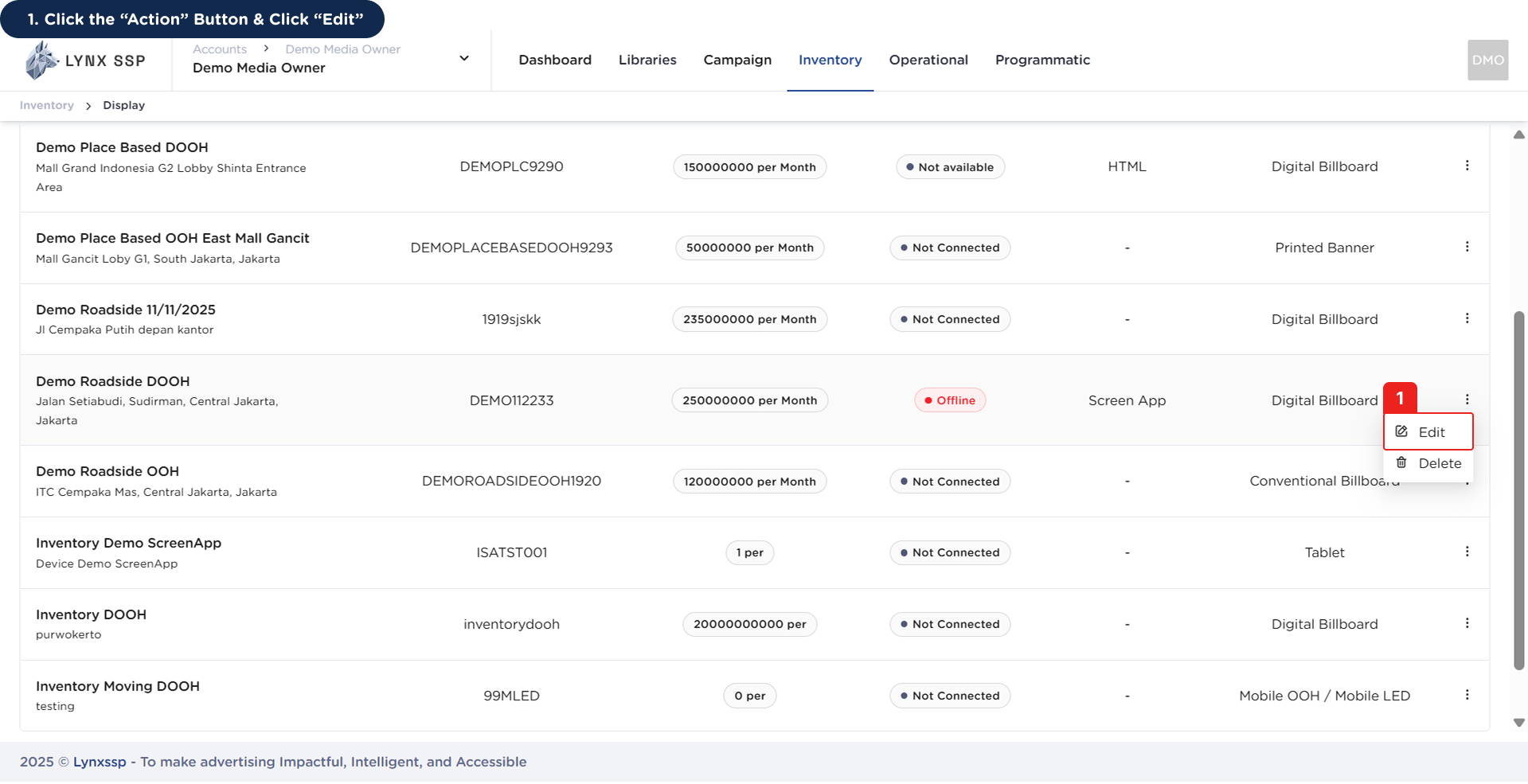
  <Step title="Click the “Action” button & Click “Edit”">
    <img src="https://mintcdn.com/lynxssp-91a2d3cb/XyupbwYkIbgndxRU/images/documentation/inventory/display/dooh/screens/connect-to-screen/accessing-screen-page-1.png?fit=max&auto=format&n=XyupbwYkIbgndxRU&q=85&s=33ecb5f1c9081db553629c1009b2a7ed" alt="Accessing Screen Page 1" width="1919" height="985" data-path="images/documentation/inventory/display/dooh/screens/connect-to-screen/accessing-screen-page-1.png" />

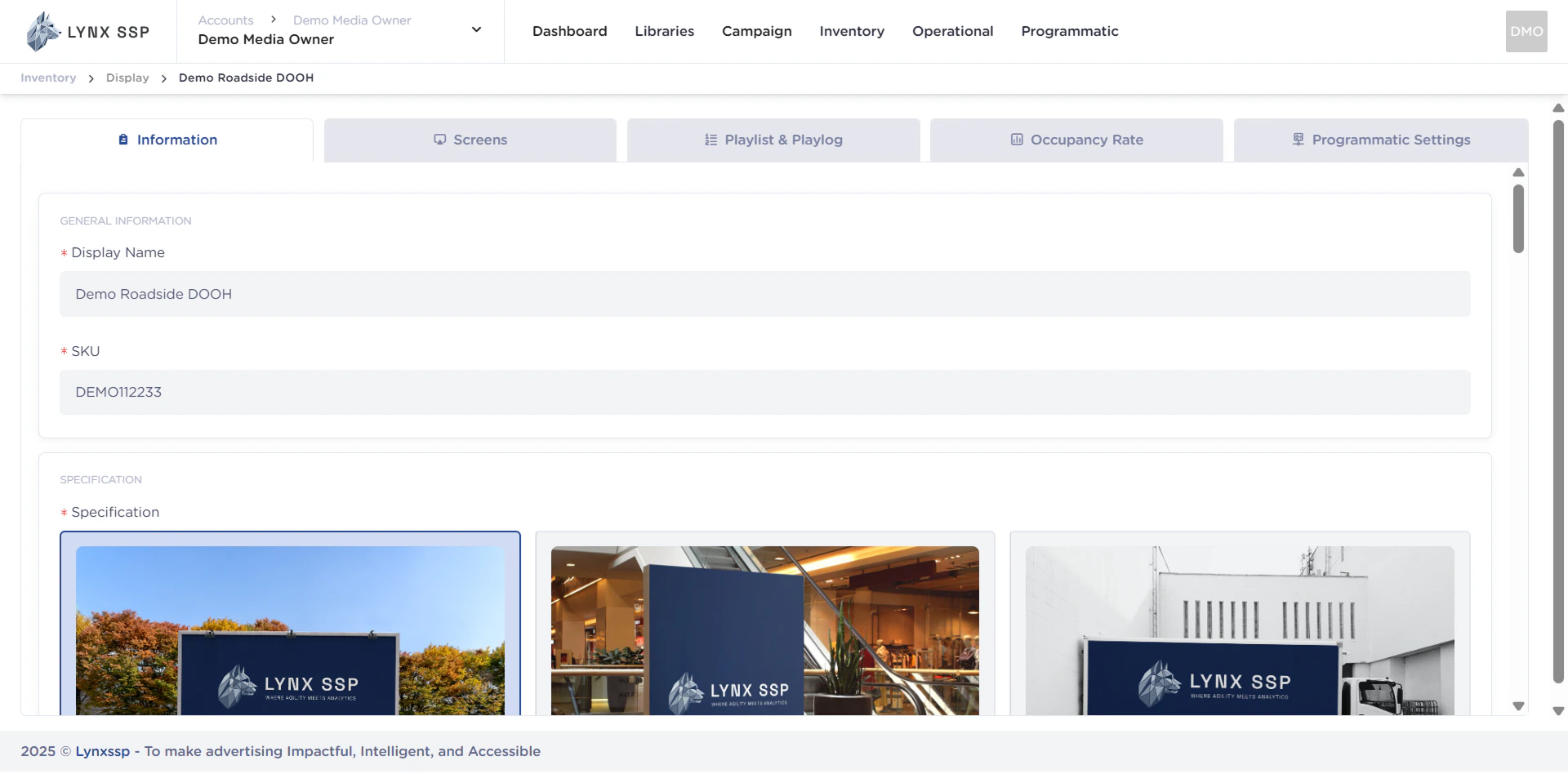
    This will display the **Inventory Details Page**.
    <img src="https://mintcdn.com/lynxssp-91a2d3cb/XyupbwYkIbgndxRU/images/documentation/inventory/display/dooh/screens/connect-to-screen/accessing-screen-page-1.2.png?fit=max&auto=format&n=XyupbwYkIbgndxRU&q=85&s=65f5ff29f77ccb9ad7c072874cfb3cef" alt="Accessing Screen Page 1.2" width="1920" height="948" data-path="images/documentation/inventory/display/dooh/screens/connect-to-screen/accessing-screen-page-1.2.png" />
  </Step>

  <Step title="Click the “Screen” Tab">
    <img src="https://mintcdn.com/lynxssp-91a2d3cb/XyupbwYkIbgndxRU/images/documentation/inventory/display/dooh/screens/connect-to-screen/accessing-screen-page-2.png?fit=max&auto=format&n=XyupbwYkIbgndxRU&q=85&s=fd0b39fa9b62825e7fdc90138b722099" alt="Accessing Screen Page 2" width="1920" height="986" data-path="images/documentation/inventory/display/dooh/screens/connect-to-screen/accessing-screen-page-2.png" />

    Then it will display the **Screen Page**.
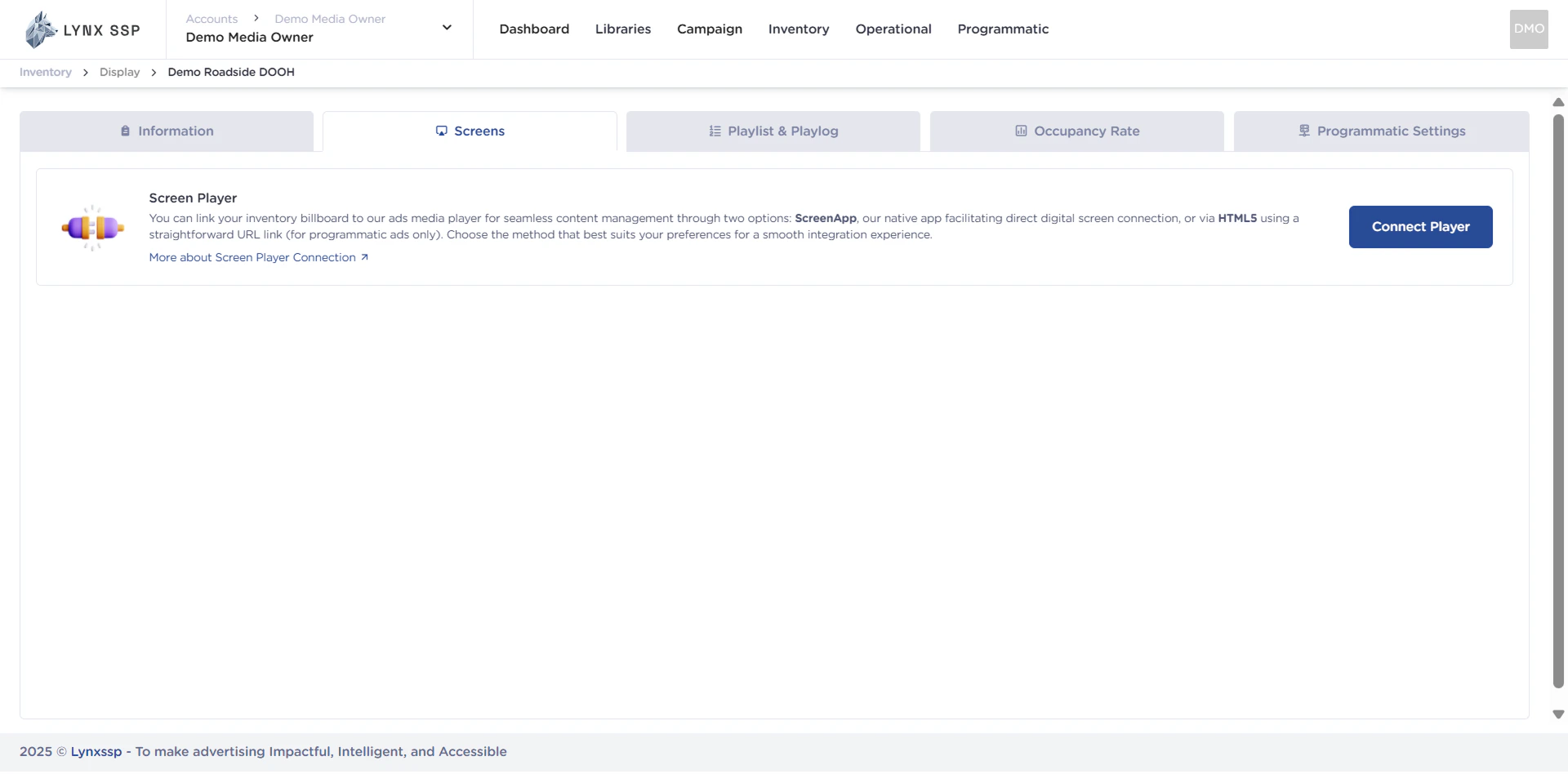
    <img src="https://mintcdn.com/lynxssp-91a2d3cb/XyupbwYkIbgndxRU/images/documentation/inventory/display/dooh/screens/connect-to-screen/accessing-screen-page-2.2.png?fit=max&auto=format&n=XyupbwYkIbgndxRU&q=85&s=44ec36c2564328d93eb18d7d98e85d63" alt="Accessing Screen Page 2.2" width="1920" height="948" data-path="images/documentation/inventory/display/dooh/screens/connect-to-screen/accessing-screen-page-2.2.png" />
  </Step>
</Steps>

## Connect using ScreenApp

Screen App is the default player owned by Lynx SSP. Through Screen App, you can change the arrangement of creative content, both from campaigns and fillers that will be displayed on your DOOH (Digital-Out-of-Home) Inventory.

### Installation

<Card title="Screen App Windows Installation ↗" href="/guideline/screen-connection/screen-app/connect-to-screen/install/windows-installation" />

<Card title="Screen App Android Installation ↗" href="/guideline/screen-connection/screen-app/connect-to-screen/install/android-installation" />

### Connection

<Card title="Screen App Connection ↗" href="/guideline/screen-connection/screen-app/connect-to-screen/connection" />