CMS Platform are Support Lynx HTML5
Below is a list of Content Management System (CMS) Platforms known to support Lynx HTML5 content:Broadsign
Daktronics
Icon Play
LMX
Lumio
Viplex
Taurus
VNNOX
The list above includes CMS platforms that generally support the HTML5 format. However, full compatibility and specific configurations may vary depending on the CMS version being used, the player settings at the location, and the complexity of the Lynx HTML5 itself.
Next Steps: To ensure smooth and optimal playback, it is highly recommended to conduct direct testing with the Lynx Support Team before launching any campaign live.
HTML5 Version
Lynx HTML5 has several versions that can be selected based on the CMS (Content Management System) connection you use for DOOH (Digital-Out-of-Home) Inventory. The differences between each version are as follows:Standart Version
The HTML5 Standard version is an HTML connection that can be used on general players with auto-refresh and a stable internet connection. If there are disruptions or the internet connection is unstable, the connection to DOOH (Digital-Out-of-Home) Inventory will be hampered.Light Version
HTML5 Light version is an HTML connection that can be used on general players with auto-refresh and can be used on minimal internet networks. Unlike the Standard Version, if there are disruptions or unstable or minimal internet connection, the connection to DOOH (Digital-Out-of-Home) Inventory will continue to run.Auto Loop
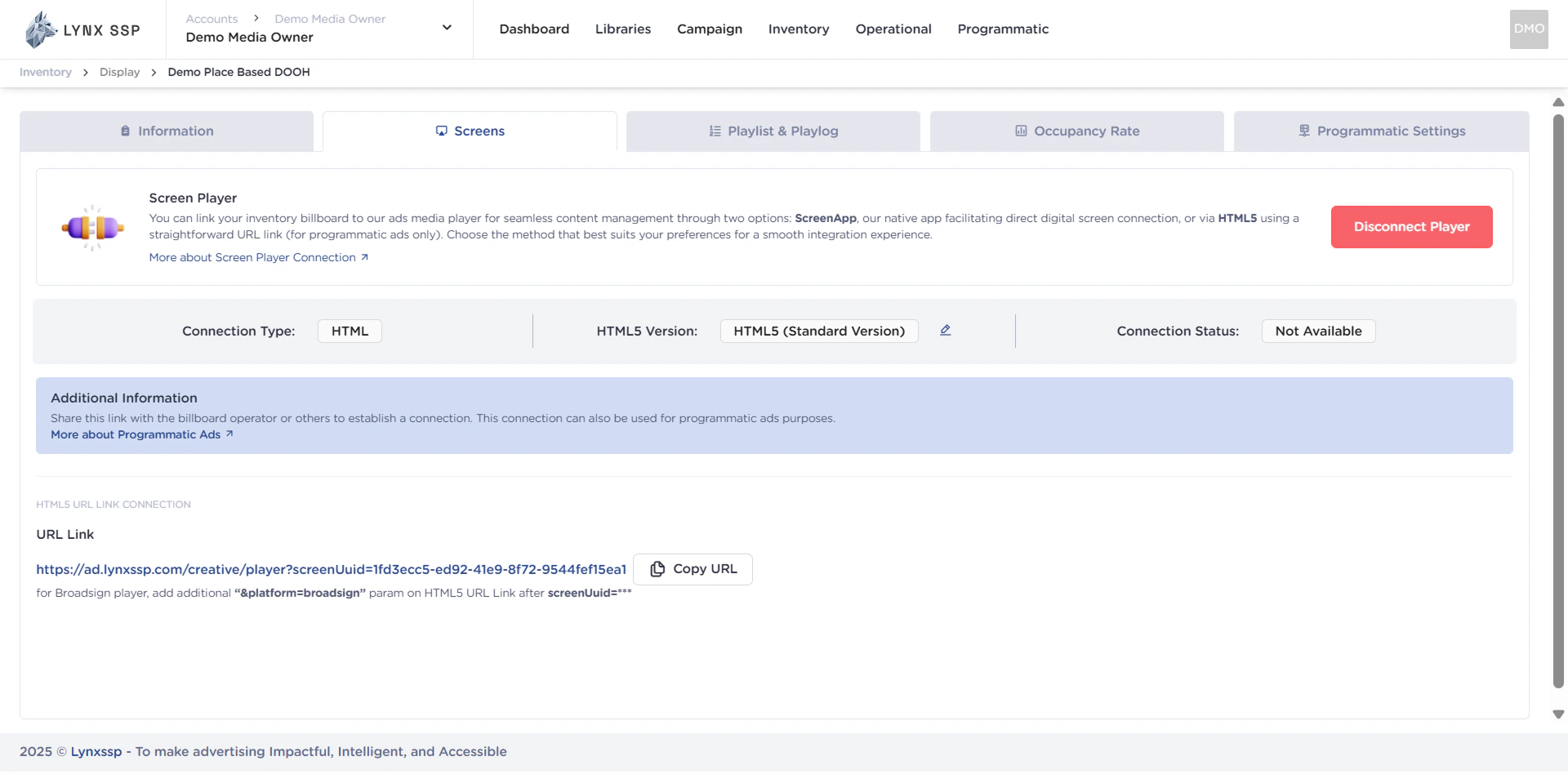
HTML5 Auto loop is an HTML connection that can be used on general players or Smart TVs without auto-refresh, and later HTML5 will run with auto-refresh.How to Connect using HTML5
Ensure you have added DOOH (Digital-Out-of-Home) Inventory on the Lynx SSP Platform.
1
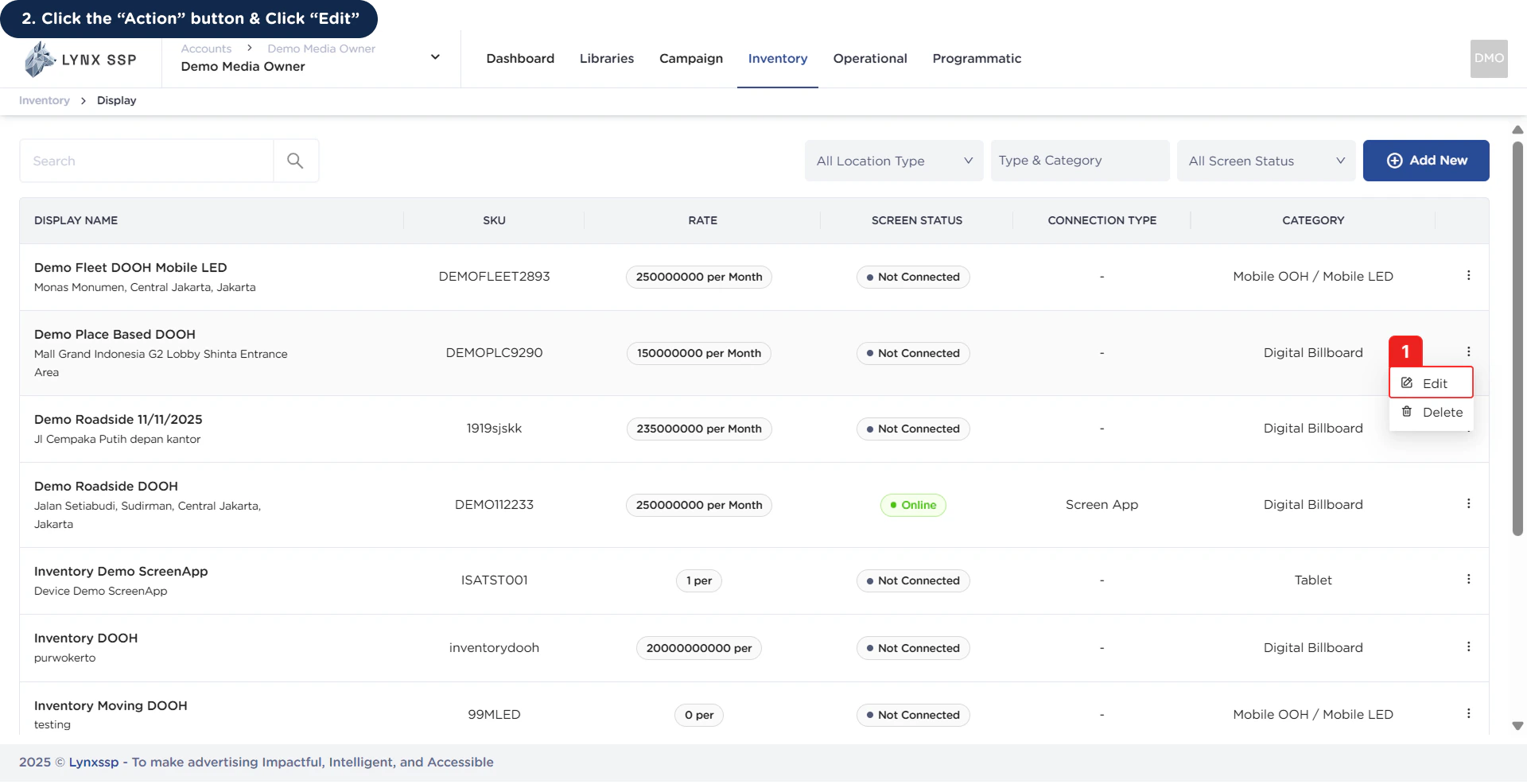
Click the “Action” Button & Click “Edit”
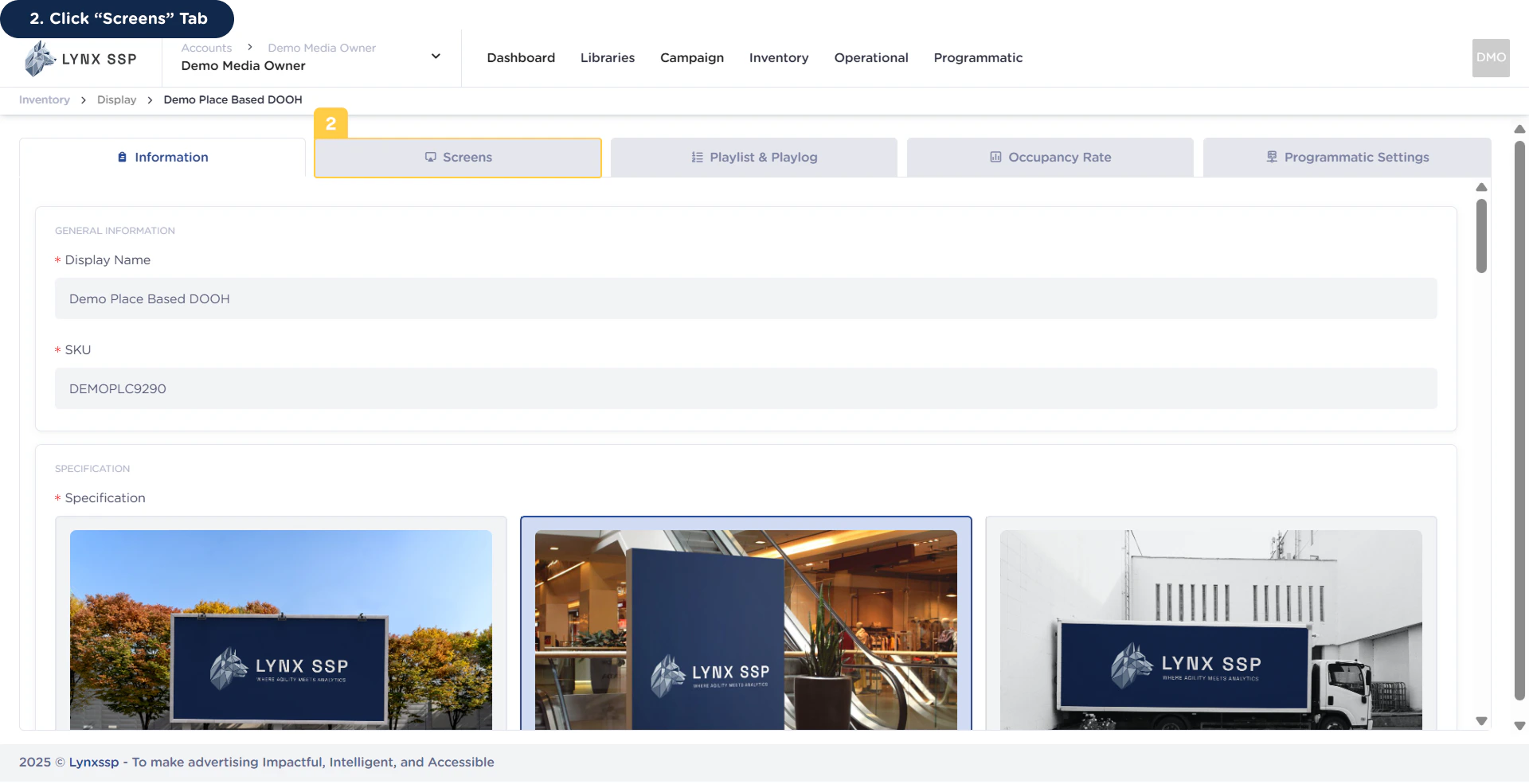
2
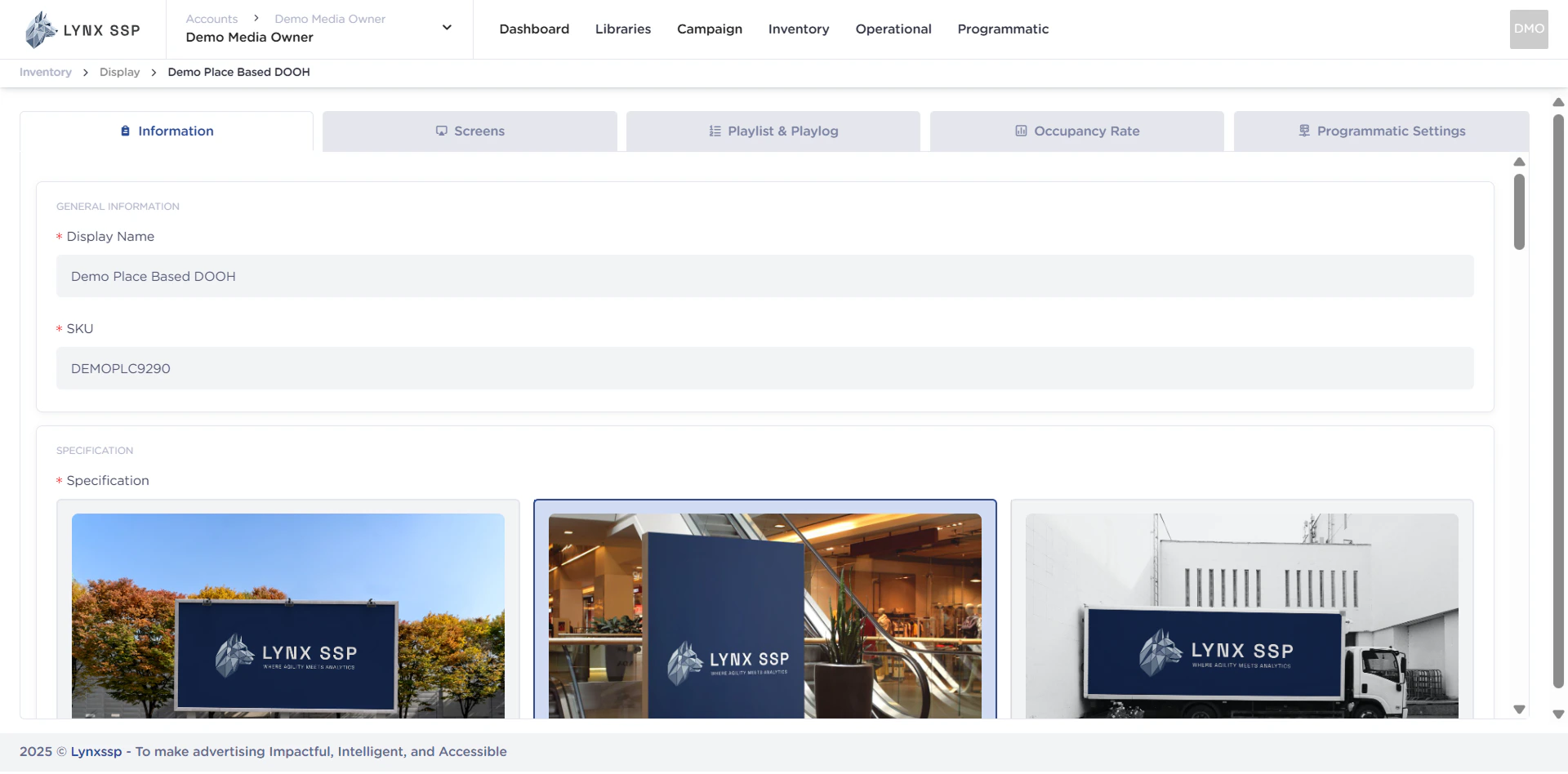
Click “Screens” Tab
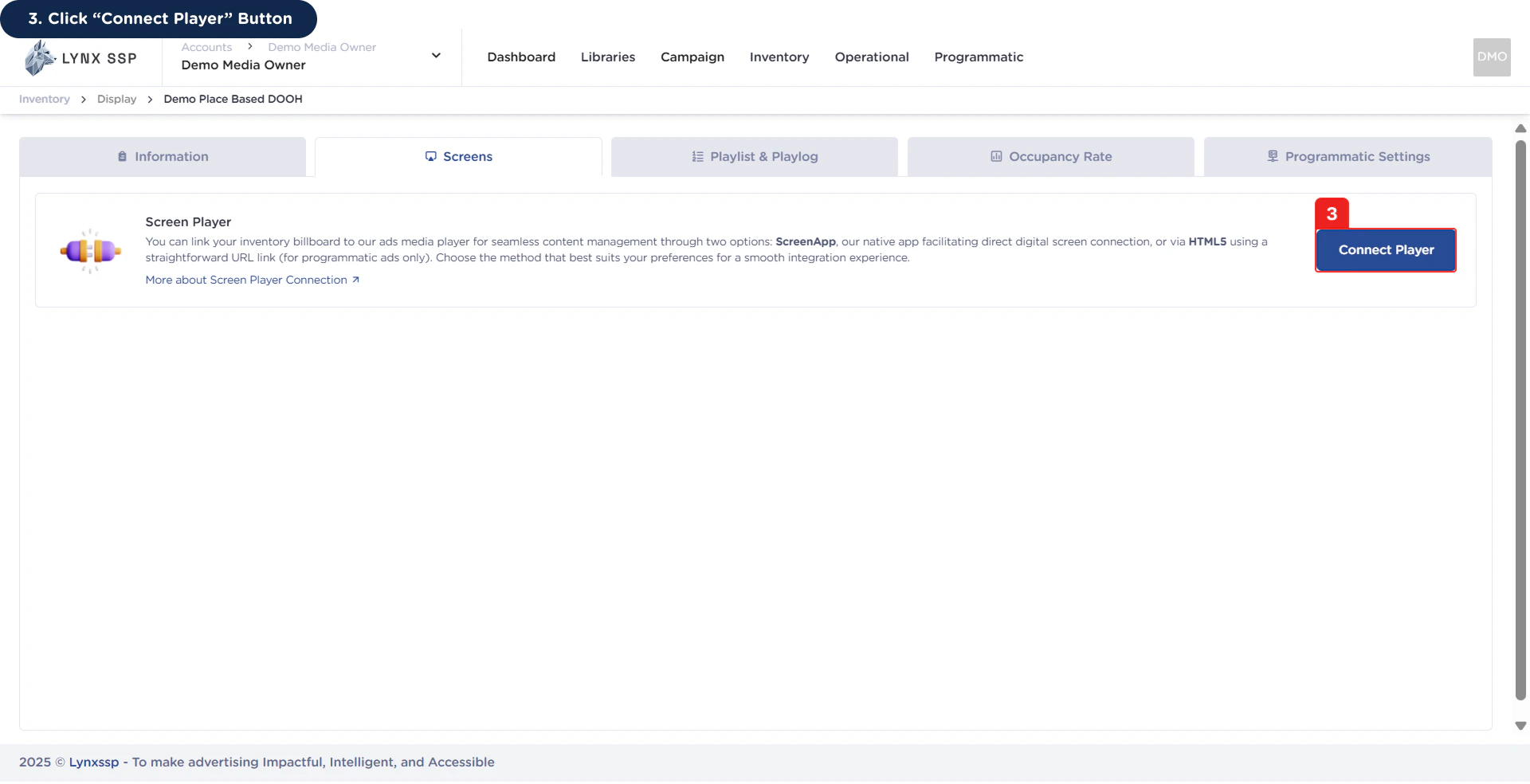
3
Click “Connect Player” Button
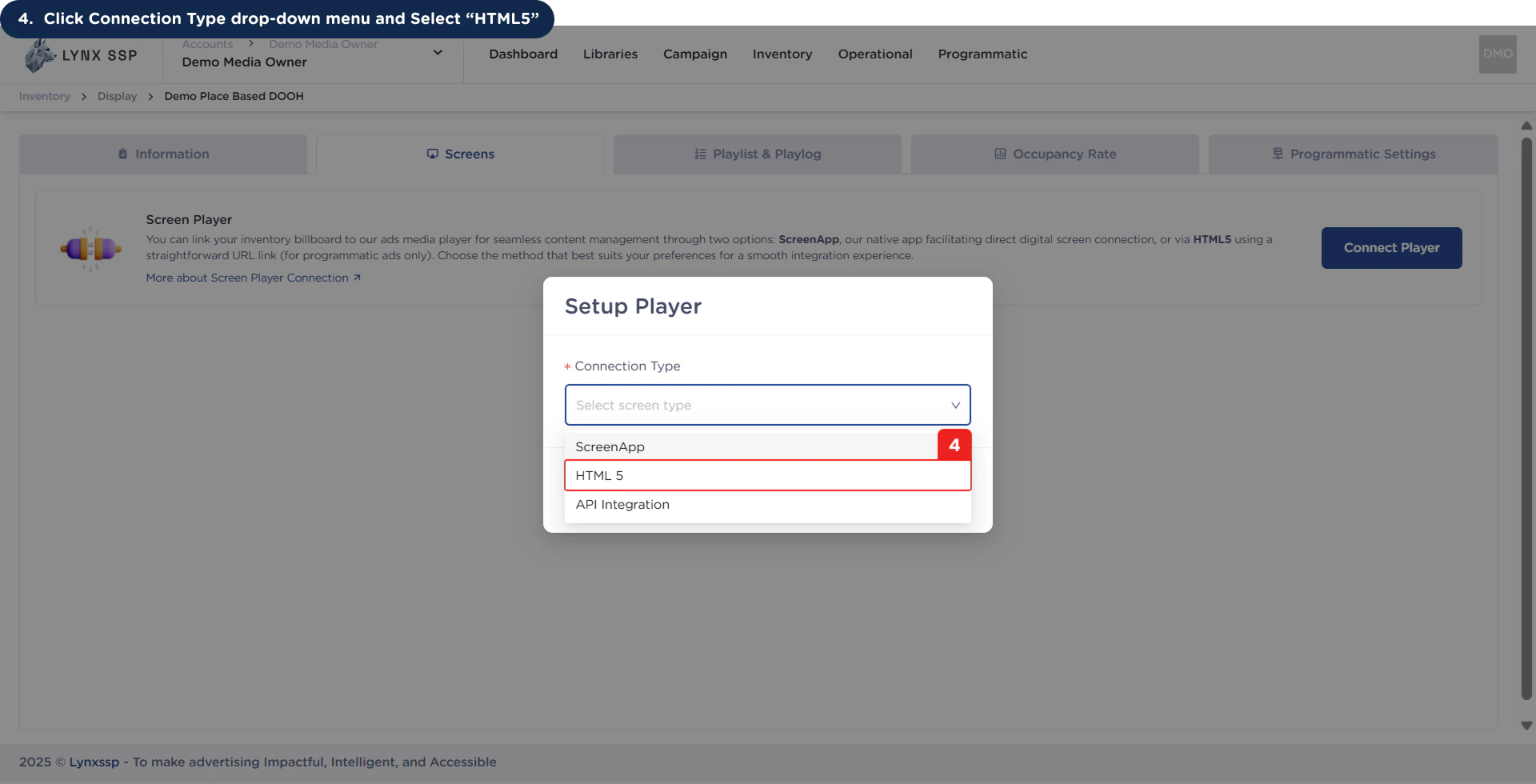
4
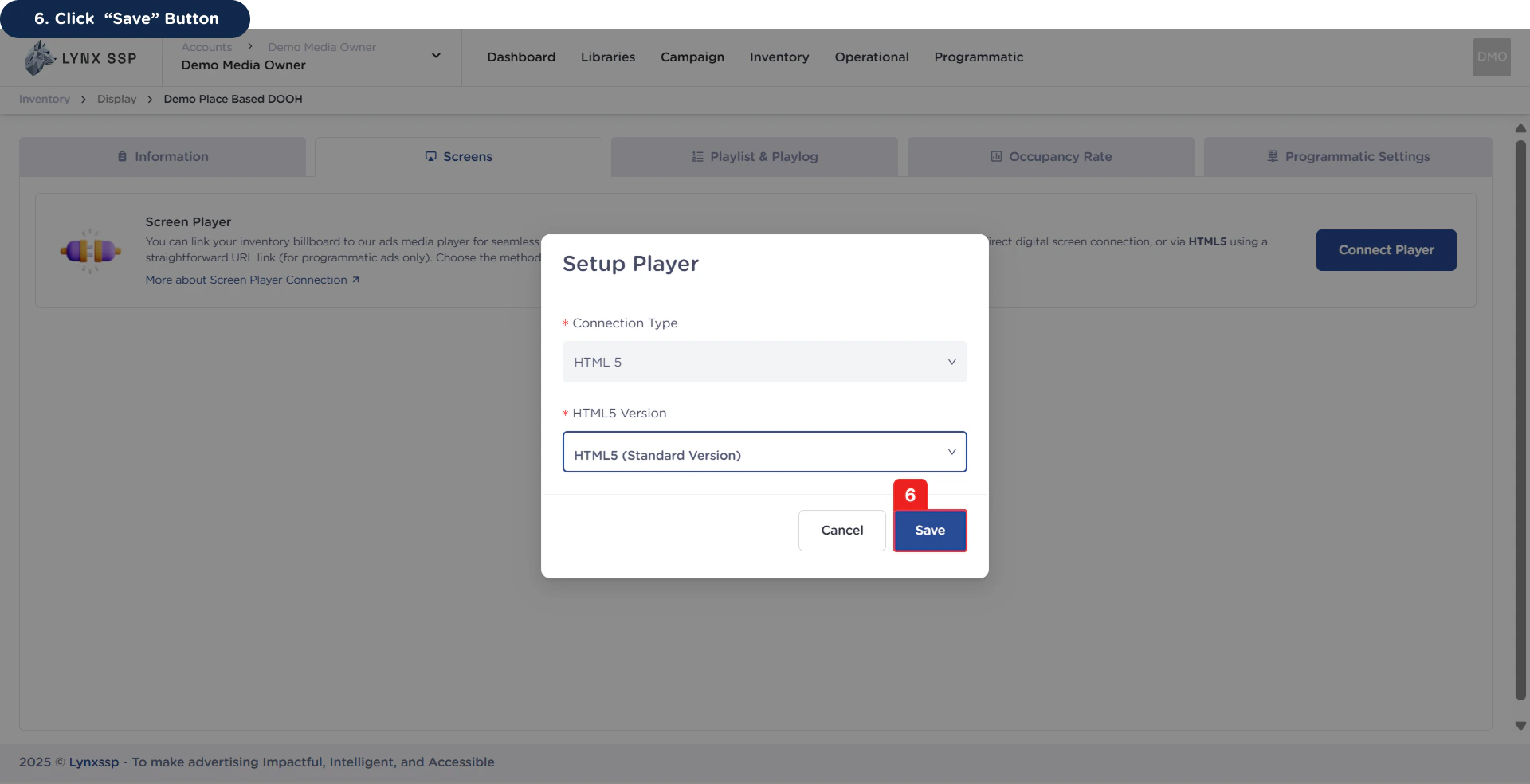
Click Connection Type drop-down menu and Select “HTML5”
5
Select HTML5 Version
You can first select the version of HTML5 to use (See HTML5 Version ↗).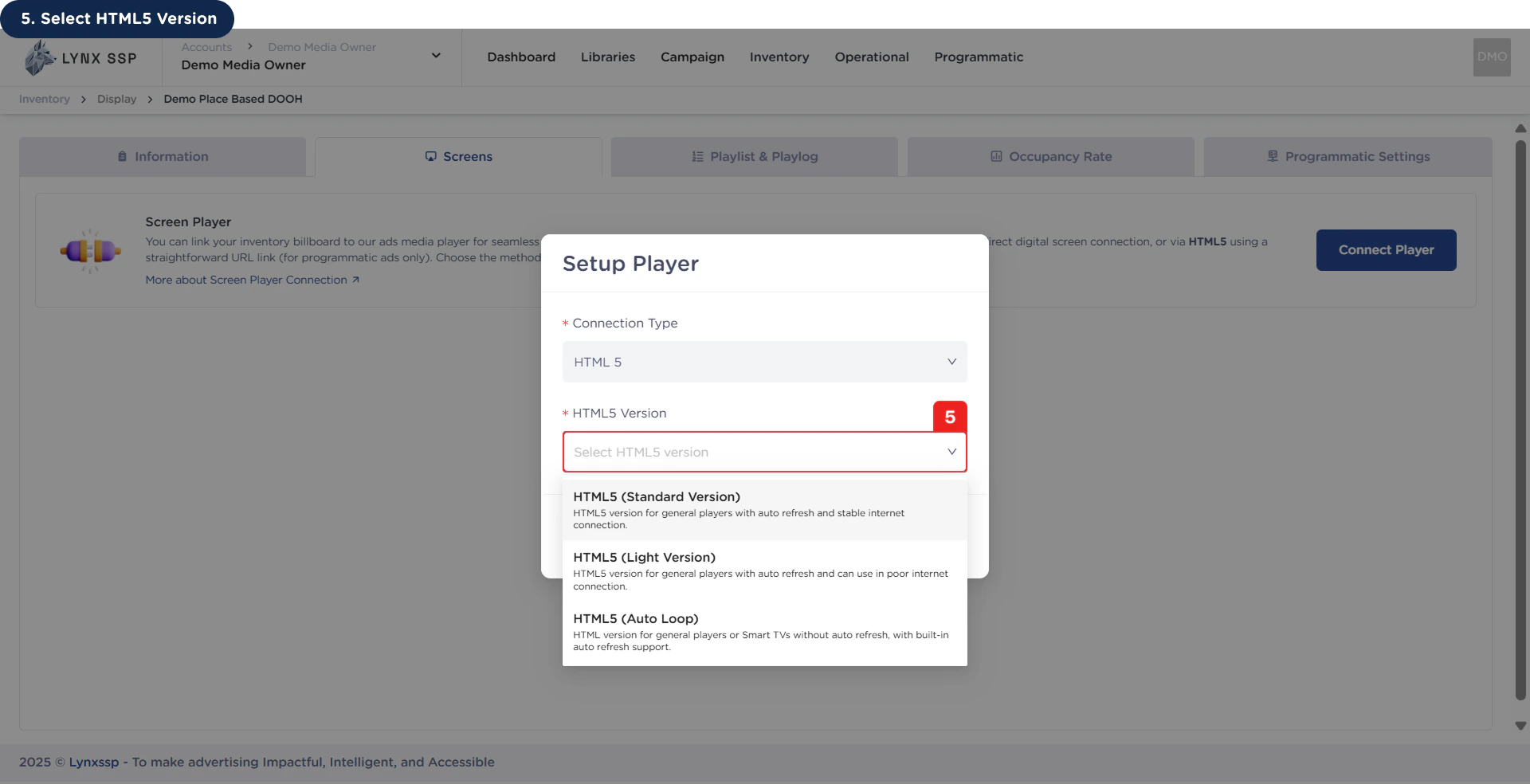
6
Click “Save” Button