

Accessing the Create New Filler Page
1
Click the “Create New” Filer Button
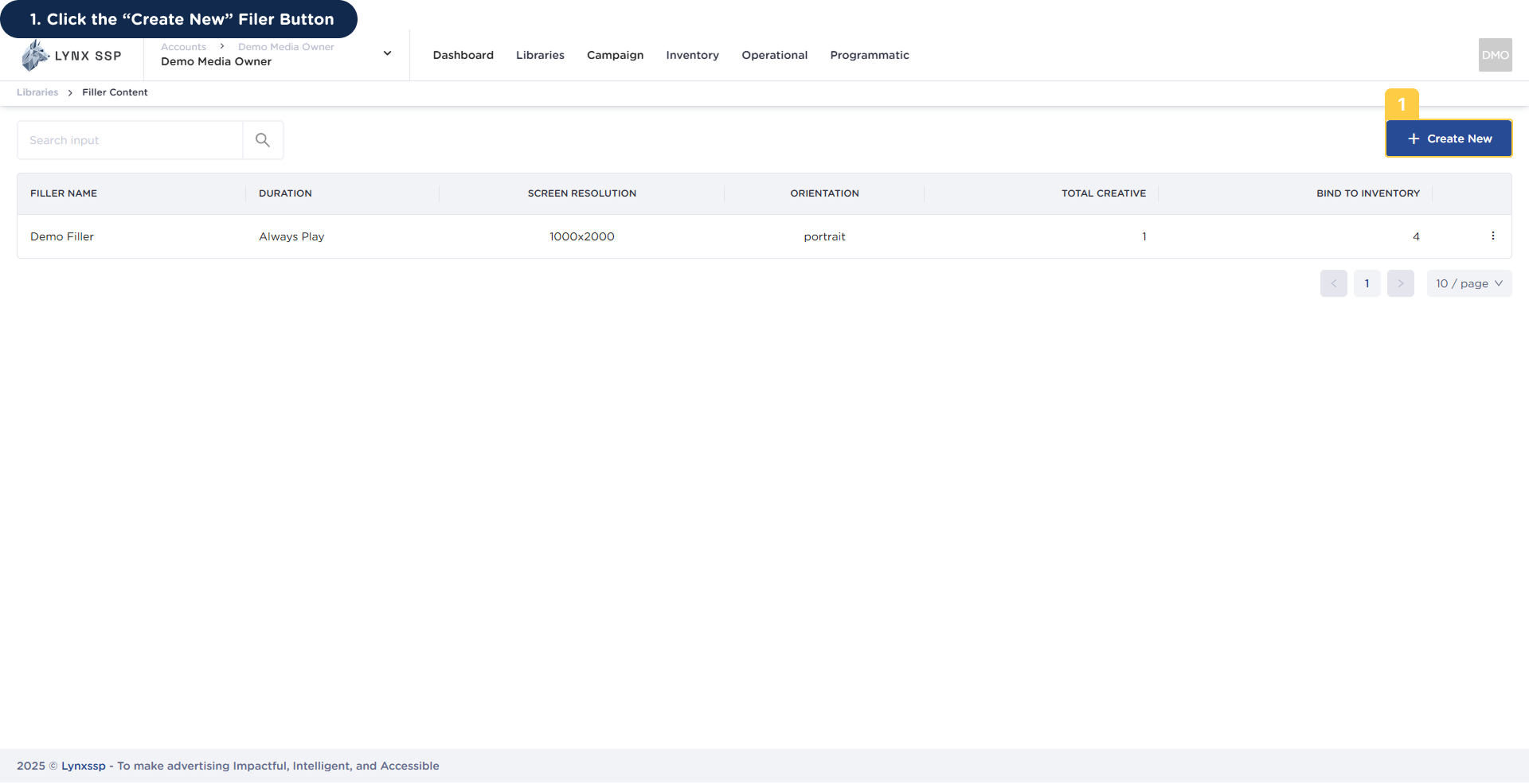 This will display the page and form to create new filler content.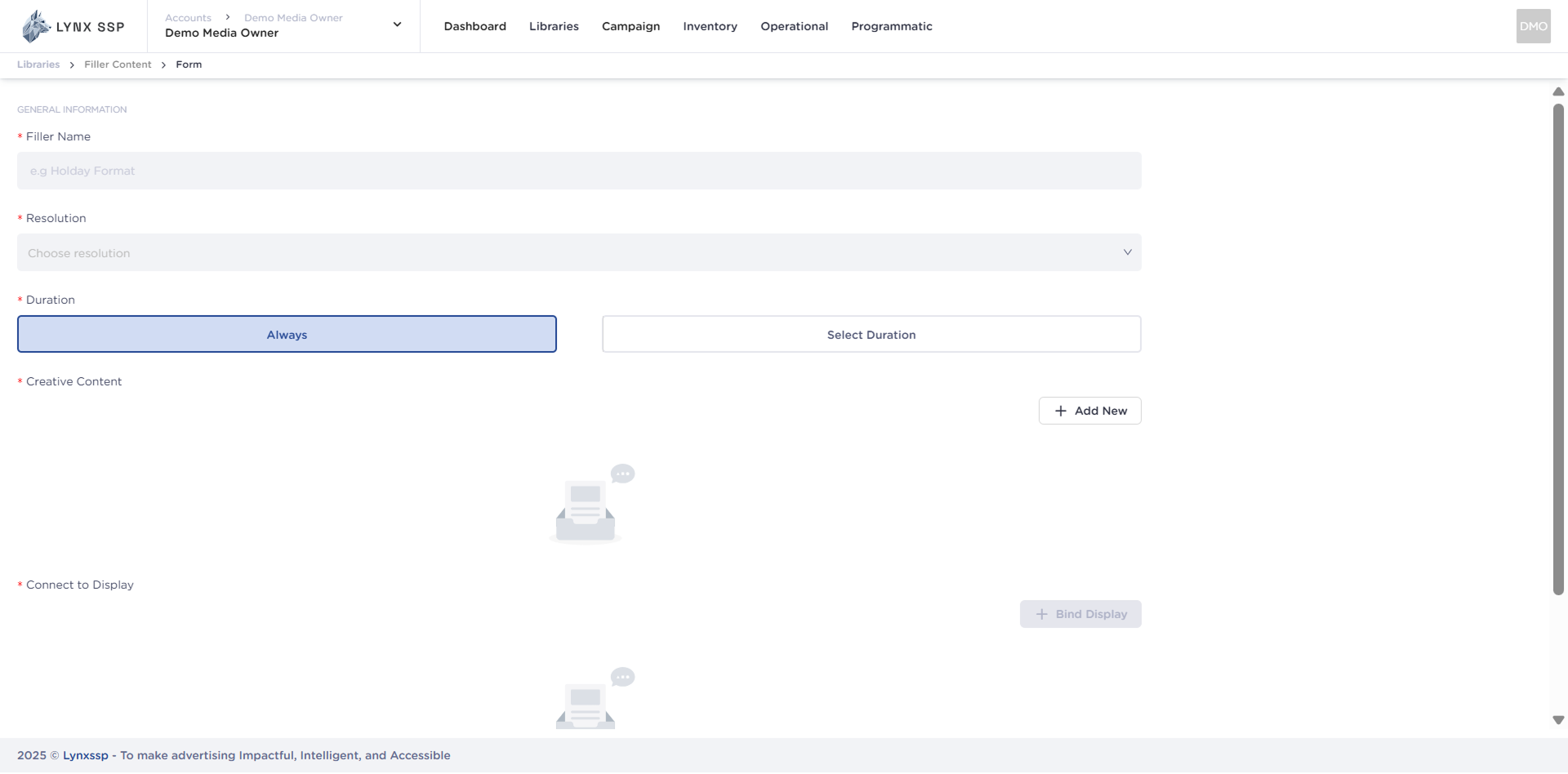
How to Create New Filler Content
Create New Filler Content Form
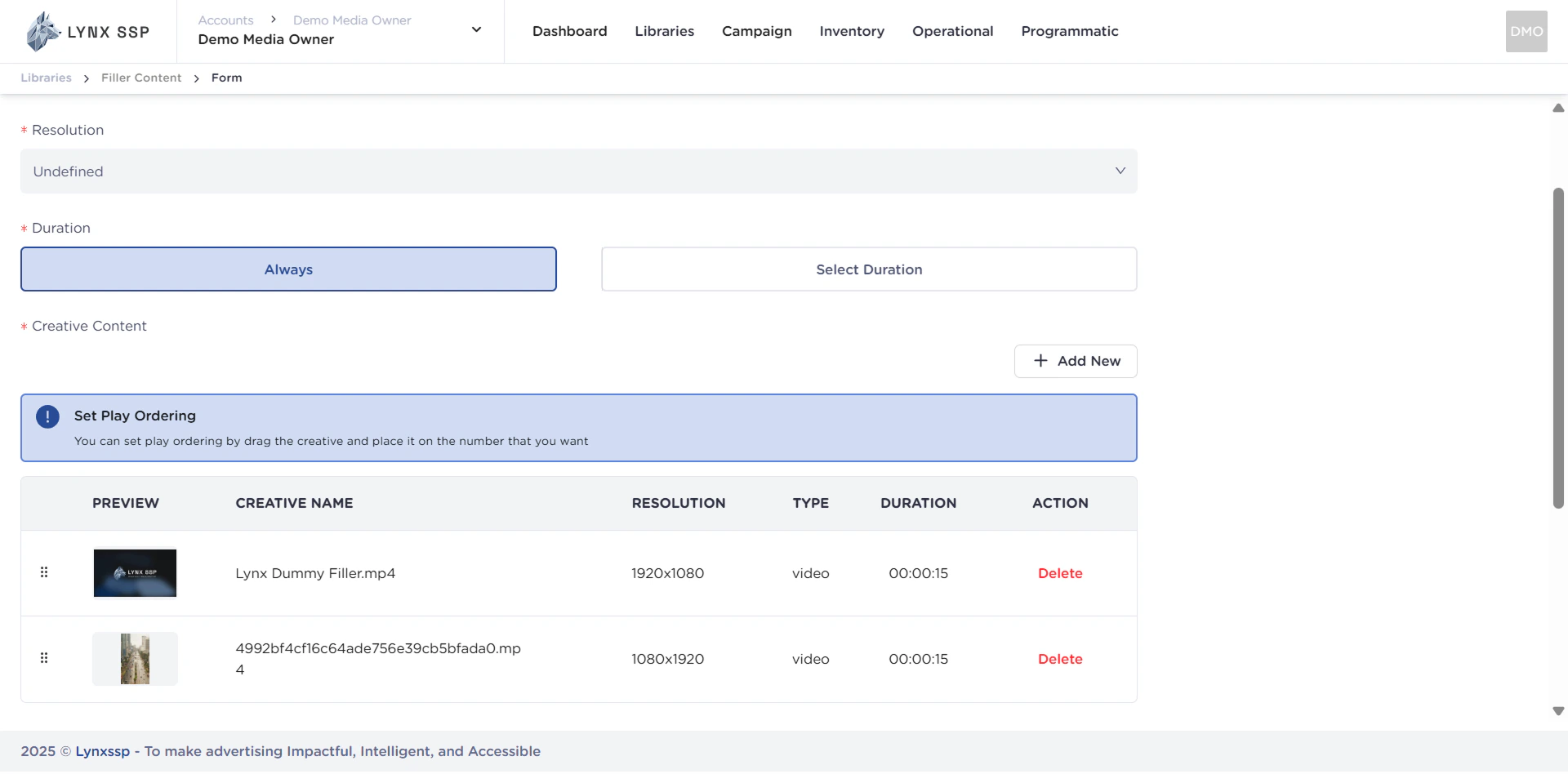
When creating new filler content for the Lynx SSP Platform, you will need to prepare and enter some information or data in the following form: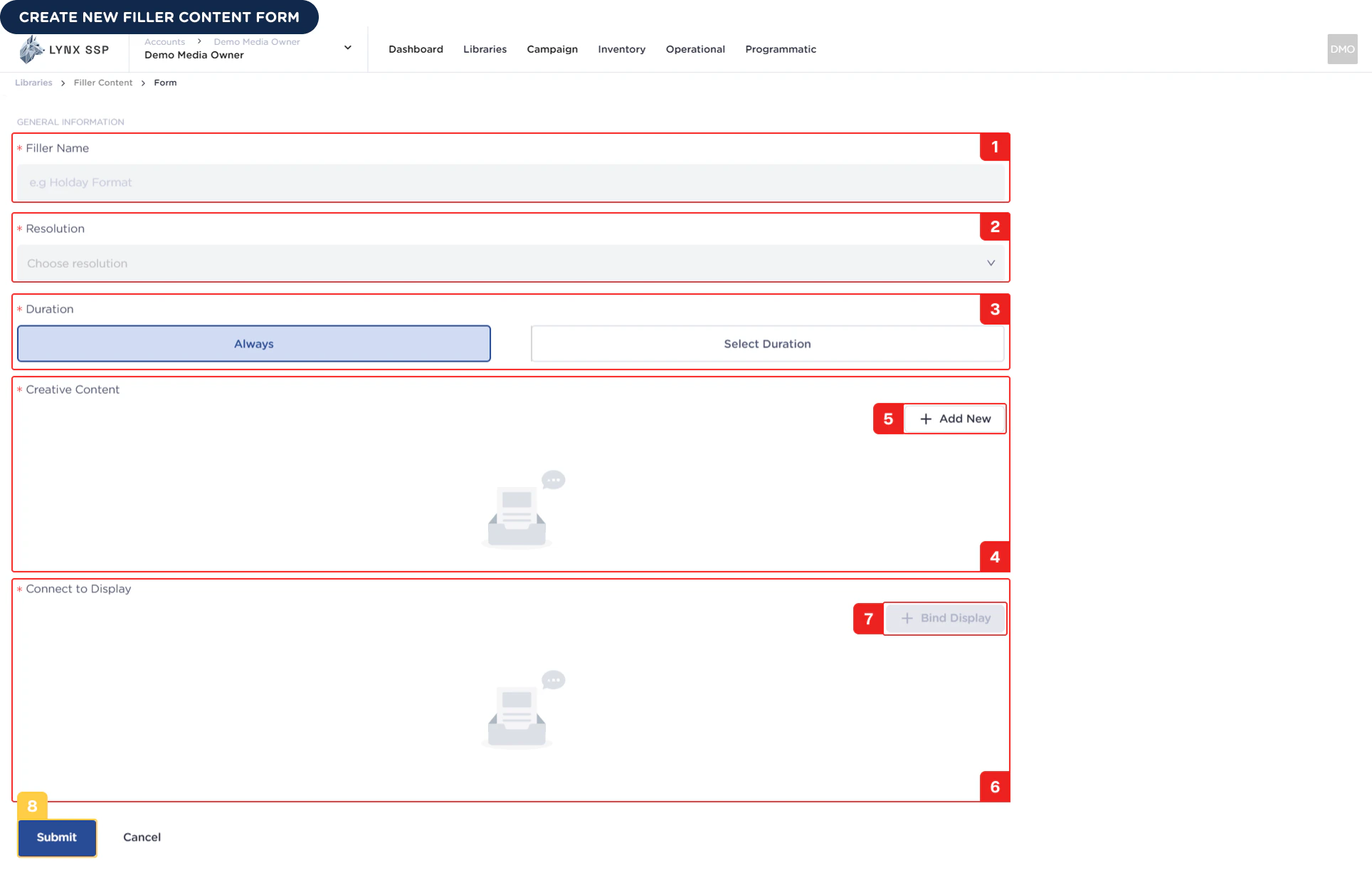
1
Filler Name (Required)
You must enter the Name filler or unique name of the filler content you created.
2
Resolution (Required)
You must enter the resolution of the filler content you have created and ensure that the resolution matches the resolution of the DOOH (Digital-Out-of-Home) Inventory to be inserted.
3
Duration (Required)
You must select the duration of the filler content created. The duration can be Always or Select Duration.
Always
Always
Always states that the filler content created has no expiration date eventually, the filler content will continue to fill the empty slots of DOOH (Digital-Out-of-Home) Inventory indefinitely. By default, it will always be displayed.
Select Duration
Select Duration
If you choose to use duration, filler content will only be displayed to fill empty slots in the DOOH (Digital-Out-of-Home) Inventory according to the specified duration.
4
List Creative Content (Required)
Display a list of creative content to be added.
5
Add Creative Content Button (Required)
You can add creative elements to your filler content.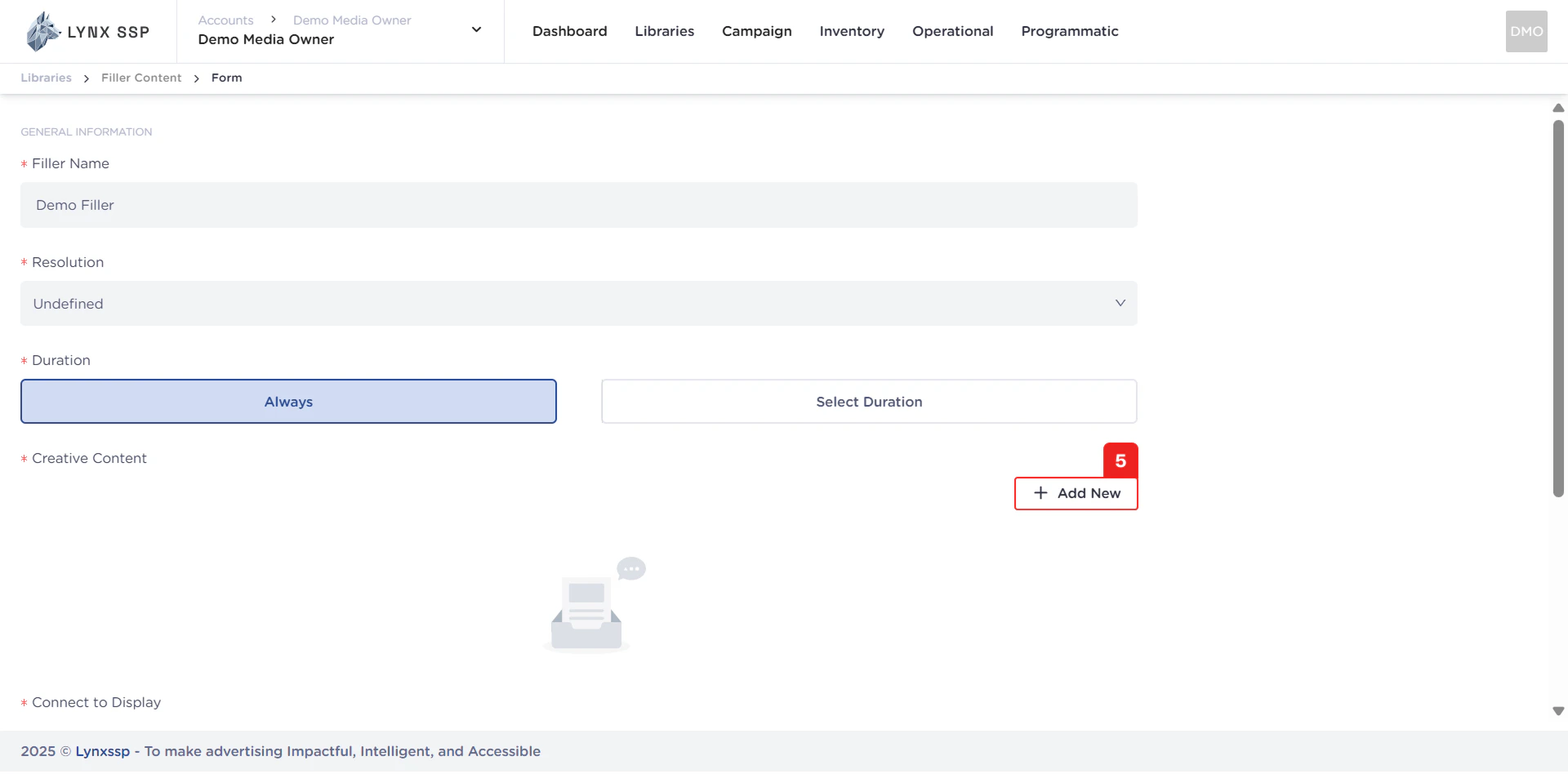
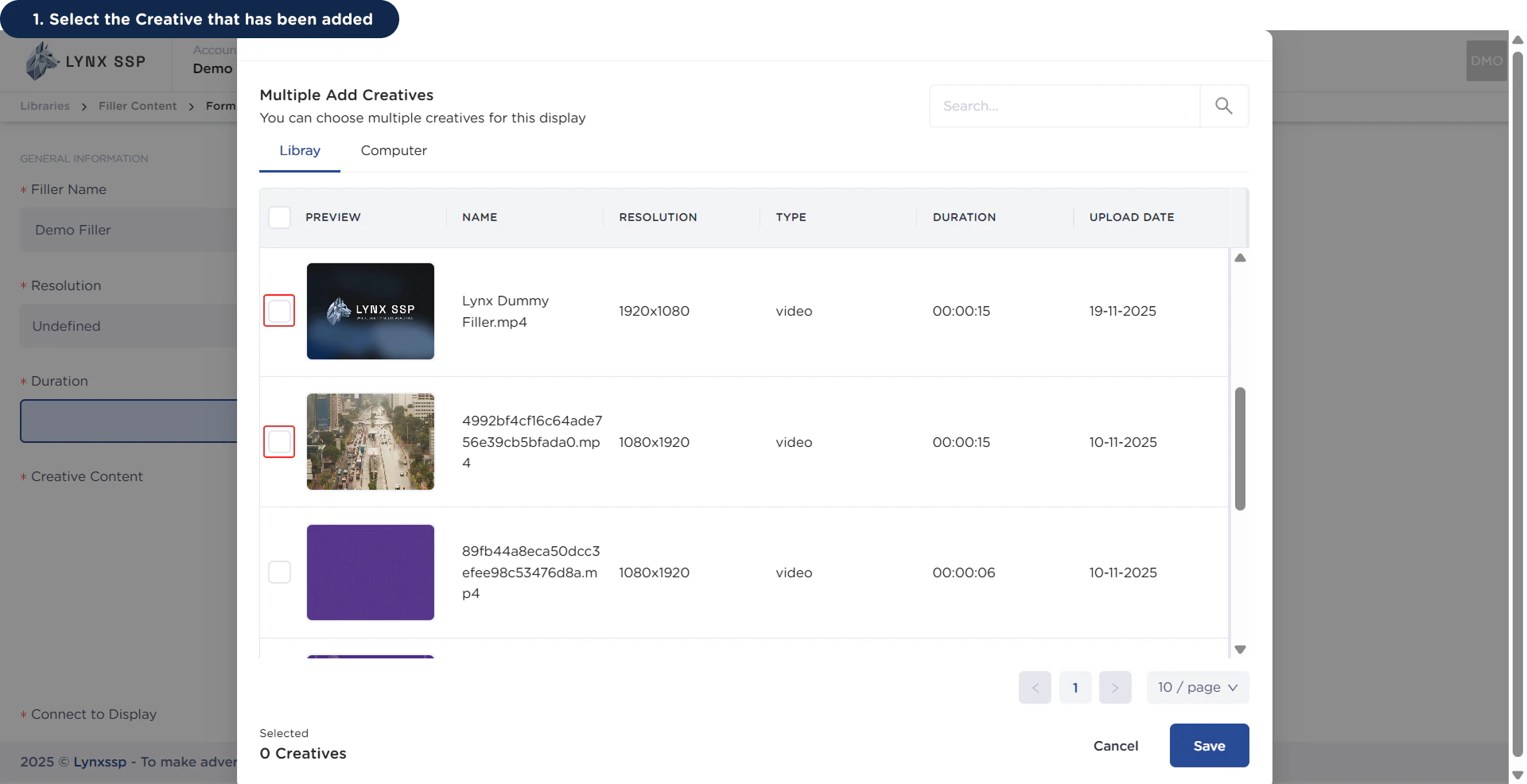
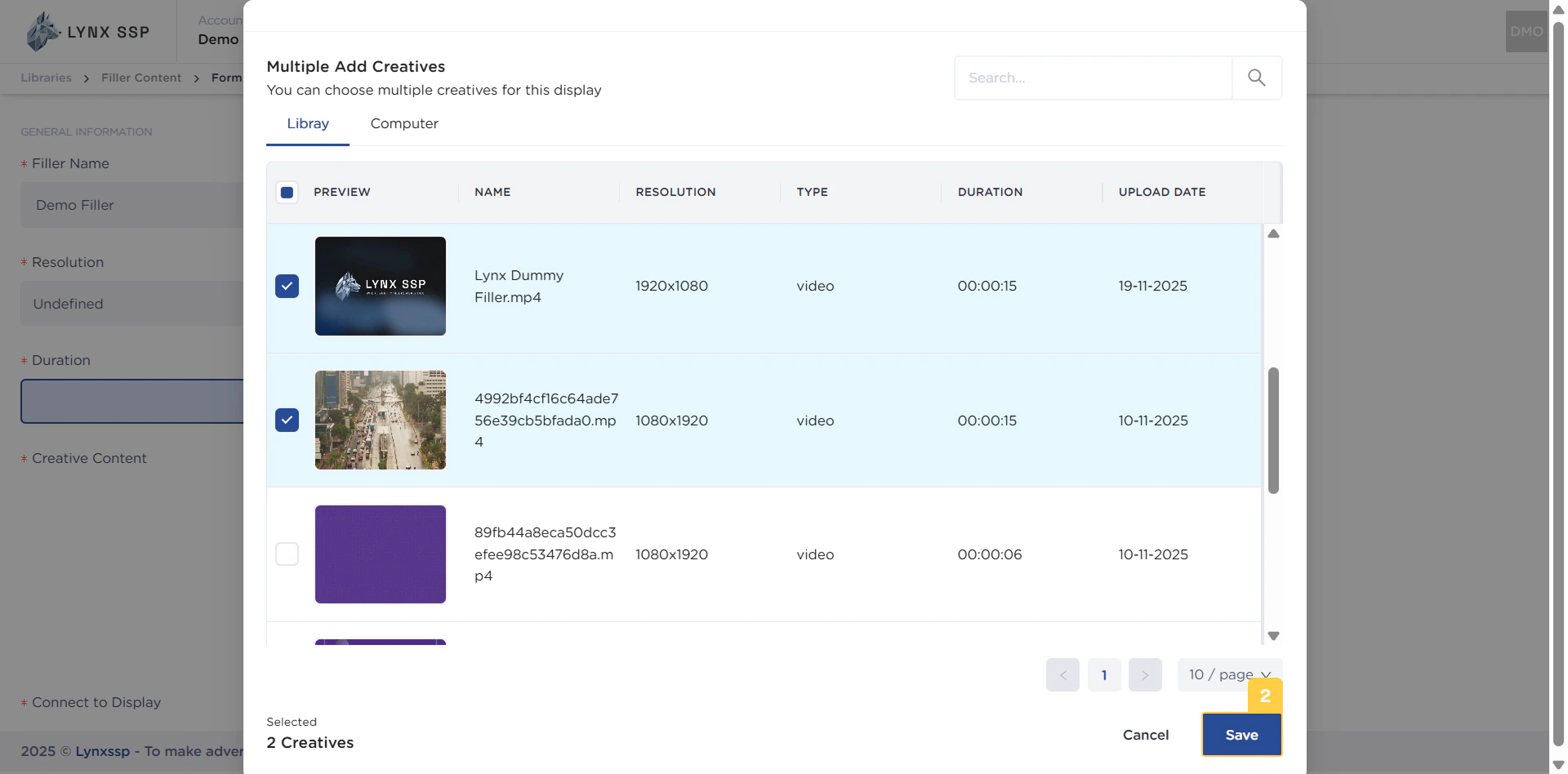
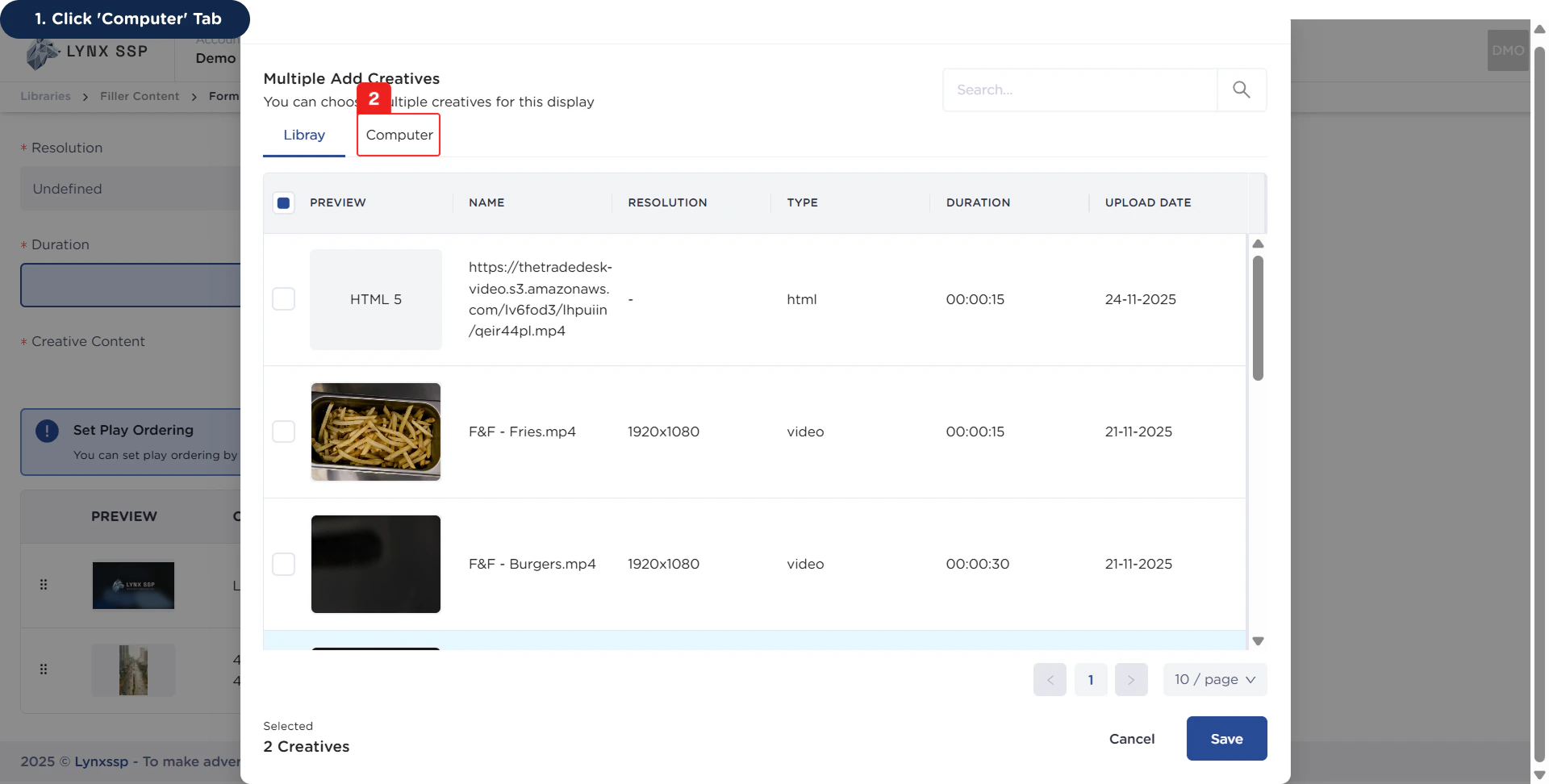
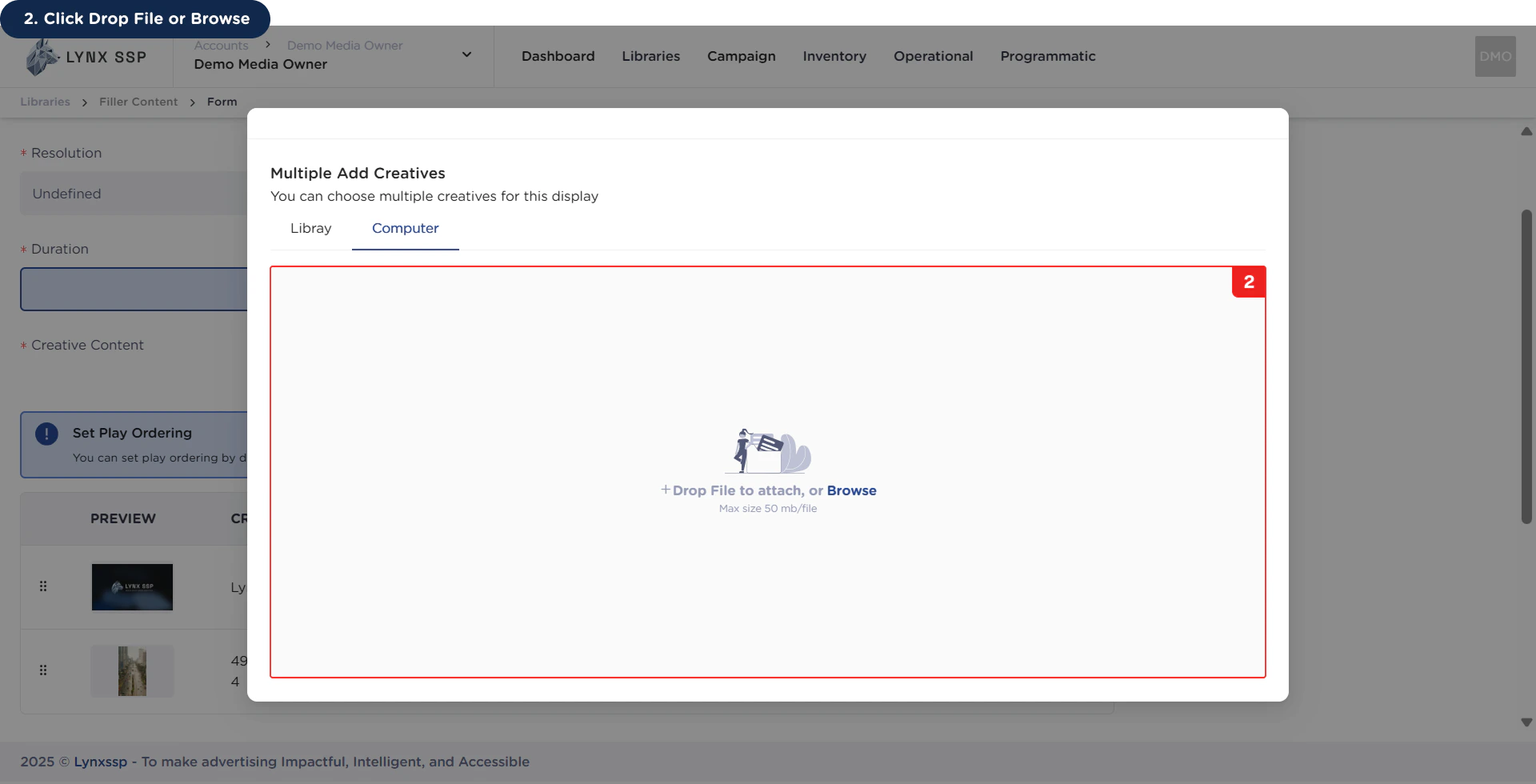
via Library
via Library
1
Select the Creative that has been added
2
Click the 'Save' Button
via Computer
via Computer
1
Click 'Computer' Tab
2
Click Drop File or Browse
Ensure that the file size of the creative content to be uploaded does not exceed 50MB.
6
List Connect to Display
Display a list of (Digital-Out-of-Home) Inventory that will be linked to filler content.
7
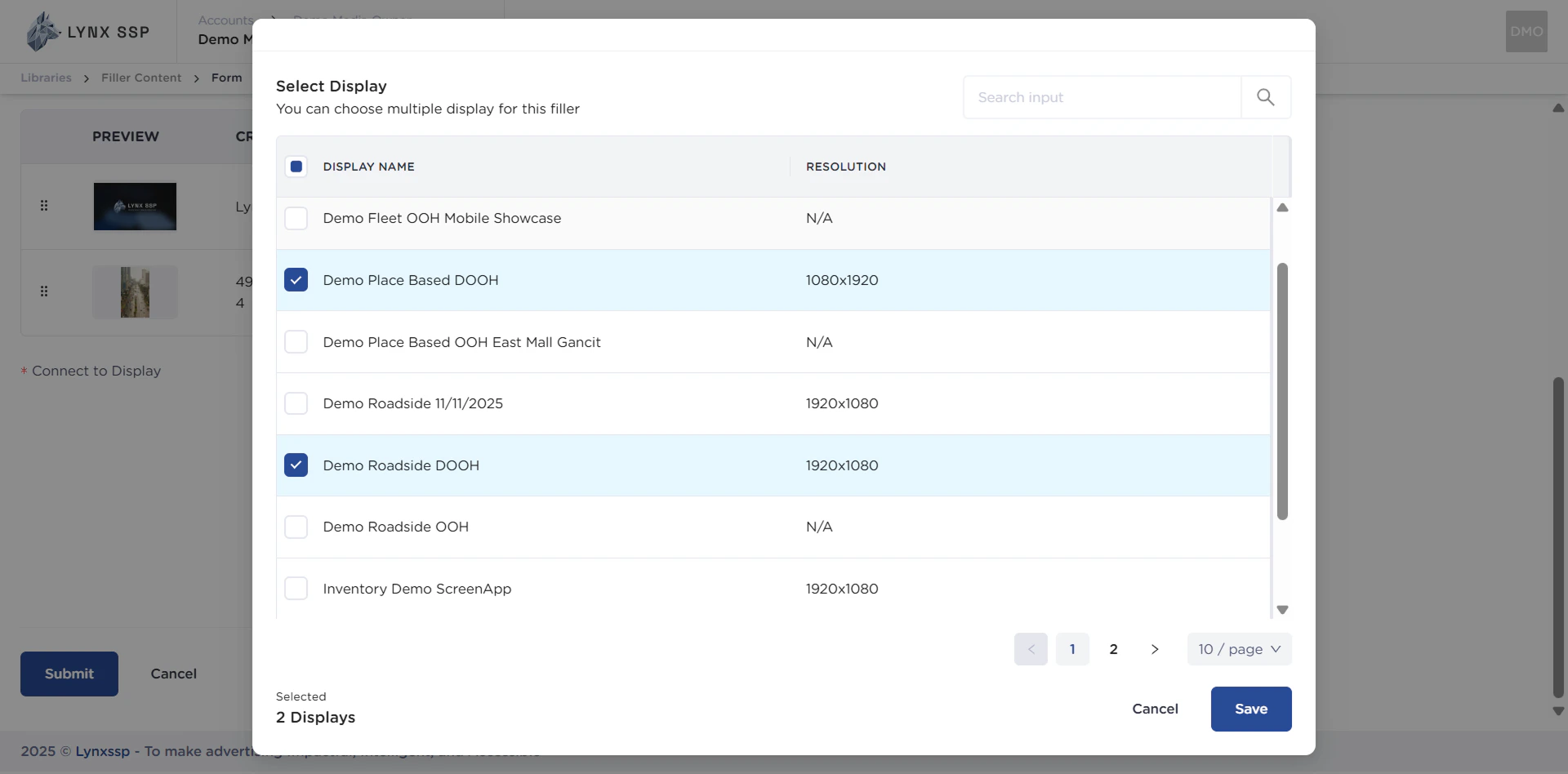
Connect to Display (Required)
You can connect the filler content you create to DOOH (Digital-Out-of-Home) Inventory.Example: You entered the DOOH (Digital-Out-of-Home) Inventory that I added earlier (See Create a DOOH Inventory ↗).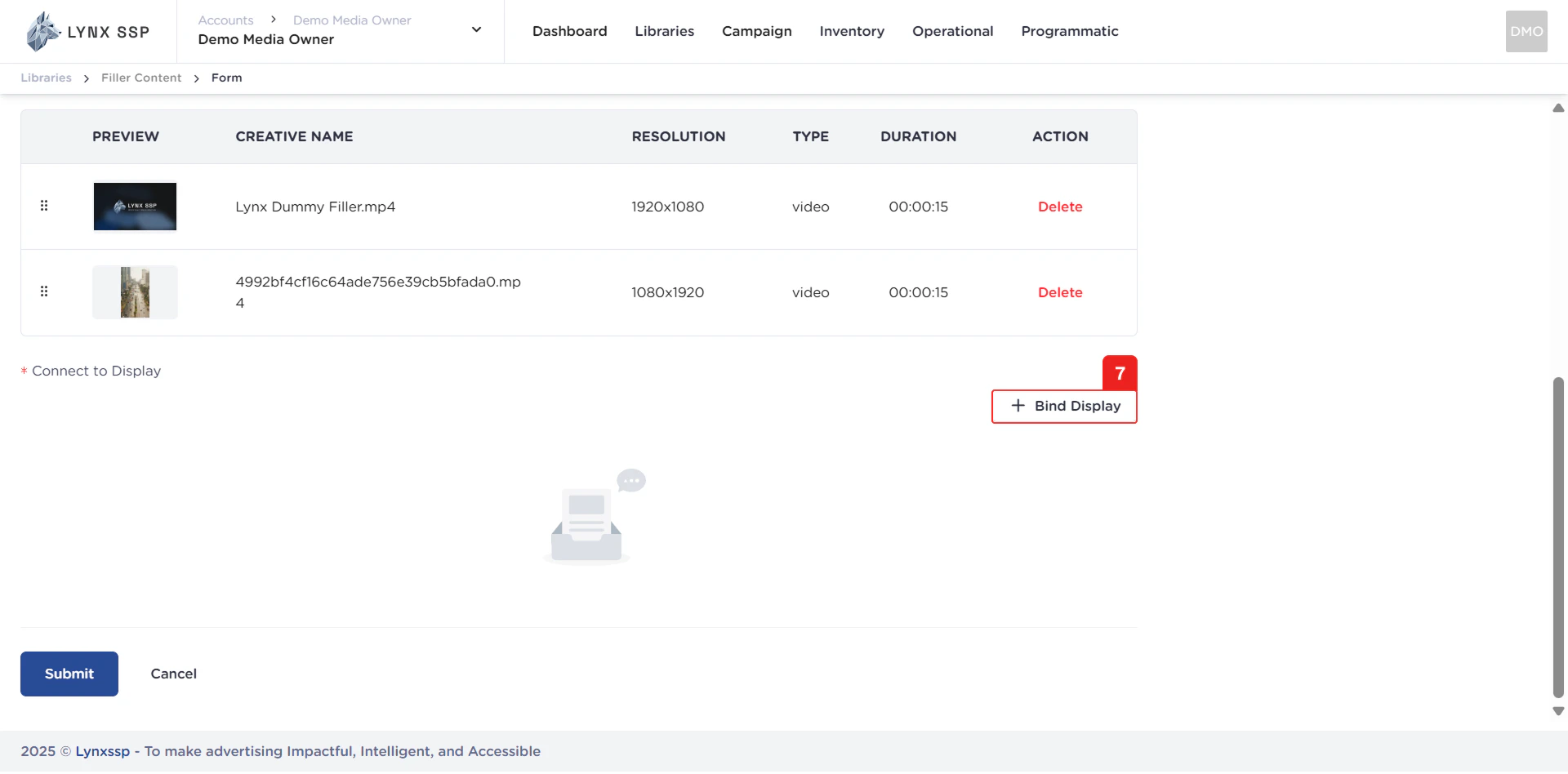
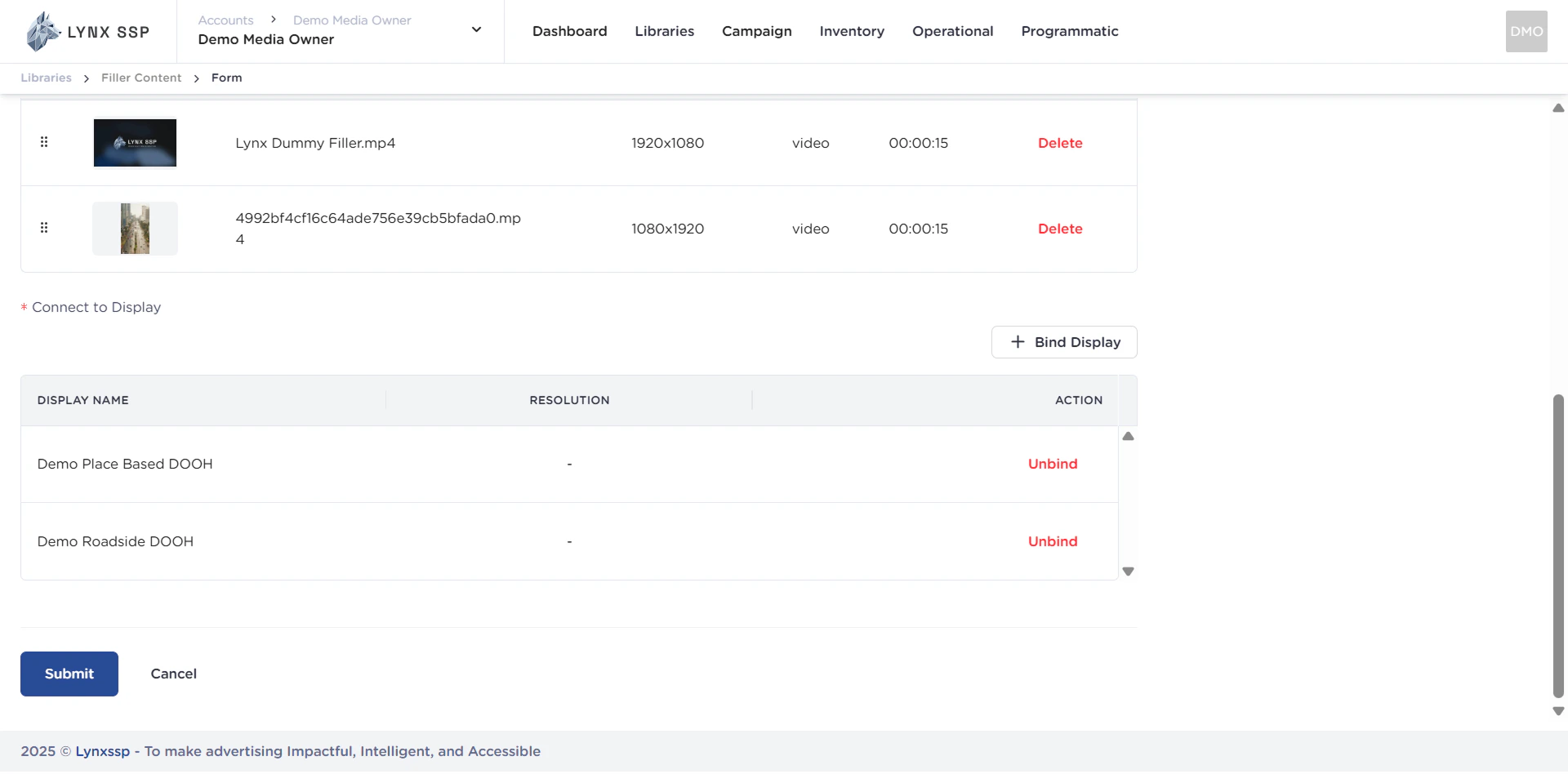
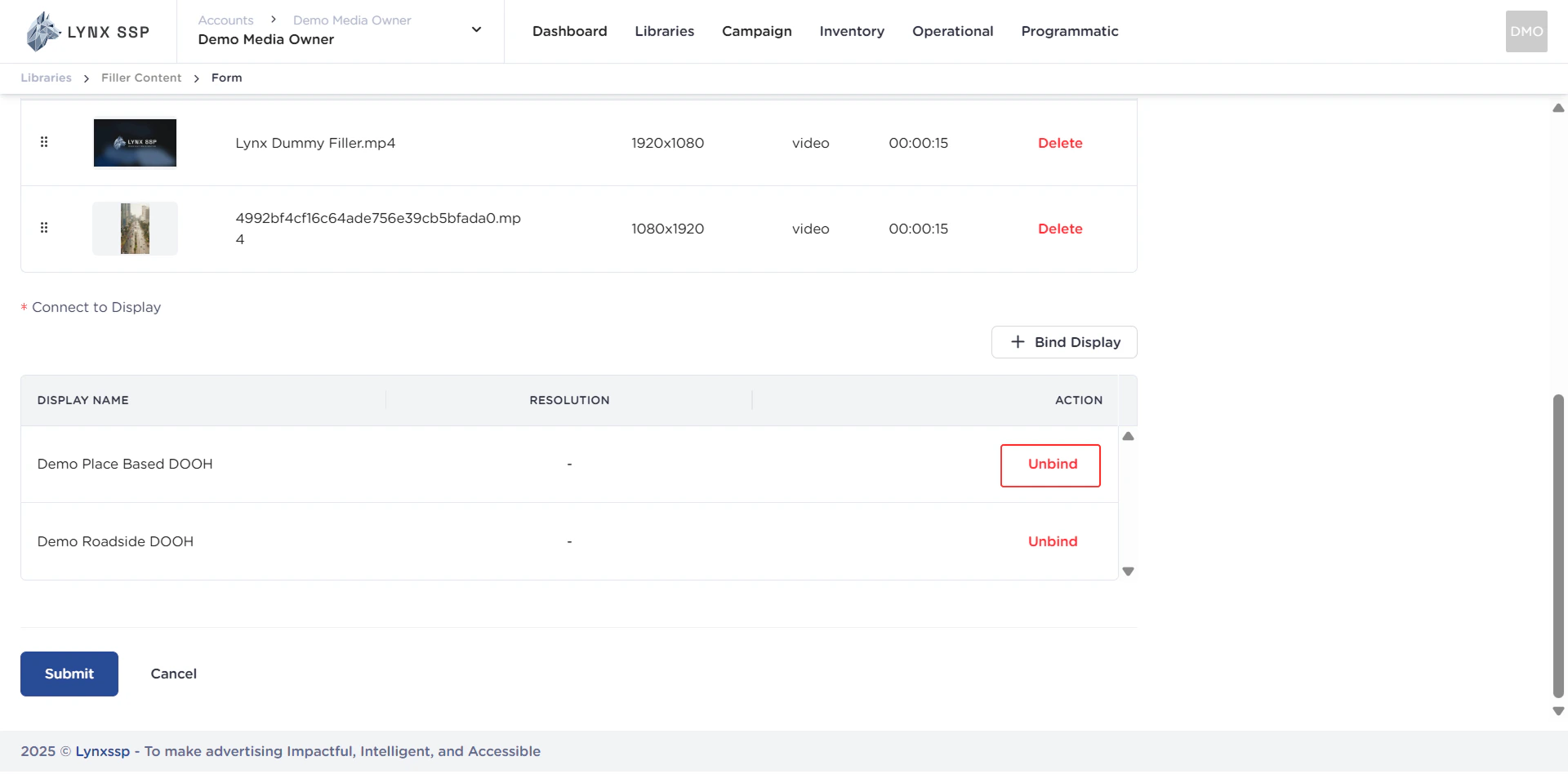
Unbind DOOH (Digital-Out-of-Home) Inventory
Unbind DOOH (Digital-Out-of-Home) Inventory
8
Click the “Submit” Button
After filling in all the information and adding filler content, click the “Submit” button.