Accessing Filler Content
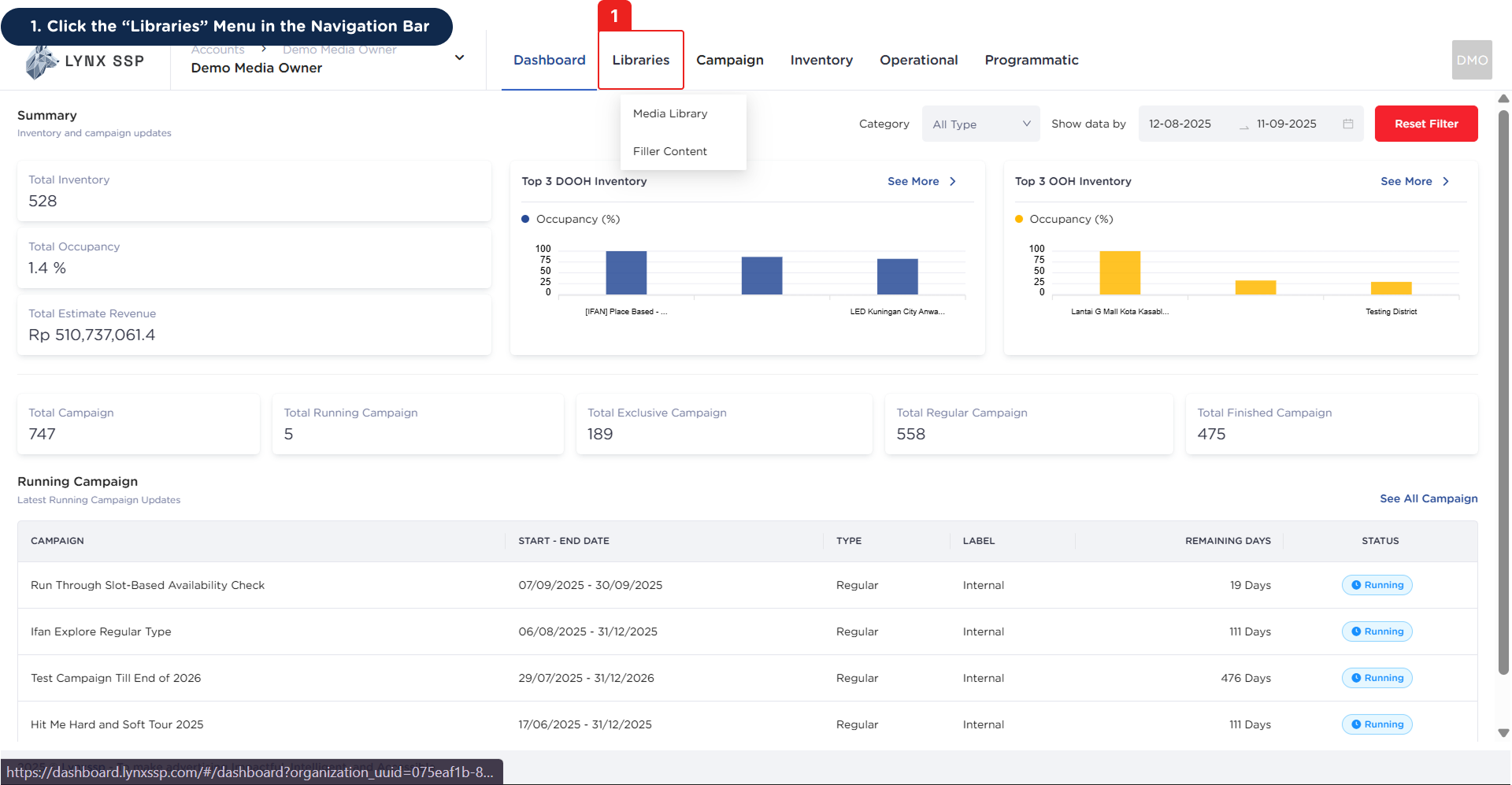
1
Click the 'Libraries' Menu in the Navigation Bar
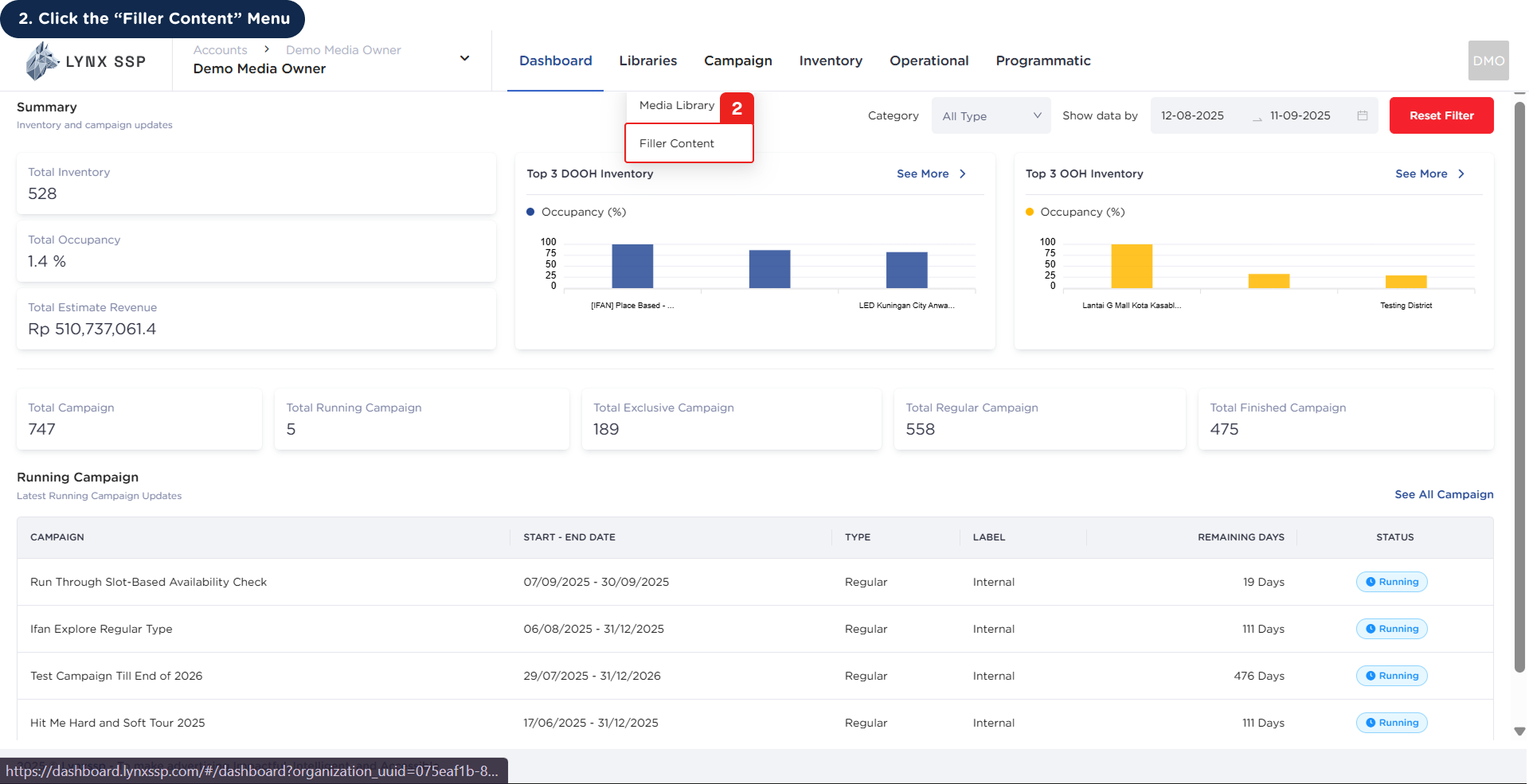
2
Click the 'Filler Content' Menu
 Then it will display the Filler Content Page showing the filler list.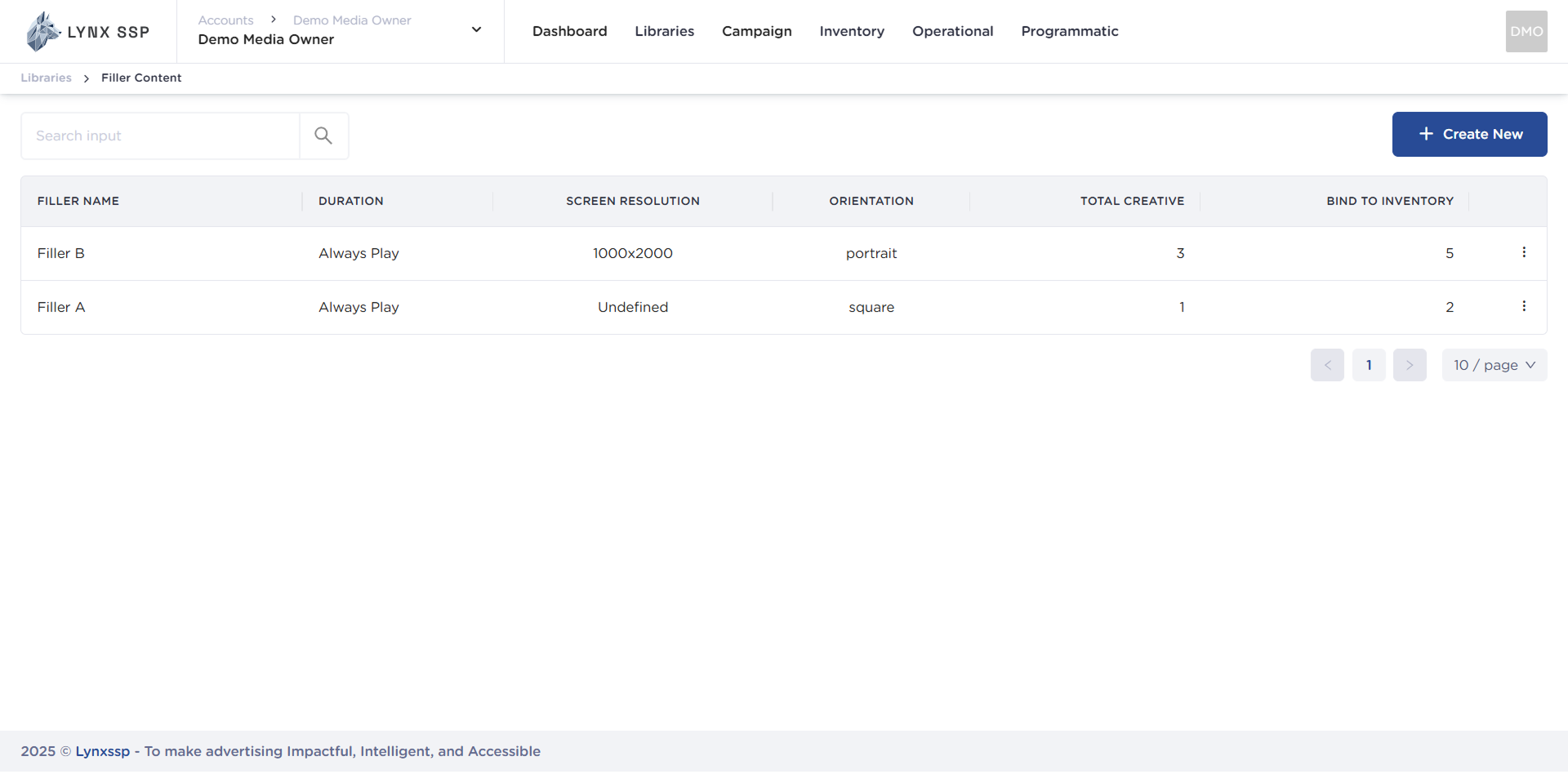
Filler Content Overview
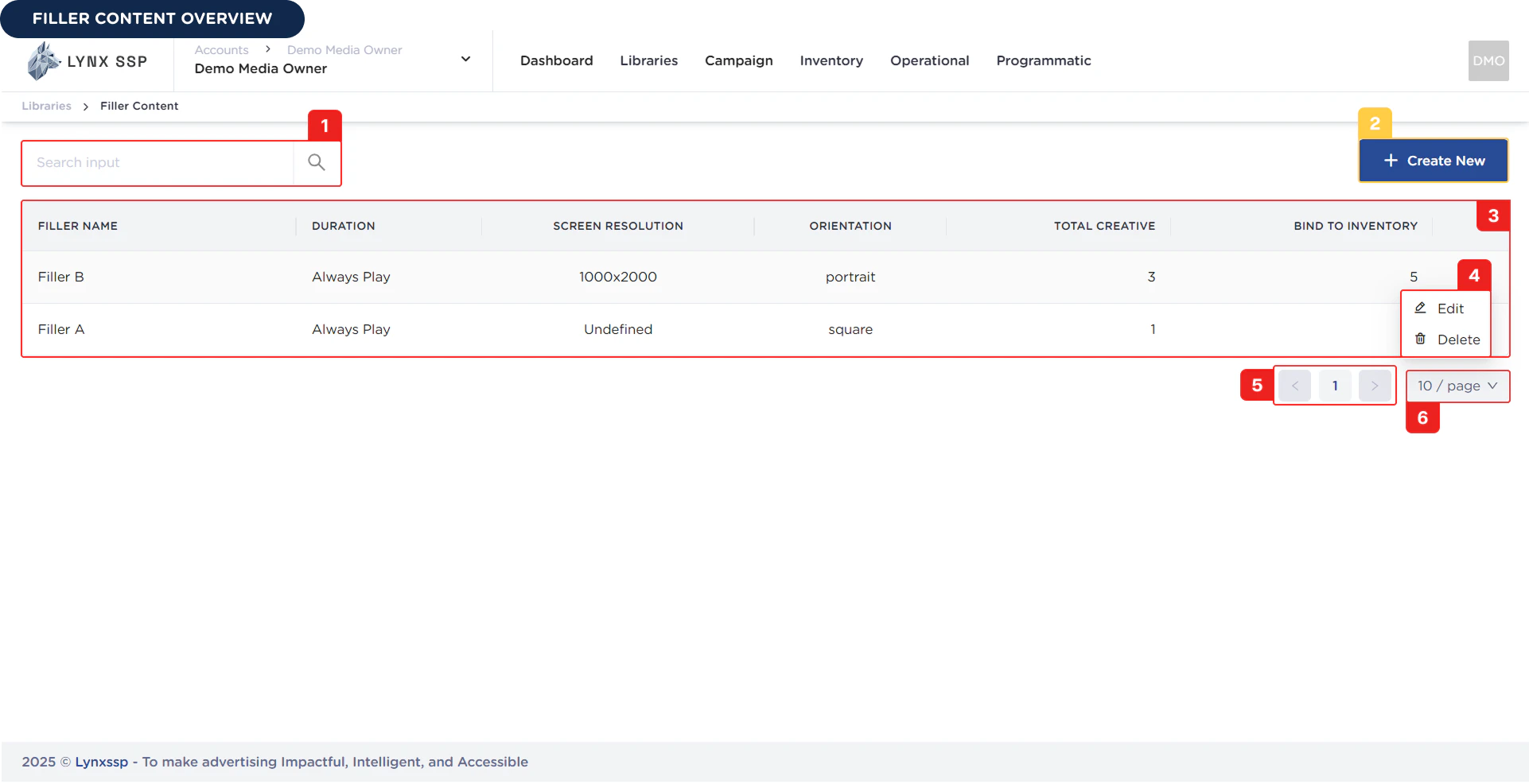
Search Filler
You can search for filler content by typing keywords based on the Filler Name.Create New Filler Button
You can click the Create New button to add new filler content (see Create a Filler Content ↗).List Filler Content
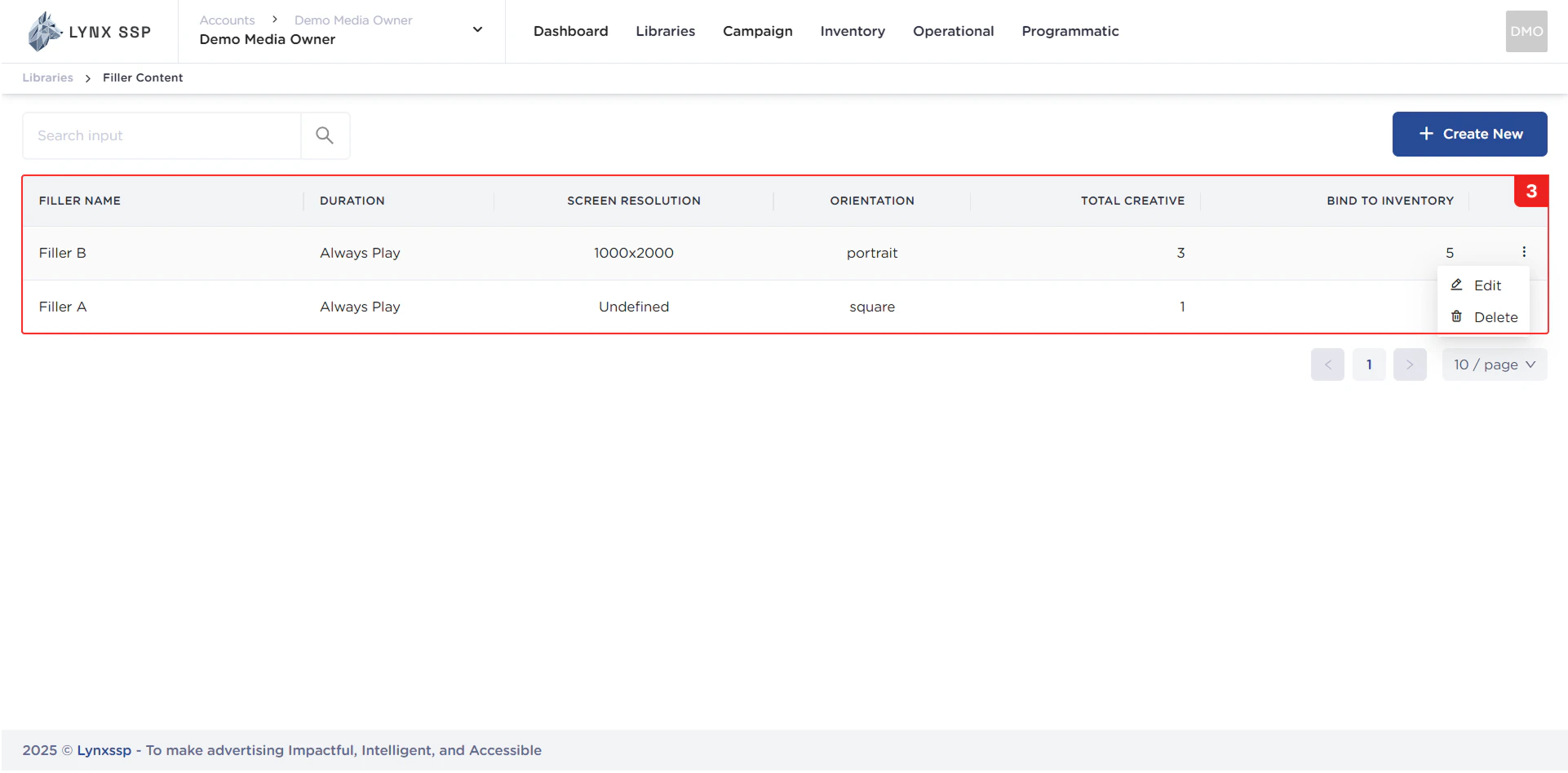
In this section, you can see all the filler content lists that you have and have successfully entered into the Lynx SSP portal. The properties that can be seen in this table are as follows:- Filler Name
- Duration
- Screen Resolution
- Orientation
- Total Creative
- Bind to Inventory
Action Button
Using the action button, you can navigate to the Edit Page (see Edit Filler Content ↗) or delete the filler content (see Delete Filler Content ↗) that has been created.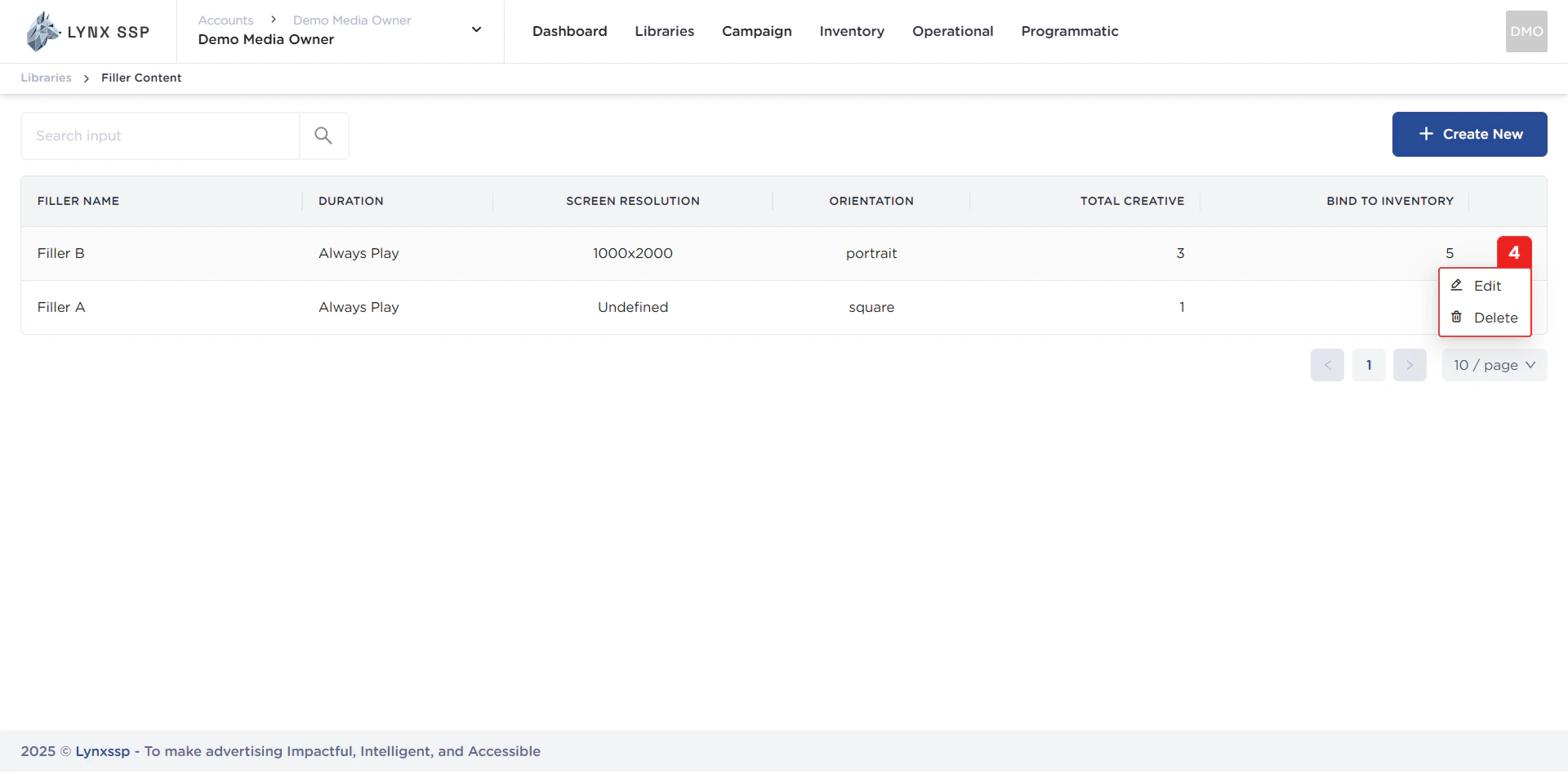
Pagination
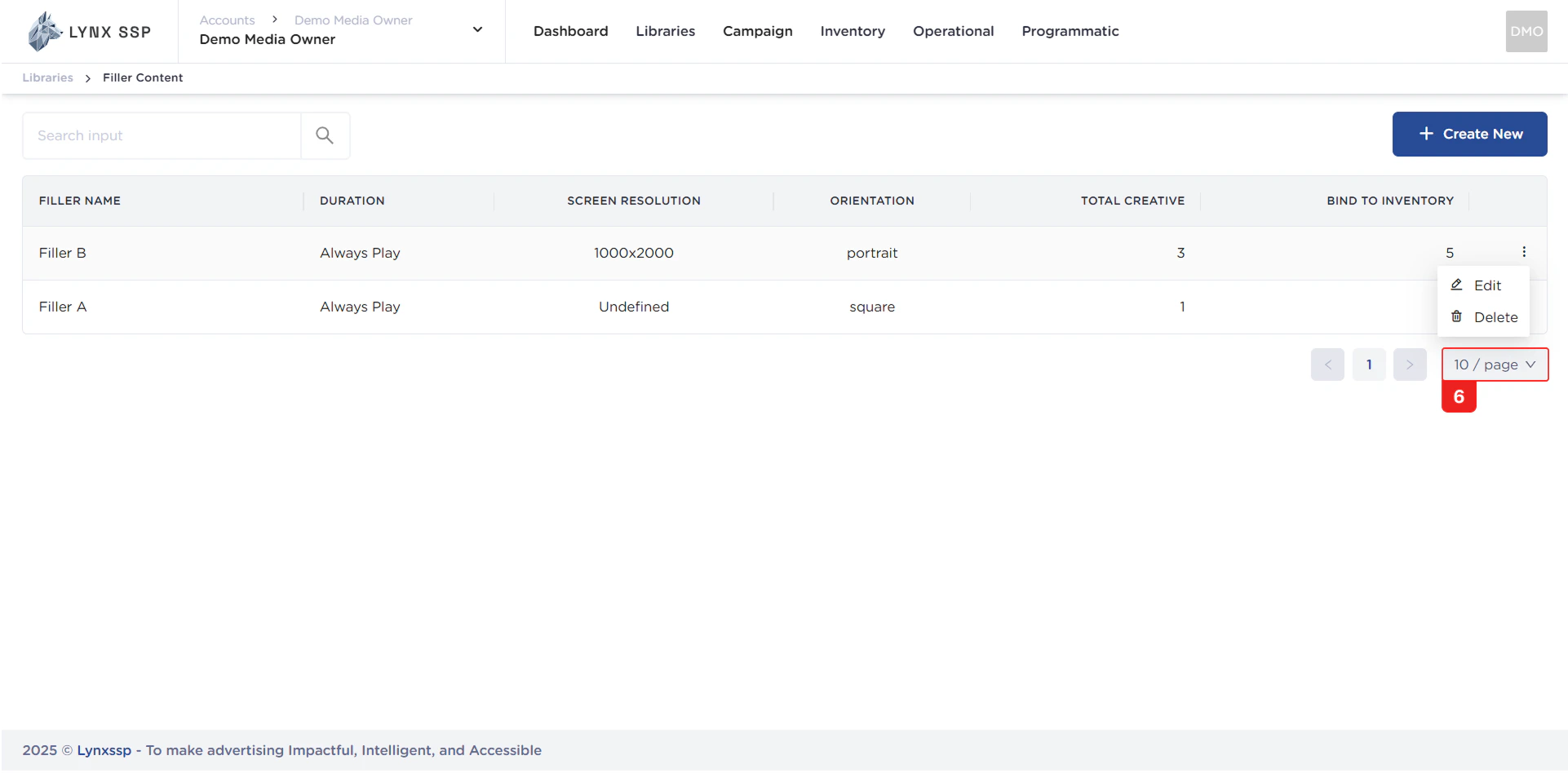
The sequential numbers in the image below are navigation points you can use to go to the next List Filler Content page.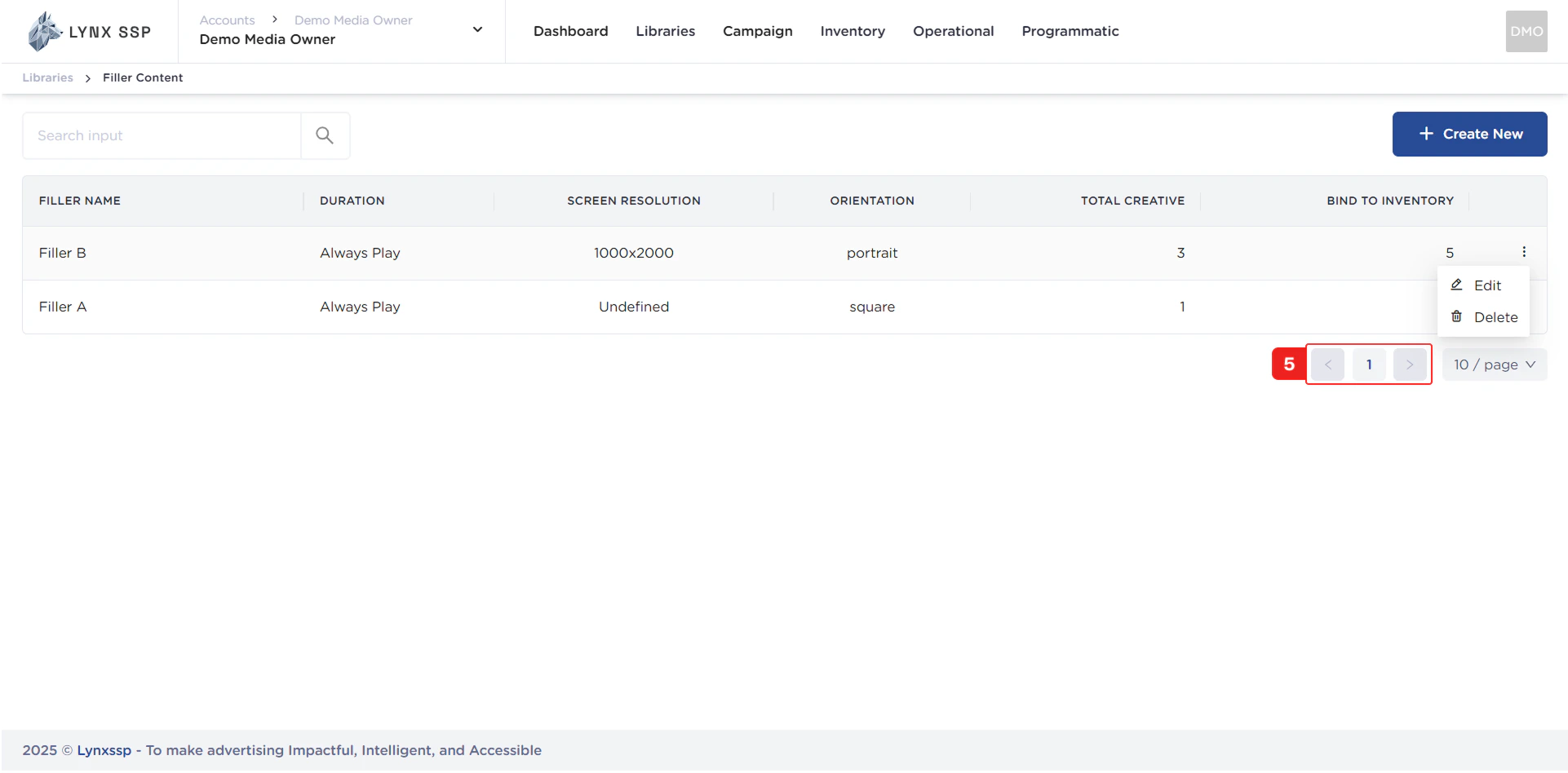
Page List
You can change the List Filler Content that is displayed. By default, there are 10 items, and you can change this to 50 or 100.