This page helps you change your account password.

Accessing the Change Password Page

1

Click “Avatar” on the Navigation Bar
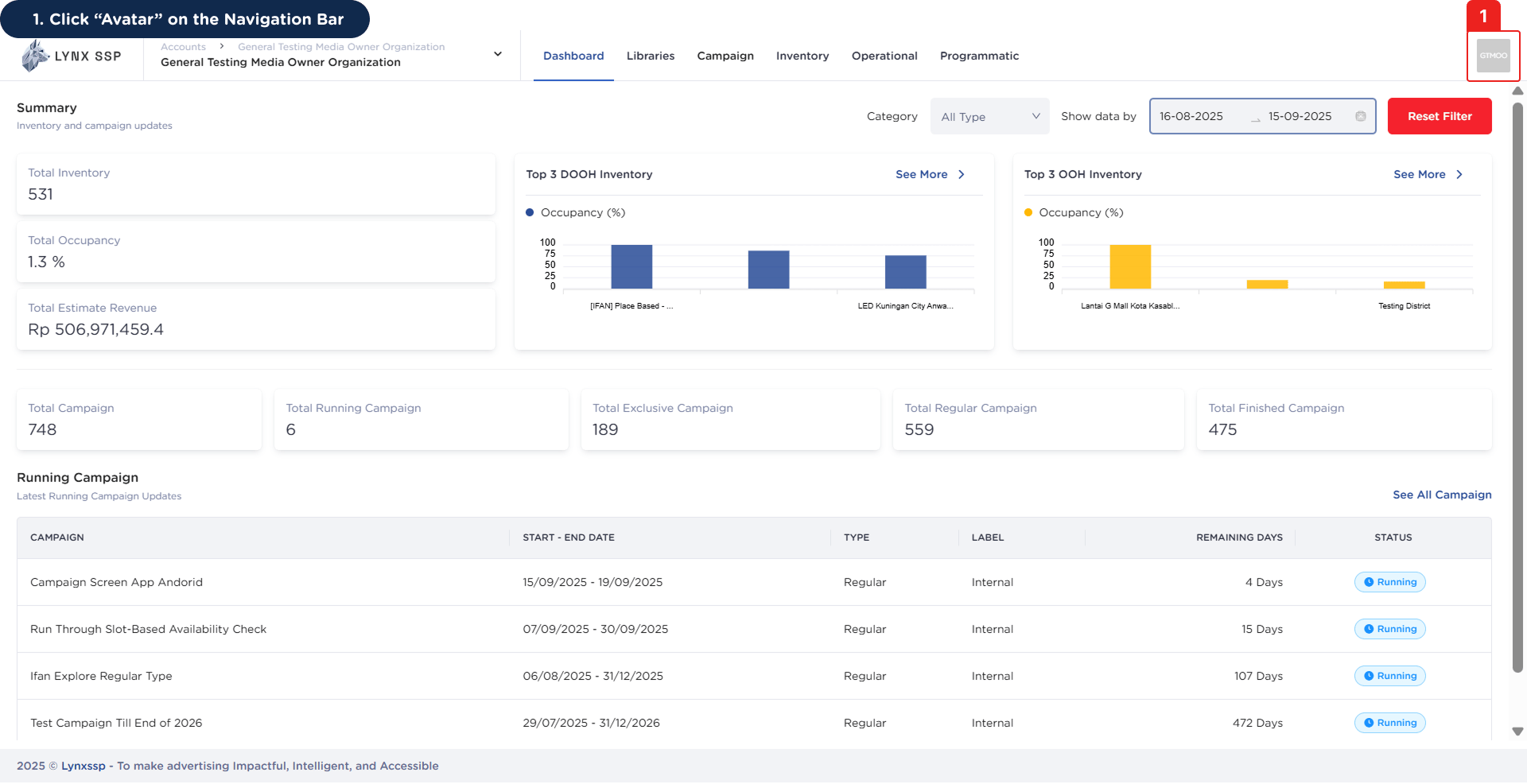
Accessing the Change Password Page 1
2

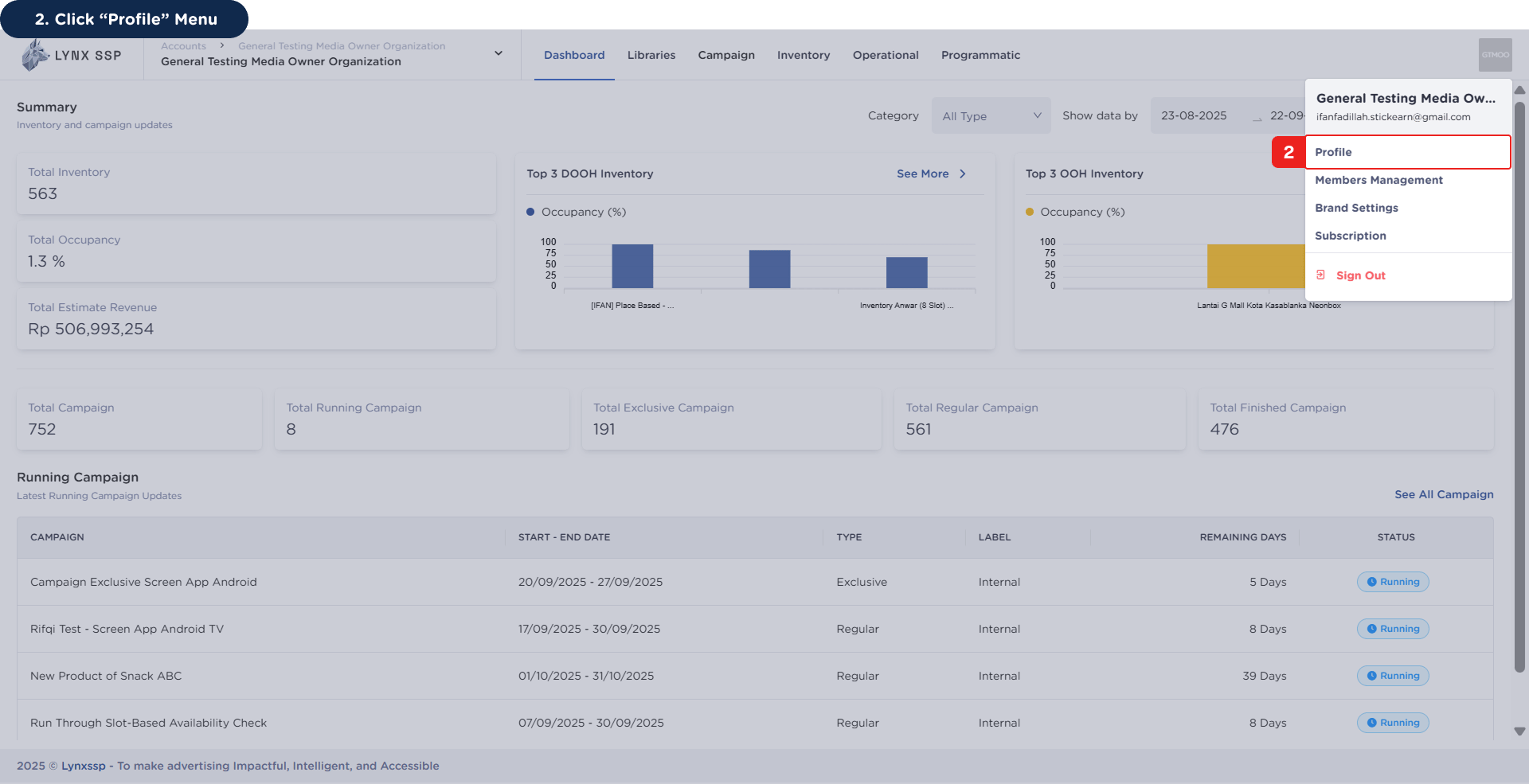
Click “Profile” Menu

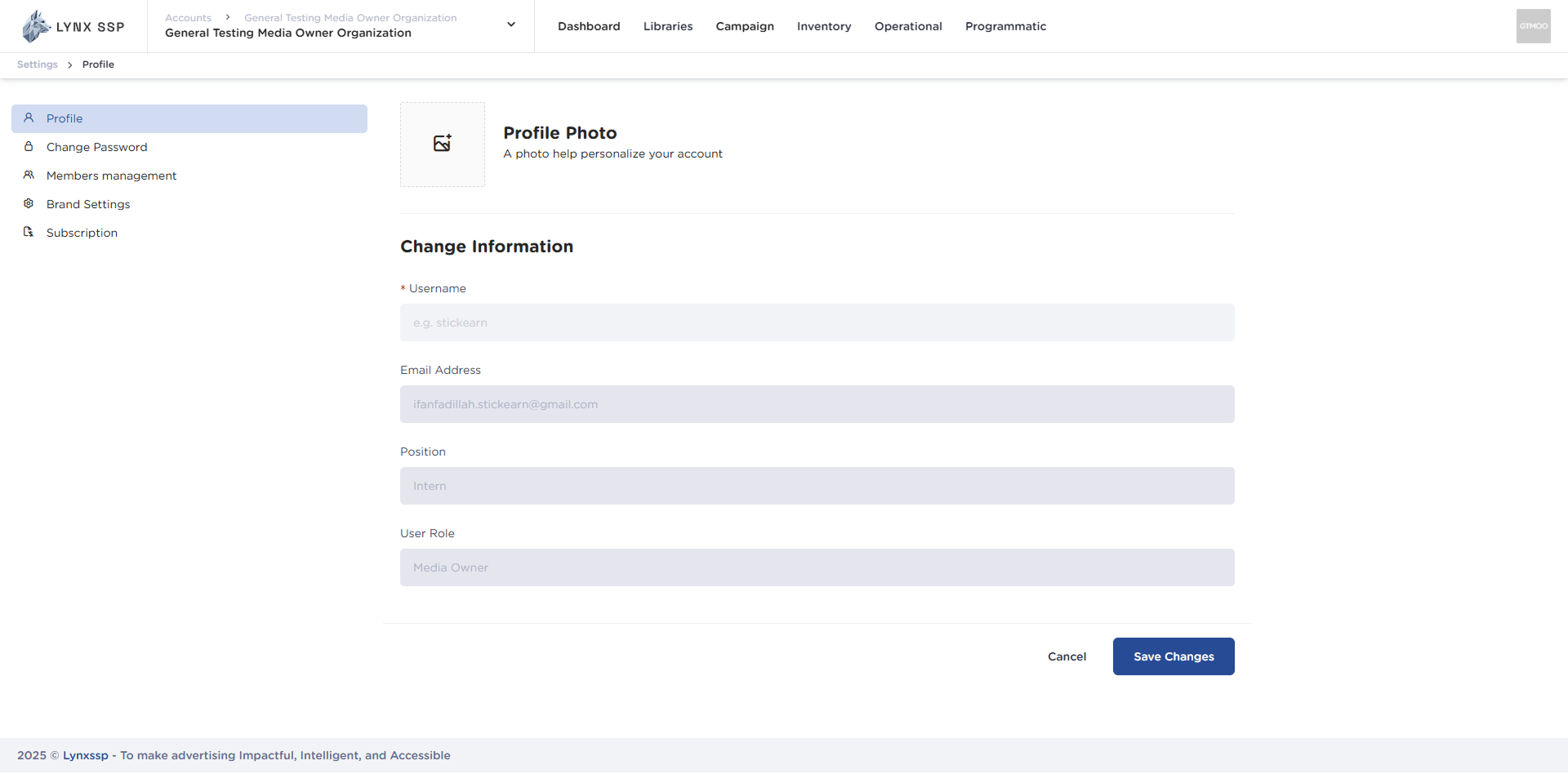
Accessing the Change Password Page 2This will display the Profile Page.Accessing the Change Password Page 2.2
3

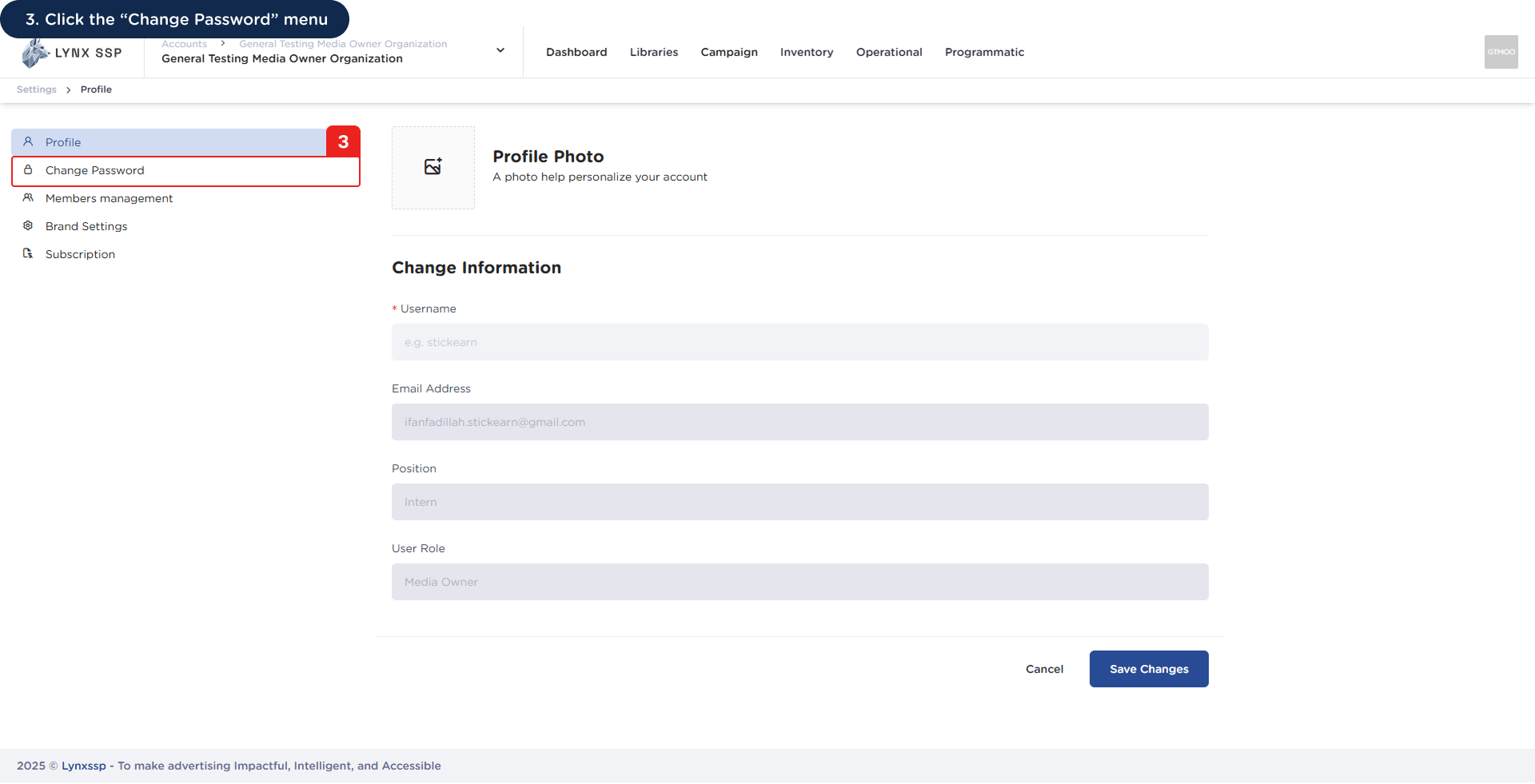
Click the “Change Password” menu

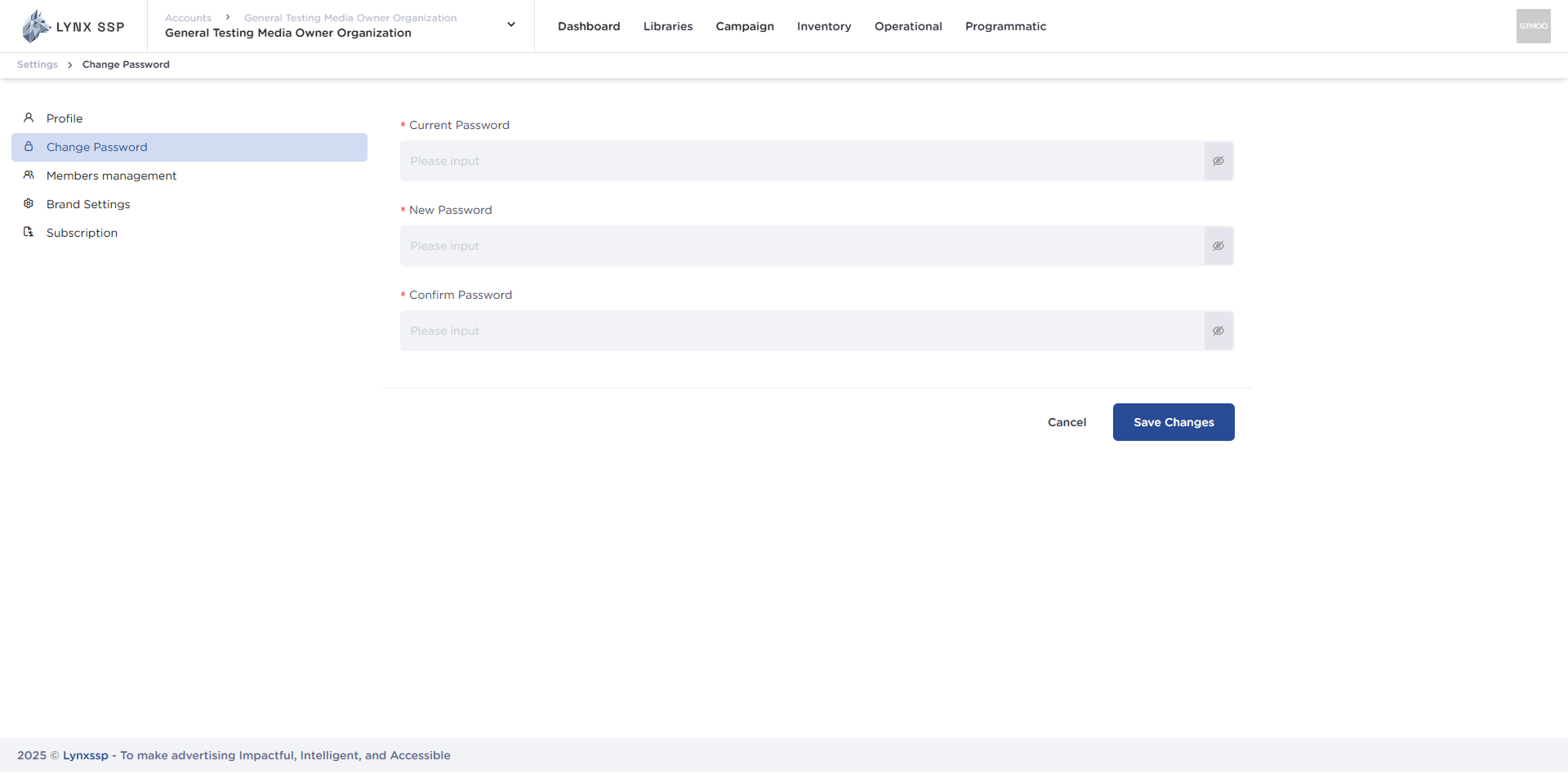
Accessing the Change Password Page 3This will display the page for changing your password.Accessing the Change Password Page 3.2

How to Change Your Password

You can change your account password by following these steps:
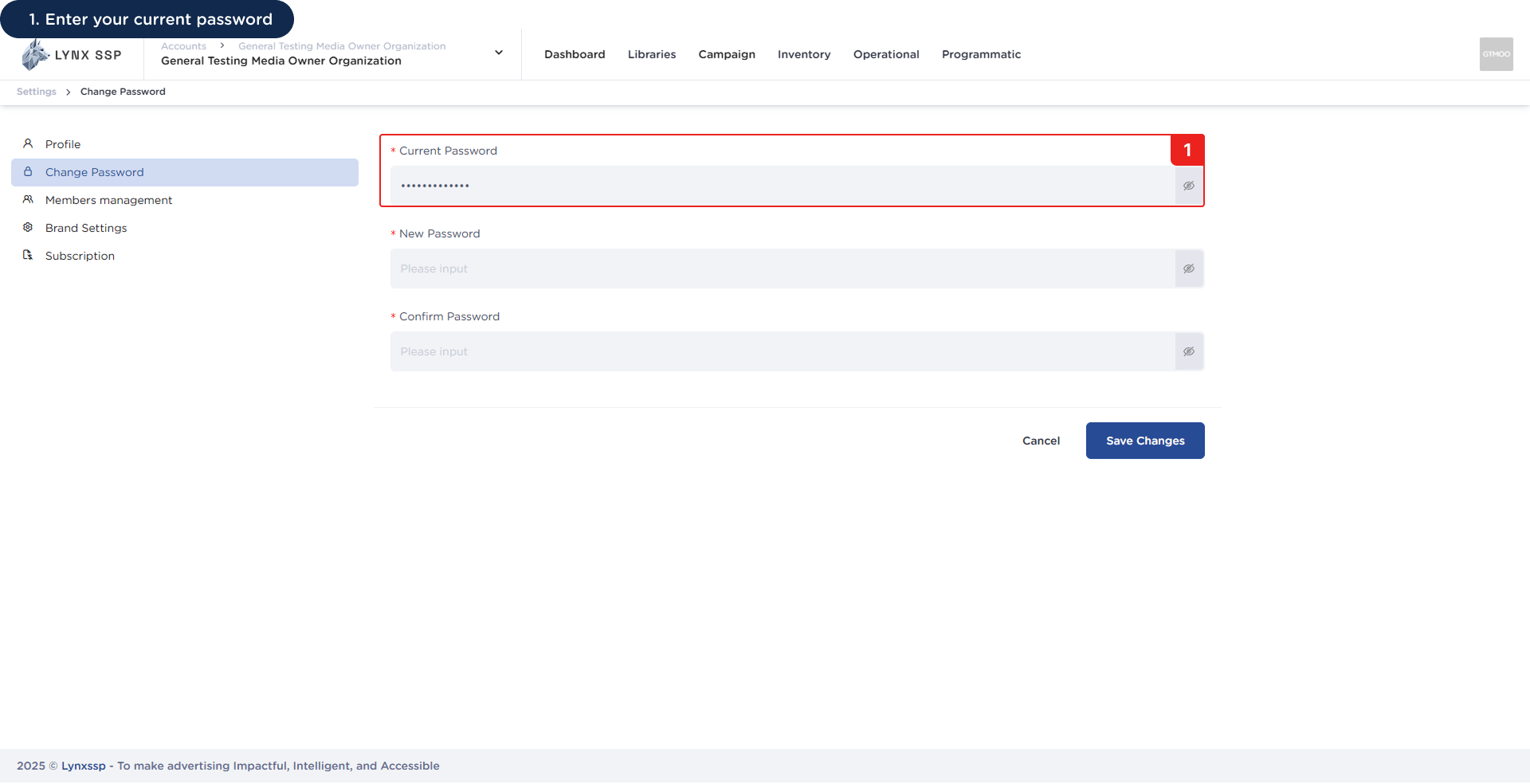
1

Enter Your Current Password

How to Change Your Password 1
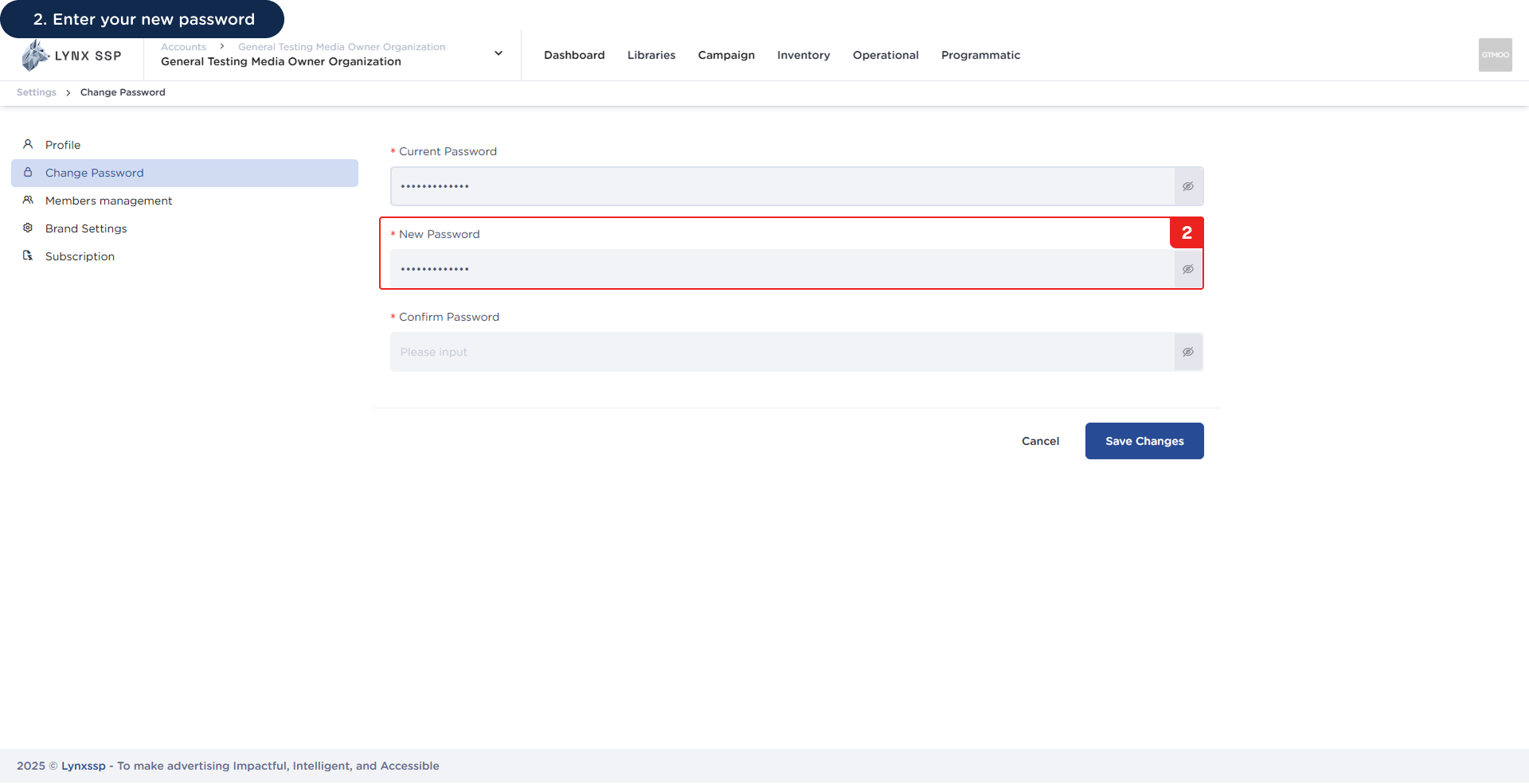
2

Enter Your New Password

How to Change Your Password 2
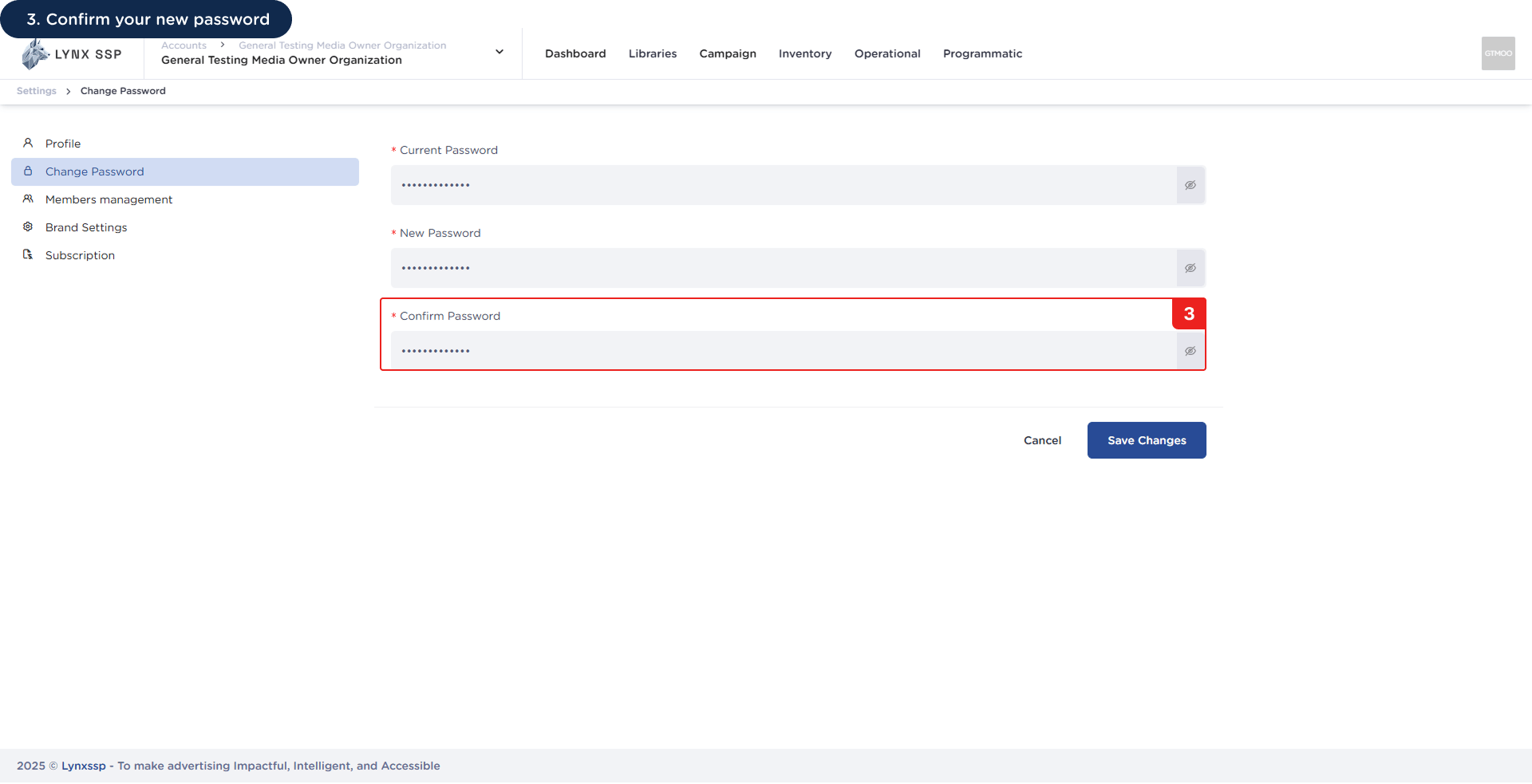
3

Confirm Your New Password

How to Change Your Password 3
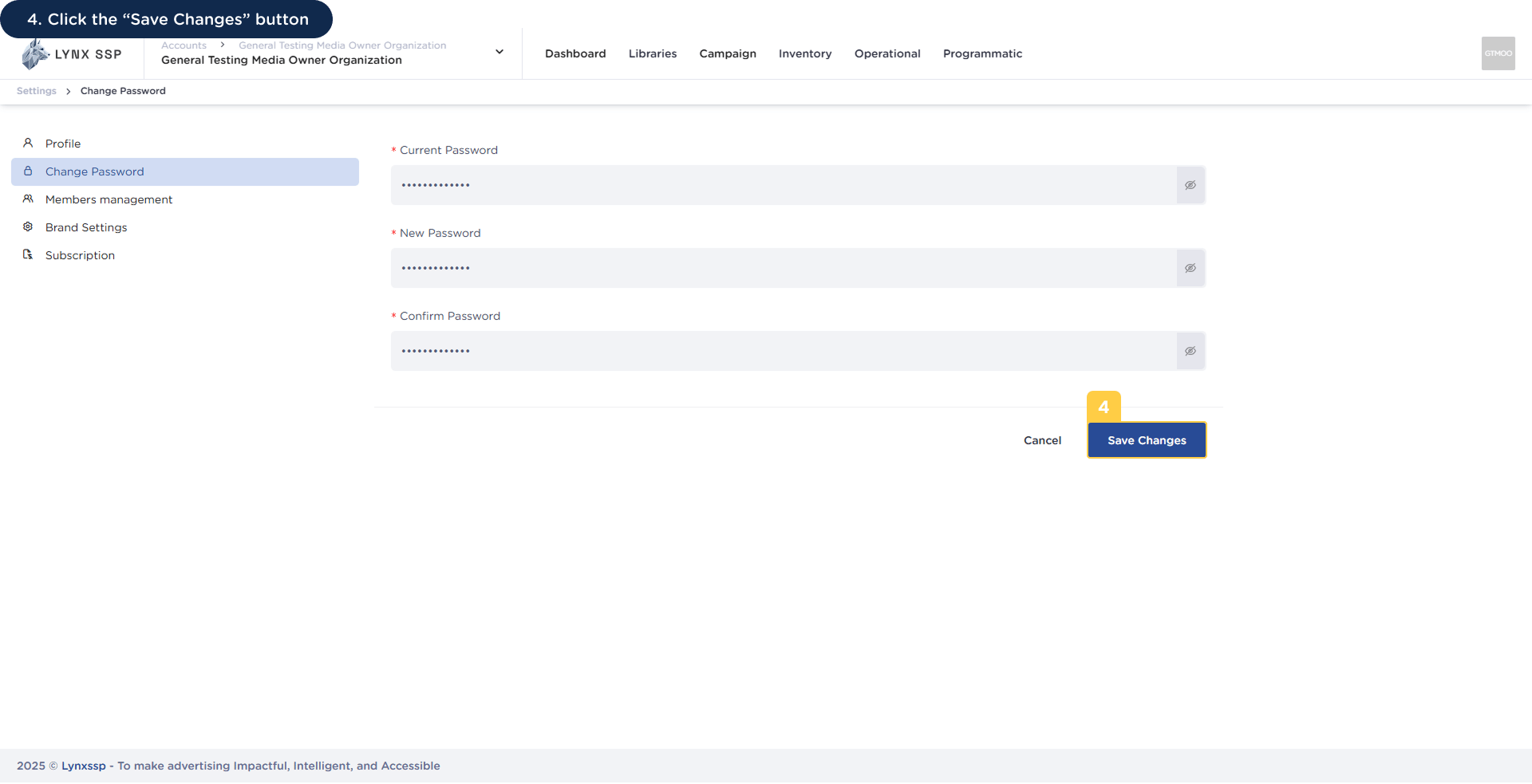
4

Click the “Save Changes” Button

How to Change Your Password 4