Accessing the Media Library
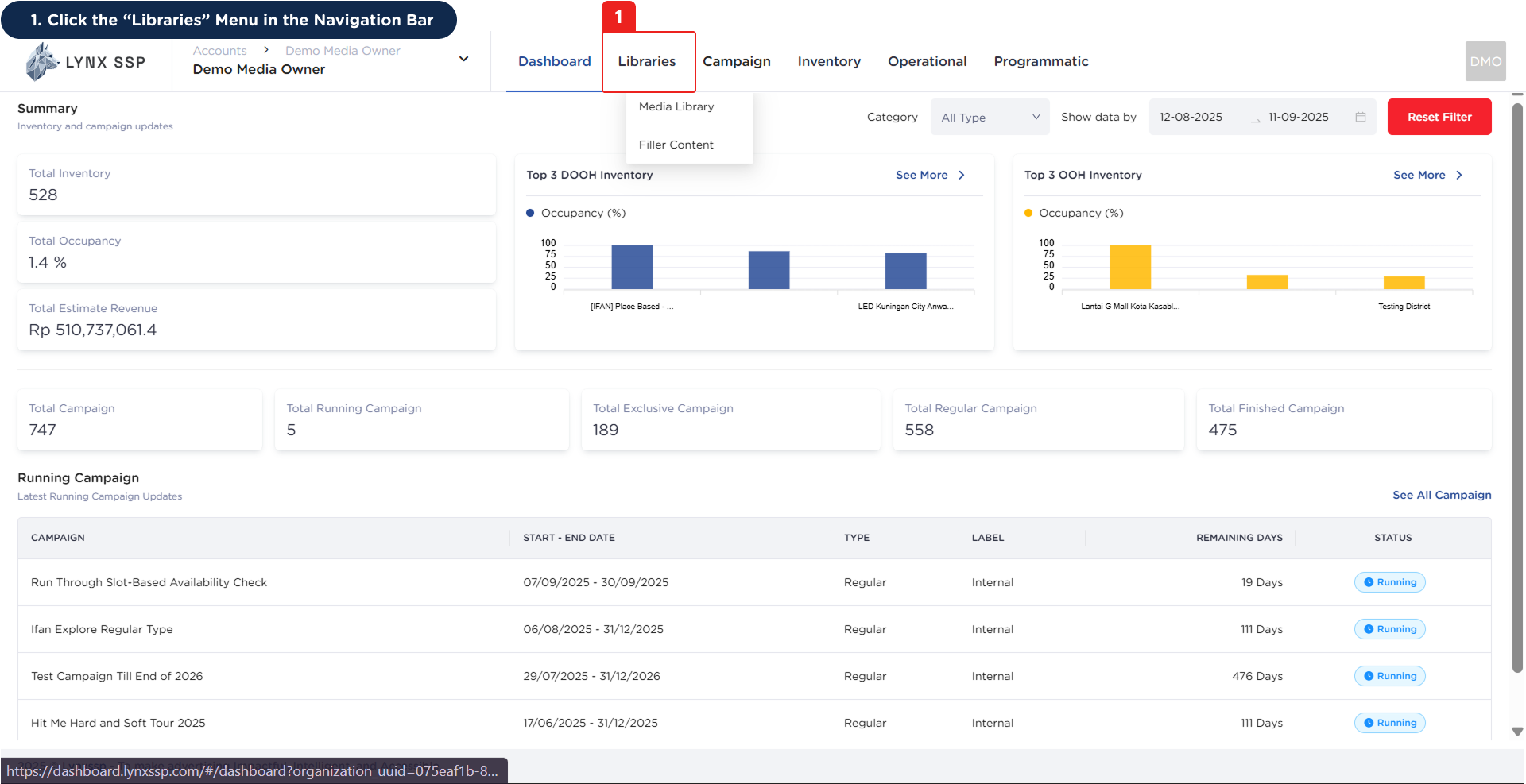
1
Click the 'Libraries' Menu in the Navigation Bar
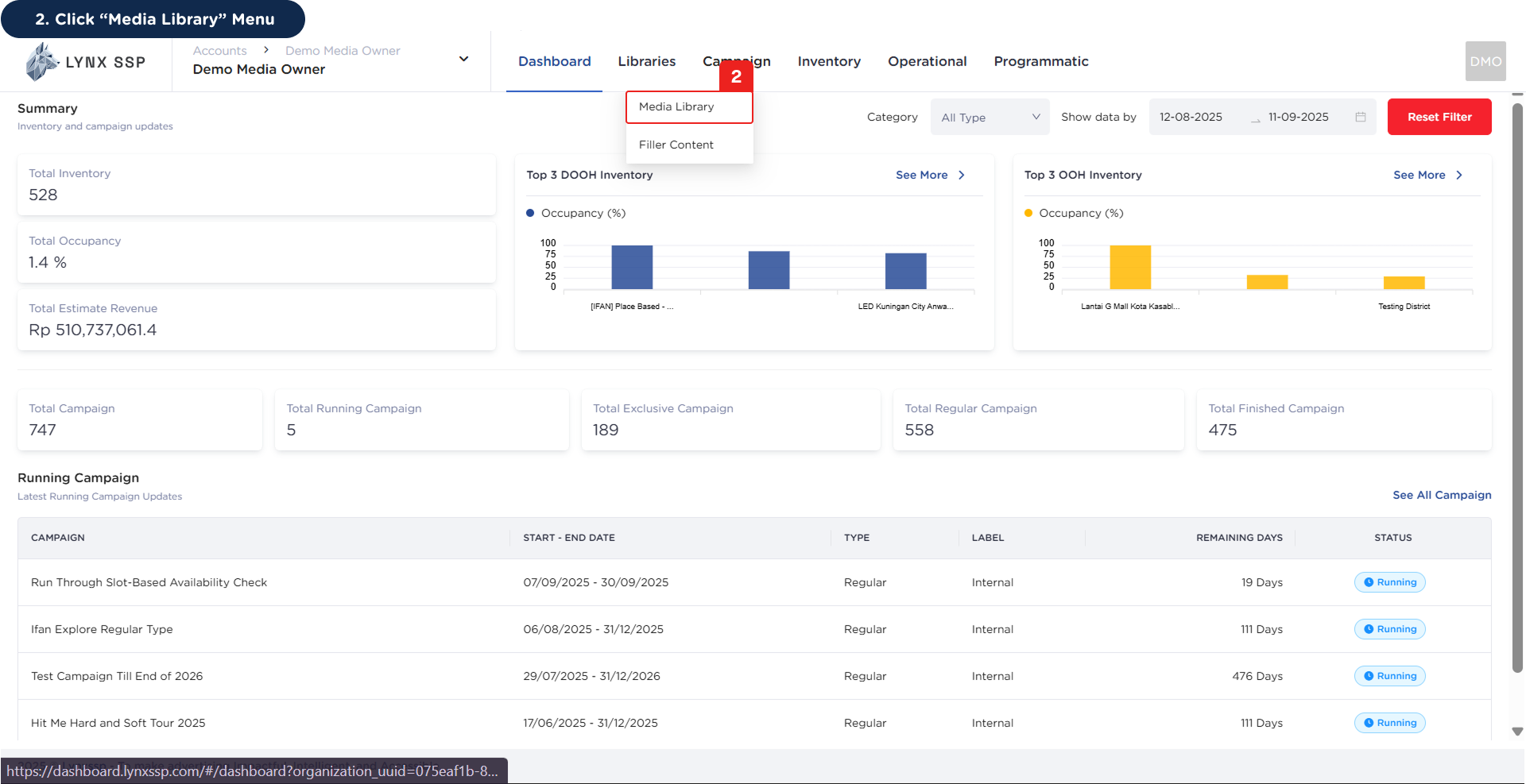
2
Click the 'Media Library' Menu
 This will display the Media Library page showing a list of creative content.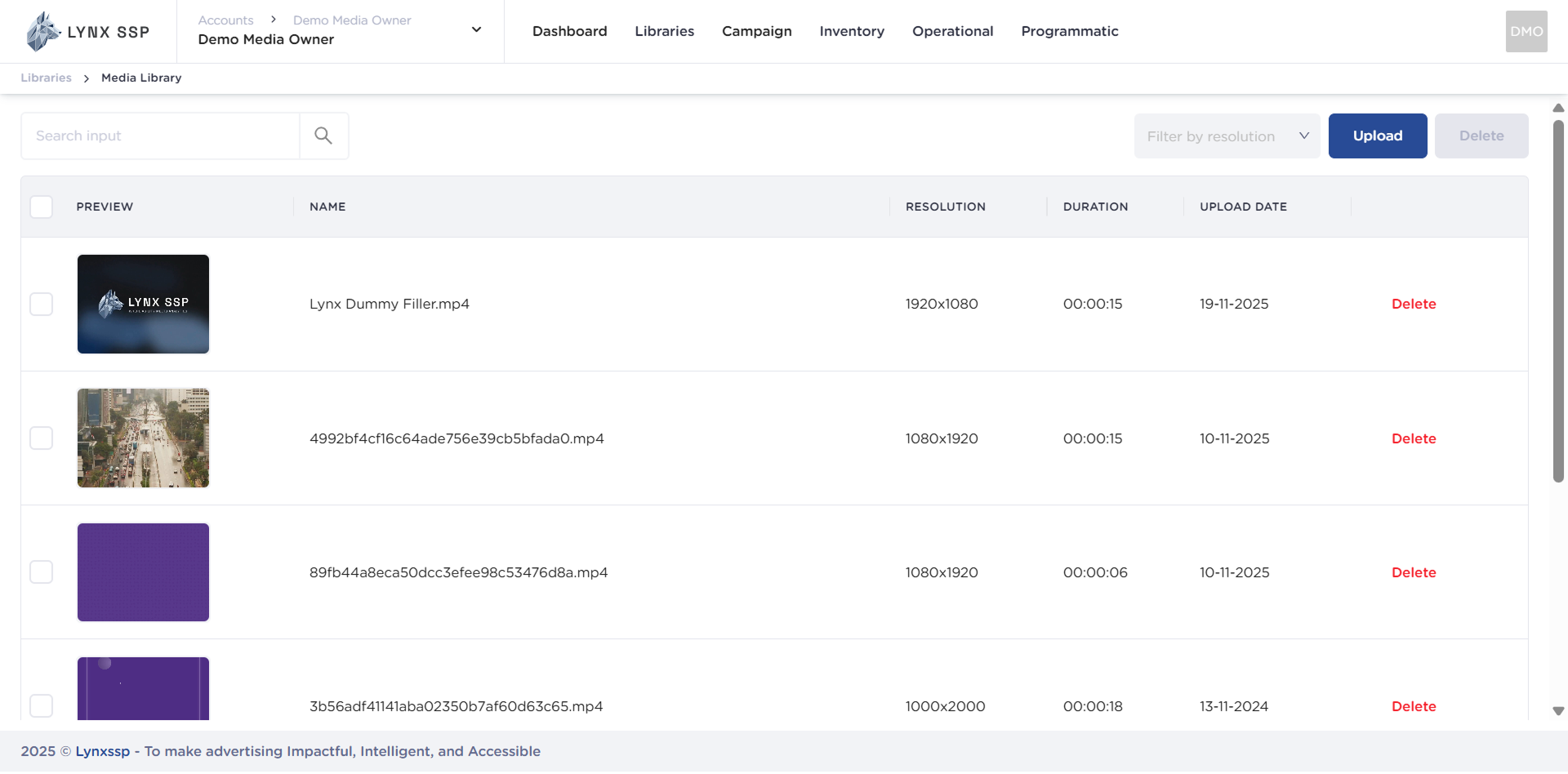
Media Library Overview
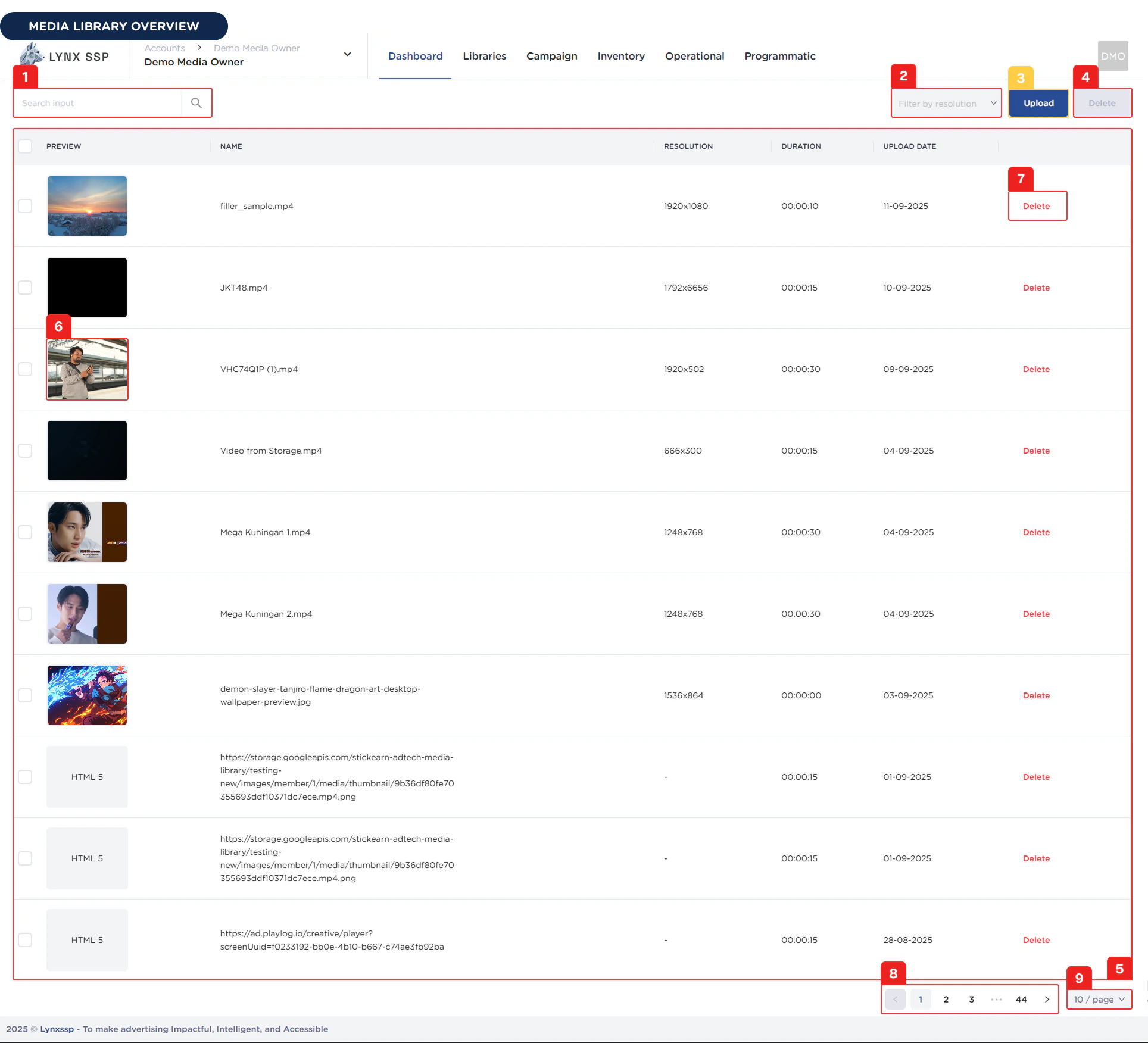
Search Creative
You can search the media library by typing keywords based on the file name when uploading creative content.Filter by Resolution
You can filter creative content list data based on its resolution.Upload Creative Content Button
You can press the Upload button to add creative content or creative filler.Bulk Delete Button
The Bulk Delete button helps you delete multiple creative content files that have been uploaded at once. By default, the Bulk Delete button is disabled. The Bulk Delete button can be used when you have first checked the creative content files to be deleted.List Creative Content
In this section, you can see a list of all the creative content files you have that have been successfully uploaded to the Lynx SSP portal. The properties that can be viewed in this table are as follows:- Checklist Button
- Creative Preview
- Name
- Resolution
- Duration
- Upload Date
- Delete Button
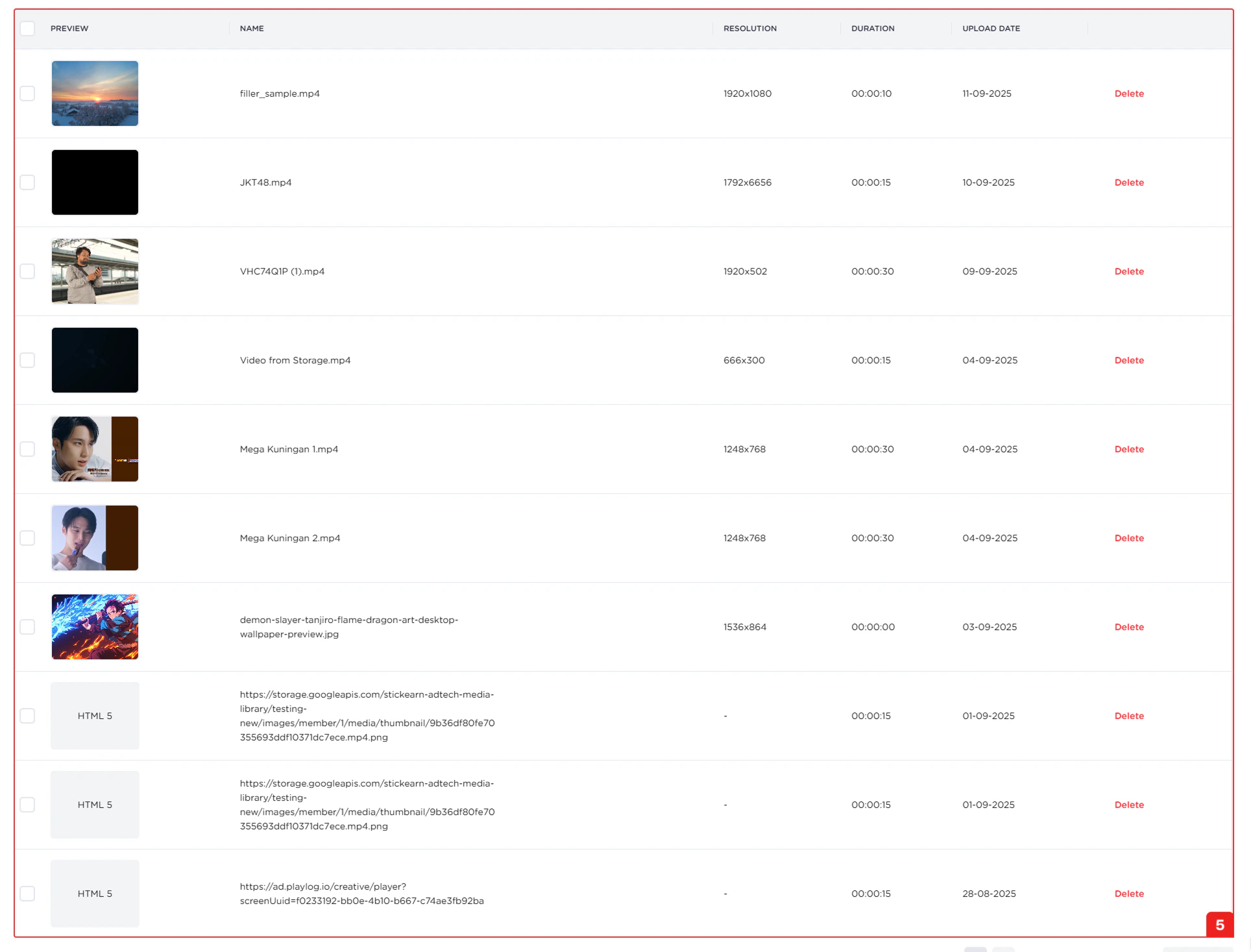
Preview Creative Content
You can preview the creative content you have uploaded by clicking on the thumbnail.Delete Creative Content Button
Delete button for each piece of creative content that has been uploaded.Pagination
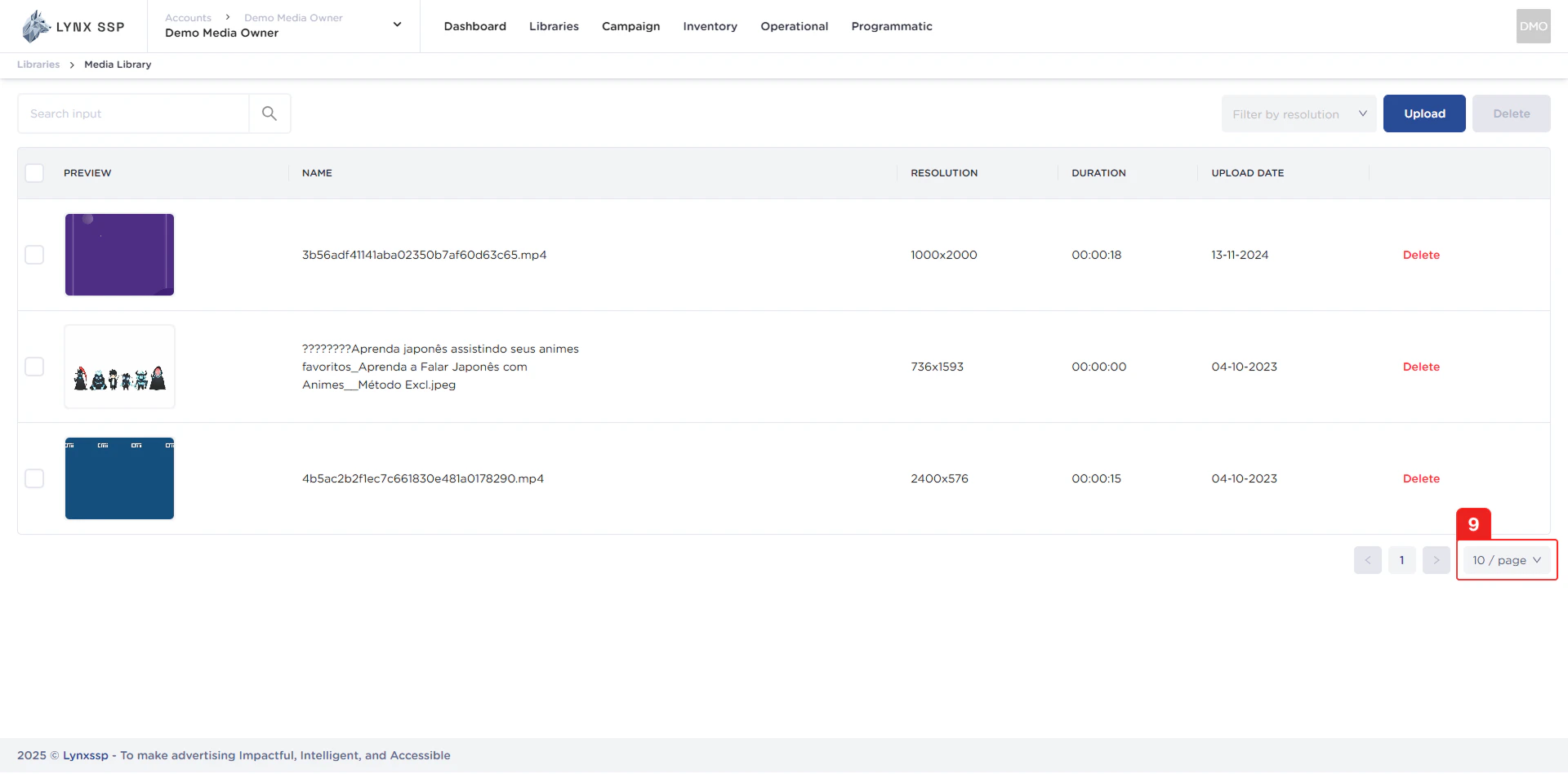
The sequential numbers in the image below are navigation links you can use to go to the next creative content list page.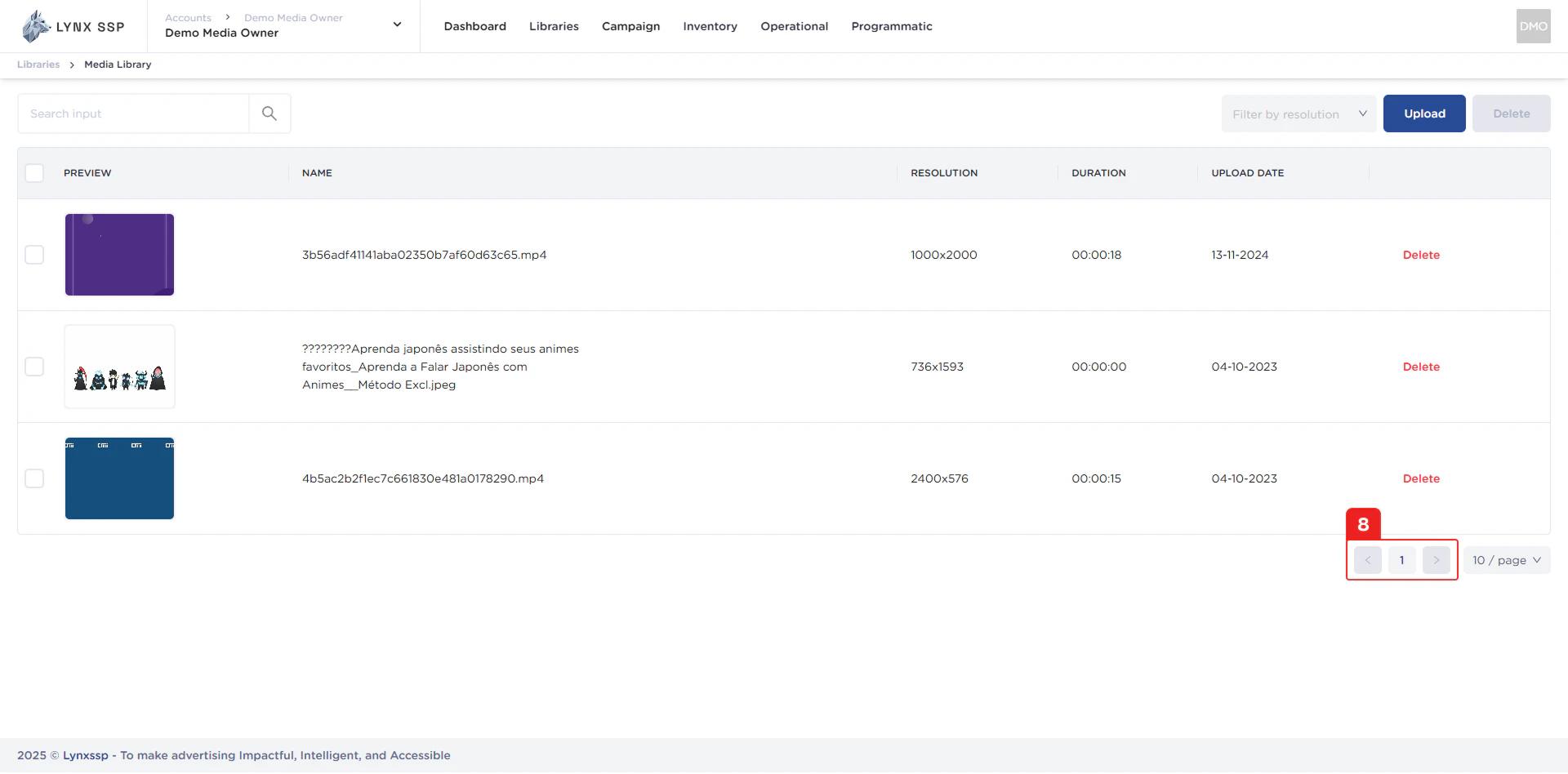
Page List
You can change the list of creative content displayed. By default, there are 10 items, and you can change it to 50 or 100.