If you have Moving Ads Billboard media (mobile billboard media) such as Mobile LED, you can use this geofence feature to maximize the reach of your advertising content.
Accessing Geofence
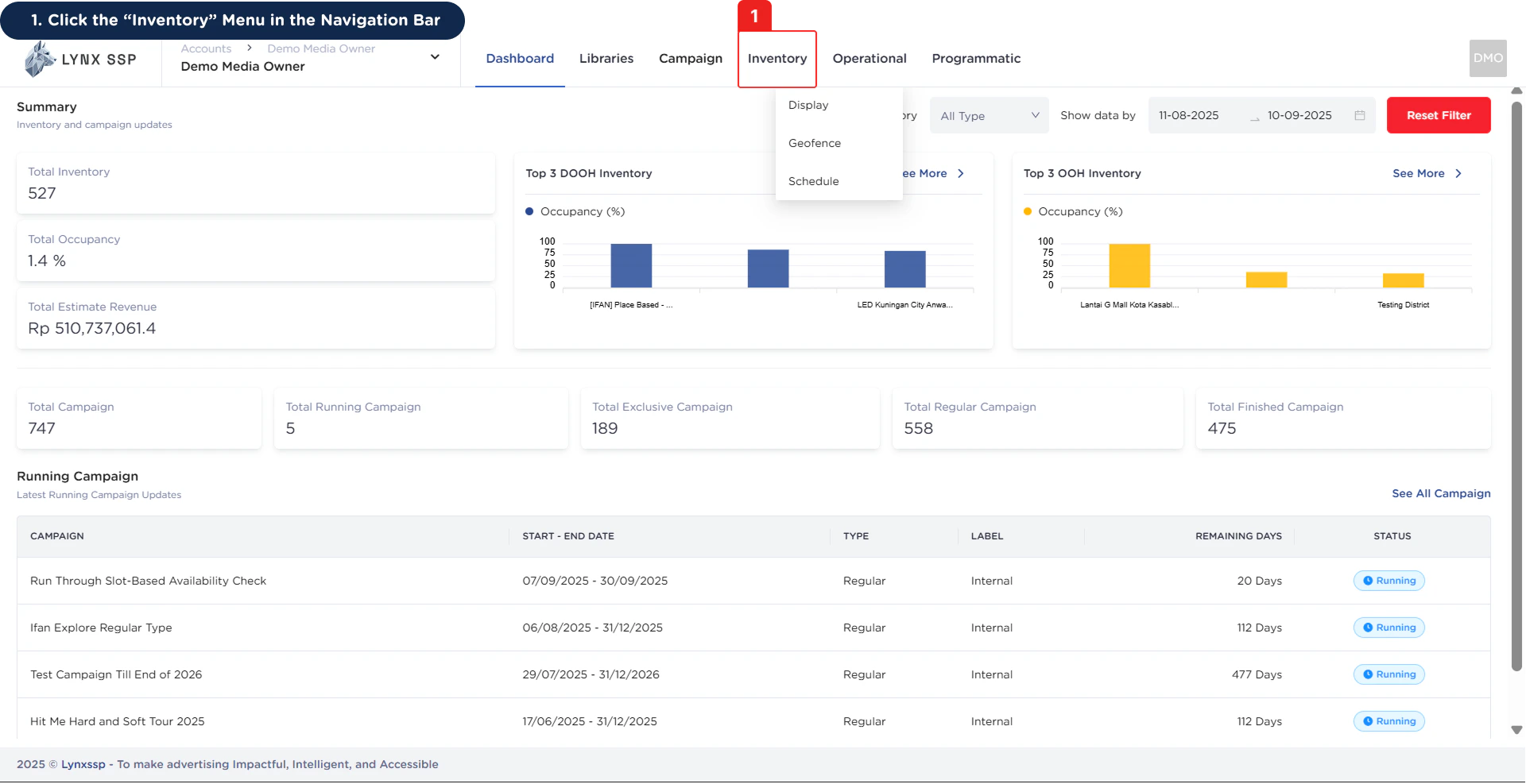
1
Click the “Inventory” Menu in the Navigation Bar
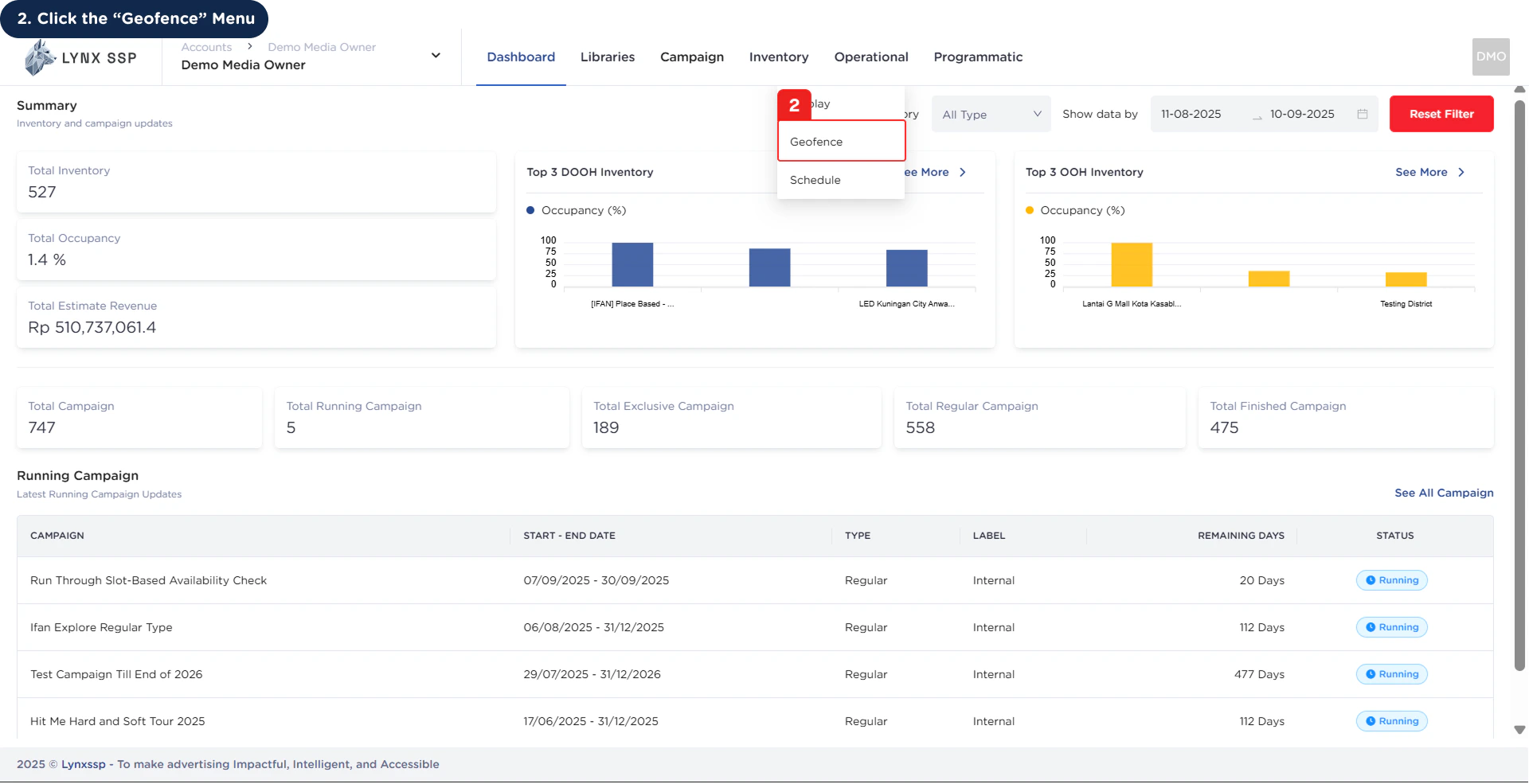
2
Click the “Geofence” Menu
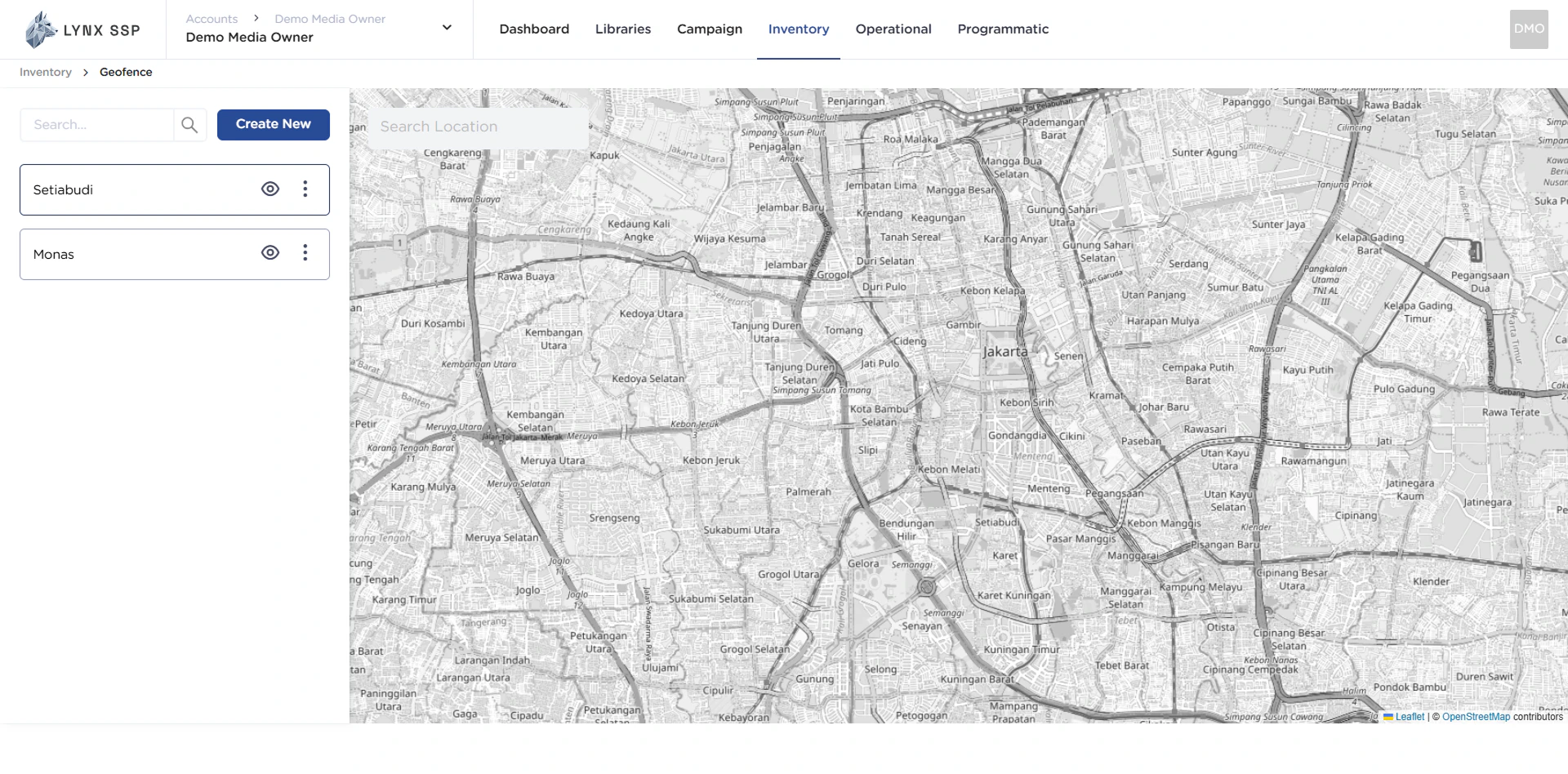
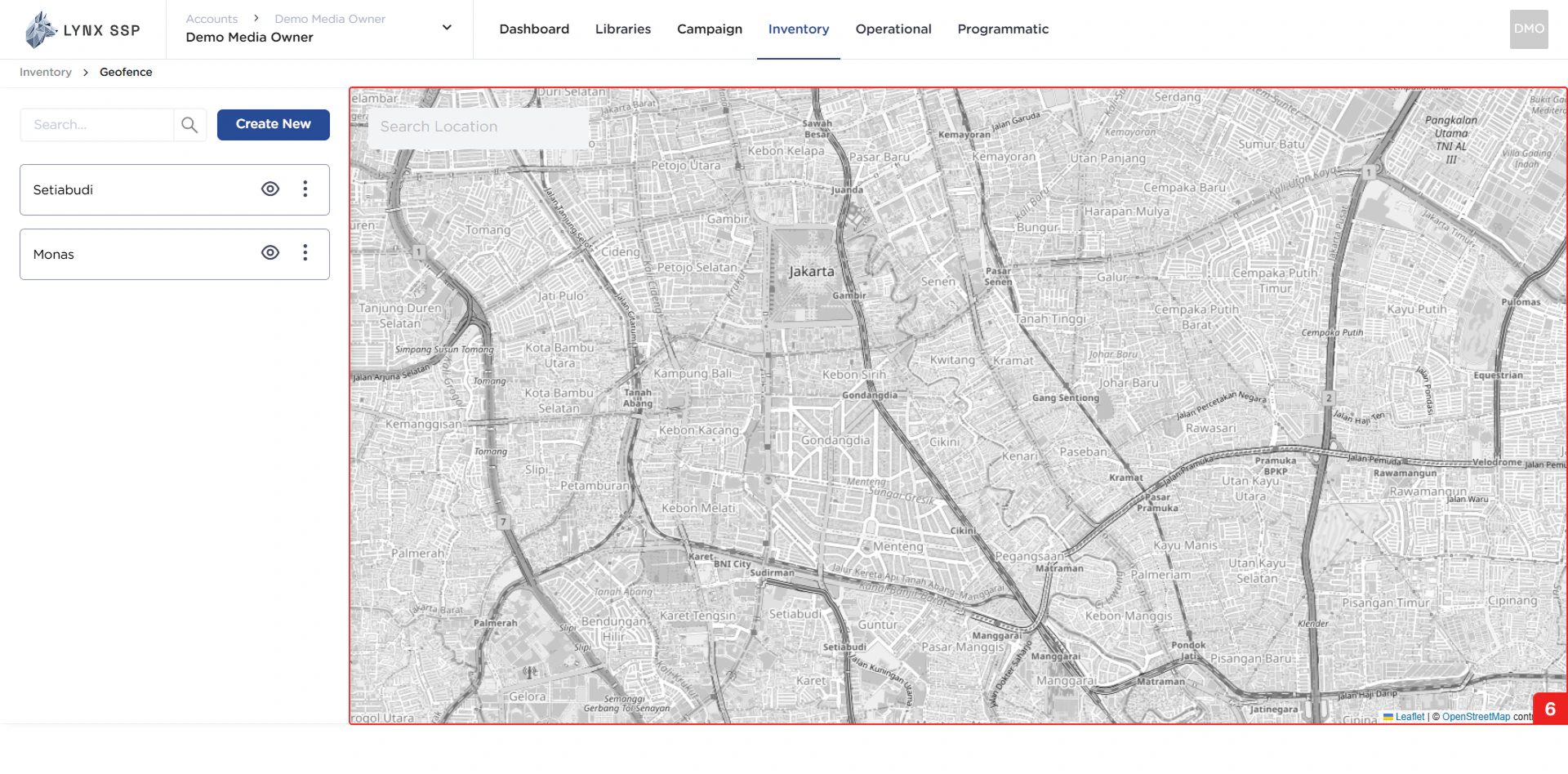
Geofence Overview
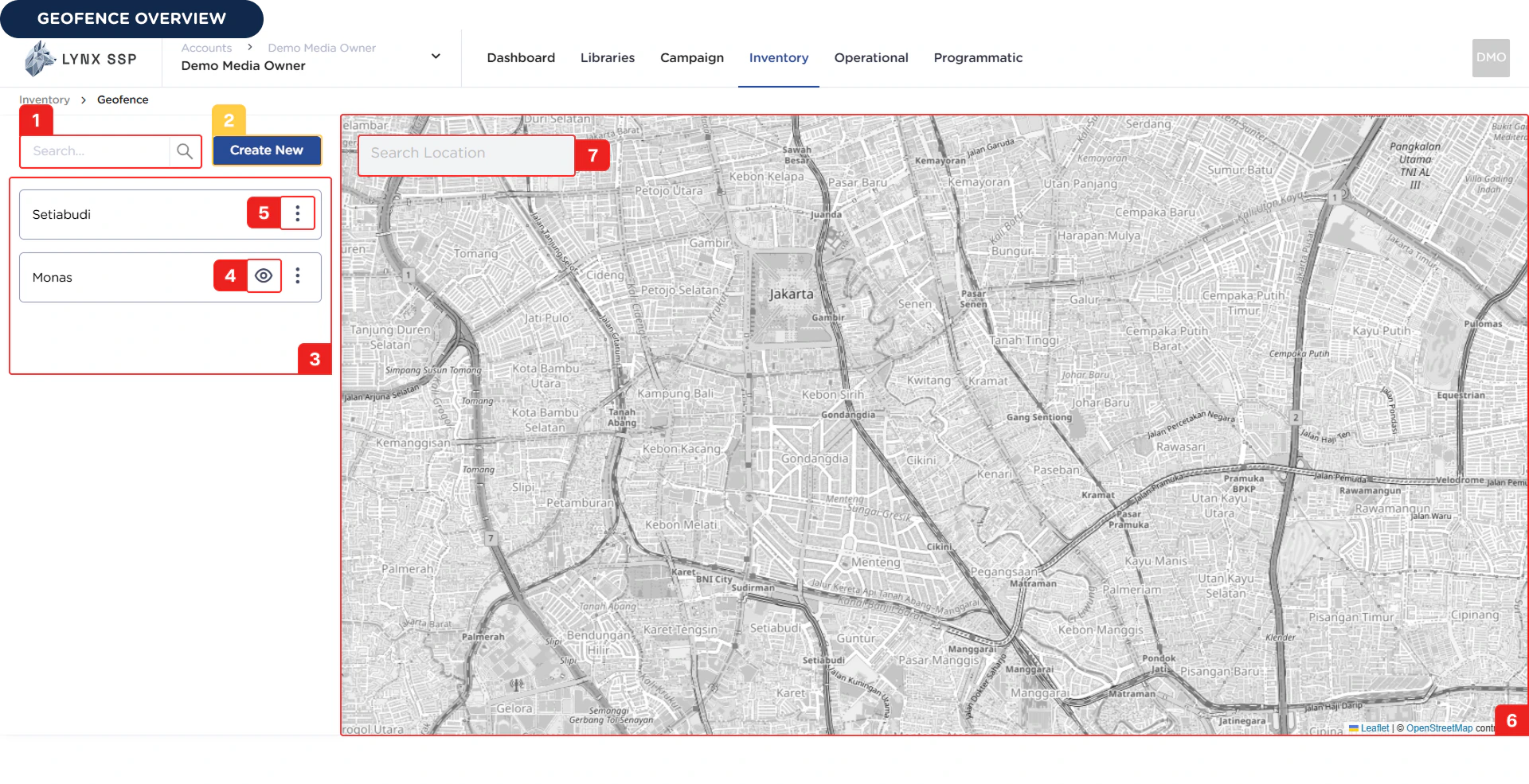
Search Geofence
You can search by geofence name has been registered.Create New Geofence Button
You can click the Create New button to add new geofence (See Create a Geofence ↗).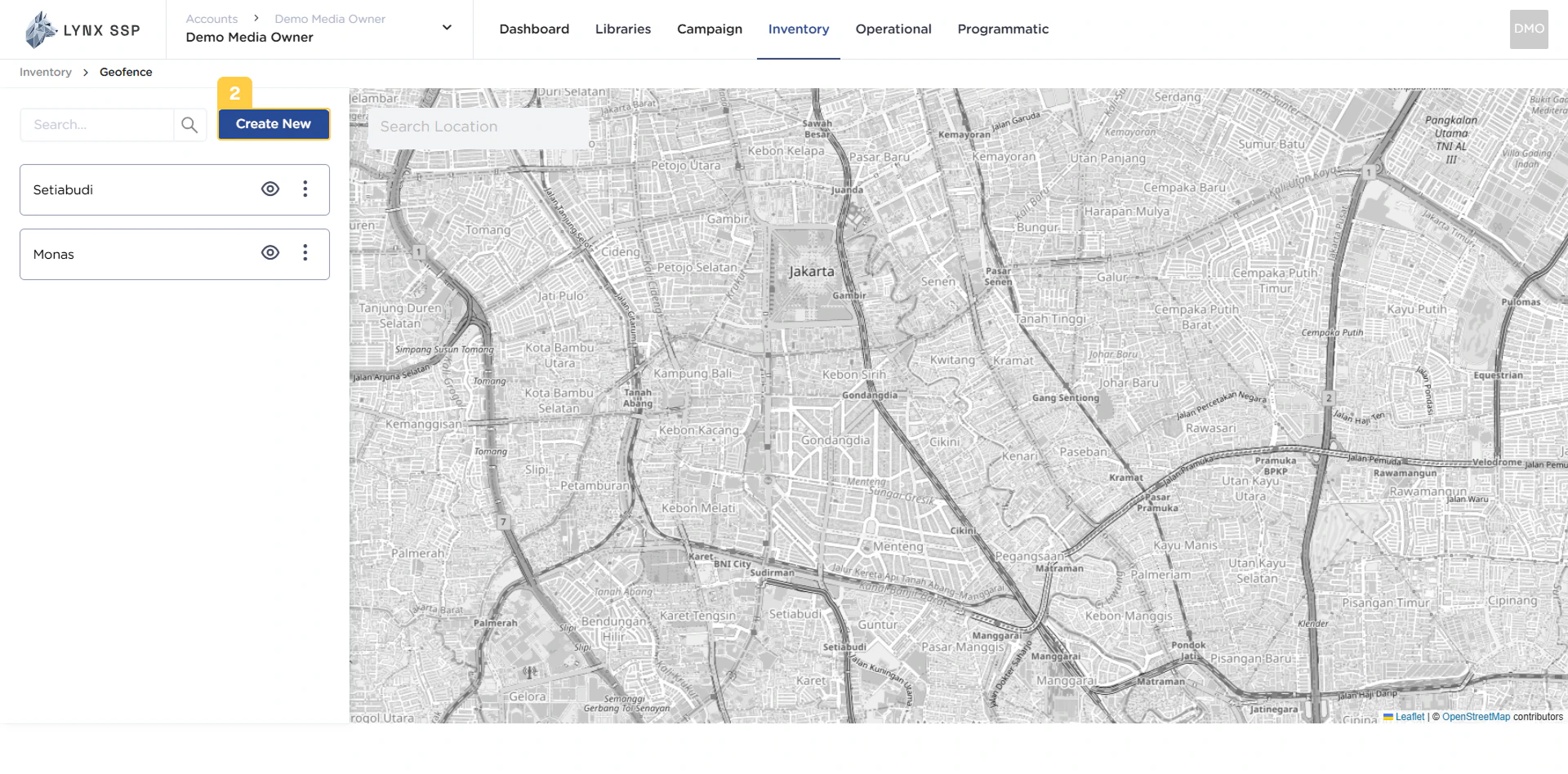
List Geofence
In this section, you can see all the geofence lists that you have and have successfully entered into the Lynx SSP portal.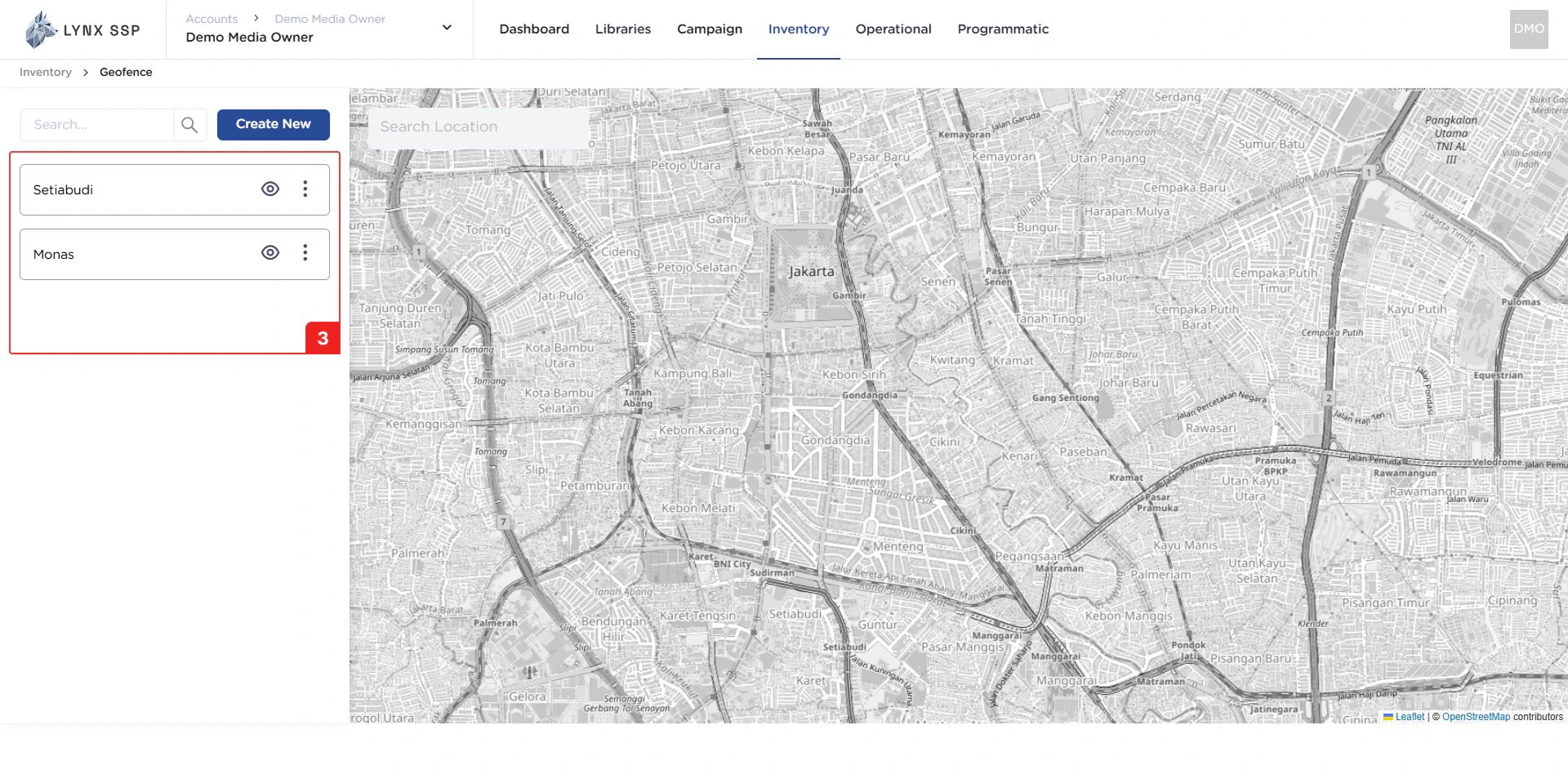
Hide Geofence Button
You can click the Hide button to hide your geofence from Map Area.Action Button “Edit” & “Delete”
Using the action button, you can navigate to the Edit Page or delete that has been created.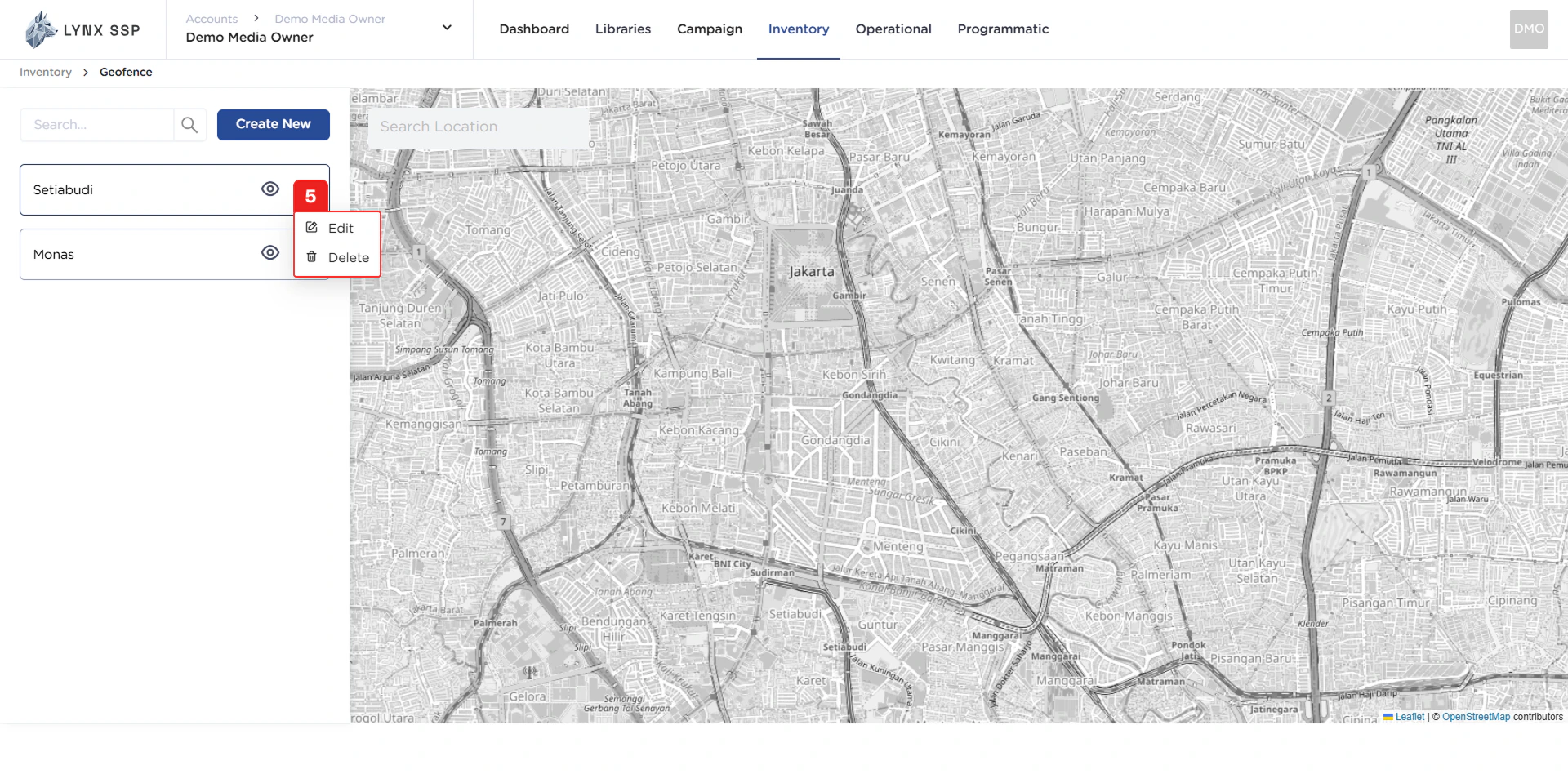
Search Location
You also can search by location name.Map Area