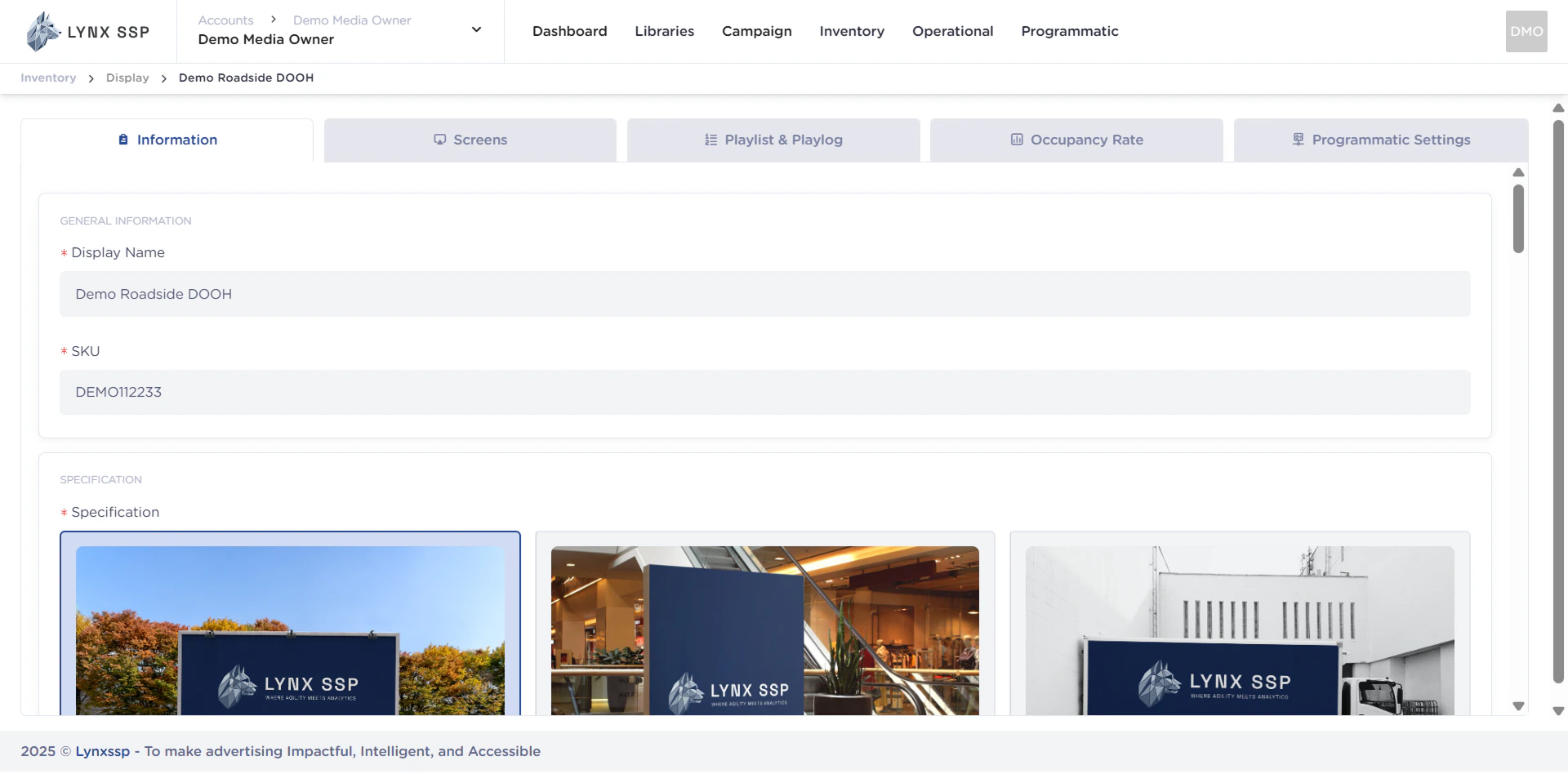
Ensure you have added DOOH (Digital-Out-of-Home) Inventory on the Lynx SSP Platform (See Add New DOOH Inventory ↗).
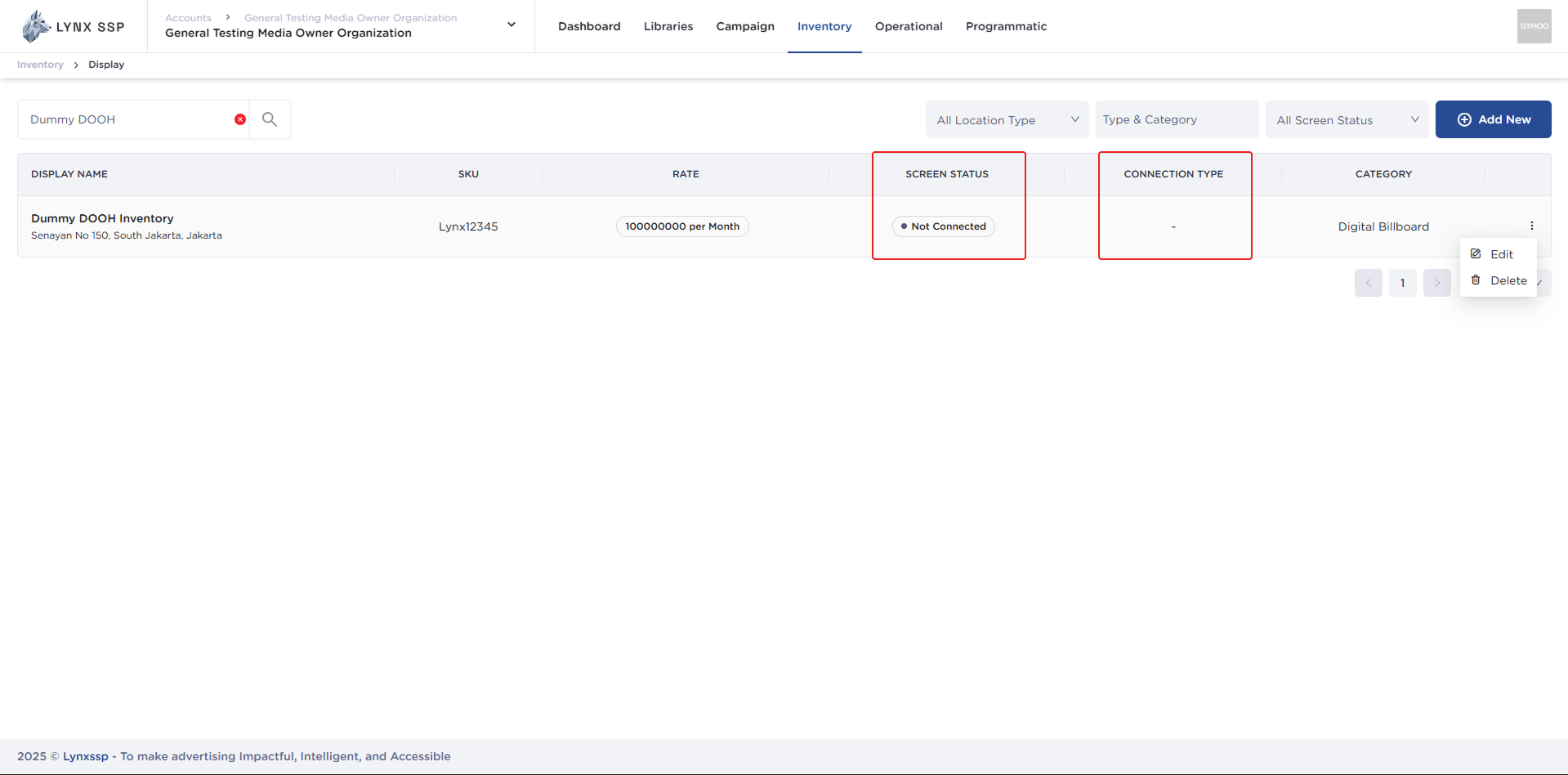
By default, after adding DOOH (Digital-Out-of-Home) Inventory, you can see the Screen Status in the form “Not Connected” (See Screen Status ↗) and Connection Type ”-” (See Connection Type ↗). This indicates that the DOOH (Digital-Out-of-Home) Inventory on the Lynx SSP Platform is not yet connected to the Screen. Therefore, further configuration is required by connecting the DOOH (Digital-Out-of-Home) Inventory that has been added with the Player to display creative content and filler campaigns.  Connect to Screen This page helps you configure or connect your DOOH (Digital-Out-of-Home) Inventory with Player on Lynx SSP Platform.

Accessing the Screen Page 

1

Click the “Action” button & Click “Edit”
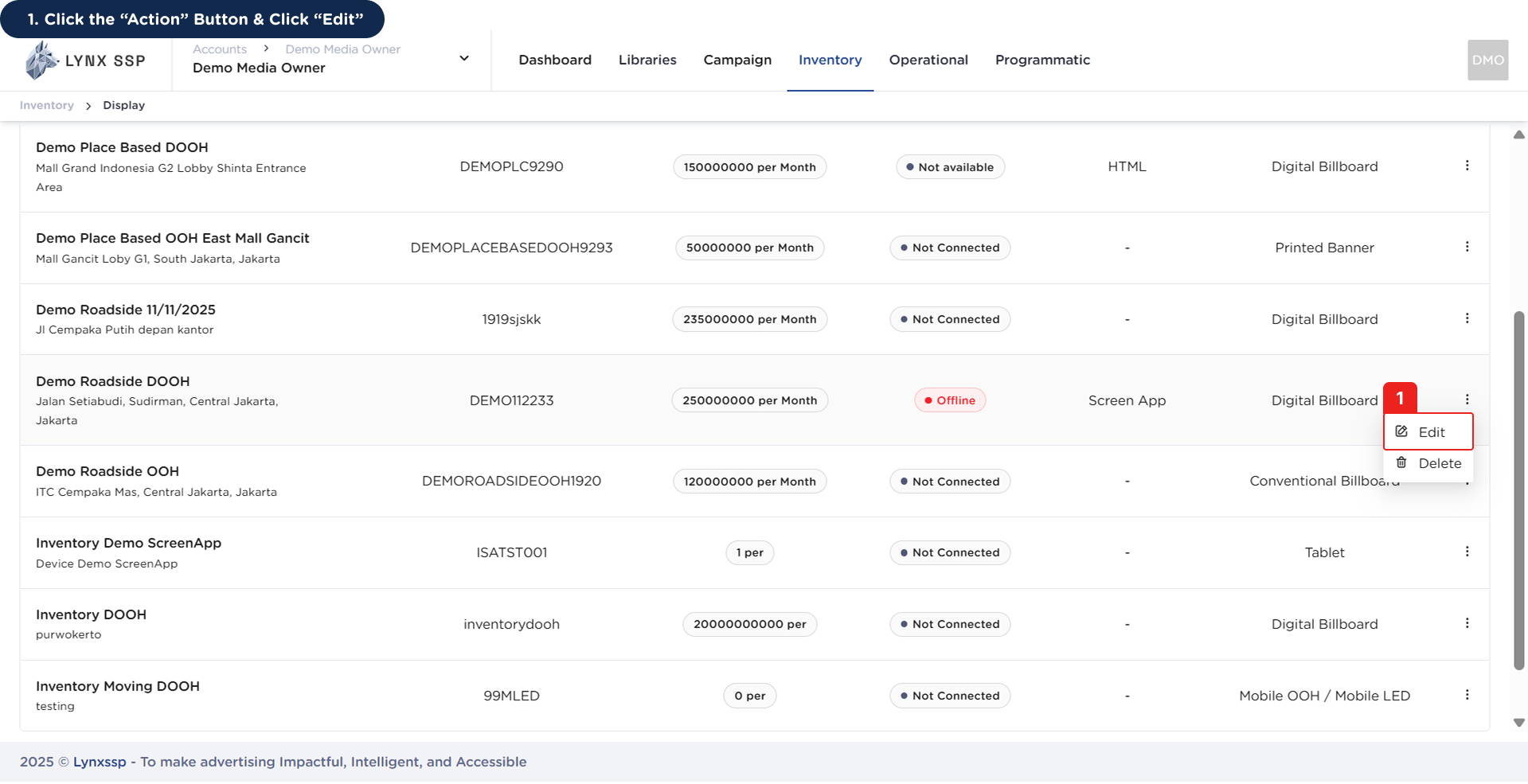
Accessing Screen Page 1This will display the Inventory Details Page.Accessing Screen Page 1.2
2

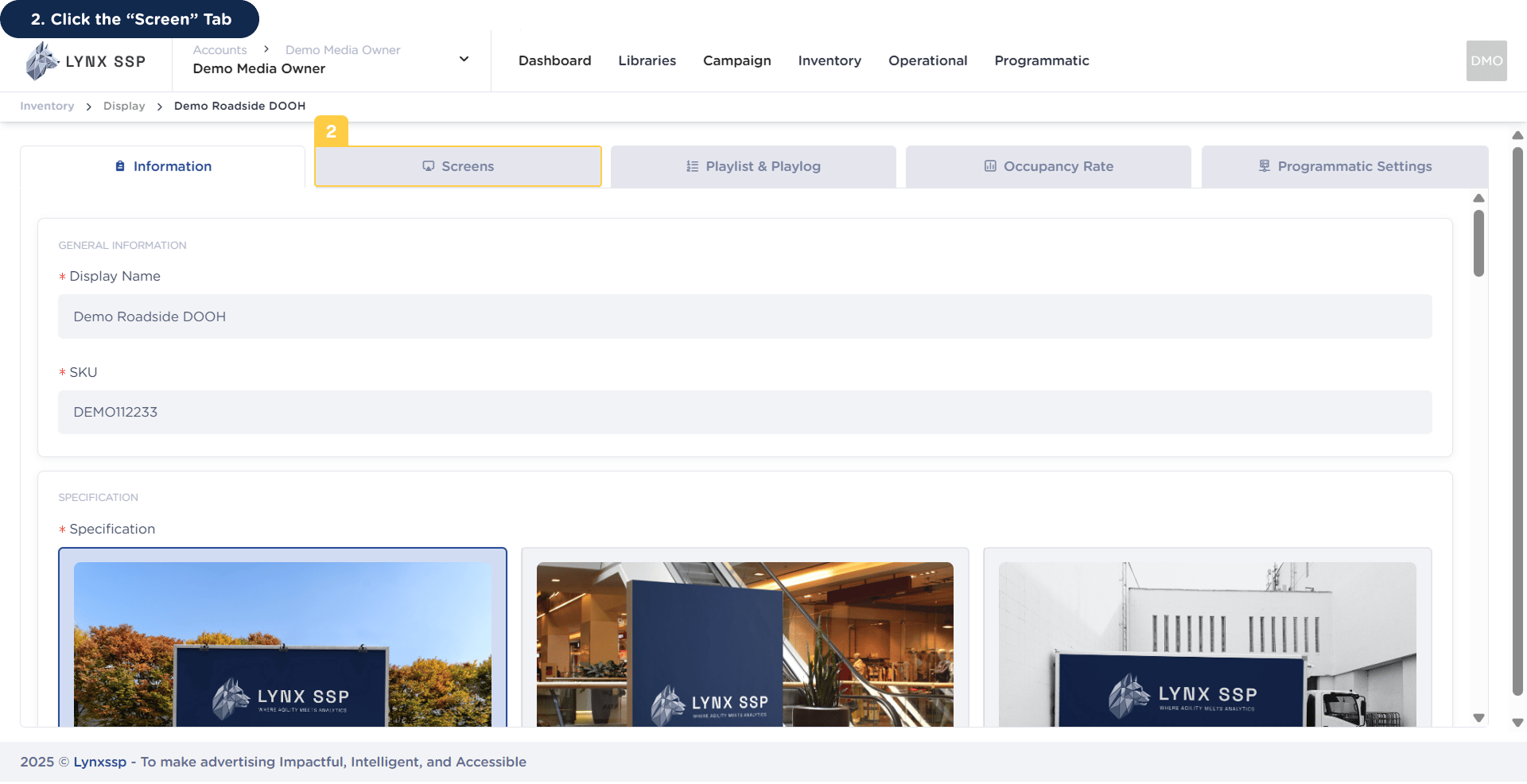
Click the “Screen” Tab

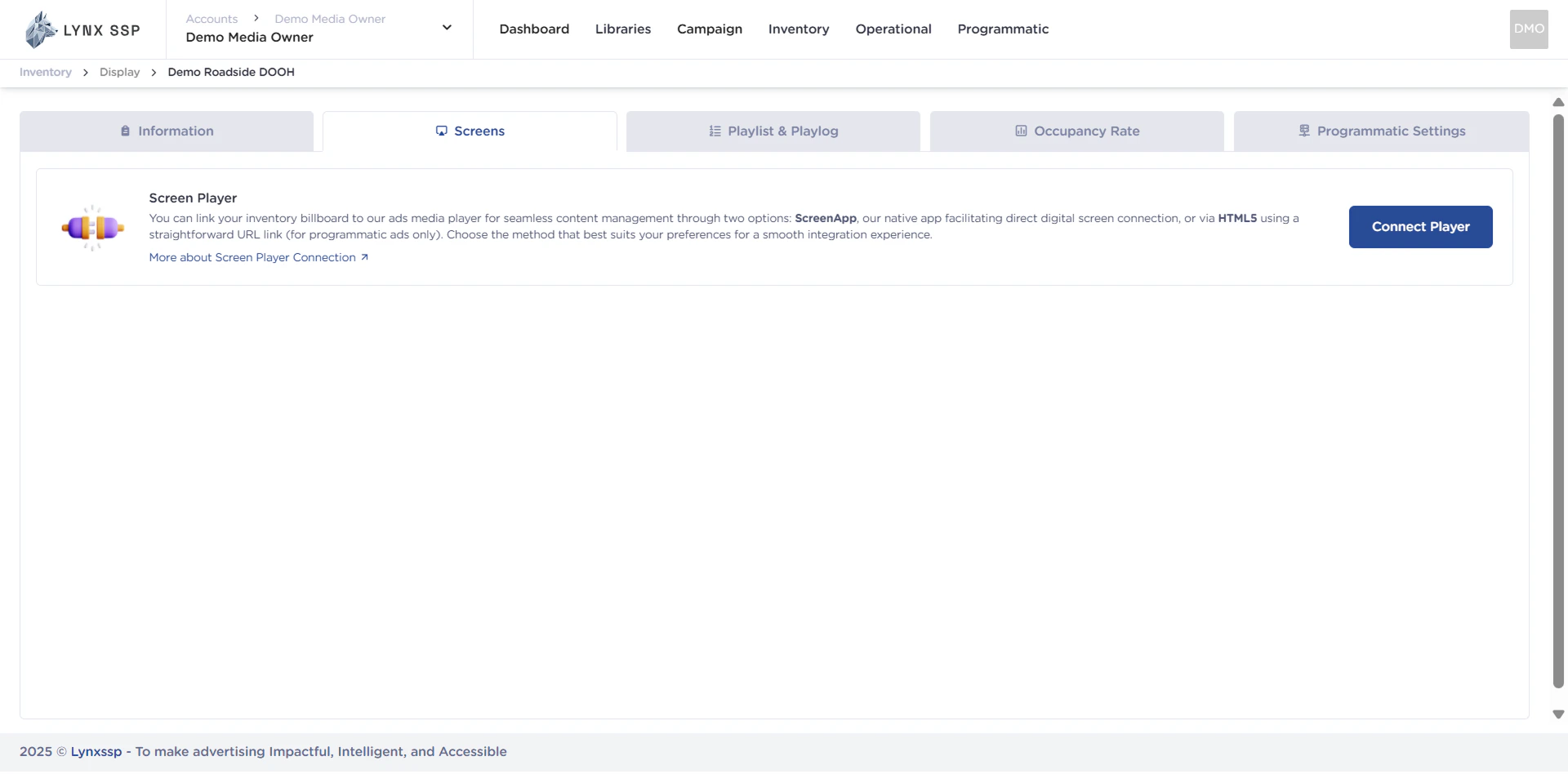
Accessing Screen Page 2Then it will display the Screen Page.Accessing Screen Page 2.2

Connect using ScreenApp

Screen App is the default player owned by Lynx SSP. Through Screen App, you can change the arrangement of creative content, both from campaigns and fillers that will be displayed on your DOOH (Digital-Out-of-Home) Inventory.

Installation

Screen App Windows Installation ↗

Screen App Android Installation ↗

Connection

Screen App Connection ↗