

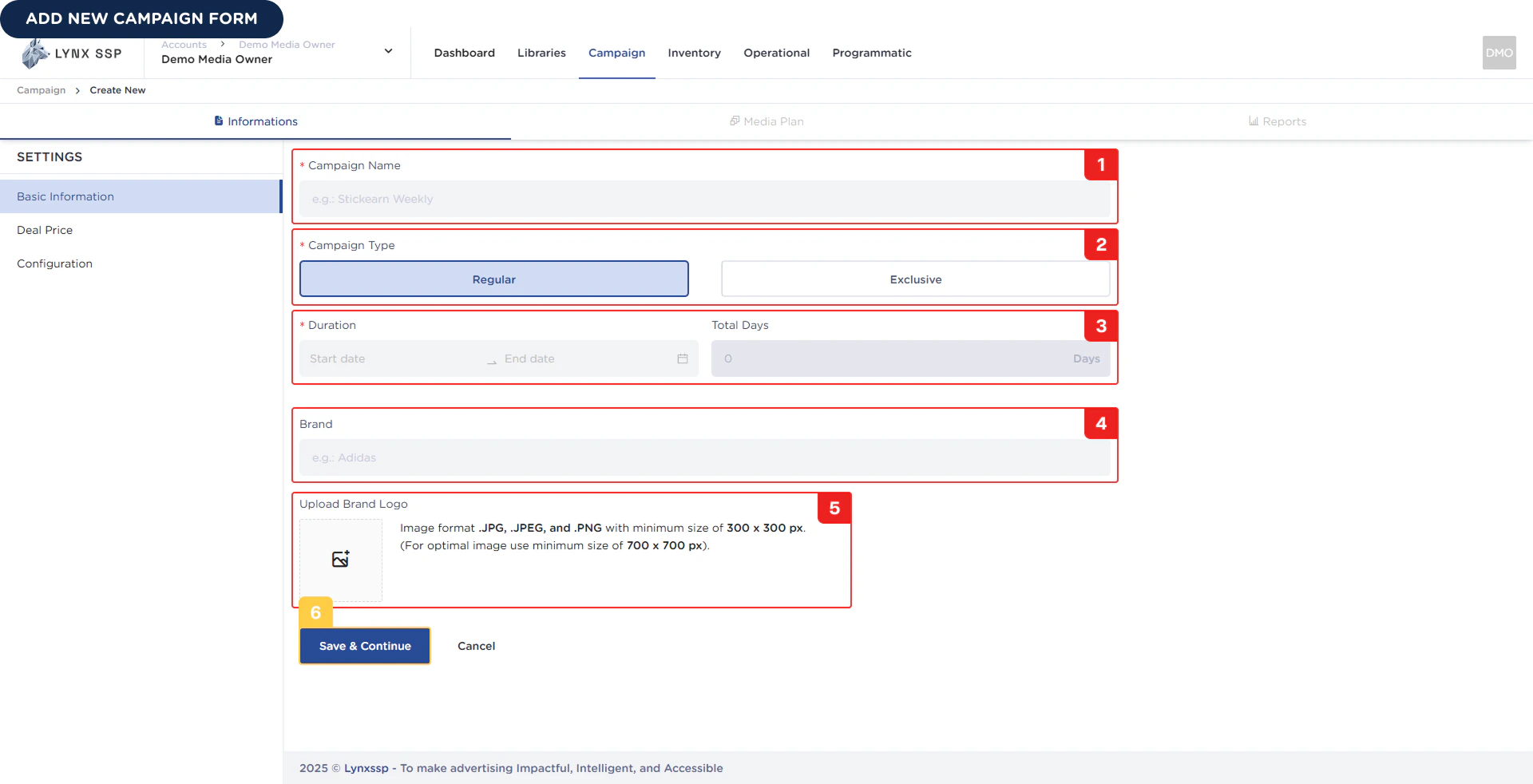
1
Campaign Name (Required)
You can enter the name of the campaign you created or manage.
The campaign name you use cannot be duplicated. When you enter a campaign name that has been used previously and still exists in the system, the system will issue a warning that the campaign name cannot be used.
2
Campaign Type (Required)
You must choose one of the two types available for a campaign: Regular or Exclusive (See Campaign Type ↗).
3
Duration (Required)
The selected campaign duration will be used when you filter the Campaign Report page. The date range that will be active as a filter on the campaign report page is the range of the campaign duration (See Campaign Report ↗).
4
Brand Name (Optional)
You can fill in this field with the brand name associated with the campaign you are creating.
5
Brand Image (Optional)
You can upload photos from brands related to the campaign you are going to create.
Image formats are: .JPG, .JPEG, and .PNG with a minimum size of 300 x 300 px (optimal size is 700 x 700 px).
6
Click 'Save' & 'Continue' Button
To continue and save the campaign data you have filled in, you can click the Save & Continue button. Once the campaign has been successfully created, you will be directed to (See Media Plan ↗) to fill in the details of the Media Plan.