

Accessing Occupancy Rate
1
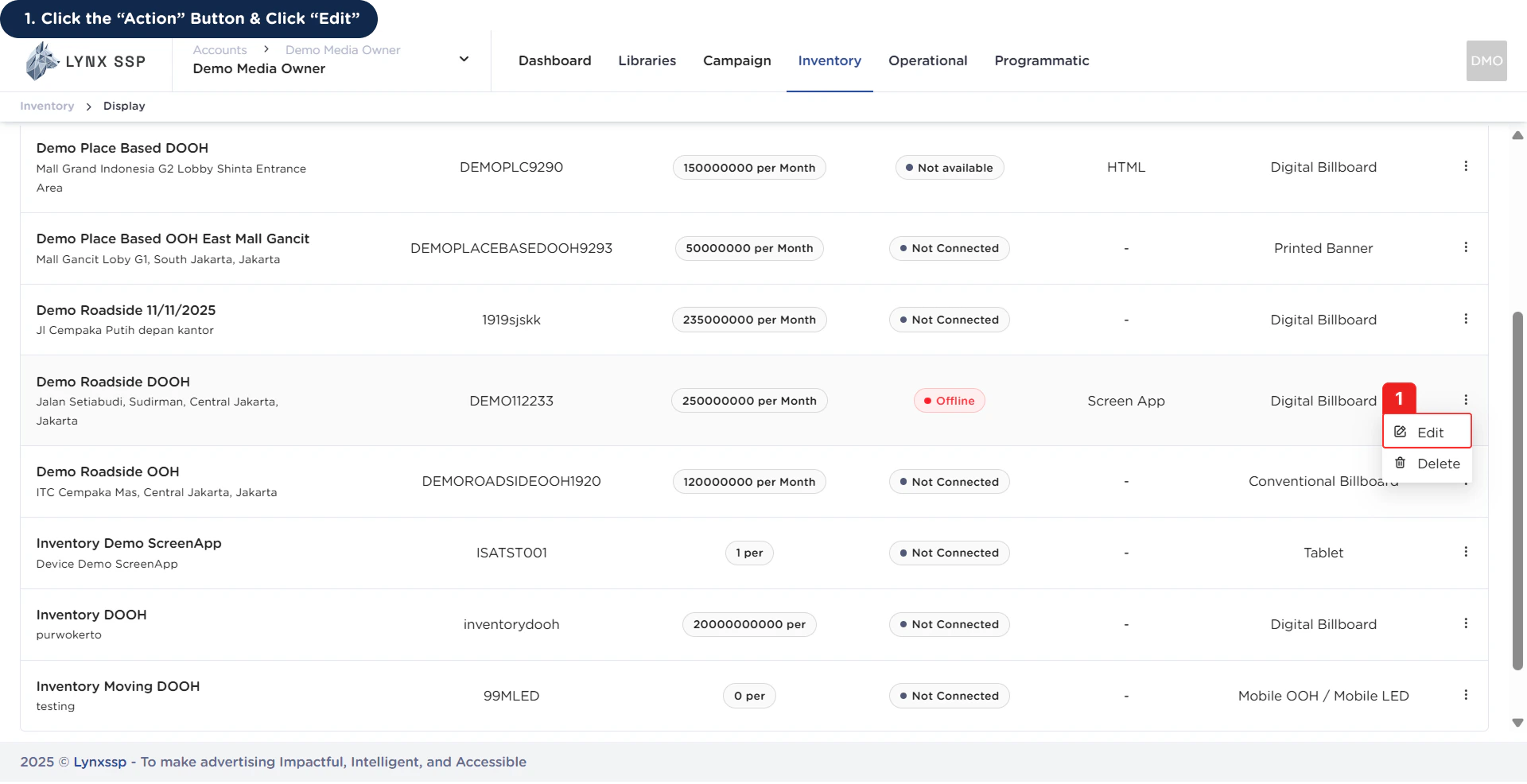
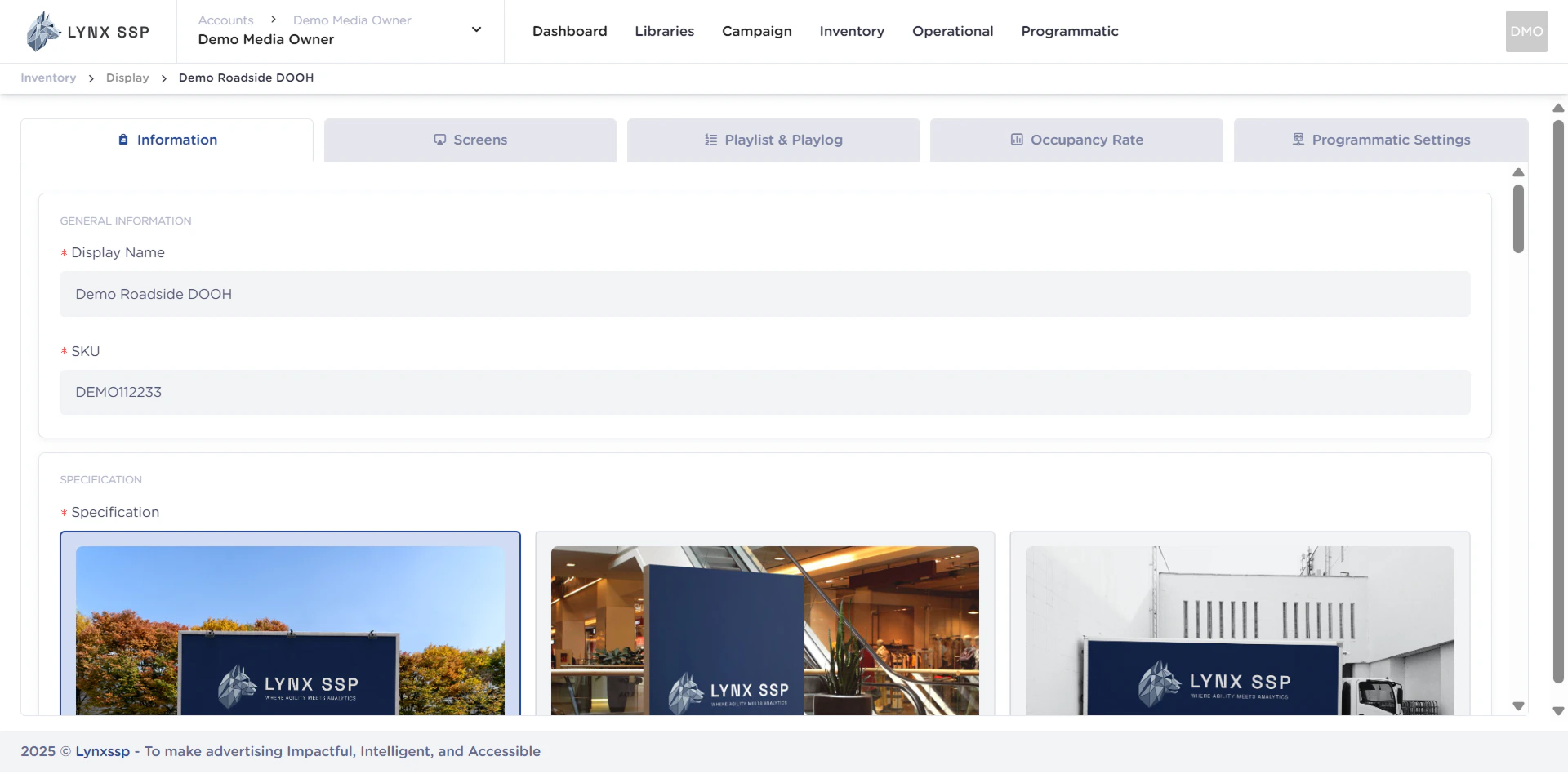
Click the “Action” Button & Click “Edit”
2
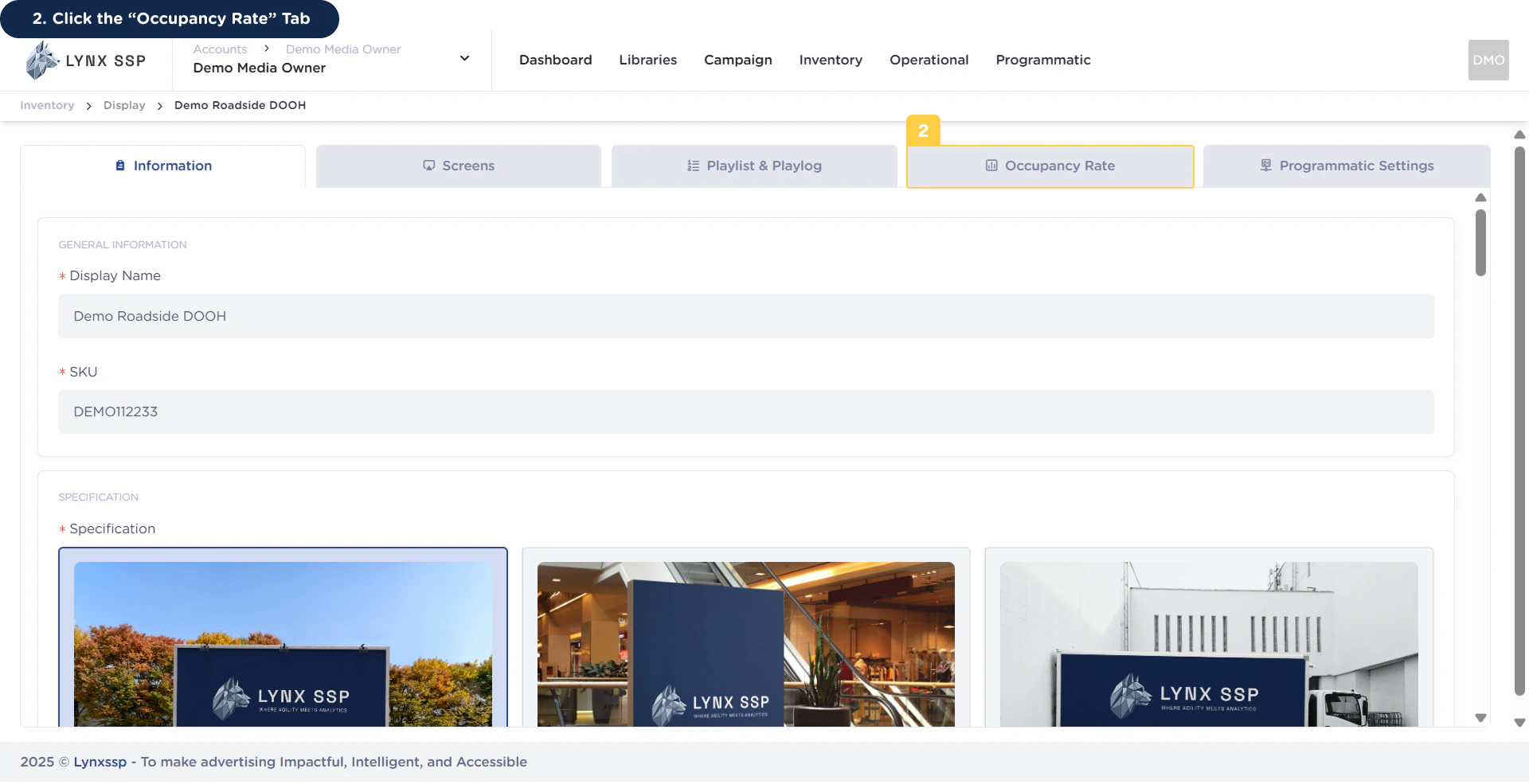
Click “Occupancy Rate” Tab
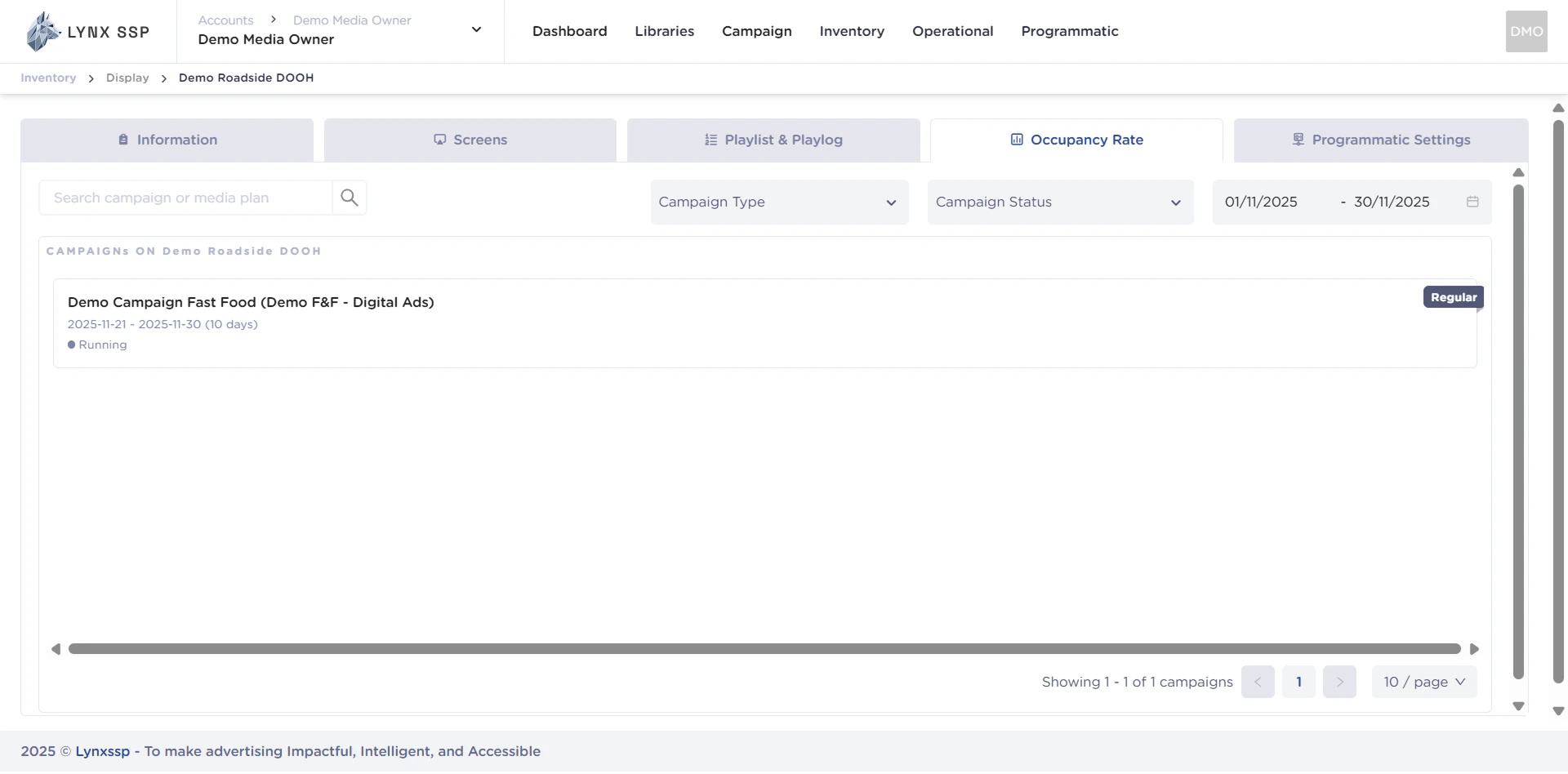
Occupancy Rate Overview
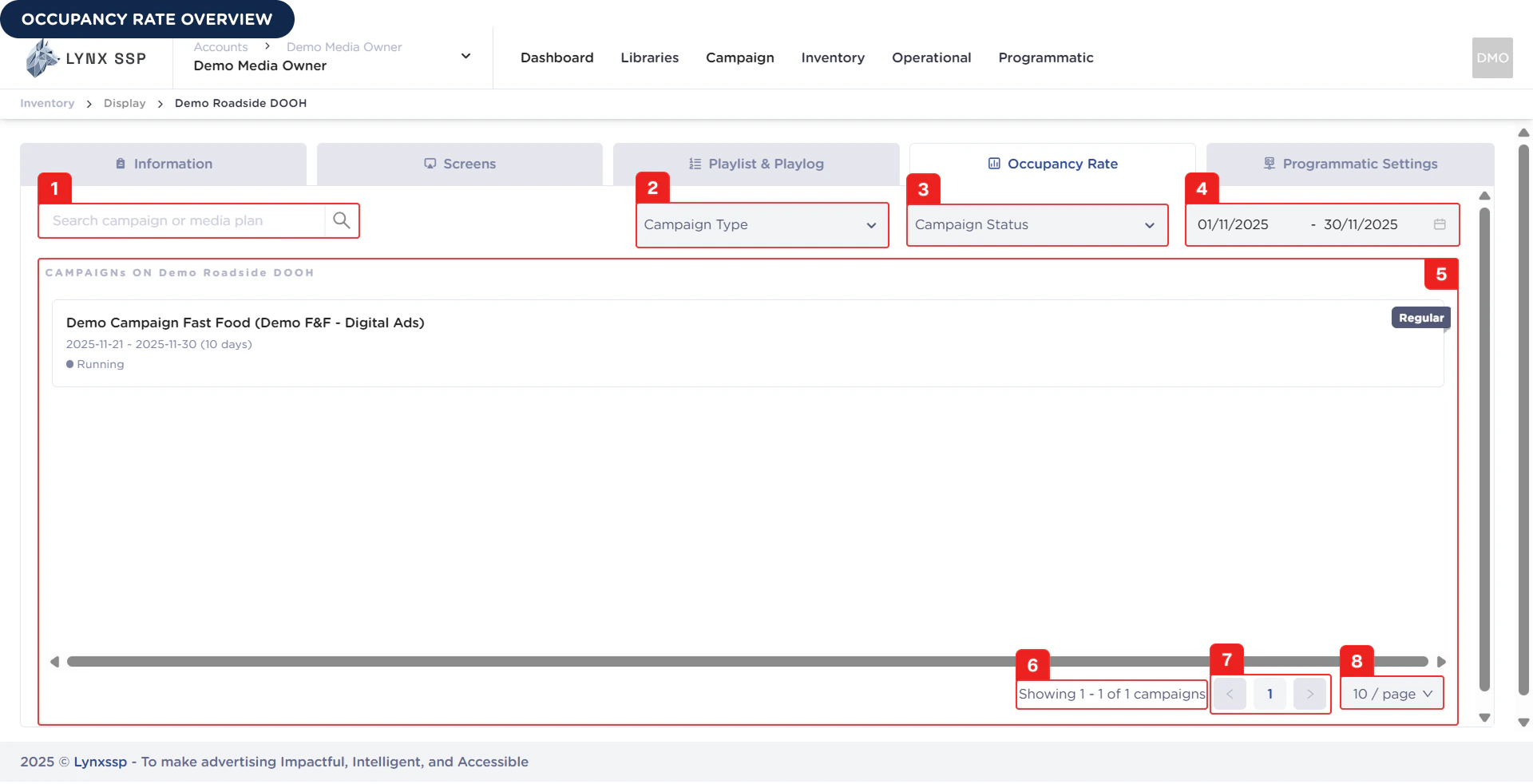
Search Campaign or Media Plan
You can search by typing keywords based on the name of the campaign or media plan that fills your inventory.Filter by Campaign Type
You can filter the list of campaigns or media plans that fill your inventory based on campaign type, namely Regular or Exclusive (See Campaign Type ↗).Filter by Campaign Status
You can filter to sort the list of campaigns or media plans that fill your inventory based on their campaign status (See Campaign Status ↗).Filter by Campaign Period
You can filter the list of campaigns or media plans that fill your inventory based on the period. By default, the period displays campaign data for the last 30 days.List Campaign
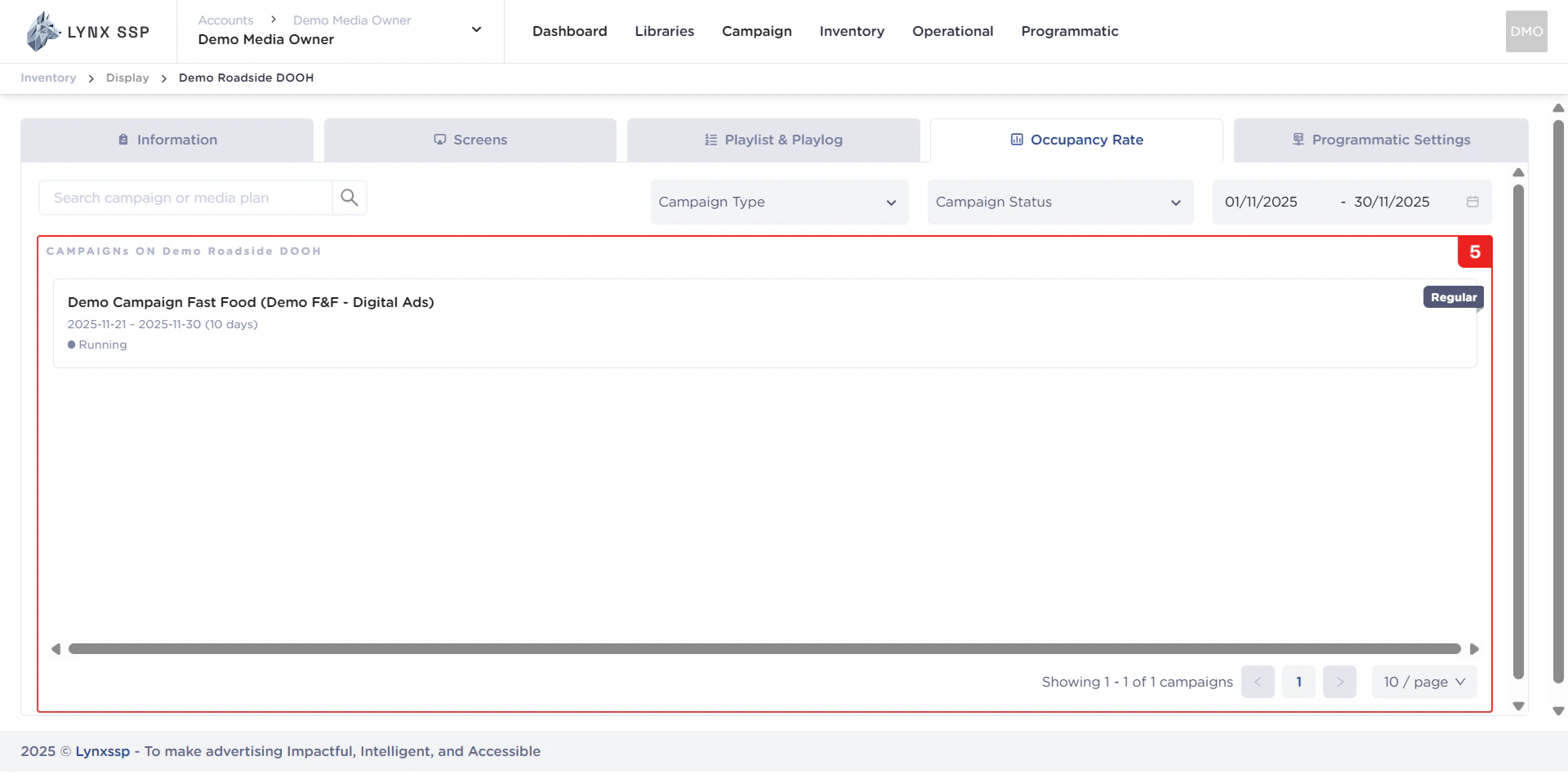
In this section, you can see all the campaign and media plan lists that fill your inventory. The playlist data is displayed based on filtering by type, status, and period (Points 2, 3, and 4). The properties that can be seen in this table are as follows:- Campaign & Media Plan Name
- Period
- Status
-
Campaign Type
Campaign Count Information
Displays information on the number of campaigns in your inventory. The playlist data is displayed based on filtering by type, status, and period (Points 2, 3, and 4).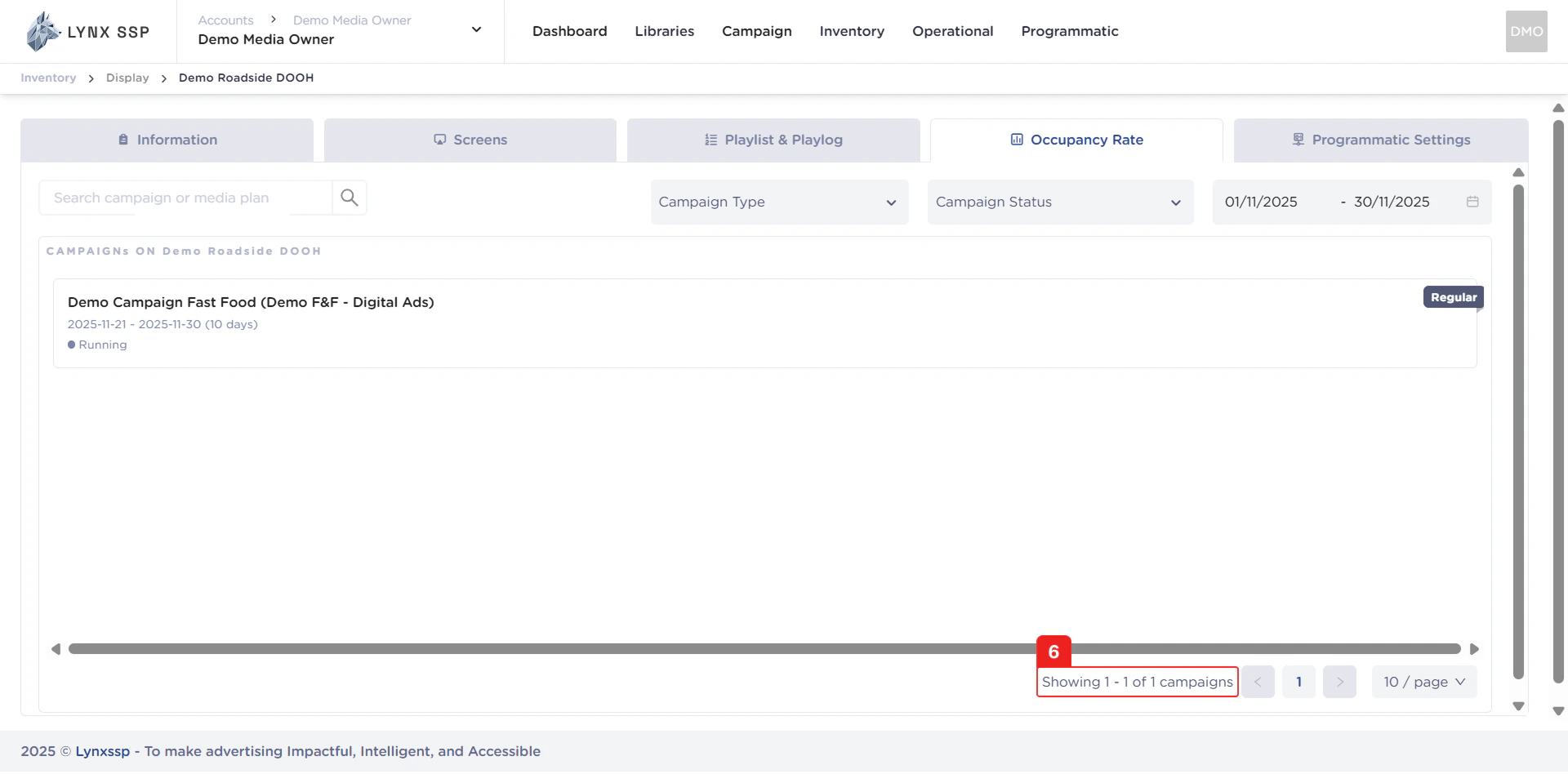
Pagination
The sequential numbers in the image below are navigation points you can use to go to the next campaign list page.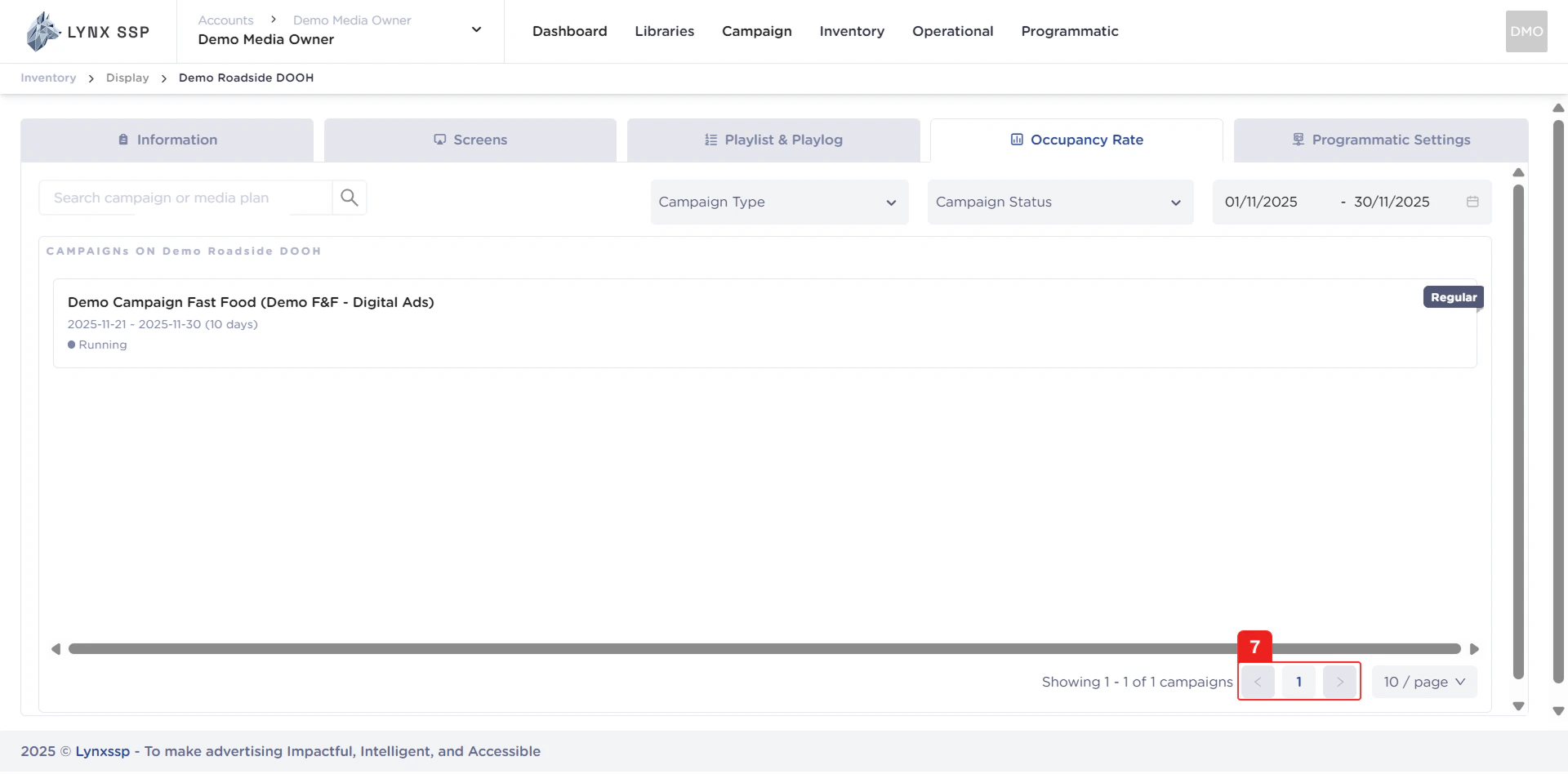
Page List
You can change the list of campaigns displayed. By default, there are 10 items, and you can change this to 50 or 100.