

How to Add Your Place Based OOH (Out-of-Home) Inventory
When adding OOH (Out-of-Home) Inventory to the Lynx SSP Platform, you will need to provide some information or data that you can prepare and enter in the following form:
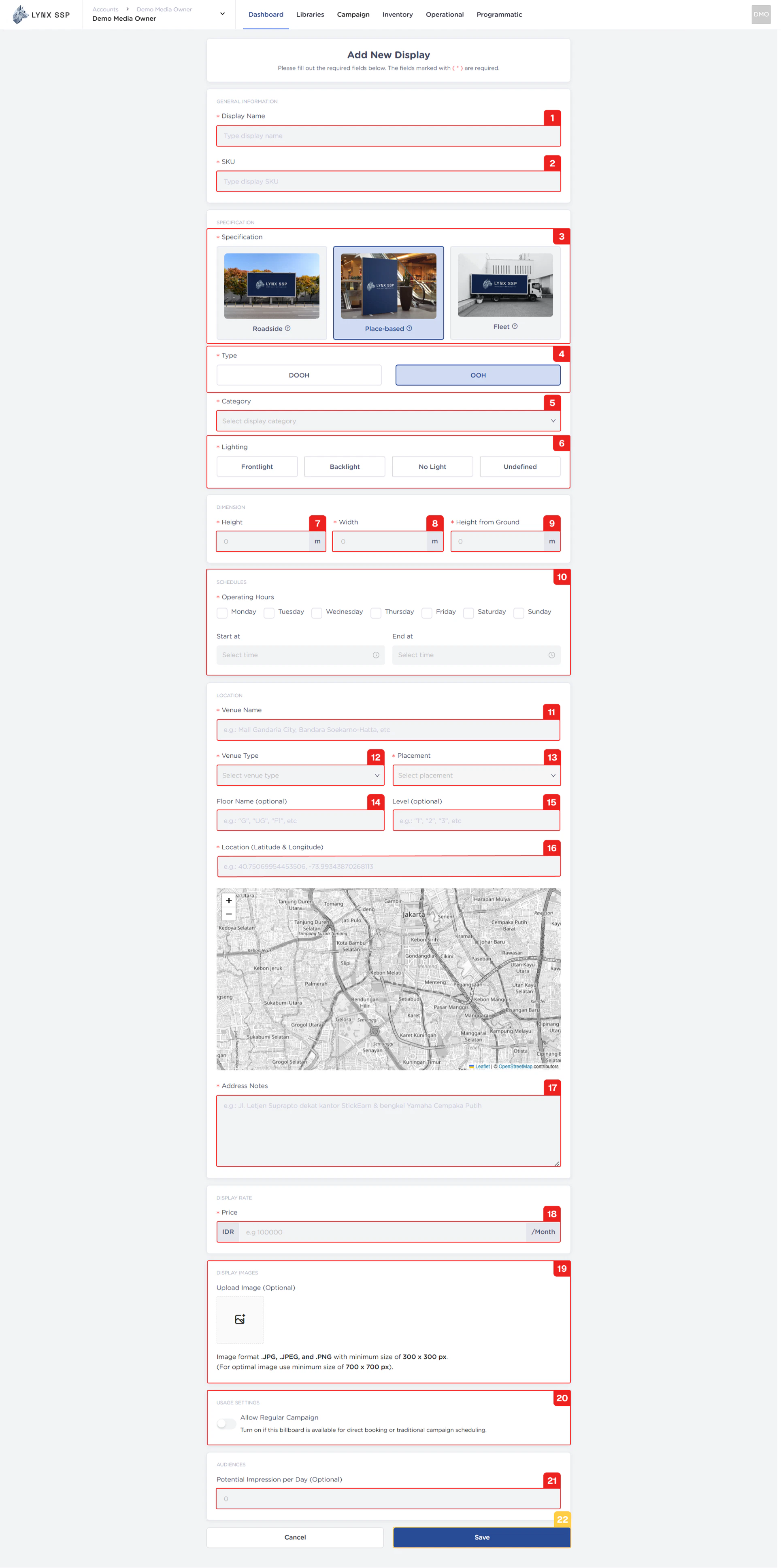
1
Display Name (Required)
You can enter the Display Name or unique name of your OOH (Out-of-Home) Inventory.
2
SKU (Required)
There are no set rules regarding SKU numbering. It all depends on your policy for determining the format and numbering of SKUs. SKUs can be used as unique parameters for performing specific searches on inventory.
The Display Name & SKU ou use cannot be duplicated. When you enter a Display Name & SKU that has been used previously and still exists in the system, the system will issue a warning that cannot be used.
3
Specification (Required)
You can choose the specifications according to the OOH (Out-of-Home) Inventory specifications that you have, Place Based (See Specification, Type & Category ↗).
4
Type (Required)
The type you selected is “OOH” because it adds OOH (Out-of-Home) Inventory.
5
Category (Required)
You must select the category according to the OOH (Out-of-Home) Inventory that you will add.
6
Lighting (Required)
When you select Printed Banner (OOH) as the billboard type and category, you must provide information about the type of lighting used on the billboard. The available options include:
Frontline
Frontline
The lighting position is in front and directed at the billboard media.
Backlight
Backlight
The lighting position is behind and directed at the billboard media.
No Light
No Light
Billboards do not use lighting at all.
Undefined
Undefined
Undefined
7
Height (Required)
You must enter the height of the OOH (Out-of-Home) Inventory that you are adding. The unit of measurement is meters.Example: a Printed Banner with specification 1 m x 2,5 m with a height of 0 m from the bottom. So entered 2,5 m as the height.
8
Width (Required)
You must enter the width of the OOH (Out-of-Home) Inventory that you are adding. The unit of measurement is meters.Example: a Printed Banner with specification 1 m x 2,5 m with a height of 0 m from the bottom. So entered 1 m as the width.
9
Height from Ground (Required)
You must enter the height measurement from the bottom of the OOH (Out-of-Home) Inventory that you are adding. The unit of measurement is meters.Example: a Printed Banner with specification 1 m x 2,5 m with a height of 0 m from the bottom. So entered 0 m as the height from ground.
10
Schedules (Operational Days and Hours) (Required)
You must select specific operating days & hours from the Place Based OOH (Out-of-Home) Inventory or billboard that you add to Lynx SSPExample: a Printed Banner with All Operational Days and operating hours only from 09.00 - 22.00.
11
Venue Name (Required)
This field specifies the exact name of the venue or place where the display unit (billboard, LED, signage, etc.) is installed.Example: Mall Gandaria City, Soekarno Hatta International Airport Terminal 3, MRT Istora Station.
12
Venue Type (Required)
Defines the category or type of venue in which the display is located.Example: Mall, Airport, Train Station, etc.
13
Placement (Required)
Indicates the specific area or placement of the display within the venue type.
14
Floor Name (Optional)
Specifies the floor or level name/label within the venue where the display is located.Example: Ground Floor (GF), Level 1, Basement 2 (B2), etc.
15
Level (Optional)
Represents the numerical floor level in the building structure.
16
Location (Latitude & Longitude) (Required)
You must enter the location coordinates in the form of latitude and longitude (Digital-Out-of-Home) where your inventory is located.
17
Address Notes (Required)
You can fill in this note with the complete address of your inventory location.
18
Price (Required)
You must enter the monthly price or rate card of the OOH (Out-of-Home) Inventory or billboard that you add to Lynx SSP.
19
Upload Display Image (Optional)
You can upload photos of OOH (Out-of-Home) Inventory or billboards that you have added to Lynx SSP.
20
Allow Regular Campaign (Optional)
You can specify or activate that your Place Based OOH (Out-of-Home) Inventory is available for Regular campaign types (See Select Inventory in the Media Plan ↗).
21
Potential Impressions per day (Optional)
If you have data on how many potential impressions per day are generated from the inventory, you can fill it in this column. But if not, you can leave it blank.
22
Click the “Save” Button
After filling in all the information and adding OOH (Out-of-Home) Inventory, click the “Save” button.