

How to Add Your Roadside DOOH (Digital-Out-of-Home) Inventory
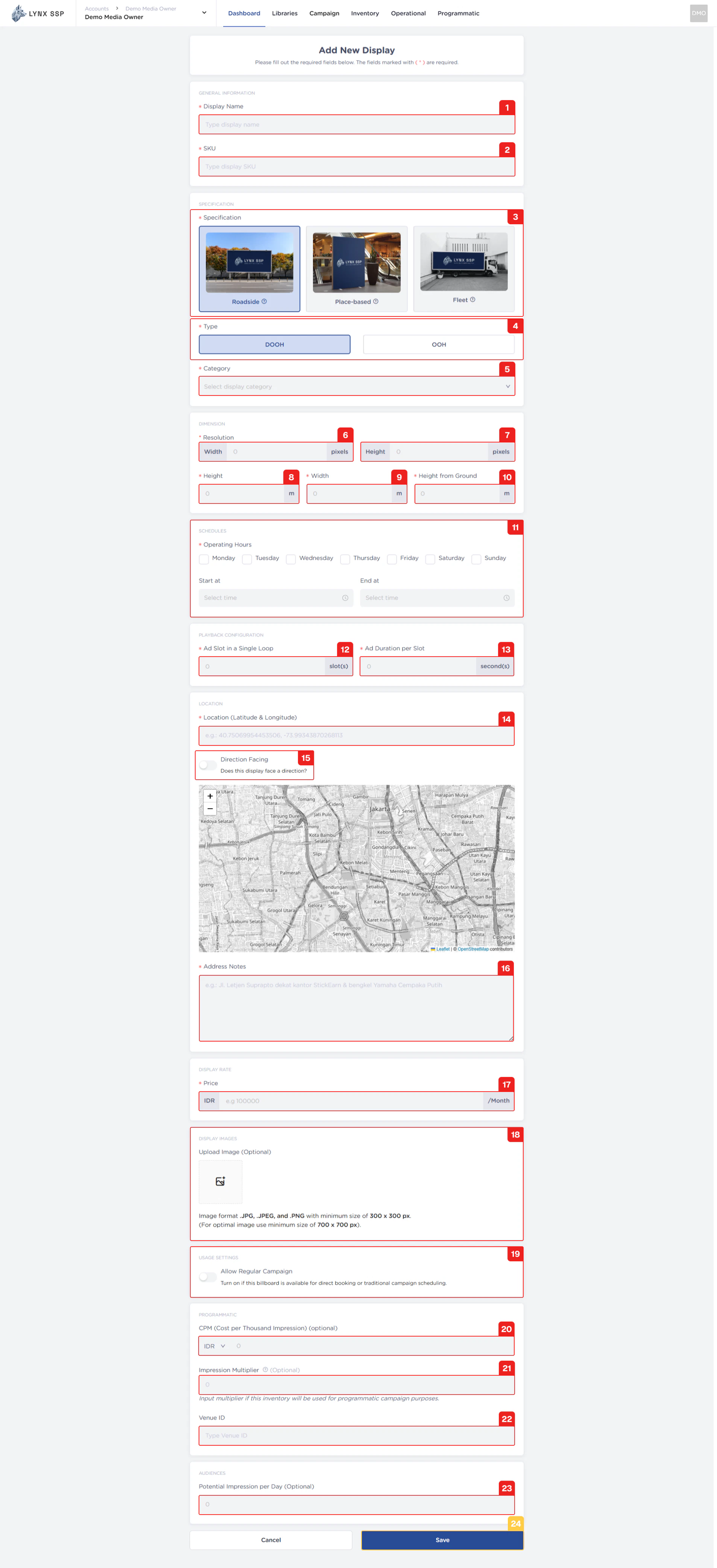
When adding DOOH (Digital-Out-of-Home) Inventory to the Lynx SSP Platform, you will need to provide some information or data that you can prepare and enter in the following form:
1
Display Name (Required)
You can enter the Display Name or unique name of your DOOH (Digital-Out-of-Home) Inventory.
2
SKU (Required)
There are no set rules regarding SKU numbering. It all depends on your policy for determining the format and numbering of SKUs. SKUs can be used as unique parameters for performing specific searches on inventory.
The Display Name & SKU ou use cannot be duplicated. When you enter a Display Name & SKU that has been used previously and still exists in the system, the system will issue a warning that cannot be used.
3
Specification (Required)
You can choose the specifications according to the DOOH (Digital-Out-of-Home) Inventory specifications that you have, Roadside (See Specification, Type & Category ↗).
4
Type (Required)
The type you selected is “DOOH” because it adds DOOH (Digital-Out-of-Home) Inventory.
5
Category (Required)
You must select the category according to the DOOH (Digital-Out-of-Home) Inventory that you will add.
6
Resolution - Length (Required)
You can enter the resolution of the DOOH (Digital-Out-of-Home) Inventory that you will add.Example: a Digital Billboard with a resolution of 1920 x 1080, so enter 1920 as the Length.
7
Resolution - Width (Required)
You can enter the resolution of the DOOH (Digital-Out-of-Home) Inventory that you will add.Example: a Digital Billboard with a resolution of 1920 x 1080, so enter 1080 as the Width.
8
Height (Required)
You must enter the height of the DOOH (Digital-Out-of-Home) Inventory that you are adding. The unit of measurement is meters.Example: a Digital Billboard with specification 2.5 m x 1 m with a height of 3 m from the bottom. So entered 1 m as the height.
9
Width (Required)
You must enter the width of the DOOH (Digital-Out-of-Home) Inventory that you are adding. The unit of measurement is meters.Example: a Digital Billboard with specification 2.5 m x 1 m with a height of 3 m from the bottom. So entered 2,5 m as the width.
10
Height from Ground (Required)
You must enter the height measurement from the bottom of the DOOH (Digital-Out-of-Home) Inventory that you are adding. The unit of measurement is meters.Example: a Digital Billboard with specification 2.5 m x 1 m with a height of 3 m from the bottom. So entered 3 m as the height from ground.
11
Schedules (Operational Days and Hours) (Required)
You must select specific operating days & hours from the Roadside DOOH (Digital-Out-of-Home) Inventory or billboard that you add to Lynx SSPExample: a Digital Billboard with All Operational Days and operating hours only from 06.00 - 23.59.
12
Ad Slot in a Single Loop (Required)
Ad Slot is the unit of time available to display creative in a single loop and Loop is a cycle containing several slots. You must enter the number of slots from the DOOH (Digital-Out-of-Home) Inventory that you want to add. The number of slots or creative displayed on a billboard depends on you as the Media Owner.Example: a Digital Billboard with a total of 5 slots, so there will be 5 content slots that are displayed alternately in a single Loop.
13
Ad Duration per Slot (Required)
You must also enter the duration per slot for each DOOH (Digital-Out-of-Home) Inventory slot to be added. The format is in seconds.Example: a Digital Billboard with a total of 5 slots and a duration of 30 seconds per slot, so each slot will be displayed for 30 seconds alternately.
14
Location (Latitude & Longitude) (Required)
You must enter the location coordinates in the form of latitude and longitude (Digital-Out-of-Home) where your inventory is located.
15
Direction Facing (Optional)
It would be better if you set the Direction Facing for your inventory. Direction Facing is information about which direction your billboard is facing. This information will be an added value for potential buyers who want to place ads on your inventory.If you have enabled Direction Facing, you must enter information about the method used and its range. You can use Custom Direction or Cardinal Direction.
Custom Direction
Custom Direction
You must enter the Latitude and Longitude information along with the Visibility Distance (in meters).
Cardinal Direction
Cardinal Direction
You choose which direction the billboard faces along with its Visibility Distance or range (in meters).
16
Address Notes (Required)
You can fill in this note with the complete address of your inventory location.
17
Price (Required)
You must enter the monthly price or rate card of the DOOH (Digital-Out-of-Home) Inventory or billboard that you add to Lynx SSP.
18
Upload Display Image (Optional)
You can upload photos of DOOH (Digital-Out-of-Home) Inventory or billboards that you have added to Lynx SSP.
19
Allow Regular Campaign (Optional)
You can specify or activate that your roadside DOOH (Digital-Out-of-Home) Inventory is available for Regular campaign types (See Select Inventory in the Media Plan ↗).
20
CPM (Cost Per-Thousand Impression) (Optional)
You can enter the price per thousand impressions from DOOH (Digital-Out-of-Home) Inventory or billboards that you add to Lynx SSP, if the inventory will also be available for Programmatic Campaign (See Set DOOH Inventory to Programmatic ↗).
21
Impression Multiplier (Optional)
You can enter the Impression Multiplier if the DOOH (Digital-Out-of-Home) Inventory you’re adding is also available for Programmatic Campaigns. The Impression Multiplier is a multiplication factor used to estimate the actual number of impressions from a single ad play on a Digital-Out-of-Home (DOOH) screen, as one play can be seen by multiple people at once.Example: if one ad spot has an Impression Multiplier of 200, it is estimated that every time the ad appears, it is seen by 200 impressions.
22
Venue ID (Optional)
Venue ID is a unique identification code used to mark the location or placement point of an inventory (such as a billboard or DOOH screen) within Lynx SSP. Venue ID makes it easier for the system to distinguish one digital screen from another, even if they are in the same area.
23
Potential Impressions per day (Optional)
If you have data on how many potential impressions per day are generated from the inventory, you can fill it in this column. But if not, you can leave it blank.
24
Click the “Save” Button
After filling in all the information and adding DOOH (Digital-Out-of-Home) Inventory, click the “Save” button and continue to configure your screen connection (See Connect to Screen ↗).