Overview
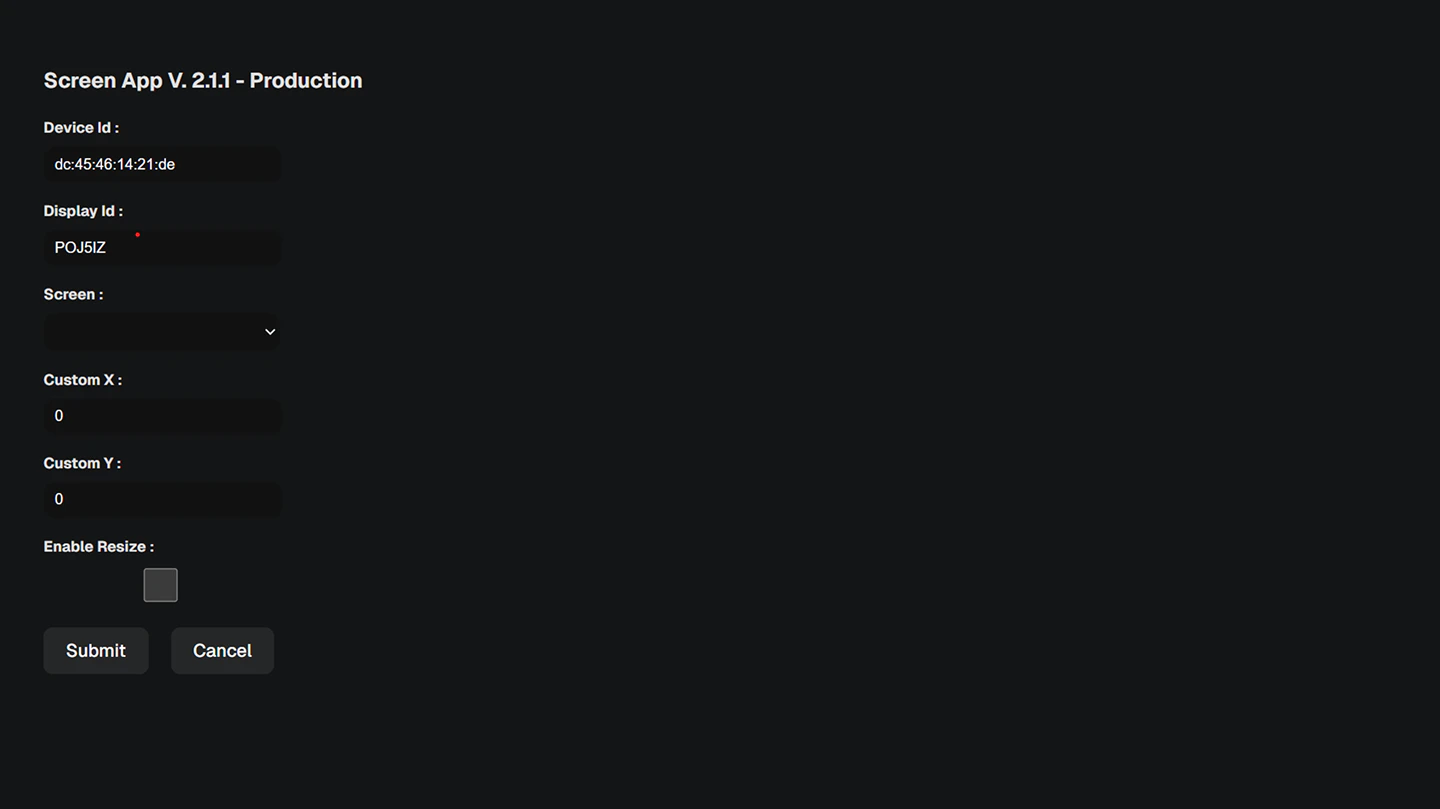
- Device ID is a unique string of characters taken from the MAC address of the device.
- Display ID is a unique string of characters like on the main screen which will be used to bind to the inventory of the client portal.
- Custom height and custom width function to set the height and width of the frame from the player. The numbers listed do not represent sizes in any metric.
- Screen serves to select the screen (one device can run more than one screen).
- Custom X and Custom Y function to set the frame distance from the top left.
- Enable Resize if enabled, then you can adjust the size of the screen app, if turned off the screenapp size will be fixed and cannot be changed.
- Submit serves to apply configuration changes.
- Cancel serves to cancel configuration changes and return to the main Screen App screen.
Content Format
Screen App supports the image and video formats listed in the following table:MP4
WEBM
HTML
JPEG
JPG
GIF
PNG
How to Connect using ScreenApp
1
Ensure you have added DOOH (Digital-Out-of-Home) Inventory on the Lynx SSP Platform
How to Add DOOH (Digital-Out-of-Home) Inventory ↗
2
Open ScreenApp
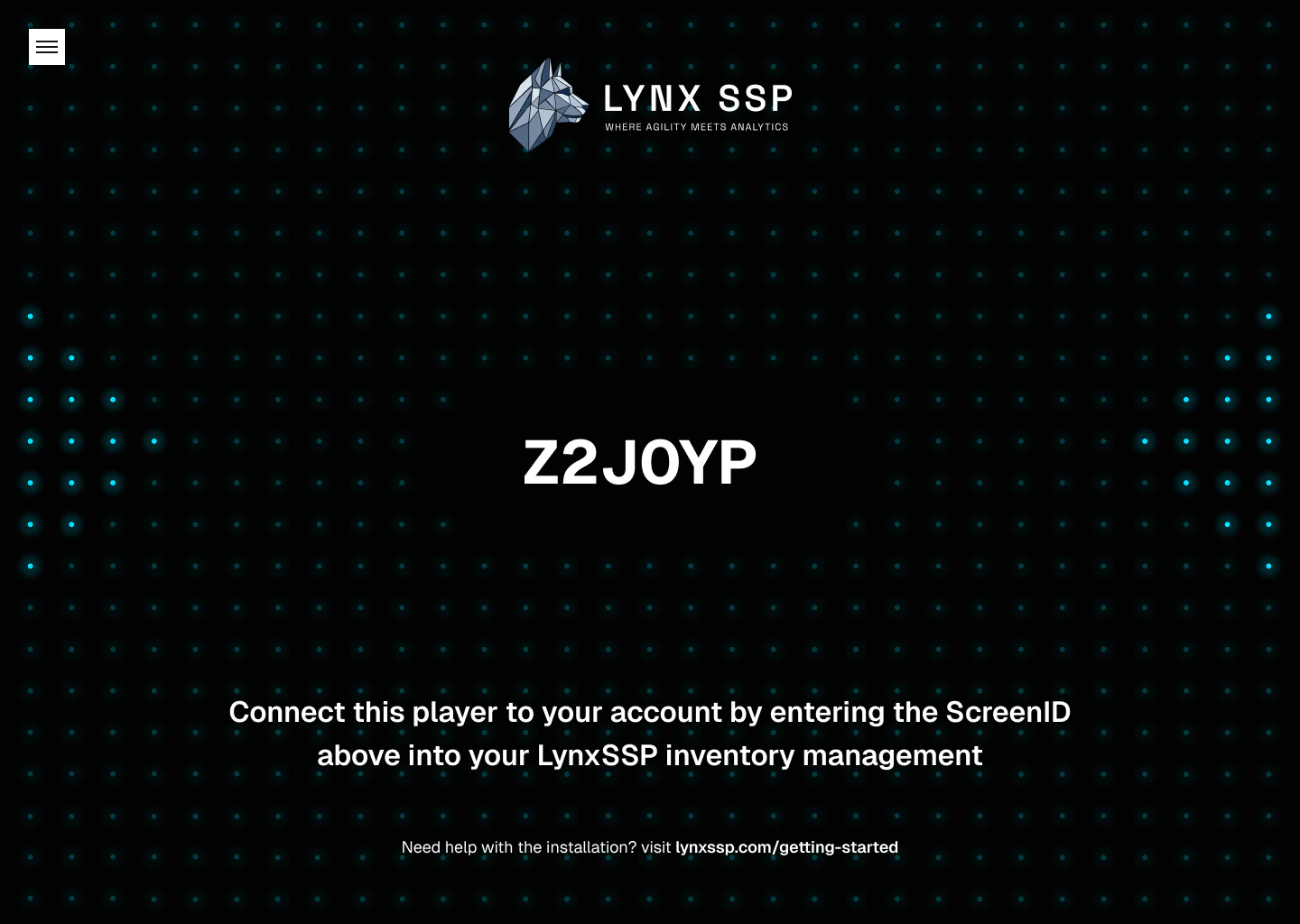
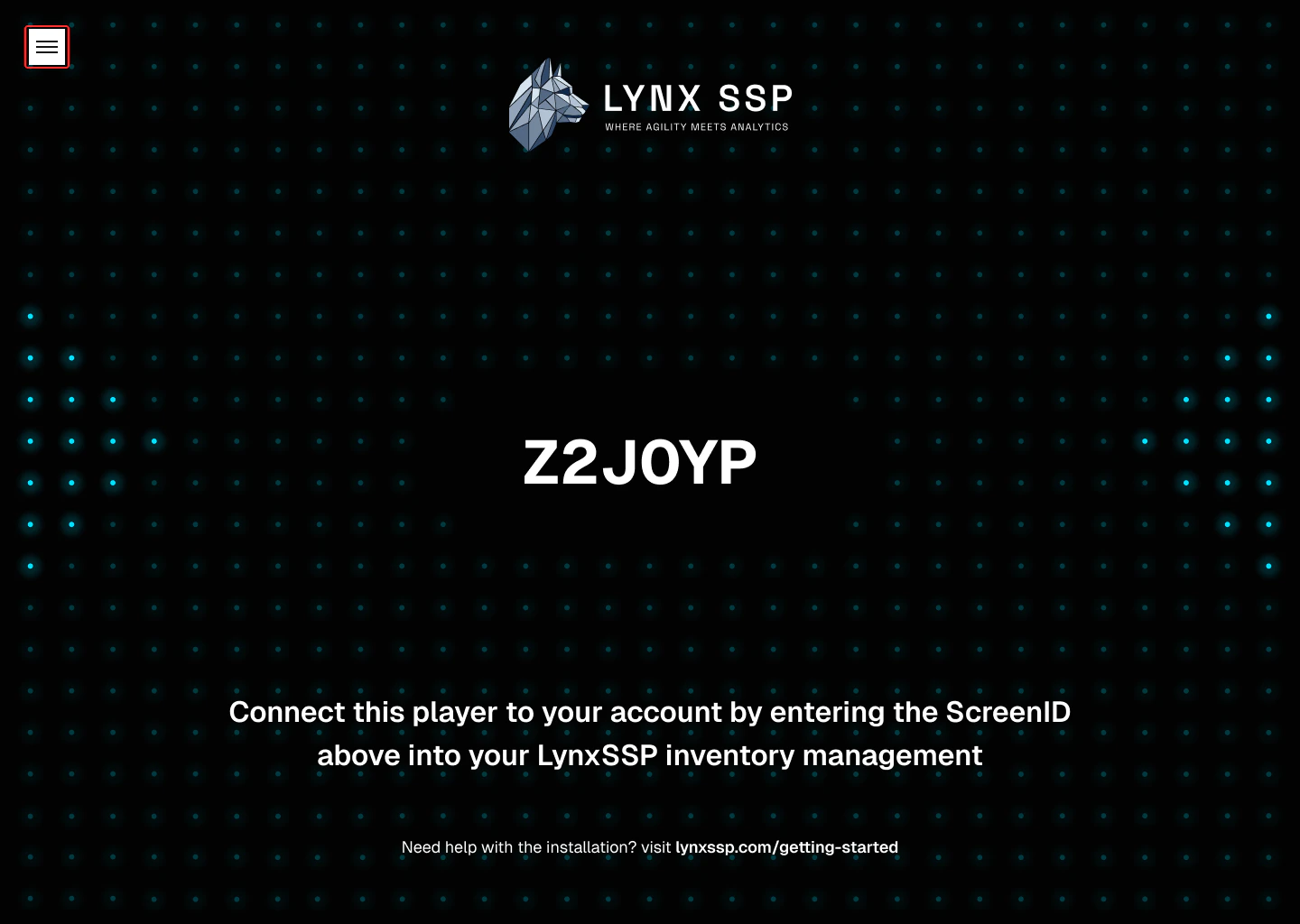
Open the Screen App application and a Screen ID will appear that you can use to connect the billboard in Lynx SSP with the Screen App application.
3
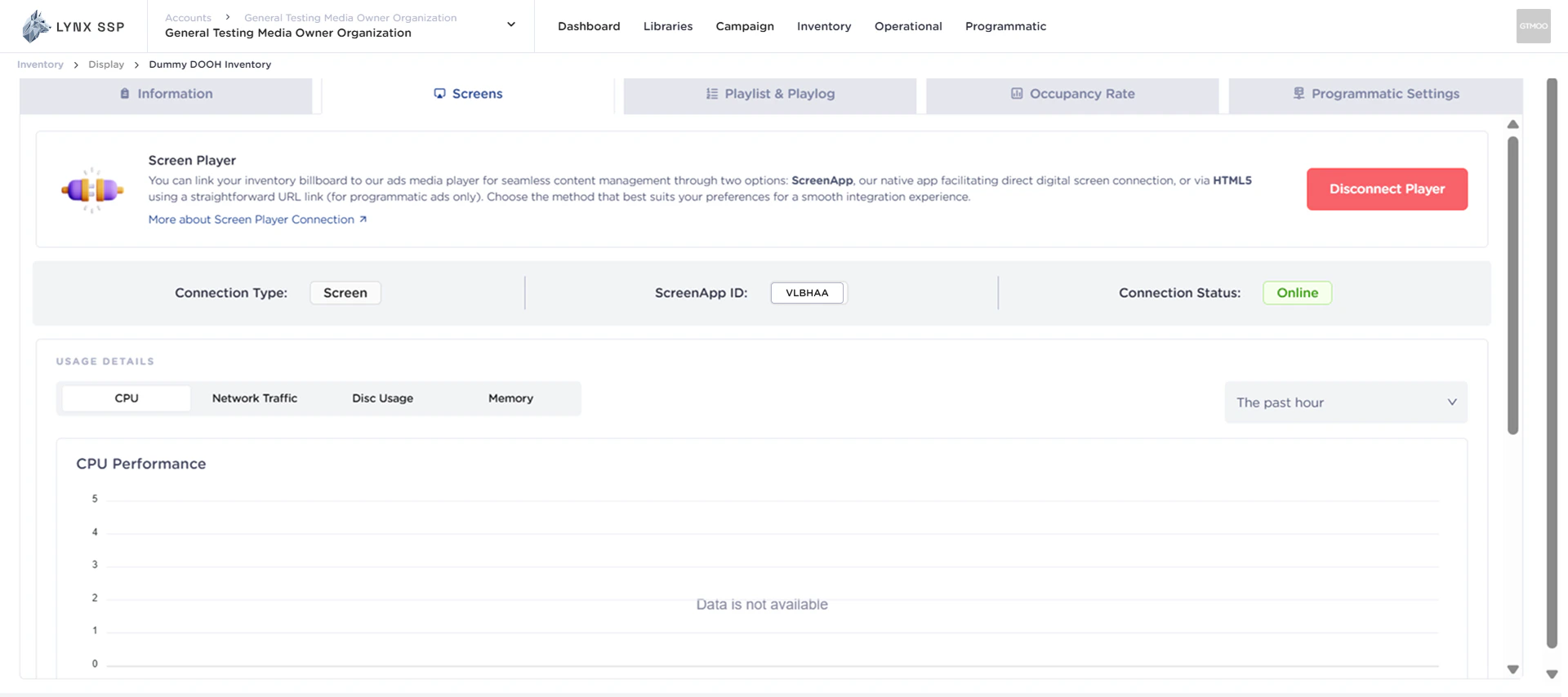
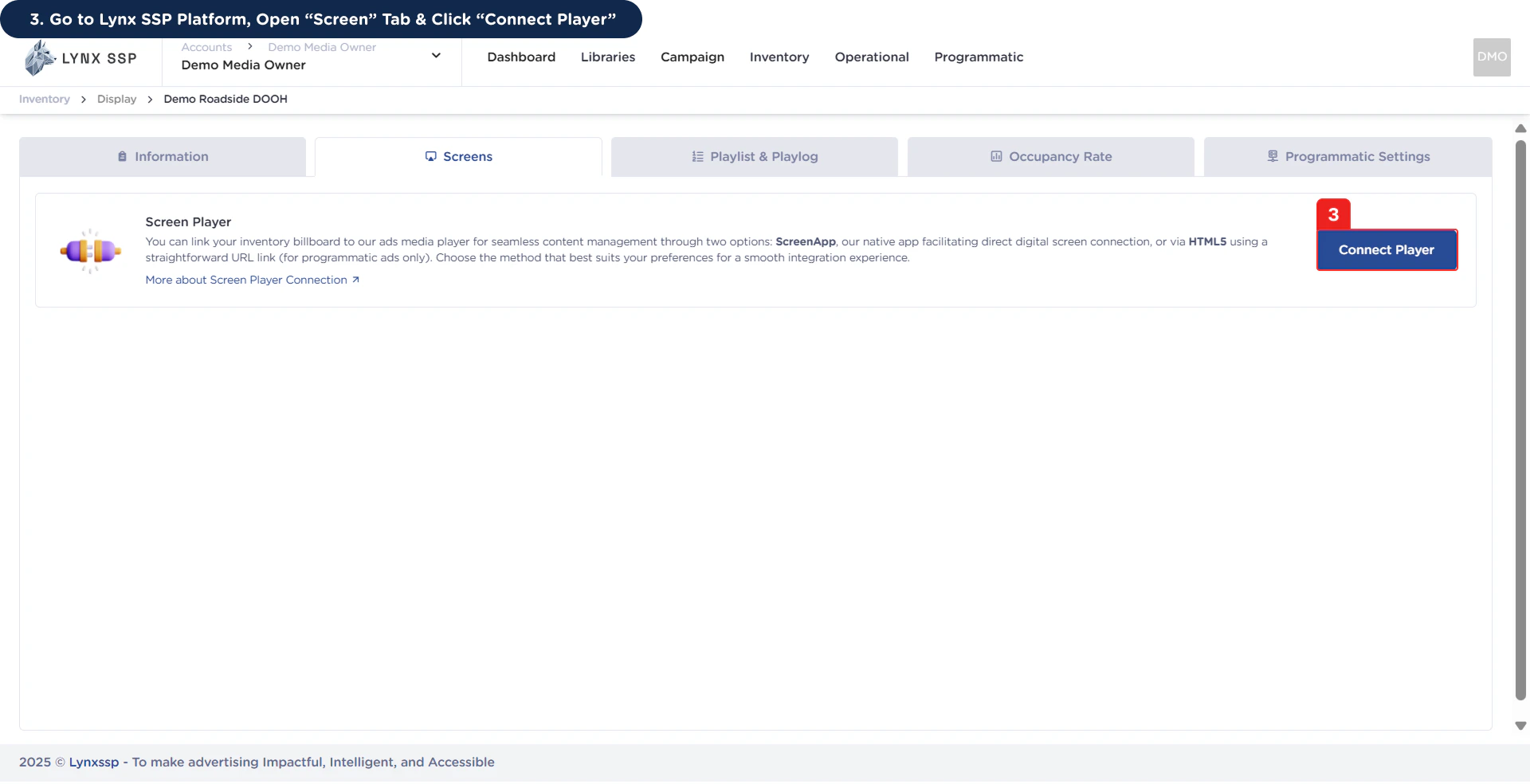
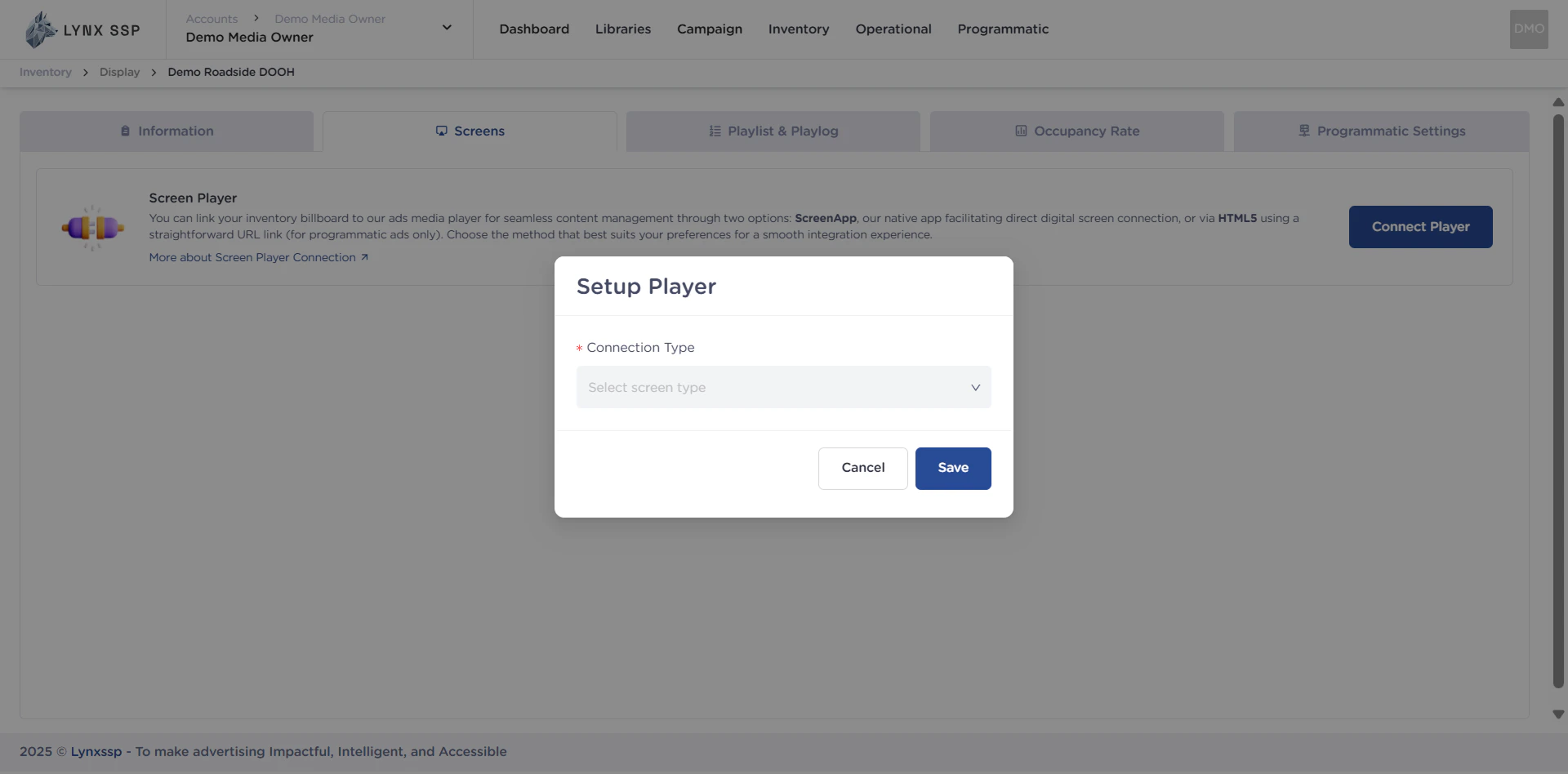
Go to Lynx SSP Platform, Open “Screen” Tab & Click “Connect Player”
4
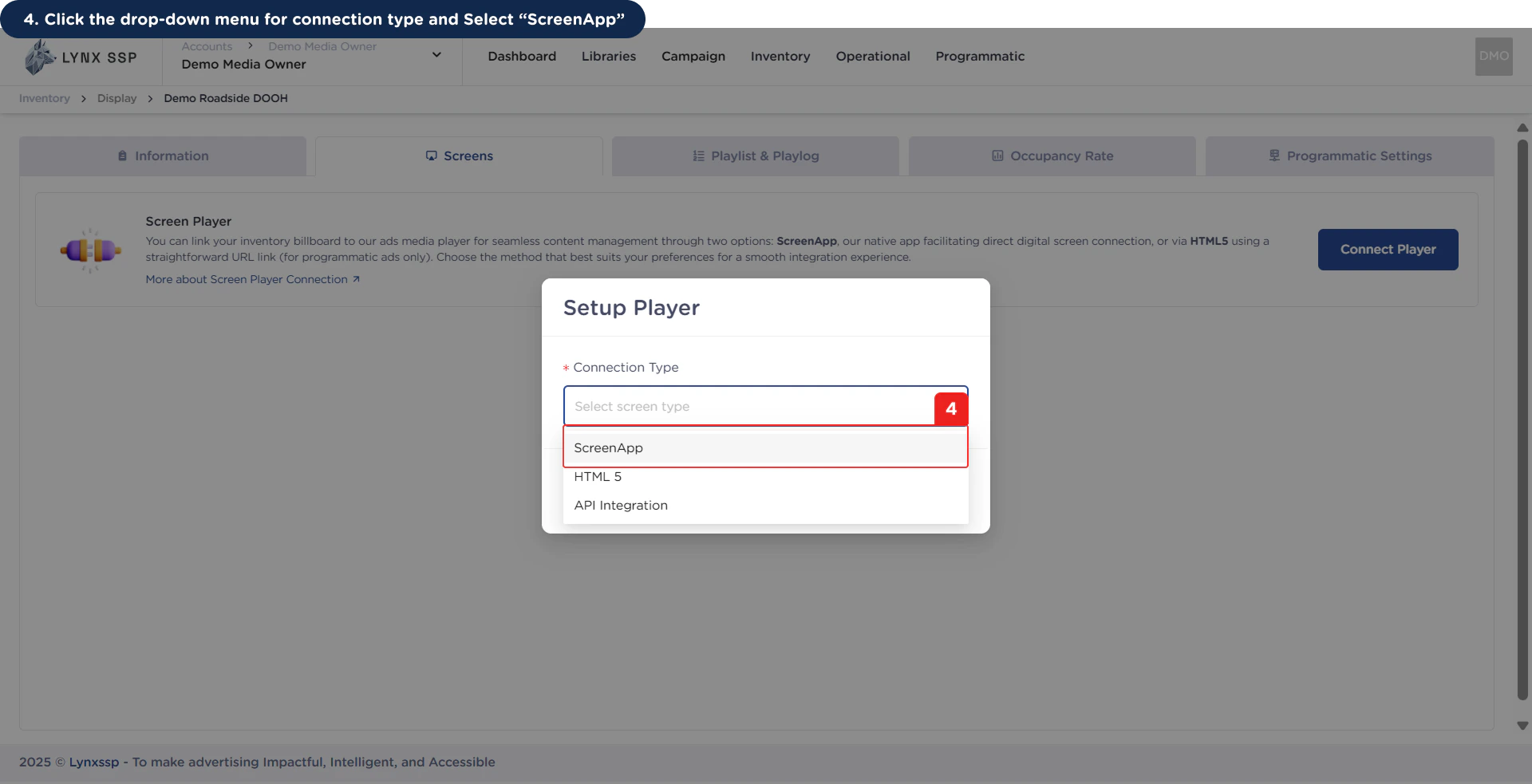
Click the drop-down menu for connection type and Select “ScreenApp”
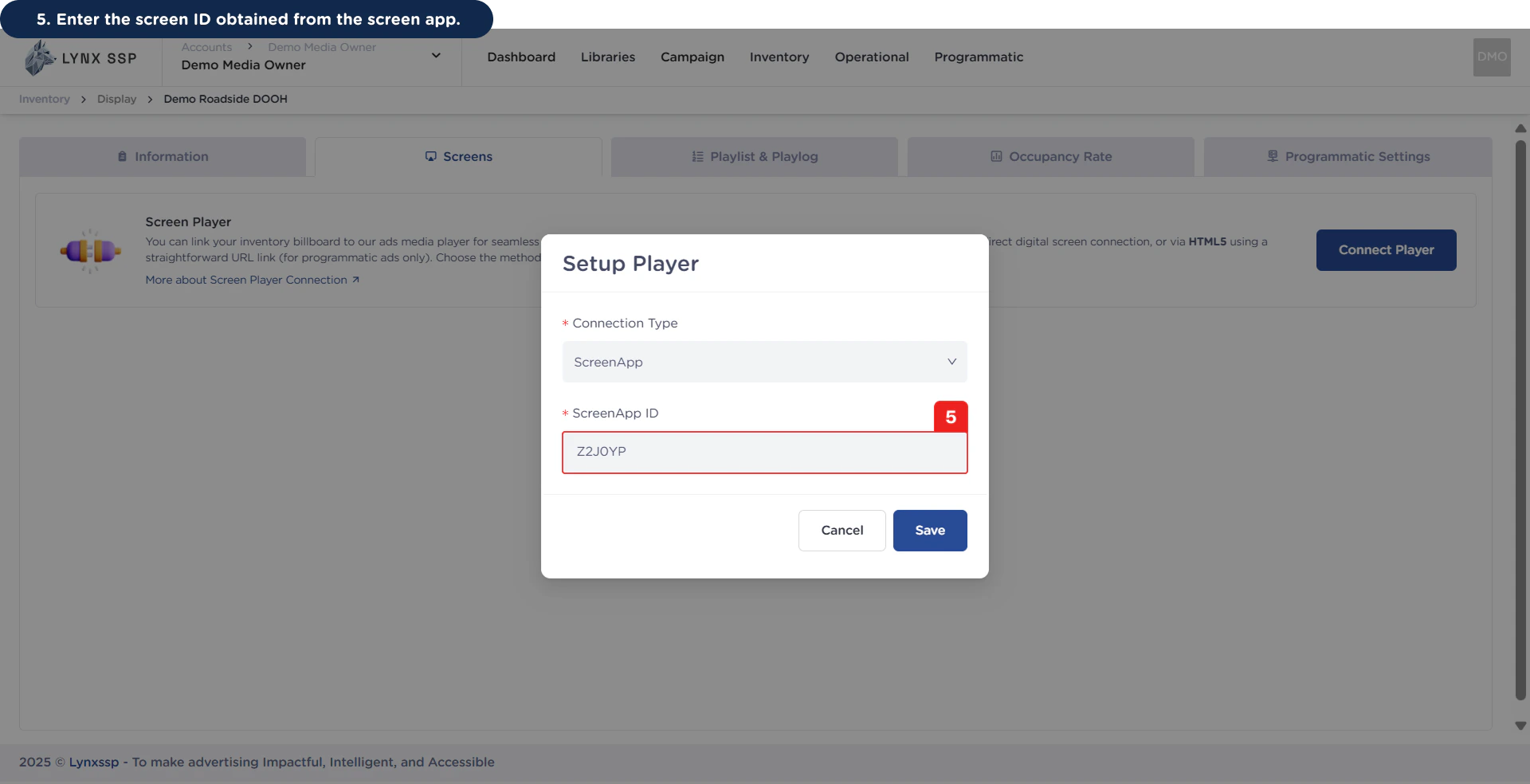
5
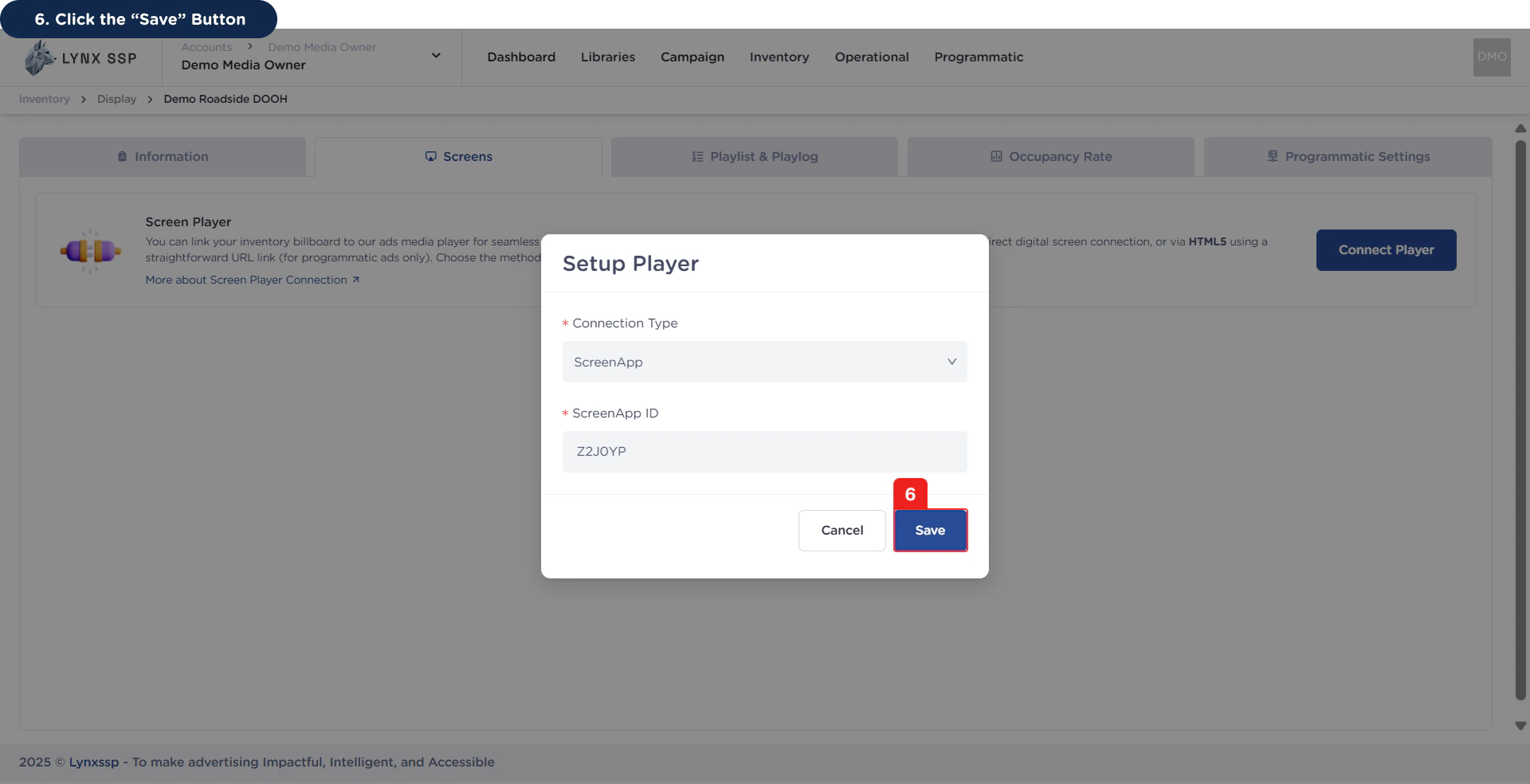
Enter the screen ID obtained from the screen app.
6
Click the “Save” Button