If the DOOH (Digital-Out-of-Home) Inventory selected in the media plan is not connected to ScreenApp, you do not need to continue this process.
- Ensure that the media player from your DOOH (Digital-Out-of-Home) Inventory has the ScreenApp application installed on it (See Screen App Installation ↗).
- Ensure that the DOOH (Digital-Out-of-Home) Inventory you will use in a campaign is connected to the Screen App (See Screen App Connection ↗).
- DOOH (Digital-Out-of-Home) Inventory already contains creative content from the media plan campaign that is running or has been sent to the playlist (See Sent Creative to Playlist ↗).
Accessing the Playlist Order
1
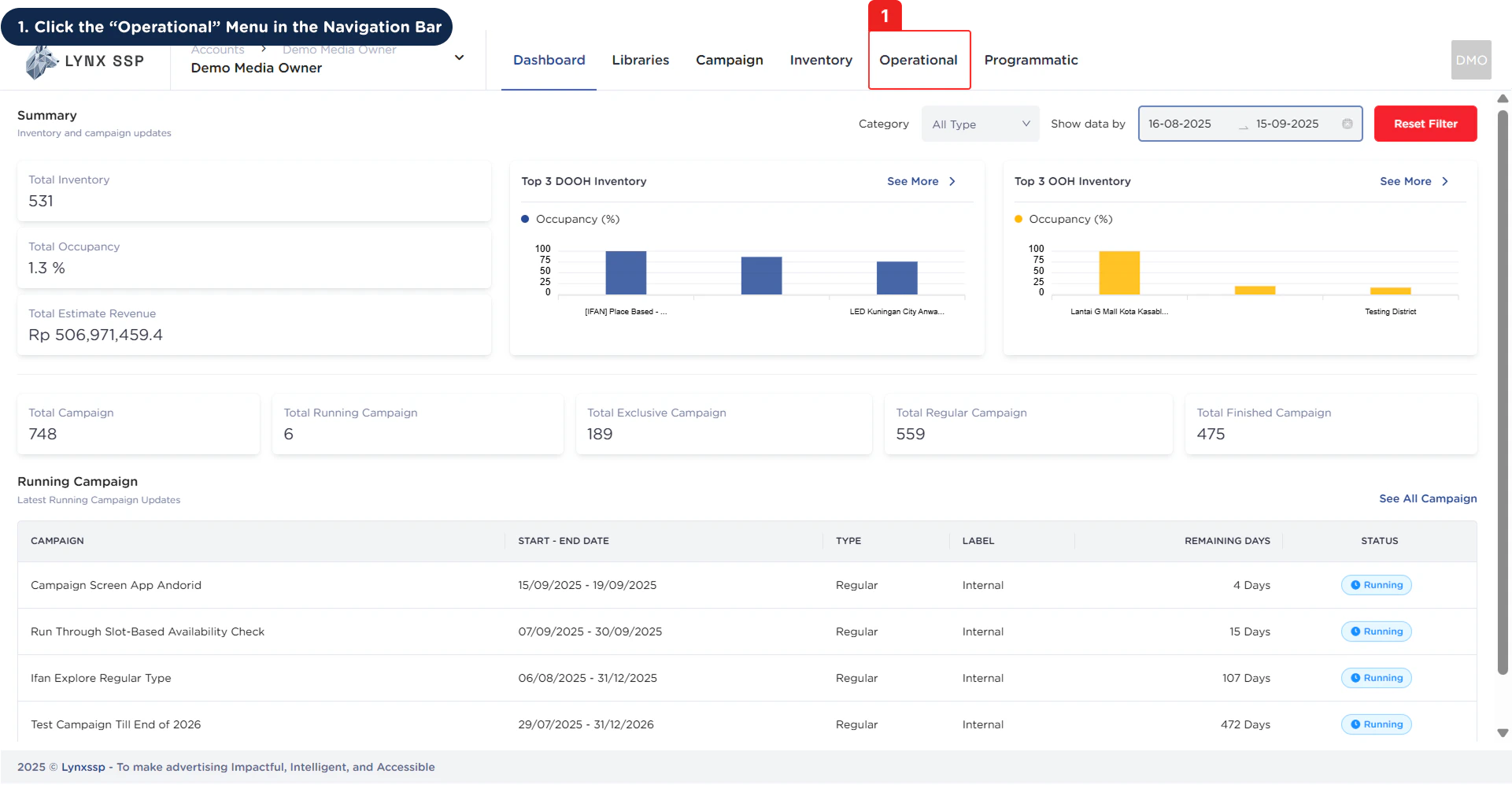
Click the 'Operational' Menu in the Navigation Bar
2
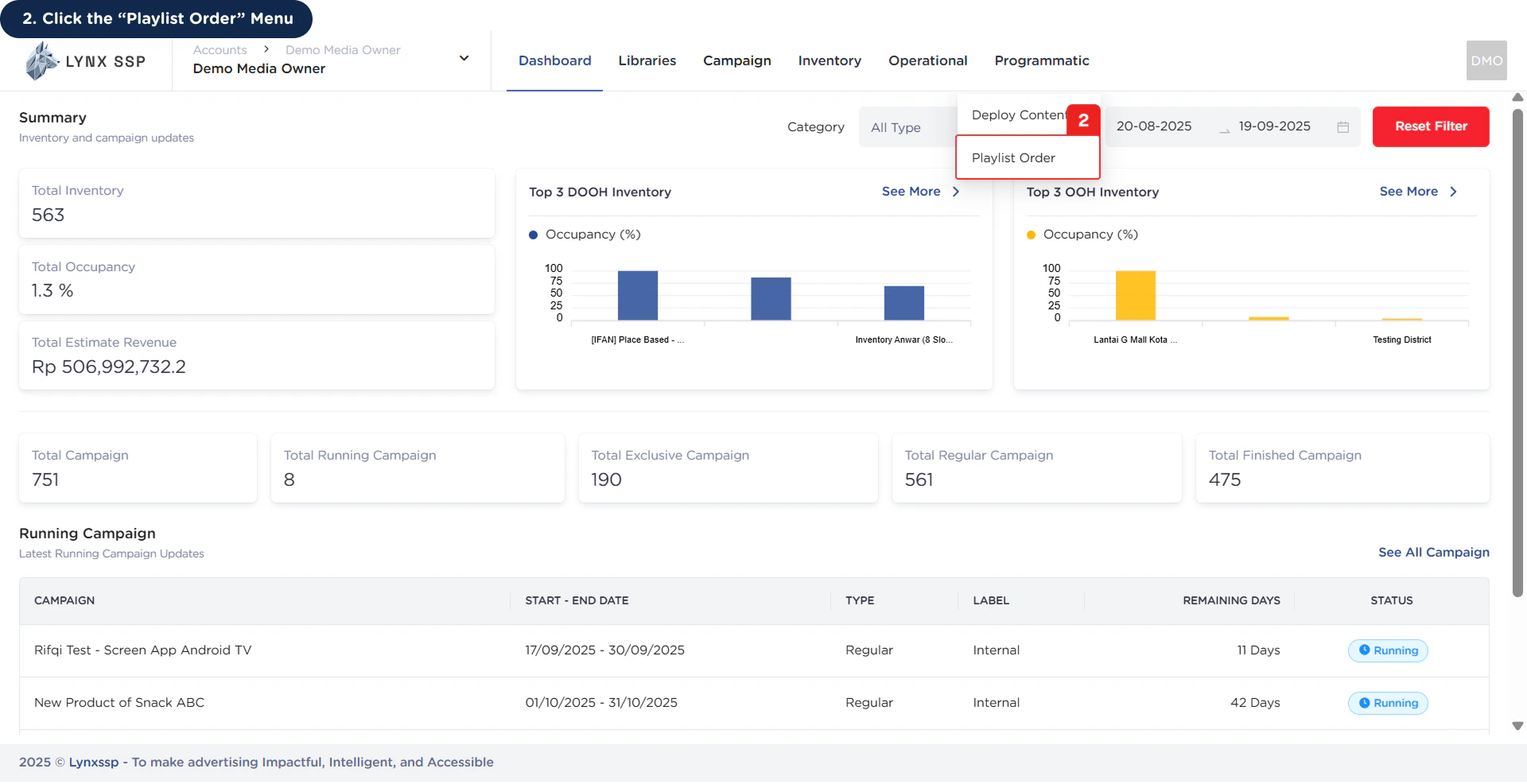
Click the 'Playlist Order' Menu
Playlist Order Overview
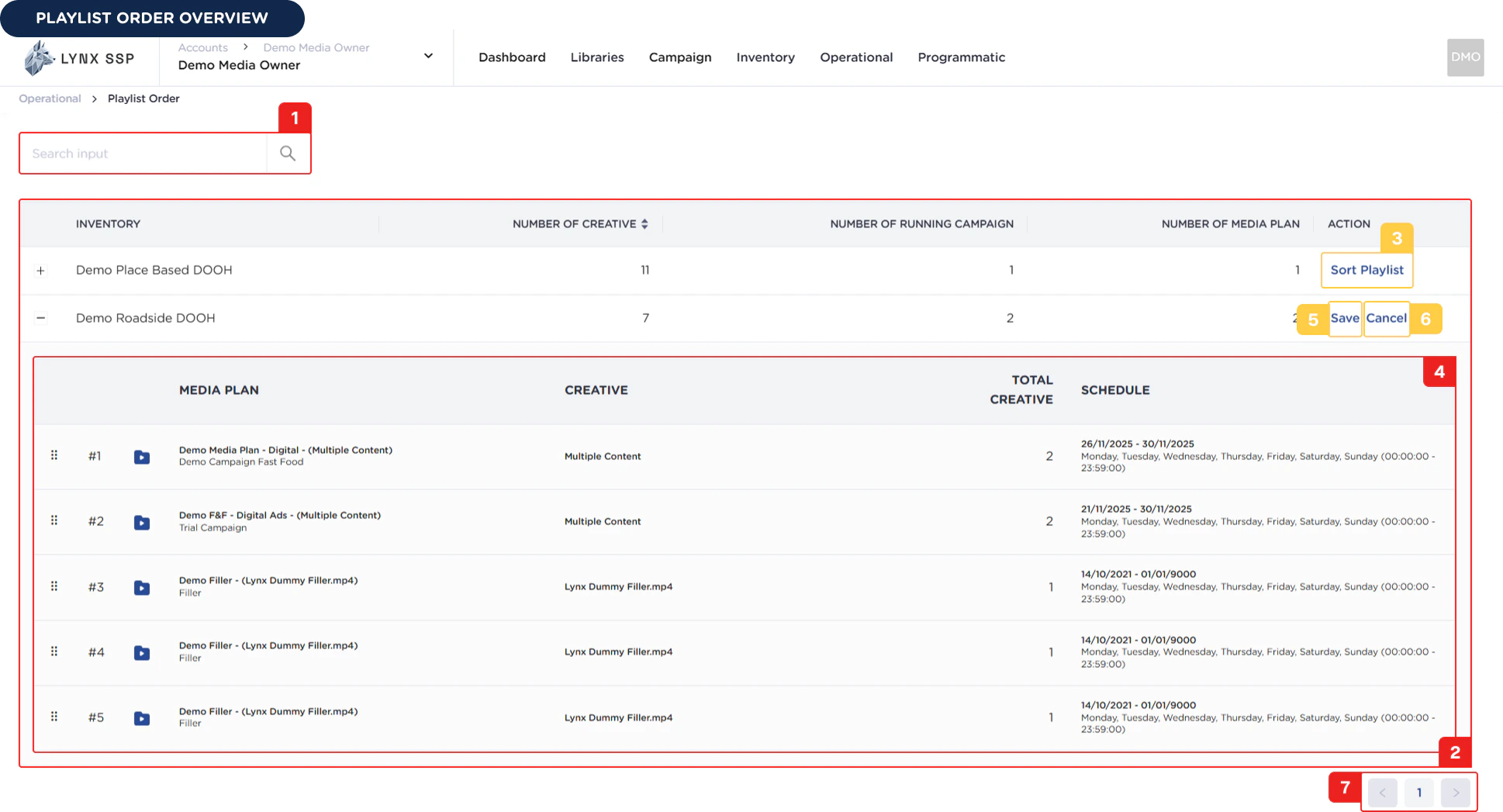
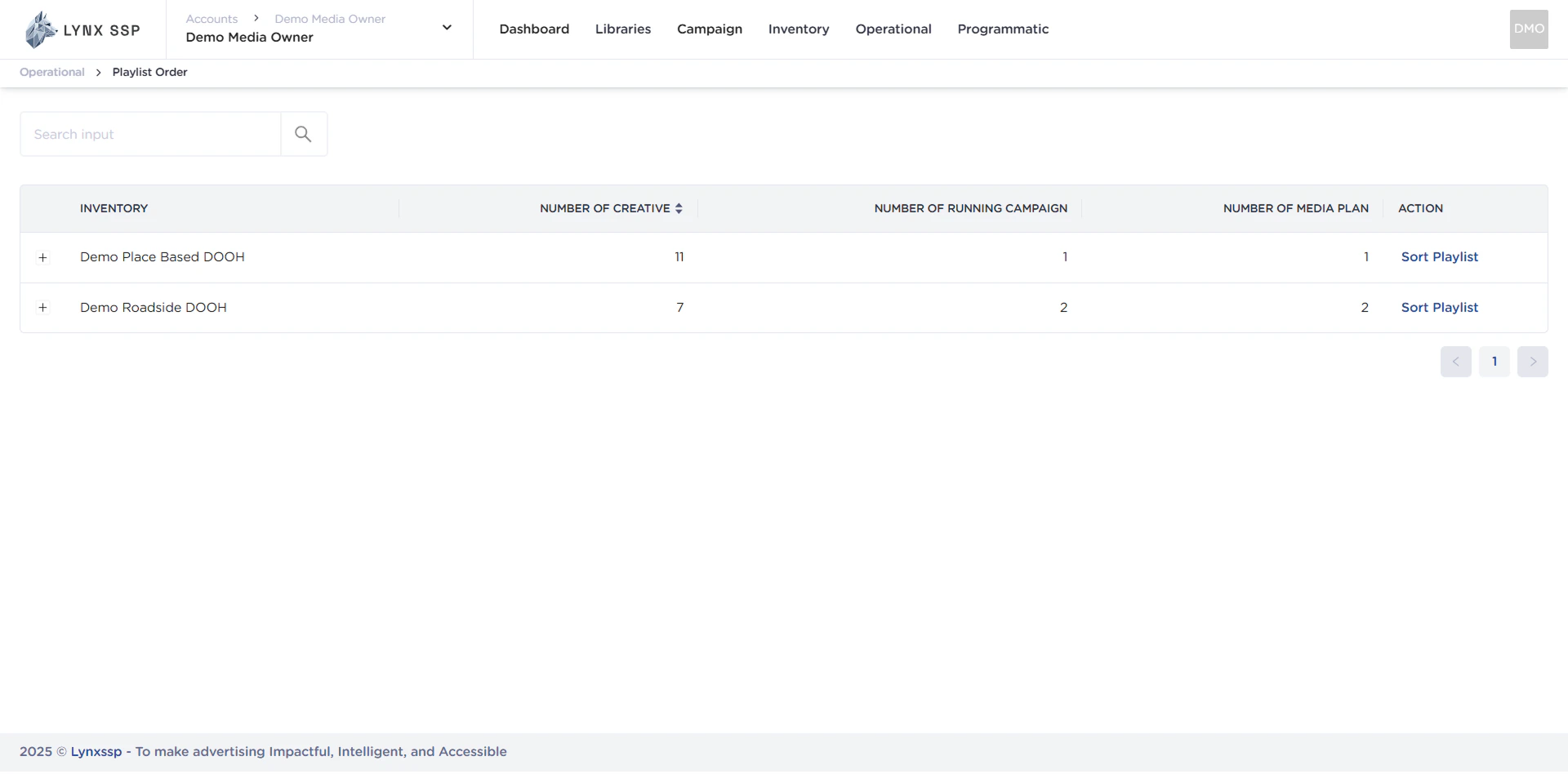
Inventory Search
You can search by typing keywords based on the Inventory Name that you specified when creating the inventory.List Inventory
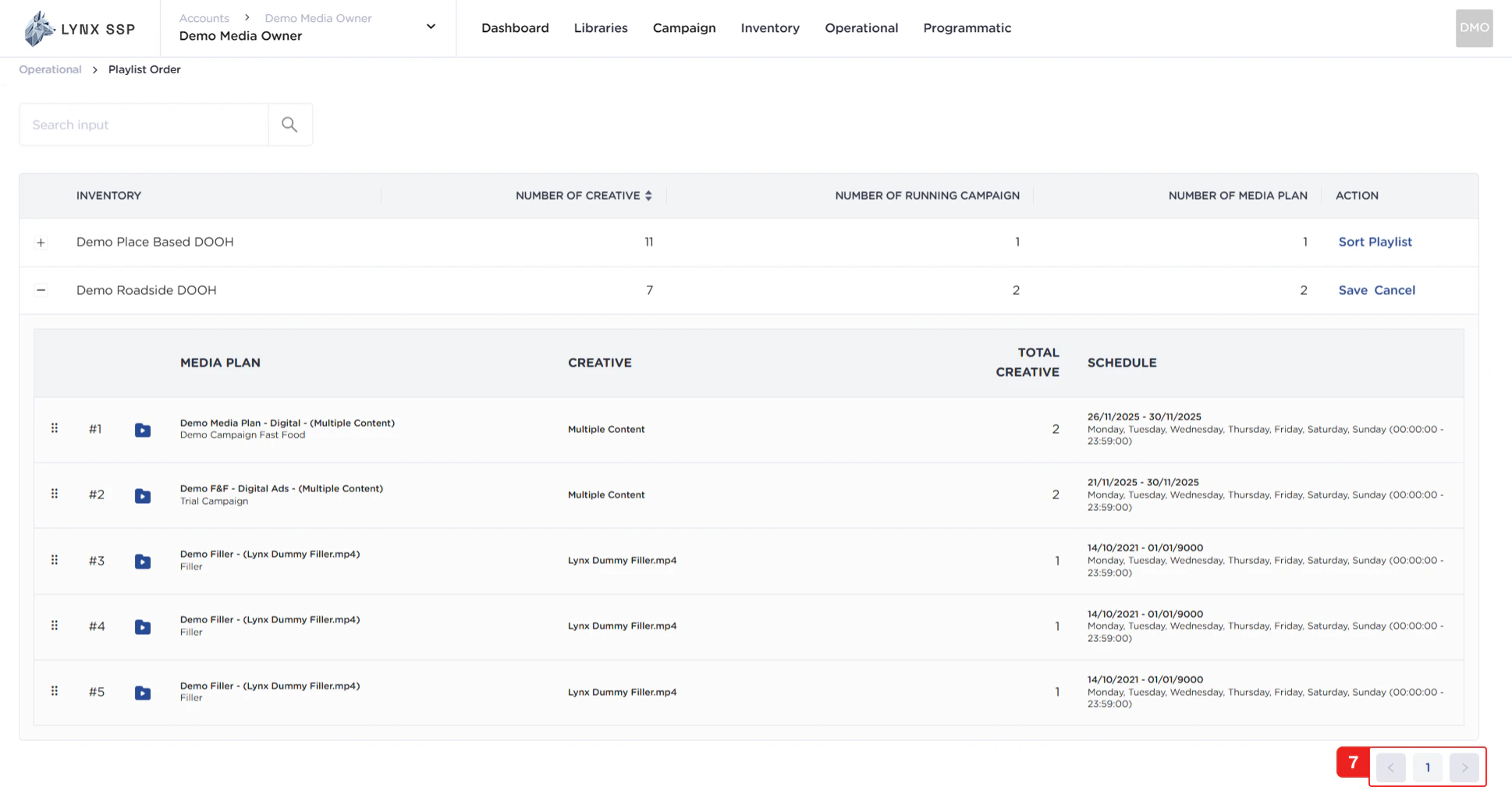
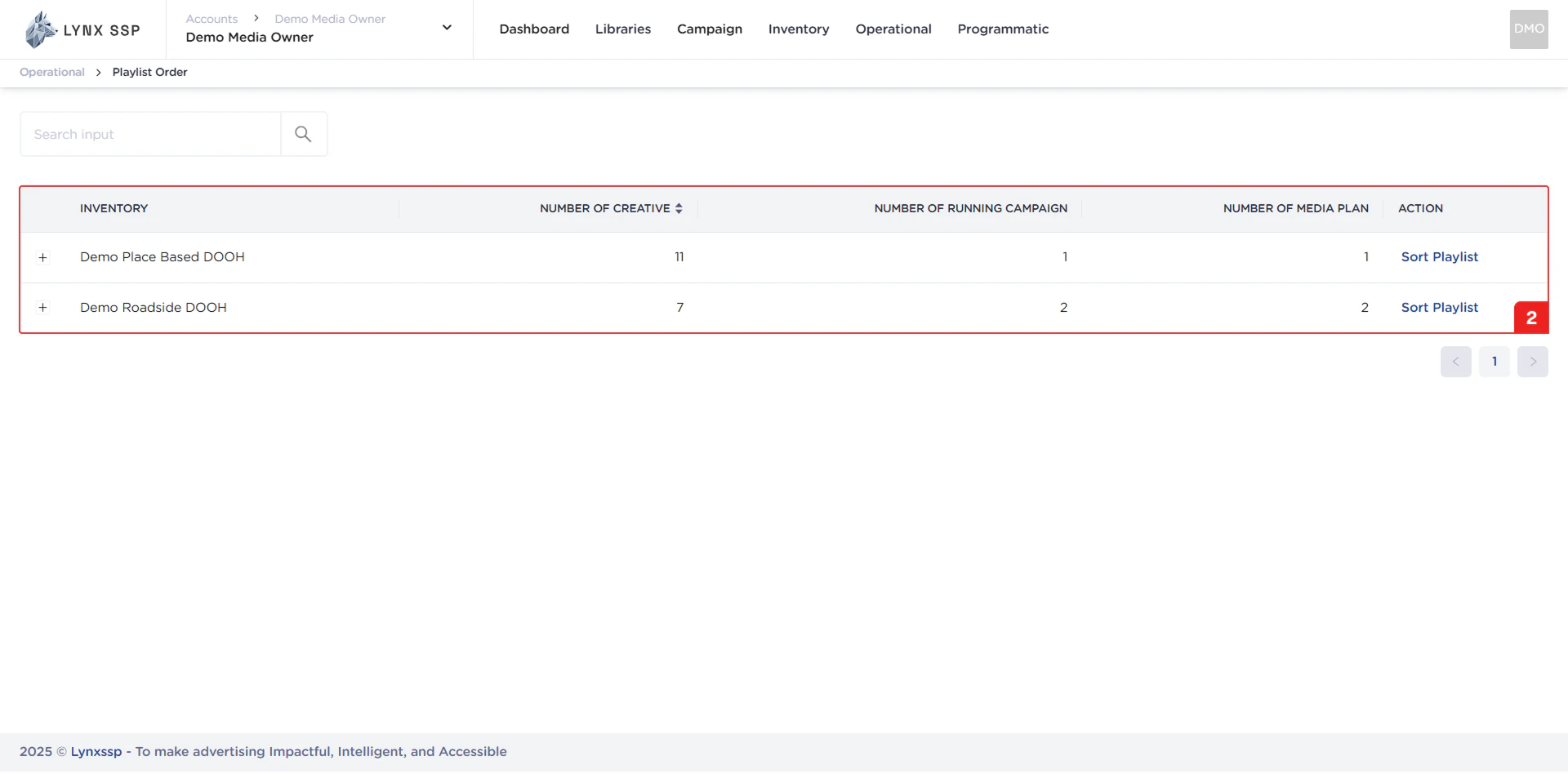
In this section, you can see all the inventory lists that you have and are already connected to ScreenApp. The properties that can be seen in this table are as follows:- Inventory Name
- Total Creative Content
- Total Running campaign
- Total Media Plan
Sort Playlist Button
You can change the order of the playlist using the sort playlist button (See Change Playlist Order ↗)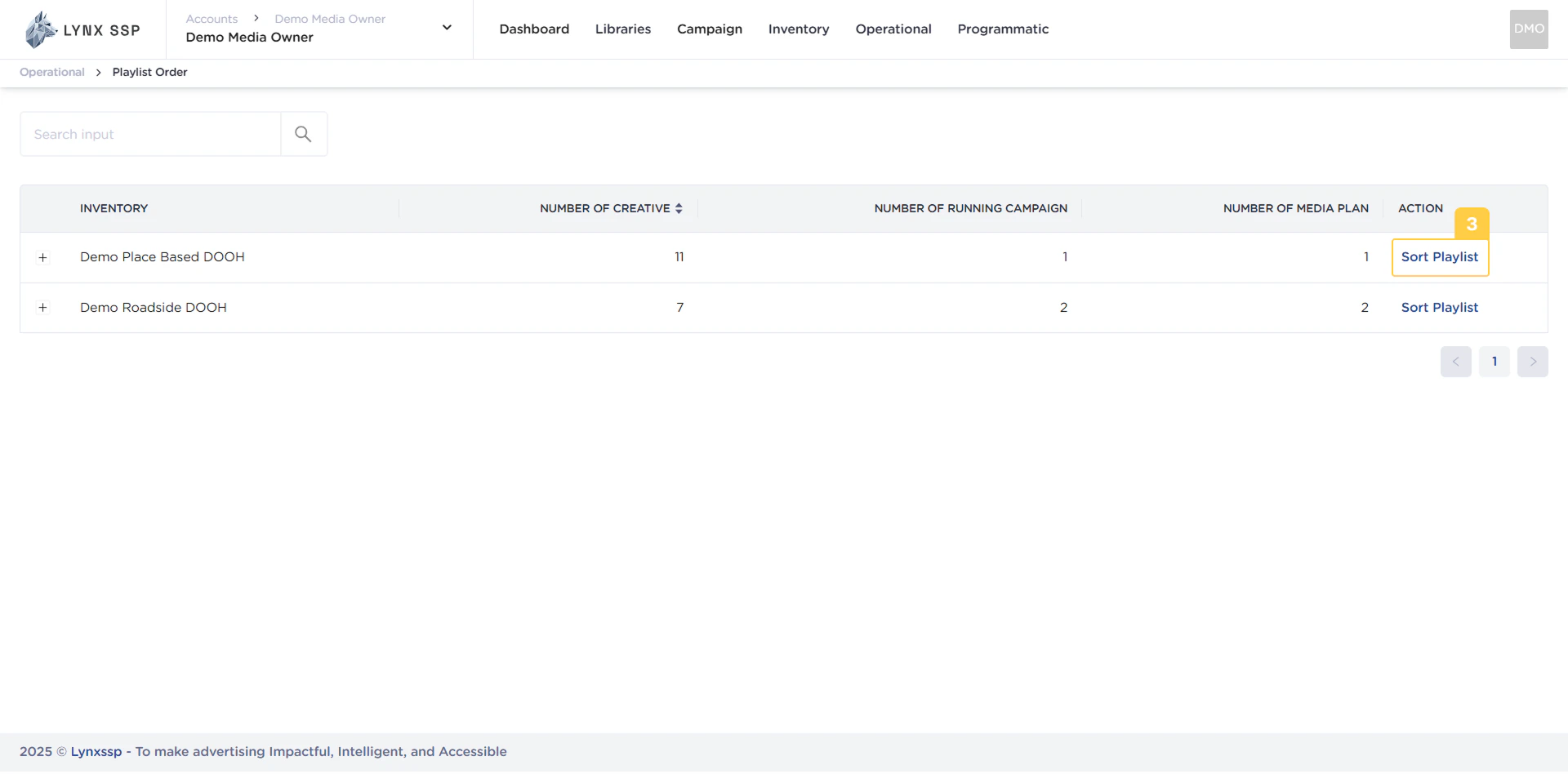
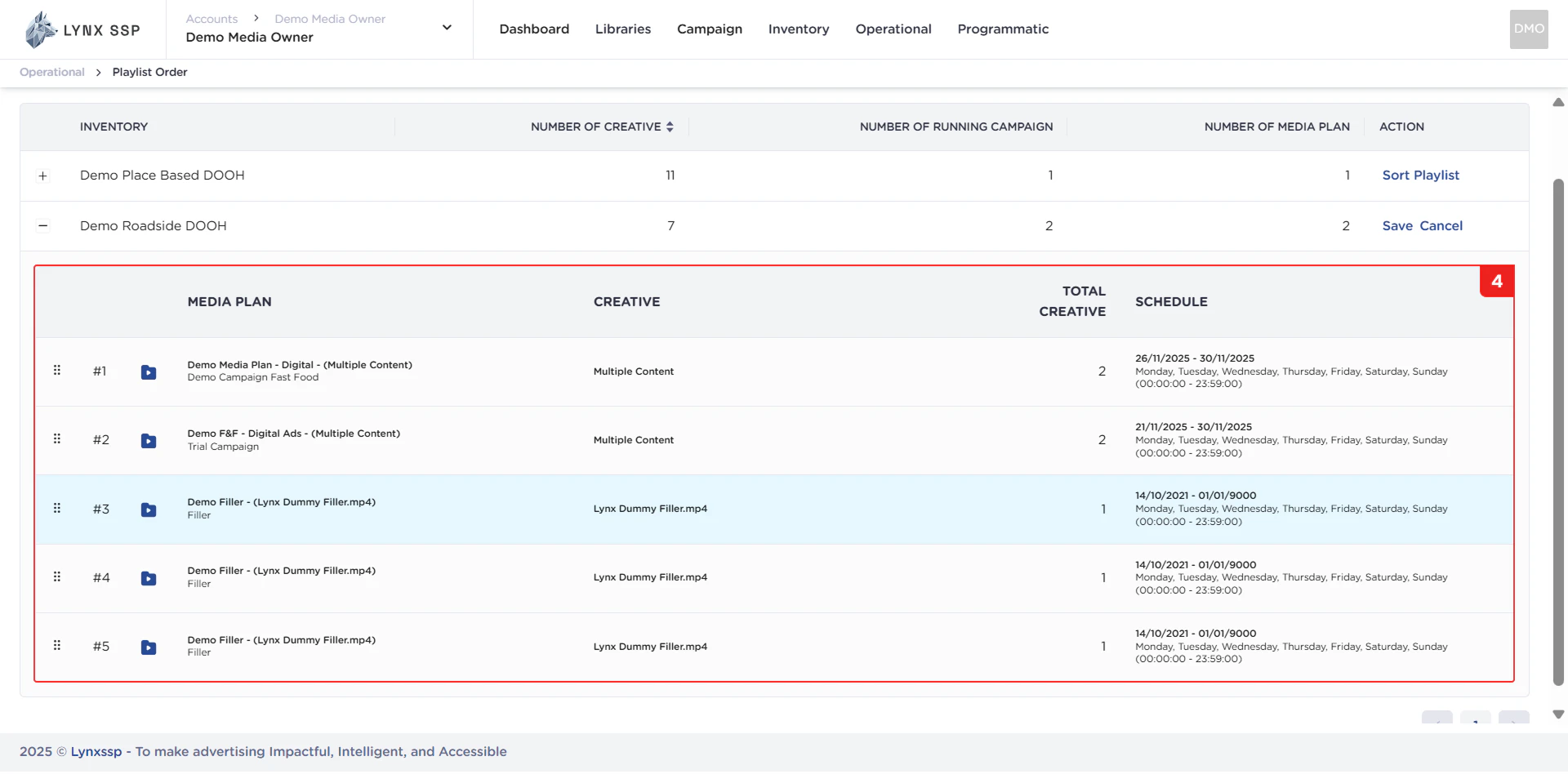
List Creative Content
In this section, you can see all creative content lists in the Inventory. The properties that can be viewed in this table are as follows:- Media Plan Name
- Creative Content
- Total Creative
- Schedule
Save Button
Button to save the changed playlist order.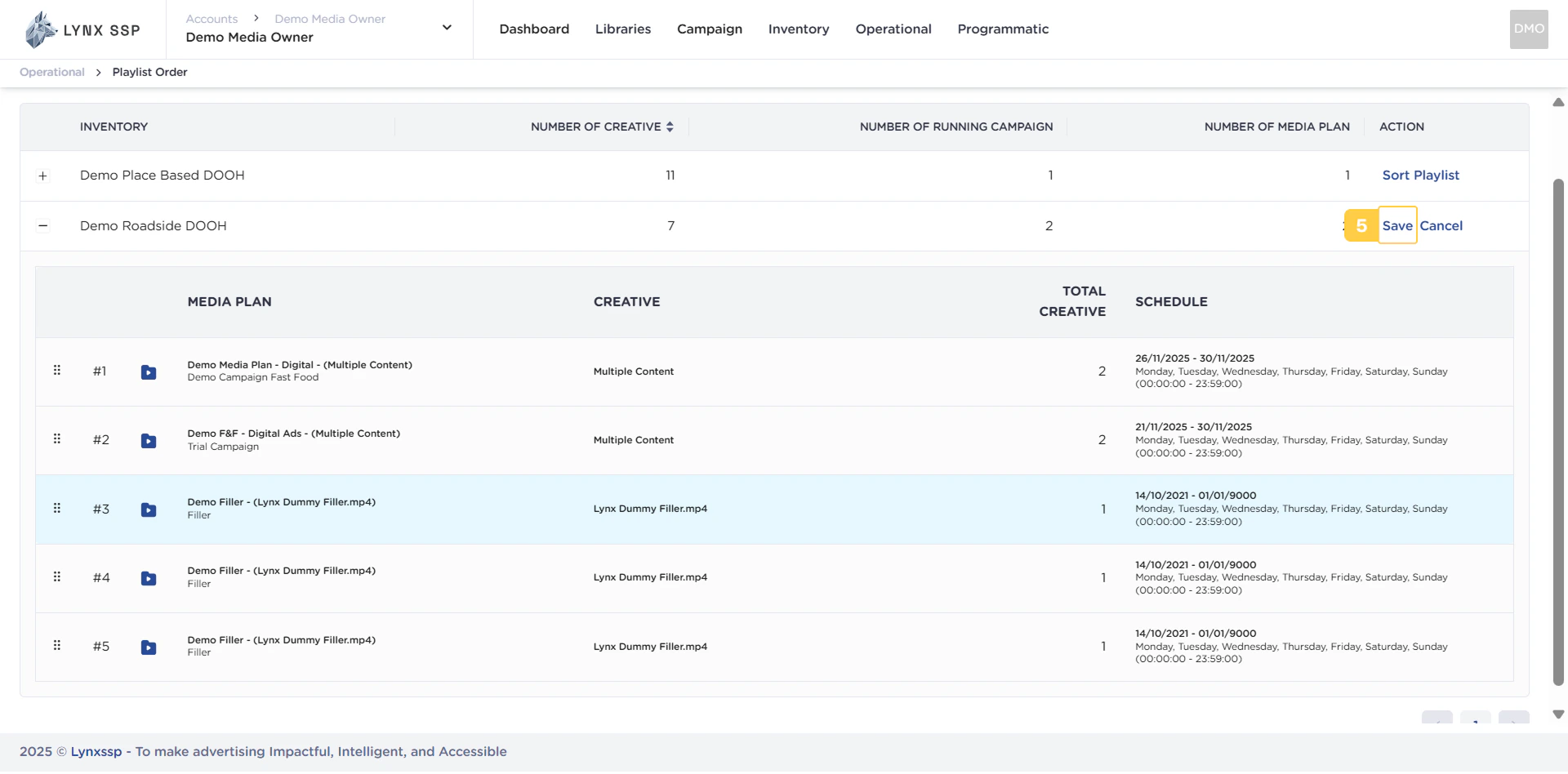
Cancel Button
Button to cancel the changed playlist order.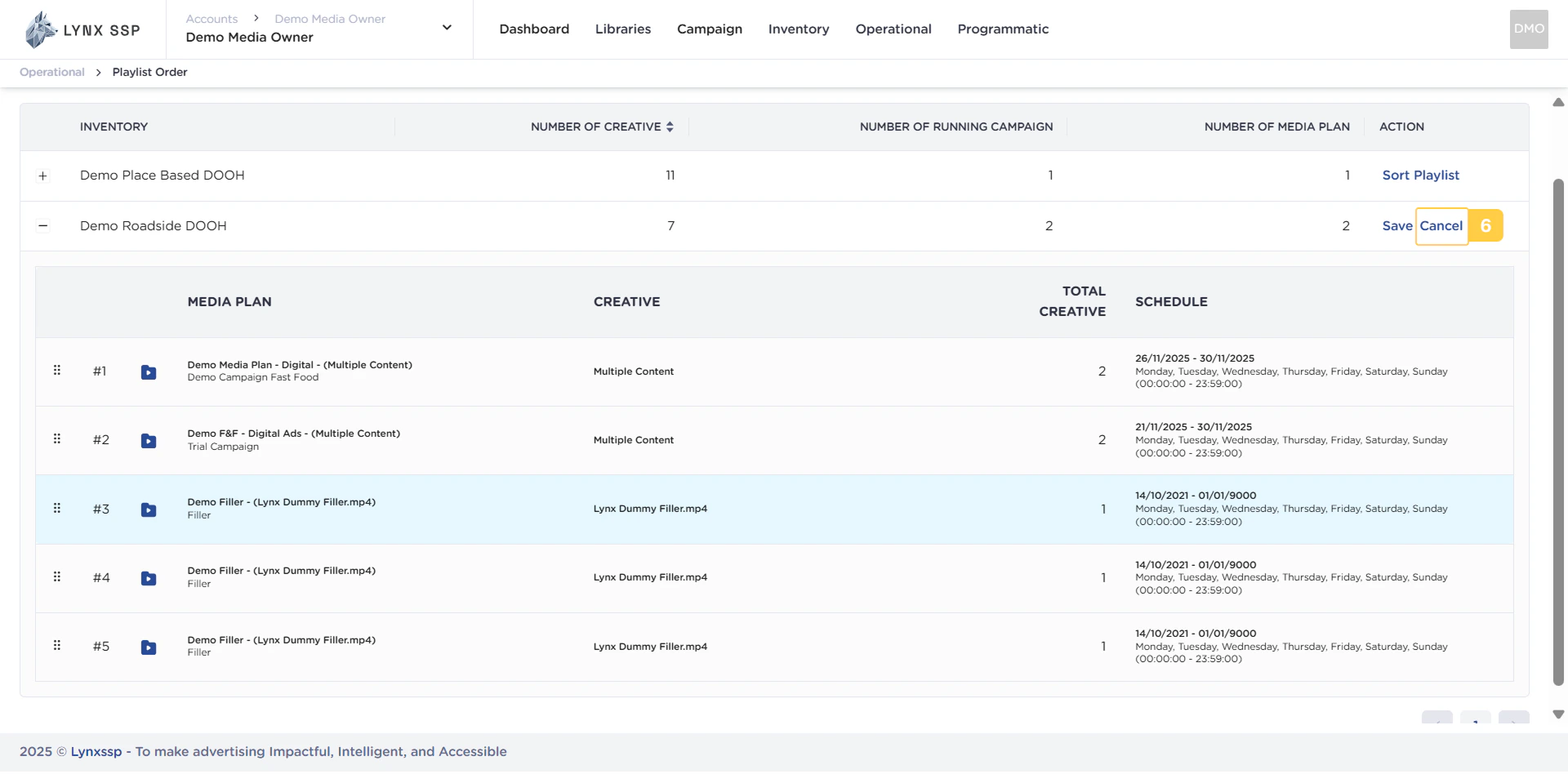
Pagination
The sequential numbers in the image below are navigation points you can use to go to the inventory list page in the next playlist.