This process can be done if the media plan has a “Launch” status or has already been launched (See Launch Media Plan ↗).
If the DOOH (Digital-Out-of-Home) Inventory selected in the media plan is not connected to ScreenApp, you do not need to continue this process.
If you are a Media Owner who uses the Lynx SSP Platform to manage all processes that occur on your ad network, starting from campaign management to the final process of playing creative content on media players installed on your DOOH (Digital-Out-of-Home) Inventory, then you need to understand the process discussed in this section.When one of your DOOH (Digital-Out-of-Home) inventories has been connected to ScreenApp and is being used in a campaign, it is expected that the DOOH (Digital-Out-of-Home) inventory will automatically play creative content from the campaign’s media plan.
Ensure that the media player from your DOOH (Digital-Out-of-Home) Inventory has the ScreenApp application installed on it (See Screen App Installation ↗).
Ensure that the DOOH (Digital-Out-of-Home) Inventory you will use in a campaign is connected to the Screen App (See Screen App Connection ↗).
Here are the steps to add a creative to a playlist:
1
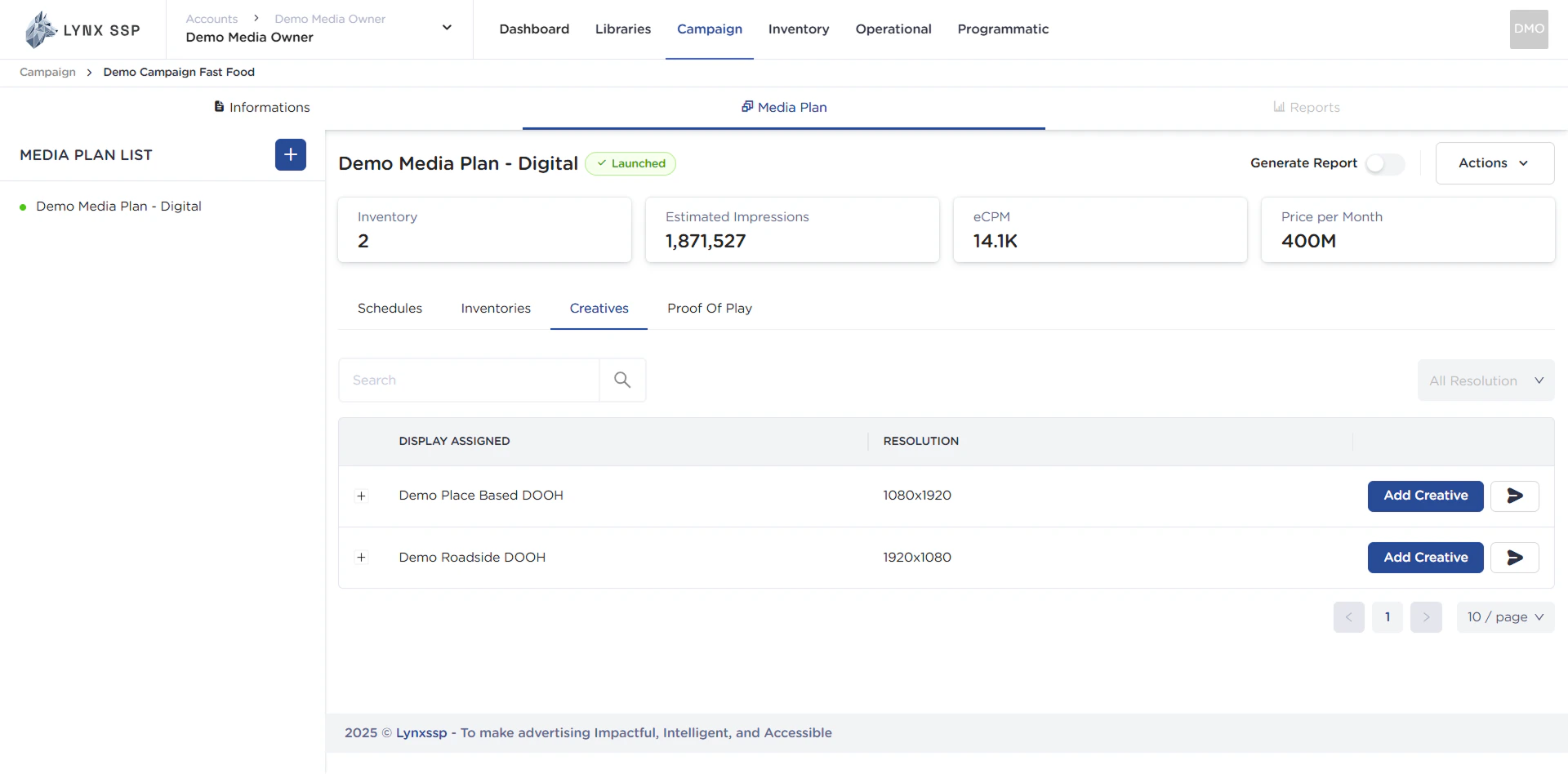
Click the “Creatives” tab in the Media Plan
This will display the Creatives Tab.
2
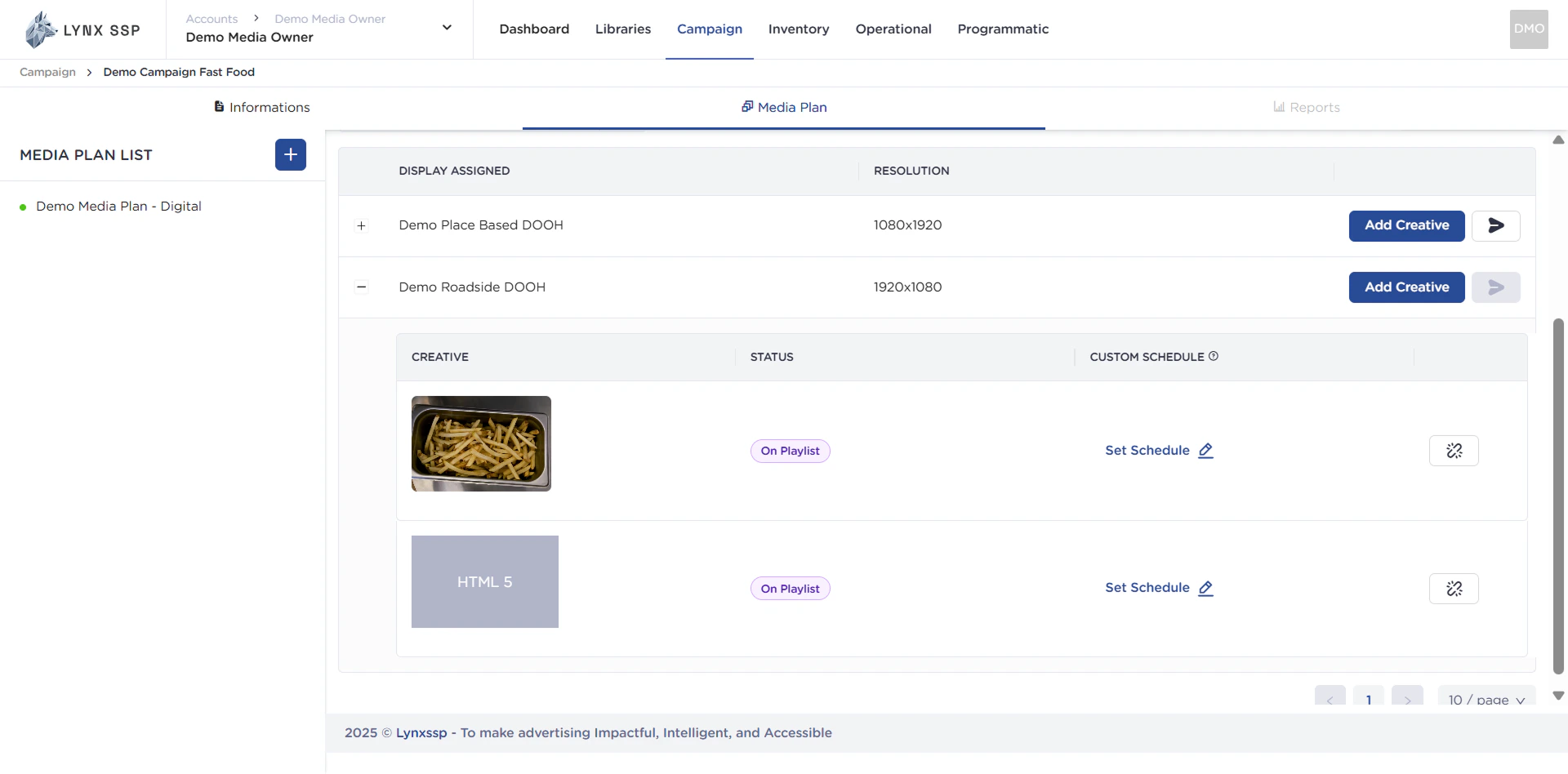
Click the “Sent Creative to Playlist” Button
3
Click the “Send” Button
The creative content has been successfully sent to the playlist and its status has changed from “Draft” to “On Playlist” (See Creative Status ↗) and the creative content is now being displayed on your DOOH (Digital-Out-of-Home) Inventory.
To monitor the creative content from your media plan and campaign, you can view it at (See Playlist & Playlog ↗).