

Accessing Creatives
1
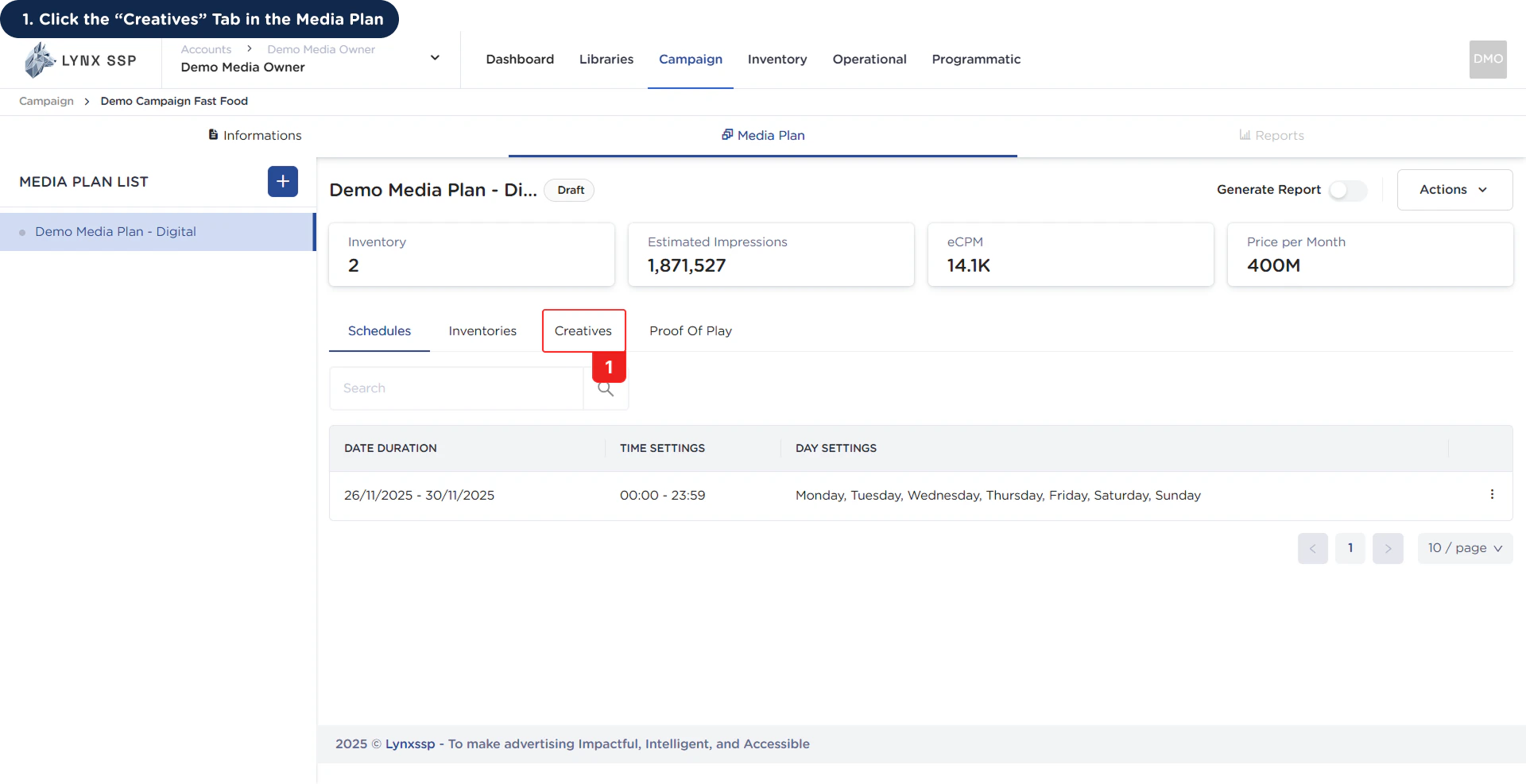
Click the “Creatives” Tab in the Media Plan
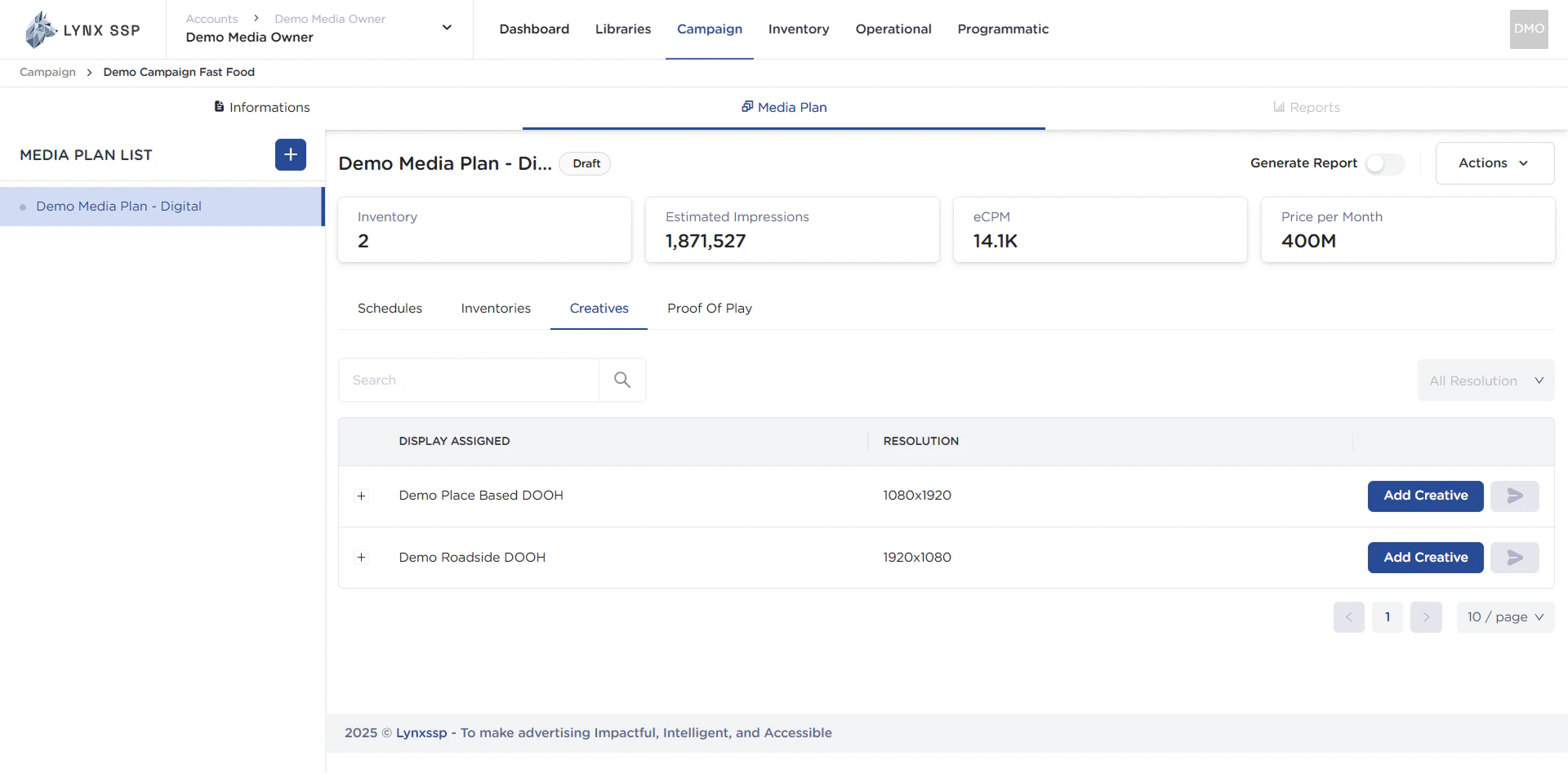
Creatives Overview
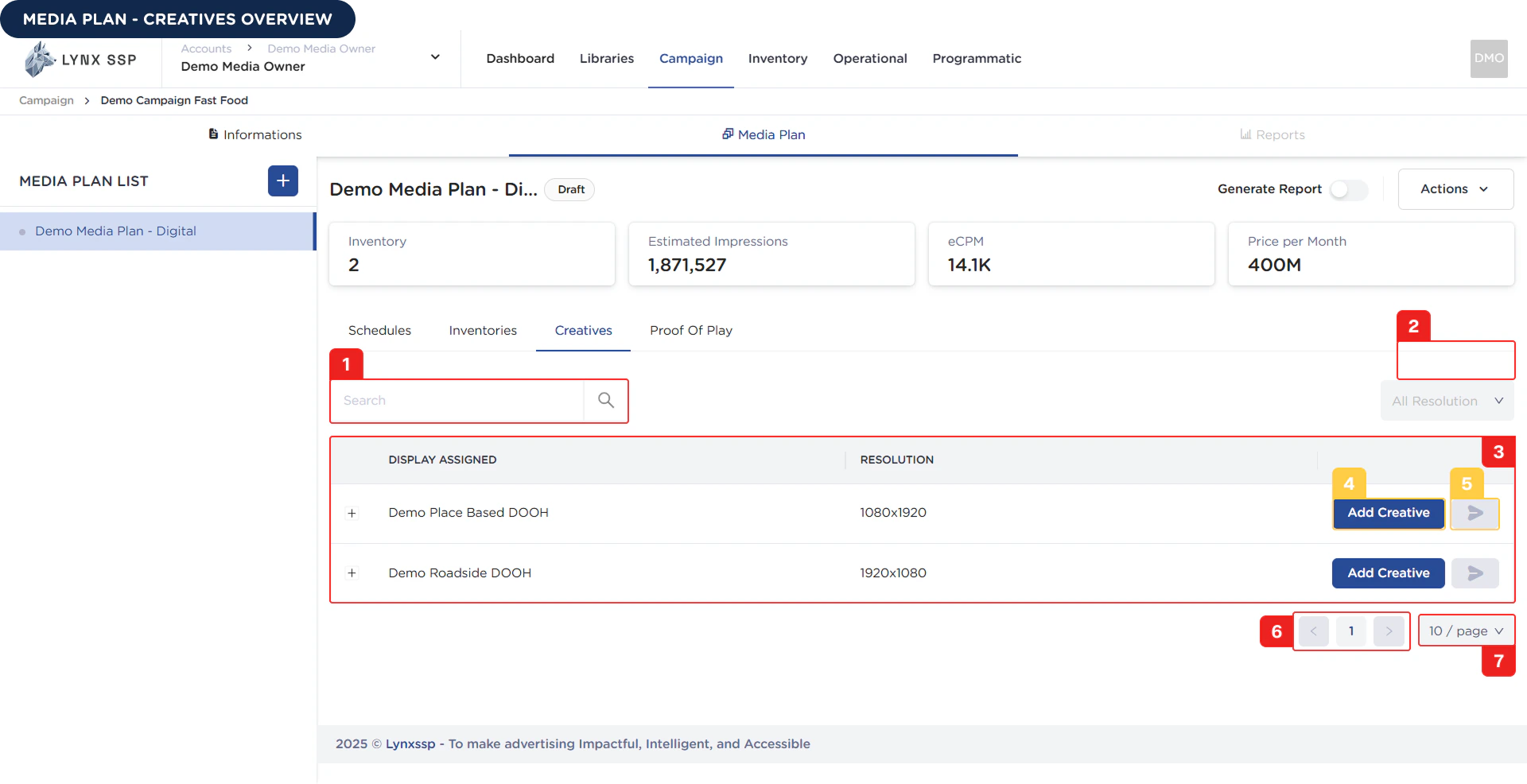
Inventory Search
In this section, you can search for inventory names that have been selected or added to previous media plans..Filter Inventory by Resolution
You can filter inventory based on its resolution.List of Creative Content for each Inventory
The inventory that appears in this table list corresponds to the inventory you have previously selected (See Select Inventory to Media Plan ↗).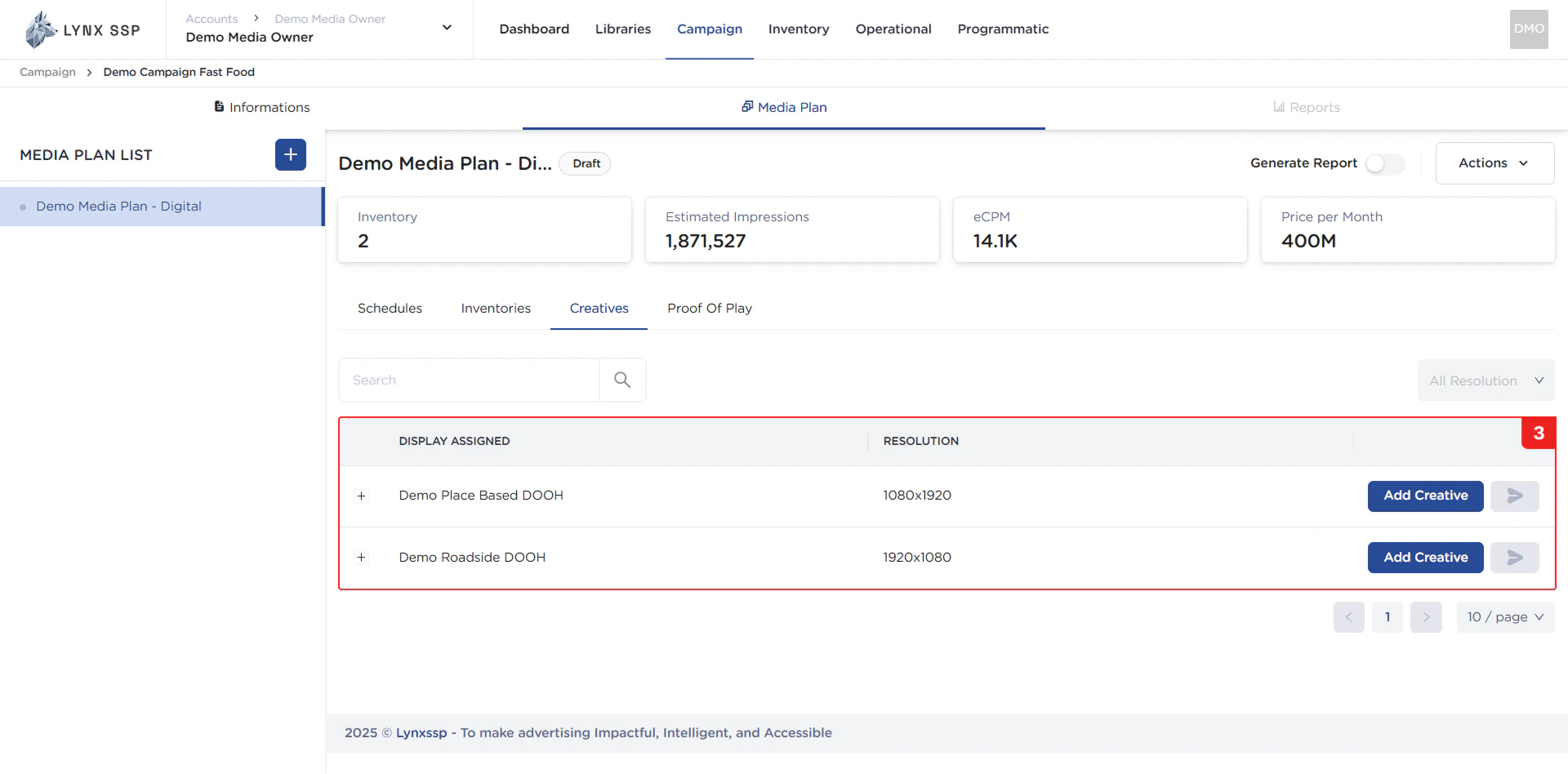
Add Creative Content Button for each Inventory
To add creative content to a media plan inventory, you can click the “Add Creative” button in the inventory table row (See How to Add Creative to Inventory ↗).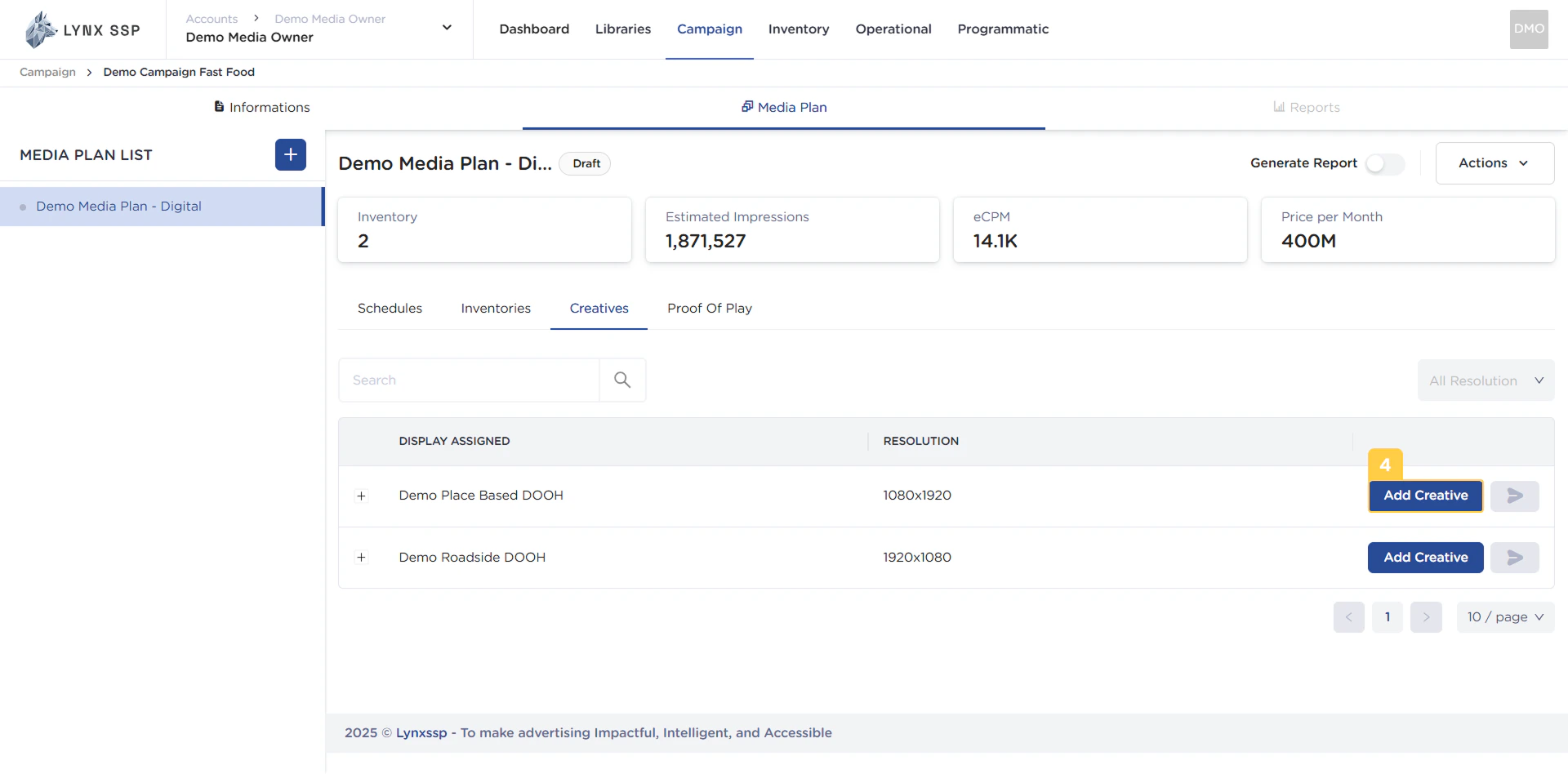
Button to Sent Creative Content to Playlist for each Inventory
This button is used when you want to sent creative content to a media player playlist (See Sent Creative to Playlist ↗).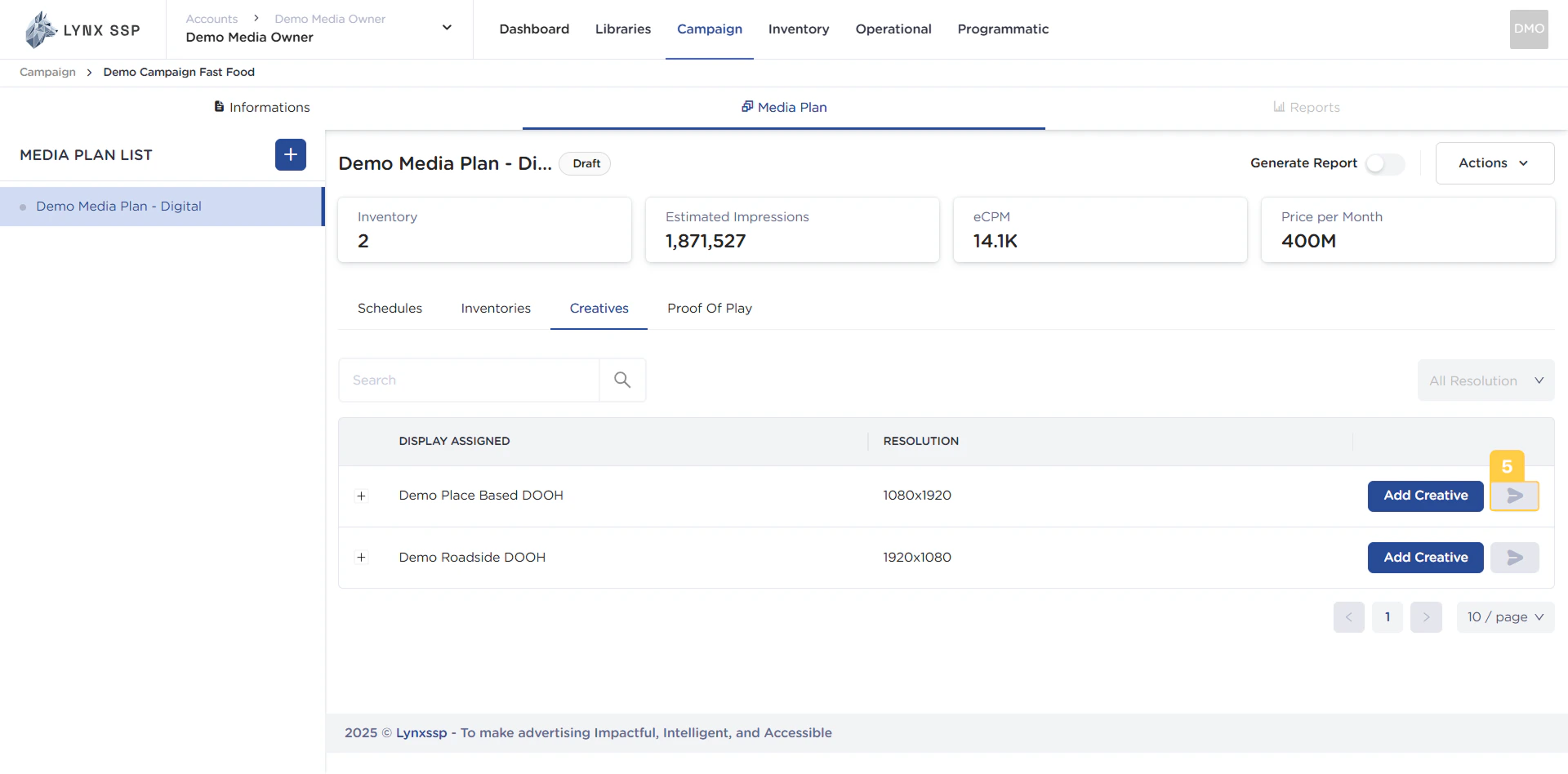
However, if the media plan status is still “Draft”, you cannot activate the button. Therefore, you must change the media plan status to “Launched” or run the media plan first (See Launch Media Plan ↗)
Pagination
The sequential numbers in the image below are navigation points you can use to go to the next page of the list of creatives.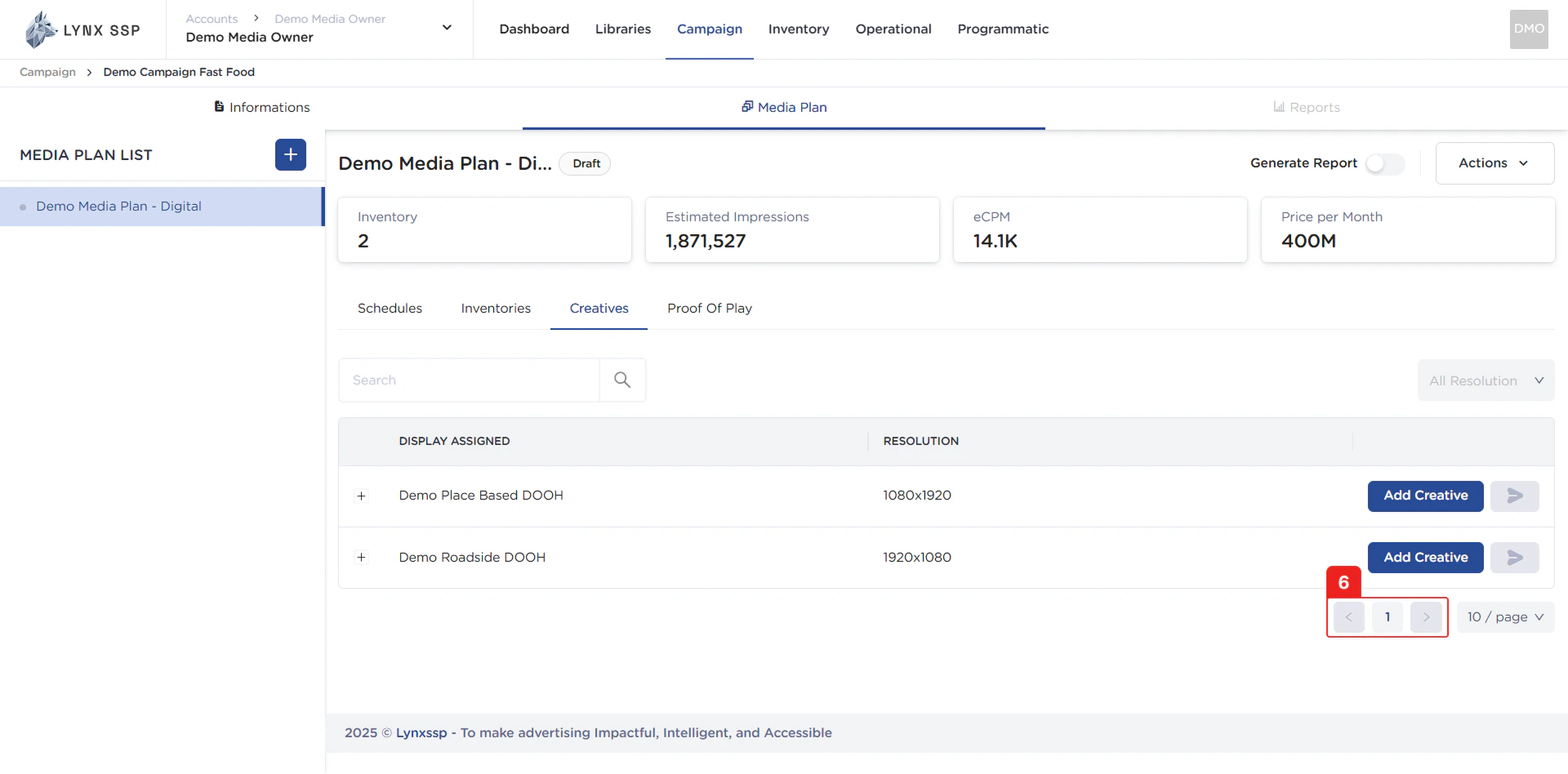
Page List
You can change the list of creatives displayed. By default, there are 10 items, and you can change this to 50 or 100.How to Add Creative to Inventory
When you are choosing creative content for a billboard media plan, there are several types of formats that can be used, some of which are MP4 Video, HTML5 Video, or Vast Tag.via Library
via Library
The library is a place where images or videos that you have previously uploaded will appear in this section (See Media Library ↗).
via Computer
via Computer
If the creative content you want is not yet in the list of media in the Media Library, you can upload image or video media in this section.
All images or videos that you upload via this page will automatically be added to the media library list.
via URL Link
via URL Link
If you have creative content in HTML5 format, you can upload the media via this URL Link tab.
All images or videos that you upload via HTML5 will automatically be added to the media library list.
via Vast Tag
via Vast Tag
If you are going to use creative content with Vast Tag, you can upload the media through this Vast Tag tab.
If you choose Vast Tag media as creative content for an inventory, that inventory can only have 1 creative content. Vast Tag cannot be mixed with other media formats in 1 inventory.