

Before you start
- Open Library > Media Library in your organization.
- Use an eligible MP4 video for variant generation. Images and Raw HTML5 are not transcoded.
- Uploading a creative and generating variants are separate actions. After upload, use the manual Variant action for an eligible MP4 creative and wait for generation to finish before using generated versions.
- Master retains the original file; documented profiles are High 1920 × 1080, Medium 1280 × 720, and Low 854 × 480. Each file has a distinct Creative ID and can be assigned independently through the supported workflow.
Illustrated upload workflow
The supplied section contains six numbered frames. It does not show the manual Variant action, generation progress, or campaign assignment screen. Do not treat the transition from upload completion to the library example as proof that upload automatically creates variants.Frame 1 — Media Library before upload
Open Library, then Media Library. Select Upload Creative to add a file. The table shows Creative ID, filename, Type, Format, Dimension, Size, Uploaded date, and Usage. A downward chevron exposes related renditions; a right-facing chevron indicates a collapsed group.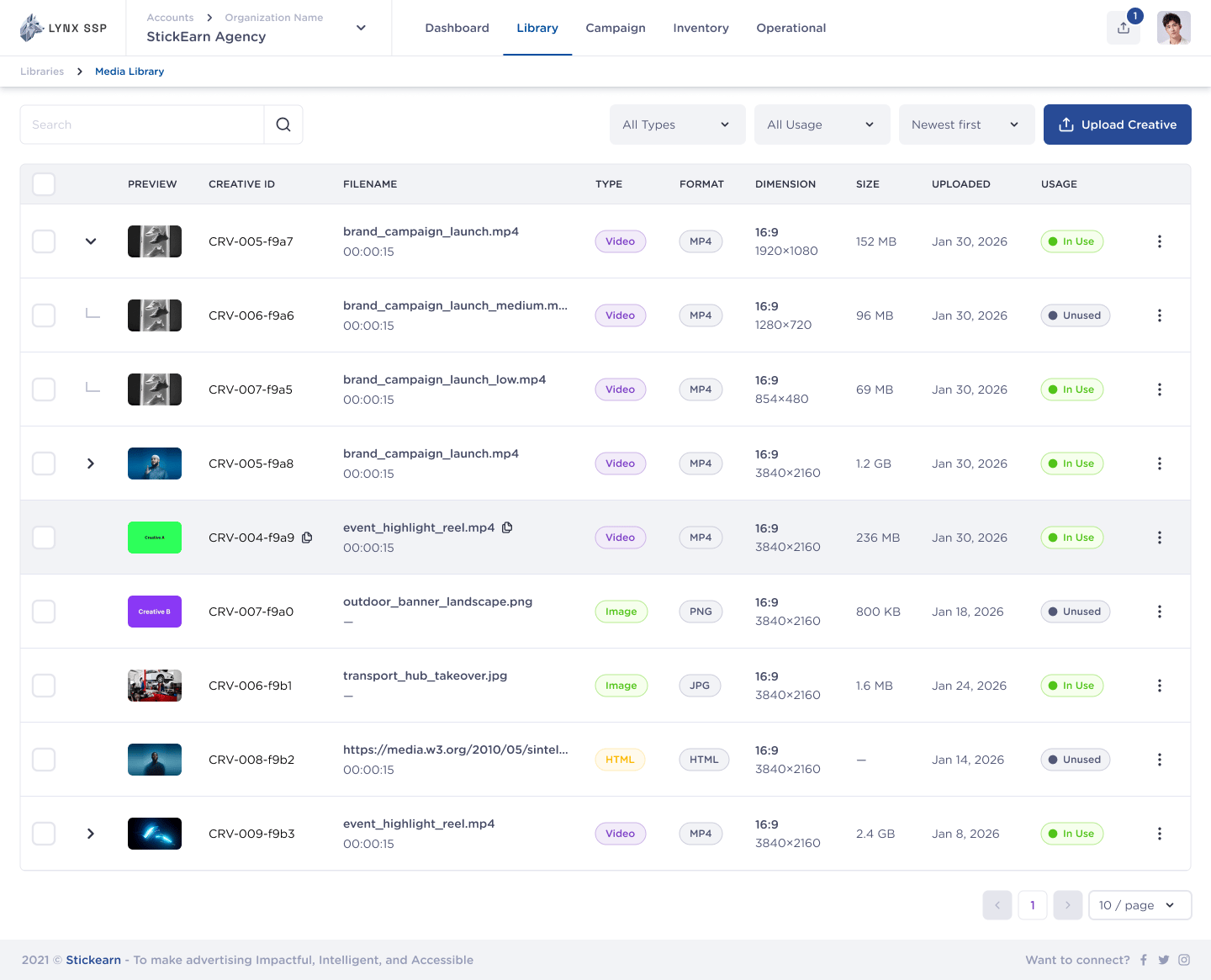
Frame 2 — Add Creative — Computer
The Add Creative dialog opens with Computer selected. Use the Drop files area to provide a local file. URL Link is visible as another tab, but its input form is not shown in this walkthrough.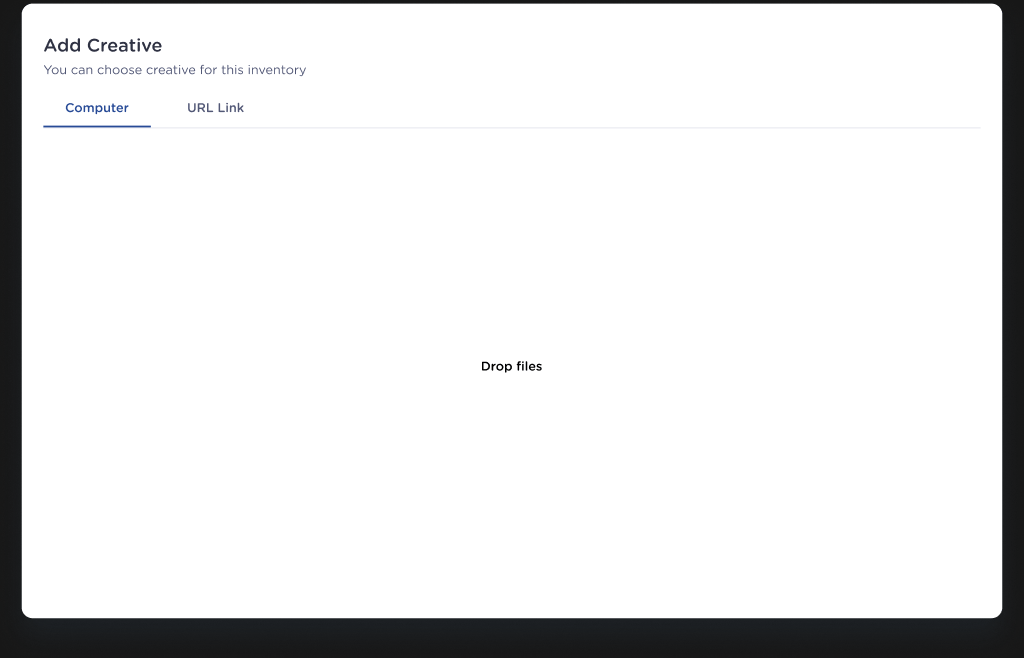
Frame 3 — Choose a local video
Choose your video in the computer file picker, then select Open. This design uses the macOS file picker; the window may look different on another operating system. The selected filename is sample data, not a required naming convention.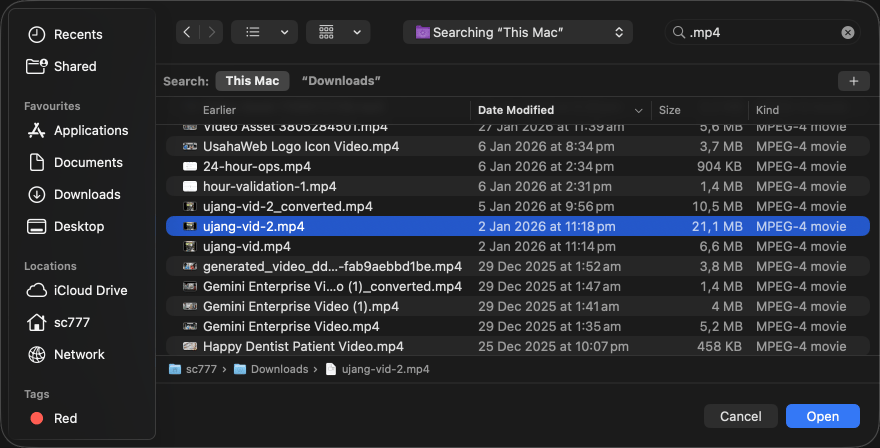
Frame 4 — Track uploads in Upload Manager
Upload Manager tracks each file separately with a progress bar, percentage, and Uploading… status. This example shows two MP4 videos and one JPG image uploading together. The displayed percentages are examples, not processing targets.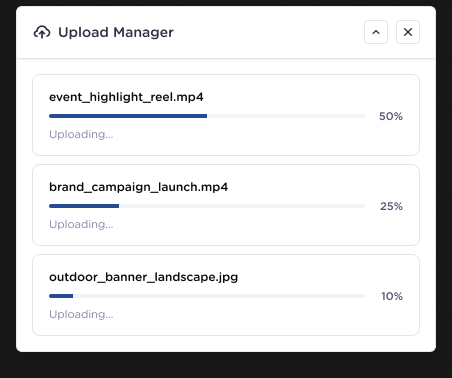
Frame 5 — Confirm upload completion
Each uploaded file shows a green check and Complete. This confirms upload completion only. It does not confirm that video variants have been generated; uploading and the manual Variant action are separate steps.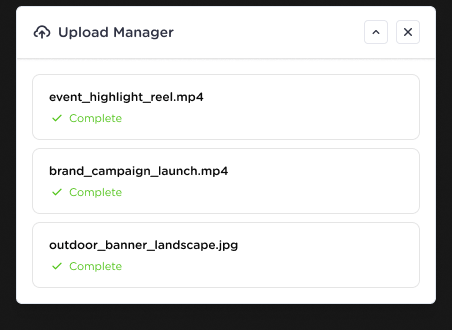
Frame 6 — Review grouped renditions in Media Library
Return to Media Library to review the creative and its related renditions. The displayed group contains a 1920 × 1080 parent and indented 1280 × 720 and 854 × 480 rows, each with its own Creative ID and Usage value. Use the chevron to inspect available renditions and compare Dimension and Size before selecting a version for your inventory.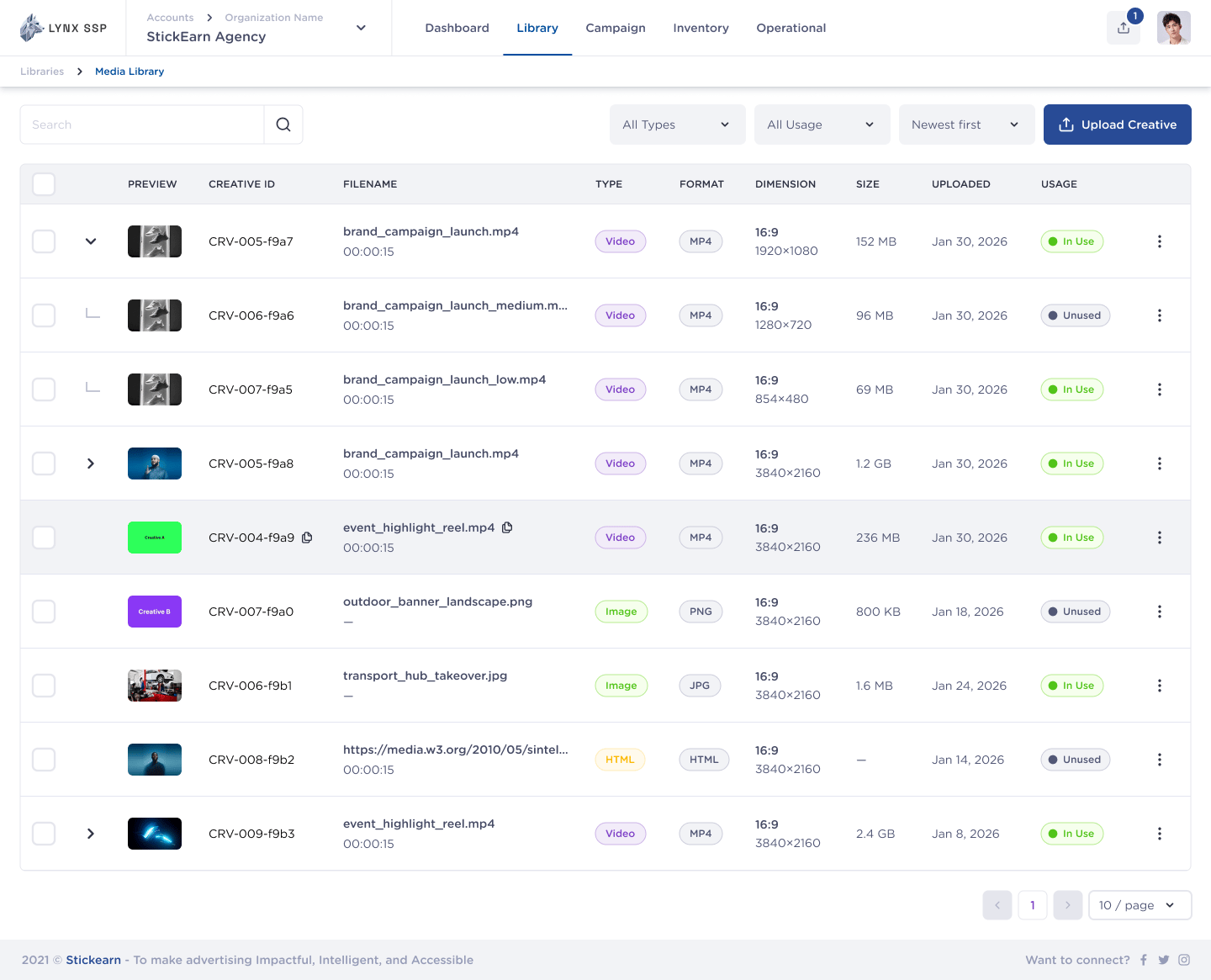
Read the library correctly
- Hierarchy: an expanded parent exposes indented related rendition rows. Other groups may remain collapsed.
- Identity: each shown rendition has its own Creative ID. Related filenames help identify a family but do not replace the ID.
- Usage: In Use and Unused describe each row separately. Upload completion is not a usage or campaign-delivery state.
- Review: compare Dimension, Size, Format, and filename before selecting a creative. Use Search, All Types, All Usage, and Newest first to locate it.
- Scope: tagging, compliance, and analytics are outside this Creative Variants release.